
Shop assistant issues
Why the chat widget might not show at all, why it recommends the wrong products, and what shoppers see when something goes wrong.
Most AI Shop Assistant problems fall into one of three buckets: the widget never appears, it appears but recommends stale or wrong products, or a shopper hits a provider error mid-conversation. This page covers all three, plus what the plugin does with a shopper's data.
Before you start
- The widget needs two things to actually talk to shoppers: Enable Chatbot switched on, and a completed Store Index selected as its profile. Missing either one stops it in a different, specific way, covered below.
- Everything here applies to the storefront-facing widget. For the admin-side settings pages themselves, see Shop assistant setup.
The widget does not show up at all
Check these in order, this is also roughly how often each one turns out to be the cause:
1. Enable Chatbot is off

2. The current page or device is excluded
Check the Placement settings for a page-type or device exclusion that happens to match where you are testing (for example, the widget hidden on mobile, or on the cart/checkout pages).
3. A caching or optimization plugin is serving a stale page
The widget is injected server-side into your theme's footer. A full-page cache can serve a version of the page from before you turned the chatbot on, or a JS/CSS optimizer can strip the inline script that mounts it. Purge your page cache after changing any chatbot setting, and check whether disabling JS minification temporarily brings the widget back.
4. A theme or plugin JavaScript error upstream
Open the browser console (F12) on the storefront. An unrelated script throwing an error before the page finishes loading can block everything that was supposed to initialize after it, including the widget.
5. A theme that defers loading the footer
The widget deliberately mounts at wp_footer, not earlier, specifically so it never grabs the page's first keyboard-Tab stop ahead of your theme's own skip-to-content link. A theme that defers or delays rendering its footer can make the widget appear later than expected, this is expected behavior, not a bug, but it can look like "it's not there" on a slow-loading page.
The widget shows, but needs an index first
If Enable Chatbot is on but no Store Index has ever finished building, the admin page itself tells you before a shopper ever sees a broken widget:
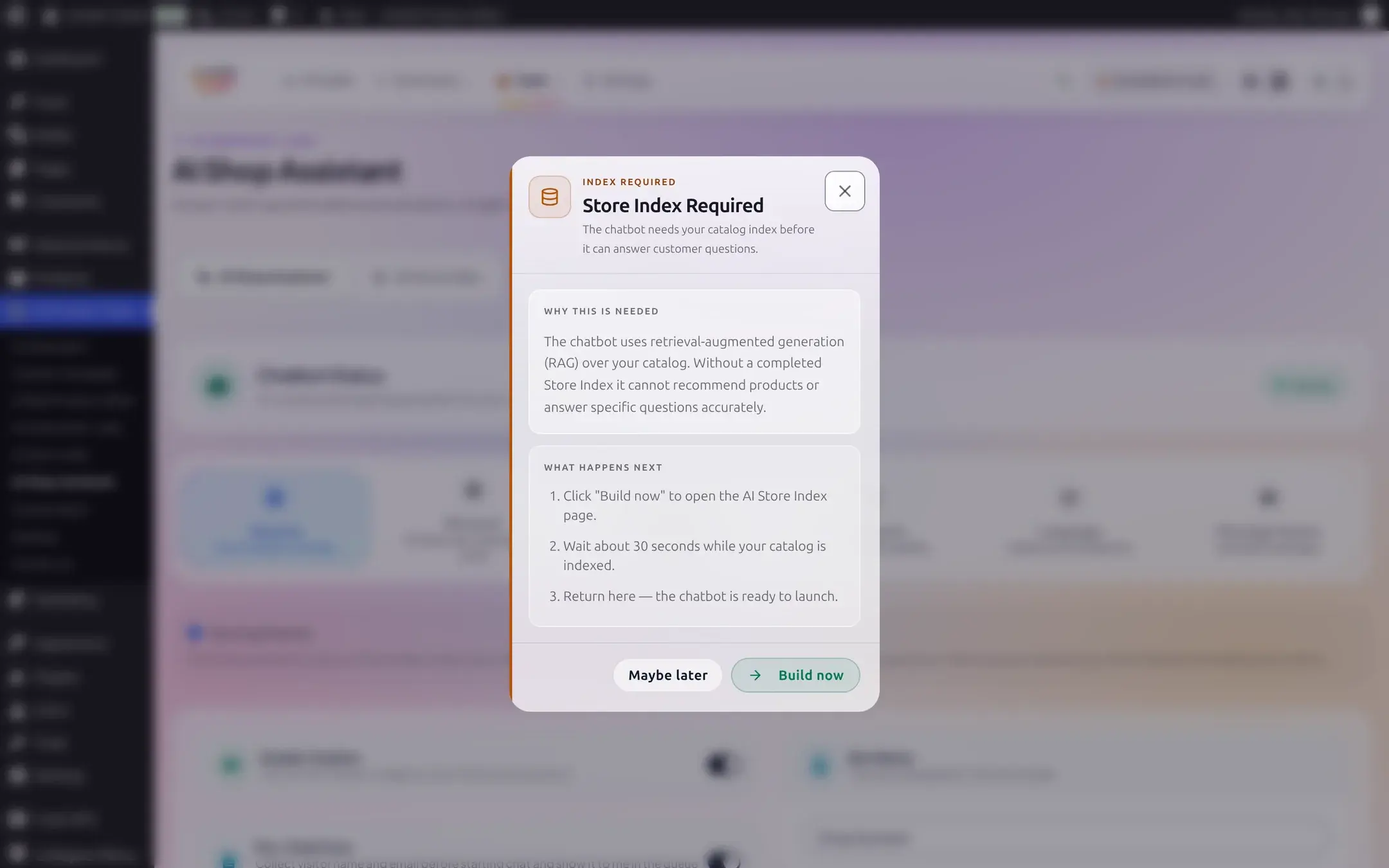
Once a build finishes, pick it under General → Store Index Profile if it is not already selected.
Recommendations are wrong, missing, or stale
If the widget answers but product recommendations look wrong:
- Check the index actually has products in it. Open AI Store Index and confirm Status: Completed with a non-zero product count.
- Check it is the profile the chatbot is actually using. Business plans can filter an index to specific categories or tags, confirm the active profile covers the products you expected to see recommended.
- A product added or changed recently needs a rebuild. The index only reflects what it last indexed; a plain Build only processes new or changed products, use Force Rebuild if you suspect it missed something.
- A product will never appear, regardless of the index, if it is not published, is password-protected, or its catalog visibility is set to "Hidden" or "Search results only". This is intentional and not affected by any index filter setting.
A Store Index build fails, or a scheduled rebuild stops running
Building, rebuilding, or resetting the index can fail with its own specific message instead of a provider error, since none of this involves calling AI:
| You see | Likely fix |
|---|---|
| "The index build failed. Please retry; if the problem persists, reset the index and rebuild." | Retry; reset and rebuild if it keeps happening |
| "The index build is currently locked. Please wait a moment and try again." | Wait about 30 seconds for the lock to clear, then retry |
| "Another index operation is already in progress. Please wait for it to finish before starting a new one." | Wait for the running build or reset to finish |
| "The index settings could not be saved. Please refresh the page and try again." | Reload the page and try again |
| "The on-disk index format is incompatible with this version of the plugin. Please reset the index and rebuild." | Happens after a plugin update changes the index format; reset and rebuild |
| "The on-disk index is corrupted or unreadable. Please reset the index and rebuild." | Reset and rebuild; check your host's disk health and permissions if it keeps recurring |
| "An unexpected error occurred while processing the request. Please try again, and contact support if the problem persists." | A fallback for anything not covered above |
If a build looks stuck rather than failed outright, confirm WP-Cron and Action Scheduler are actually running (see Background jobs), try a smaller Batch Size if your host times out partway through a batch, and check that your host has free disk space and a writable uploads folder.
Scheduled rebuilds Business can also stop running silently if your license or plan changes. Rather than just not running, the index page names the exact reason:
- "The last scheduled index update was skipped because the premium version of AI Product Tools is not installed or active on this site."
- "Your license could not be verified, so the last scheduled index update was skipped. It runs again at the next scheduled time."
- "Your license needs attention on this site, so the last scheduled index update was skipped."
- "The last scheduled index update was skipped because your current plan does not include scheduled updates."
A license or plan downgrade also turns the scheduled-rebuild toggle off automatically; turn it back on once the underlying issue (license, plan, or the Business code itself) is resolved.
What a shopper sees when something fails
A shopper never sees a raw technical error. A key or setup problem (a missing or invalid key, an unsupported model) shows as a short, generic notice with a Retry button rather than any detail about what is actually wrong:

For any other failure (an outage, a rate limit, a safety filter), what the shopper sees depends on your Error Display settings:
| Setting | What the shopper sees |
|---|---|
| Show errors to user: off | A fixed, generic line: their message was received and your team will follow up |
| Show errors to user: on, custom message: on | Your own written message, from Error Display settings |
| Show errors to user: on, custom message: off (default) | The same plain sentence a store owner would see on a generator page (see Provider errors), with anything sensitive redacted |
Every failed conversation, regardless of which of these it shows, is still queued for you to read and follow up on manually. See Unanswered questions.
A message is rejected before AI is ever involved
A few checks run before a provider is called at all, each with its own wording instead of the provider-failure messages above:
| You see | Cause | Fix |
|---|---|---|
| "Too many requests. Please wait a moment before trying again." | This shopper (or their IP address) sent more than the per-minute limit, 10 messages per 60 seconds by default | The shopper waits a moment; this is not exposed as a setting in the UI |
| "The chat service is temporarily unavailable. Please try again shortly." | The rate limit check itself could not run (a database or server hiccup), not a per-shopper block | Check your server's health; this is transient |
| "Message is too long (max 2000 characters)." | The shopper's message is over the 2,000-character limit | The shopper shortens the message; a developer can change the limit with the aipt_chatbot_max_message_length filter |
These are not provider failures and are not affected by your Error Display settings: the wording above is always exactly what a shopper sees.
A different message, for you specifically
"Invalid security token. Please refresh and try again." is not something a shopper can see: the storefront chat endpoint needs no login or security token at all. You see this one yourself, as the store owner, if you try to reply to a queued message or save a chatbot setting from an admin page a caching plugin served stale. Reload the page and try again.
Consent and privacy
Before a new conversation starts, the widget can show a short pre-chat form collecting a name, an email, and the first message, gated behind a consent checkbox:
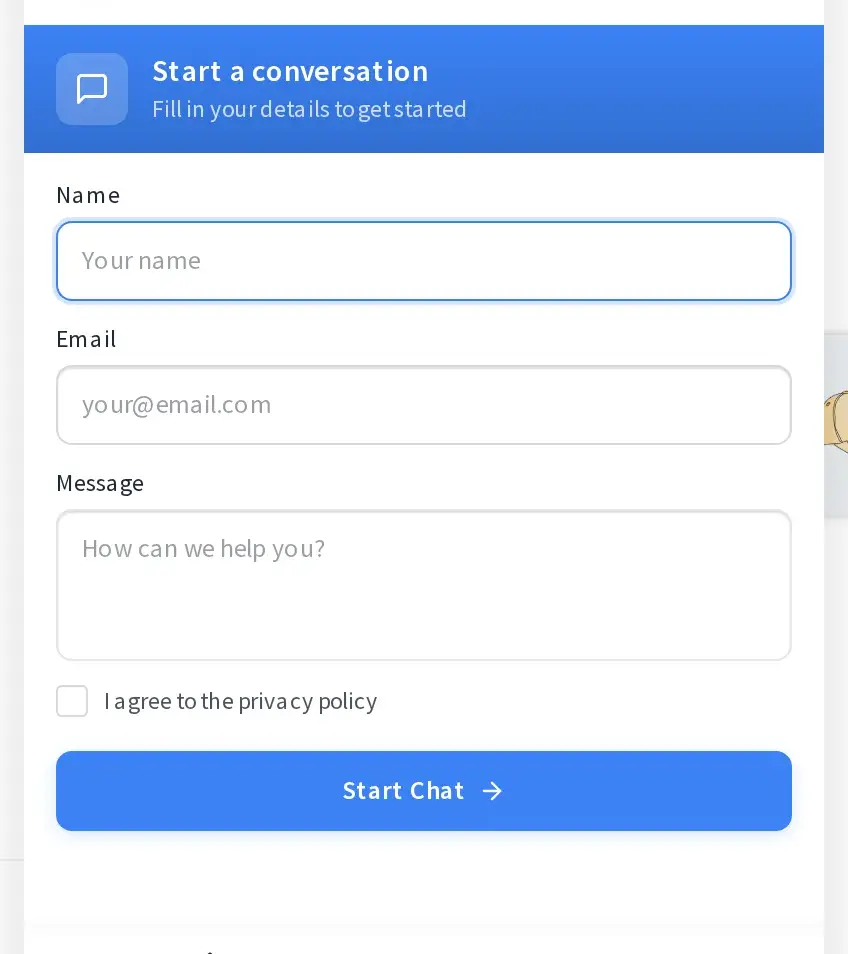
A shopper cannot start a conversation without checking the box. What you collect, and where your privacy policy link points, is configured under Knowledge and contact, see Knowledge and contact for the exact fields and what happens to this data.
Troubleshooting
Shop assistant setup
Enabling the chatbot and the General settings tab.
Store index
Building, rebuilding, and what fields the index covers on each plan.
Unanswered questions
Where a failed or unanswerable conversation ends up for you to review.
Provider errors
The exact messages behind every provider failure, including the chatbot's.