Editing a Content Structure
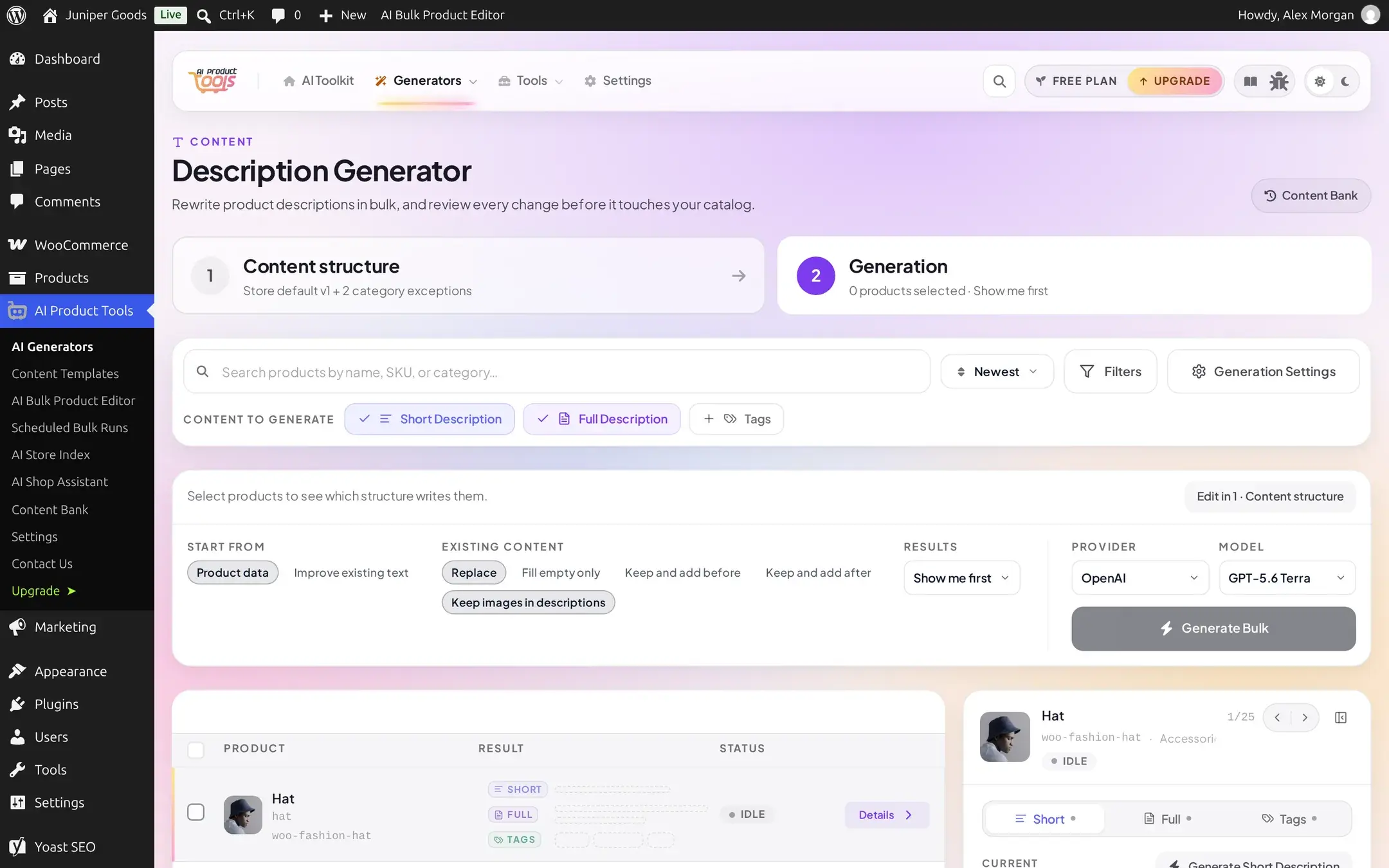
Use the inline 1 Content structure / 2 Generation tabs on any generator page to change what a content type writes, then run it.
Every generator page opens on the same two numbered steps: 1 Content structure (what this content type writes, in your voice, from your sources) and 2 Generation (pick products or terms and run it). This page walks through tab 1 on the Description Generator; the same tabs, in the same order, appear on the other five generator pages, the product screen's AI content panel, the Product Editor's generation drawer, and an Automation job's own step.
Before you start
- Permission to generate content (
manage_woocommerce). Creating a category exception, adding a web source, or deleting a voice additionally needs a settings manager (manage_aipt_settings) on Business. - Nothing you do on tab 1 changes a product until you Save, and even then only Generate or Apply writes real content.
Open the generator
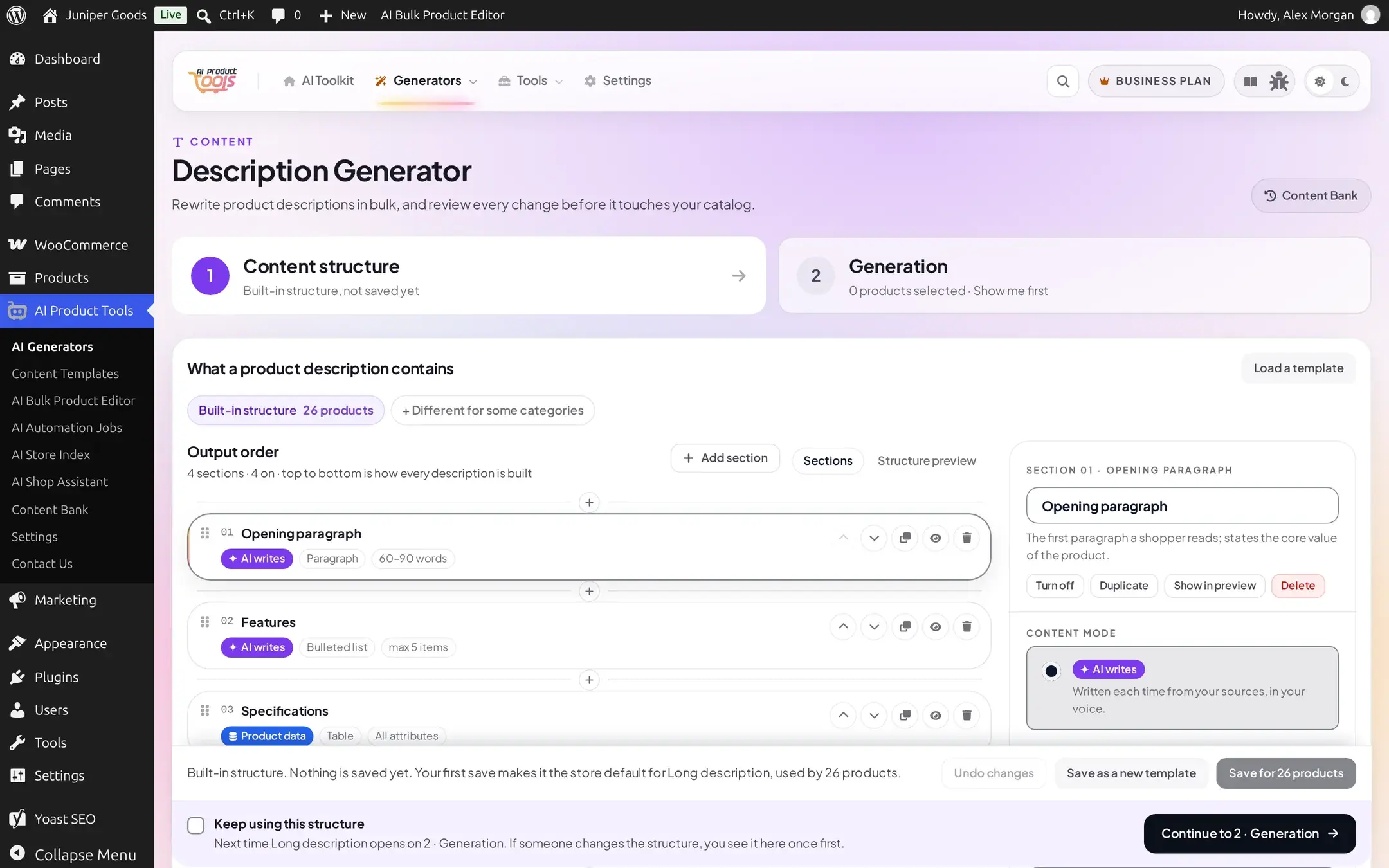
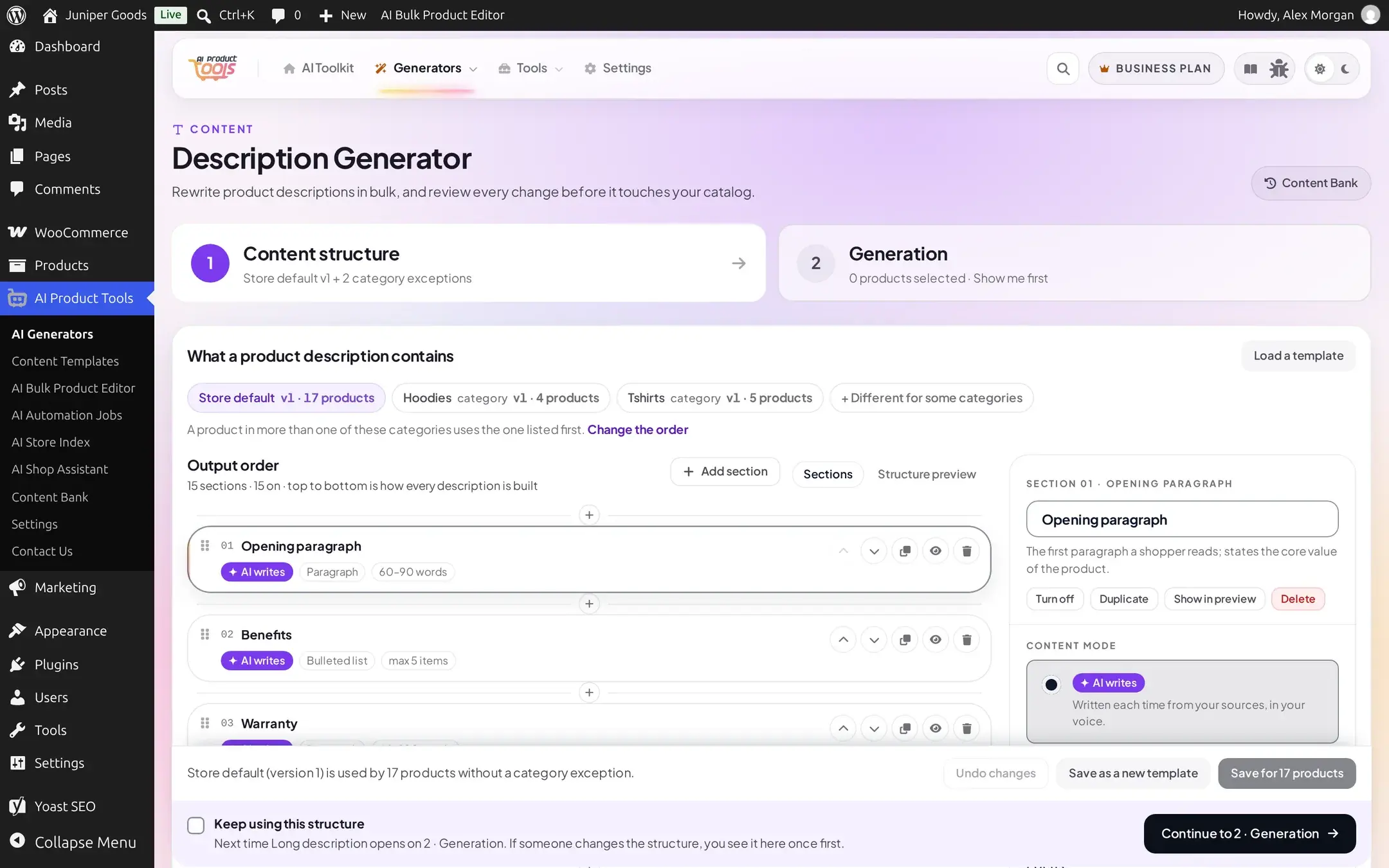
Go to AI Product Tools > AI Generators > Description Generator (or any of the other five). Tab 1 Content structure is open by default. The chip row under the page title shows Built-in structure until your first save, after which it shows your structure's name and version.
Edit the sections
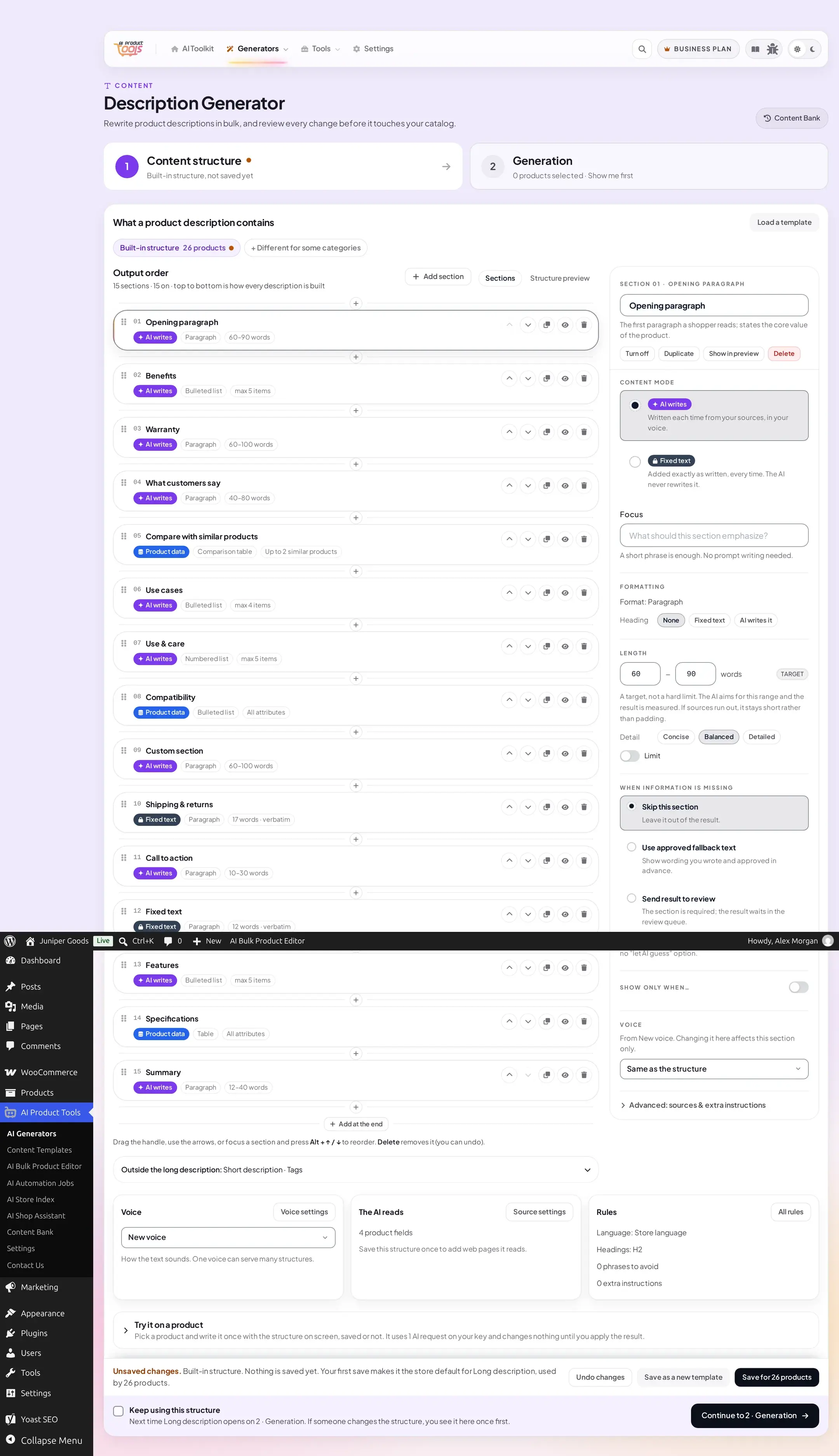
Click + Add section to add a section type from the library, or select any section in the canvas to edit it on the right: its content mode, length, formatting, what happens when information is missing, and an optional condition. See Sections for every section type and option. Drag the handle (or use the arrow buttons, or Alt + ↑/↓ on a focused section) to reorder; Delete removes a section with a 6-second Undo.
Set the voice and check sources and rules
Three cards below the canvas summarize the rest of the structure: Voice (pick a shared voice, or leave No voice), The AI reads (every store-wide source available, toggle one on for this structure), and Rules (language, heading level, banned phrases, additional instructions). Click Voice settings, Source settings or All rules to open the full editor for that part inline. See Voices and sources and, for Business instructions and raw prompts, Custom instructions.
Try it before you save
Open Try it on a product, pick a real product, and run it once with whatever is on screen, saved or not. It uses one AI request on your own key and never changes the product until you choose to apply the result. Use this to sanity-check a section before committing to it.
Save
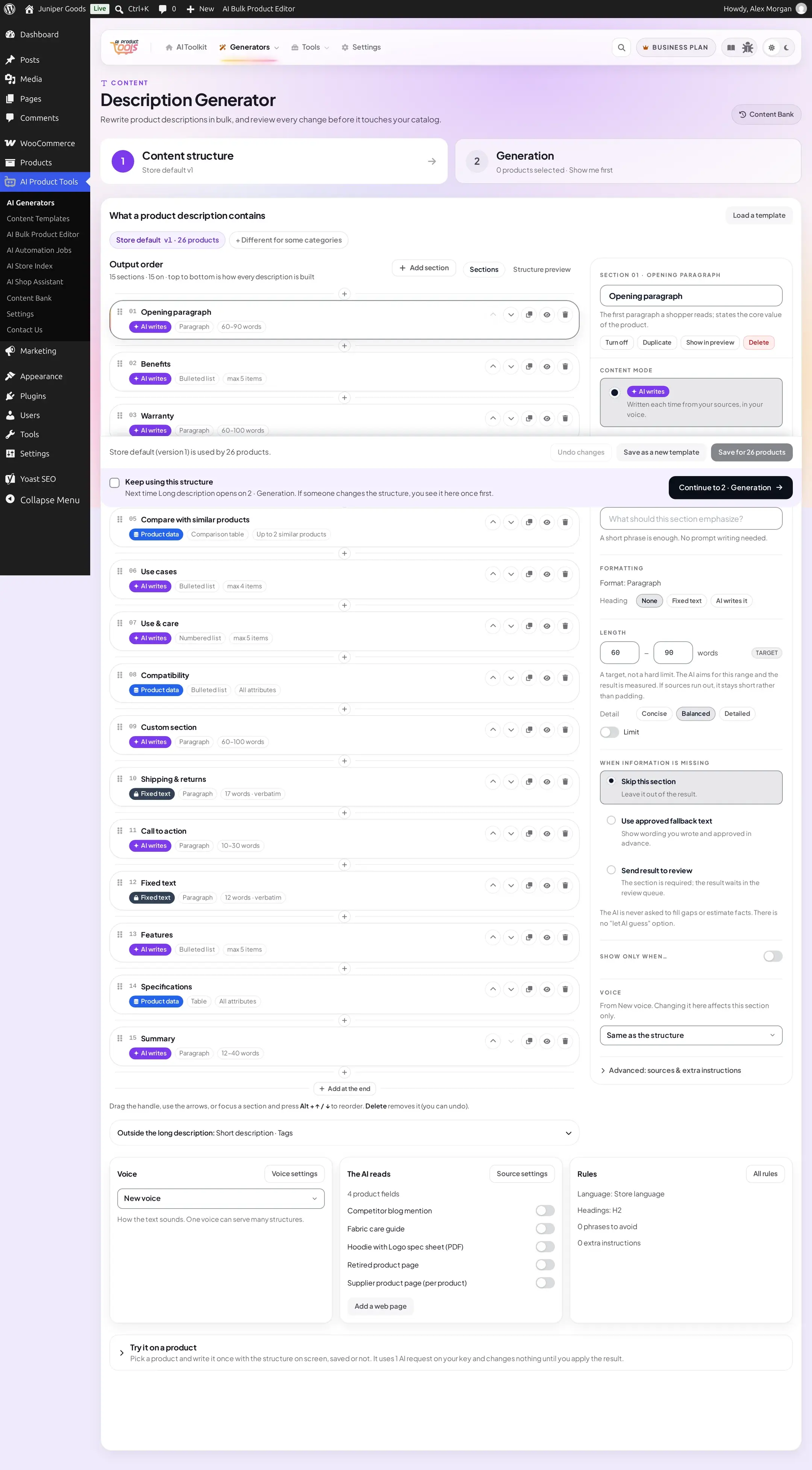
Save as a new template keeps the on-screen structure under its own name in Content Templates without assigning it anywhere. Save for N products (the label always shows the real count) makes it your store's default for this content type; your very first save also creates the structure record itself. A banner above the save bar explains which of these you are about to do.
Continue to Generation
Tick Keep using this structure if you want this generator to open on tab 2 next time (you still see a one-time notice if someone else changes the structure before your next visit). Click Continue to 2 · Generation to select products and run the generator; see How bulk generation works for the run options, review and apply.
The pre-flight check on tab 2
Once you reach 2 Generation, a "Written with" chip row shows which structure governs your current selection, with an Edit in 1 · Content structure shortcut. Selecting products runs a free, AI-free check against the current structure and reports how many of the selected items do not match it yet, for example because they were generated by an older version or have never been generated at all.
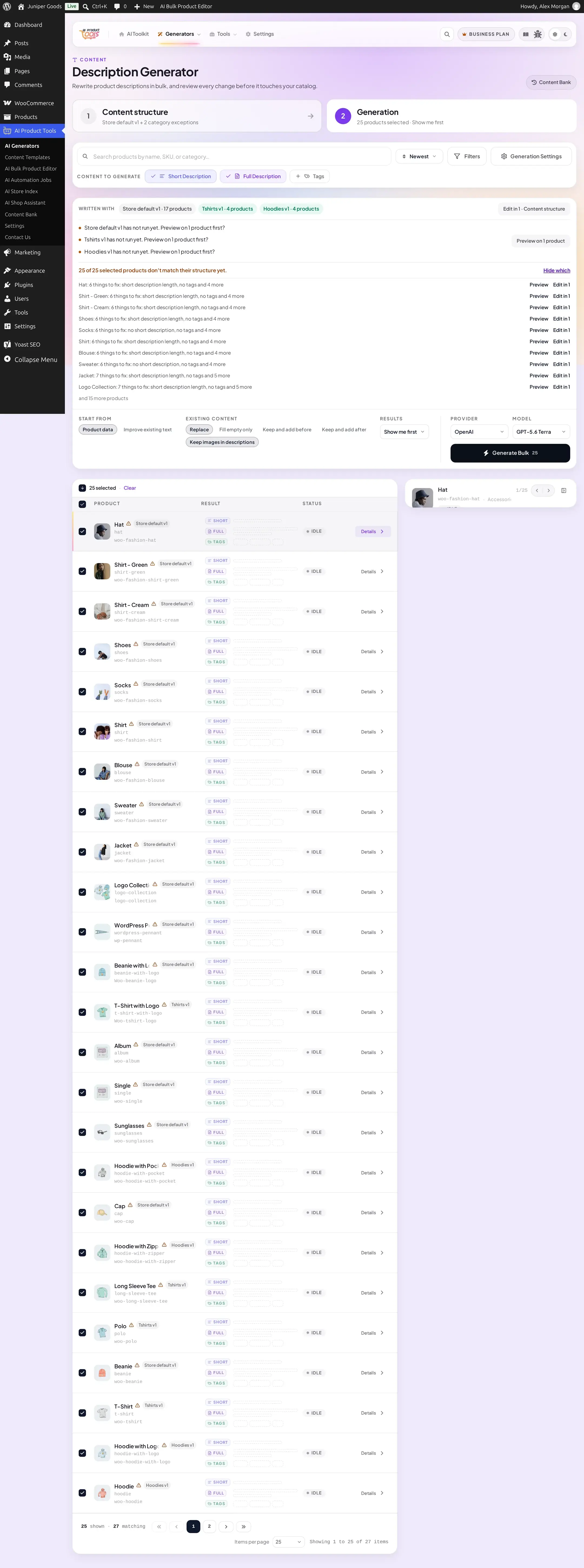
If the governing structure changed since it last actually wrote the selection, tab 2 shows a line such as {structure} changed since its last run (version {old} to {new}). with a Preview on 1 product shortcut, so you can see the effect before running the whole batch. A structure edit never rewrites past content by itself; this notice only appears the next time you select products that were written by an older version.
Giving some categories a different structure (Business)
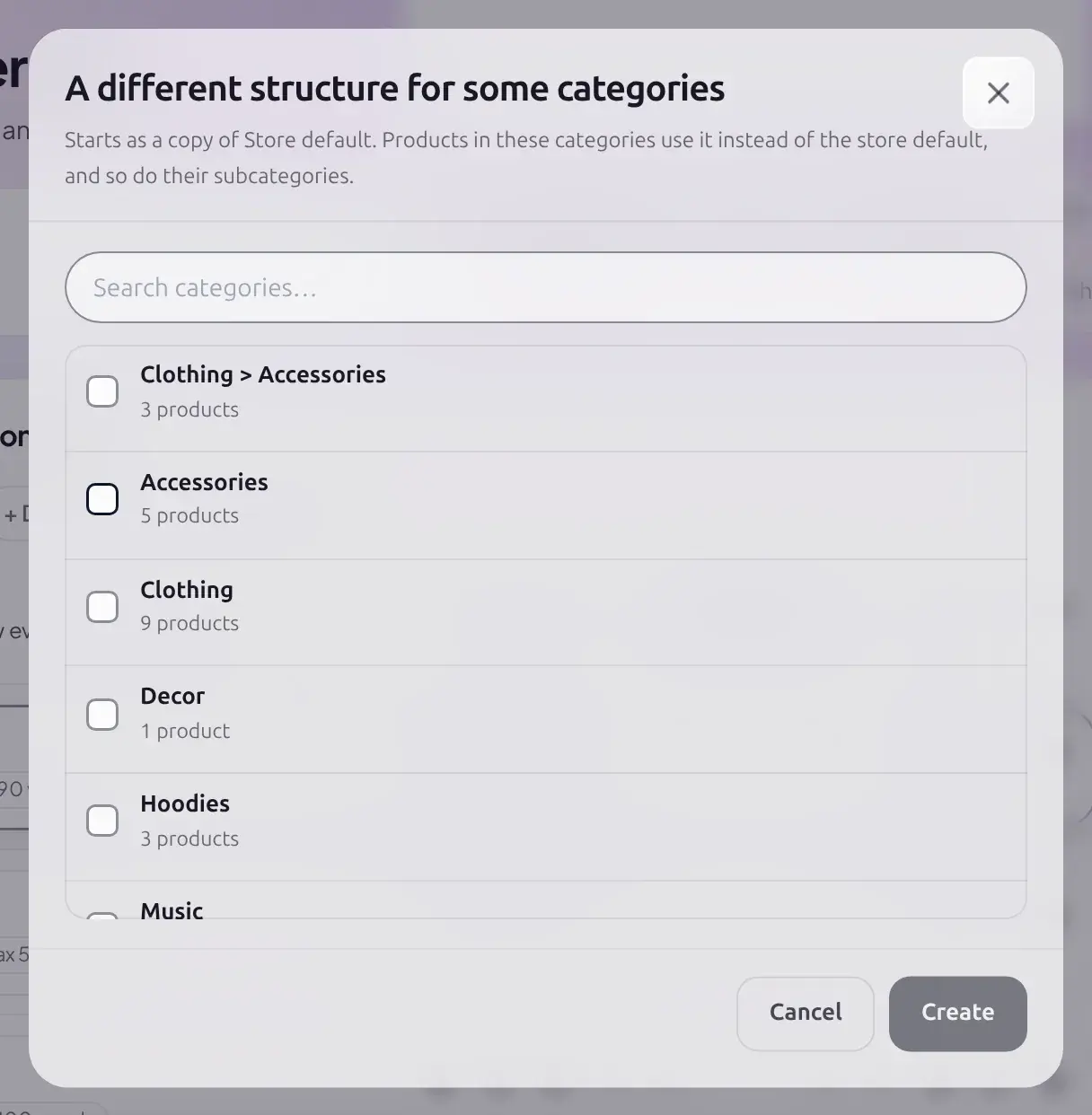
Business A product generator's store default can have ordered category exceptions: a different structure for specific categories, each starting as a copy of whichever structure you had on screen.
Create the exception
Click + Different for some categories, pick up to 50 categories (search narrows the list; a category already claimed by another exception cannot be picked again), and Create.
Edit and save the exception
The new chip appears next to the store default, labelled with its category and version. Select it to edit its sections, voice, sources and rules independently, then Save.
Reorder exceptions
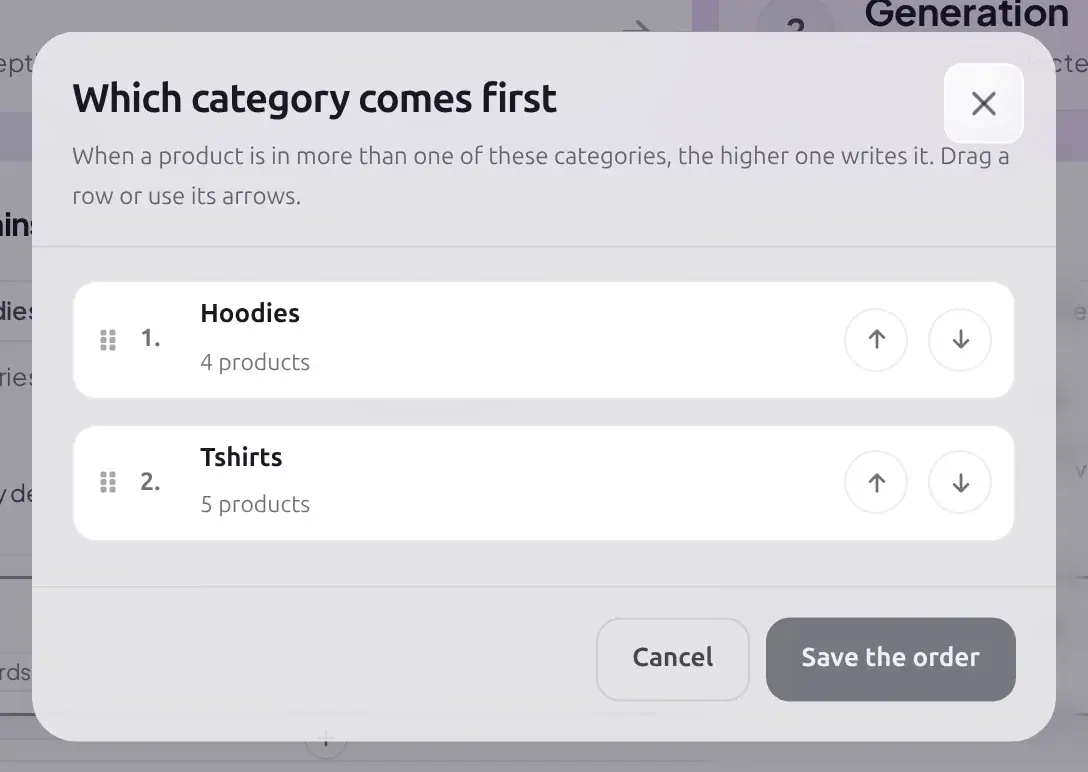
Once there are two or more, Change the order opens a dialog where you drag the handle or use the arrow buttons, then Save the order.
For Category descriptions, the same idea has one slot instead of ordered exceptions: + Different for tags gives Product tags their own structure, separate from the one every category uses.

When another teammate changes the structure
If a different user saves, adds, removes or reorders a slot since you last continued to tab 2, tab 1 opens once the next time you visit, with a one-time amber notice reading "The structure changed since you last used it.", a bullet per change, and "Check it, then continue to Generation." Your own saves never trigger this for you.
Free vs Business
| Capability | Free | Business |
|---|---|---|
| Category exceptions | Not available | Ordered exceptions per product generator |
| Product tags structure (Category descriptions) | Not available | One separate structure for tags |
A saved exception or tags structure from a plan you no longer have stays fully visible and editable; its chip shows a Business badge and the note "Not applied on the Free plan. The store default writes these products instead." It starts applying again the moment you upgrade, with nothing to redo.