
Voices and Sources
Shared tone, audience and writing rules any structure can reuse, and the reference facts a structure is allowed to cite.
A voice and a source are both store-wide, shared records, not copies that live inside one structure. Save a voice once and every structure, for every content type, can use it; add a source once and it is available to every structure the moment you turn it on for that structure. Manage both as libraries from AI Product Tools > Content Templates > Voices and > Sources, or edit them inline from any structure's Voice settings and Source settings links.
Before you start
- Permission to generate content (
manage_woocommerce) to create, edit and duplicate voices, and to turn a source on or off for a structure. - A settings manager (
manage_aipt_settings) to add, refresh or delete a web page source, or to delete a voice.
Voices
A voice describes how your brand communicates: who you are, who you write for, how you sound, and the words you do and don't use. It never decides what a piece of content contains; that is the structure's job.
Create a voice
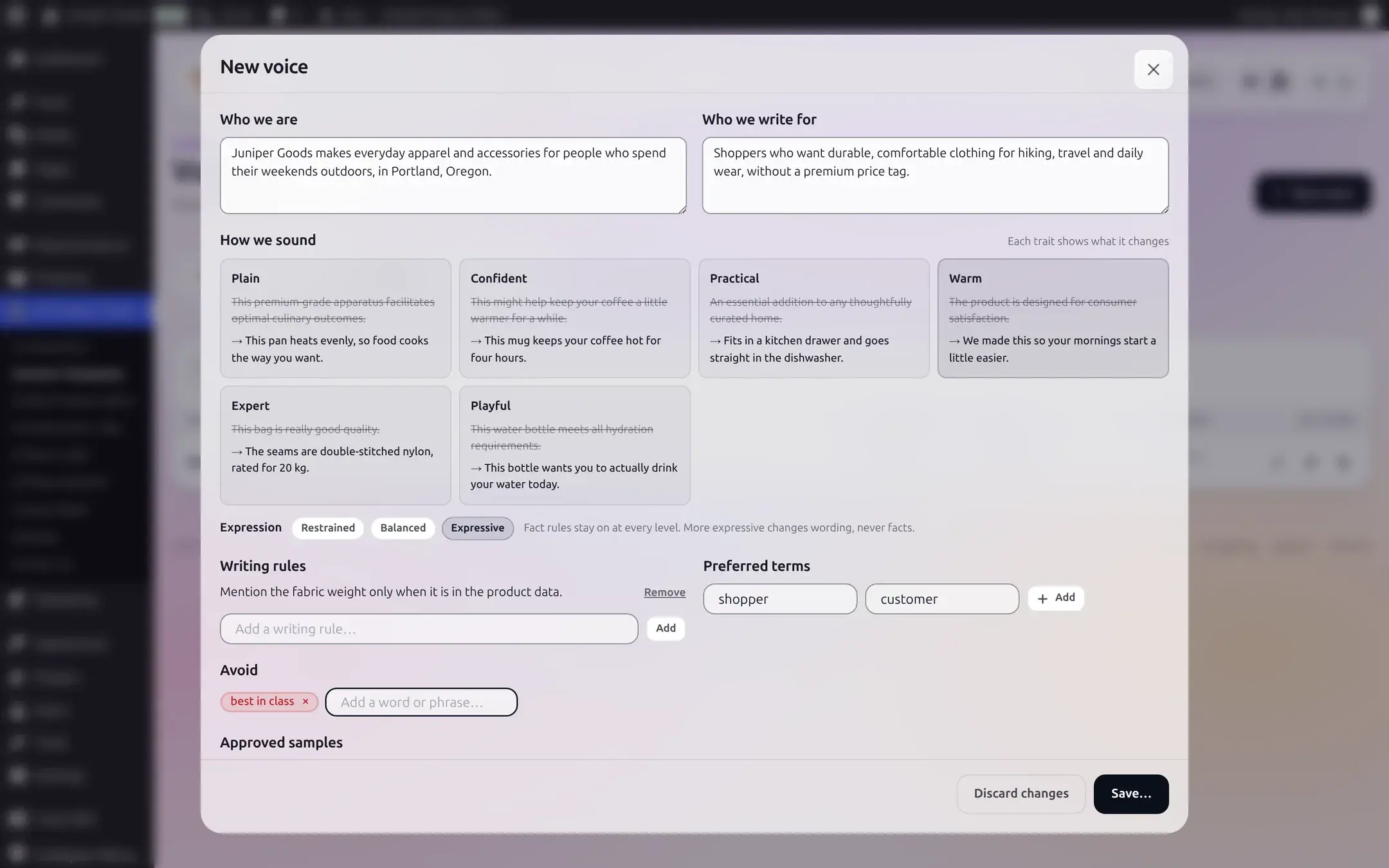
Go to Content Templates > Voices > + New voice. It is created immediately under the name "New voice" and opens for editing; a voice's name cannot be changed later; use Who we are to describe it instead if you plan to keep more than one.
Fill in the fields
- Who we are: a description of the brand (up to 1000 characters).
- Who we write for: the audience (up to 500 characters).
- How we sound: toggle any of six traits (Plain, Confident, Practical, Warm, Expert, Playful), each showing a without-and-with example of what it changes, plus an Expression dial (Restrained, Balanced, Expressive) that controls how far wording can go. Fact rules stay on at every level.
- Writing rules: short rules in your own words (up to 20, 200 characters each).
- Preferred terms: "use this, instead of that" pairs (up to 50, 100 characters each).
- Avoid: specific words or phrases never to use (up to 100, 80 characters each).
- Approved samples Business: real examples of writing you approve of (up to 5, 600 characters each). Used for "Find suggestions" and as a style reference.
- Product claim rules: your own rules (up to 20), plus any store-wide rule marked Always on that nobody can remove (for example, never stating a specification, certification, award or warranty term that is not in the provided sources).
Save
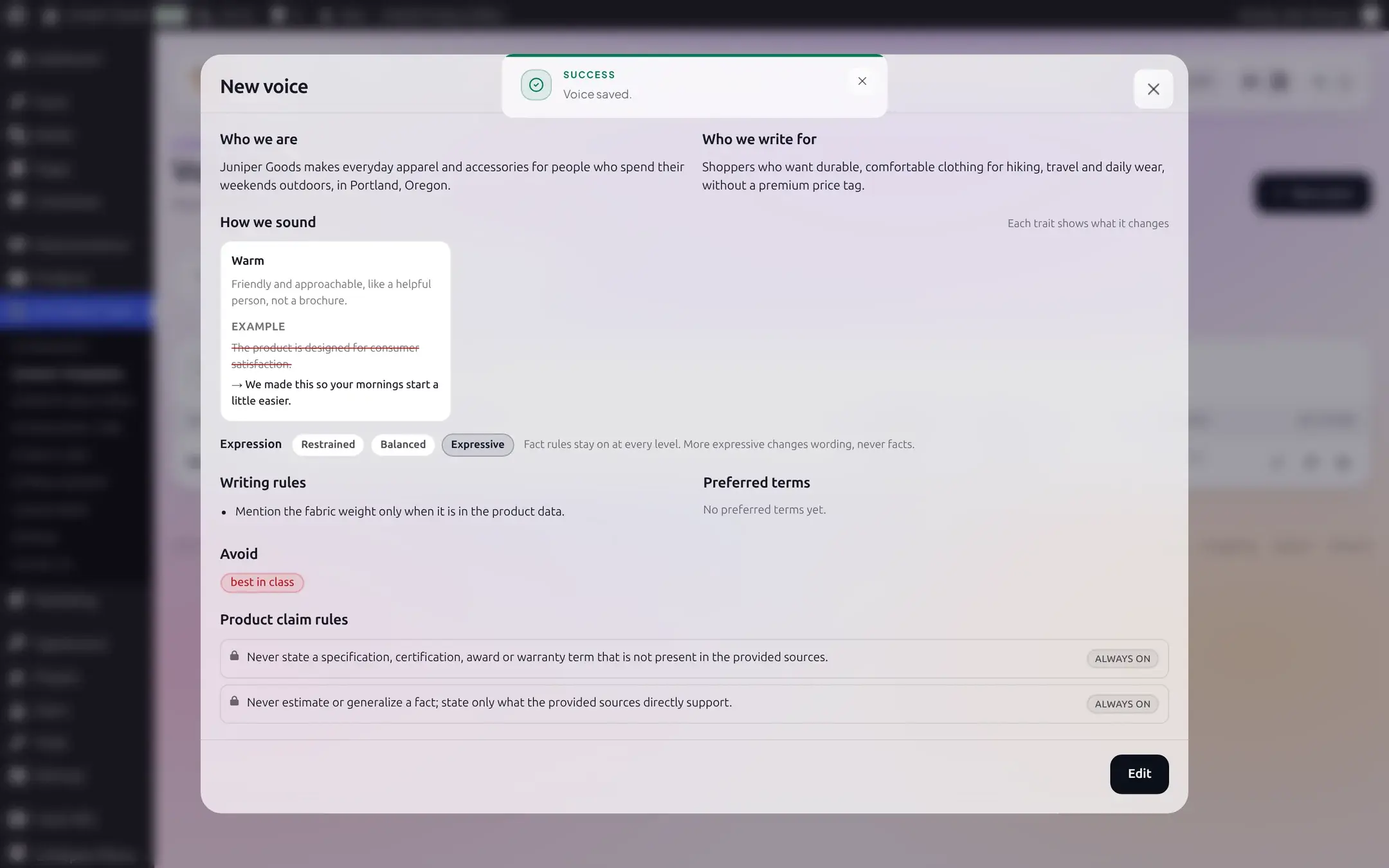
Save shows a confirmation naming every structure that currently uses this voice (or "No other structure uses this voice yet"), since editing a shared voice changes the output for everything that references it.
Use it on a structure
Open any structure, find the Voice card (inline tab 1, or the editor's Voice step), and pick the voice from the dropdown. A structure can still override the voice's Expression just for itself, add its own note, and override the tone of one individual section.
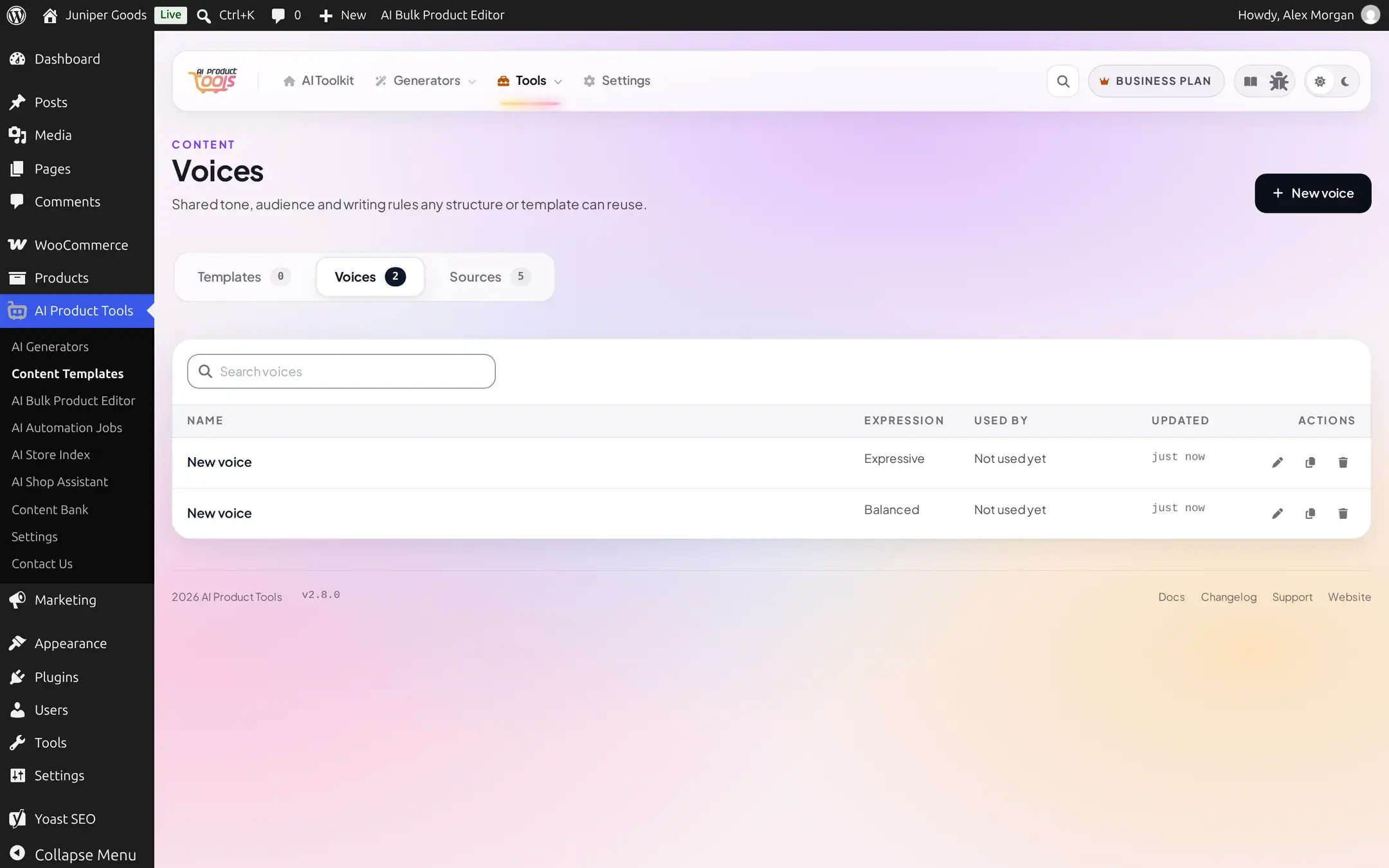
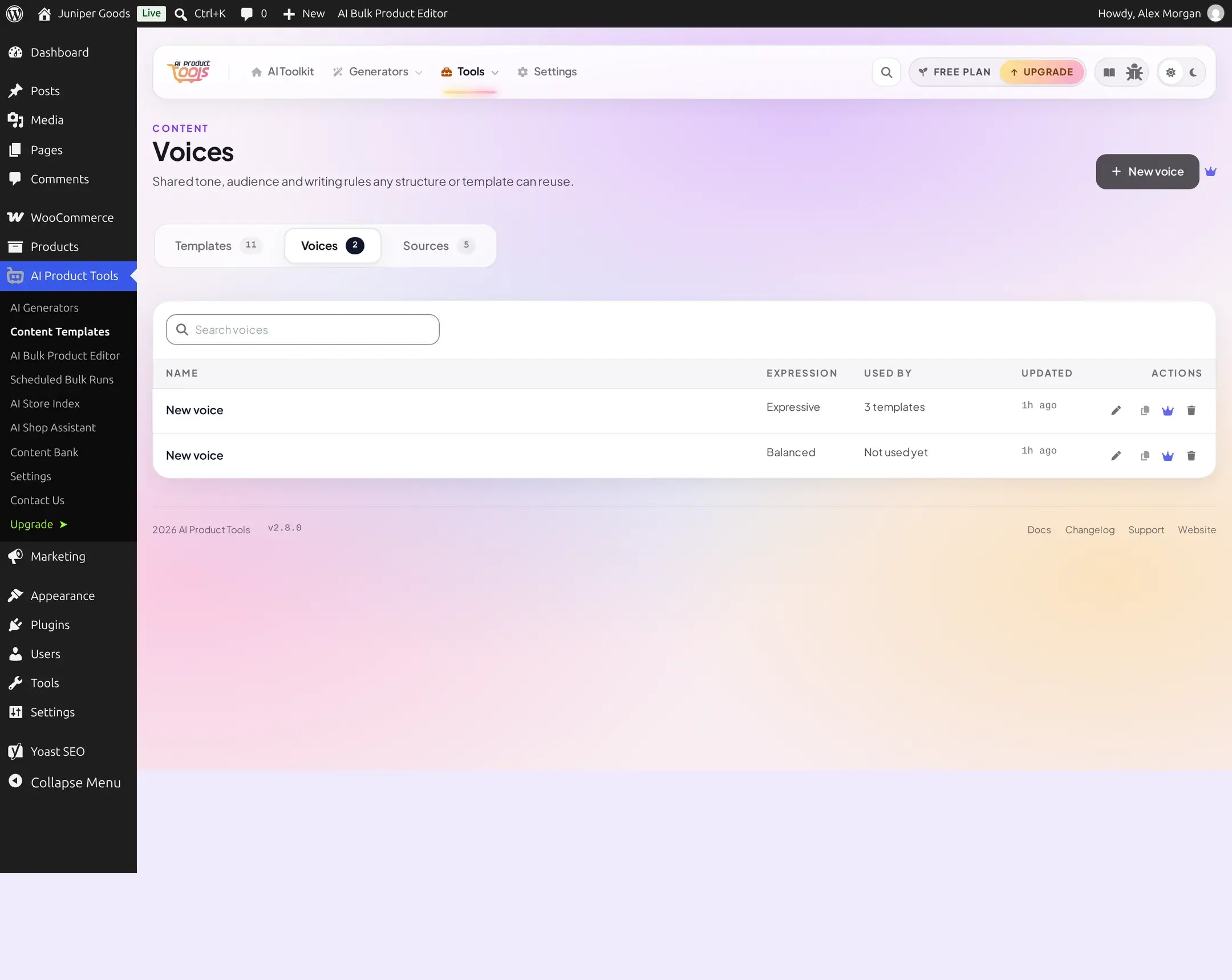
Each row's Duplicate action makes an independent copy, named Copy of {name}, that you can then tell apart from the original by editing its Who we are text. Duplicating is locked past the plan's voice-count ceiling, the same way + New voice is.

Sources
A source is a fact a structure is allowed to cite. Product data (core fields and, on Business, custom fields) is always available and needs no setup. Beyond that, a structure can add web pages and per-product URL fields Business.
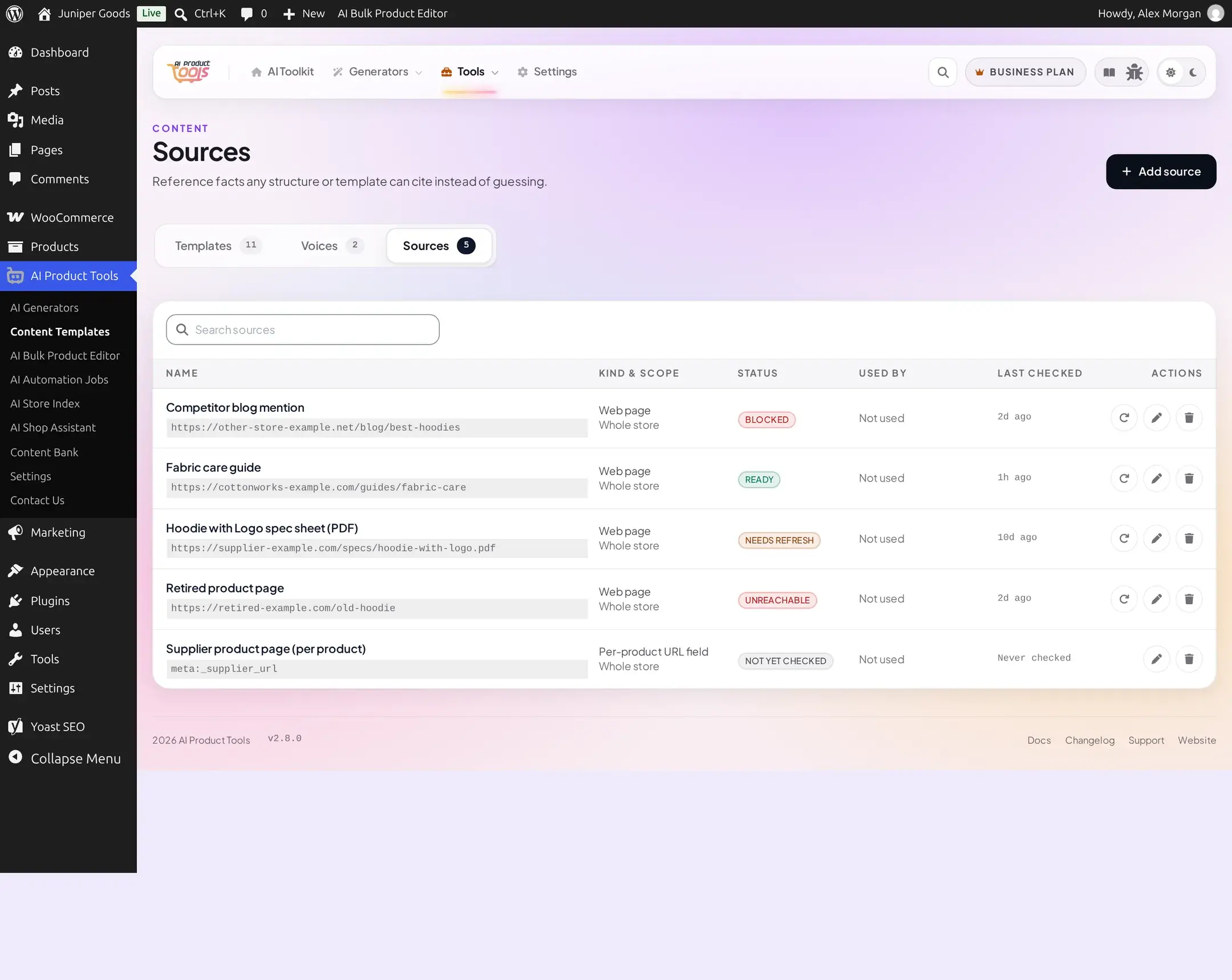
Every source's status
| Status | Meaning |
|---|---|
| Ready | Fetched and usable right now. |
| Needs refresh | Usable, but the content is more than 7 days old; refresh it when convenient. |
| Unreachable / Blocked | Could not connect, or the host is not on your Preferred website list. |
| No relevant content / Unsupported content | The page loaded but nothing useful could be extracted, or it is not HTML, plain text or PDF. |
| Too large | Over the size cap (2 MB of extracted HTML, 8 MB for a PDF). |
| Error | The fetch itself failed. |
| Fetching… | A one-shot preview in progress. |
| Not yet checked | A per-product URL field source that has not resolved for this particular product yet. |
Adding and using a source
Add a reference
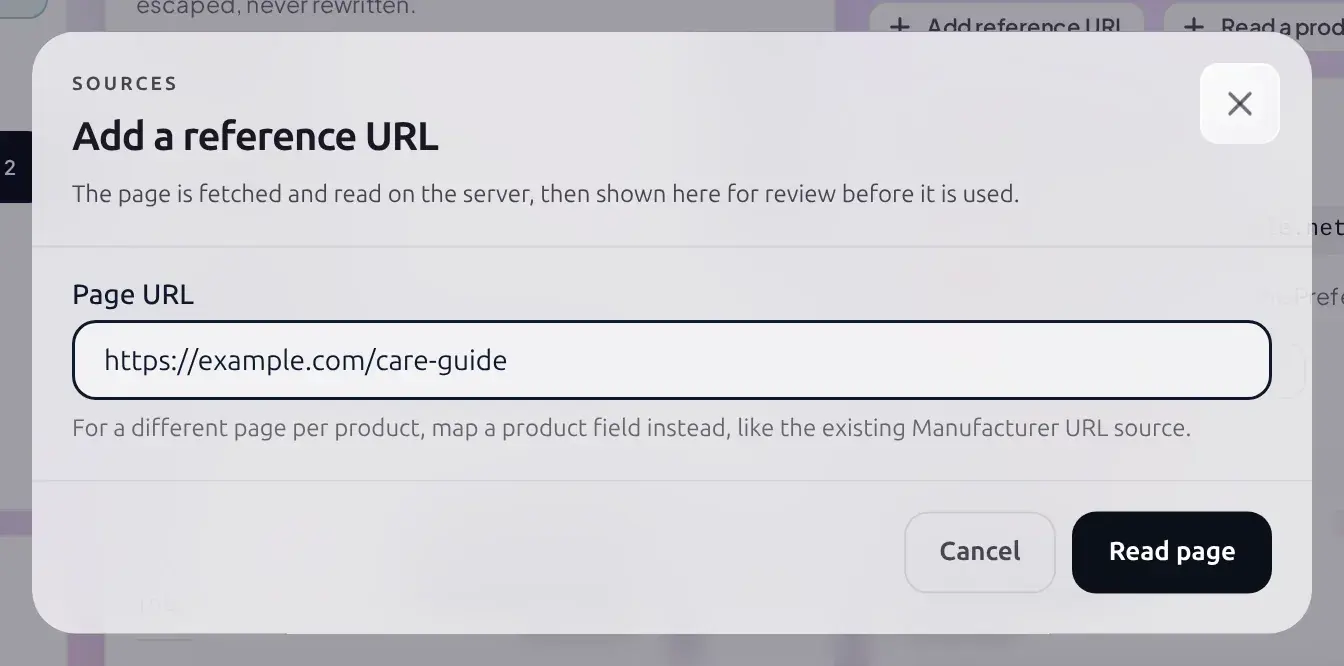
From a structure's Sources tab, or Content Templates' own Sources library, click Add reference URL to fetch one fixed web page, or Read a product page from a product field to pull the URL from a per-product field you choose instead. Both are checked before they are used.
Set priority and conflict handling
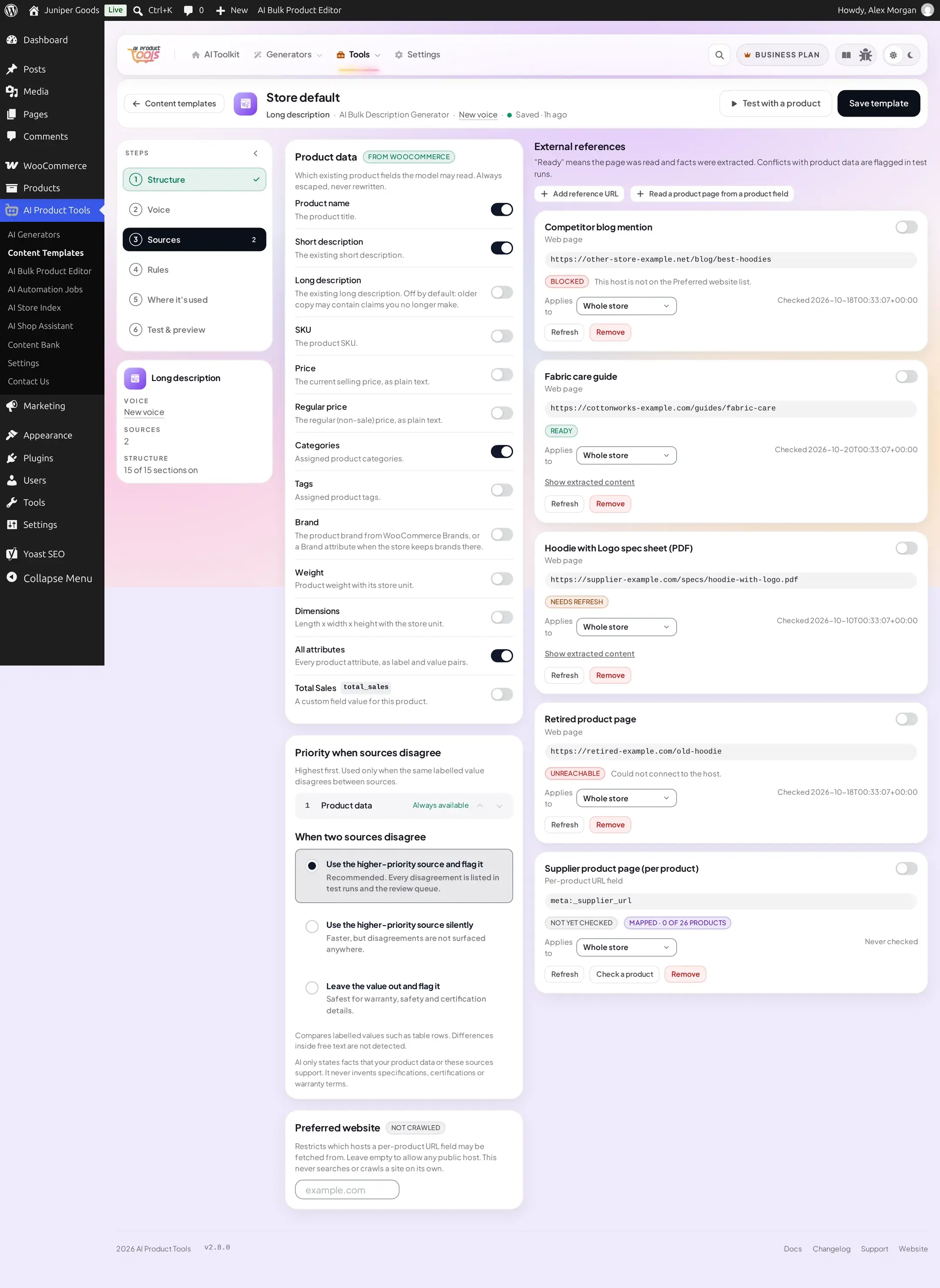
On a structure's Sources tab, order every enabled source by priority (Product data is always available first), and choose what happens when two sources disagree: use the higher-priority one and flag it (recommended), use it silently, or leave the value out and flag it (safest for warranty, safety and certification details).
Restrict where a web source may fetch from
A Preferred website allowlist (up to 50 domains) restricts which hosts a per-product URL field may ever be fetched from. This never searches or crawls a site on its own; it only ever fetches the exact URL you added or the exact URL stored in the chosen field.
Category descriptions: how many products the AI samples
A Category description structure's Sources tab has one extra control: Sample products per category, a stepper deciding how many products from a category the AI looks at for its top products, shared attributes and product descriptions. It runs from 5 up to 10 on Free, or up to 20 on Business; the stepper simply stops at the plan's own ceiling, with a short note explaining why when it does.

What a source can never do
A structure's Always on rules (visible on its Rules tab) apply regardless of sources: it never invents a fact, specification, certification or warranty term; fixed text is kept exactly as written; product data is inserted as stored, never rounded, converted or reworded. A one-shot preview of a URL is cached for 15 minutes; a source is refetched for a real run at most every 7 days unless you refresh it sooner.
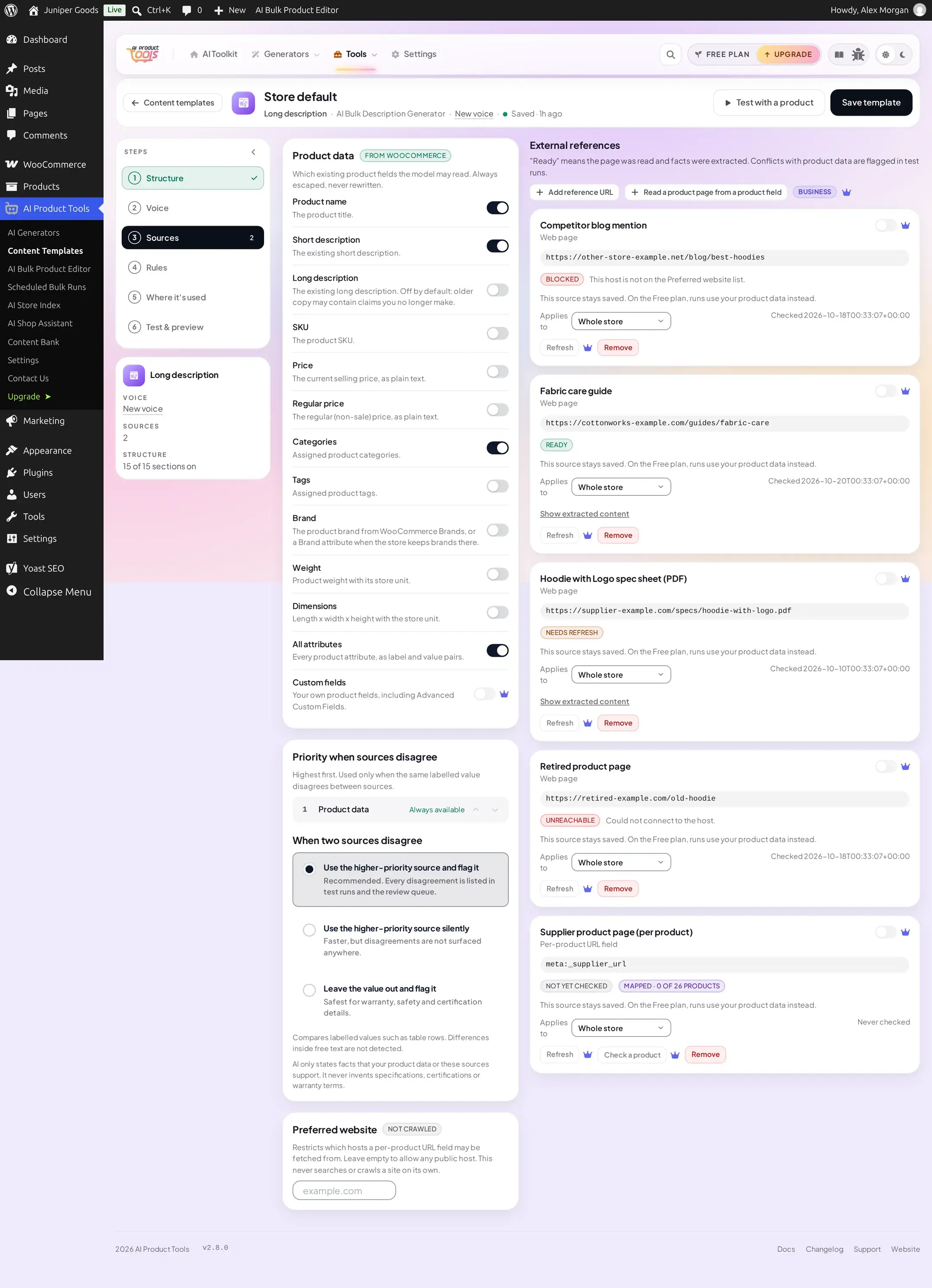
What Free sees on a structure saved with Business sources
Free vs Business
| Capability | Free | Business |
|---|---|---|
| Voices | 1 | Unlimited |
| Voice approved samples / "Find suggestions" | Stored samples still shown as text | Full edit |
| Custom fields as a source | Not available | All custom and meta fields, including ACF |
| Web page sources (both kinds) | Not available | Add, refresh and check |
| Category descriptions: sample products per category | Up to 10 | Up to 20 |
Downgrading never deletes a second voice, a web source, or approved samples you already saved; they stay visible and editable, badged Business, and simply do not apply to a run until you upgrade again.