
Review Content
Read AI-generated content before it reaches a product, then approve it, reject it, or clear a stuck item.
Review Content is a queue of generated content that has not been written to a product yet. It fills when you run a bulk generator with its Business review mode instead of applying immediately. Nothing in the queue has touched a product: approving copies the value onto the field, and rejecting discards it for good.
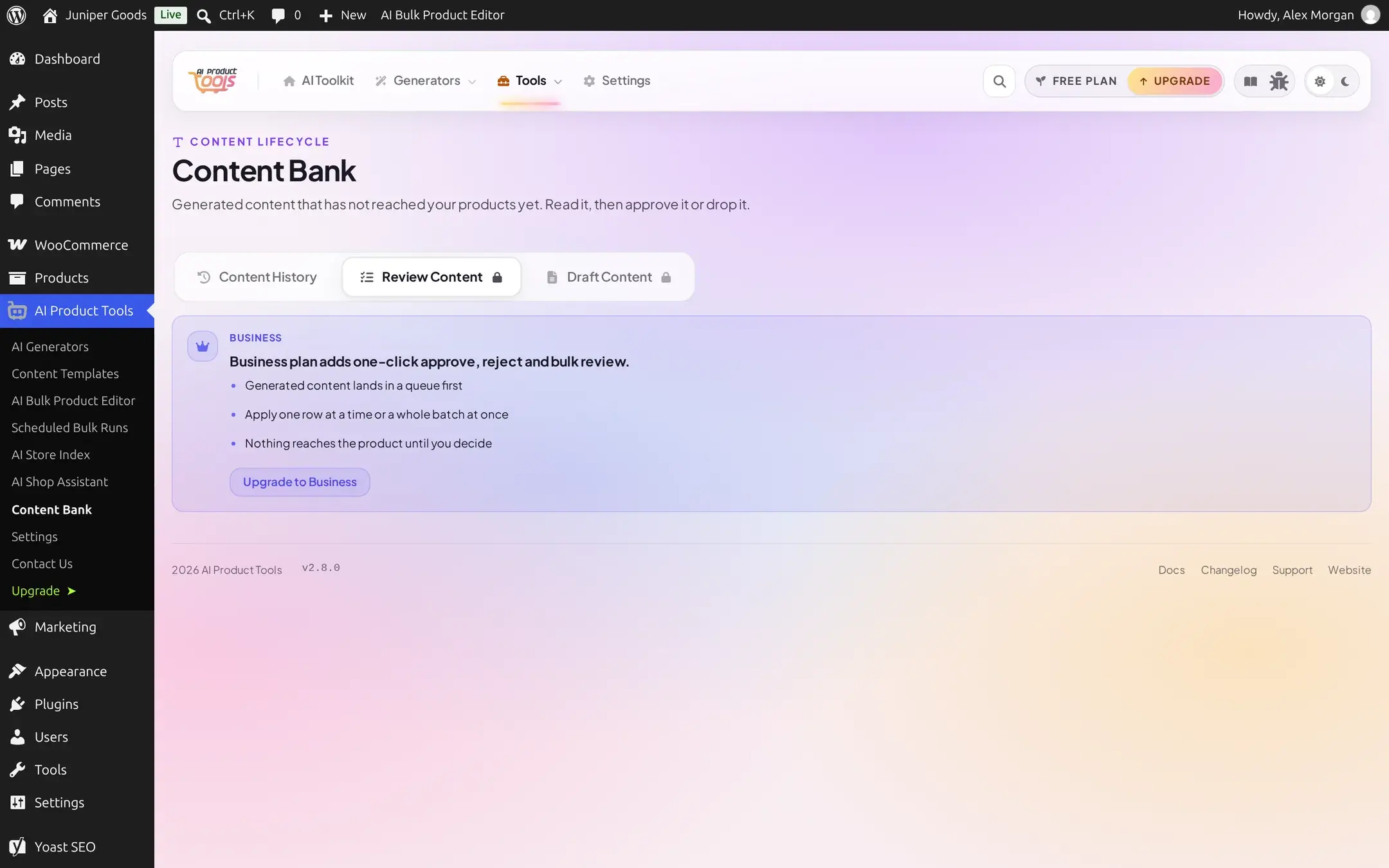
Business Review Content is a Business feature end to end. On a Free site the tab fires no network request at all: it shows an upgrade teaser in place of the queue.
Looking for automation output instead?
A scheduled automation job's staged output does not appear here. When a job's Content Delivery is Stage for Review, its results go to Draft Content instead. This tab is fed by the generator pages' own review mode.
Before you start
- Requires the Business plan (or a grandfathered site with the same entitlement).
- An AI provider must be connected, and you must have run a bulk generator with its review mode to have anything here.
The tab shows a locked teaser instead of a queue, with no items and no counts:
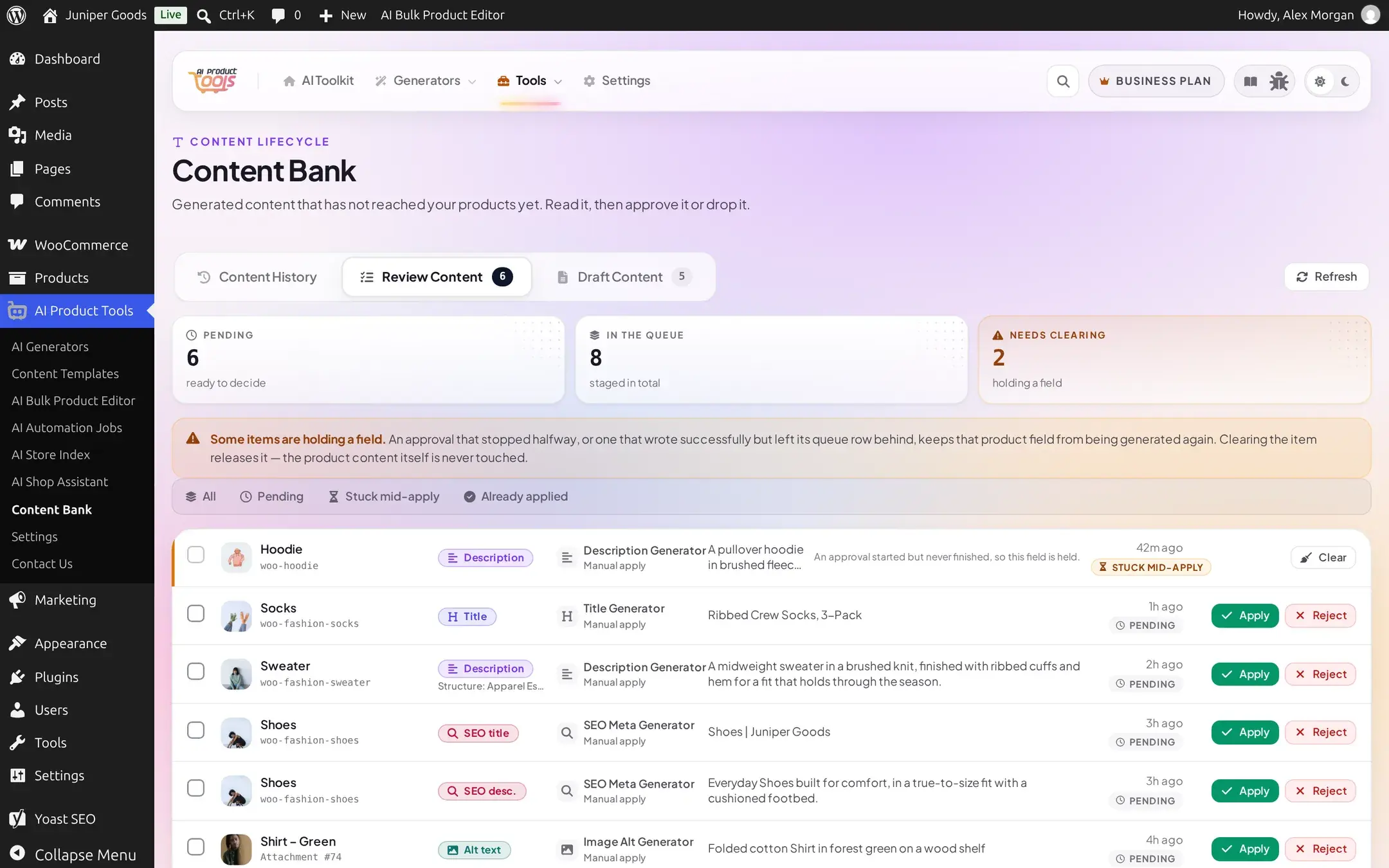
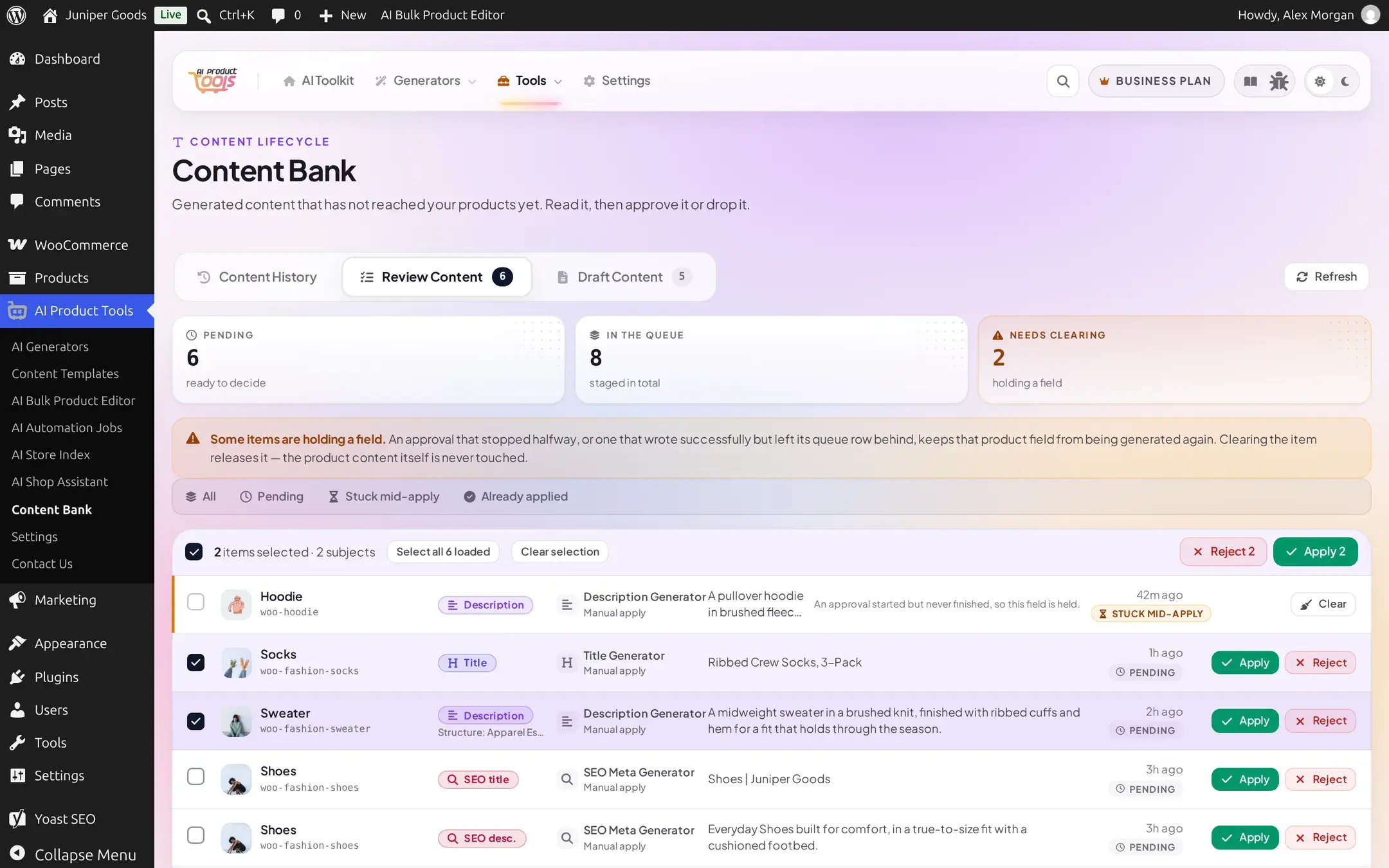
The full queue, with stats, a state filter, and per-row actions:
Open Review Content
Content Bank > Review Content. The three stat tiles read straight from the queue: an unlabeled count ready to decide, In the queue (staged in total), and Needs clearing (stuck in a state that blocks regeneration). When clearing is needed, a banner explains why and that clearing never touches the product, only the queue.
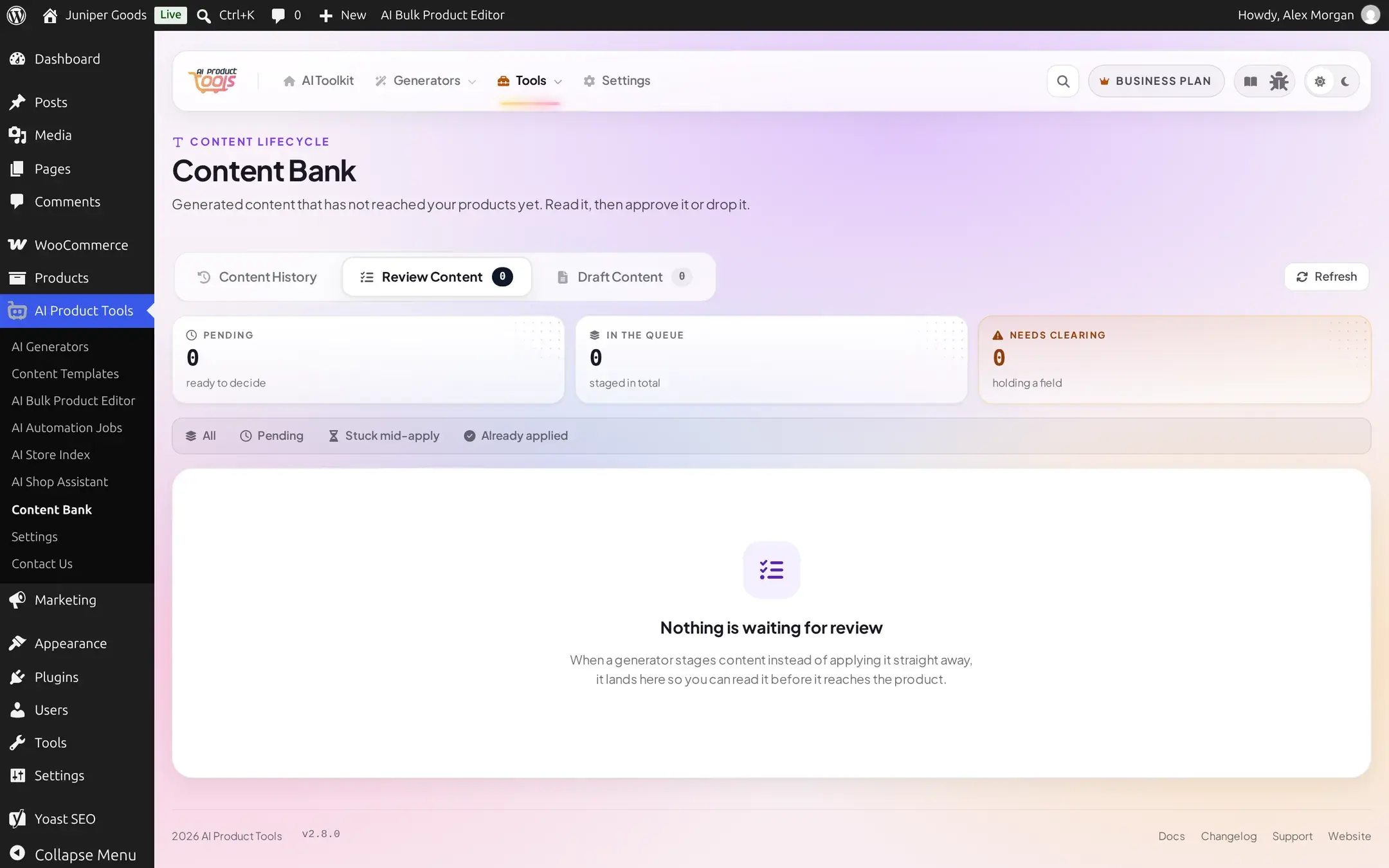
Once you have decided everything waiting, the queue shows its own empty state rather than empty tiles:
Filter by state
Four chips: All, Pending (ready for your decision), Stuck mid-apply (an approval started but never finished), and Already applied (the value was written, but its queue row was left behind).
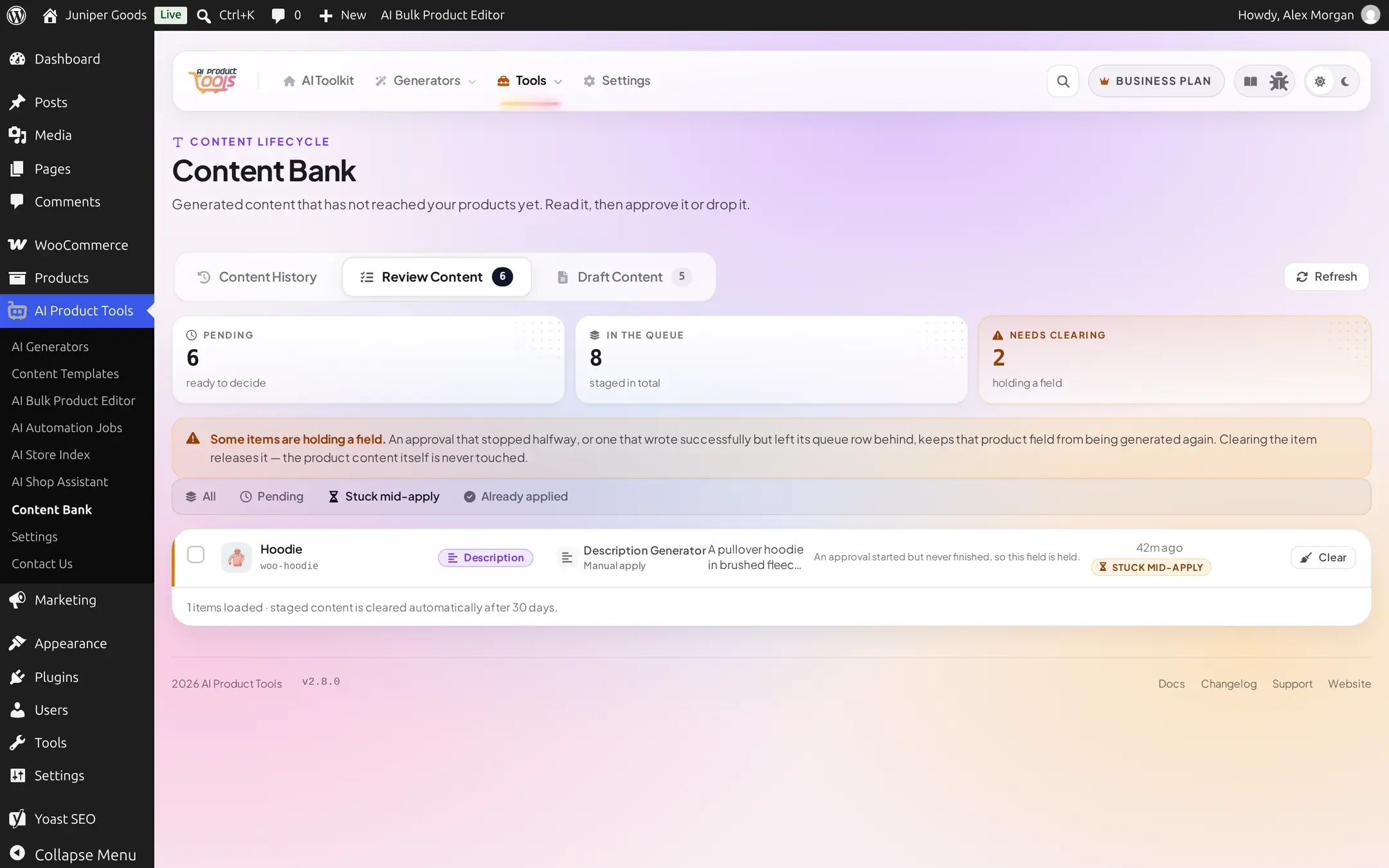
A stuck or already-applied row offers only Clear instead of Apply/Reject, which frees the field without writing or un-writing anything.
Open a row to read it
Click a row to open its detail sheet: the proposed value next to the field's current value on the product, in a Proposed value tab, plus a Record tab with the tool, how it ran (manual or automated), when it was staged, its state, and its queue ID. A Previous / Next stepper at the top lets you work through several items without closing the sheet each time.
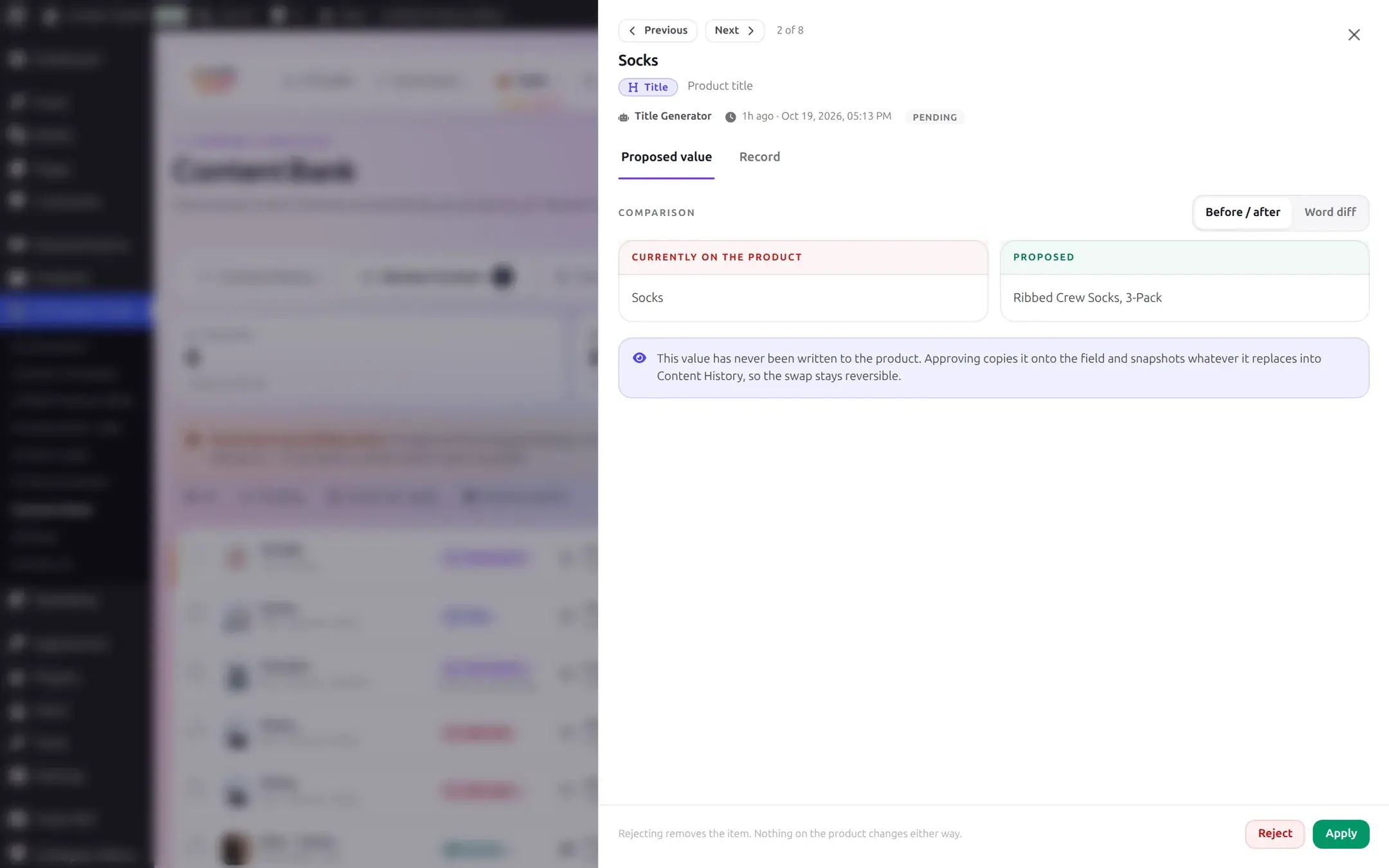
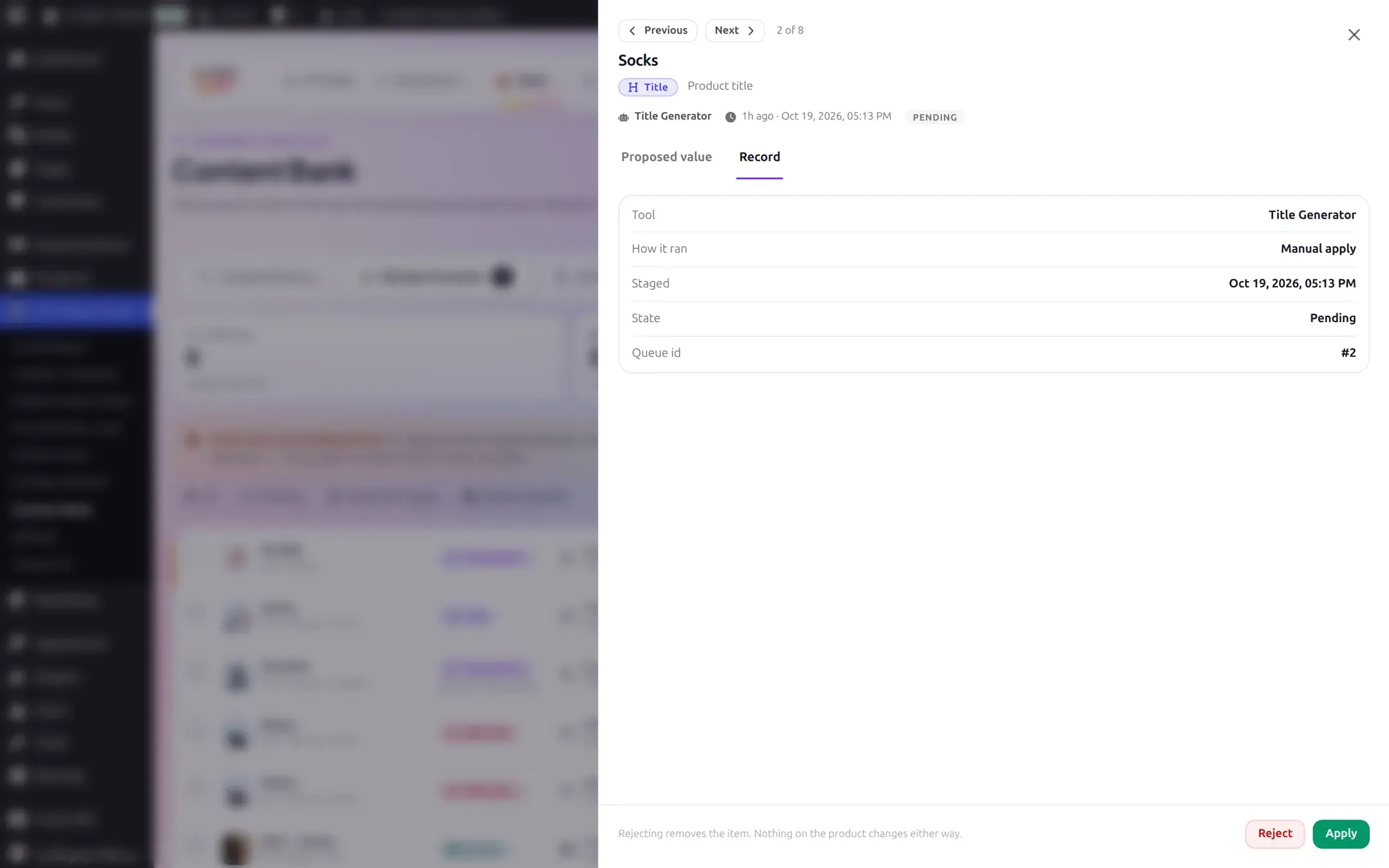
When you approve or reject from inside the sheet, it advances to the next loaded item on its own; at the end of what is loaded it tells you whether that is the end of the whole queue or just the end of this page.
Approve or reject one item
Each pending row has Apply and Reject buttons, also available in the drawer's footer. Rejecting is a hard delete: the generated text is gone for good, and regenerating it costs a fresh AI request, so a confirmation always asks first ("Discard this draft?").
Applying one item is one-click, with no confirmation, whenever the write is safely recoverable: Content History is on and you are entitled to Restore. If either is not true, a confirmation appears first, titled "Replace this product's content?", and says exactly why there would be no way back: "Content History is switched off, so no restore point is recorded..." when history itself is off, or "You can restore the previous content from Content History with a Business Plan" when you have no Restore access.
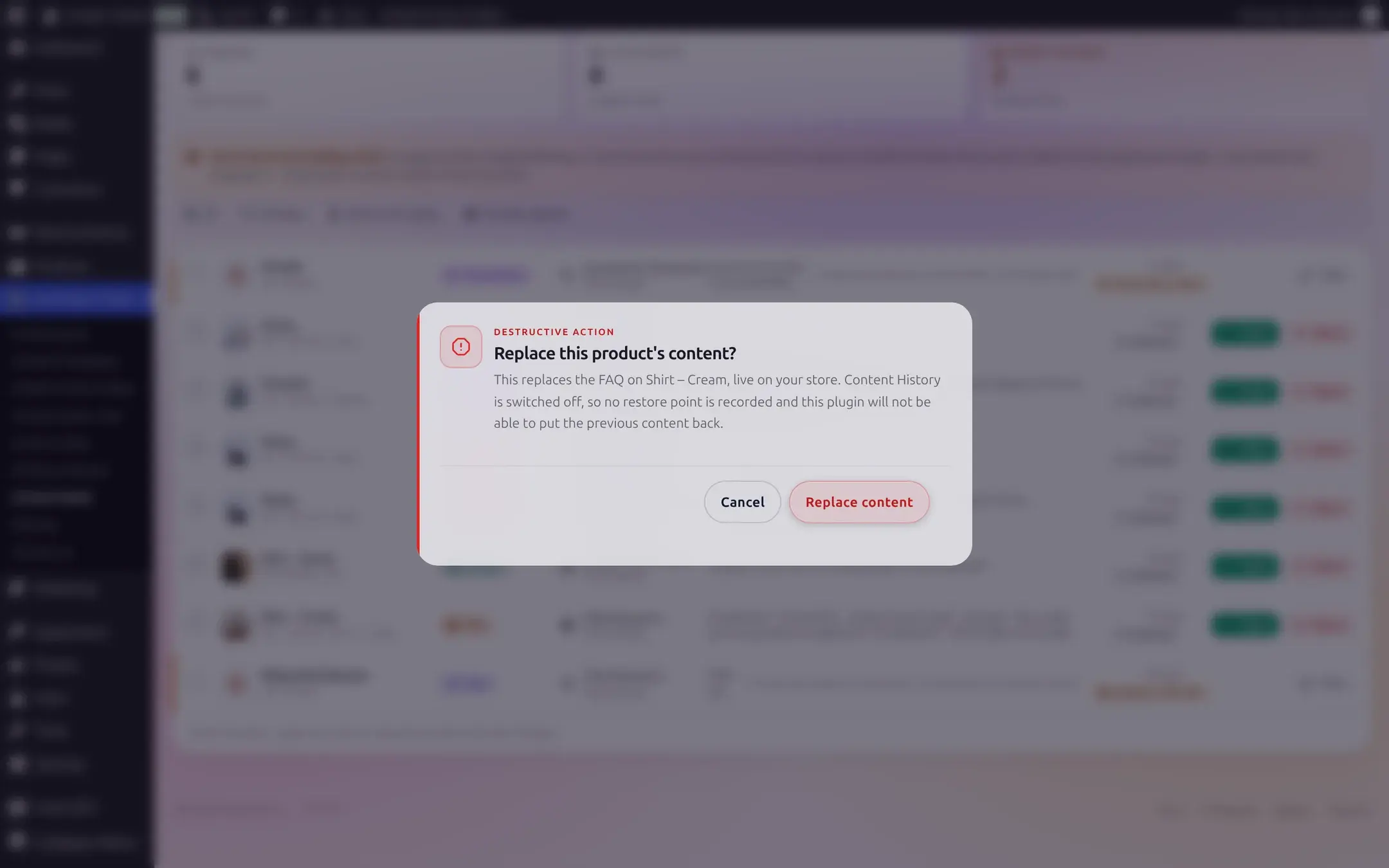
When the product changed after staging
If a product was edited after an item was staged, approving it fails with a conflict instead of silently overwriting that later edit. The failure shows as a toast and as an inline note on the row itself, so it survives a 5-second toast disappearing.
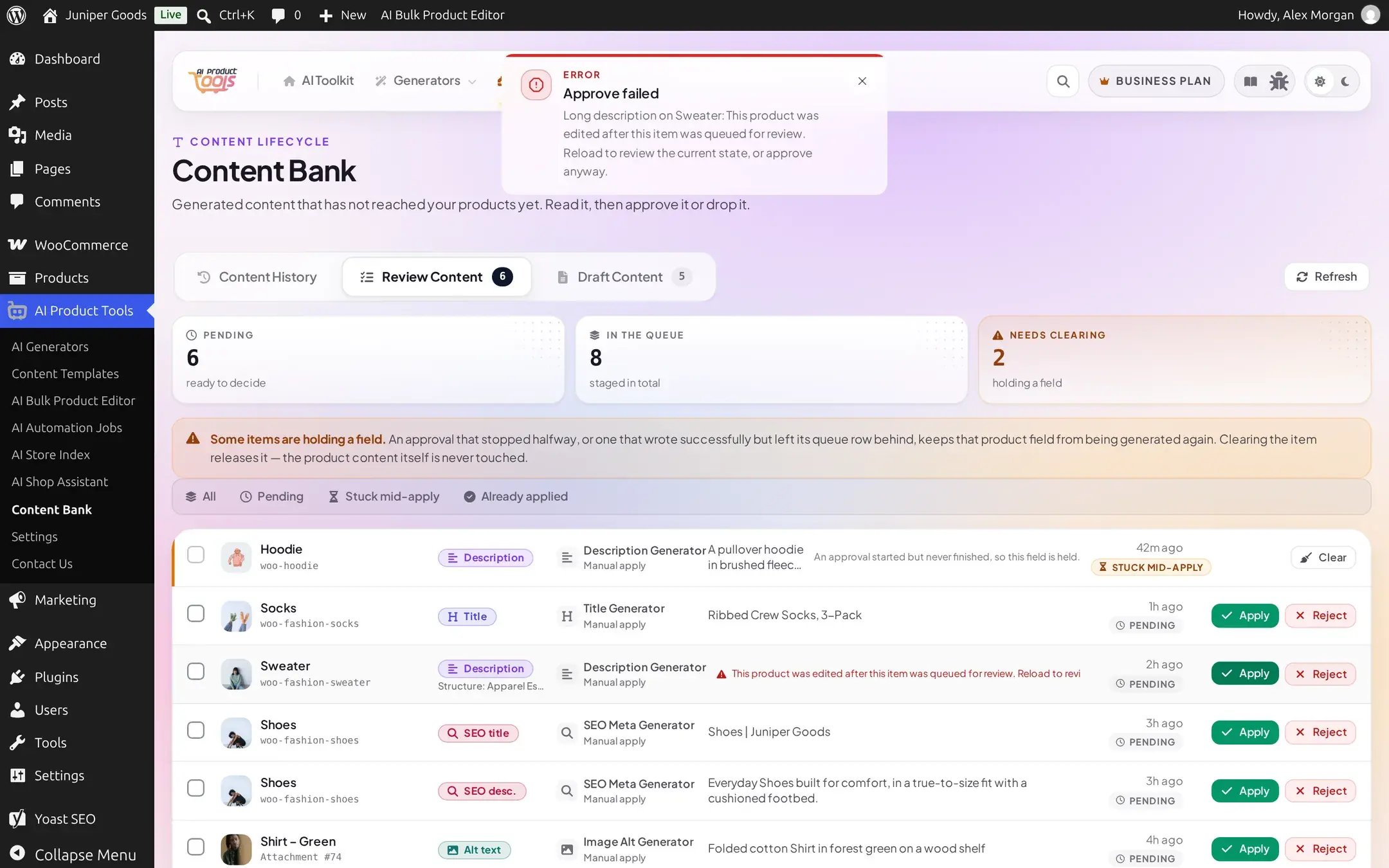
Reloading the list lets you compare the proposal against the product's actual current value before deciding whether to still overwrite it.
Act on several at once
Select rows with their checkboxes (a stuck or already-applied row cannot be bulk-selected) to open the selection strip, with Select all N loaded, Clear selection, and Reject N / Apply N for the whole batch.
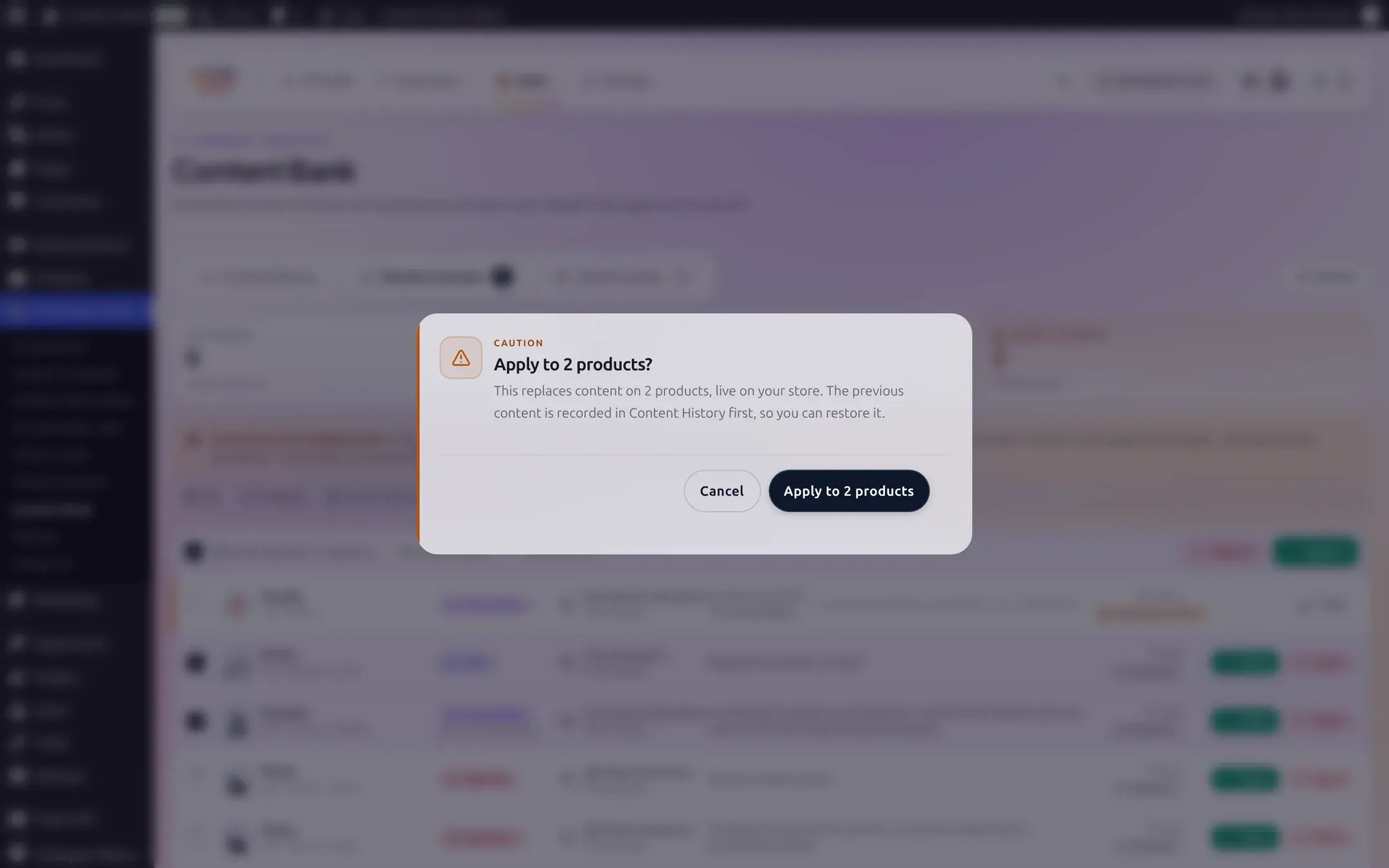
Unlike a single Apply, a bulk Apply always confirms first and names exactly what it is about to do, whether or not the write is protected by History and Restore:
A bulk run reports a partial outcome rather than one pass/fail verdict: each item that failed is listed with its own reason, right below the ones that succeeded.
Reference
Row states
| State | Meaning | Available actions |
|---|---|---|
| Pending | Ready for your decision. | Apply, Reject |
| Stuck mid-apply | An approval started but never finished; the field is held so it cannot be regenerated. | Clear |
| Already applied | The value was written, but the queue row was not cleaned up. | Clear |
Bulk outcome reasons
| Reason shown | Cause |
|---|---|
| That item no longer exists | Already decided or removed elsewhere. |
| The write did not complete, the item is held for another try | The apply failed partway; the item is now stuck. |
| The item could not be removed / could not be cleared | The reject or clear write itself failed. |
| The product was edited after this item was queued, reload and try again | Conflict: the target changed after staging. |
| A newer version of this item was generated after you opened the list | The generator re-ran and re-staged the same field. |
| This item is still being applied, try again in a few moments | Another request is already in flight for this item. |
| Your license could not be verified right now, try again in a few minutes | A license check failed during the write. |
What can land in Review Content
Description, title, FAQ, SEO meta title/description, and image alt text, from any of the 5 bulk generator pages, when a generator page's results mode is set to its Business review option rather than showing results in your browser only or applying them immediately.
When the active SEO plugin also exposes a focus keyword field (Yoast SEO, Rank Math, All in One SEO, SEOPress, and Squirrly all do; The SEO Framework does not), the SEO Meta generator stages the generated focus keyword too, as its own queued item next to the title and description.
Free vs Business
| Capability | Free | Business |
|---|---|---|
| View the Review Content queue | No, upgrade teaser only | Yes |
| Approve, reject, clear, bulk actions | No | Yes |