
Dashboard
Tour the AI Generators page: the app bar, generator cards, Recent activity, usage, catalog coverage, the command palette, and the admin menu.
AI Product Tools > AI Generators is the plugin's home page (the plugin's own on-page heading still calls it "AI Toolkit", an intentional older name kept in the UI). Everything else in the plugin is one click away from here.
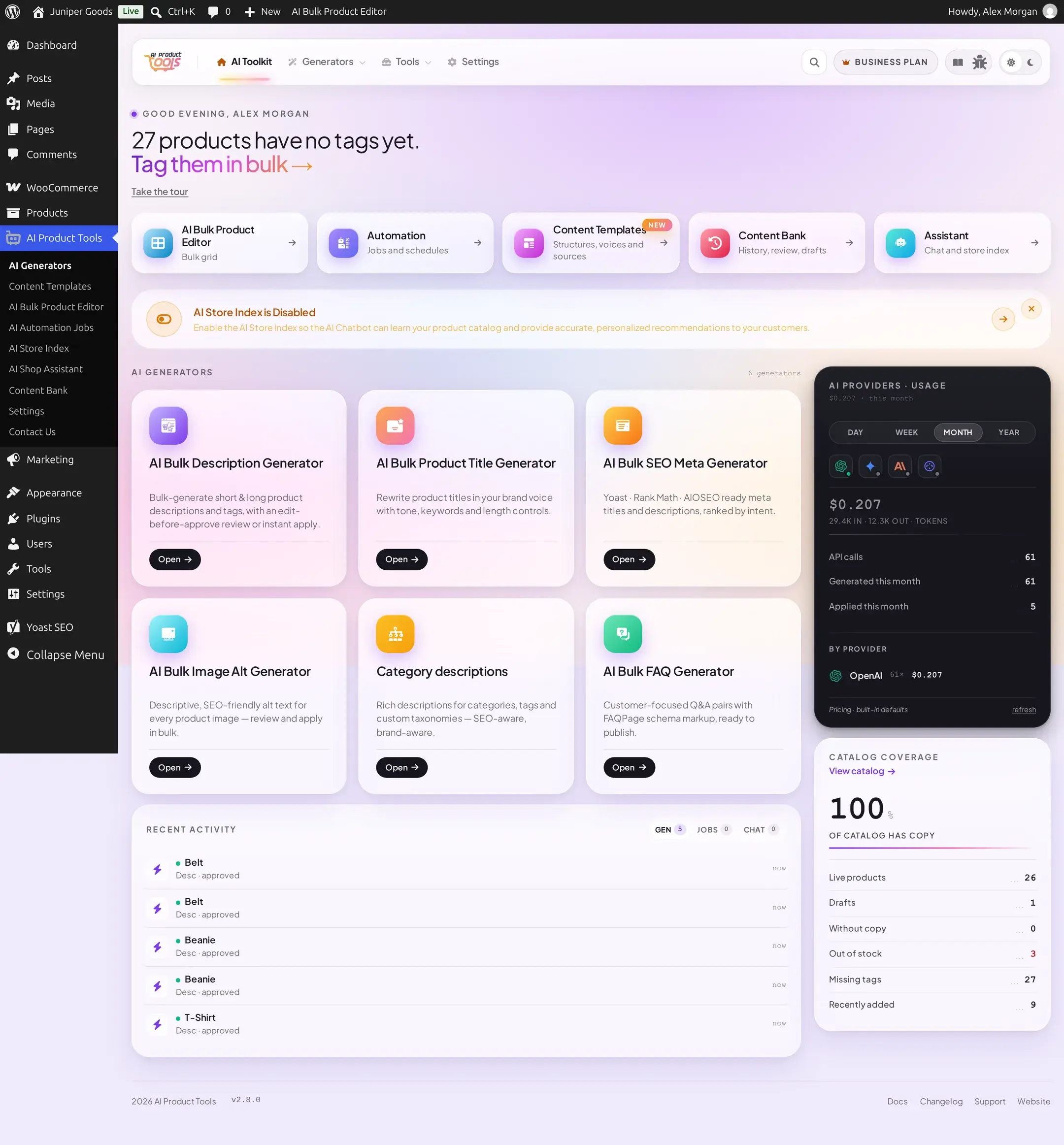
The app bar
Every plugin admin page shares this header: the plugin logo and an AI Toolkit home link, Generators and Tools menus for jumping straight to any generator or tool, a search icon that also opens the command palette, your plan badge, a documentation link, a bug report button, and a light/dark theme toggle.

Click the sun/moon icon to switch the whole plugin UI to a dark theme. The choice is remembered in your browser.
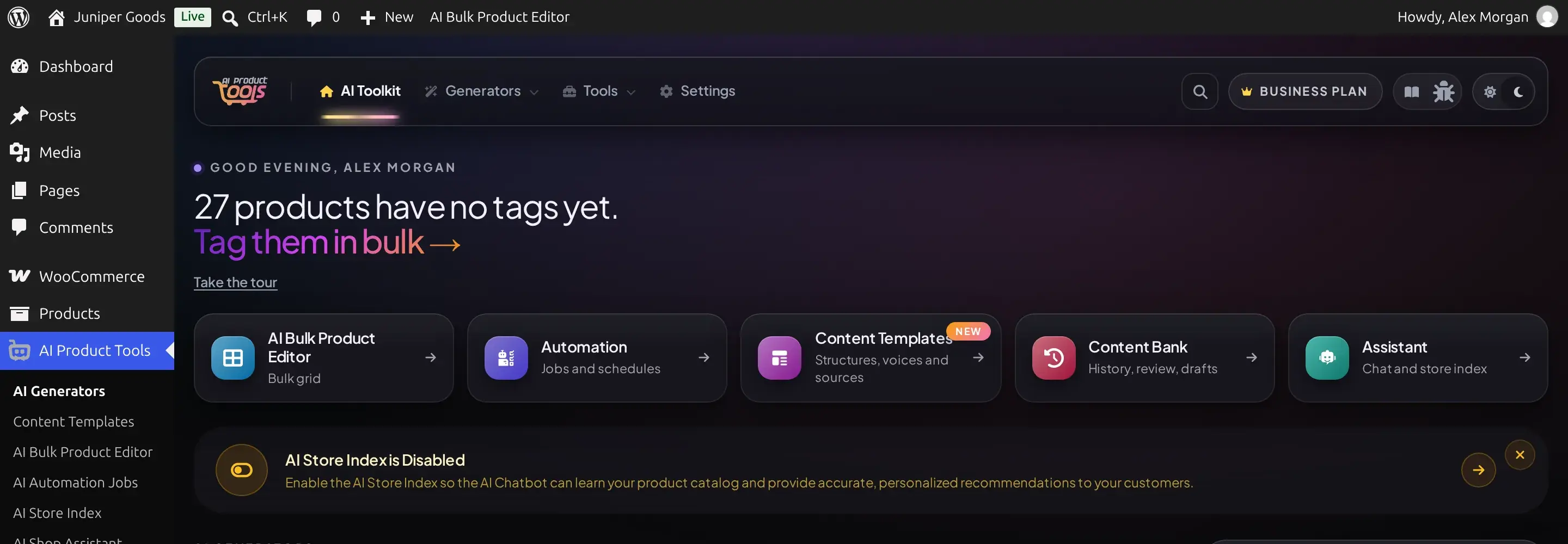
Greeting and tool band
The greeting line changes with your catalog's state: an empty store sees "Let's plant the first seed", a catalog with many products missing a description sees a prompt to clear the backlog, and a fully covered catalog gets a rotating, low-key message instead. Below it sits a row of five pinned tools: Editor, Automation, Content Templates, Content Bank, and Assistant (the AI Shop Assistant). Drag a card to reorder the row; the order is saved per admin user.
The six generators
Below the tool band, six generator cards cover every content type: Description, Title, SEO Meta, Image Alt, Category descriptions, and FAQ. Hover or focus a card to see its full feature list before opening it. Like the tool band, this grid is drag-reorderable and remembers your order.
A card can show a status pill: Running or Queued while a job is active, Active generally, or Needs API Key when that tool would call a provider and none is configured.
Recent activity
A full-width feed below the generators lists your latest work across three tabs: Generations, Jobs (automation), and Chatbot. Each row shows a colored status dot (green for approved or applied, amber for queued or paused, red for rejected or failed, blue while running) and a relative time. When chatbot conversations need attention, the tab shows how many, for example 2 need reply.
Providers, usage, and catalog coverage
The right rail has two independent panels:
- AI Providers · Usage: a cost total for the selected period (Day, Week, Month, or Year), a brand icon per connected provider, token counts, and a per-provider cost breakdown. Since the plugin is BYOK, this reads your own usage back from the providers; it is not a bill from AI Product Tools itself.
- Catalog coverage: the percentage of your catalog that has copy, plus a short ledger of live products, drafts, products without copy, out-of-stock items, products missing tags, and recently added products. A header link jumps straight to the generator that would fill whatever is missing.
If the AI Store Index feature is off, or on but empty, a dismissible banner above the generator grid explains it and links to turning it on; this only matters if you use the AI Shop Assistant. See Store Index.
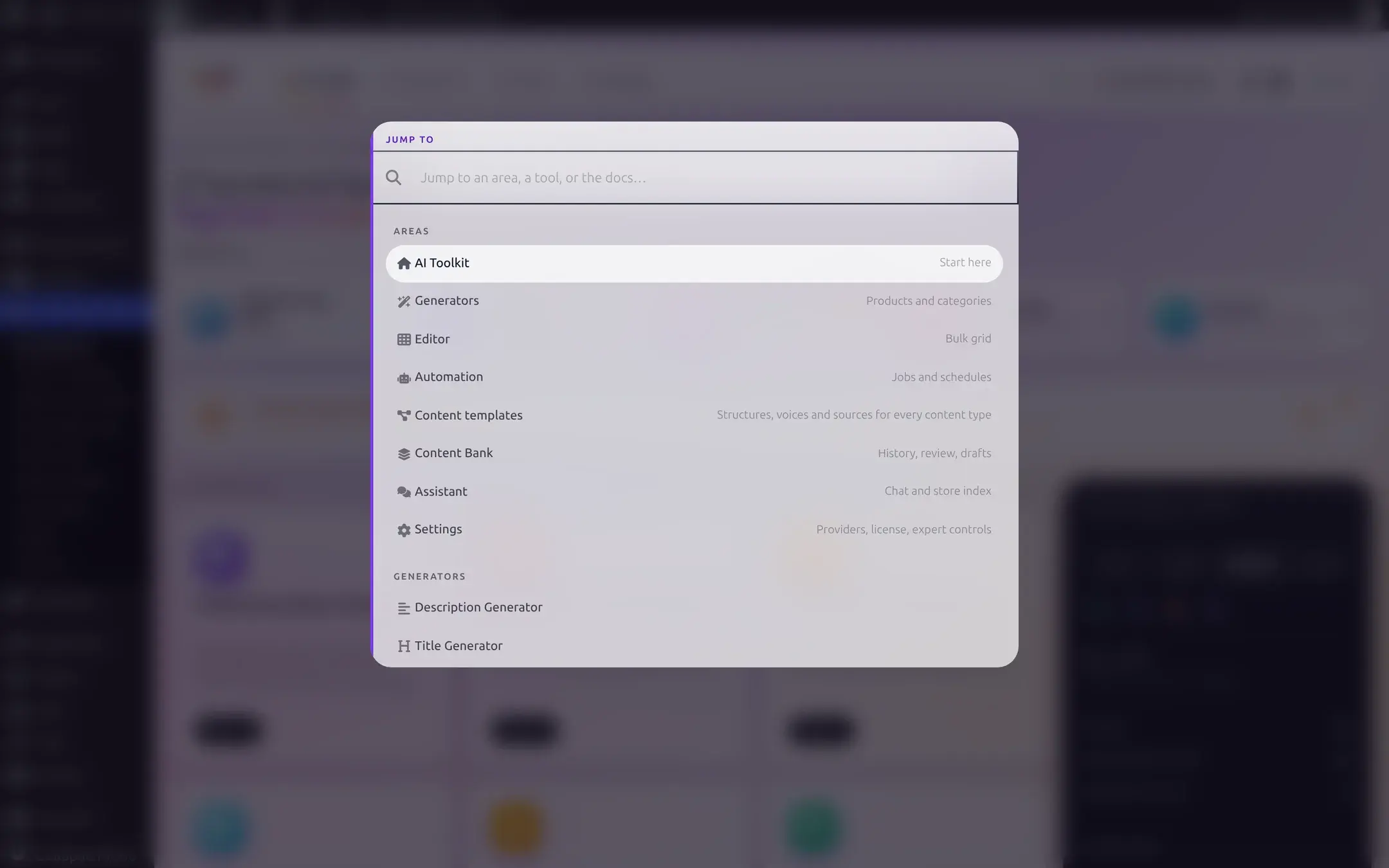
Command palette (Ctrl+K)
Press Ctrl+K (Cmd+K on a Mac) from anywhere in wp-admin to open a searchable jump list: every top-level area, each of the six generators, Assistant-area pages, and a Help group with Take the tour and Documentation. It is suppressed automatically while you are typing in a text field, so it never steals a keystroke from a form.
The WordPress admin menu
AI Product Tools adds its own top-level AI Product Tools menu. The first row, AI Generators, opens this same page; the rest are separate screens:
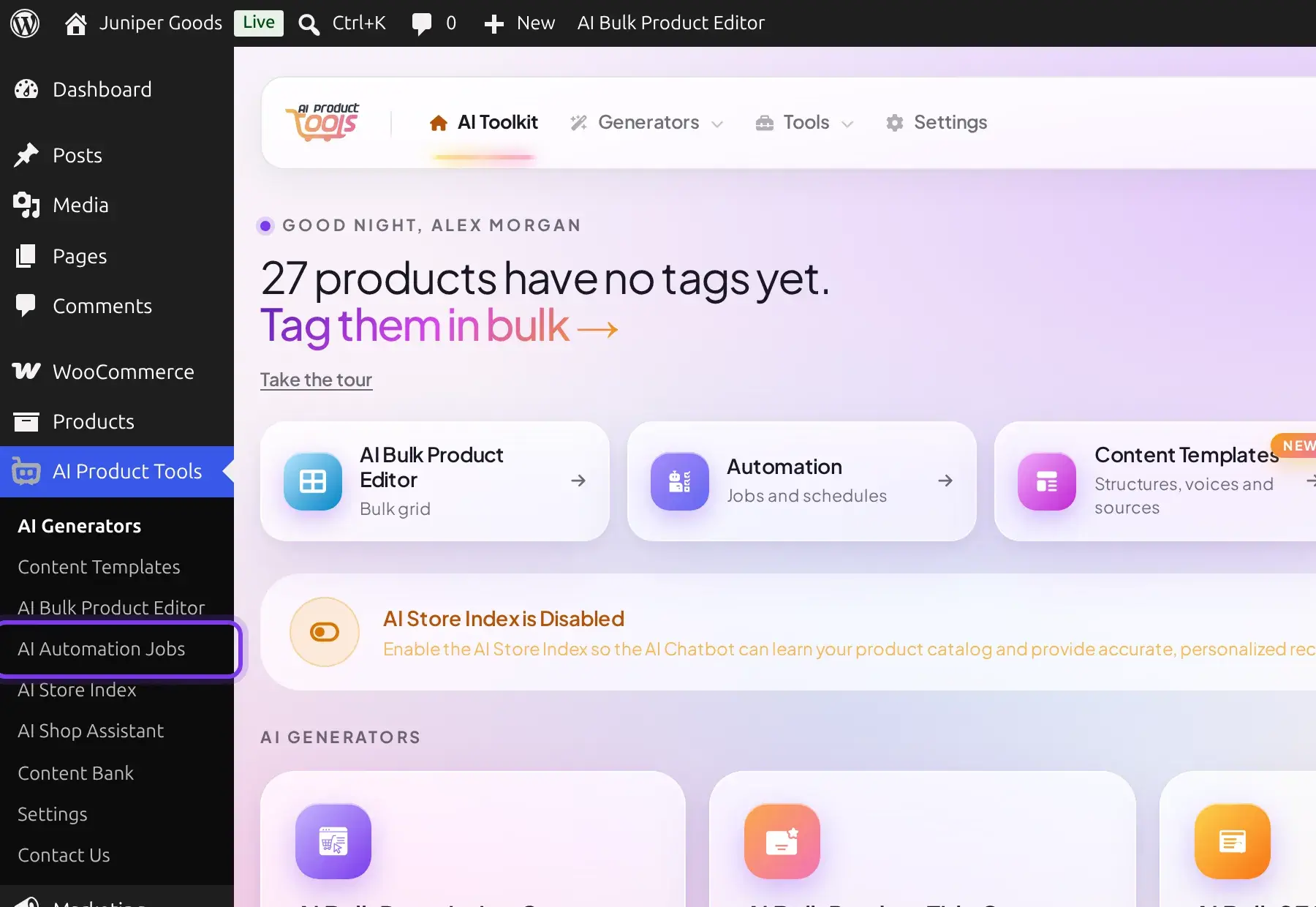
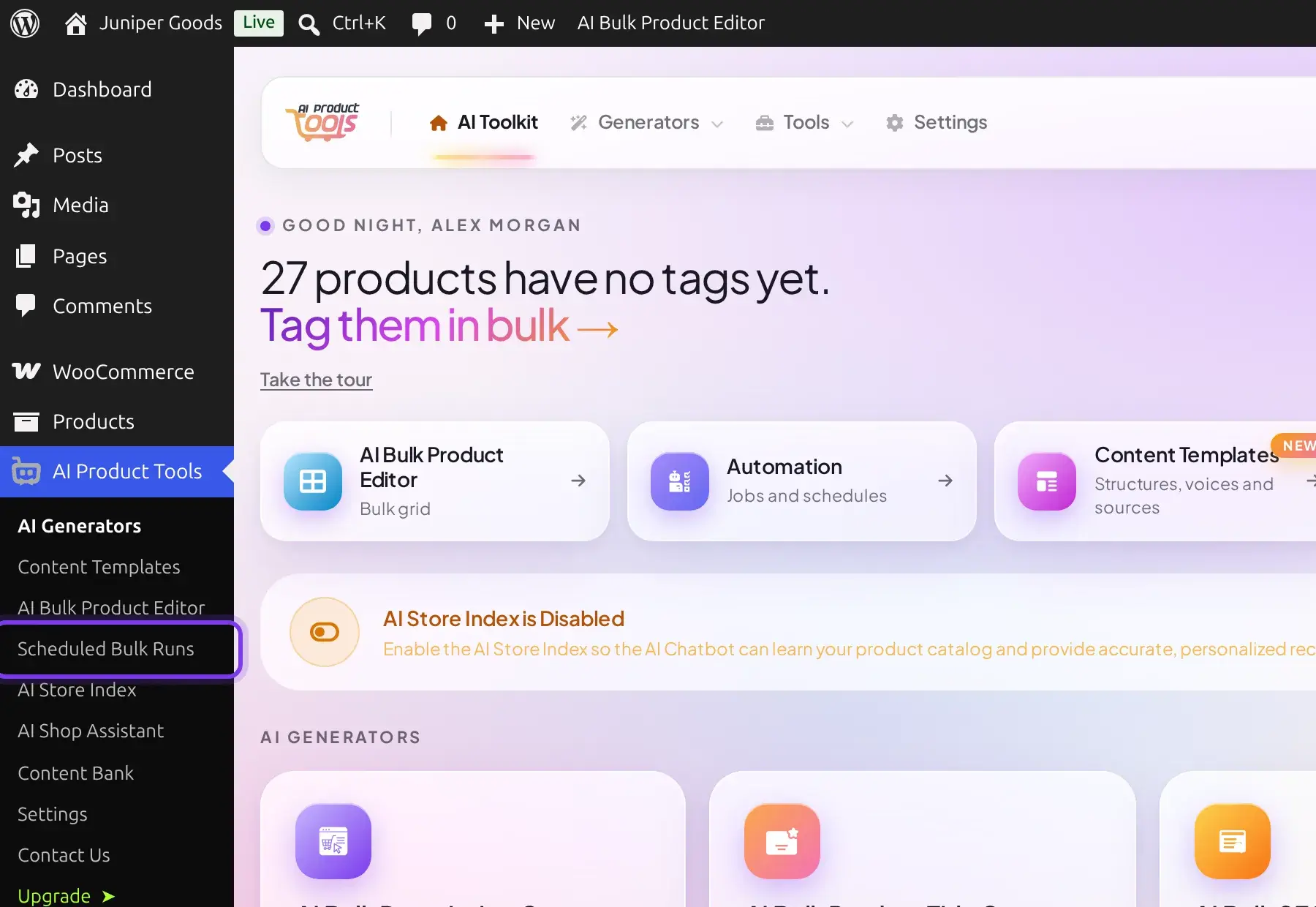
Every row besides AI Generators and Settings is visible to both an Administrator and a Shop Manager; see User roles and permissions for exactly why.
Hidden generator pages
All six generators (Description, Title, SEO Meta, Image Alt, Category descriptions, and FAQ) are deliberately left out of the visible left-nav menu, to keep it short, but every one of them is a normal page at its own URL and opens exactly the same whether you reach it from a card, the Generators menu in the app bar, or a bookmark. Open any generator card once, or use Ctrl+K, and bookmark the page if you visit it often.
Reference
| Element | Detail |
|---|---|
| Card and rail order | Saved per WordPress user (not site-wide), so each admin can arrange cards differently. |
| Generator status pills | Precedence is Business (fully plan-gated) > live activity (Running/Queued) > Needs API Key > Active. No shipped generator is fully plan-gated today, so every card is reachable on Free. |
| Usage rail cost | Shown as BYOK instead of a dollar amount when the period's cost rounds to zero, for example before you have generated anything. |
| Store Index bubble | Hidden automatically once a build finishes, and hidden permanently in your browser if you dismiss it. |
Free vs Business
The dashboard layout, every generator card, and Recent activity are identical on both plans. The only differences you will notice here are cosmetic: the plan badge in the app bar, and the automation menu row's label. See Free vs Business for what actually changes inside Automation and Content Bank.
Troubleshooting
Quick start
Generate your first product descriptions in about five minutes, from picking products to seeing the result on your storefront.
Free vs Business
The exact Free vs Business comparison, what a Free account sees instead of a locked feature, legacy Pro, upgrading, and what happens if you downgrade.