
OpenAI
Create an OpenAI API key, enable billing, and connect it in AI Product Tools.
OpenAI is the plugin's original and default provider. Any generator can use it once you add a key, and the Settings page ships with it selected as the default model group.
Before you start
You need a WordPress account that can reach AI Product Tools > Settings (an administrator, or a Shop Manager who was given access, see Connection settings) and an OpenAI account with billing enabled.
Create an API key on OpenAI's site
- Sign in (or sign up) at platform.openai.com.
- Open Dashboard > API keys (
platform.openai.com/account/api-keys). - Click Create new secret key, give it a name such as "AI Product Tools", and click Create secret key.
- Copy the key immediately. OpenAI shows a secret key exactly once; if you navigate away before copying it, you have to create a new one.
Enable billing
OpenAI's API requires a funded account; the free ChatGPT product does not share credits with the API.
- In the OpenAI dashboard, open Settings > Billing.
- Add a payment method and, if prompted, set an initial credit balance or a monthly budget.
- Optionally set a usage limit under Billing > Limits so a runaway bulk job cannot exceed what you expect to spend. AI Product Tools has no spending cap of its own; your OpenAI billing limit is the only ceiling.
Connect the key in the plugin
- Go to AI Product Tools > Settings, open the Connection card.
- Paste the key into the OpenAI card's key field (it expects the
sk-...format; the eye icon lets you check it before saving). - Click Save Settings. The plugin validates the key against OpenAI immediately; a bad or incomplete key blocks the save with a clear error instead of silently failing.
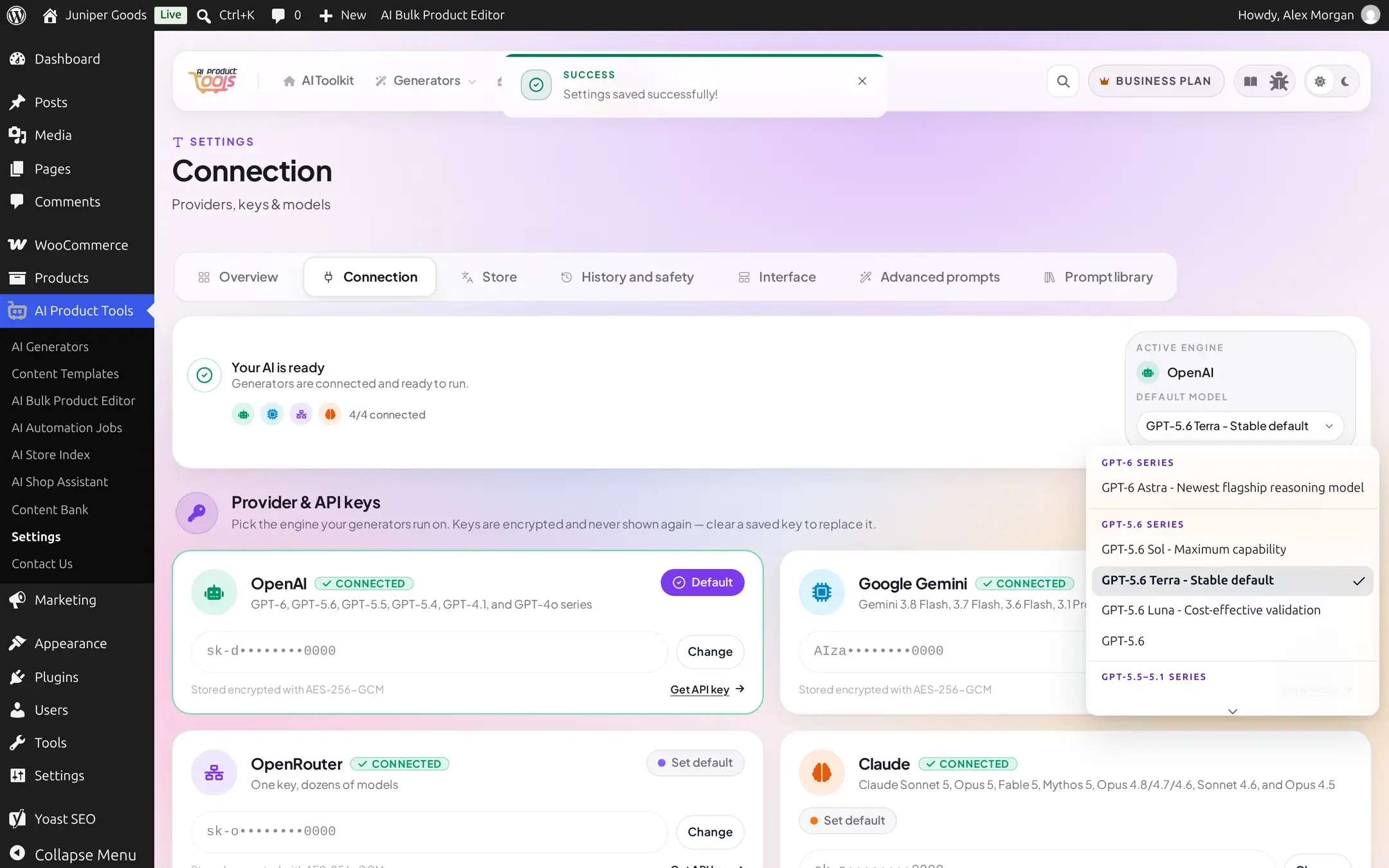
- If OpenAI is your only configured provider, it becomes the default automatically. Otherwise click Default on its card.
Models
Settings groups OpenAI's models into four lists in the Default model dropdown, newest first: GPT-6 Series, GPT-5.6 Series, GPT-5.5-5.1 Series, and GPT-5 and GPT-4 Series (which also holds GPT-4.1 and GPT-4o). The shipped default is GPT-5.6 Terra, labeled "Stable default".
A newer, pricier model in the same family is not always worth it for short, formulaic fields like titles or alt text. Pick a lighter model for those and save the flagship model for full descriptions and FAQs if you want to balance quality against cost.
Managing your key
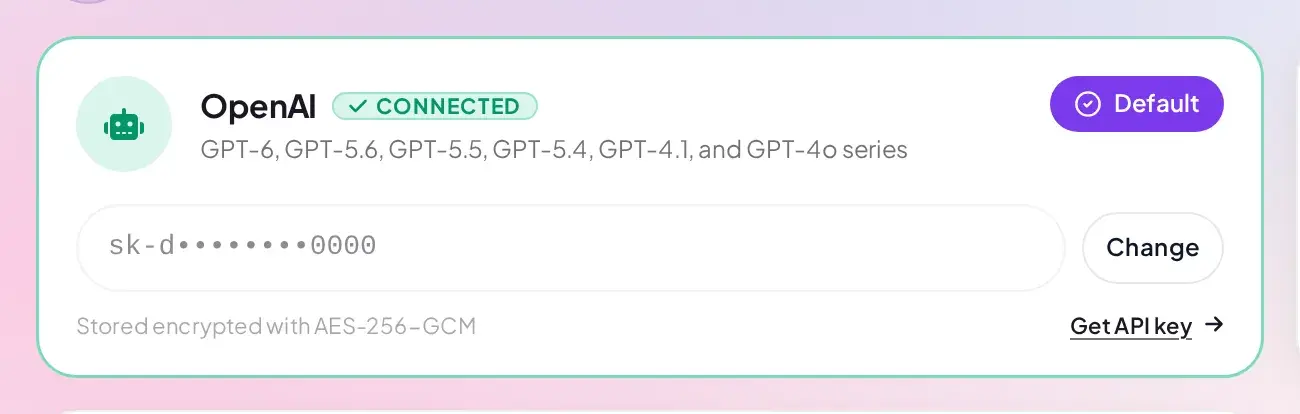
- The key field is write-once: once saved, it shows a masked preview (
sk-d••••••••0000) with a Change button instead of the real value. OpenAI's key is never sent back to your browser after saving. - Click Change to replace it. The field clears for a new value; click Save Settings to commit it, or Cancel to restore the previous masked state without saving.
- Leaving the field empty and saving removes the key entirely. If OpenAI was your default provider and no other provider has a key, the plugin warns you that no AI features will work until you configure one.
Free vs Business
Connecting OpenAI, choosing any of its models, and switching it in and out of being your default provider are all available on Free. Nothing about this provider is Business-gated.