
Draft Content
Approve, reject, or delete what a scheduled automation job wrote instead of publishing straight to your products.
Draft Content holds the results of automation jobs that were set to stage their output instead of publishing it. A job set this way never writes to a product on its own: every result it produces collects here until you decide, which is what lets a schedule run unattended without ever changing live content by itself.
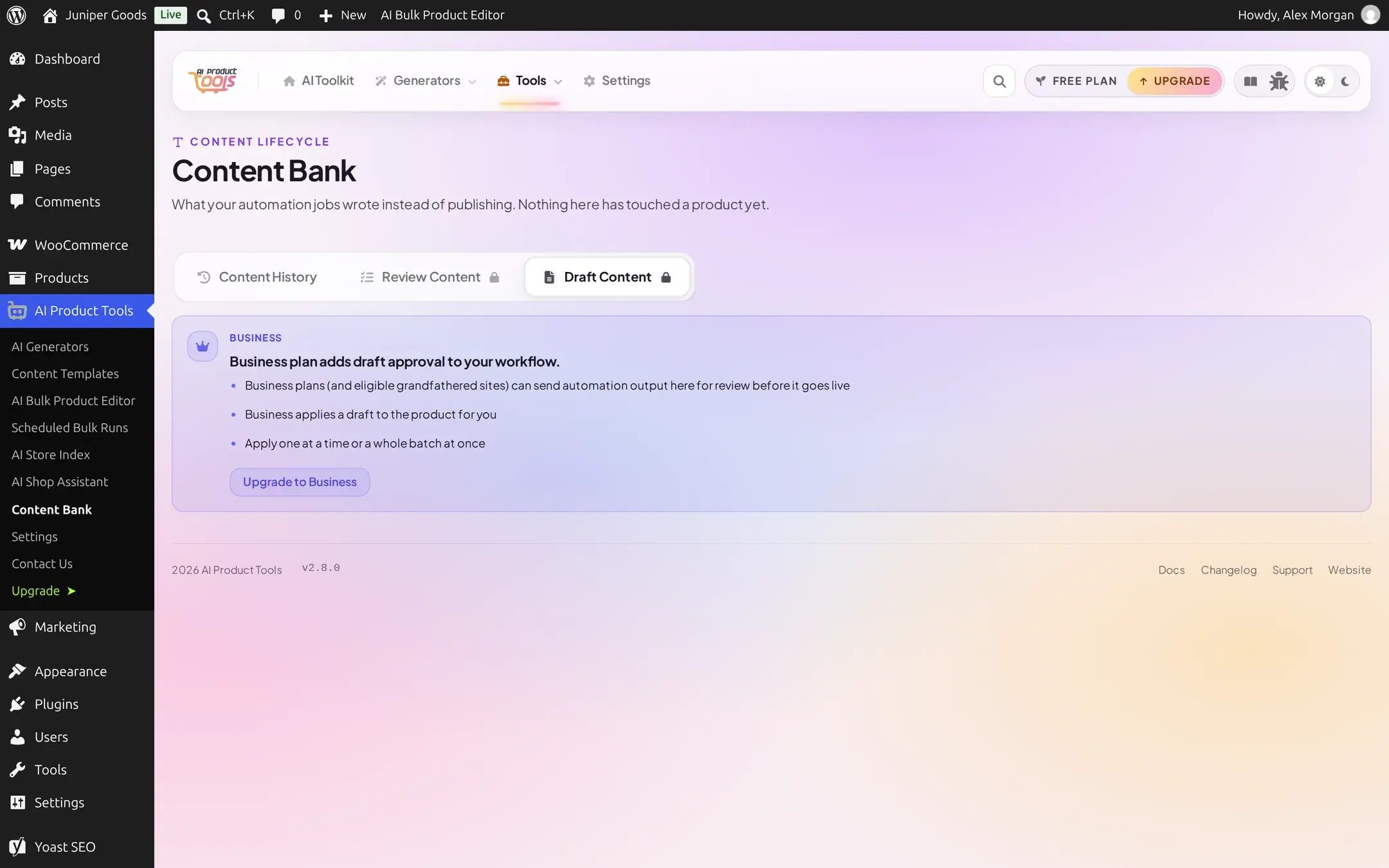
Business Draft Content is a Business feature end to end, the same way Review Content is. On a Free site the tab shows an upgrade teaser and fetches nothing.
"Draft" is the one place in Content Bank that uses that word: the History tab deliberately avoids draft/review/approve/reject/pending vocabulary so the two systems never read as the same thing.
Before you start
- Requires the Business plan (or a grandfathered site with the same entitlement).
- You need at least one automation job whose Content Delivery was set to Stage for Review to have anything here. See Create an automation job.
Open Draft Content
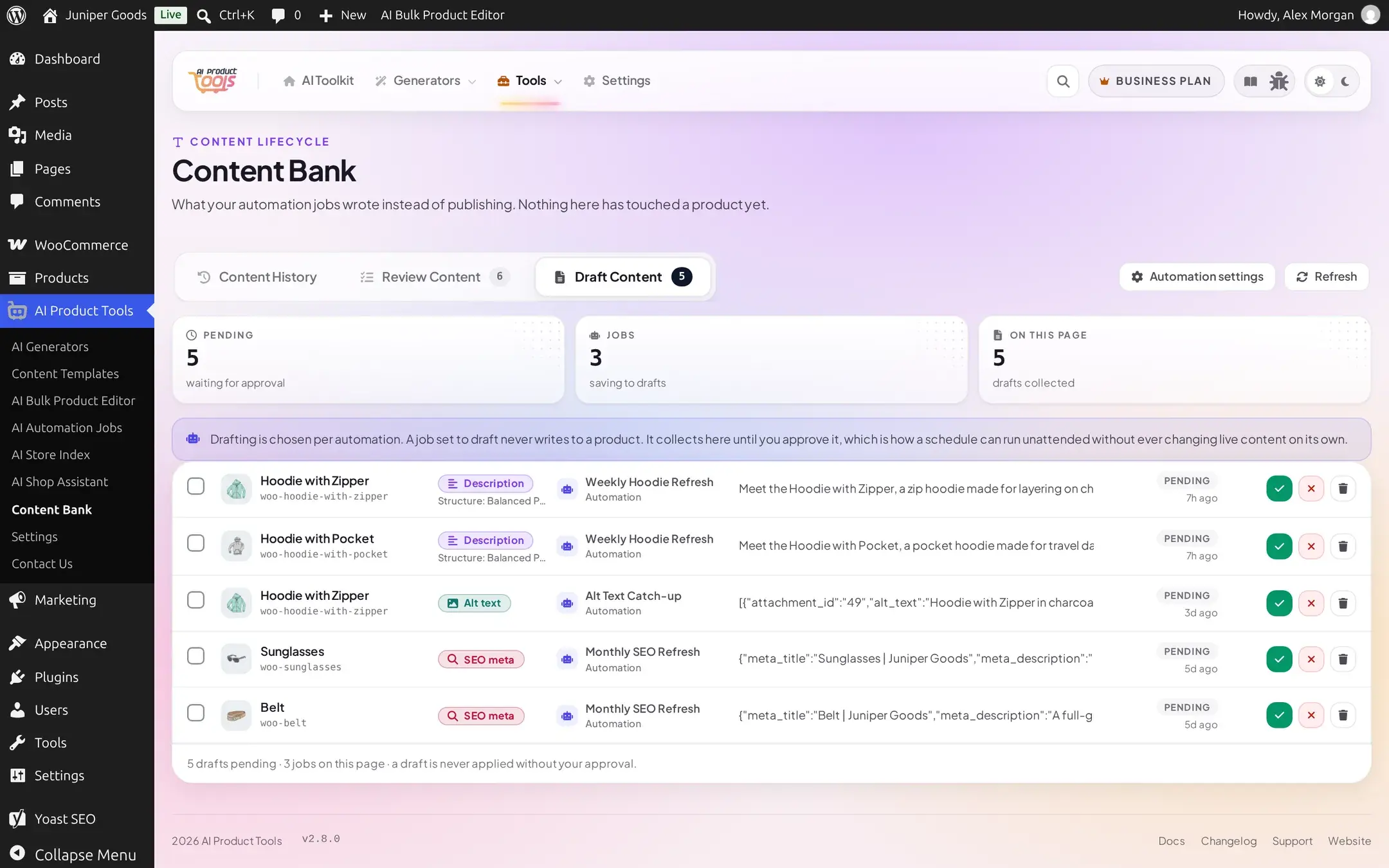
Content Bank > Draft Content, or the Automation Jobs page's own Draft Contents tab, which redirects here rather than showing a second copy of the list. Three tiles: Pending (waiting for approval, across every page), Jobs (distinct automation jobs with pending drafts), and On this page (drafts shown here, since this list paginates by page, not by loading more). An Automation settings button next to Refresh jumps straight to the Automation Jobs page, the same shortcut the empty state below offers when nothing is pending.
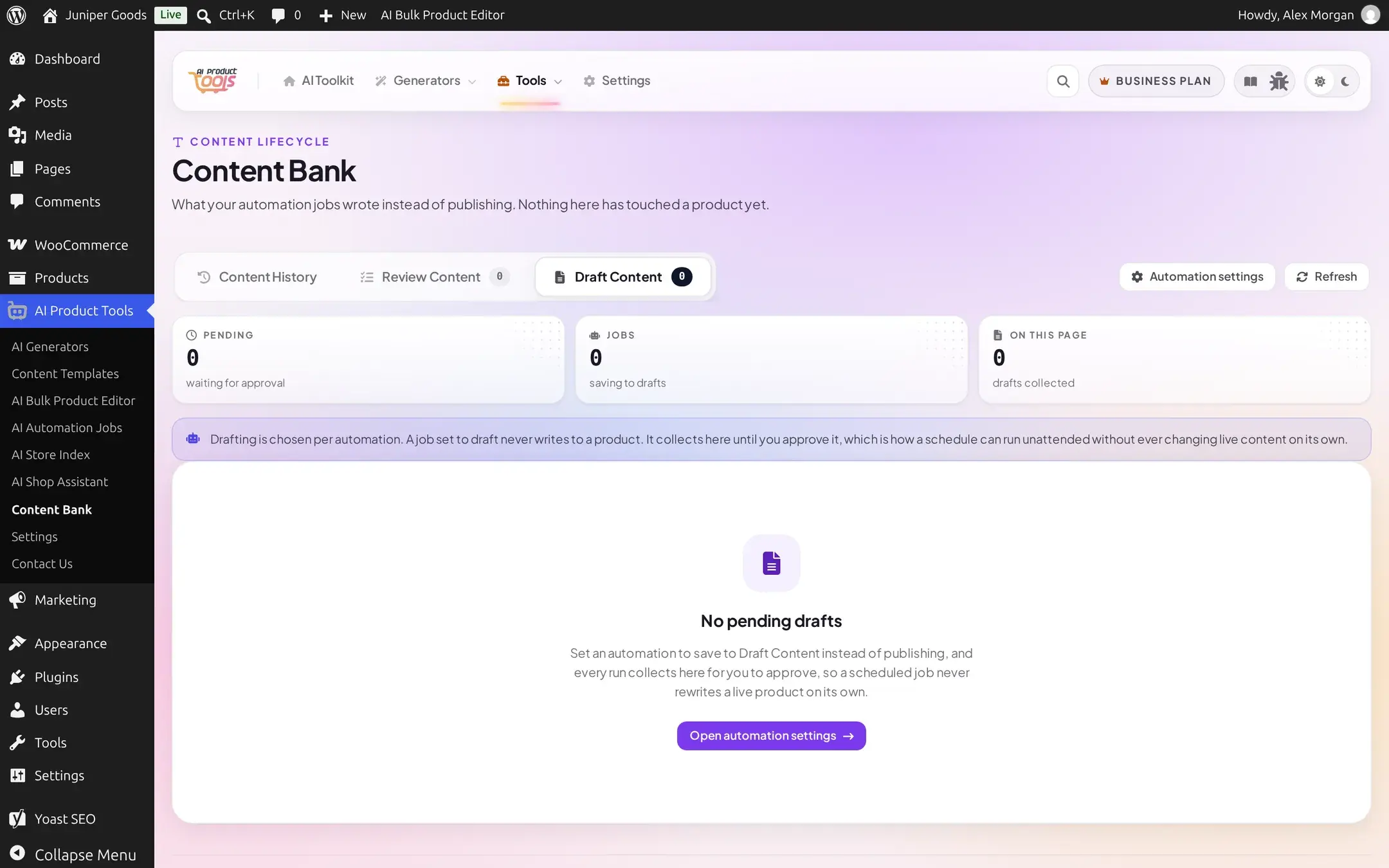
A permanent info banner reminds you that drafting is chosen per automation, and that nothing here has ever touched a product. With every draft decided, the list shows its own empty state instead:
Read a row
Each row shows the product, the content type, the job that wrote it (with an Automation source chip), a preview of the drafted value, its state, and when it was drafted. A structured content type, such as SEO meta or image alt text, shows its raw proposed value in the row preview; open the row to see it compared field by field.
Open a draft's detail
Click a row to open its detail sheet. A simple content type, such as a title or description, compares the current product value against the drafted one directly. SEO meta and image alt text, which can carry several logically separate values in one row, get a structured, field-by-field comparison instead:
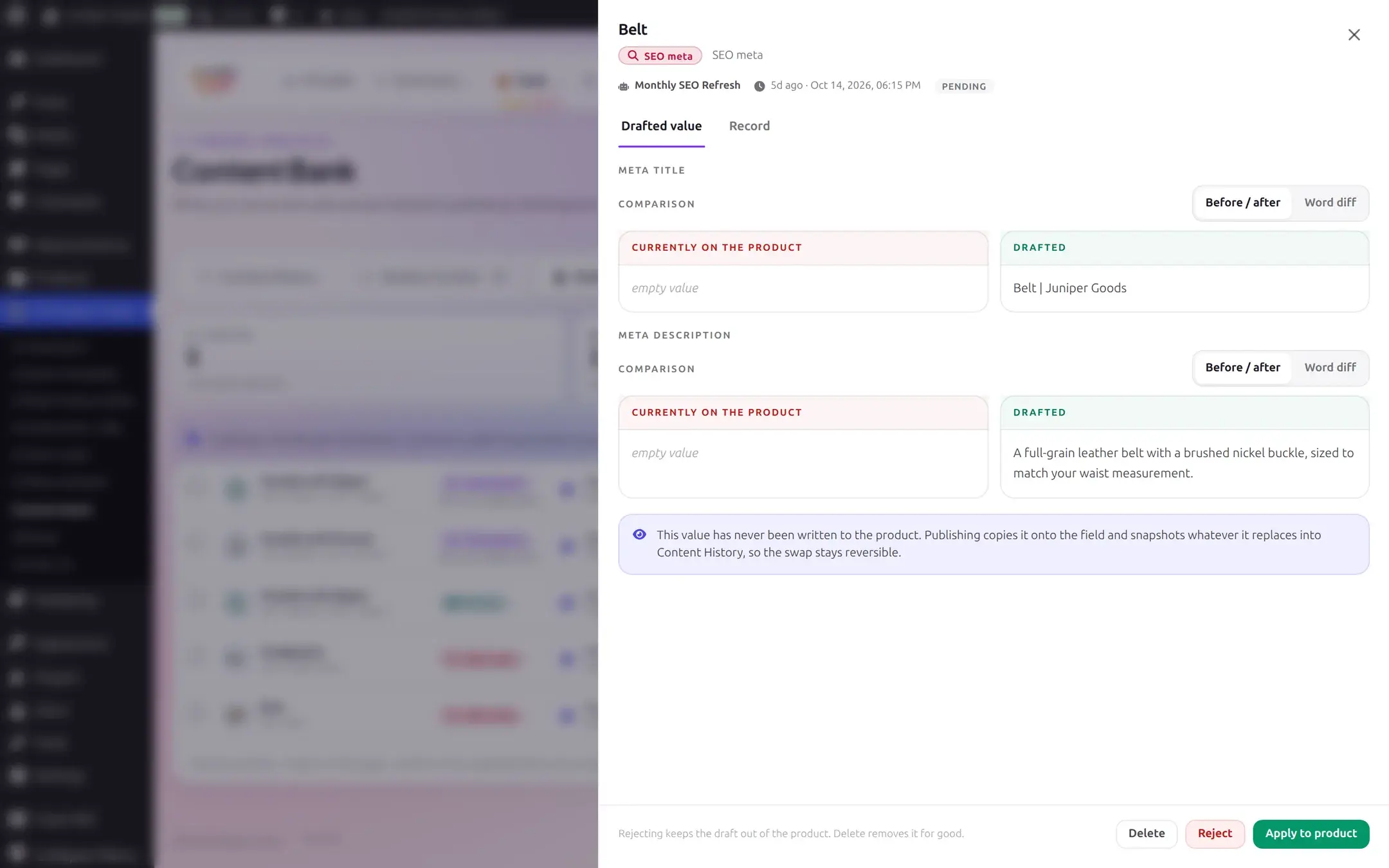
An image alt text draft compares each image it covers the same way, labeled "Image 1 (attachment #...)", "Image 2 (attachment #...)," and so on, since one product can have several images in a single draft.
Approve, reject, or delete
A row's actions are Apply (writes the drafted value to the product, recording the replaced value in Content History first, so it stays reversible), Reject (keeps the draft out of the product, but keeps nothing to undo later), and Delete (removes the draft outright). The drawer's footer states this distinction plainly: "Rejecting keeps the draft out of the product. Delete removes it for good."
Act on several at once
Select rows to open the bulk bar: Select all N loaded, Clear selection, Reject N, and Apply N to products.
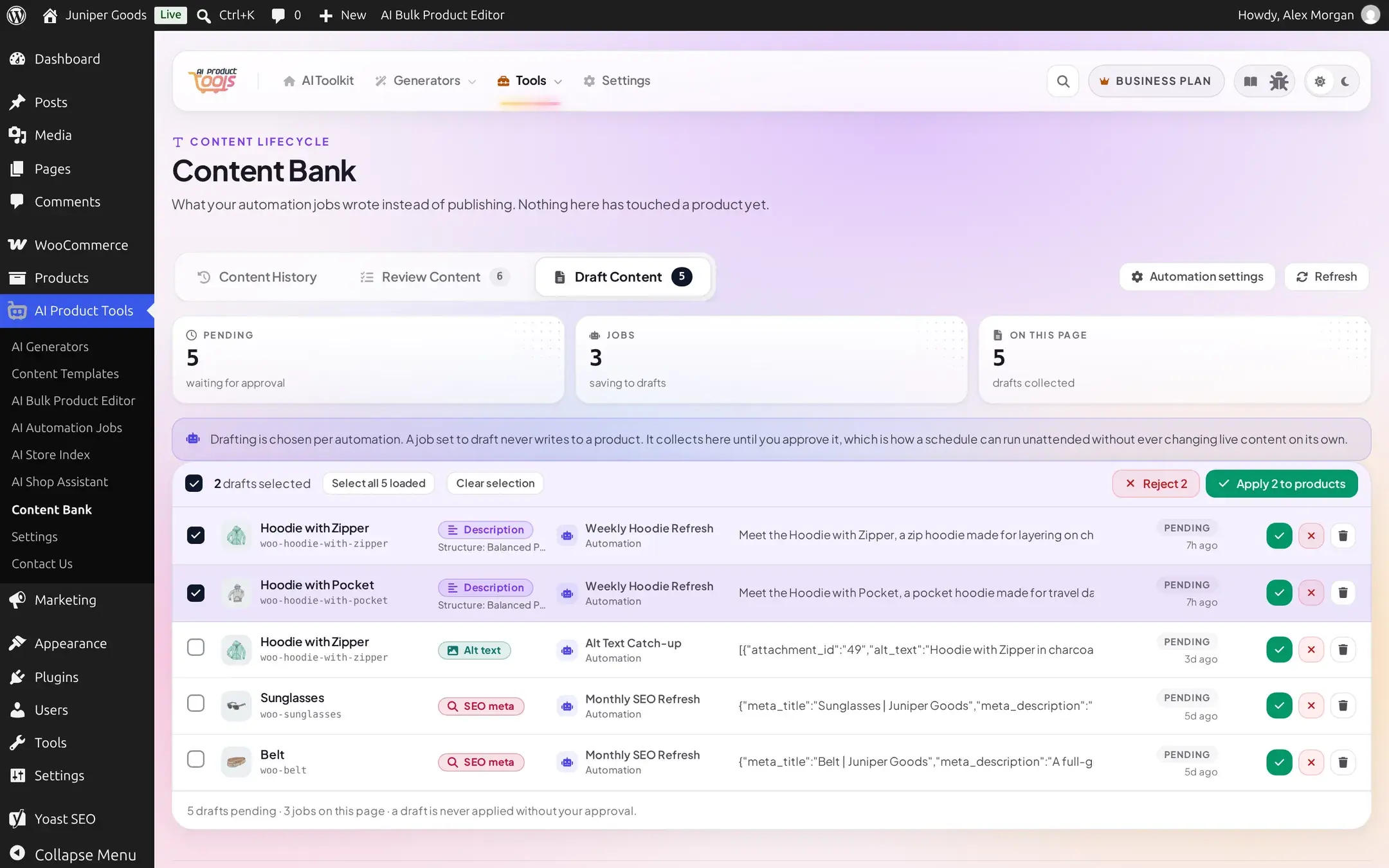
A bulk run's outcome lists each item individually, applied or skipped, the same way Review Content's bulk actions do.
Move between pages
Draft Content is the one Content Bank list with ordinary Previous / Page N of M / Next paging rather than "Load more," because its data is paginated by offset rather than by a keyset cursor. Deciding an item removes it from the page immediately, then the list refetches, so positions can shift after a decision.
Reference
Content types you can see here
Long description, short description, product tags, FAQ, title, SEO meta (title and description together in one row, plus a focus keyword field alongside them when the active SEO plugin supports one), and image alt text (every image a product has, together in one row).
Why a draft looks different from a Review Content row
| Review Content | Draft Content | |
|---|---|---|
| Produced by | A generator page's review mode | An automation job's staged delivery |
| "How it ran" | Manual apply | Always an automation job |
| List pagination | Keyset ("Load more") | Offset ("Previous / Next") |
| Vocabulary | "Proposed" / "Proposed value" | "Drafted" / "Drafted value" |
Free vs Business
| Capability | Free | Business |
|---|---|---|
| View drafts | No, upgrade teaser only | Yes |
| Approve, reject, delete, bulk actions | No | Yes |