
CSV Import and Export
Round-trip AI-written FAQ, AI note, SEO, and image alt text through WooCommerce's own Product CSV Export and Import screens.
AI Product Tools adds 8 of its own columns to WooCommerce's native Product Export and Product Import screens. There is no separate export or import page of its own; it hooks into WooCommerce's existing tools so a spreadsheet edit, or any external system that already speaks WooCommerce's product CSV, can safely update these fields too.
Works on every plan
Export, import, and the safety rule below are not plan-gated. They work the same on Free and Business.
Before you start
- This needs whatever WooCommerce's own exporter and importer require: the
manage_woocommercecapability. - Reach the exporter and importer from Products > Export and Products > Import, or from the AI Bulk Product Editor's More > Export..., which opens the same native exporter pre-filtered to your current selection.
The 8 columns
| Column header | Content |
|---|---|
| AI Product Tools FAQ | JSON array of {question, answer} objects |
| AI Product Tools AI note | Plain text, same 1000-character cap as the AI note field |
| AI Product Tools SEO title | Text; only populated when a supported SEO plugin is detected |
| AI Product Tools SEO description | Text |
| AI Product Tools focus keyword | Text |
| AI Product Tools image alt text | JSON object keyed by attachment ID |
| AI Product Tools content source | Read-only, human-readable provenance (for example which fields are AI-written) |
| AI Product Tools row token | An opaque signed token; see The safety rule. Never hand-edit this cell. |
A variation row is skipped entirely for all 8 columns: left empty on export, ignored on import.
Export
Choose products and columns
Open Products > Export, or select specific products in the AI Bulk Product Editor and use More > Export... to pre-fill the same screen with just your selection. Which columns should be exported? defaults to every column, including all 8 of this plugin's; open it to see (or narrow to) the full list.

Generate and download
Click Generate CSV. WooCommerce builds the file in the browser and offers it as a download once ready.
Edit the file
Open the download in a spreadsheet editor. Edit any of the 8 columns freely: the FAQ and image alt text cells are JSON, so keep their structure intact; everything else is plain text. Leave AI Product Tools row token exactly as exported.
Import
Upload and map
Open Products > Import, choose your edited file, and tick Update existing products (existing rows are matched by ID or SKU; without this box, WooCommerce skips rows that already match a product instead of updating them). Click Continue to reach Column mapping, where every aipt_* column auto-matches its own field by name, in English or in a previously-exported language.

Run it
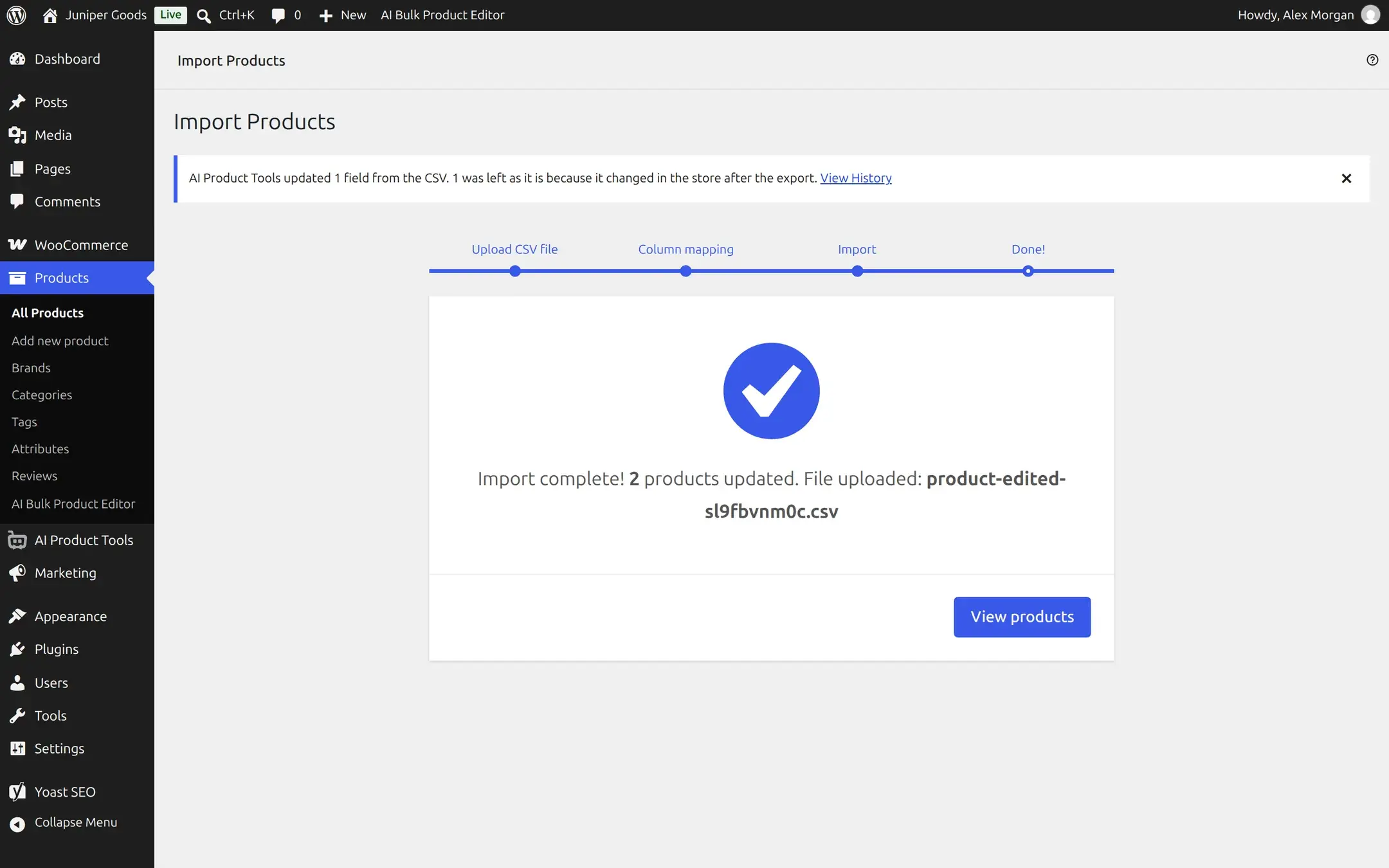
Click Run the importer. On the Done! step, and again as a dismissible notice on the next admin screen you open, AI Product Tools reports what it did.
The safety rule
An import changes only the fields you actually edited, and never overwrites a field someone else changed in the store in the meantime. Each exported row carries a signed token recording a hash of all 10 tracked fields (the 6 aipt_* content columns plus name, description, short description, and tags) as they stood at export time. On import, each field is decided independently:
- Cell unchanged from export, live value unchanged: nothing happens.
- Cell edited, live value unchanged since export: your edit is written. This is the normal case, and what the notice counts as "updated."
- Cell unchanged from export, live value changed since export (someone edited it in the store): the live value is kept; nothing is written.
- Cell edited, AND live value also changed since export: a genuine conflict. The live value is kept, your CSV edit is dropped, and it counts toward the notice's "left as it is because it changed in the store after the export" line.
Open View History on the notice, or AI Product Tools > Content Bank > History filtered to CSV imports, for the full per-field detail of a specific run.
Troubleshooting
Related pages
AI Bulk Product Editor
A spreadsheet-style grid for viewing and editing every AI-capable and core WooCommerce field across many products at once, with inline AI generation.
AI Assistants (MCP)
Let an MCP-capable AI assistant like Claude Desktop or Cursor discover and run this plugin's content generators directly, with your approval before anything is written.