
Bulk SEO Meta Generator
Generate SEO titles and meta descriptions that sync straight into Yoast, Rank Math, or another supported SEO plugin.
The Bulk SEO Meta Generator writes a meta title and meta description for each product, directly into the fields of whichever SEO plugin your store already uses. On Business, it can also generate or optimize for a focus keyword.
Where to find it
Open it from the AI Generators card grid, a product's AI content panel, or
admin.php?page=aipt-seo-meta-generator directly; there is no left-menu submenu item for it.
Before you start
- Install and activate a supported SEO plugin. This generator never stores its own SEO fields: it writes into the plugin you already have. See Supported SEO plugins below.
- Connect an AI provider in Settings > Connection.
- You need the Manage WooCommerce capability.
The generator opens on the same 1 · Content structure / 2 · Generation tabs every generator uses; see How bulk generation works for that shared flow. This page covers what is specific to SEO meta.
Confirm your SEO plugin is detected
A pill in the toolbar tells you whether a supported plugin was found. Install and activate one of the supported plugins before generating if it reads No SEO Plugin.
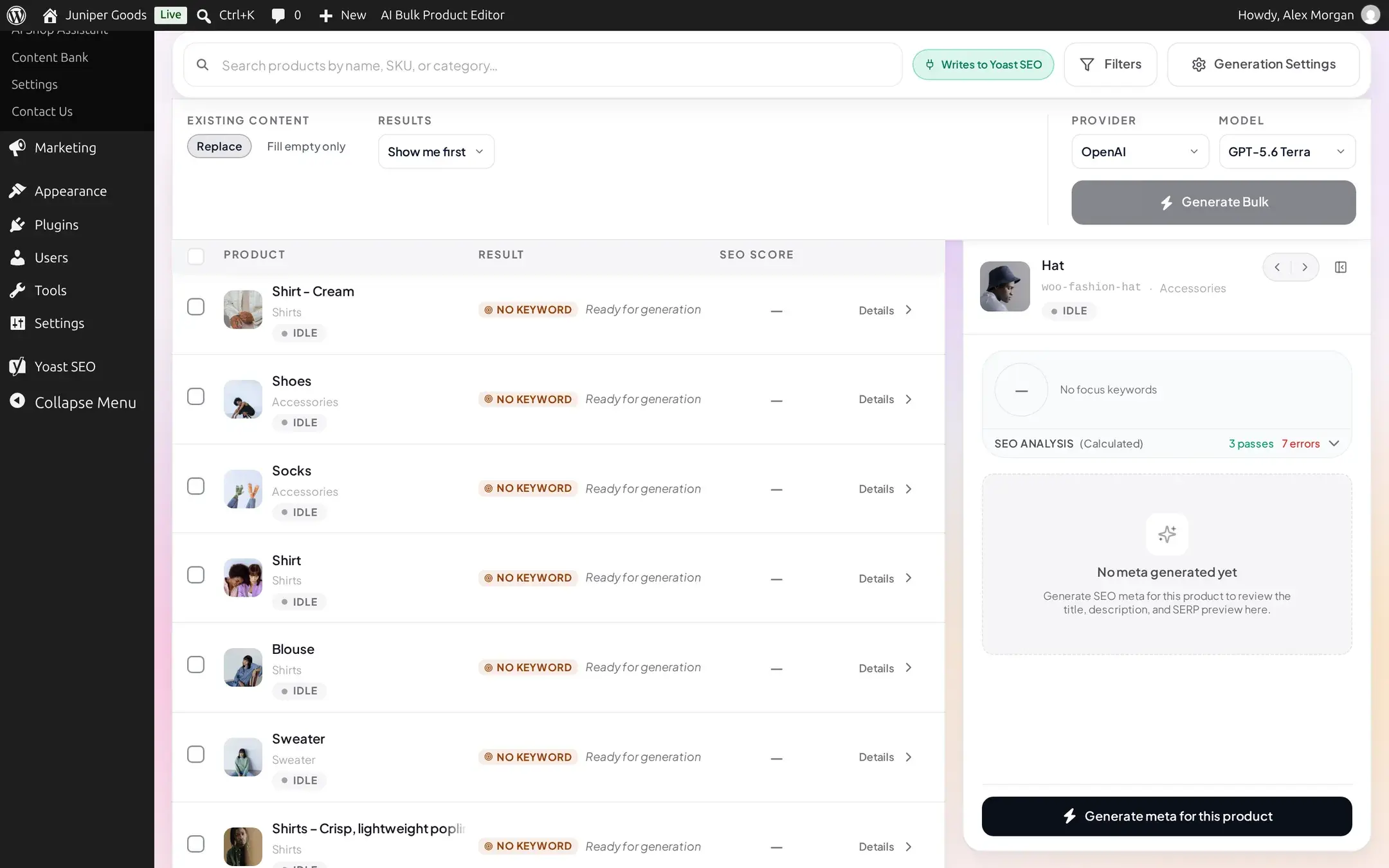
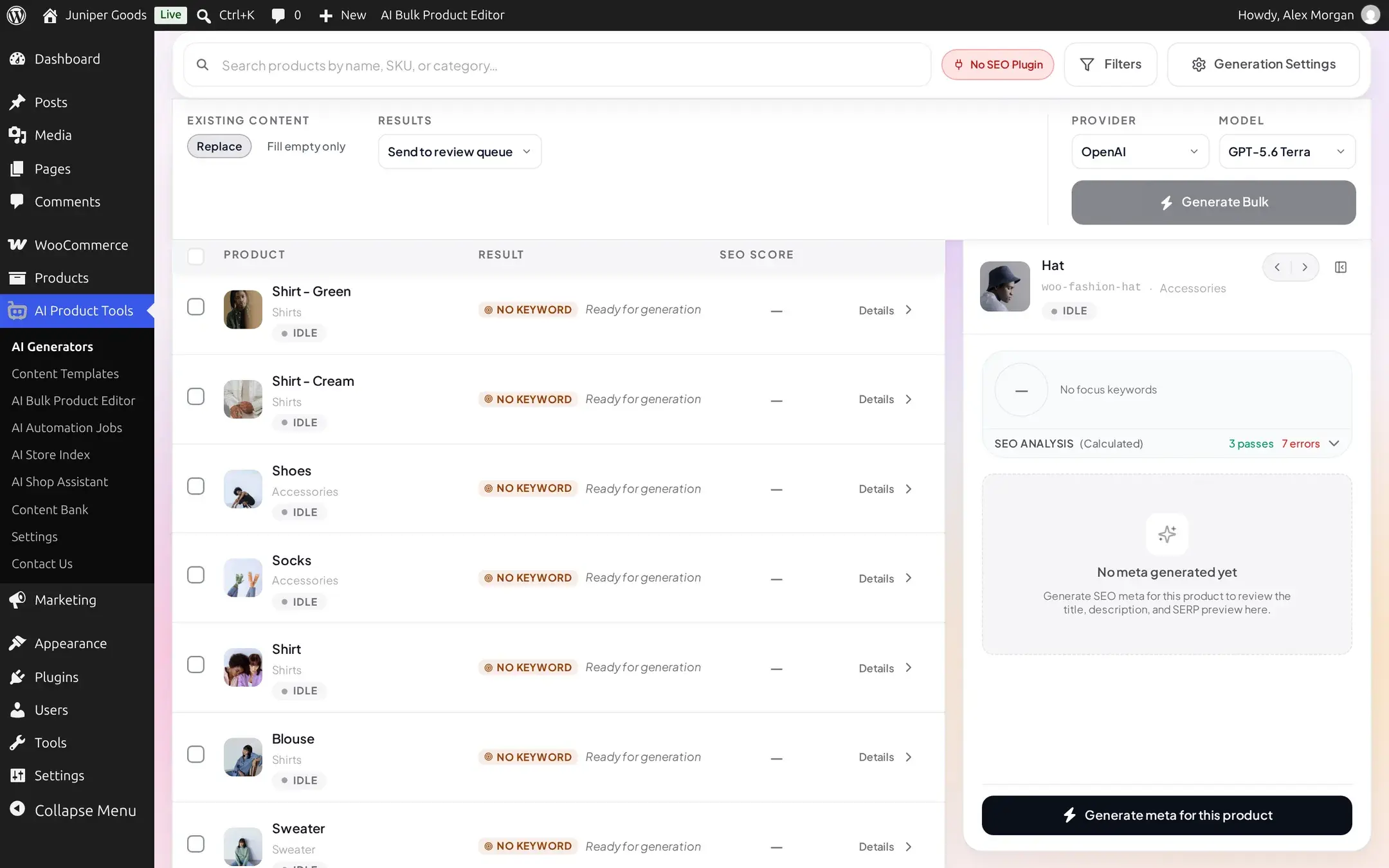
Generating (or applying) with no supported plugin active fails the whole request with:
No supported SEO plugin detected. Please install and activate one of: Yoast SEO, Rank Math, All in One SEO, SEOPress, The SEO Framework, or Squirrly.
Supported SEO plugins and fields
Detection checks plugins in this order and writes to the first one found active: Yoast SEO, Rank Math, All in One SEO, SEOPress, The SEO Framework, and Squirrly. Every one of them gets a meta title and meta description; all but one also get a focus keyword.
The SEO Framework has no focus keyword field
Generating a focus keyword still runs, but there is nothing to write it to, so that product's keyword result is skipped. Meta title and description still apply normally.
For developers: the exact fields written
| Plugin | Meta title field | Meta description field | Focus keyword field |
|---|---|---|---|
| Yoast SEO | _yoast_wpseo_title | _yoast_wpseo_metadesc | _yoast_wpseo_focuskw |
| Rank Math | rank_math_title | rank_math_description | rank_math_focus_keyword |
| All in One SEO | _aioseo_title | _aioseo_description | _aioseo_keywords |
| SEOPress | _seopress_titles_title | _seopress_titles_desc | _seopress_analysis_target_kw |
| The SEO Framework | _genesis_title | _genesis_description | Not available |
| Squirrly | _sq_title | _sq_description | _sq_keywords |
Generate SEO meta in bulk
Select products and set Alternatives
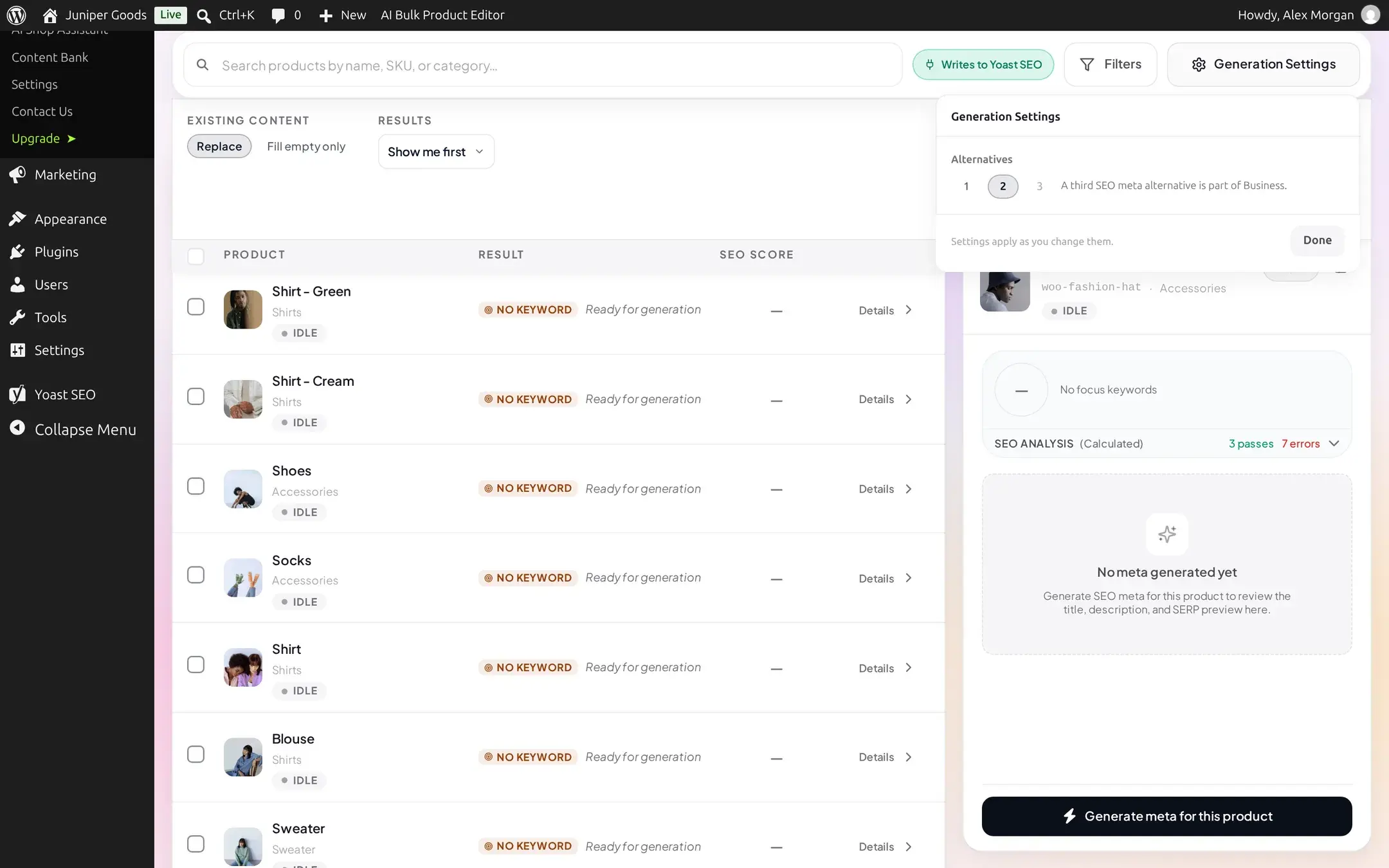
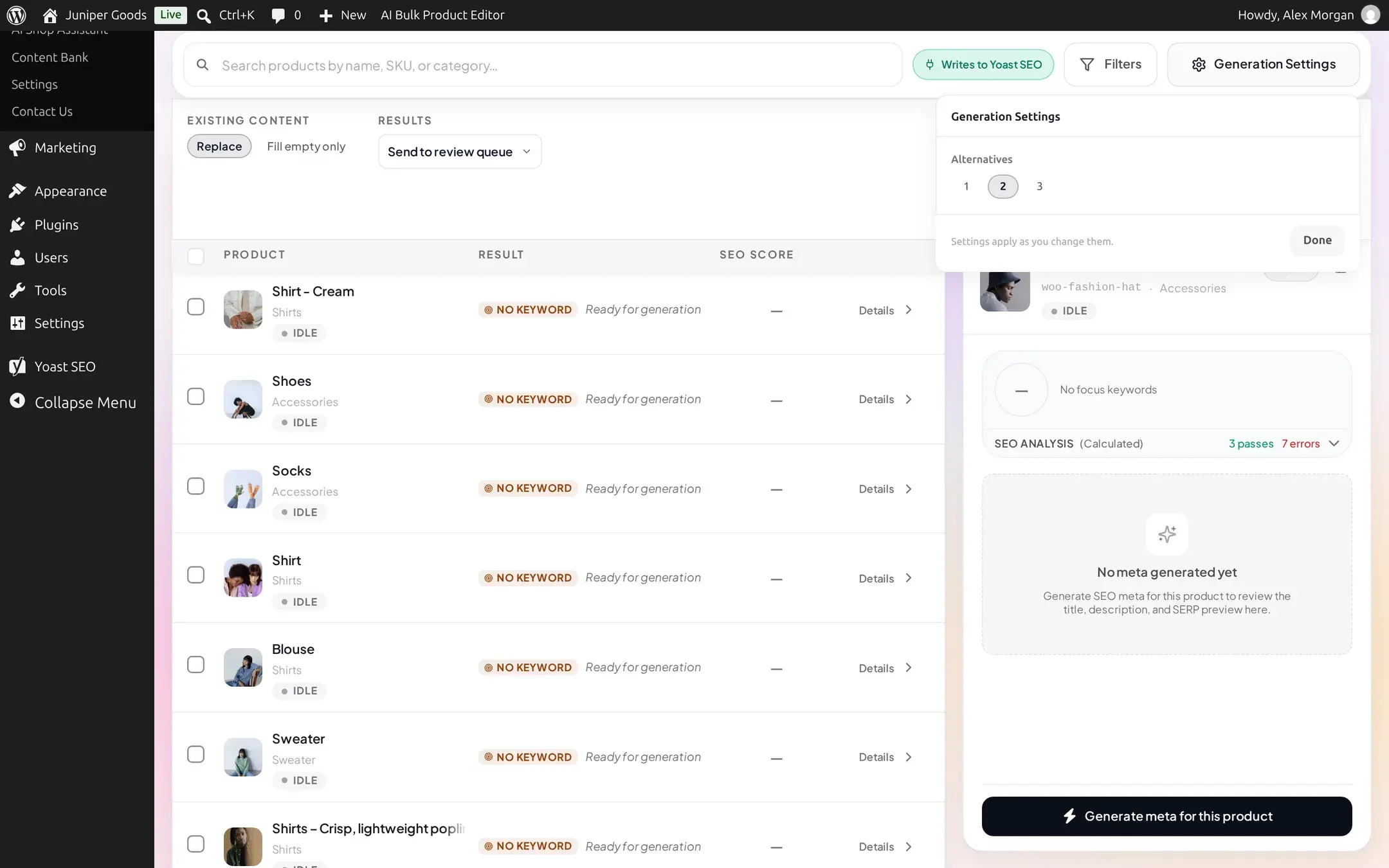
Check the products to generate for. Open Generation Settings: the popover shows only Alternatives and which Content to generate (Meta Title, Meta Description, at least one must stay checked) while this generator writes with your content structure.
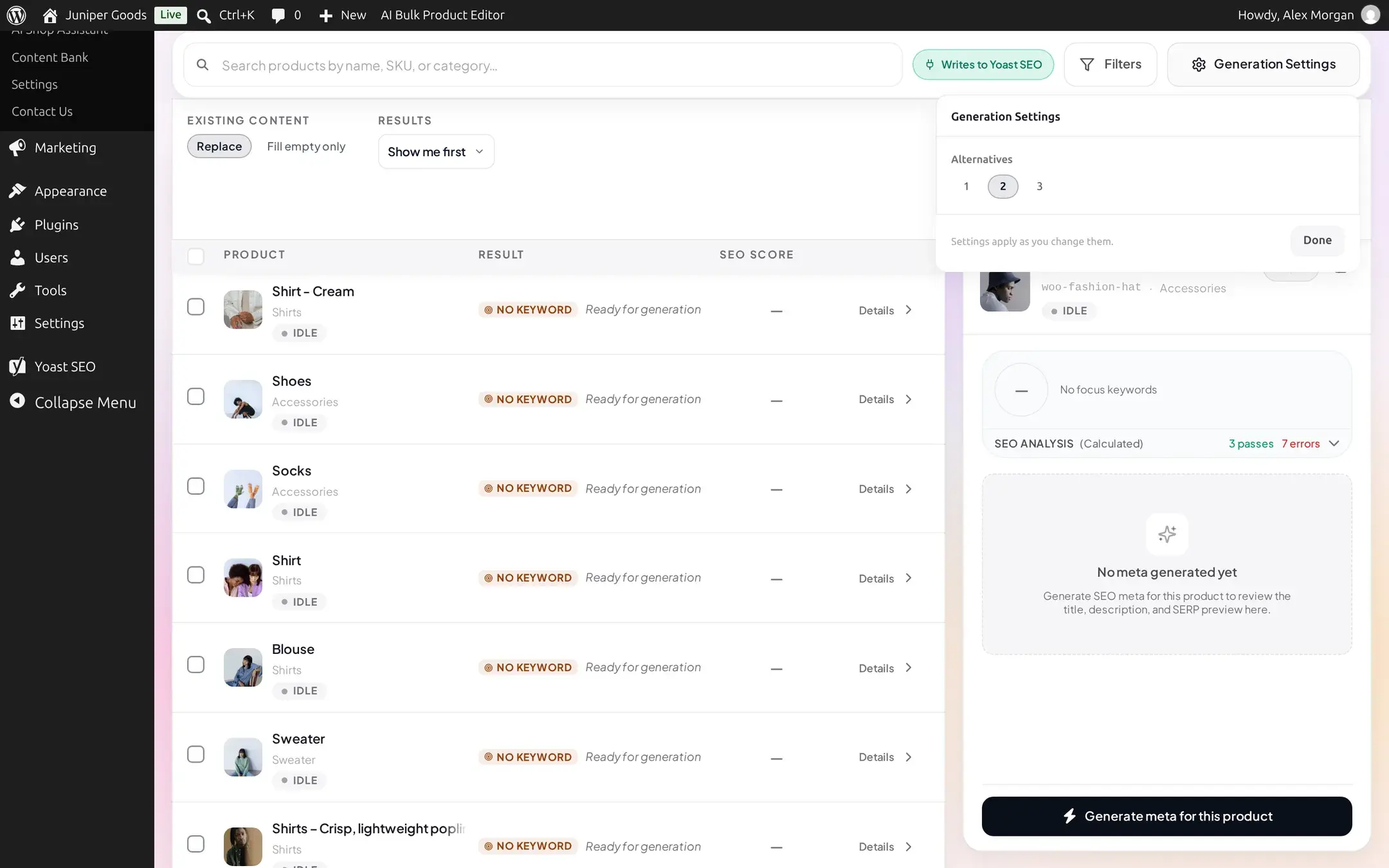
Choose Existing content, Results, provider, and generate
Existing content is Replace or Fill empty only. Results is Show me first or Send to review queue (Business); there is no separate "apply immediately" choice here either. Pick a provider and model, then Generate Bulk.
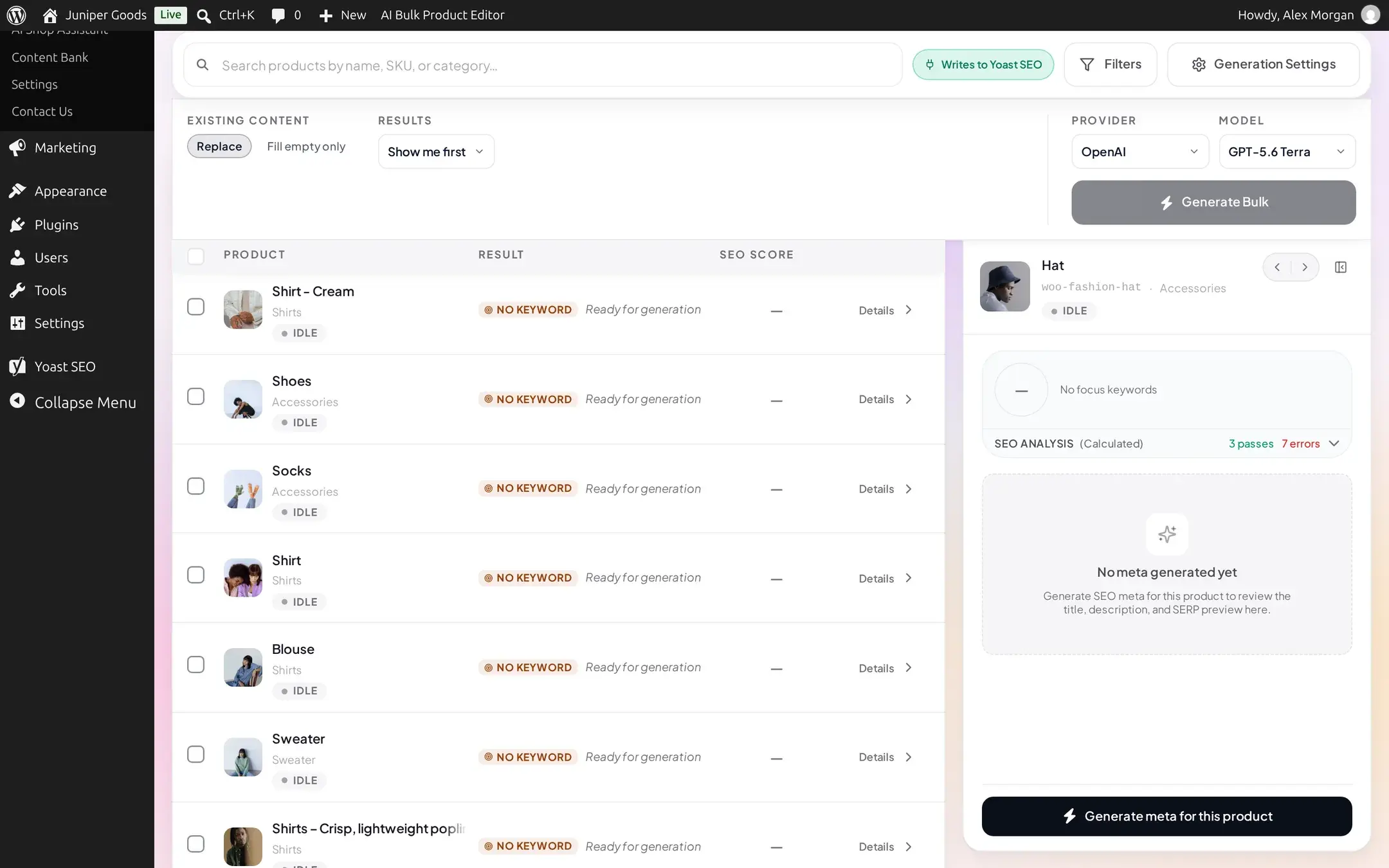
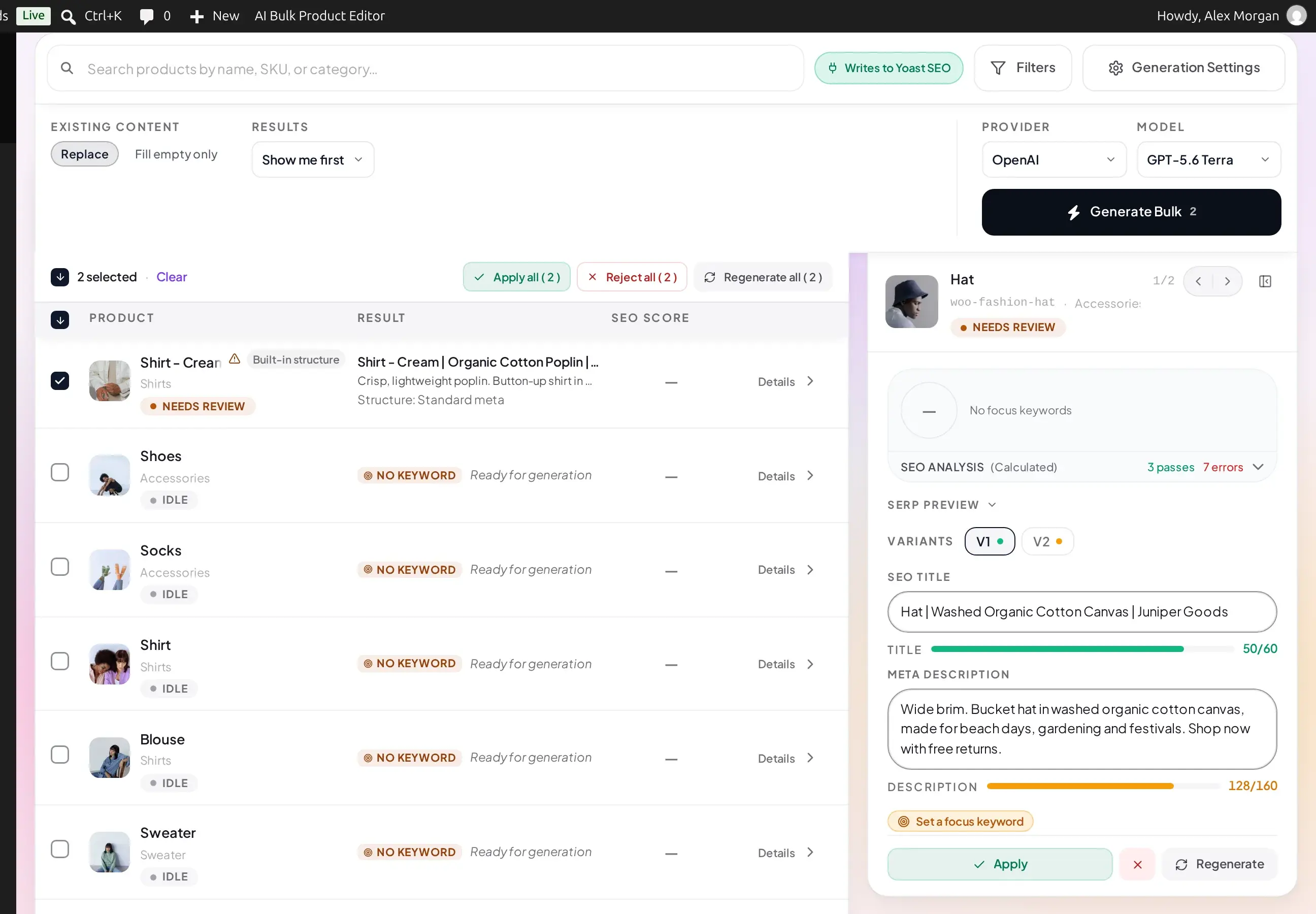
Review the SERP preview, score, and character limits
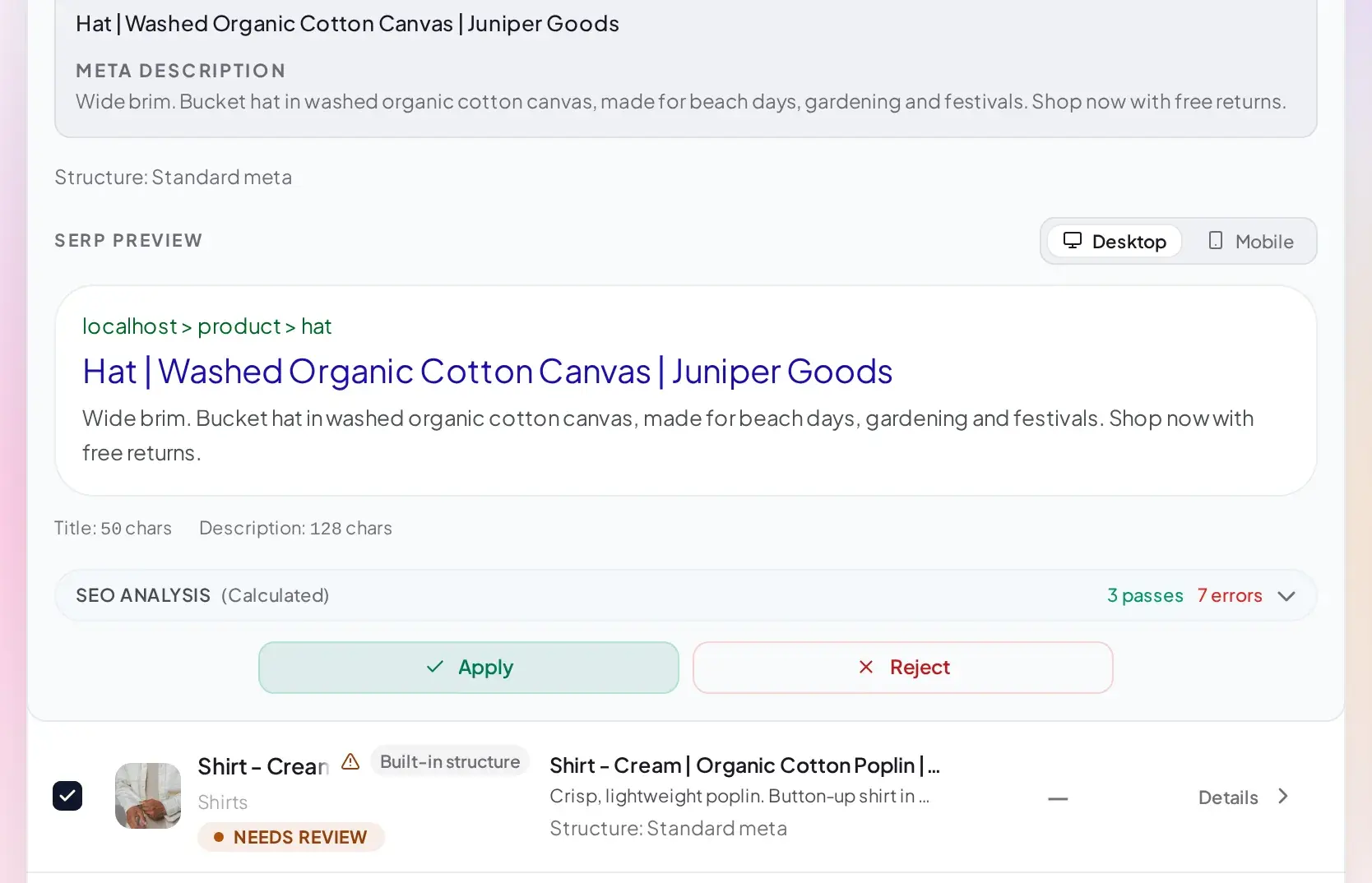
Click a row's Details, or open it in the side panel, to see: a live SERP preview of how the result would look in search, an SEO ANALYSIS summary (passes, warnings, and errors), and a character counter under each field. Green means the field is in the ideal range (50 to 60 characters for the meta title, 140 to 160 for the meta description). Amber means it is shorter than that range, not that it is close to the limit; red means it is far too short or over the 60 or 160 character limit. Cycle between V1 / V2 (and V3 on Business) to compare alternatives.
Set a focus keyword manually (every plan)
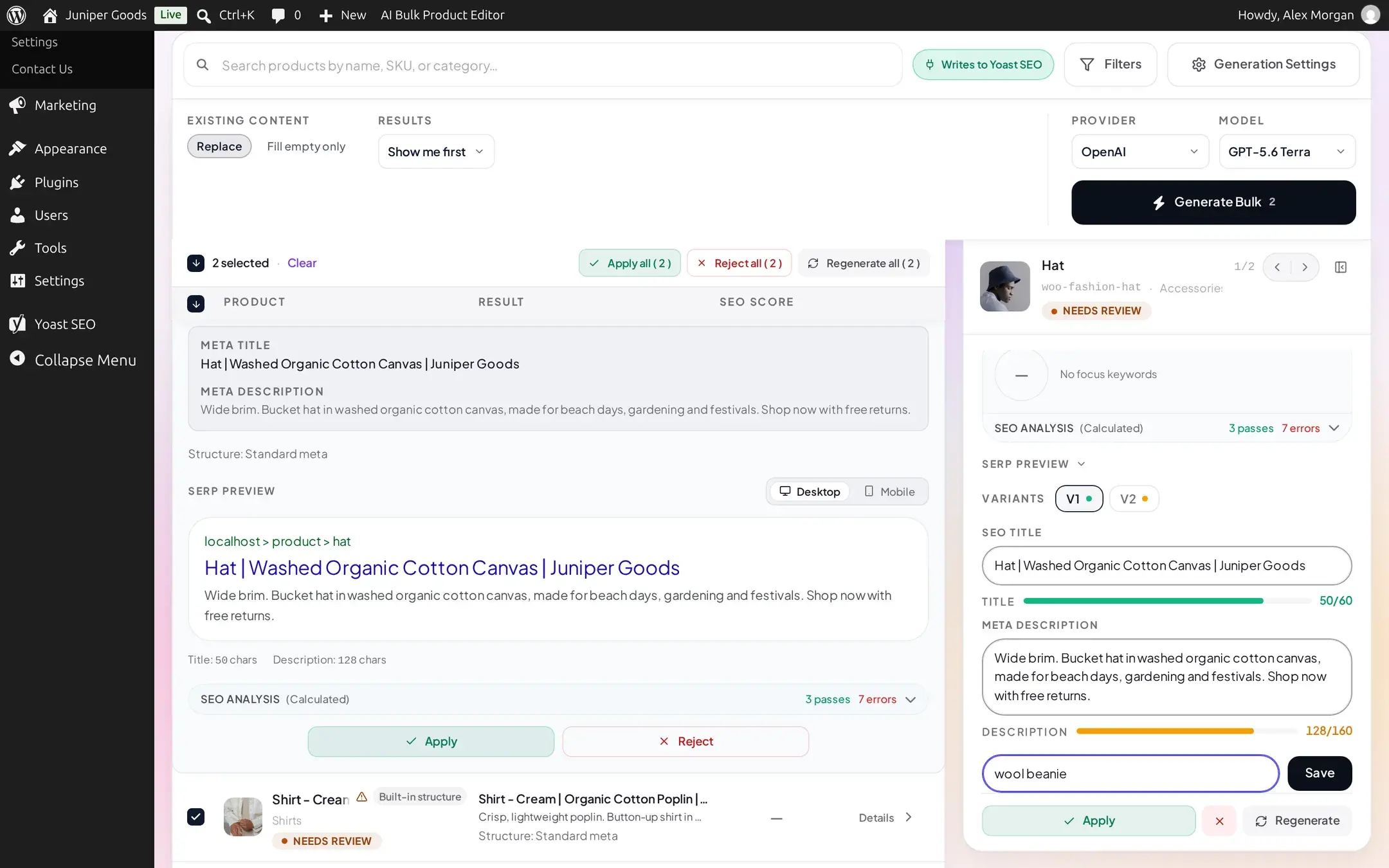
Whether or not you generate one with AI, you can type a focus keyword directly into the focus keyword field under the SEO analysis and click Save. This works on every plan and saves immediately, independent of the Apply step for the title and description.
Not recorded in Content History
Unlike the title and description, this save is not recorded in Content History: there is no way to see or restore the previous keyword afterward. Note down the old value yourself first if you might want it back.
Apply
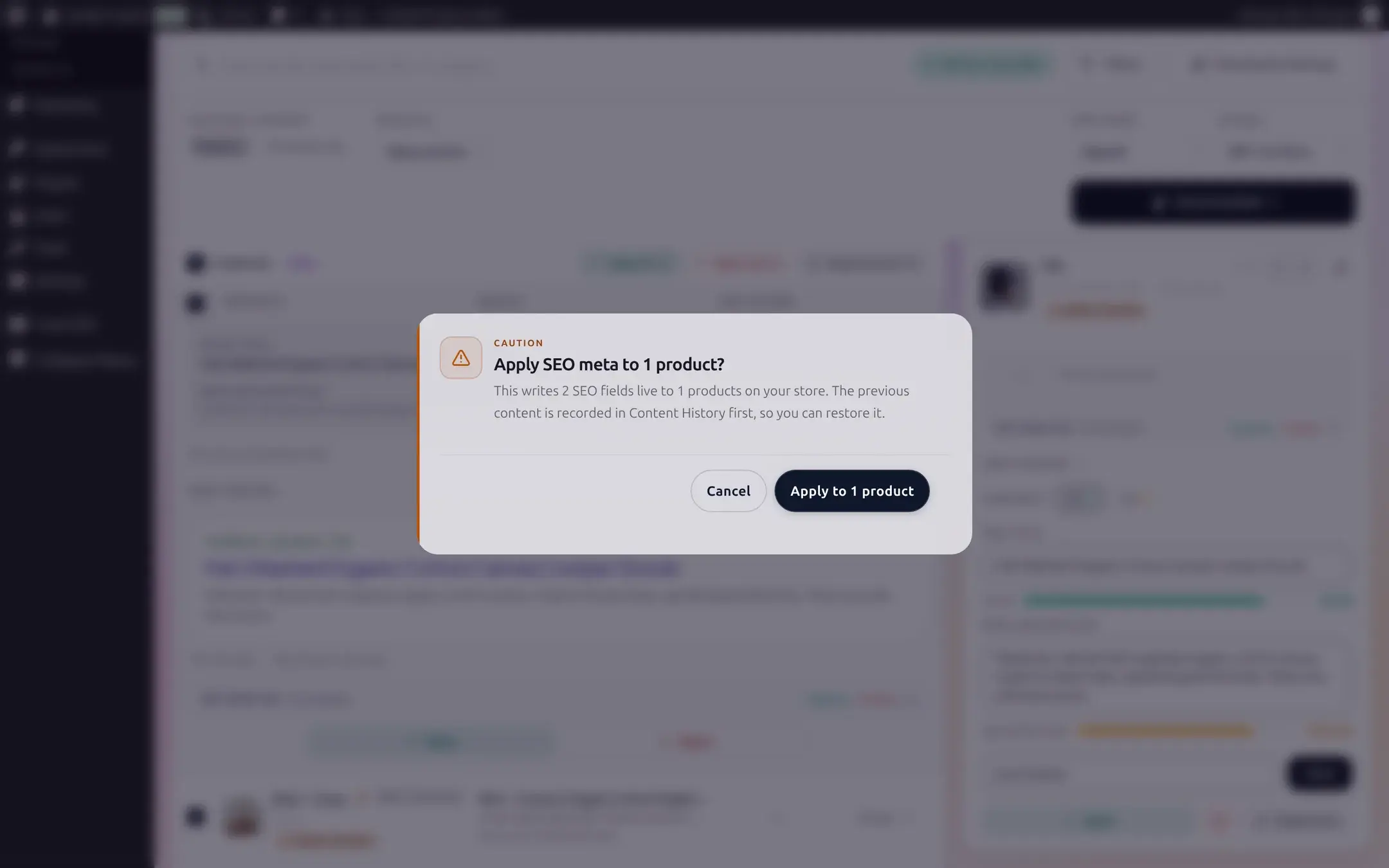
Apply asks you to confirm, since it writes live to your SEO plugin's fields (the previous values are saved to Content History first).
Confirm it landed in your SEO plugin
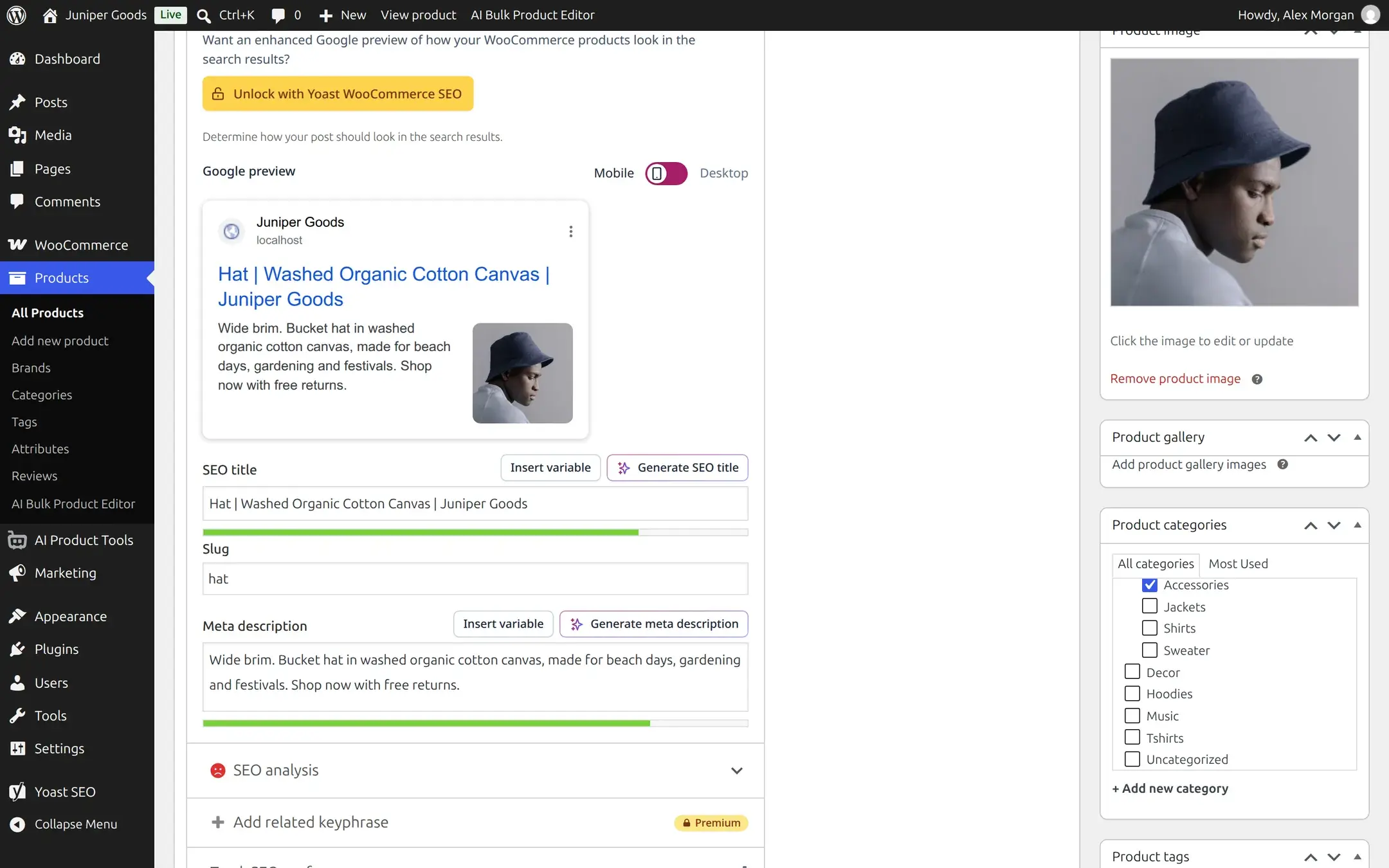
Open the product in Products, scroll to the plugin's own metabox (for example Yoast SEO), and check the SEO title, slug, and meta description match what you applied.
Writing with your own prompts (Advanced)
Switch this generator to Custom prompts (Advanced) in Settings > Advanced prompts (choose SEO Meta) to unlock a second settings group, Advanced SEO, alongside Content.
Free keeps Meta Title and Meta Description generation and 1-2 Alternatives; a third alternative shows locked. The Advanced SEO group (focus keyword generation, and the extra data sources below) is replaced by an upgrade summary.
Business unlocks a third alternative, Generate Focus Keyword and Optimize for Keyword (a two-step flow: the AI picks a keyword, then writes the title and description around it), and extra Data Sources beyond name, description, and category: short description, attributes, brand, tags, SKU, and price.
Comparing against your content structure
The first time you switch this generator to custom prompts, on any plan, a one-time banner offers to Compare on one product (2 AI requests) so you can see what the content structure would have written instead, or Keep custom prompts to dismiss it. Nothing changes until you choose, and the banner will not reappear for this generator afterward. That is the box visible in both screenshots above, on either plan.
Asking for only a keyword on Free
Requesting a focus keyword with both Meta Title and Meta Description turned off is refused with "Focus keyword generation is included in the Business plan." Keep at least one of the two content fields on, or upgrade.
Reference
| Setting | What it does | Default / limits | Plan |
|---|---|---|---|
| Alternatives | Number of title/description variants | 1-2 (Free) or 1-3 (Business) in this UI | Free: 2 max selectable |
| Meta Title / Meta Description | Which fields to generate | Both on; at least one required | Free |
| Existing content | Replace or only fill empty fields | Replace | Free |
| Results | Show me first or Send to review queue | Show me first | Send to review queue is Business |
| Meta title length | Target / hard limit | ~50-60 optimal, 60 max | Free |
| Meta description length | Target / hard limit | ~140-160 optimal, 160 max | Free |
| Generate Focus Keyword / Optimize for Keyword (Advanced) | AI picks (and writes around) a keyword | Off | Business |
| Data Sources (Advanced) | Product fields used to write the content | Name, description, category | Short description, attributes, brand, tags, SKU, price are Business |
| Manual focus keyword | Type and save a keyword yourself | - | Free |
Free vs Business
| Capability | Free | Business |
|---|---|---|
| Generate Meta Title and Meta Description, any provider | Yes | Yes |
| Alternatives | Up to 2 | Up to 3 |
| Manually set or edit a focus keyword | Yes | Yes |
| Generate or optimize a focus keyword with AI | Locked | Business |
| Extra data sources (short description, attributes, brand, tags, SKU, price) | Locked to name, description, category | Business |
| Send to review queue | Opens an upgrade prompt | Business |
| Restoring previous SEO meta from History | View only | Business restore |
Troubleshooting
Related pages
How bulk generation works
The shared content structure tabs, selection, and review flow every generator uses.
Bulk Title Generator
Rewrite product titles and URL slugs in bulk.
Content History
See and restore every value a generator has overwritten.
Settings: Connection
Add an AI provider key and choose a default model.