
AI Store Index
Build the compressed copy of your catalog the Shop Assistant searches, choose what it includes, and keep it fresh.
AI Store Index builds a compressed, AI-optimized copy of your WooCommerce catalog in the background, then the AI Shop Assistant searches that copy instead of querying live product tables for every chat message. Index your catalog here before turning the assistant on.
Before you start
The manage_woocommerce capability to open AI Product Tools > AI Store Index (admin.php?page=aipt-store-index). No AI provider is needed for indexing itself, building reads your own product data only; a provider is only needed once the assistant answers questions with it.
Basic view
The page opens in Basic view by default; a toggle in the top right switches to Advanced. This choice is only remembered in this browser (localStorage), so a bookmarked link always opens on whichever mode you last used here.
Turn indexing on
Flip the switch between Disabled and Enabled, then Save Settings. Before the first save the page is just an explainer; afterward it shows a status card with Products, Categories, and Last Build counts.
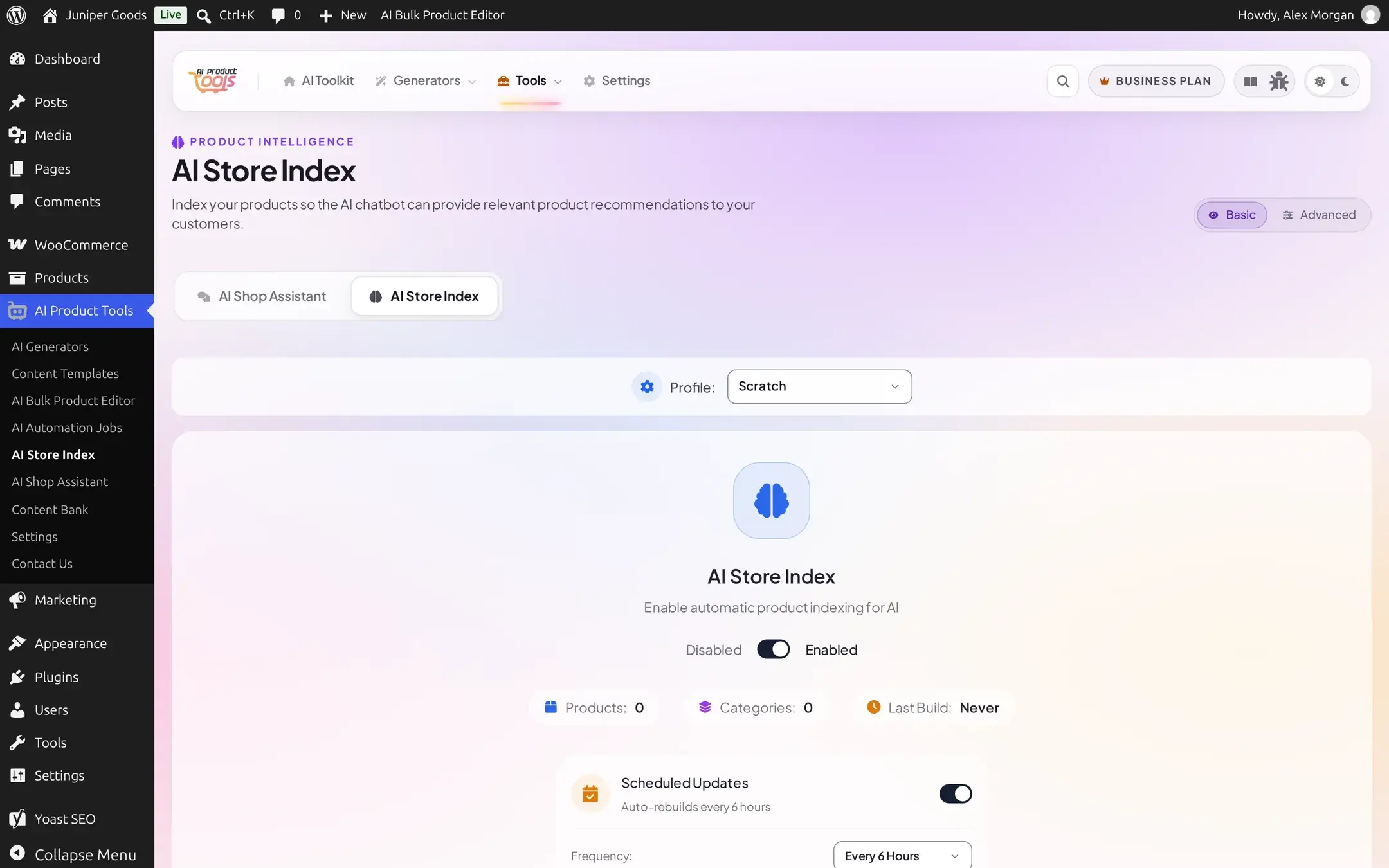
Build it
Click Build Index. A toast confirms "Indexing has started. This process may take several minutes to several hours, depending on the size of the product catalog." For a small catalog this finishes in seconds; a brief "Starting..." button state is the only visible sign of the in-progress build before the status flips to ready.
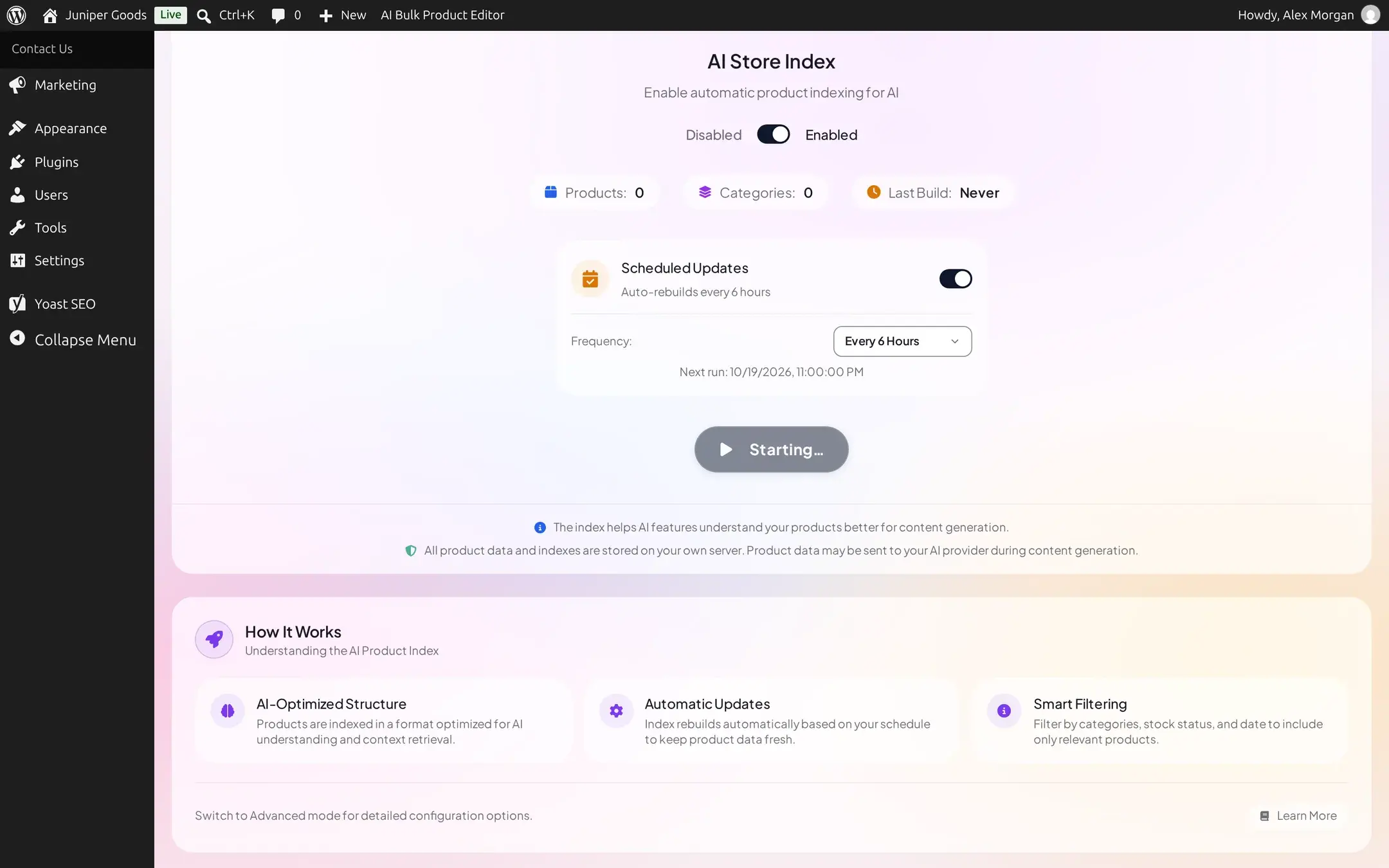
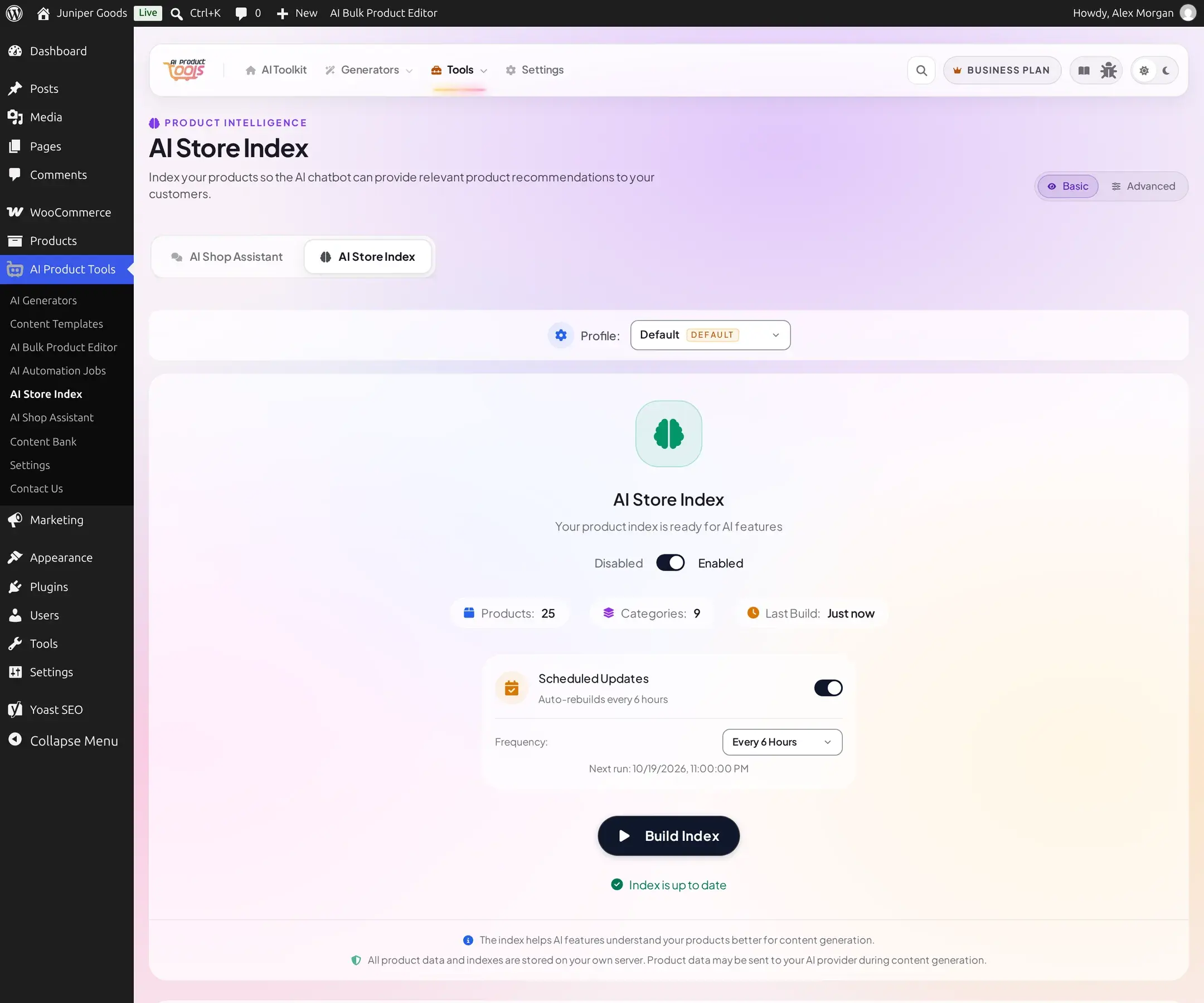
Turn on scheduled rebuilds (Business)
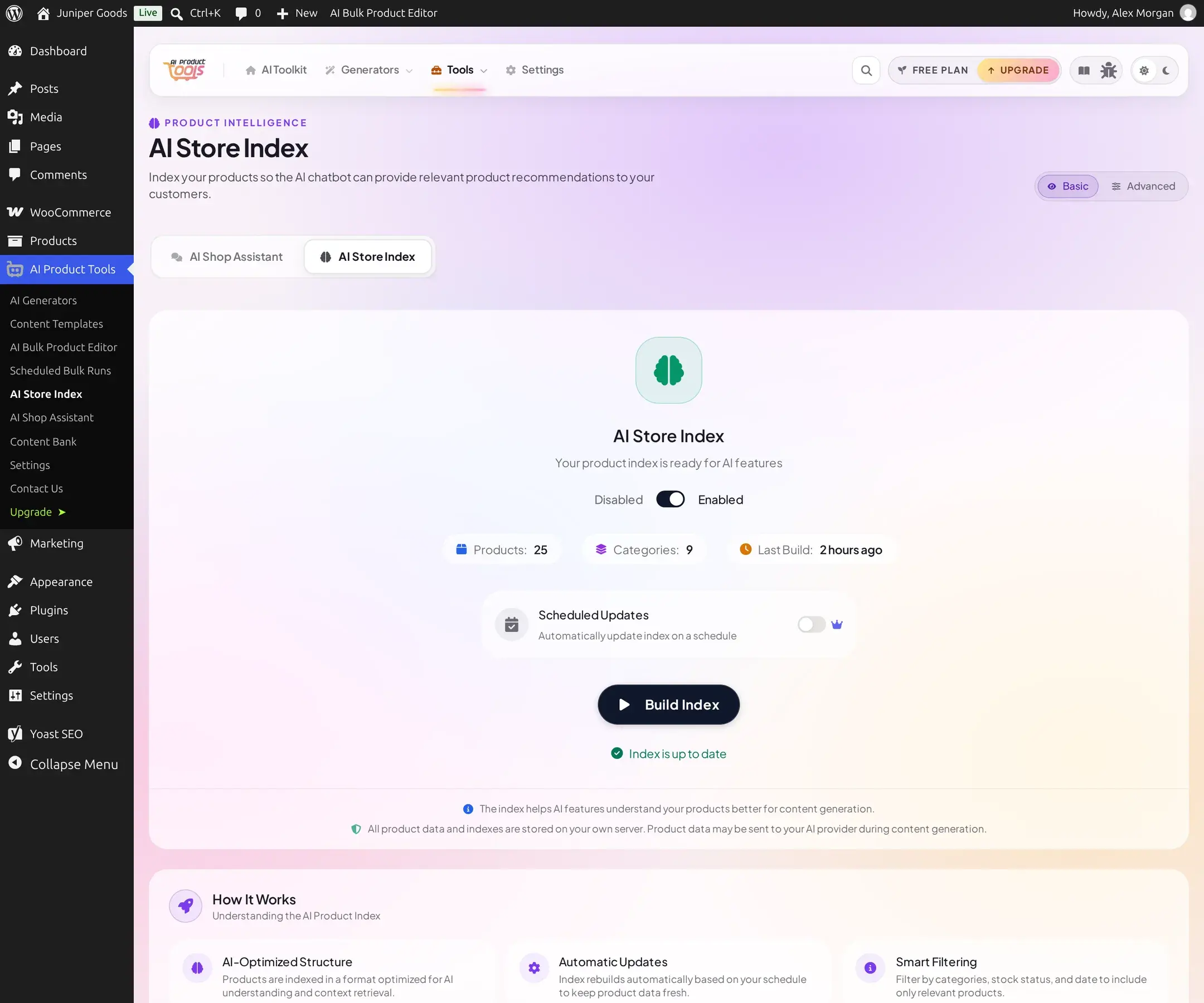
The Automatic Updates card lets Business stores pick a frequency, Hourly, Every 2 Hours, Every 6 Hours, or Daily, so the index stays current without a manual click. Free sees the toggle disabled with an upsell.
Advanced view: profiles, filters, and fields
Switch to Advanced for everything Basic does not show: multiple profiles, fine-grained filters, and exactly which product fields get indexed.
Profiles
Every site starts with one Default profile, marked with a star. Business stores can create more.
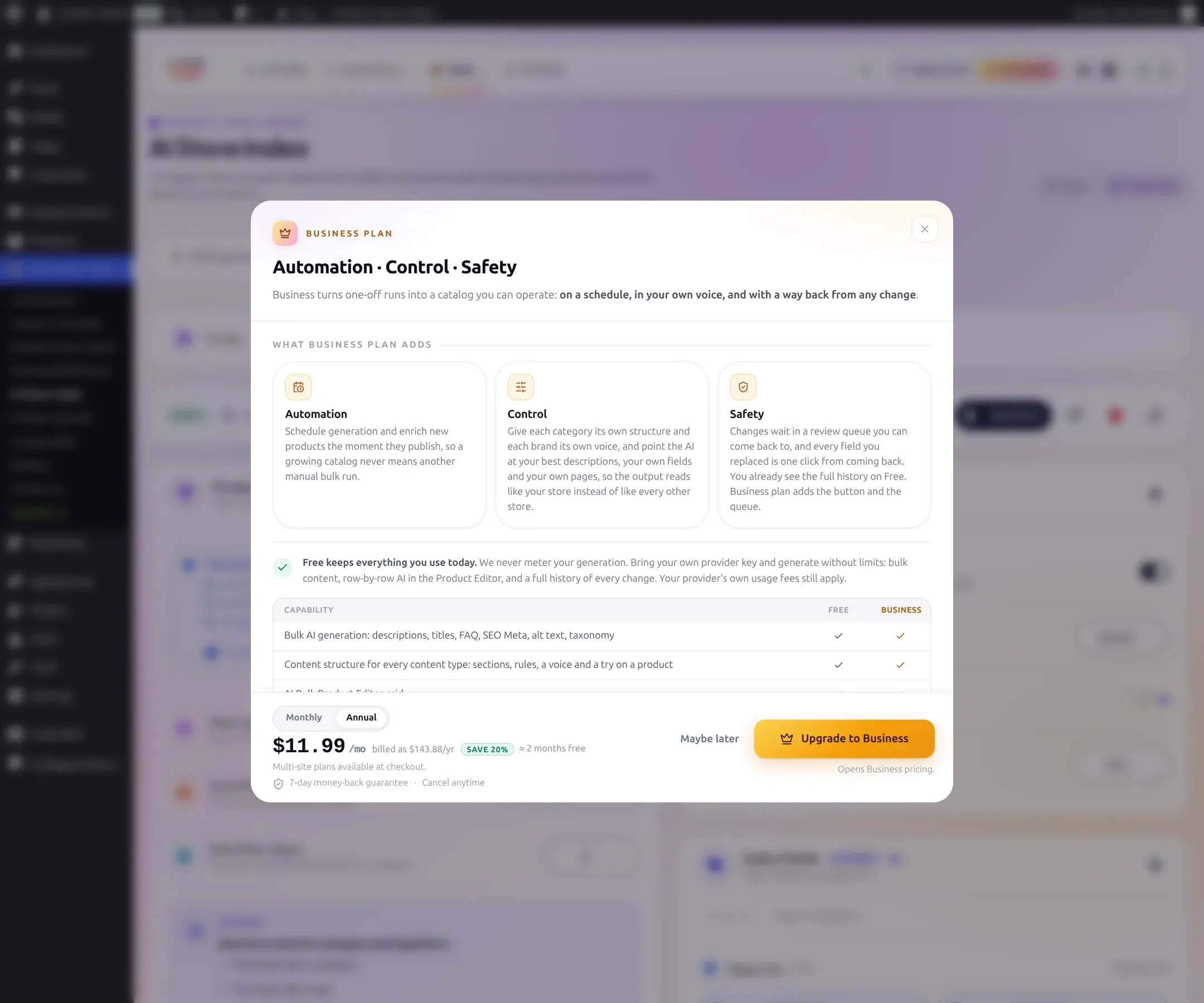
Clicking "+ New Profile" opens an upgrade prompt instead of the create dialog; Free is limited to the one default profile.
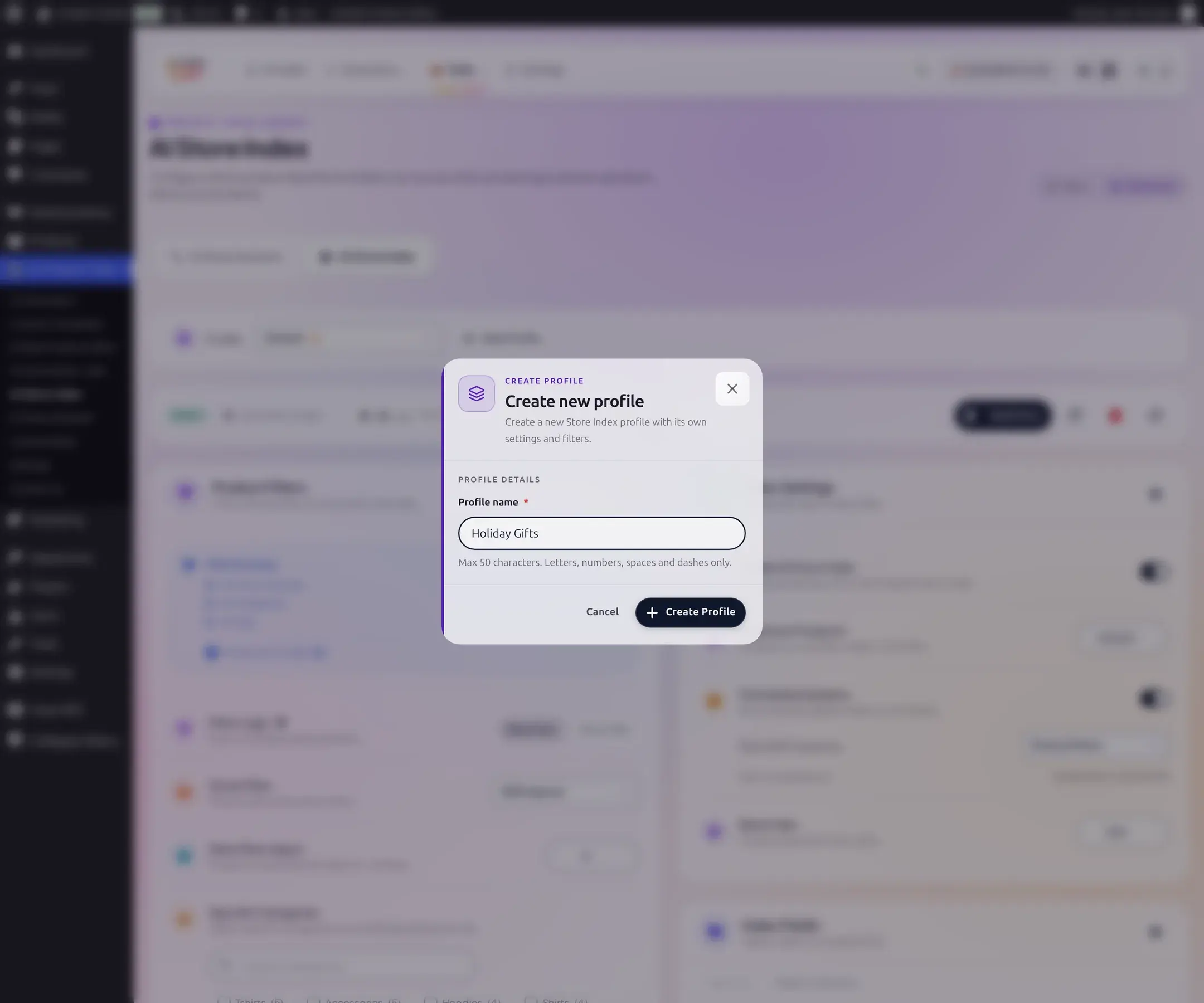
"+ New Profile" opens a Create new profile dialog. Names must be 50 characters or fewer, letters, numbers, spaces, and dashes only.
Switch between profiles with the selector at the top of the page; the default profile cannot be deleted.
Product Filters
- Stock Filter: All Products, In Stock Only, or Out of stock products only. Free.
- Date Filter (days): only include products created within the last
ndays; 0 disables the filter. Free. - Specific Categories / Specific Tags: multi-select with live product counts per term. Business
- Filter Logic: Match ALL or Match ANY across whichever filters are active. Business, since it only matters once category or tag filters are in play.
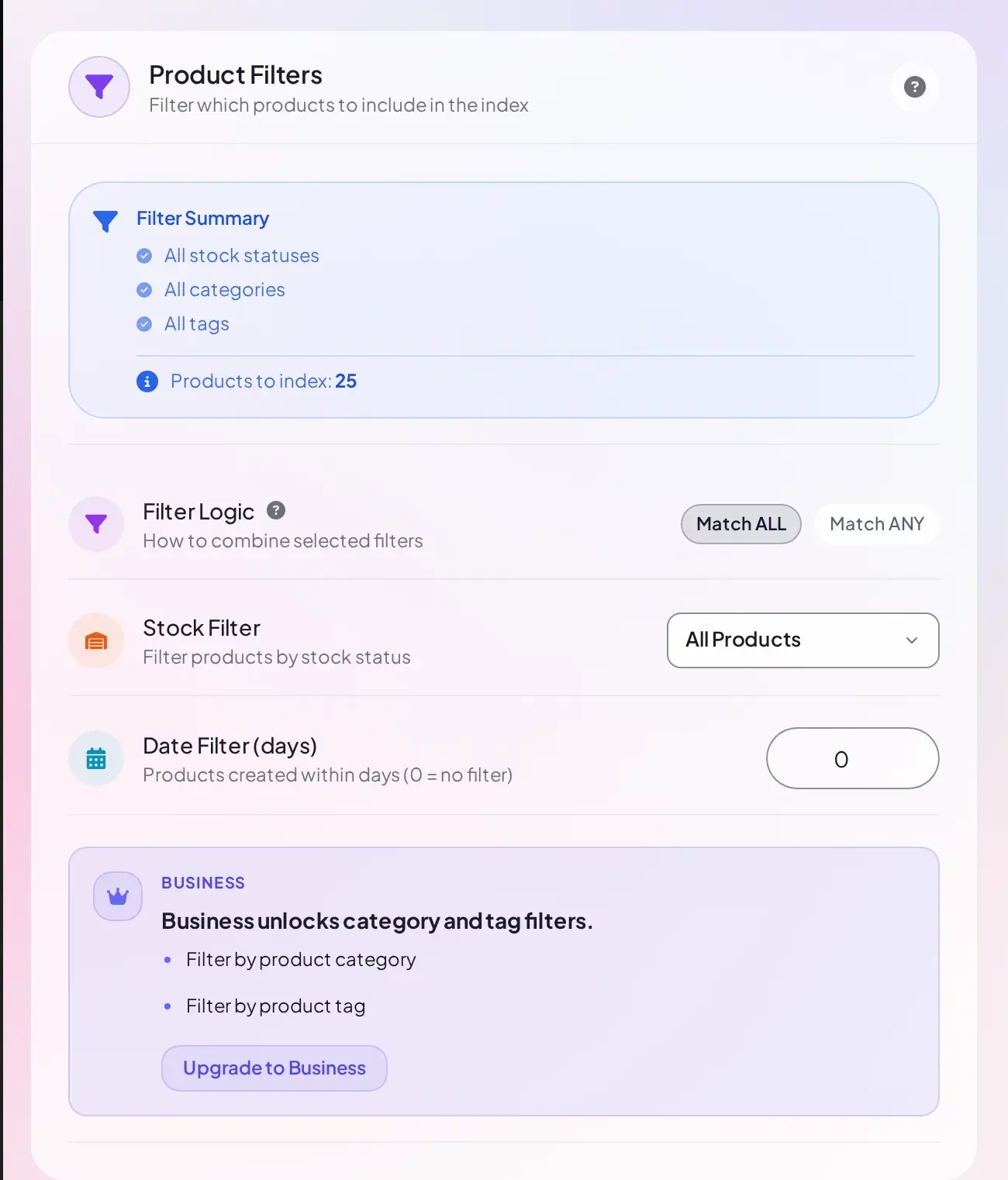
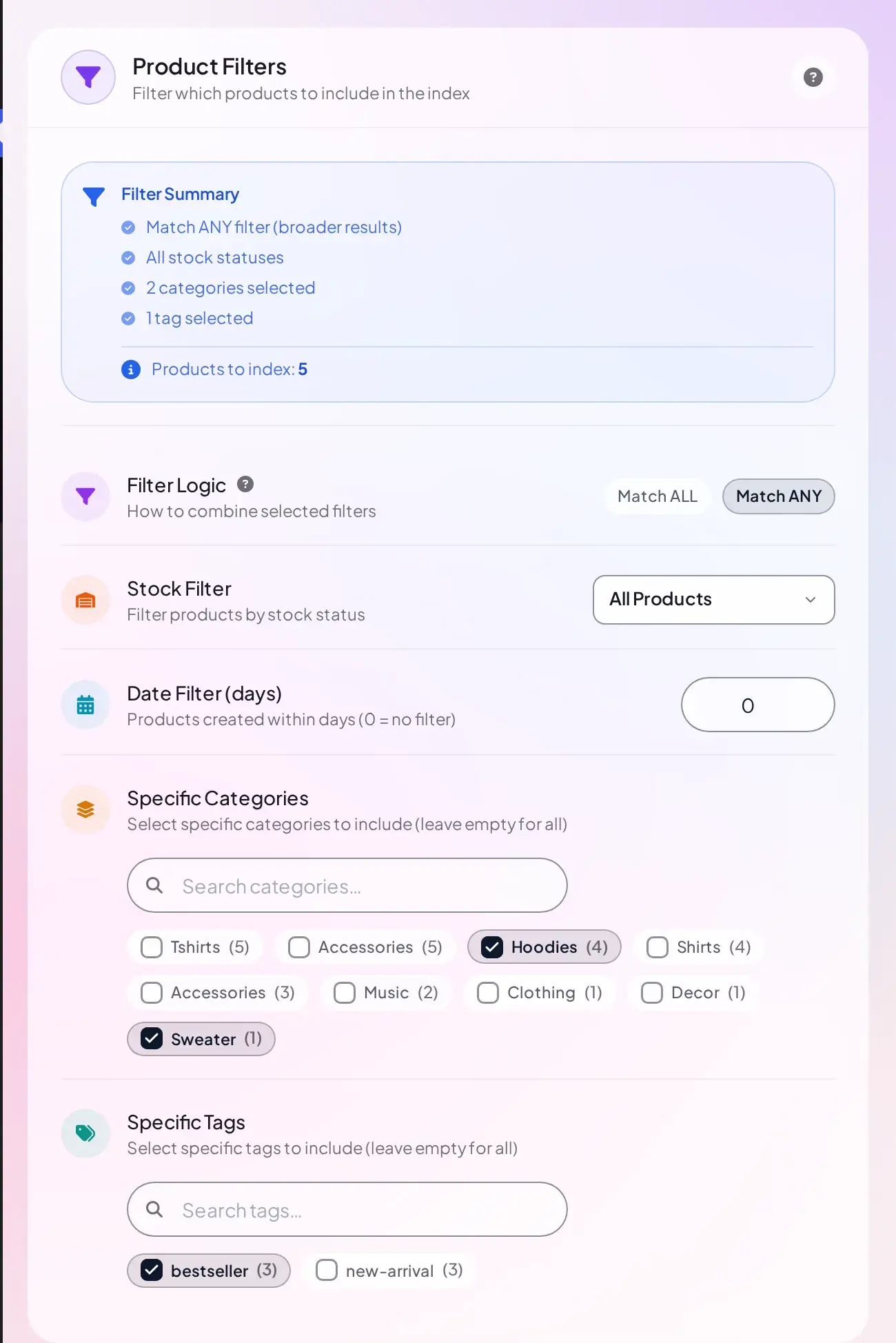
Downgraded filters do not silently widen your old index
If a site saved category or tag filters while entitled, then lost that entitlement, a note explains: "Saved category and tag filters are not applied on your current plan, so the index includes products from every category and tag." The saved selections stay in place and reactivate automatically if entitlement returns.
Field Selection
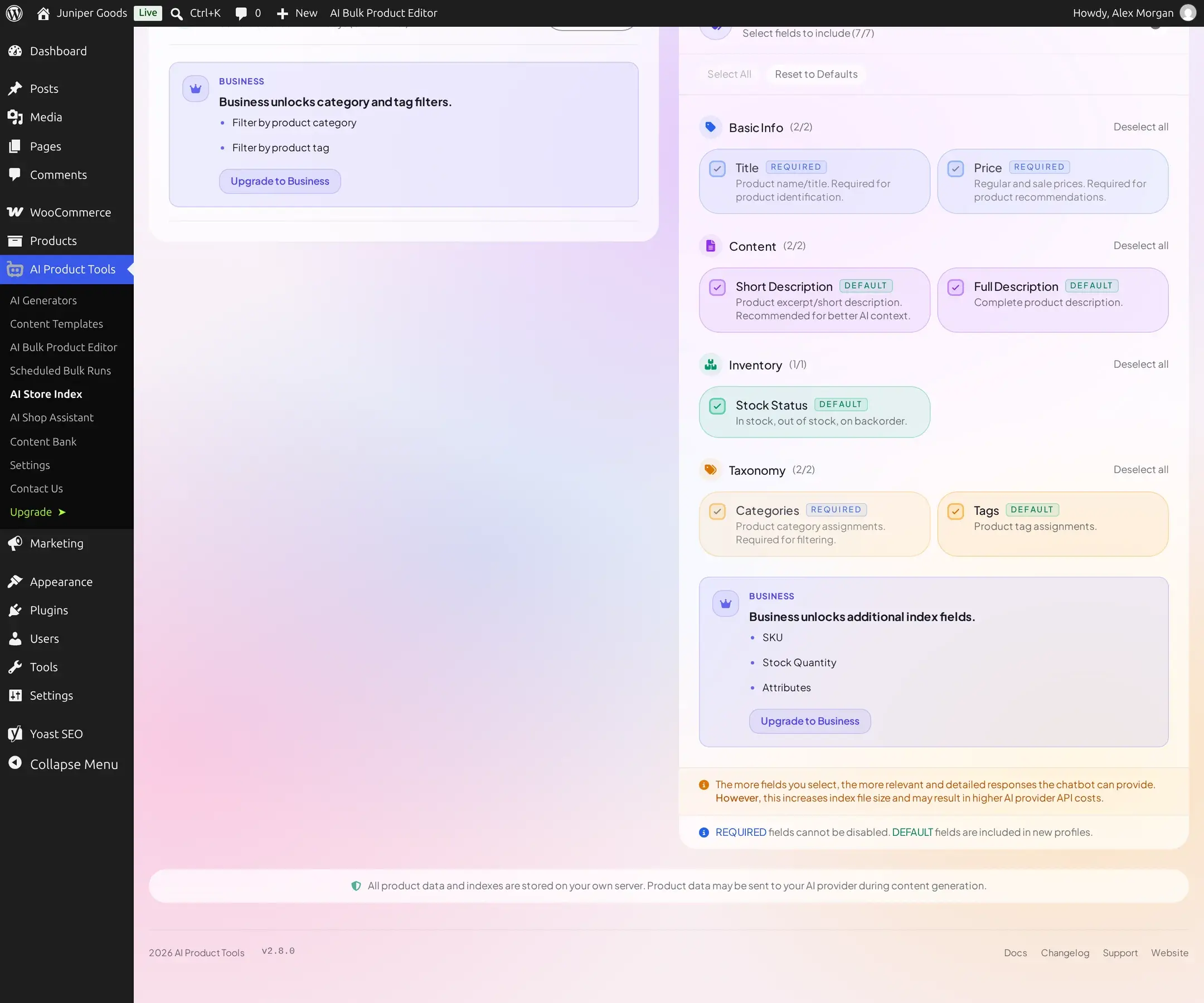
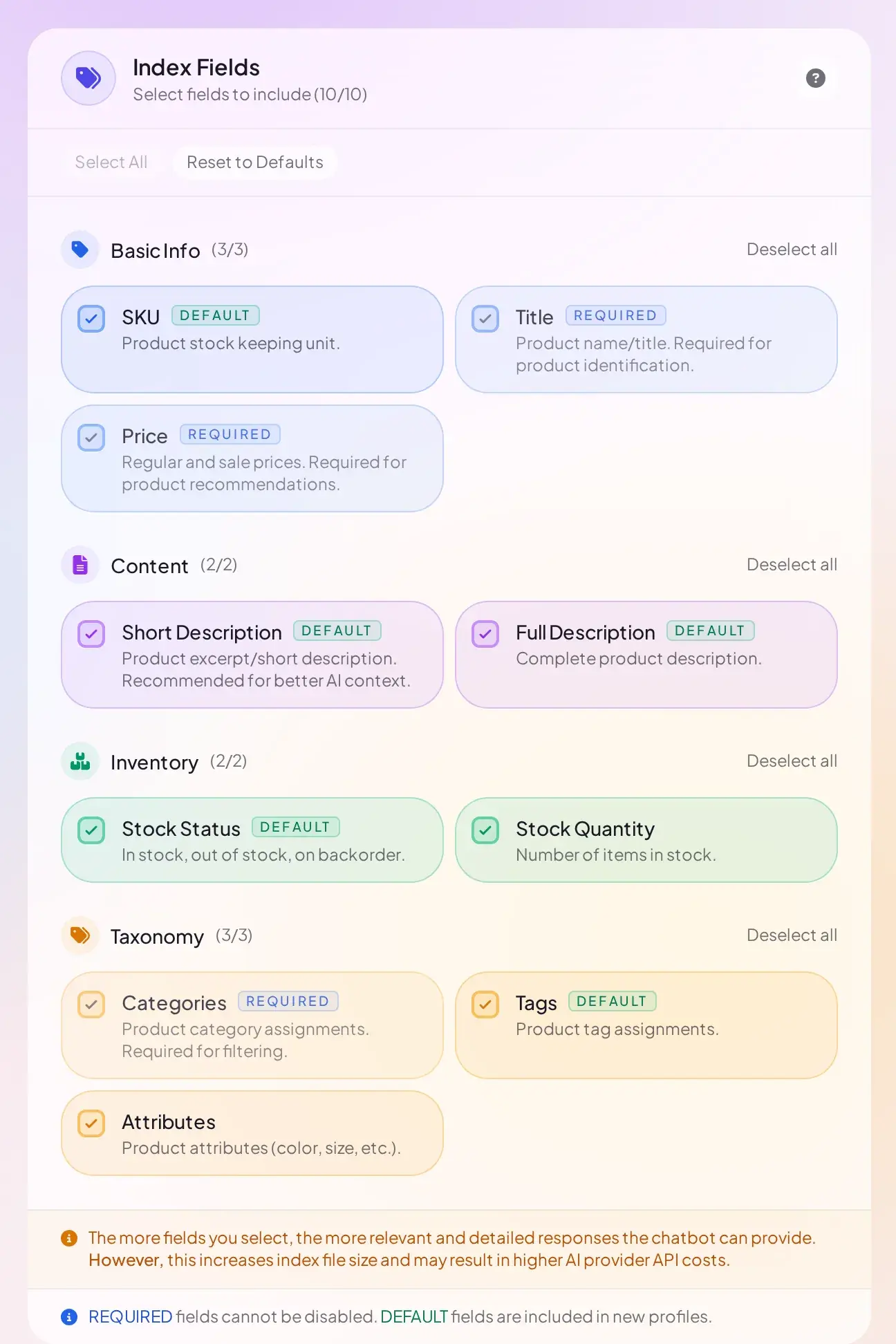
Every field lives in one grid, grouped as Basic Info, Content, Inventory, and Taxonomy. Title, Categories, and Price are marked REQUIRED and cannot be unchecked. SKU, Stock Quantity, and Attributes are Business-only.
The three Business-only fields are left out of their groups entirely (Basic Info and Inventory show fewer fields than on Business) and listed together in one teaser card instead: "Business unlocks additional index fields", naming SKU, Stock Quantity, and Attributes with an Upgrade to Business button.
Index Settings
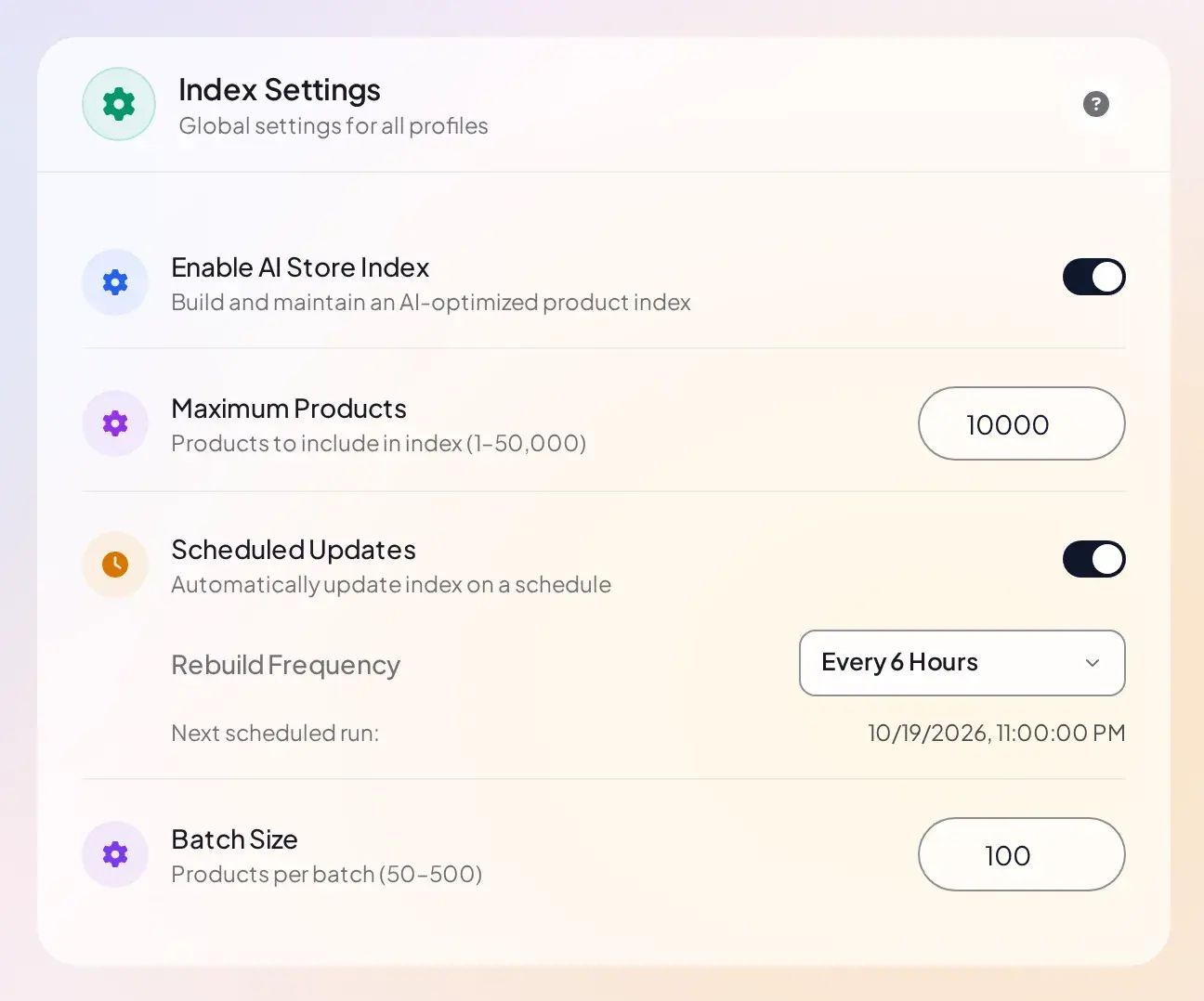
These apply across the whole site, not per profile.
| Setting | Range | Default |
|---|---|---|
| Max Products | 1-50,000 | 10,000 |
| Batch Size | 50-500 | 100 |
| Rebuild Frequency | Hourly / Every 2 Hours / Every 6 Hours / Daily | Daily |
Build controls and status
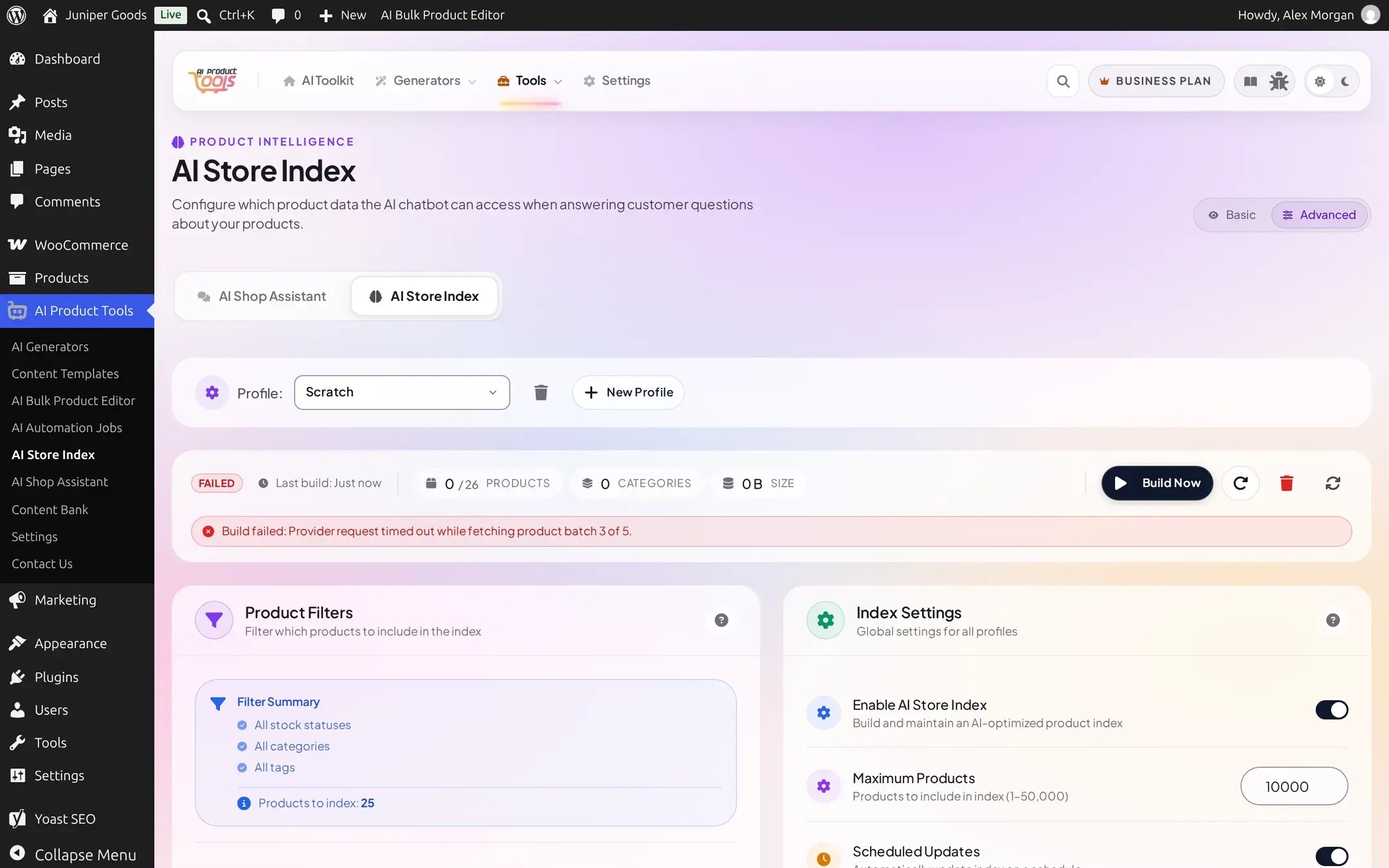
Next to Build Now sit three small icon-only buttons, their names only show up as tooltips, so here is what each one does:
- Build: starts (or resumes) an indexing run for the current profile.
- Force Rebuild (circular-arrow icon): starts over from scratch rather than only processing new or changed products.
- Reset Index (trash icon): deletes the index file and clears status, with a confirmation dialog; your settings are preserved.
- Refresh status (the remaining icon): re-fetches this profile's status without starting a build. There is also a Cancel button while a build is actively running ("Cancelling...").

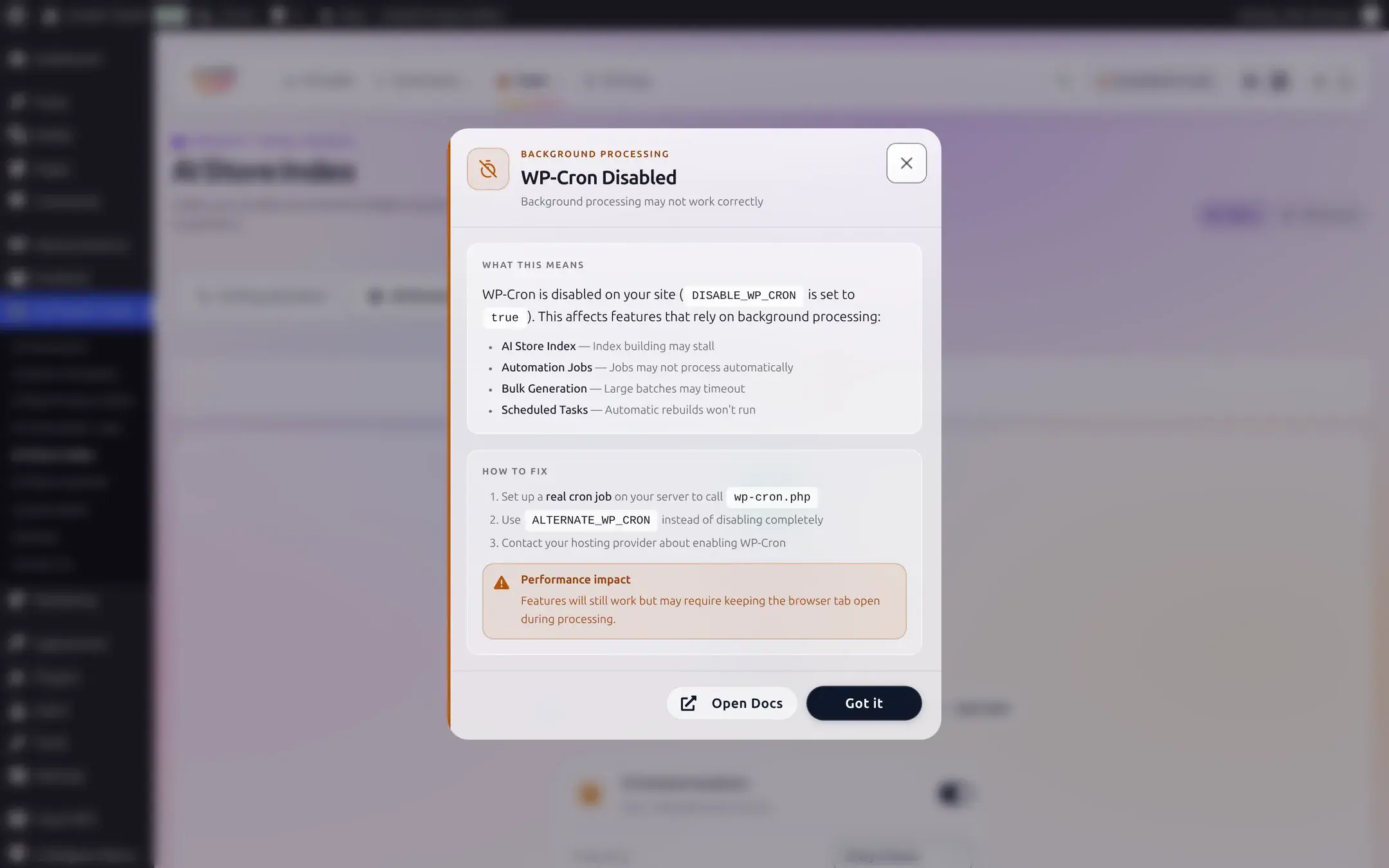
If WP-Cron is disabled on your server, a WP-Cron Disabled modal appears on this page explaining that AI Store Index, Automation Jobs, Bulk Generation, and Scheduled Tasks all depend on it, with steps to fix it (a real server cron, the ALTERNATE_WP_CRON constant, or asking your host) and a note that affected features still work but may need the browser tab left open. Open Docs and Got it are its only two buttons, there is no way to dismiss it permanently from here.
How it works, and keeping it fresh
- Builds run in the background via Action Scheduler. A small first batch (a "kickstart") finishes in one to two seconds so the request never times out, then the rest proceeds in your configured Batch Size until the whole catalog is processed.
- A shard closes at 10,000 products or about 5MB compressed, whichever comes first, for large catalogs the index is several shard files, not one.
- A 30-second lock prevents two builds from running at once; it expires on its own, so a crashed build never jams the index forever.
- Only published, non-password-protected, publicly visible products are ever indexed, this is independent of whatever stock, date, category, or tag filters you chose, a hygiene rule for the assistant's public chat route.
- Build only processes new or changed products since the last run; Force Rebuild starts clean. If a product edit is not showing up in assistant answers, rebuild.
- Data is stored at
wp-content/uploads/ai-product-tools/ai-index/, protected by a generated.htaccessdenying direct access. If that directory is not writable, the plugin falls back to storing the index in the options table, which risks hitting size limits on a large catalog, keep uploads writable.
Reference: plan differences
| Capability | Free | Business |
|---|---|---|
| One (default) profile, build/cancel/reset, Stock + Date filters, Max Products, Batch Size | full | full |
| Additional profiles beyond the default | - | up to any number |
| Category / Tag filters | teaser | full |
| Scheduled rebuilds | disabled | full, 4 frequencies |
| SKU, Stock Quantity, Attributes fields | locked, shown inline | full |
A license downgrade from Business automatically turns scheduled rebuilds back off.