
Setting Up the Assistant
Connect a provider, name your bot, write its greeting, and turn it on from the General tab.
The General tab of AI Product Tools > AI Shop Assistant holds the assistant's core identity and the master on/off switch. This page walks through getting a working assistant live, then documents every General tab field. Knowledge pages, the pre-chat form, WhatsApp, and legal links live on their own page, see Knowledge and contact.
Before you start
- A built AI Store Index. Without one, the Store Index Required modal covers this tab.
- An AI provider connected with an API key under Settings > Connection. Without one, the AI Provider field shows No API Key Configured instead of a picker.
Open AI Shop Assistant
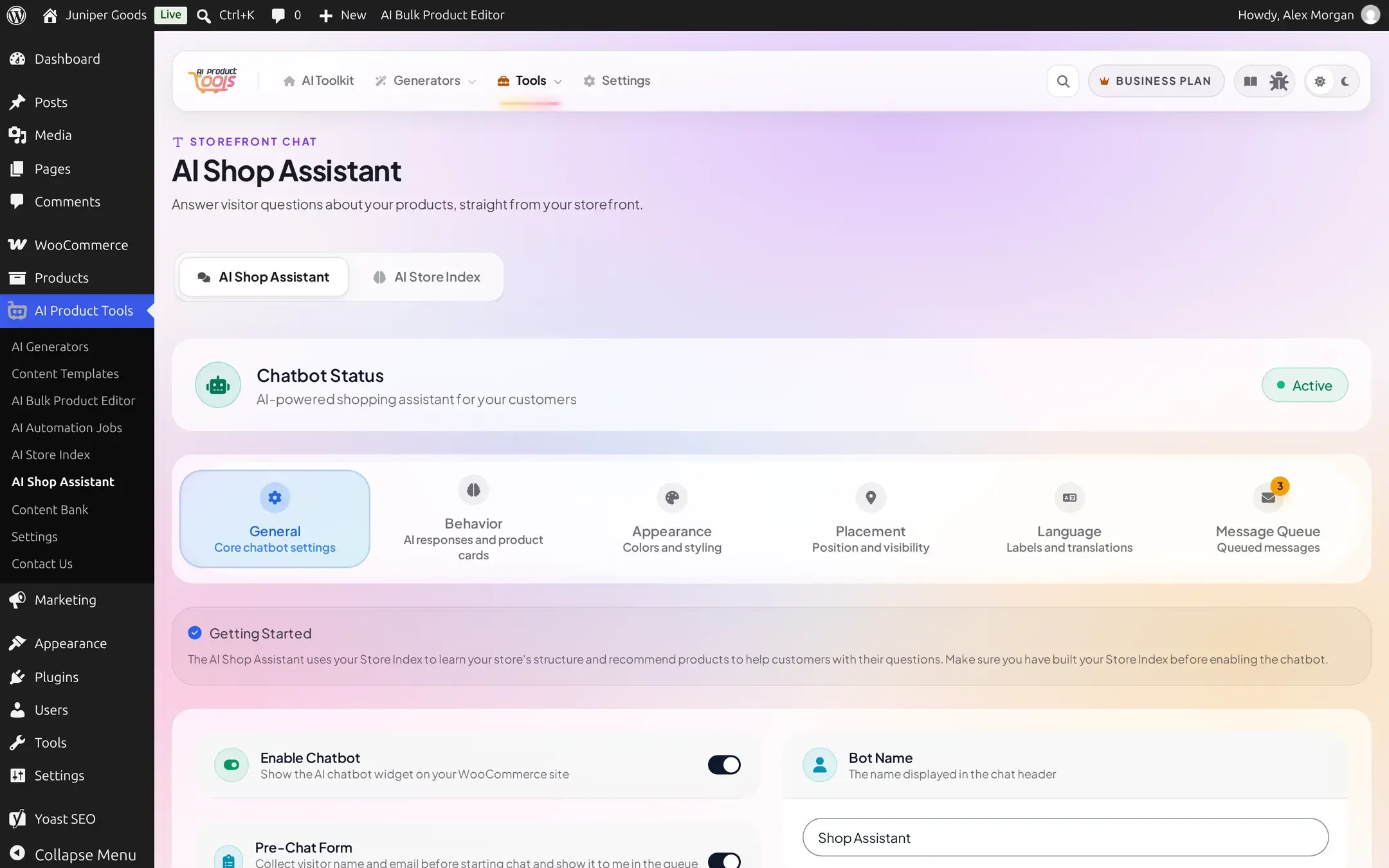
Go to AI Product Tools > AI Shop Assistant (admin.php?page=aipt-chatbot). The page opens on the General tab by default. A Chatbot Status card at the top always shows an Active or Disabled pill reflecting the Enable Chatbot toggle below.
Pick a Store Index Profile
The Store Index Profile select lists every profile that has id set, with product counts, plus an Auto (Active Profile) option that always follows whichever profile is currently active rather than a fixed one. If no profiles exist yet, it warns "No index profiles found. Please create and build an index in AI Store Index first." Picking a specific profile is usually clearer than Auto, since it is obvious at a glance which catalog subset the assistant searches, especially once you have more than one Business profile.
Choose an AI Provider and Model
AI Provider lists only providers with a key already configured elsewhere in the plugin (OpenAI, Google Gemini, OpenRouter, Claude); if none are configured it shows No API Key Configured and nothing to pick. Connect a key under Settings > Connection first. If you choose OpenRouter, it additionally receives your site's URL and the plugin's name with each request, as OpenRouter itself requires for attribution; the other three providers do not.
Model depends on the chosen provider and defaults to that provider's recommended model. If you switch providers and the previously stored model is not valid for the new one, the field resets to the new provider's default automatically.
Fill in identity and context
- Bot Name: shown in the chat header and message bubbles. Default "Shop Assistant", max 50 characters.
- Greeting Message: the bot's first message once a shopper reaches the conversation screen. Default "Hi! How can I help you find what you're looking for today?", max 500 characters with a live counter.
- Response Tone: Professional, Friendly (default), Casual, or Formal. This steers the model's wording, it does not change any UI text.
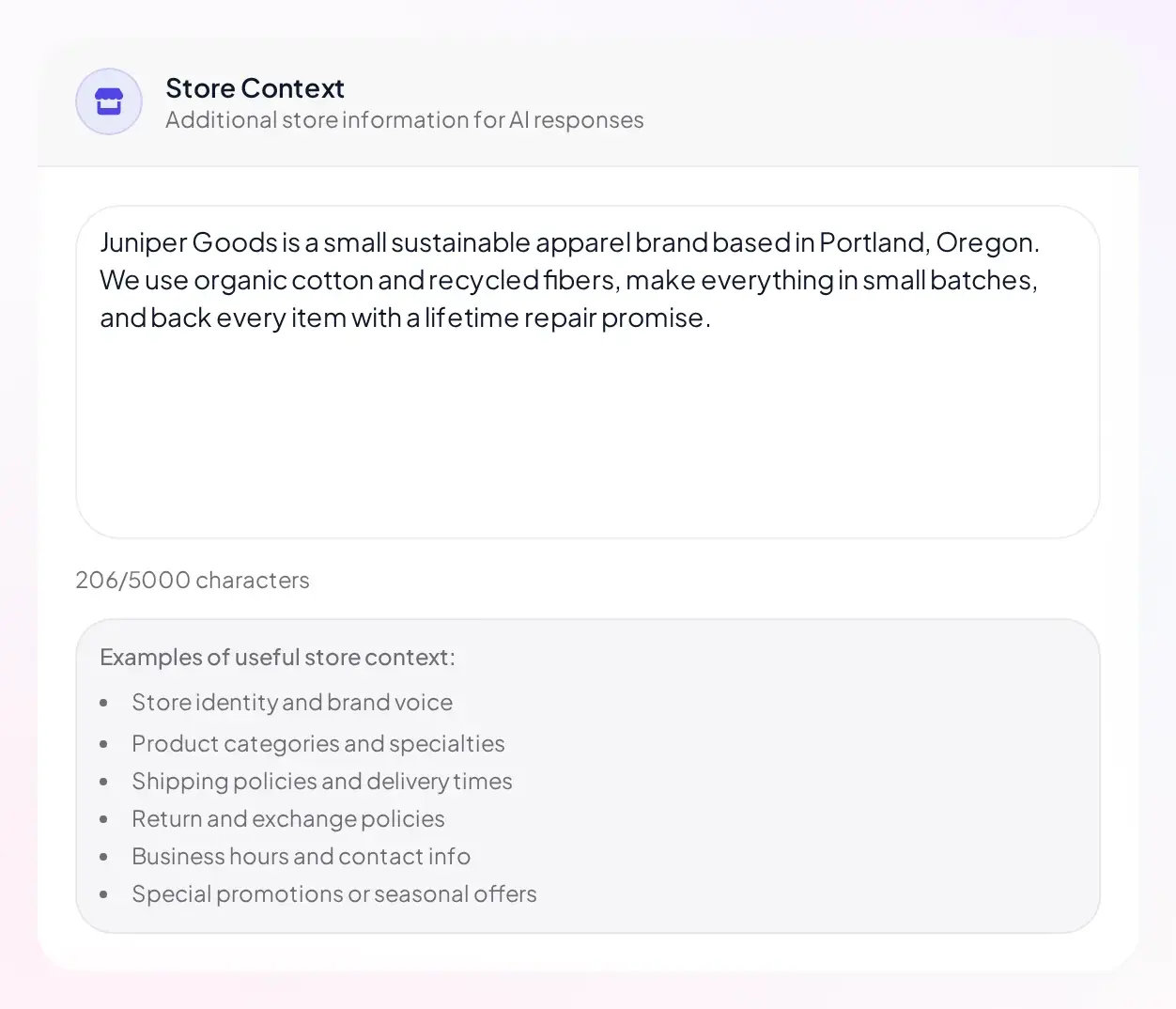
- Store Context: a free-text box (8 rows, max 5,000 characters) for anything the model should know that is not already in a product or a knowledge page, your return policy in plain words, a brand voice note, a seasonal promotion. It is sent with every request, so keep it concise.
Turn it on and save
Flip Enable Chatbot on, then click Save in the fixed bar at the bottom of the page. A toast confirms "Settings saved successfully." If the server adjusted anything you sent, for example because a paid field no longer applies to your plan, a banner explains what changed, see Status, drift, and plan banners below. Visit your storefront to see the launcher button and send a test question, or see What shoppers see.
Reference: General tab fields
| Setting | What it does | Default | Limits | Plan |
|---|---|---|---|---|
| Enable Chatbot | Master on/off switch for the storefront widget | Off | - | Free |
| Store Index Profile | Which index the assistant searches | empty | - | Free |
| AI Provider | Which connected provider answers chat messages | openai | only configured providers listed | Free |
| Model | Model used for chat replies | provider default, for example gpt-5.6-terra on OpenAI | resets if invalid for a new provider | Free |
| Bot Name | Name shown in the widget header and messages | Shop Assistant | 50 characters | Free |
| Greeting Message | First bot message in the conversation | "Hi! How can I help you find what you're looking for today?" | 500 characters | Free |
| Response Tone | Professional / Friendly / Casual / Formal | Friendly | - | Free |
| Store Context | Extra background sent with every request | empty | 5,000 characters | Free |
| "Show 'Powered by' credit in the chat footer" | Adds a small attribution link in the widget footer | Off | - | Free |
| Starter Messages | Up to 5 clickable suggestions shown when chat opens | On, 3 defaults ("What products do you recommend?", "Do you have any deals or discounts?", "Tell me about your shipping policy") | 5 messages, 100 characters each | Toggle is Free. Editing the text is Business; Free shows the 3 defaults read-only with a "Customize messages" teaser |
| Error Display: "Show errors to user" | Lets shoppers see an actual error instead of a generic acknowledgement | On | - | Free |
| Error Display: "Use custom error message" | Replaces provider error text with your own wording | Off | shown only while "Show errors to user" is on | Free |
Status, drift, and plan banners
- The Chatbot Status card's pill reads Active only when Enable Chatbot is on, independent of whether the Store Index has finished building.
- A dismissible amber "Some settings were not saved as requested" banner appears if the server detected drift after a save, for example two admins editing at once.
- A "These settings were kept within Free's range when you saved" banner lists any field a Free save silently clamped back to its allowed value. See Appearance for the one control this applies to without any visible lock in the UI.