
Anthropic Claude
Create an Anthropic API key and connect Claude in AI Product Tools.
Claude tends to produce careful, well-organized long-form writing, which makes it a strong choice for full descriptions and FAQs where structure matters.
Before you start
You need a WordPress account that can reach AI Product Tools > Settings (an administrator, or a Shop Manager who was given access, see Connection settings) and an Anthropic account with billing enabled.
Create an API key on Anthropic's console
- Sign in (or sign up) at console.anthropic.com.
- Open Settings > API Keys.
- Click Create Key, name it, and click Create.
- Copy the key. Anthropic shows the full value only at creation time.
Enable billing
- In the Anthropic console, open Settings > Billing.
- Add a payment method and purchase credits, or set up auto-reload so the balance never silently hits zero mid-batch.
- Set a monthly spend limit if you want one; AI Product Tools has no spending cap of its own, so Anthropic's own limit is what protects you from an unexpectedly large bulk run.
Connect the key in the plugin
- Go to AI Product Tools > Settings, open the Connection card.
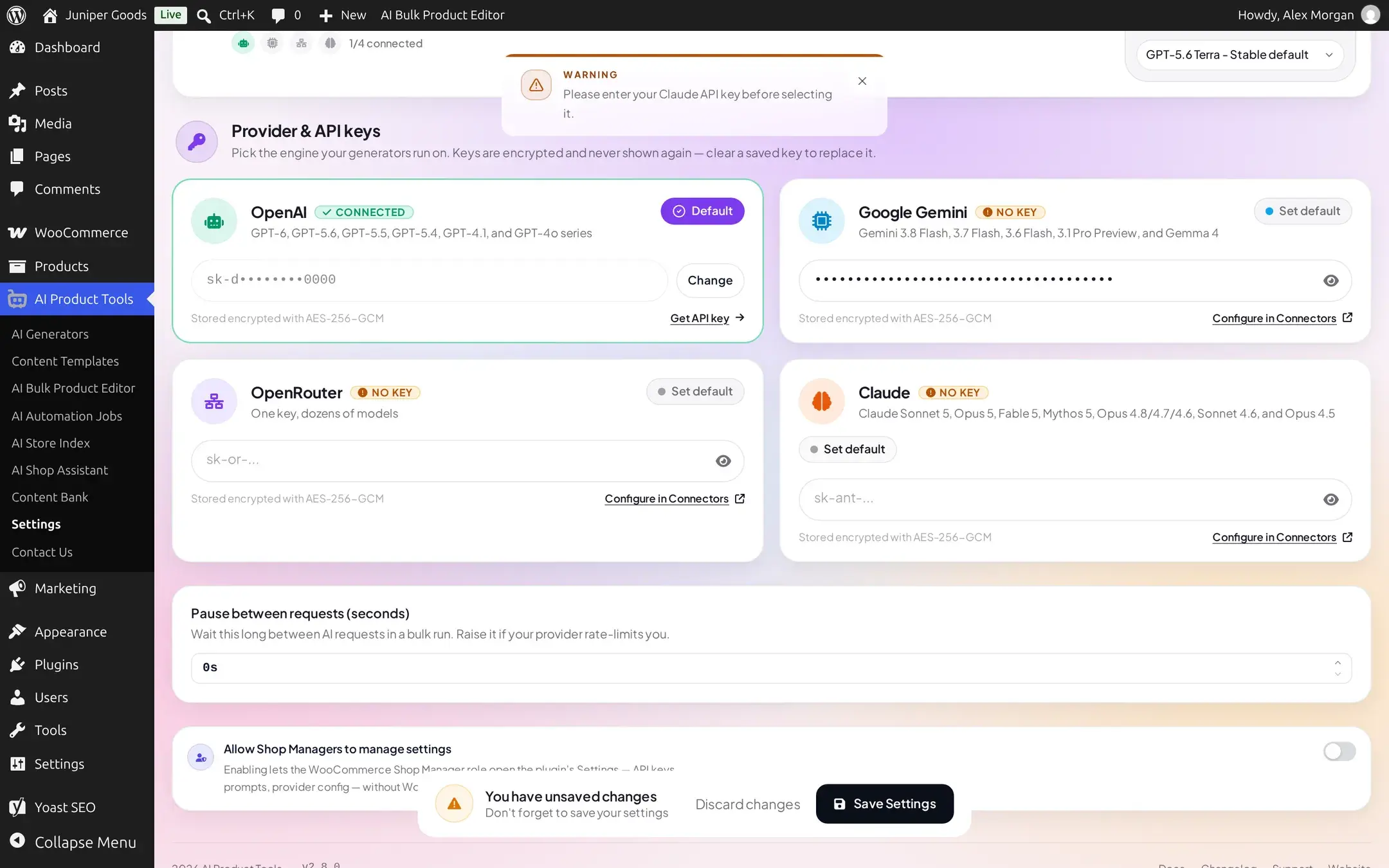
- Paste the key into the Claude card's field (it expects the
sk-ant-...format; a key not starting with that prefix is rejected immediately, before it is even sent to Anthropic). - Click Save Settings.
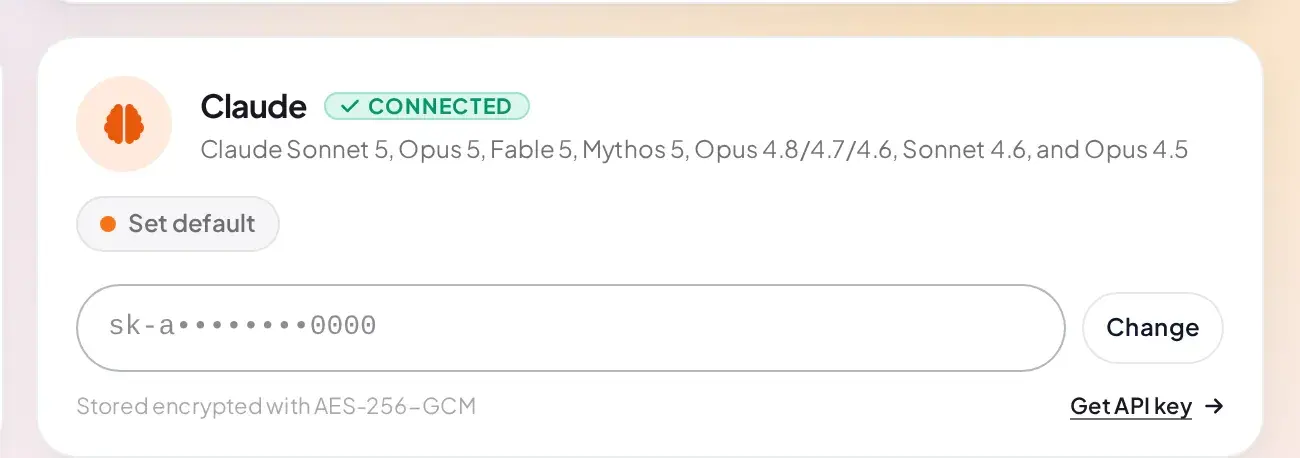
- Click Default on the Claude card if you want it to replace your current default provider. An unconfigured provider's Set default pill refuses the switch until it has a key:
Models
Settings lists Claude's models in one group, Available models: Claude Sonnet 5, Opus 5, Fable 5.1, Fable 5, Opus 4.8 (Flagship), Opus 4.7, Opus 4.6, Sonnet 4.6, Opus 4.5, and Haiku 4.5. The shipped default is Claude Sonnet 5.
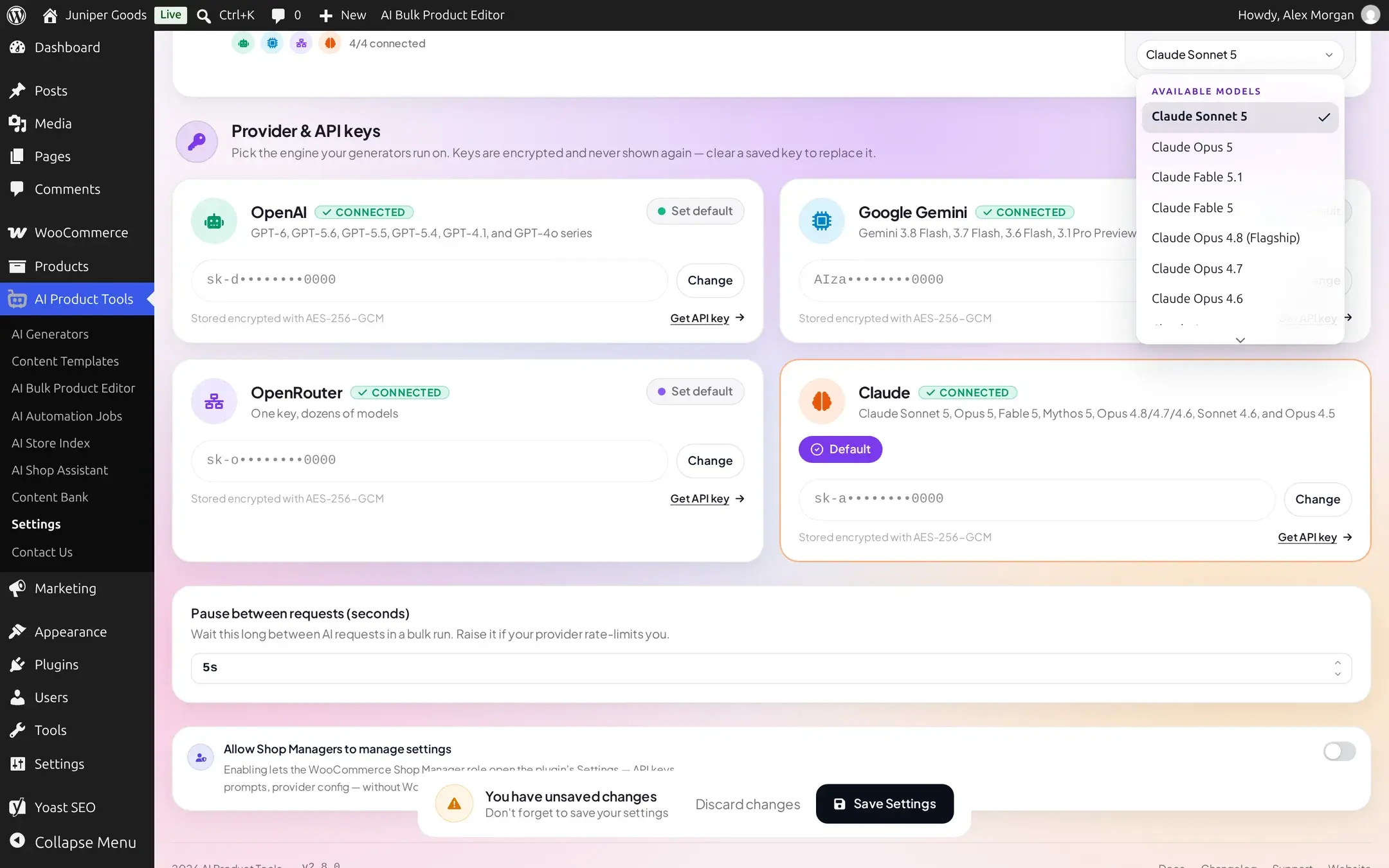
Sonnet models are the balanced choice for most generators. Reach for an Opus model on content where nuance genuinely matters, since it costs more per request than Sonnet.
Managing your key
- The key field is write-once: once saved, it shows a masked preview (
sk-a••••••••0000) with a Change button instead of the real value. - Click Change to replace it, then Save Settings to commit, or Cancel to restore the previous masked state.
- Leaving the field empty and saving removes the key entirely.
Free vs Business
Connecting Claude, choosing any of its models, and switching it in and out of being your default provider are all available on Free. Nothing about this provider is Business-gated.