
Bulk Description Generator
Write short and long product descriptions and tags in bulk, choose how existing content is treated, and see the result on the storefront.
The Bulk Description Generator writes a product's short description, full description, and tags, for one product or thousands at once. This page covers what makes descriptions different from the other five generators: the content types, the existing-content options, Advanced-path settings, and the storefront result. For selecting products, running a batch, reviewing results, retrying a failure, and applying, see How bulk generation works: every step there applies here unchanged.
Where to find it
Open it from AI Product Tools > AI Generators, the AI Bulk Description Generator card, or go straight to admin.php?page=aipt-advanced-bulk-generator. The page itself is titled "Description Generator".
Before you start
- A BYOK provider connected (OpenAI, Google Gemini, Claude, or OpenRouter) under Settings > Connection.
- The Shop Manager or Administrator capability to generate content.
- Decide whether you want this content type on its content structure (the default, recommended path) or on raw Custom prompts (Advanced); see How content structures work for the inline "1 Content structure" tab this page opens on.
Choose what to write
Three toggle chips above the product list, Short Description, Full Description, and Tags, decide which fields this run touches. At least one must stay on.
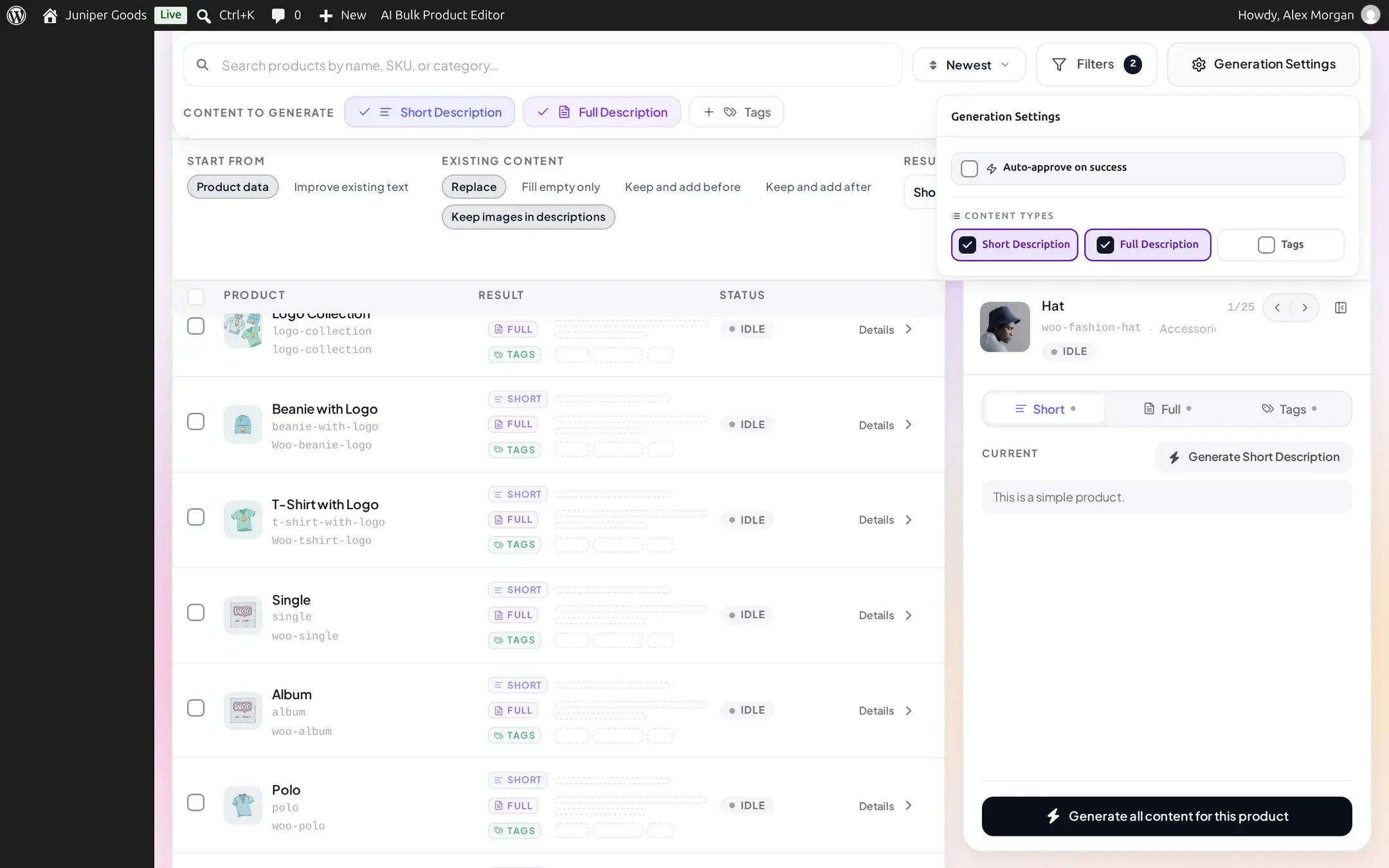
The Generation Settings button opens a popover with an Auto-approve on success switch (once a cell succeeds, it is applied automatically, except a cell the content structure held back for review) and the same content-type chips. While descriptions run on their content structure (the default), that is everything in this popover: length, tone, and section layout belong to the structure's own editor, not to a per-run setting here.
The existing-content controls
Two controls above the product list, shared with the other generators but worth detailing here because of the extra Keep images in descriptions toggle next to them:
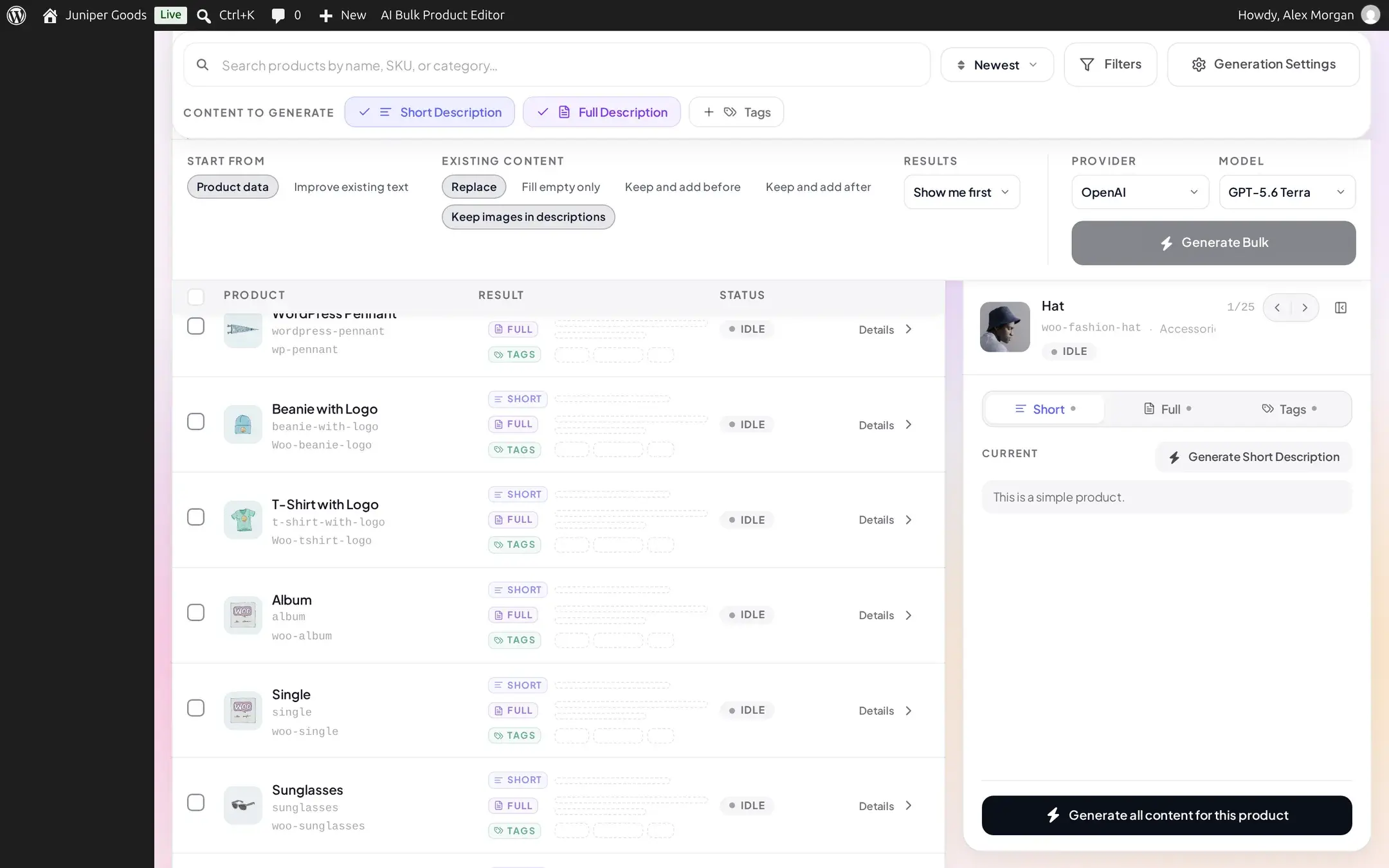
- Start from: Product data writes fresh from the product's own fields; Improve existing text rewrites what is already there.
- Existing content: Replace (default), Fill empty only, Keep and add before, or Keep and add after.
- Keep images in descriptions: on by default. When the current full description already contains images, turning this on keeps them in place instead of letting the rewrite drop them.
Tags follow the same Existing content choice: Replace overwrites a product's tags, anything else keeps the current tags and adds new ones alongside them.
Running on a content structure vs. Custom prompts (Advanced)
By default, descriptions are written from the content structure you edit on this page's own "1 Content structure" tab: an ordered list of sections (opening paragraph, features, specifications, and so on), a shared voice, and source data. This is the recommended path and needs no prompt writing; see How content structures work for the editor itself.
A content type can instead be switched to the older Custom prompts (Advanced) path from Settings > Advanced prompts, for raw prompt control. While Advanced is active, Generation Settings grows four extra fields and the toolbar shows the current length as a chip:
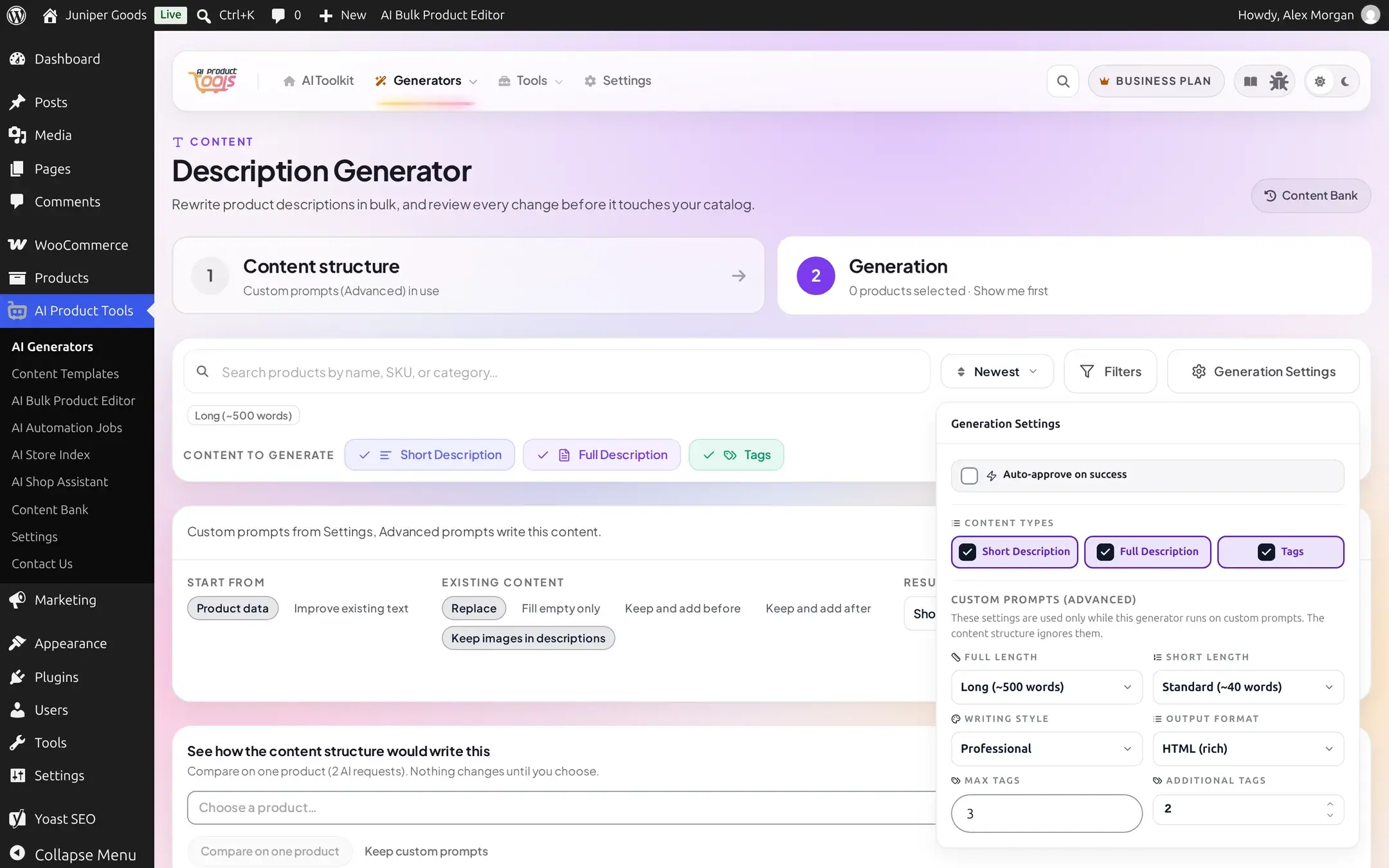
| Setting | Options | Default |
|---|---|---|
| Full Length | Short (~100 words), Medium (~250), Long (~500), Very Long (~800+) | Long |
| Short Length | Brief (~20 words), Standard (~40), Detailed (~70) | Standard |
| Writing Style | Professional, Encouraging, Exaggerated, Friendly, Storytelling, Minimalist, Luxurious and Elegant, Adventurous, Educational, Humorous | Professional |
| Output Format | HTML (rich) or Plain text | HTML (rich) |
| Max Tags | 1 to 20 total tags | 3 |
| Additional Tags | 1 to 10 new tags, used only with "Improve existing text" plus Tags | 2 |
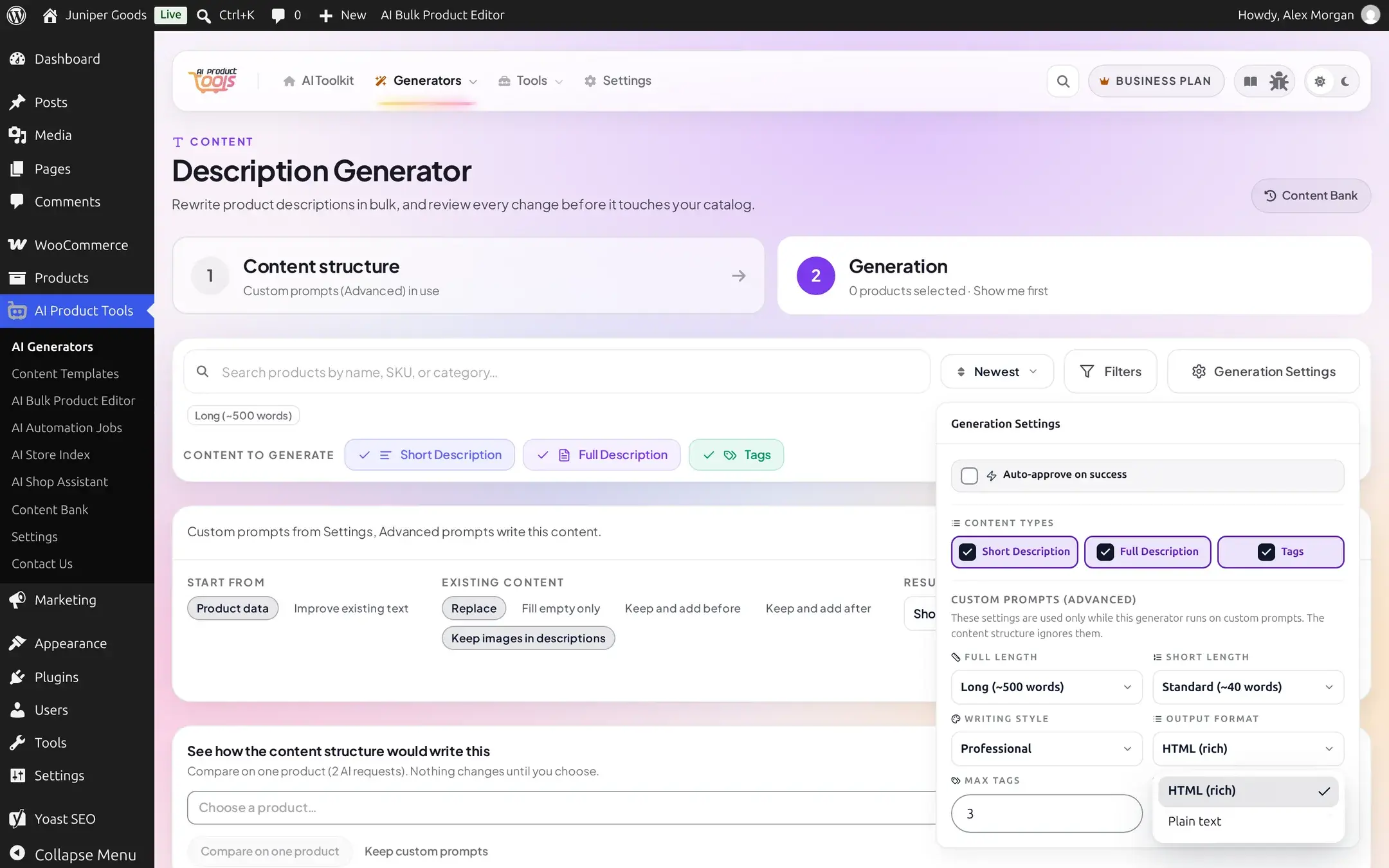
None of these five fields are plan-gated: they are available on every plan, they simply stop applying once a content type is confirmed to run on its content structure.
Output language
The language a structure writes in is set once, store-wide, on that structure's own Rules tab (reached from "1 Content structure"), not as a per-run choice here. A content type still left on Custom prompts (Advanced) instead writes in the site's single default language, with no per-run language switch on this page.
Comparing the two paths. While a content type runs on Advanced, a "Compare with the content structure on 1 product" link appears next to the toolbar for anyone who can manage structure settings. It runs both paths once on a single product you choose, using two AI requests, and changes nothing until you decide to use the result.

A real run, start to finish
The screens below follow one real batch: five Accessories products, generating Short Description, Full Description, and Tags together.
Select products and content types, then generate
Check the products, tick the content types, and click Generate Bulk. A product that does not yet match its content structure shows a small warning badge and "Built-in structure" label right in the list, so you can see at a glance who is affected before you even generate; see the pre-flight check in How bulk generation works.
Review each result
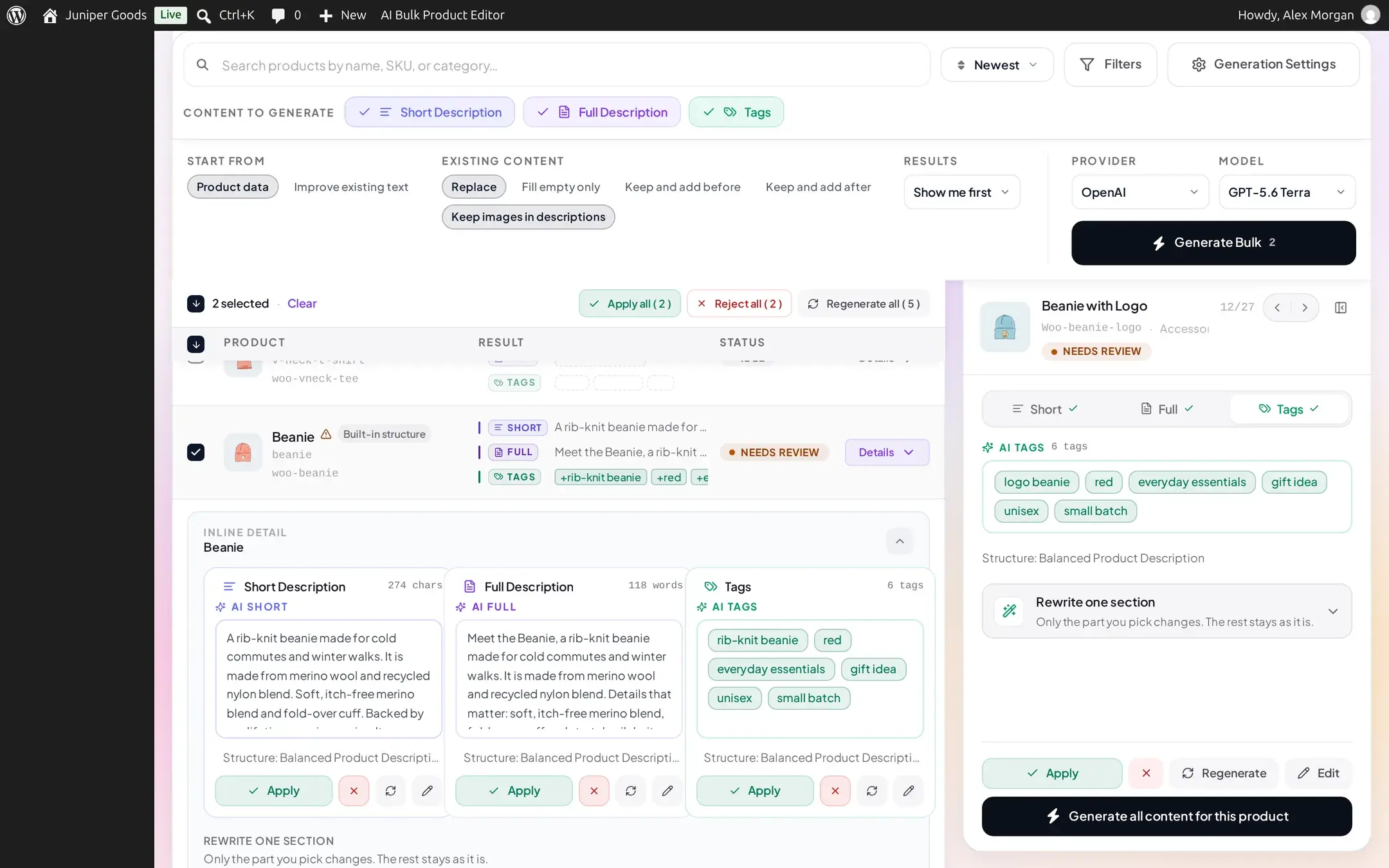
Click a product to open its side panel. Short, Full, and Tags are three separate tabs; each shows the generated text (or tag chips) next to the product's current value, with Apply, Reject, Regenerate, and Edit for that one cell.
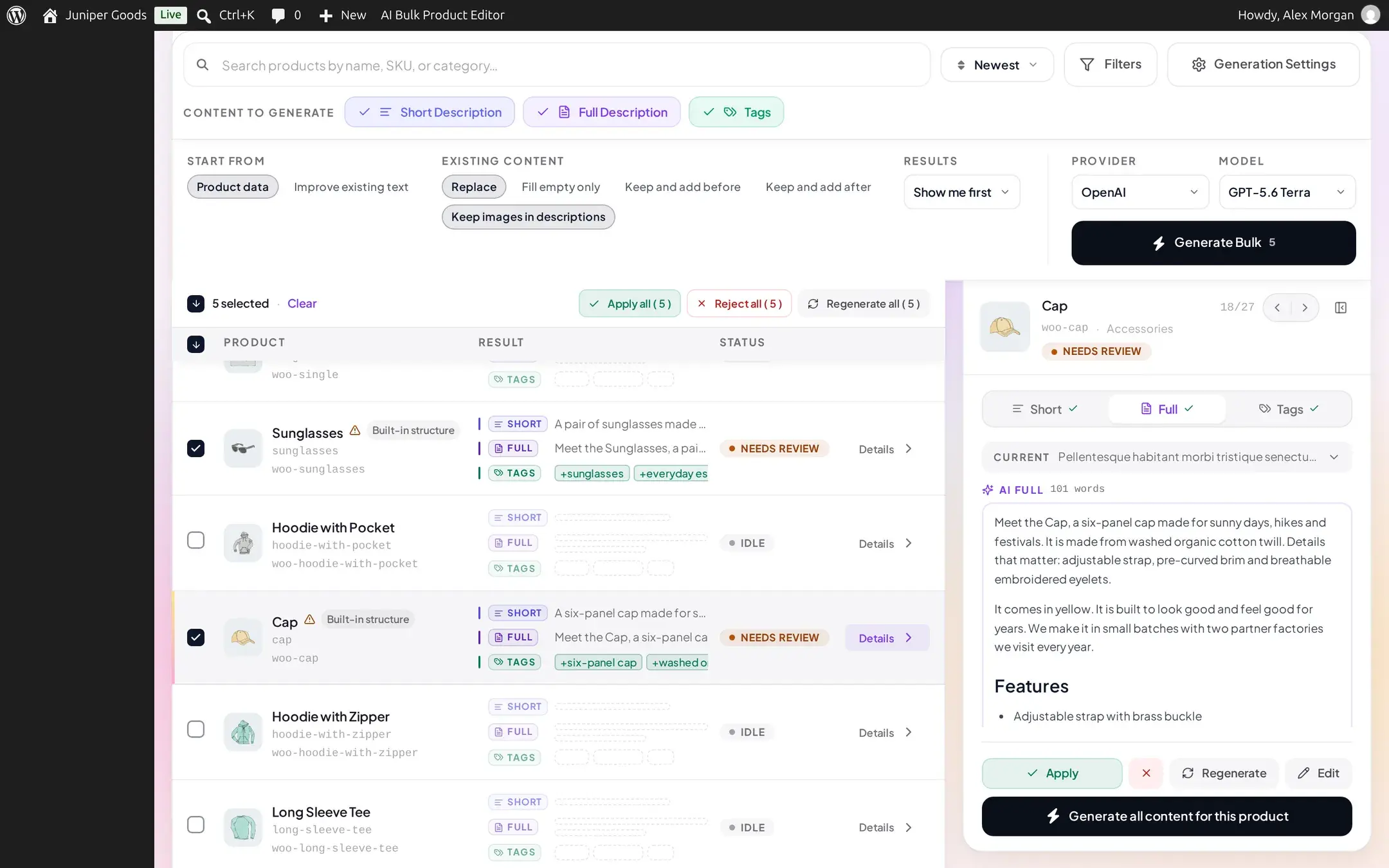
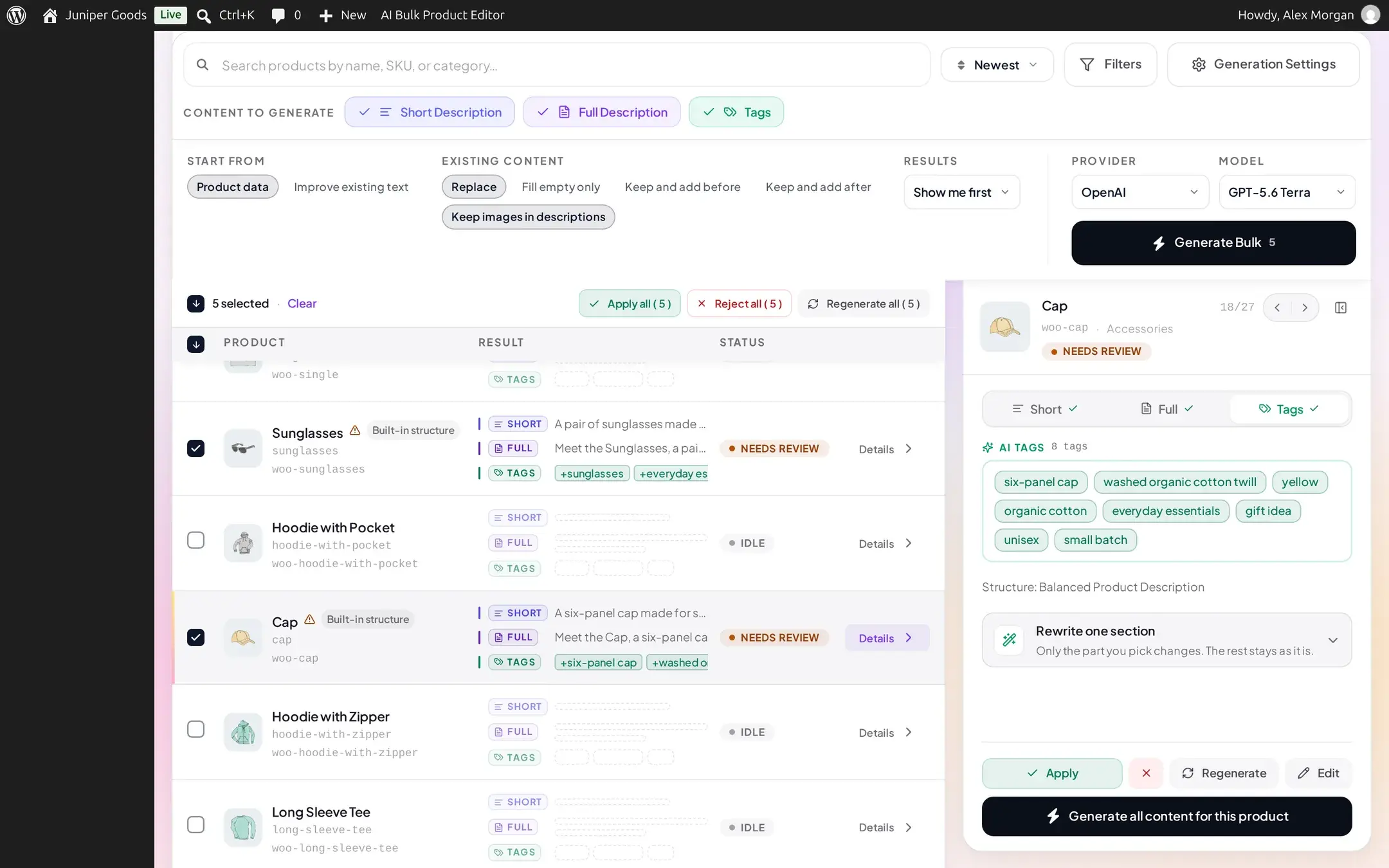
For a result written by a content structure, the panel also offers Rewrite one section (visible above, under the tag chips) for seven days after the run: pick one section, FAQ group, or companion from the structure and regenerate only that part, leaving the rest of the row exactly as it already is. A result from Custom prompts (Advanced) never shows this, since there is no structure section to target.
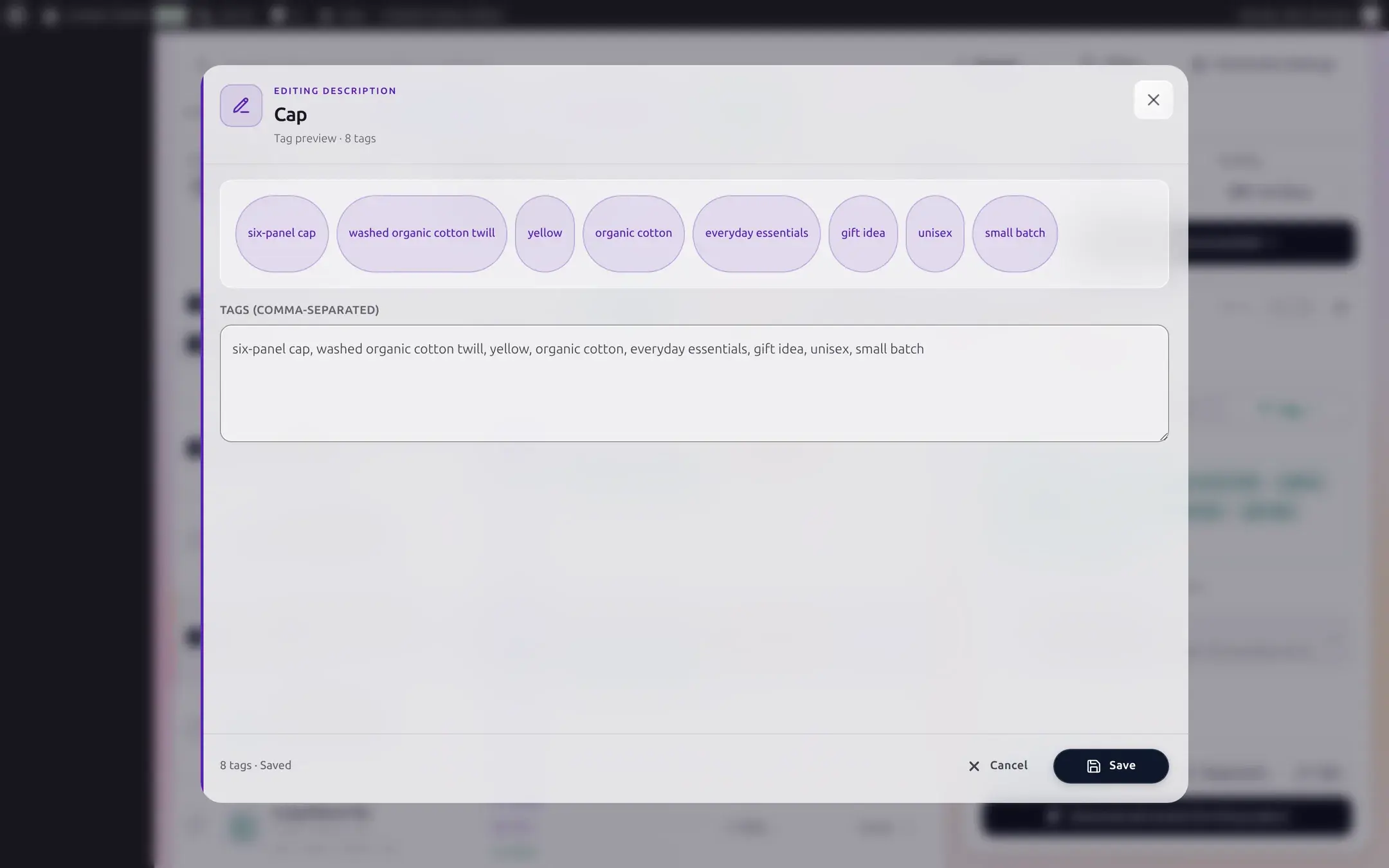
Click Edit to adjust a cell before applying. For Short or Full Description this opens a Visual/HTML editor; for Tags it opens a comma-separated tag list with a live count.
Apply one, or apply several at once
Applying a single cell is immediate.
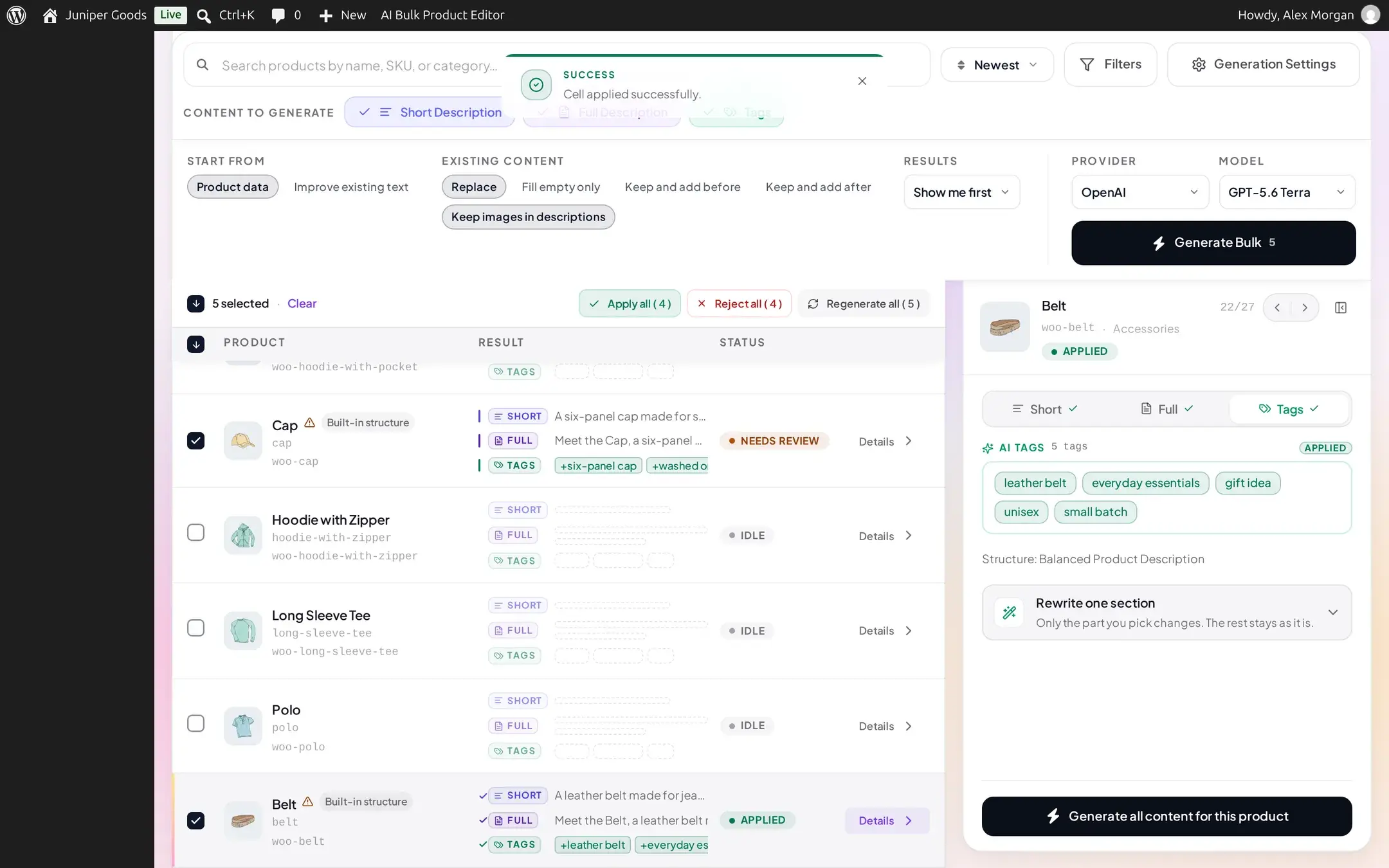
Selecting two or more products with results waiting turns on the selection strip's Apply all (N) and Reject all (N):
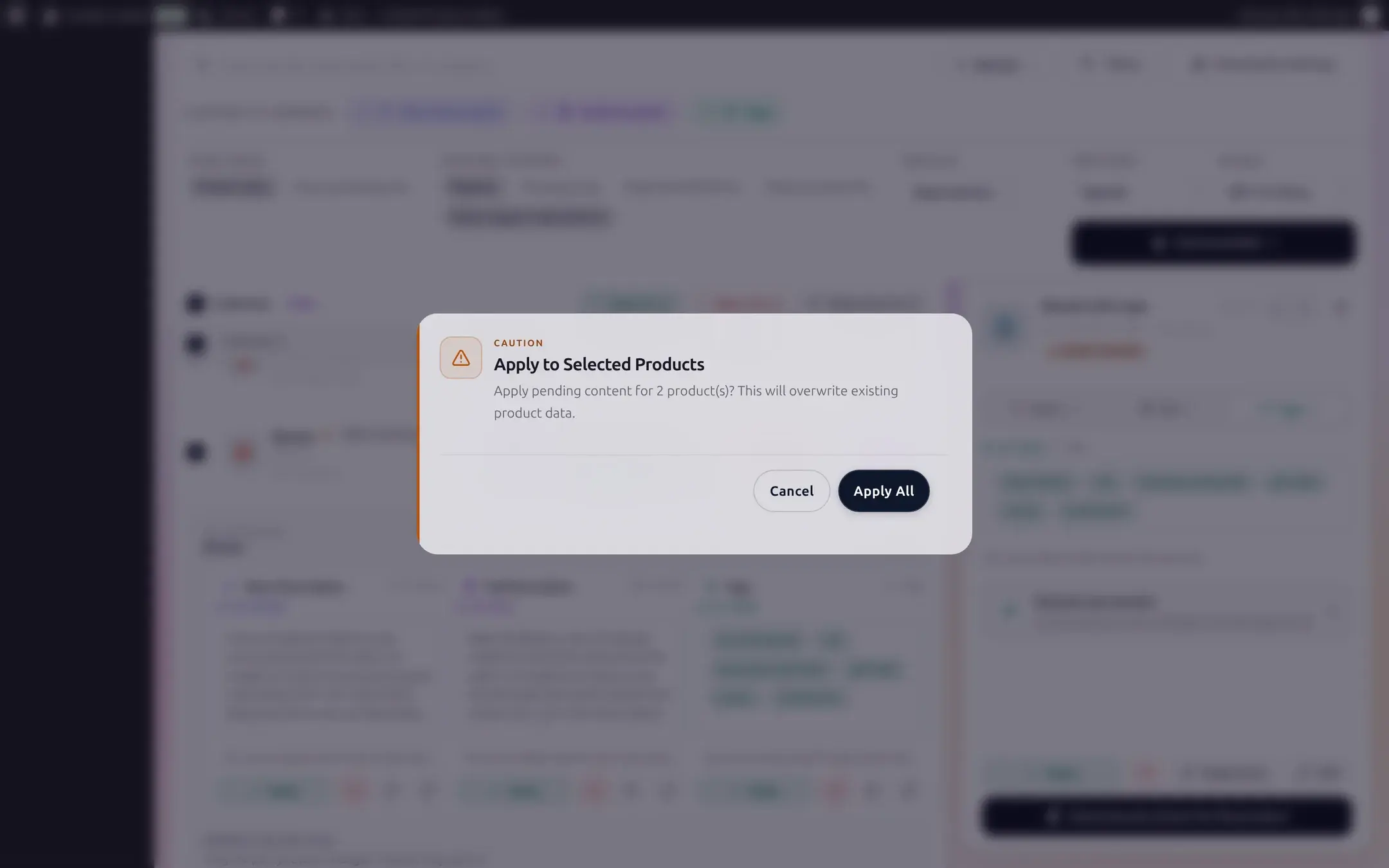
Acting on more than one product this way asks you to confirm first, since it overwrites existing product data:
Check Content History and the storefront
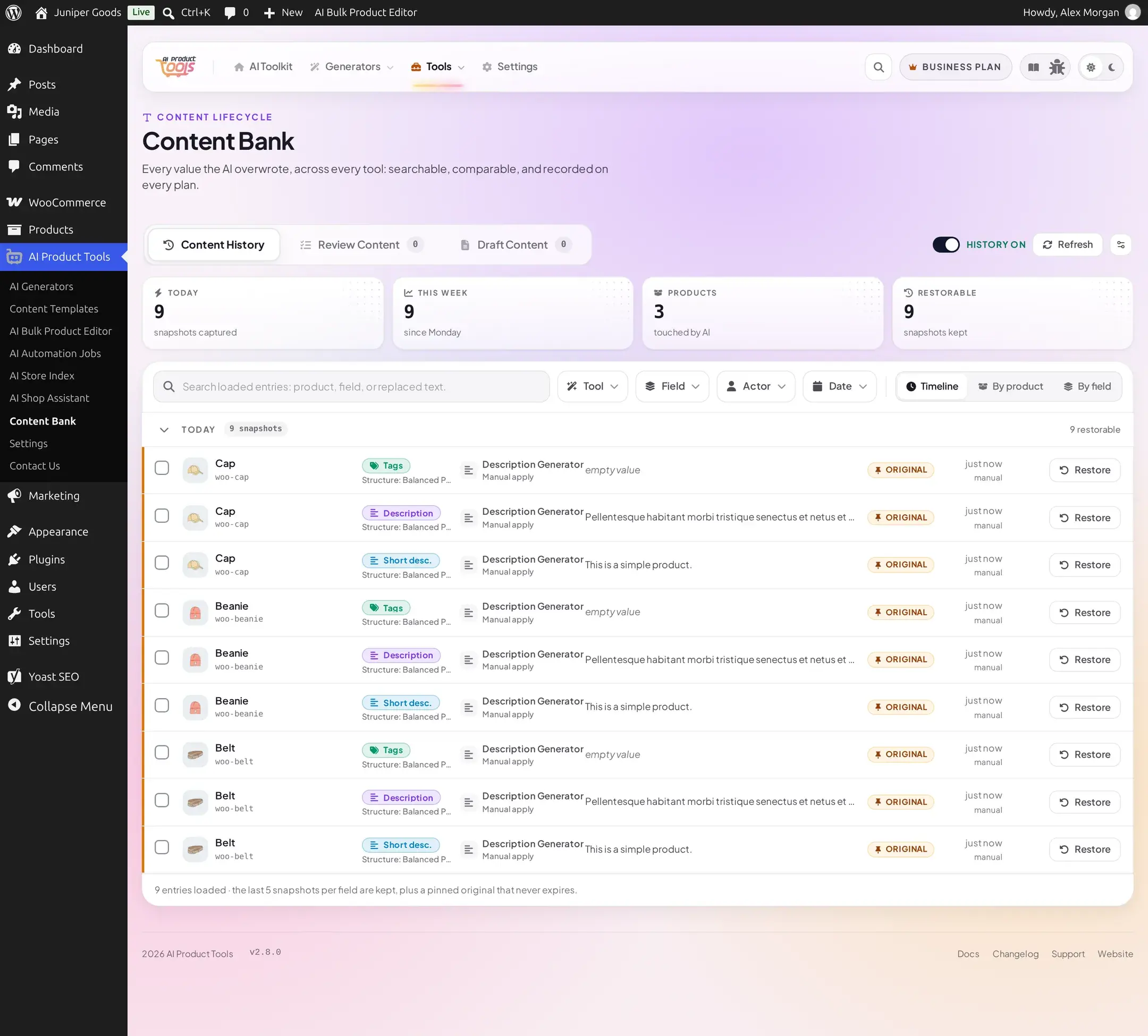
Every apply captures the product's previous value in Content History first, labelled with which structure and version wrote the new one.
The storefront reflects the change immediately (behind any page cache your host or a caching plugin keeps):
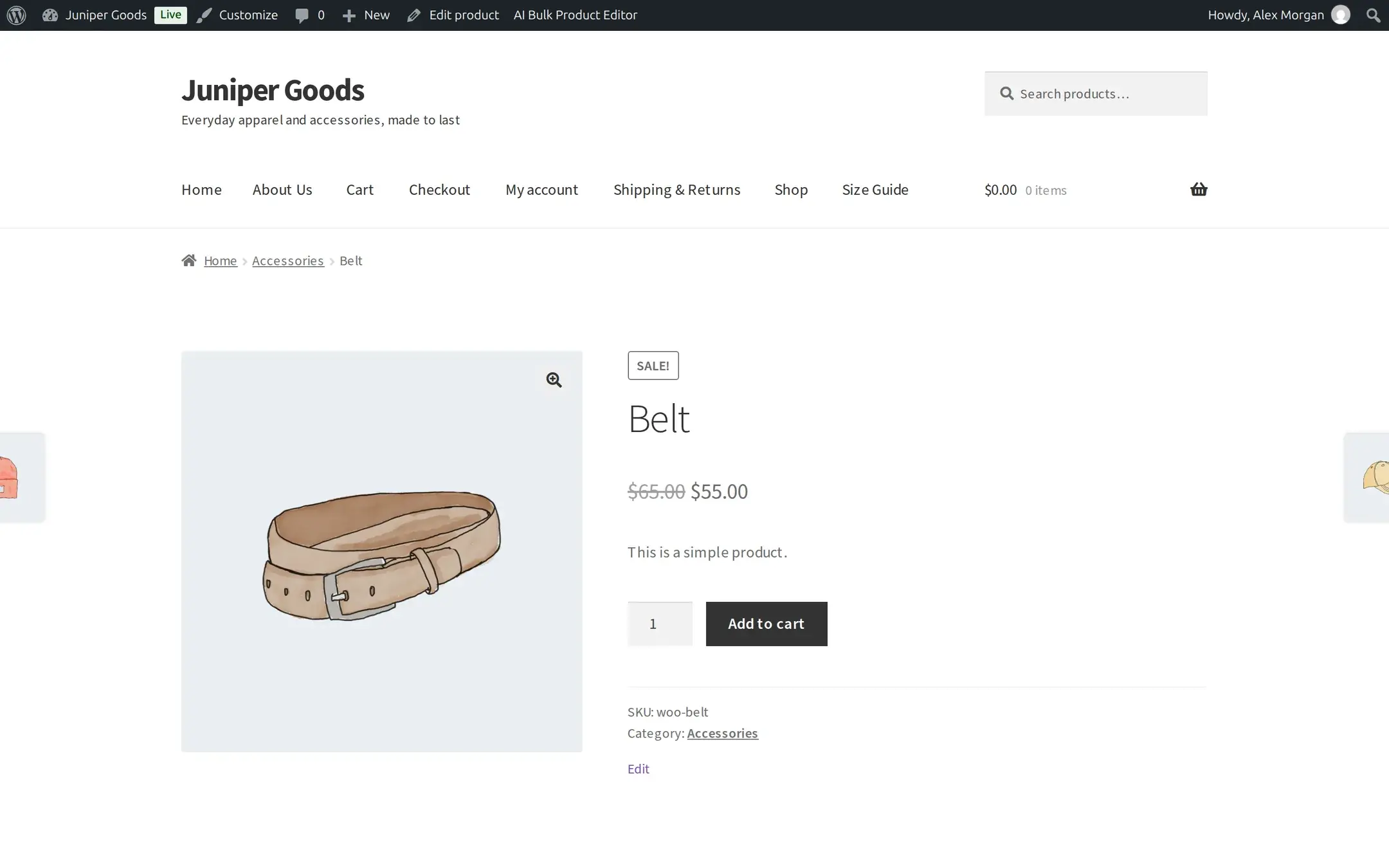
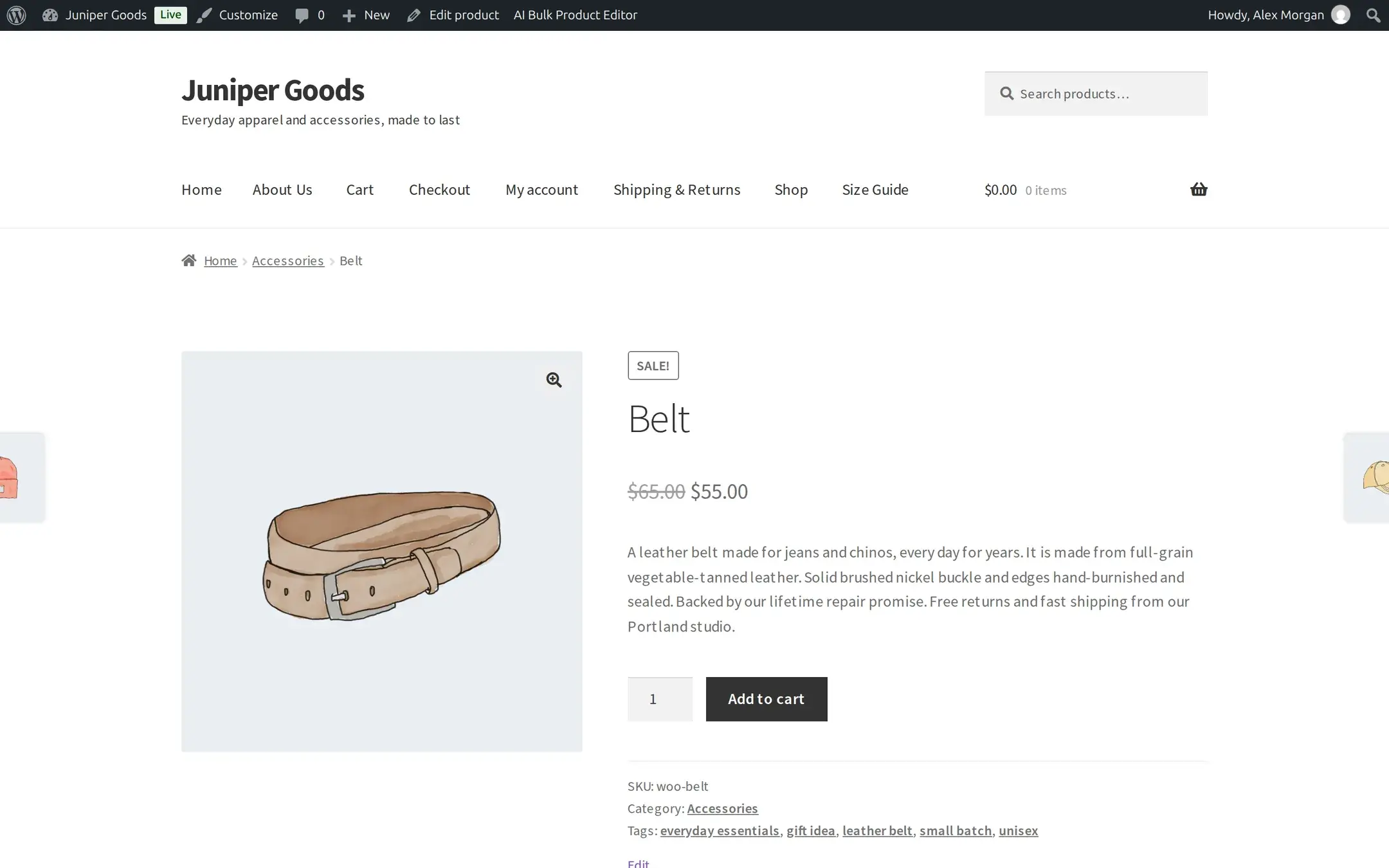
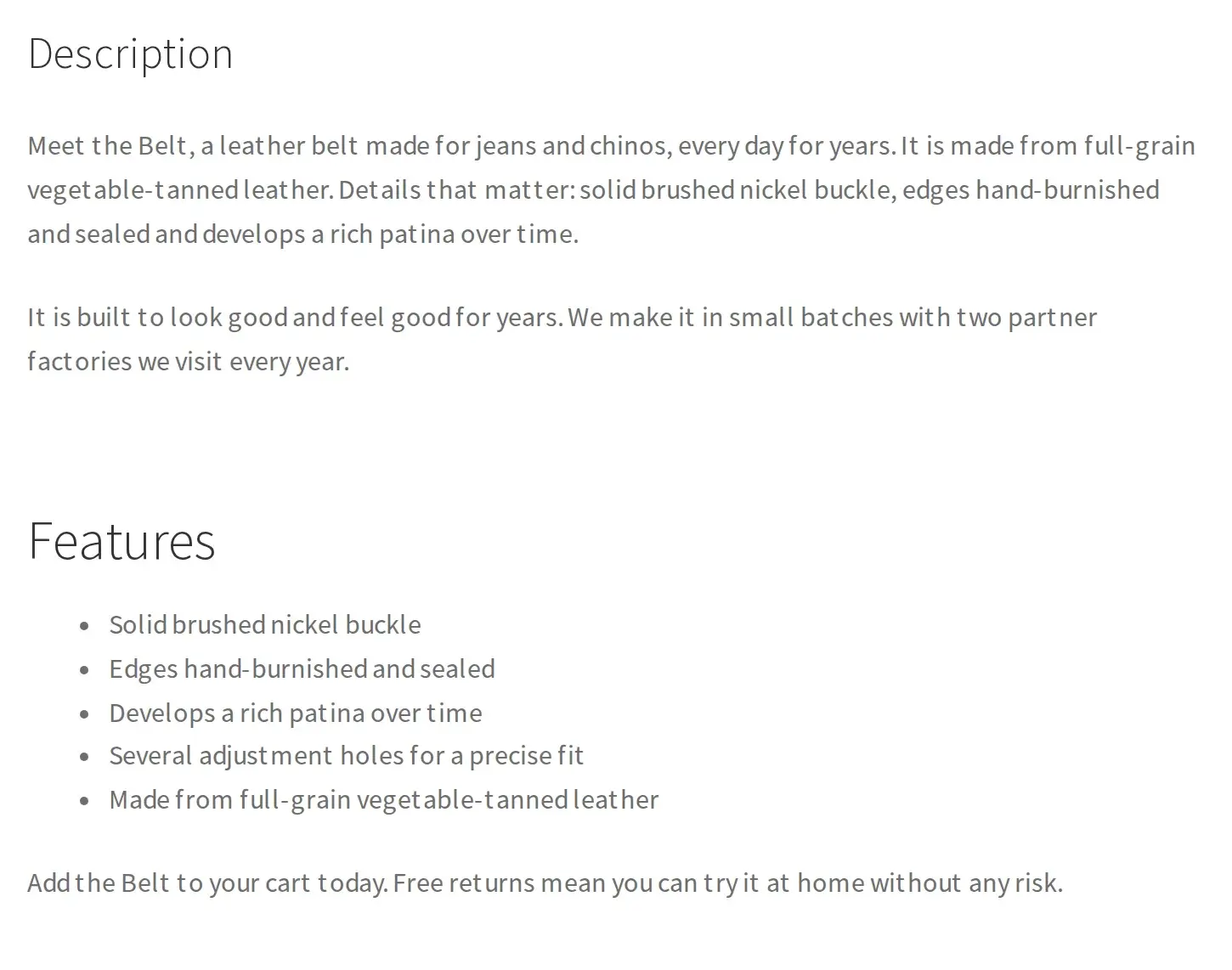
The full description renders separately, in its own Description tab further down the same page, never in the spot above:
Bulk tag suggestions
There is no separate tagging tool: Tags is simply one of this generator's three content types, alongside Short and Full Description. The AI Toolkit dashboard watches your catalog and, once more than 10 products have no tags at all, replaces its usual headline with a direct link back here:

Click Tag them in bulk, then tick only the Tags chip (toggle Short and Full Description off first) to run a tags-only batch across your filtered selection.
Reference
Content types
| Type | Writes to | Notes |
|---|---|---|
| Short Description | The product's WooCommerce short description | Shown near the price on the storefront. |
| Full Description | The product's WooCommerce long description | The main product-page description. |
| Tags | WooCommerce product tags | Added alongside or replacing existing tags, depending on Existing content. |
Existing-content behavior
| Setting | Effect on Short/Full | Effect on Tags |
|---|---|---|
| Replace | Overwrites the current value | Replaces existing tags entirely |
| Fill empty only | Writes only if currently empty; otherwise kept, shown as a skip rather than a failure | Writes only if the product has no tags yet |
| Keep and add before / after | Places the new text immediately before or after the current value | Not applicable; tags have no order to insert into |
Free vs Business
| Capability | Free | Business |
|---|---|---|
| Short, Full, and Tags, any provider, any writing style/length/format/tag-count setting | Yes | Yes |
| Show me first and Apply now execution modes | Yes | Yes |
| Send to review queue | No | Business, see How bulk generation works |
| Example Mode: paste one ideal short and full description, and the AI mirrors its exact style, length, and structure instead of using length/style settings | No | Business |
Legacy Pro accounts keep Example Mode, even though every other Business-only row on this page needs a current Business plan.
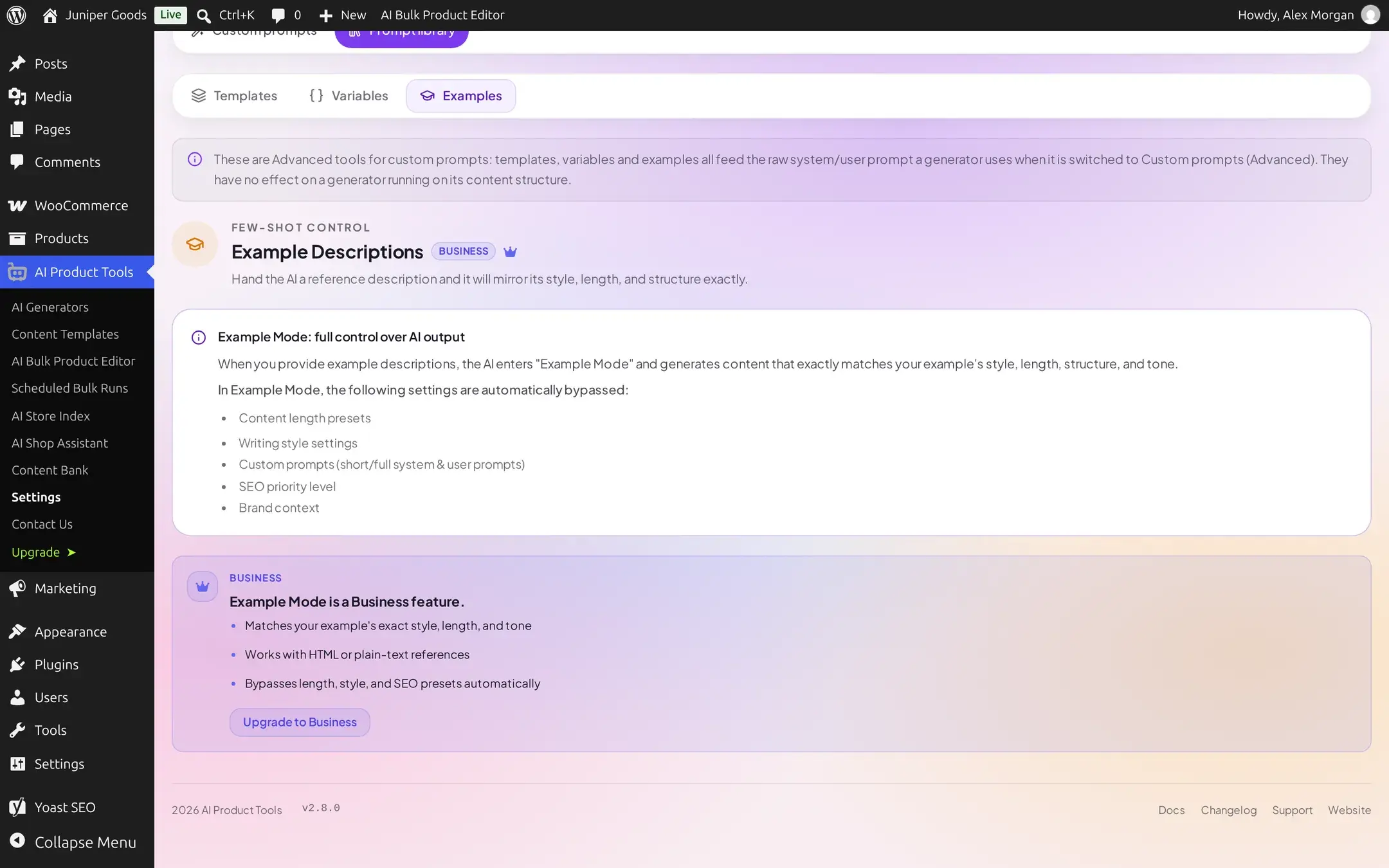
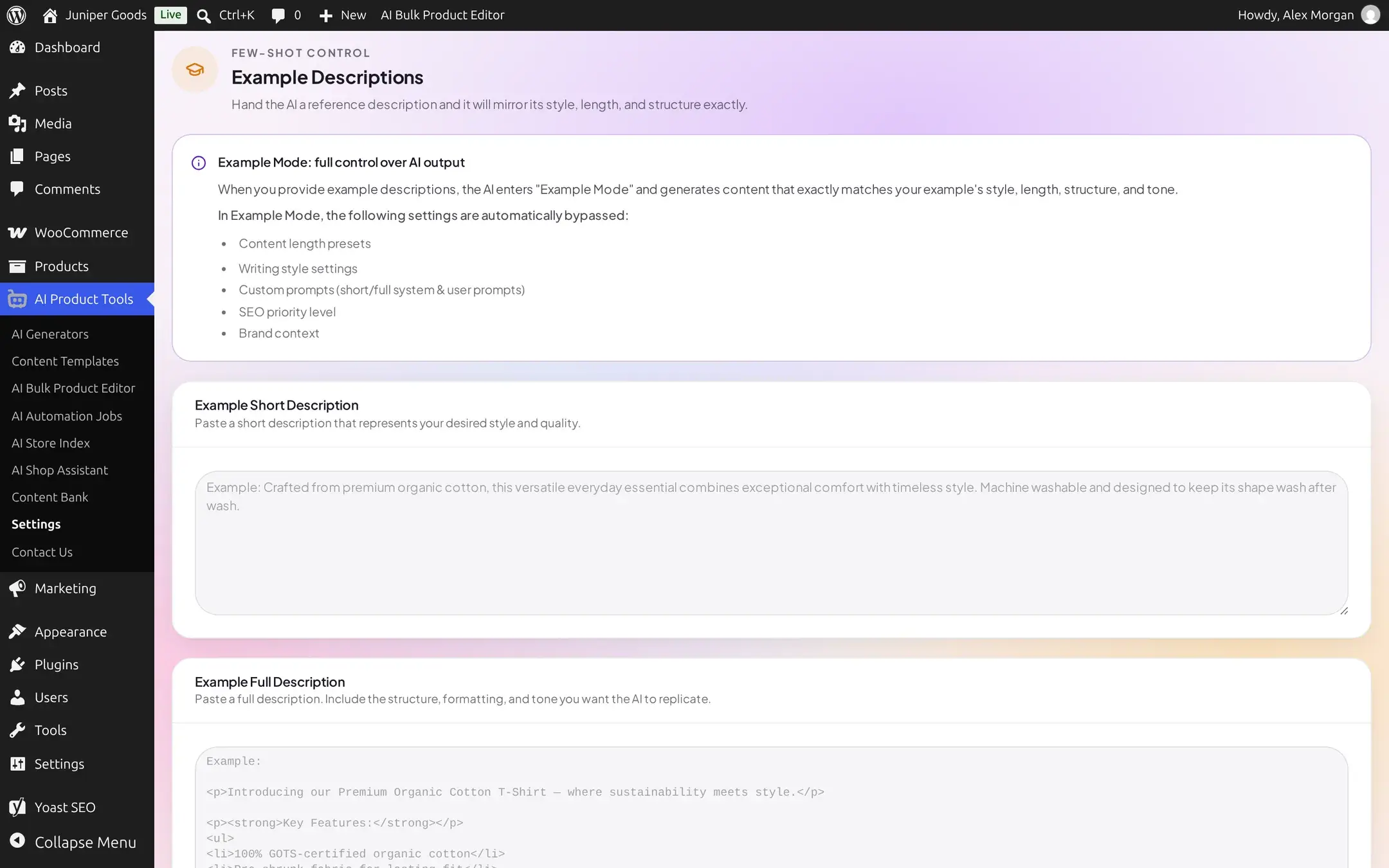
Example Mode lives under Settings > Prompt library > Examples and only takes effect on the Custom prompts (Advanced) path; a content structure ignores it. If your plan loses access after examples were already saved, a run that would have used them falls back to the standard prompt instead, and the page shows an amber notice saying so.
Troubleshooting
How bulk generation works
Selection, execution modes, progress, retry, review, and apply, shared by every generator.
How content structures work
Sections, voice, and sources: what actually controls the written content.
Content History
Every description and tag change, with before/after comparison and restore.
Provider errors
Exact per-product failure messages and how to fix each one.