
Category Descriptions
Write AI descriptions for product categories, tags and custom taxonomies, review them in a rich-text editor, and apply them in bulk.
Category descriptions writes descriptions for your WooCommerce categories, product tags, and any other taxonomy your site registers with REST support, in bulk. Use it to fill in empty category and tag pages, or to refresh descriptions that no longer reflect what you actually sell.
This generator is architecturally its own tool: it has no Content Review staging queue, and it writes directly to the term's own description field through a split screen with a rich-text editor, not the master-detail layout the other generators use.
Before you start
You need a connected AI provider and permission to manage WooCommerce, plus the taxonomy's own edit-term capability (automatic for shop managers and admins). Open AI Product Tools > AI Generators, then click the Category descriptions card.
How descriptions are written
Like the other generators, Category descriptions follows your store's content structure by default. Opening 1 · Content structure shows the sections every description is built from, for example a Category introduction paragraph and a Product groups bulleted list; add, reorder, or turn off sections the same way as any other content structure.
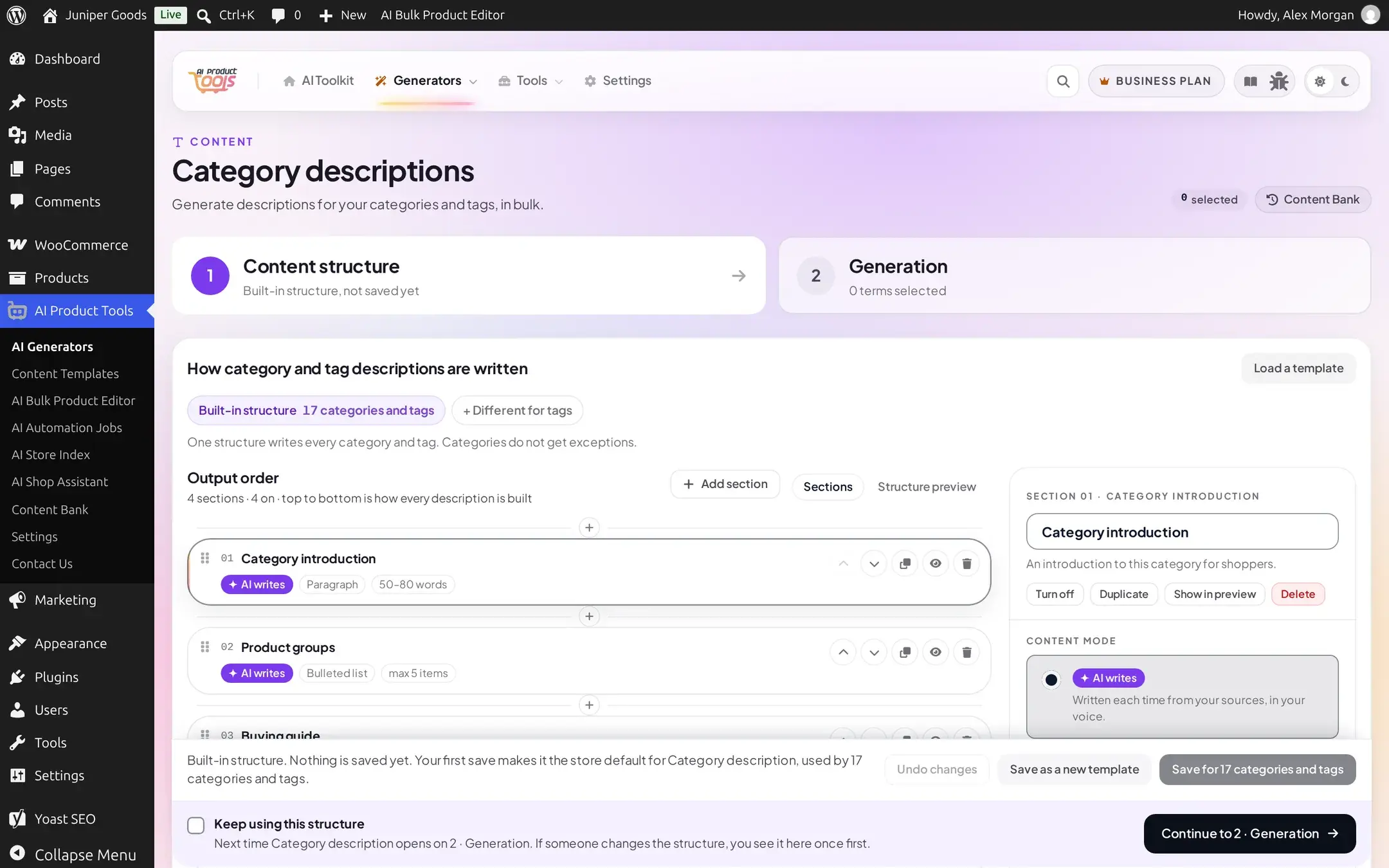
Unlike categories, tags can have their own separate structure: click + Different for tags Business next to the default structure chip to give Product tags their own sections, voice and sources while every other taxonomy keeps the store default. The full mechanics of editing a structure are covered in Editing a content structure.
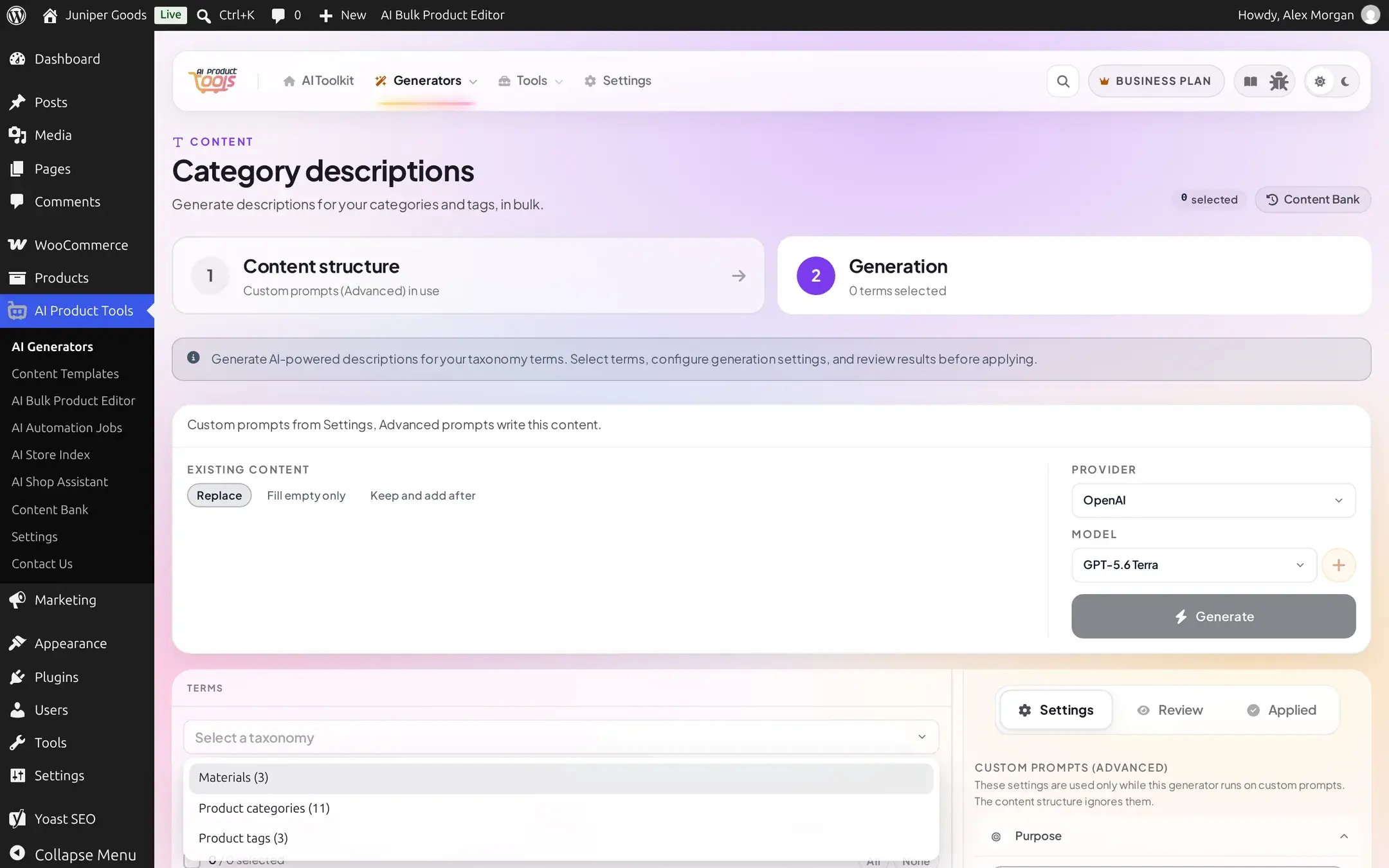
A site can instead switch this generator to Advanced (custom prompts), which is what the rest of this page, from Choosing a taxonomy onward, assumes so every control is visible.
Choosing a taxonomy
The taxonomy picker lists Product categories, Product tags, and any other taxonomy registered with REST support, including a custom one your site adds. A taxonomy that is not REST-exposed never appears here.
Generation settings
Purpose, tone and length
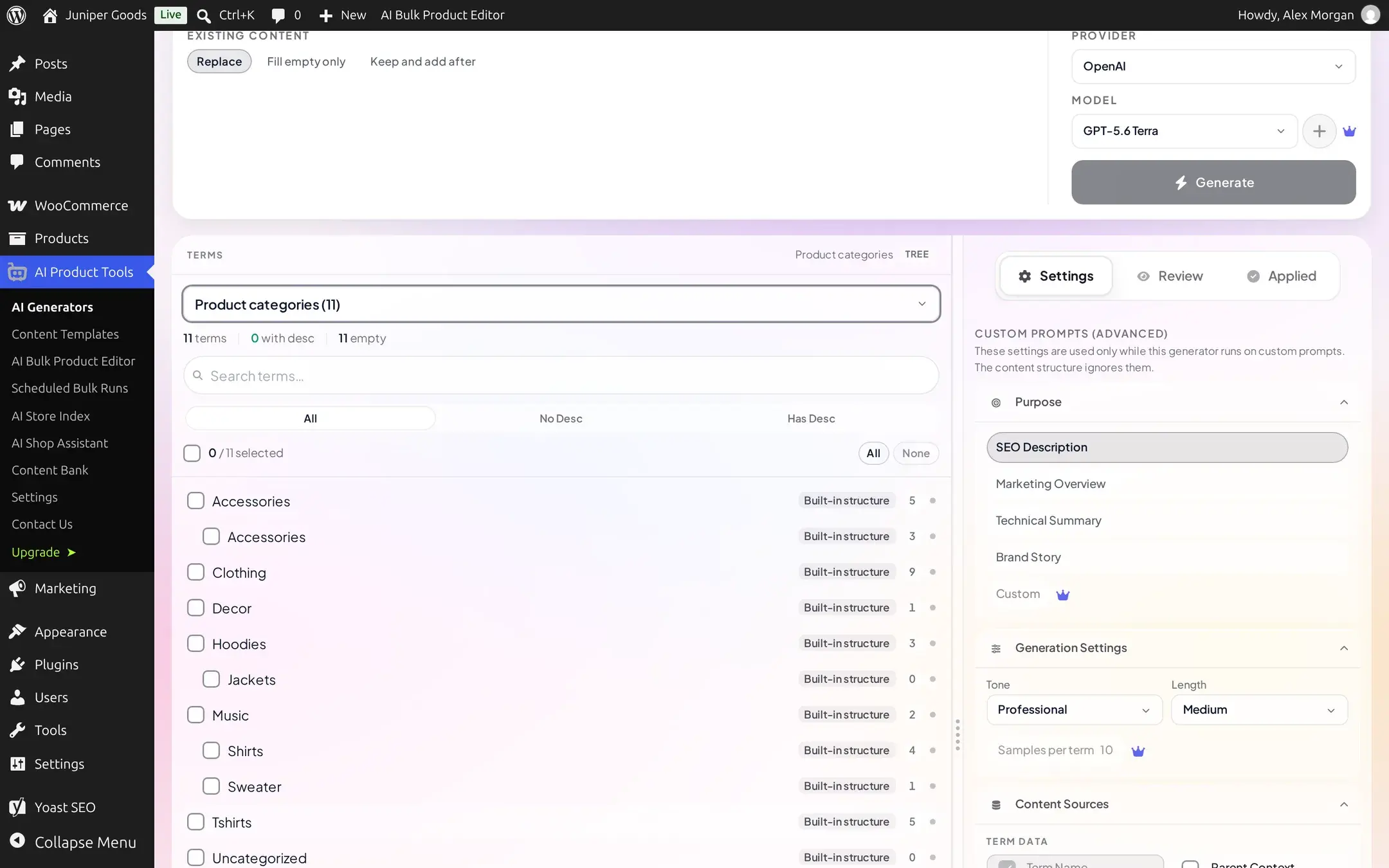
Pick a Purpose: SEO Description (the default), Marketing Overview, Technical Summary, or Brand Story, all free, or type your own with Custom.
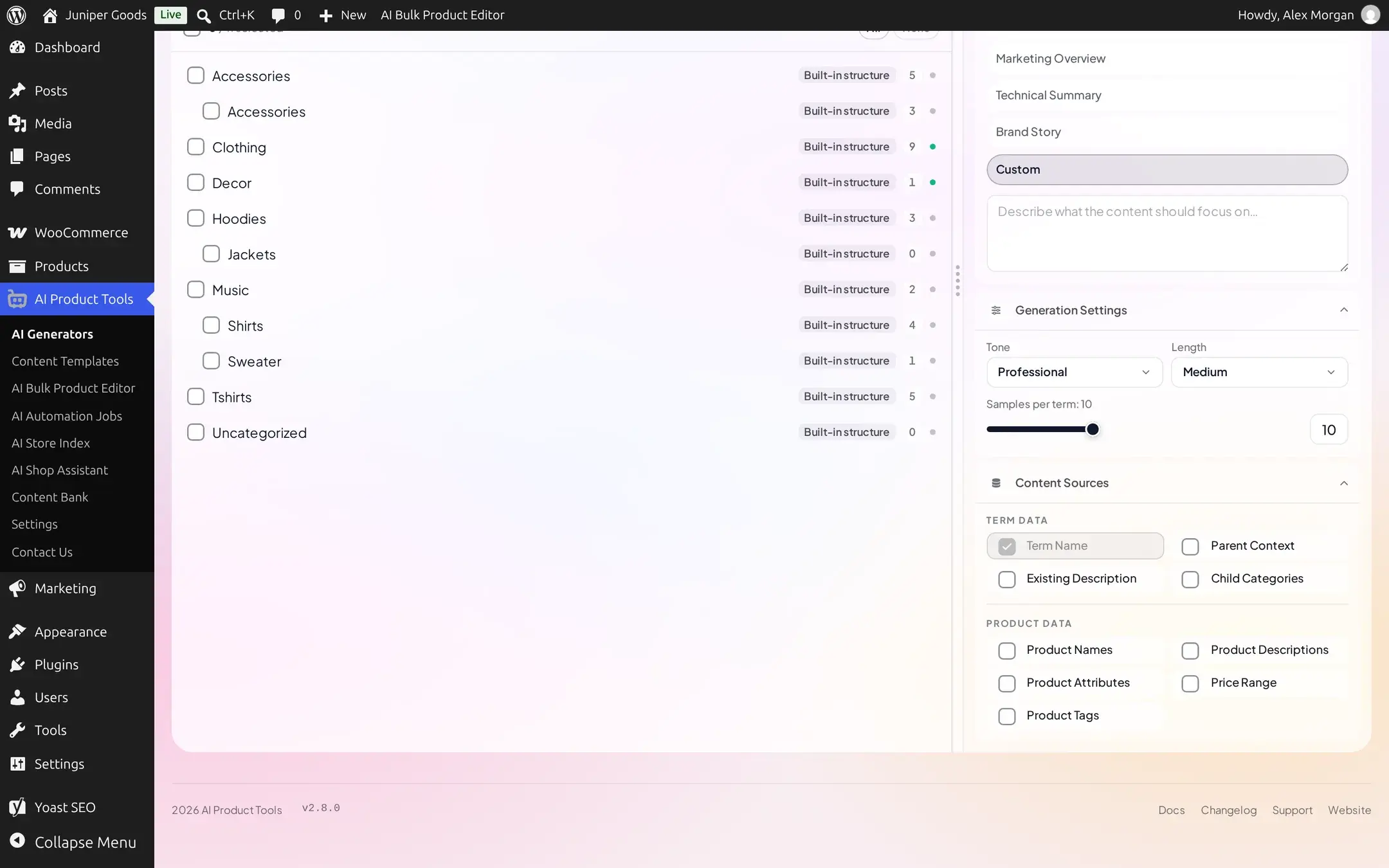
Tone (Professional, Casual, Friendly, Authoritative, Informative, Playful) is free on every plan. Length offers Short (about 80 to 140 words), Medium (150 to 300 words, the default), or Long (300 to 450 words).
Samples per term and content sources
Samples per term controls how many of a category's own products the AI reads as examples.
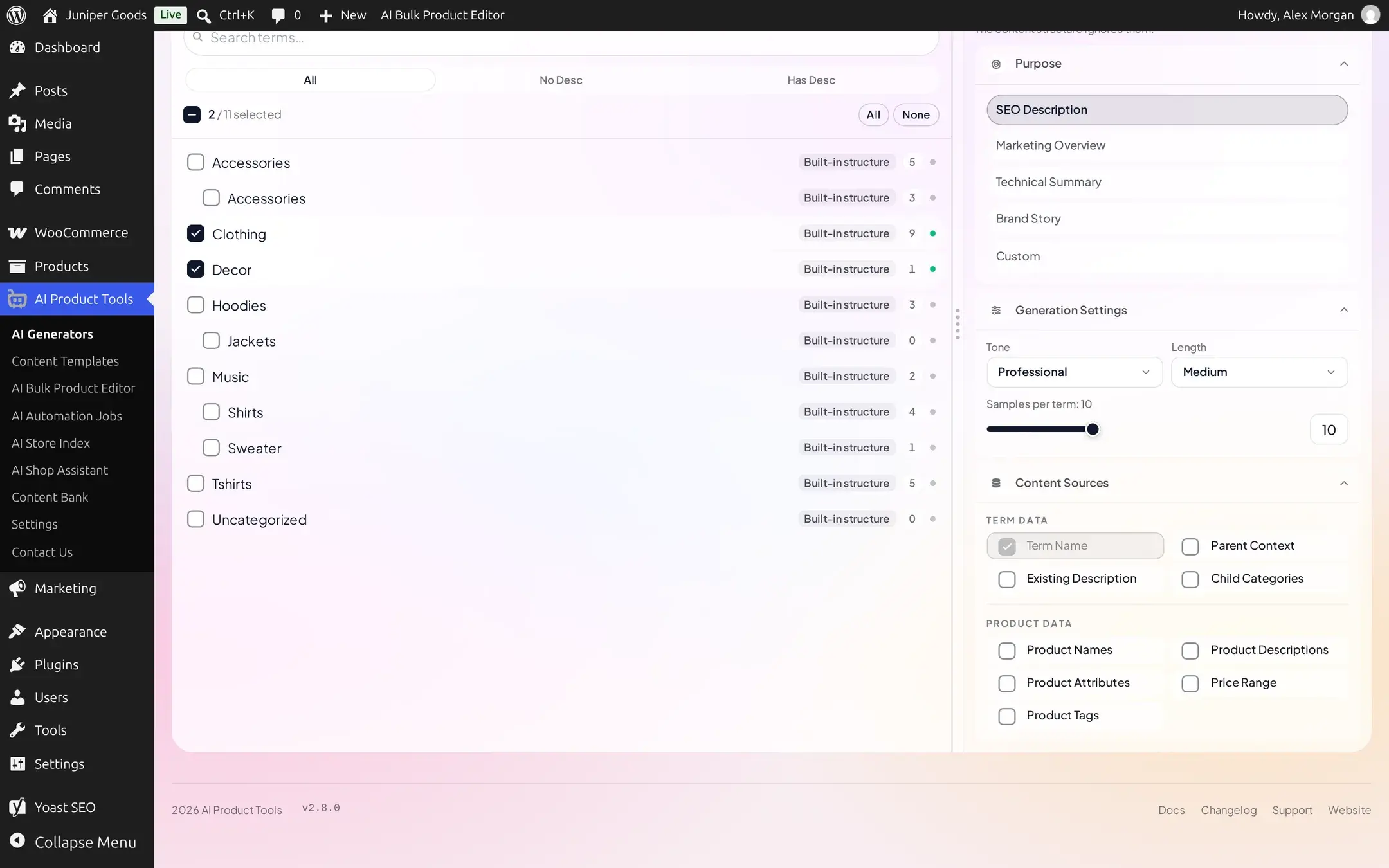
Content Sources split into Term Data (Term Name is always included; Parent Context, Existing Description and Child Categories are free) and Product Data (Product Names, Price Range and Product Tags are free; Product Descriptions and Product Attributes are Business).
On Free, Samples per term is locked at a fixed 10 and Custom purpose is shown locked instead of hidden:
No additional-instructions field, and no Automation job
Business sites can save a site-wide additional prompt for this generator, but only by calling the REST API directly, not from this screen. Category descriptions also has no Automation job type at all, unlike the other five generators, so it can only ever run from this page, never on a schedule.
Selecting terms
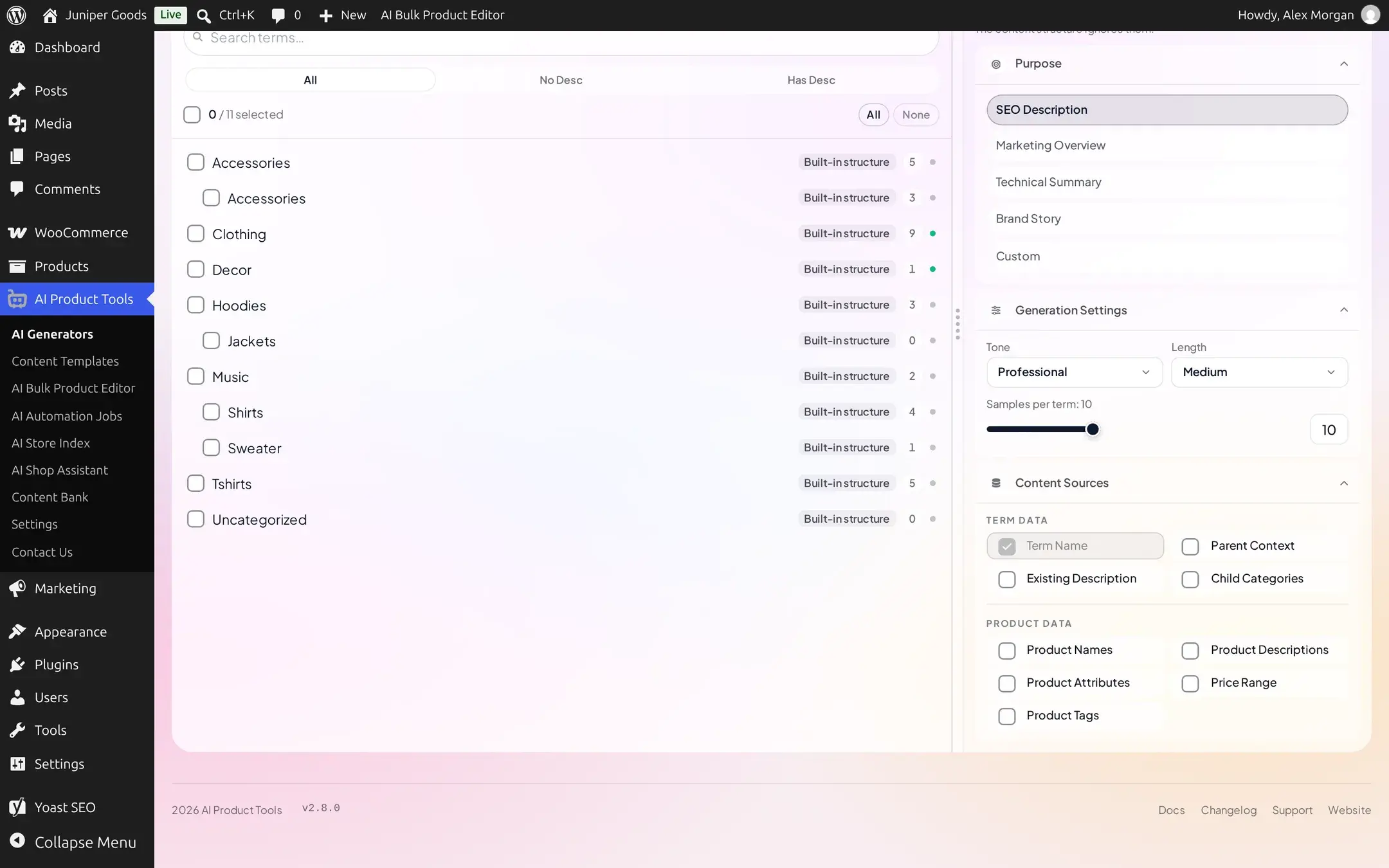
The term list indents a child term under its parent so you can see the hierarchy, for example a Hoodies category with Jackets nested beneath it. Use Search terms, the All / No Desc / Has Desc filter, or All and None to manage a large list.
Existing content, review and apply
Choose Existing content
Replace (the default here) overwrites a term's current description. Fill empty only skips any term that already has a non-empty description, recording the reason rather than failing the run. Keep and add after appends the new text after what is already there. None of the three is plan-gated for this generator.
Generate and review
Select your terms and click Generate. Results open on the Review tab as a split screen: the term list stays on the left, and each generated description appears on the right with Apply, Discard, Edit and History actions.
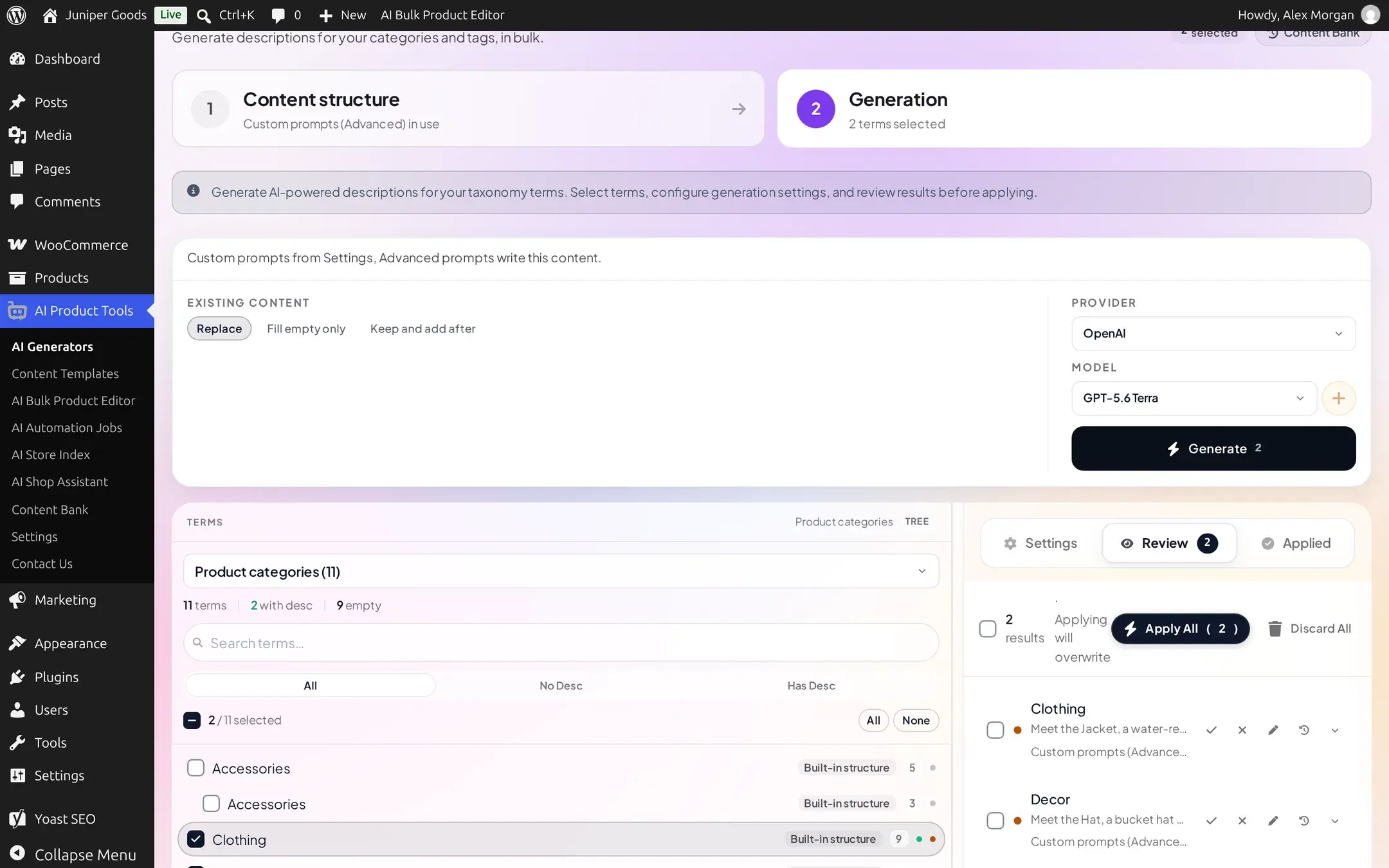
Expand a result to read it in full before deciding:
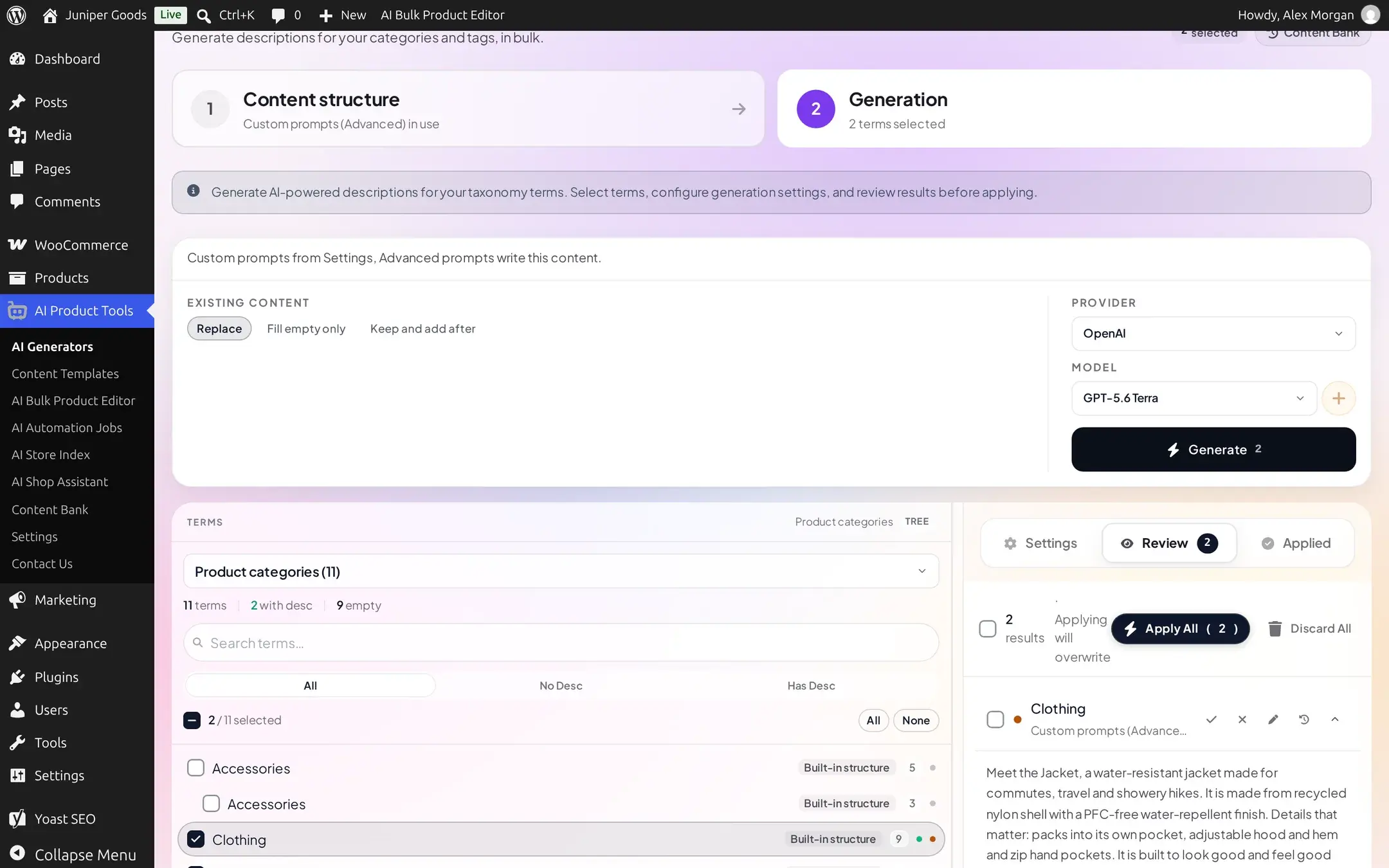
Click the pencil icon to edit it in a full rich-text editor, with bold, italic, lists, links and alignment, before applying:
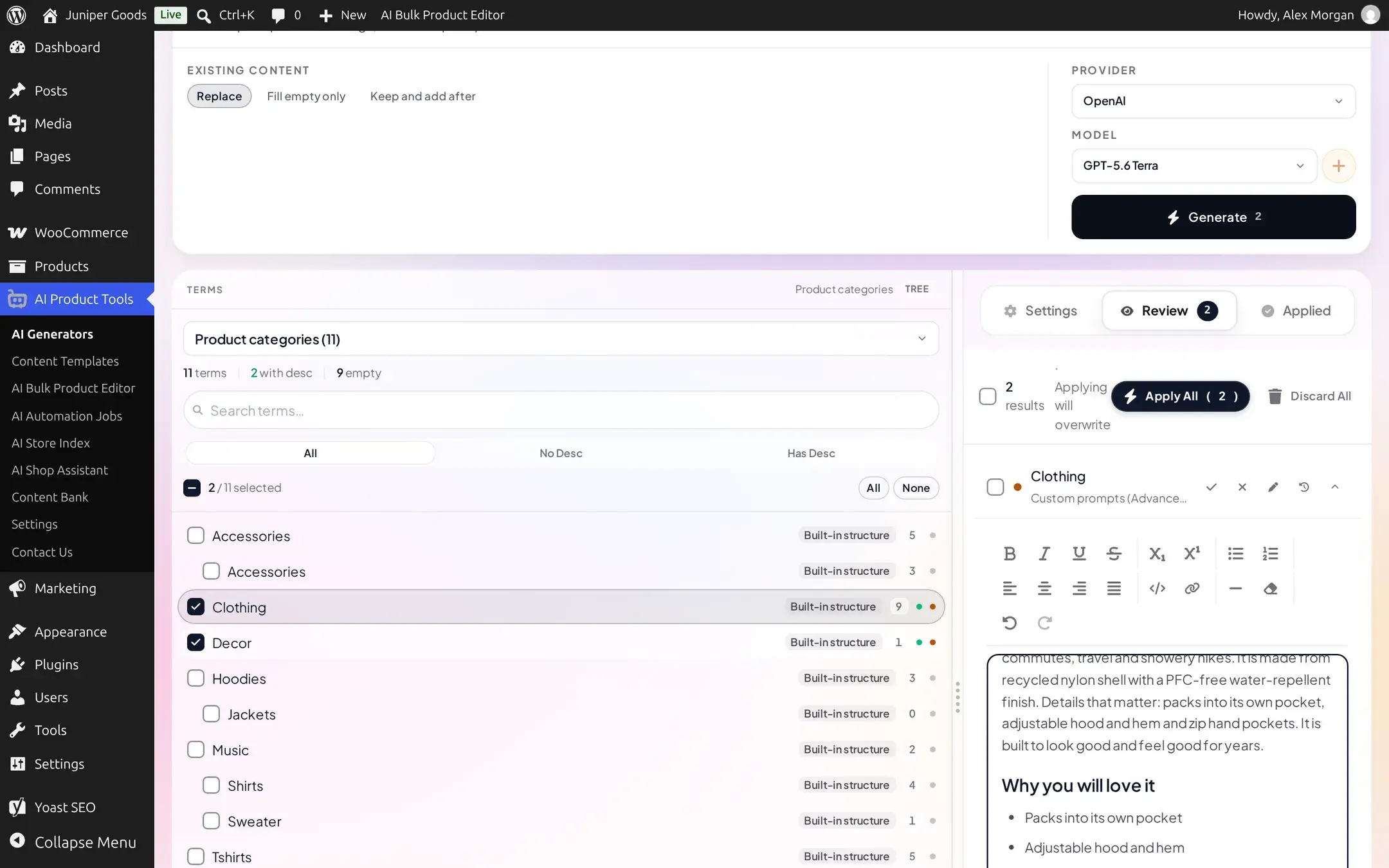
Apply
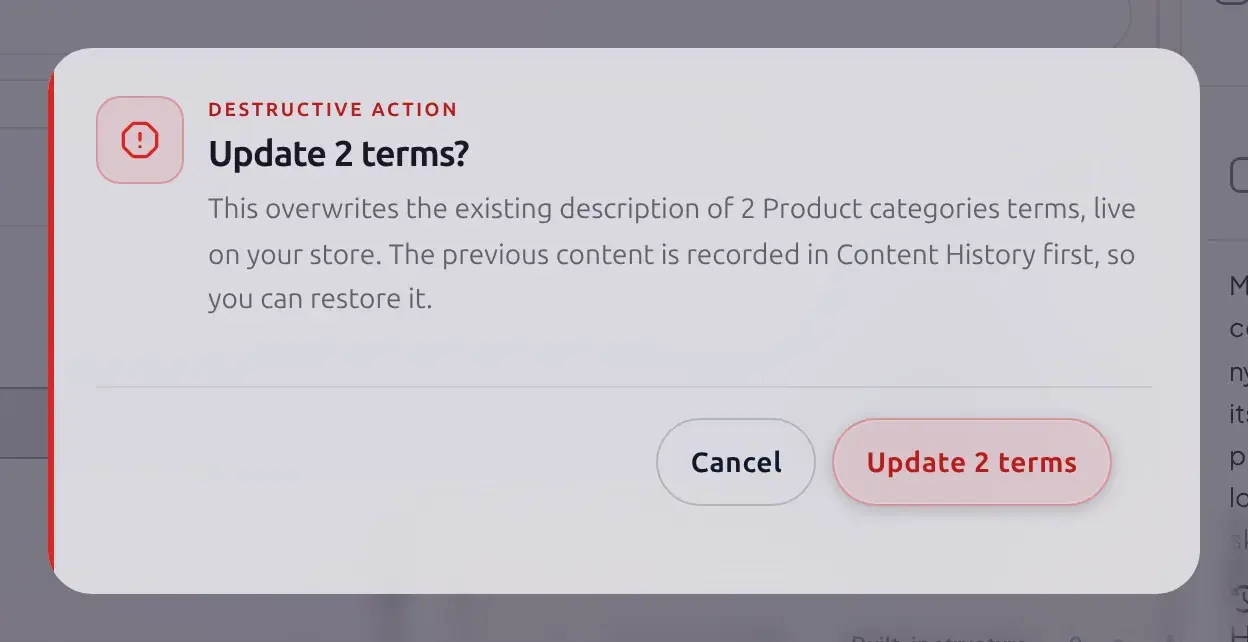
Click Apply Selected or Apply All. The confirmation states plainly what is about to happen and reminds you it is recorded first:
Rich text does not always survive on the storefront
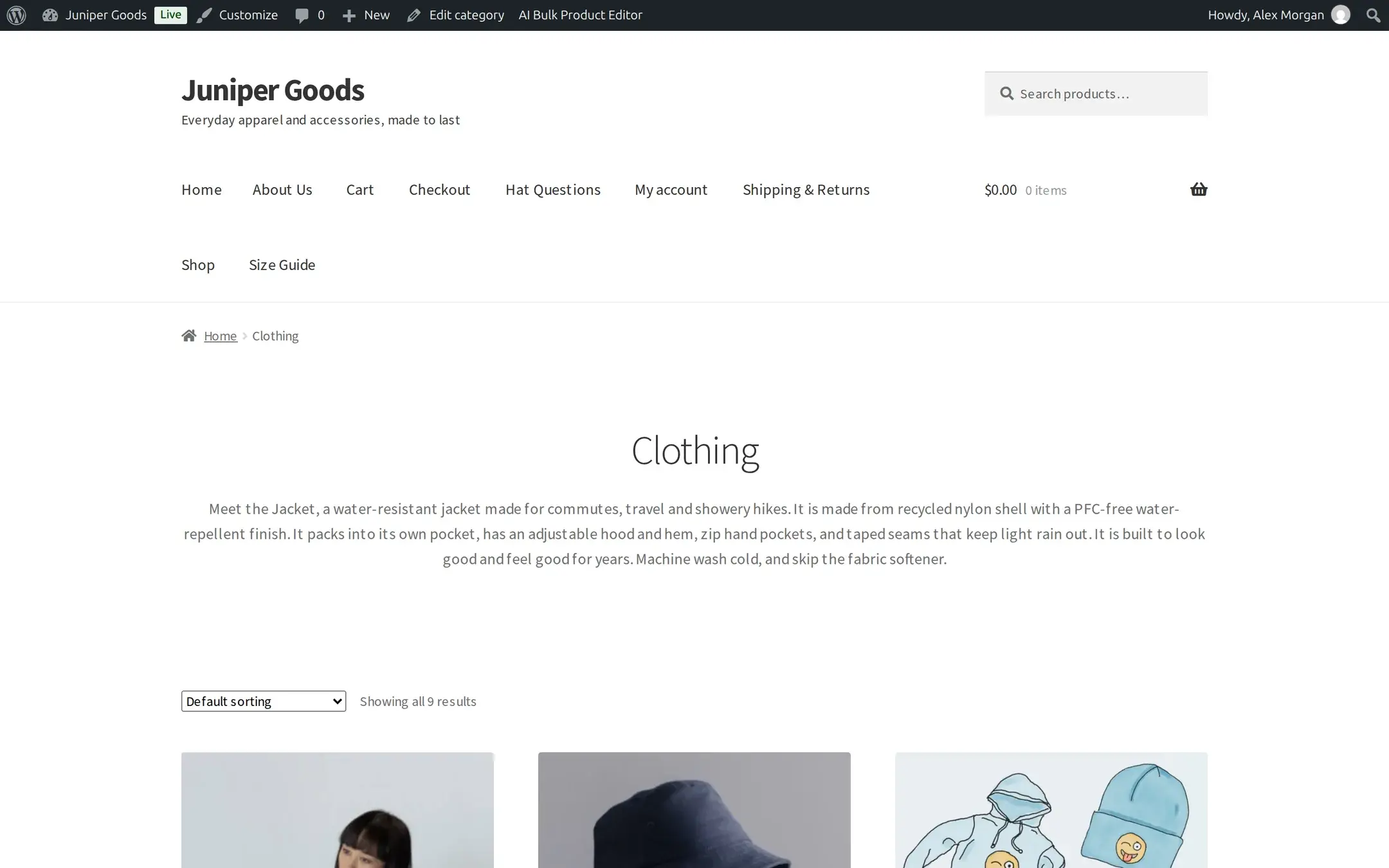
A generated description with headings or a bulleted list can end up displayed with no space between the blocks on some themes (for example "...for years.Why you will love it..."). If that happens, open Edit in the review panel before applying and merge the text into plain sentences, or pick a shorter Length so the result stays to a single paragraph.
Viewing it on your storefront
Visit the category or tag's archive page. The active theme has to actually render the term's description for it to show; this is a theme concern, not something the plugin controls.
Reference
| Setting | Options | Default | Plan |
|---|---|---|---|
| Purpose | SEO Description, Marketing Overview, Technical Summary, Brand Story, Custom | SEO Description | Custom: Business. The rest: Free |
| Tone | Professional, Casual, Friendly, Authoritative, Informative, Playful | Professional | Free |
| Length | Short (80 to 140 words), Medium (150 to 300 words), Long (300 to 450 words) | Medium | Free |
| Samples per term | 5 to 20 | 10 (fixed on Free) | Business for the full range |
| Term Data sources | Term Name, Parent Context, Existing Description, Child Categories | Term Name only | Free |
| Product Data sources | Product Names, Price Range, Product Tags, Product Descriptions, Product Attributes | None selected | Product Descriptions and Product Attributes: Business. The rest: Free |
| Existing content | Replace, Fill empty only, Keep and add after | Replace | Free (not gated for this generator) |
| Separate structure for Product tags | Store default, or its own structure | Store default | Business |
Free vs Business
| Capability | Free | Business |
|---|---|---|
| SEO Description, Marketing Overview, Technical Summary, Brand Story purposes | Yes | Yes |
| Custom purpose | Not available | Available |
| Tone, Length, Existing content, Skip-via-Fill-empty-only | Yes | Yes |
| Samples per term | Fixed at 10 | 5 to 20, adjustable |
| Product Descriptions, Product Attributes as sources | Not available | Available |
| A separate content structure for Product tags | Not available (tags use the store default) | Available |
| Staging a result in a review queue before it writes | Not available for this generator on any plan | Not available for this generator on any plan |
No review queue here
Unlike the other generators, Category descriptions never stages a result in Content Review. Apply writes directly to the term, on every plan; reversibility comes entirely from Content History.
Troubleshooting
Related pages
Content structures
What a content structure is, and how the Product tags exception works.
Editing a content structure
The 1 - Content structure / 2 - Generation tab contract in full.
Content History
Every applied description is recorded here, with Business restore.
How bulk generation works
Selection, generation modes and apply, shared across every generator.