
Content History
Browse, filter, and compare every value the AI has overwritten on a product or category, on any plan.
Content History is a plugin-wide, append-only timeline. Every time a generator, an automation job, the Bulk Product Editor, a CSV import, or a restore changes a tracked field, the value it replaces is captured here first. Nothing in this tab can change a product: it is a record, not an editor. Restoring from it is covered separately in Restore a past value.
Before you start
- History records automatically as soon as the plugin is active. There is nothing to turn on.
- Reading, filtering, grouping, and comparing versions work the same on Free and Business.
- Turning history off, and changing how many versions are kept, needs settings access (
manage_aipt_settings), not just the ability to open the page.
Open Content History
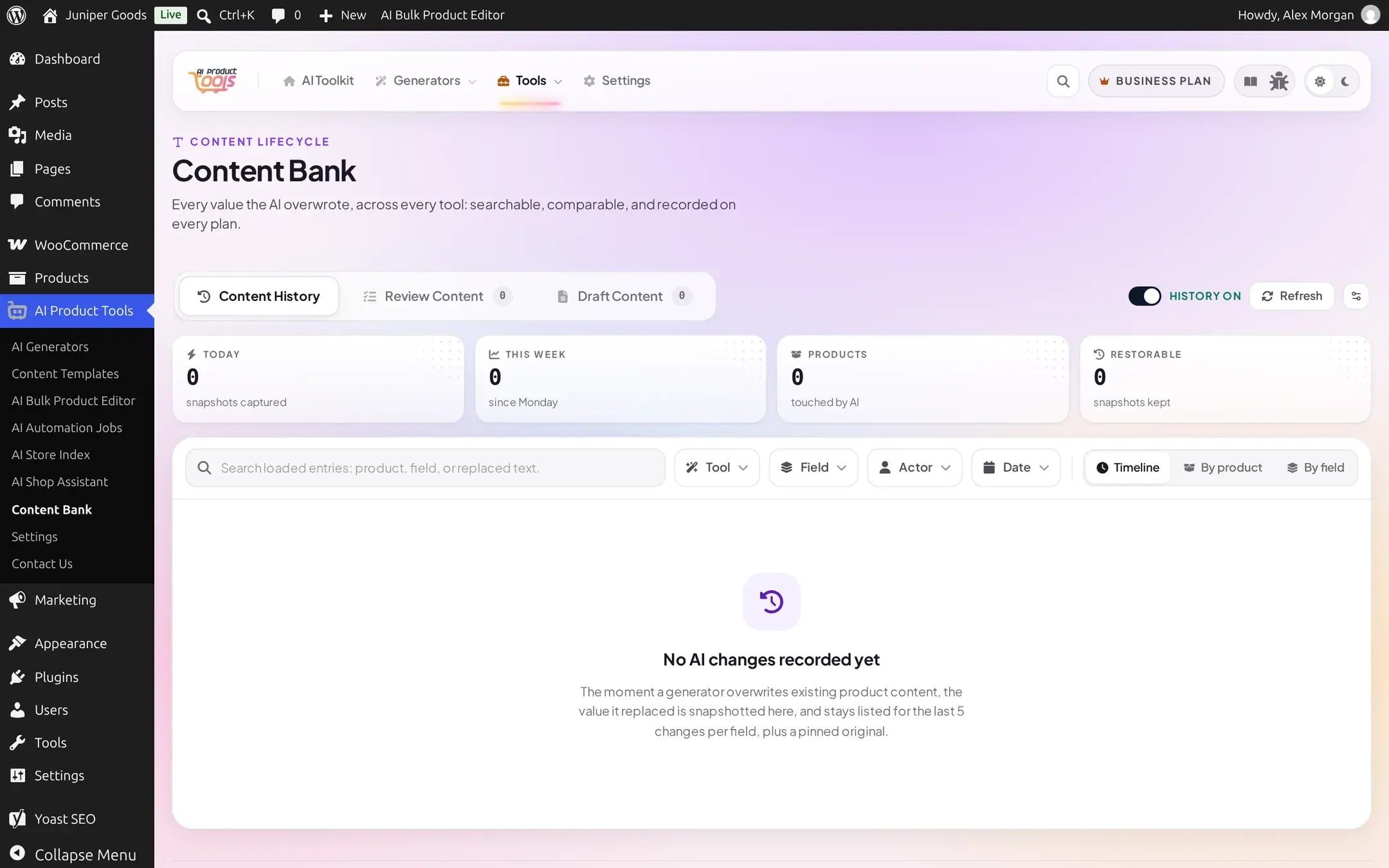
Go to AI Product Tools > Content Bank. It opens on the History tab by default (&tab=history). A fresh store with no AI activity yet shows an empty state instead of the stat tiles and list below.
Once the AI has touched a few products, the same tab fills in with the summary strip and a timeline grouped by day:
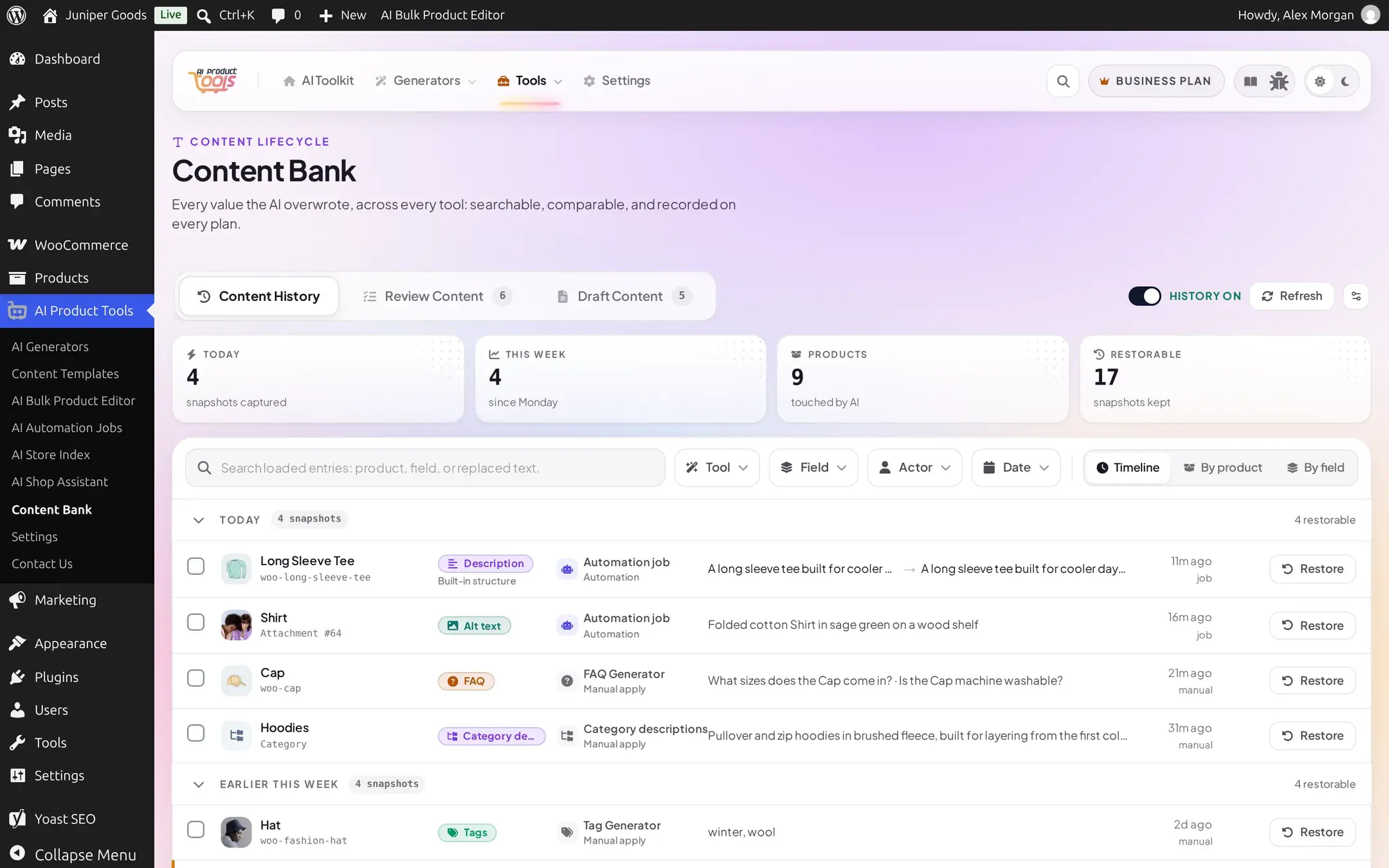
Read the summary strip
Four tiles above the list, read straight from the store's own record: Today (snapshots captured today), This week (since Monday), Products (distinct products touched by AI), and Restorable (snapshots that still have a value to put back). A legacy SEO row with no recorded SEO plugin does not count as restorable even though it is listed.
Filter and search
The toolbar gives you five ways to narrow the list, plus a search box that narrows only what is already loaded (it has no server-side search of its own):
- Tool: the flow that produced the change (see the table below). Automation jobs always show as "Automation job" here regardless of which of the 5 generators the job ran; use Field or the row's own field badge to see what was changed.
- Field: the specific field type, such as Product title or SEO meta description.
- Actor: Anyone, Manual, or Automation (jobs). This mirrors the "Tool: Automation job" filter from the other direction: it matches on who applied the change rather than which flow produced it.
- Date: a preset date range.
- The search box: narrows the entries already loaded in your browser by product, field, or replaced text.
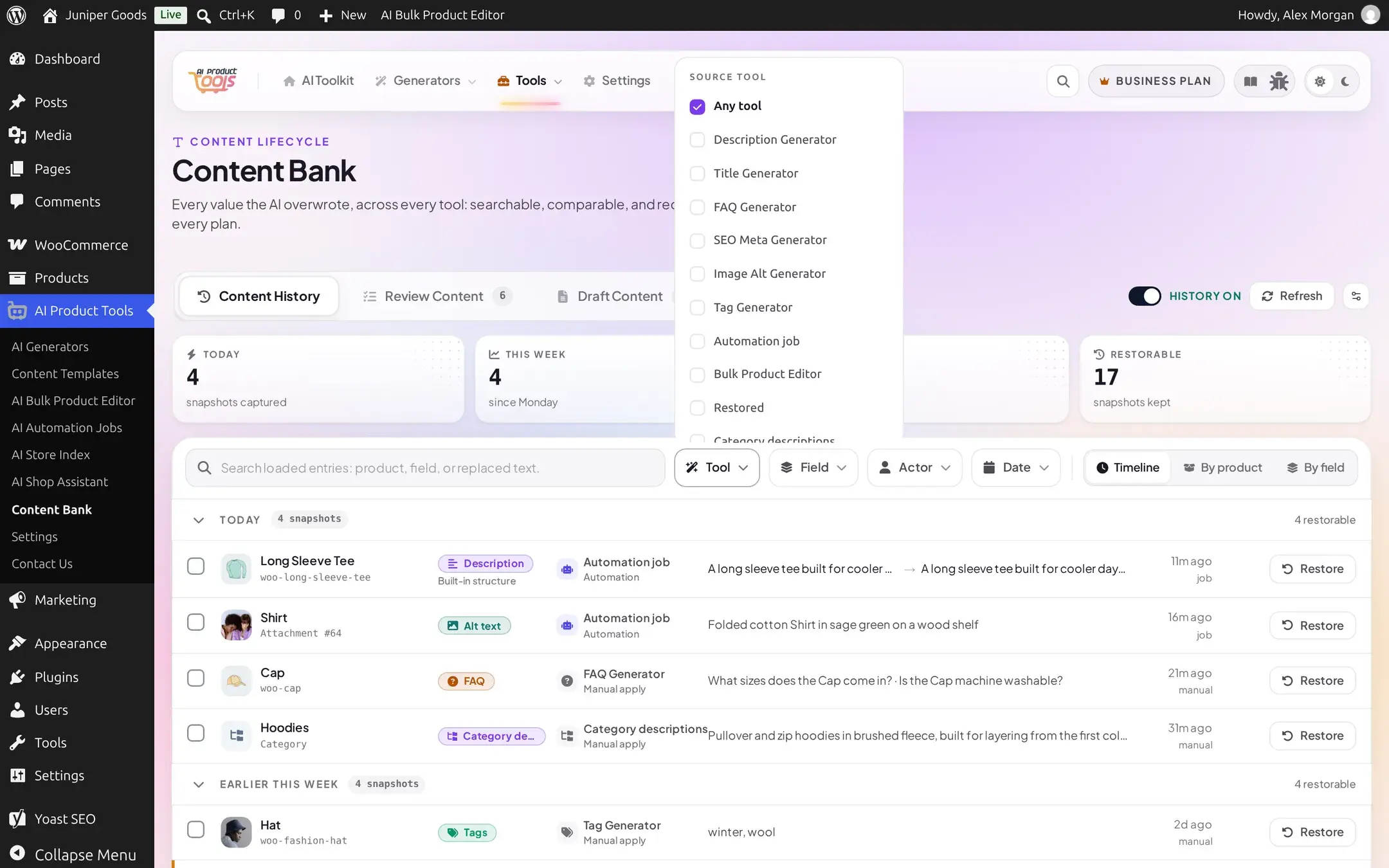
Active filters show as removable chips with a loaded-count readout and a Clear all filters action. Filtering to zero matches shows "No entries match these filters" with its own clear action, distinct from the true-empty state above.
Group the timeline
Three groupings, next to the filters: Timeline (default, newest first), By product, and By field. Switching to By product also adds a whole-product restore control to each product's group header (Business only; see Restore a past value).
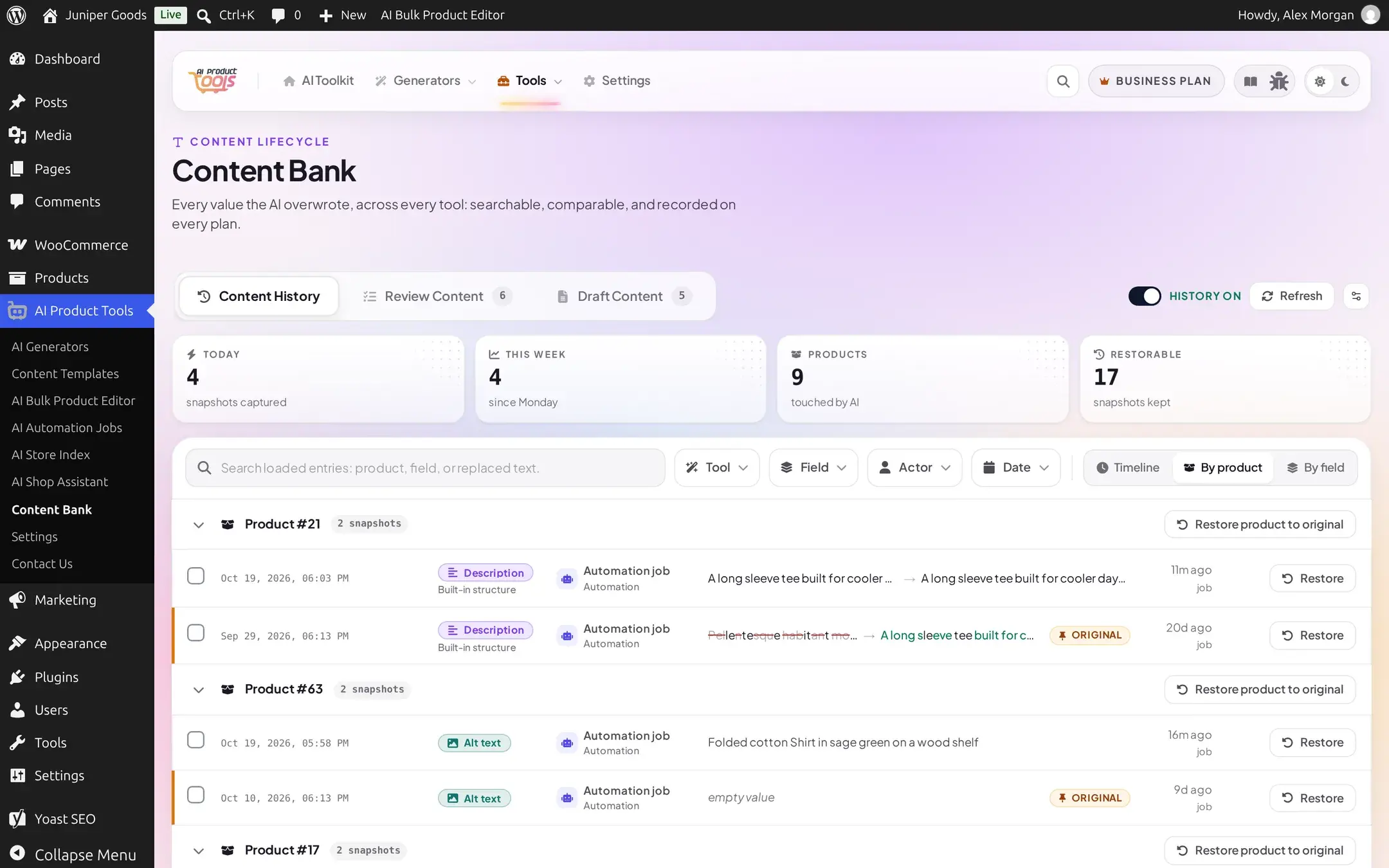
A category (term) row groups the same way under its own term, but never offers the whole-product restore control: that action only resolves pinned originals for a product, never for a category.

Open a row's detail
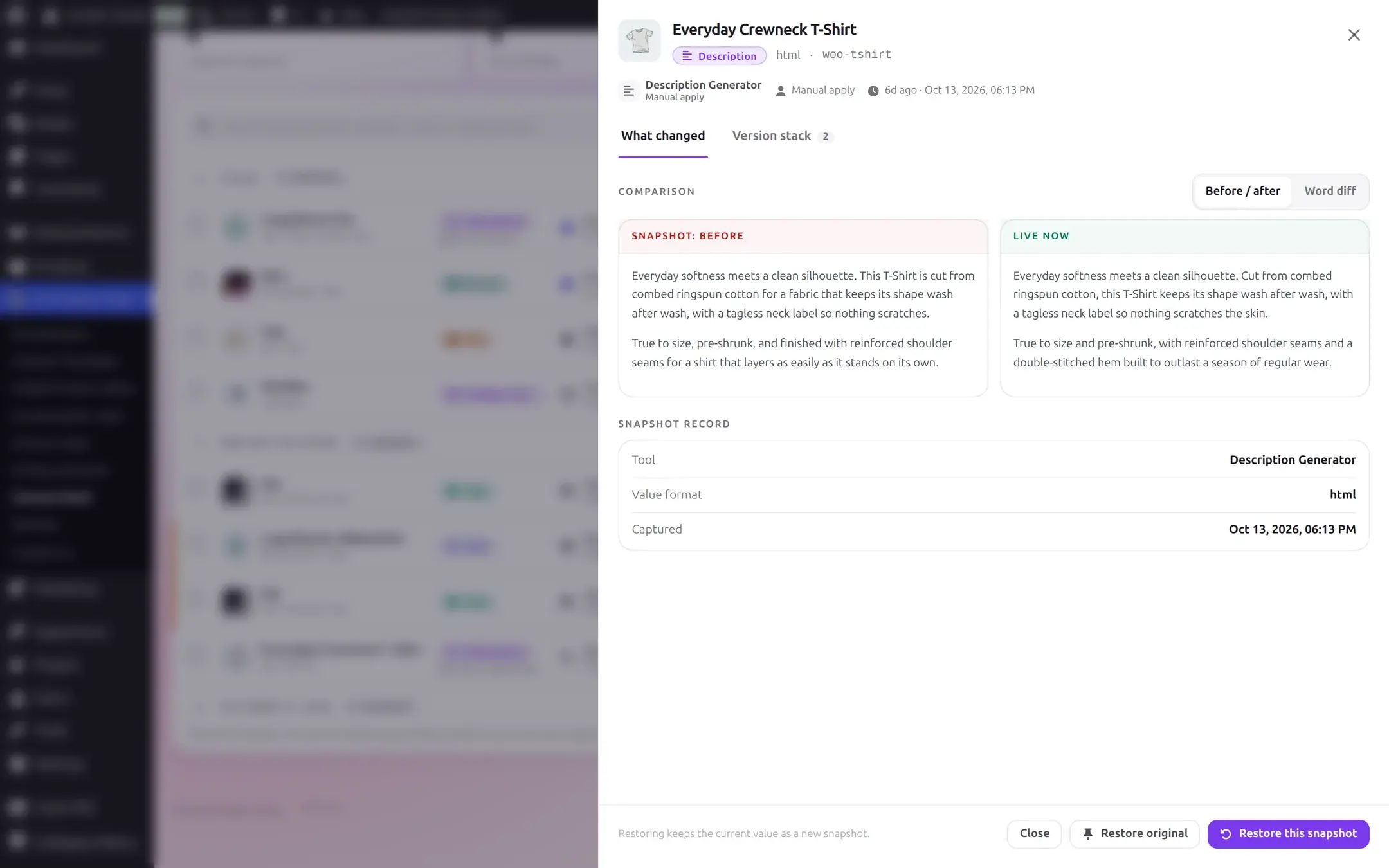
Click any row to open its detail drawer. The What changed tab compares the snapshot's own captured value against a fresh read of the live value, defaulting to full before/after text; a Word diff toggle switches to a word-level diff of the same pair. A pinned original carries its own banner explaining that it is the value that existed before any AI touched the field.
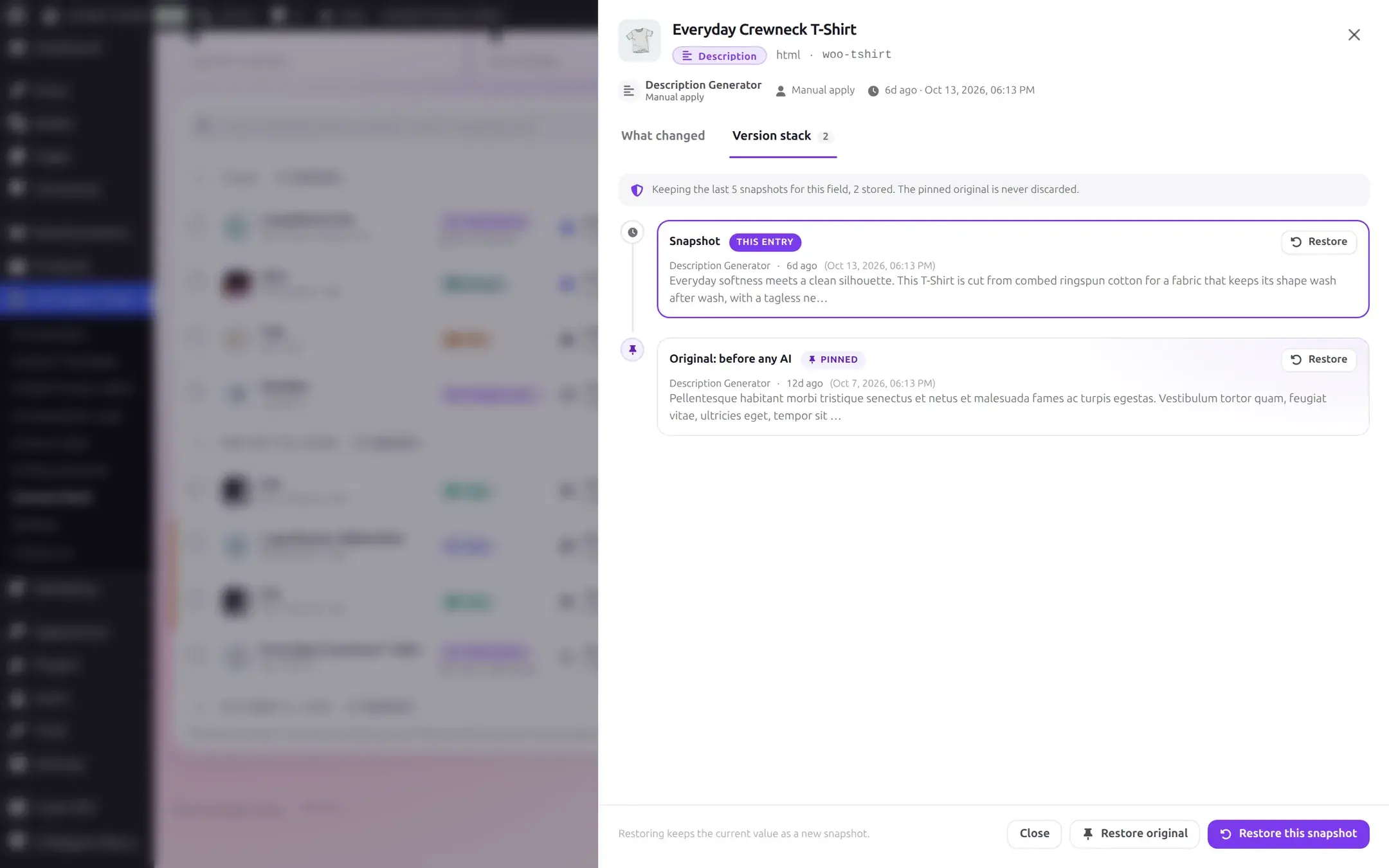
The Version stack tab lists up to the 10 most recent versions for that exact product (or category) and field, plus the one pinned original, which is never pruned. A banner states the configured retention and how many are currently stored.
Turn history on or off
A pill switch in the toolbar reads History ON or History OFF. On a Business site, switching it off asks for confirmation first, because it specifically affects what Restore can protect going forward; switching it back on needs no confirmation, and on Free the switch simply flips (there is nothing restore-related to warn about).
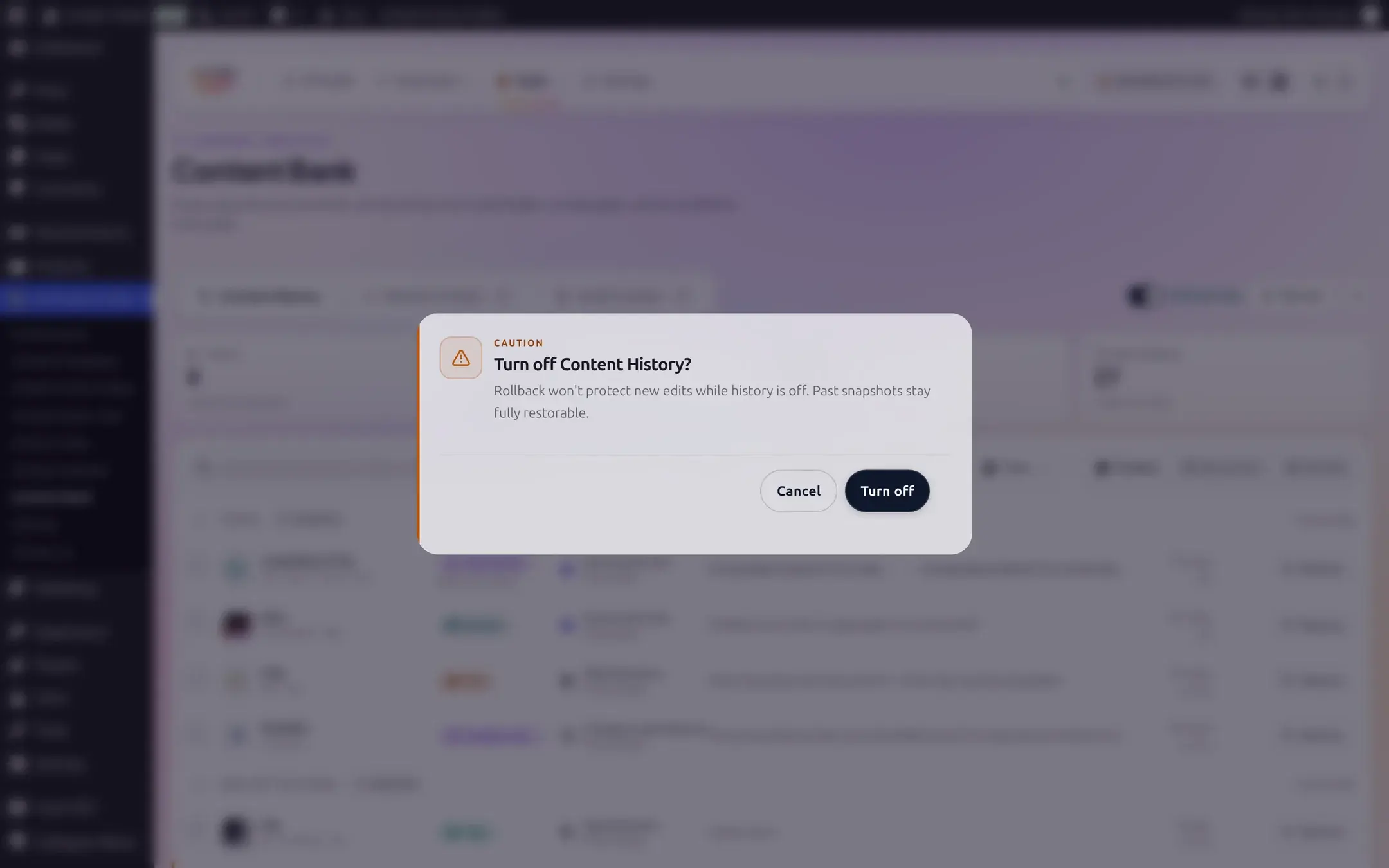
Turning history off does not touch the restore safety net itself: a restore always captures the value it is about to overwrite first, regardless of this switch, so undoing a restore keeps working even with history off for everything else.
Set how many versions to keep
The gear icon next to the switch opens a quick History retention popover: how many intermediate versions to keep per product field, from 1 to 10. The pinned original is never removed by this setting. Changes save automatically about 400ms after you stop dragging.
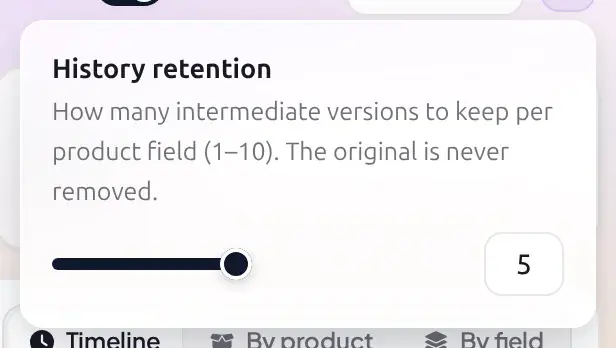
This is the same setting described in History and safety settings; the popover here is a shortcut so you do not have to leave Content Bank to reach it.
Reference
Source tool values
| Value | What it means |
|---|---|
| Description Generator | A description or short description change from the Description generator page. |
| Title Generator | A title change from the Title generator page. |
| FAQ Generator | An FAQ change from the FAQ generator page. |
| SEO Meta Generator | An SEO title or description change from the SEO Meta generator page. |
| Image Alt Generator | An image alt text change. |
| Tag Generator | A product tags change from the standalone tag suggestion feature. |
| Automation job | Any field changed by a scheduled automation job, regardless of which generator it ran. |
| Bulk Product Editor | A change made inline in the Bulk Product Editor grid. |
| Category descriptions | A category (term) description change. |
| CSV import | A change applied by a CSV product import. |
| Restored | A value written back by a restore. Restoring always creates a new entry here for whatever it replaced. |
Field types tracked
Product title, Long description, Short description, Product tags, FAQ, SEO meta title, SEO meta description, Image alt text, and Category description. A product tags or FAQ value previews as readable text (tag names, or FAQ questions joined together) rather than raw data.
Row and drawer vocabulary
| Term | Meaning |
|---|---|
| Original | The pinned, first-ever captured value for that product (or category) and field. Never pruned. |
| Snapshot | Any later captured value in the same stack. |
| Restorable | The snapshot has a usable value to write back. A legacy SEO row with no recorded SEO plugin is marked not restorable even though it is listed. |
| Manual apply | A person applied the change, from a generator page, the Product Editor, an import, or a restore. |
| Automation | An automation job applied the change. |
Free vs Business
| Capability | Free | Business |
|---|---|---|
| View, filter, group, search, compare | Yes | Yes |
| Turn history on/off, set retention | Yes (with settings access) | Yes |
| Restore a snapshot | No, shown as a locked control | Yes, see Restore a past value |
Business is the only thing this tab adds on top of Free: everything above the Restore button works identically on both plans.