
WordPress AI Connectors
Share an OpenAI, Gemini or Claude key with every AI-aware plugin through WordPress's own Connectors screen, on WordPress 7.0 and later.
WordPress 7.0 introduced a core AI Connectors system: one place, Settings > Connectors, where any plugin can read a shared API key instead of every AI plugin asking you to paste the same key separately. AI Product Tools supports it for three of its four providers.
This only applies on WordPress 7.0+
On WordPress 6.8 or 6.9, this screen and everything below does not exist. See What's different on WordPress 6.8/6.9 at the end of this page.
What WordPress's Connectors screen looks like
Settings > Connectors lists a slot for every AI service WordPress core knows about. Until a plugin that actually implements one of those connectors is installed, each slot shows an Install button rather than a key field:
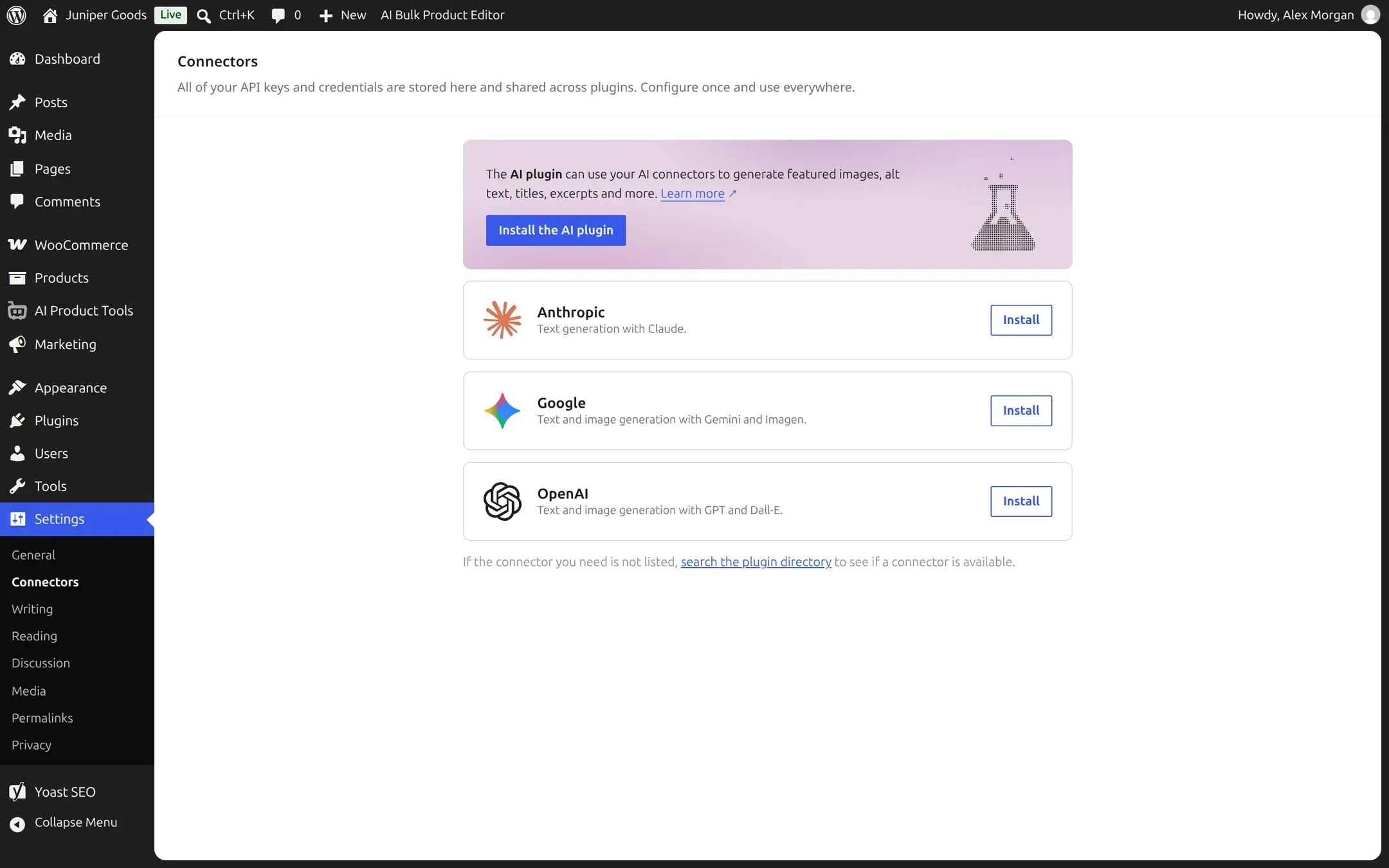
Installing the matching official connector plugin from the WordPress.org plugin directory adds a real key field to that provider's row on this exact screen. Once a key is saved there, AI Product Tools (and any other Connectors-aware plugin) picks it up automatically, with no setting to flip inside AI Product Tools itself.
Which providers this covers
| AIPT provider | WordPress Connectors slot | Covered? |
|---|---|---|
| OpenAI | OpenAI | Yes |
| Google Gemini | Yes | |
| Anthropic Claude | Anthropic | Yes |
| OpenRouter | (none) | No, OpenRouter has no WordPress Connector. Its key always lives in the plugin's own local storage. |
A provider managed by Connectors
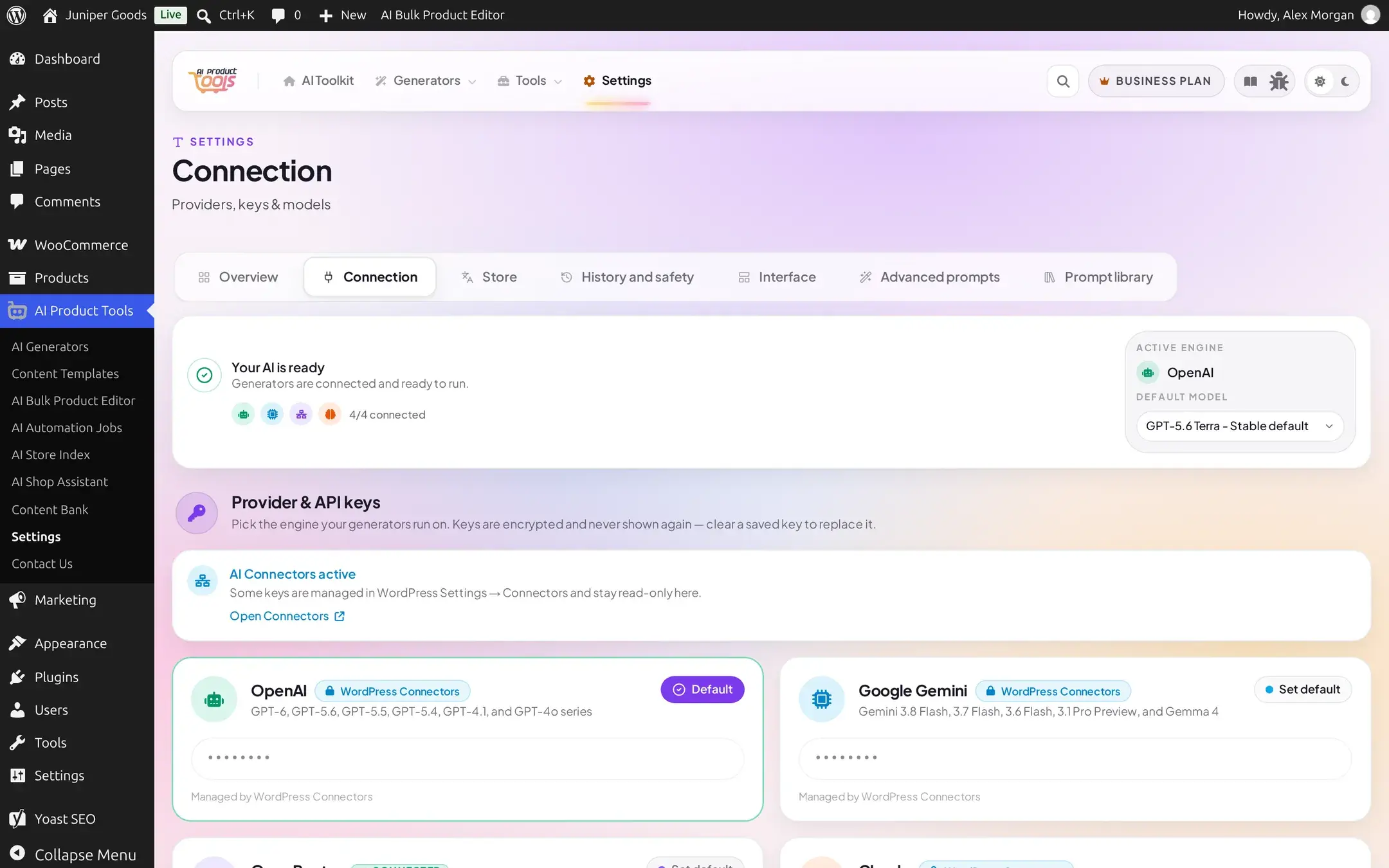
Once a key for one of the three covered providers is available through WordPress Connectors (either entered on Settings > Connectors through its own connector plugin, or migrated there from the plugin, see below), that provider's card on AI Product Tools > Settings > Connection becomes read-only:
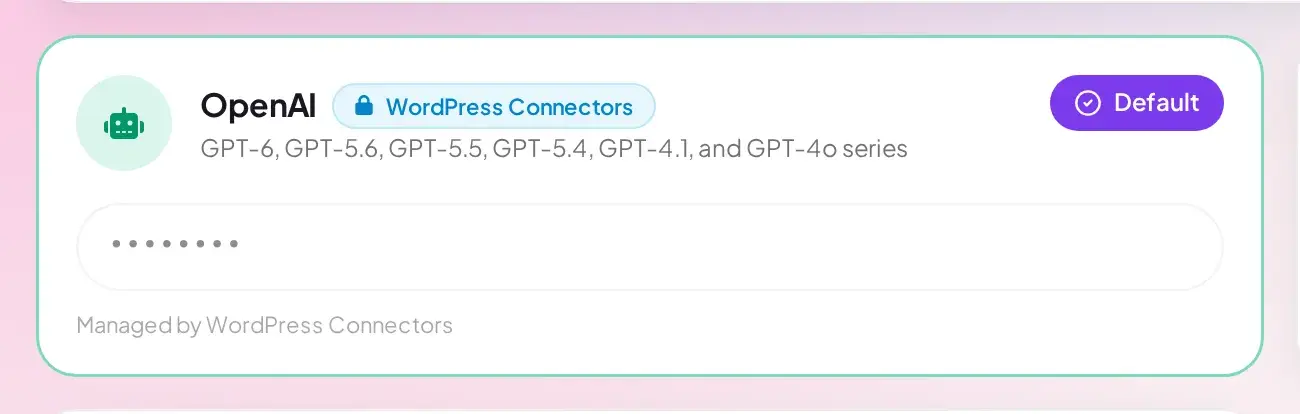
You cannot edit a Connectors-managed key from inside AI Product Tools; update it on Settings > Connectors (or inside whichever connector plugin supplies that provider) instead. The plugin also shows a banner on the Connection screen whenever any provider is Connectors-managed:
A key sourced this way is never run through the plugin's own AES-256-GCM encryption; it is whatever WordPress Connectors itself stores (plaintext, by the WordPress standard for this feature).
Moving a local key into Connectors
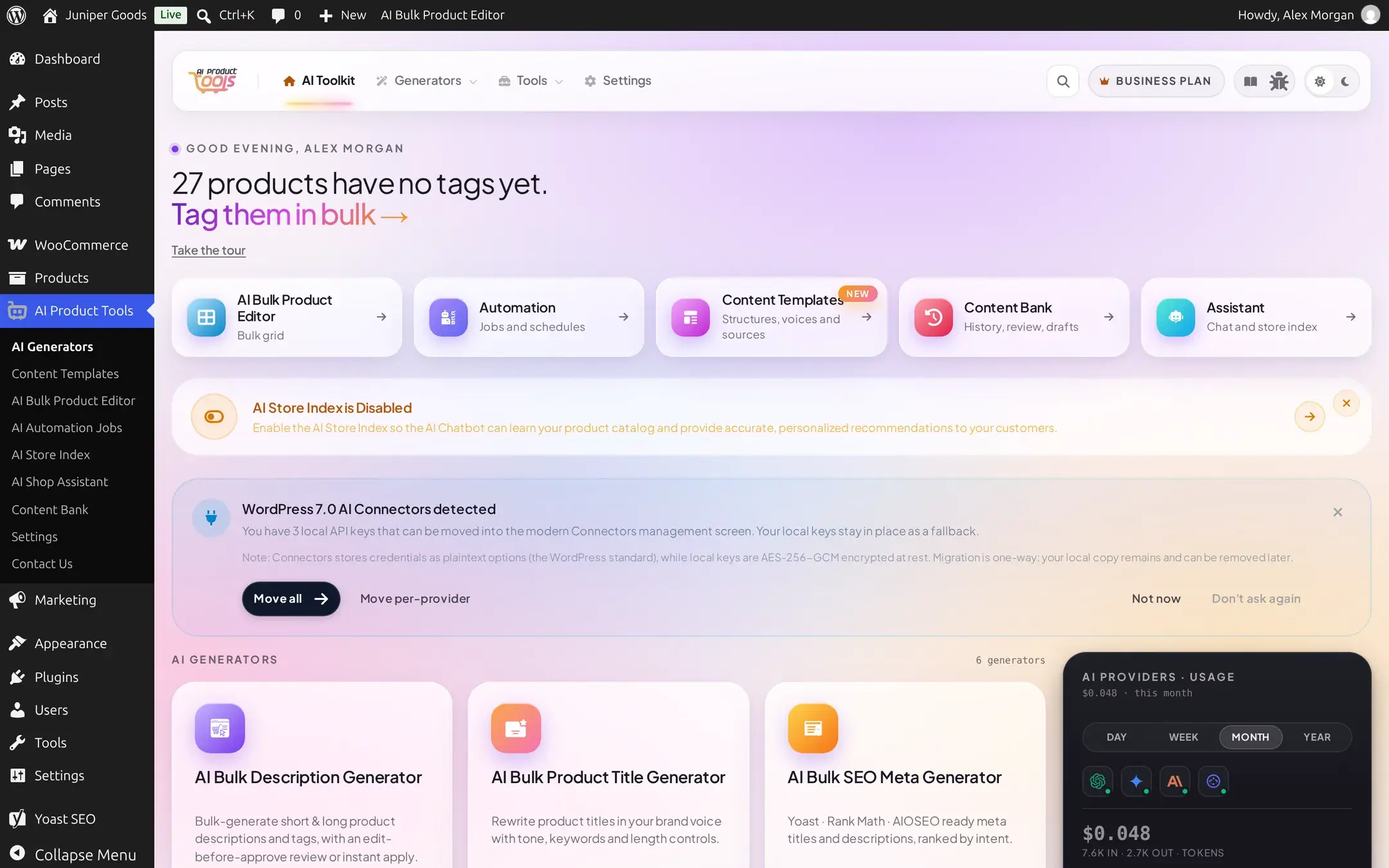
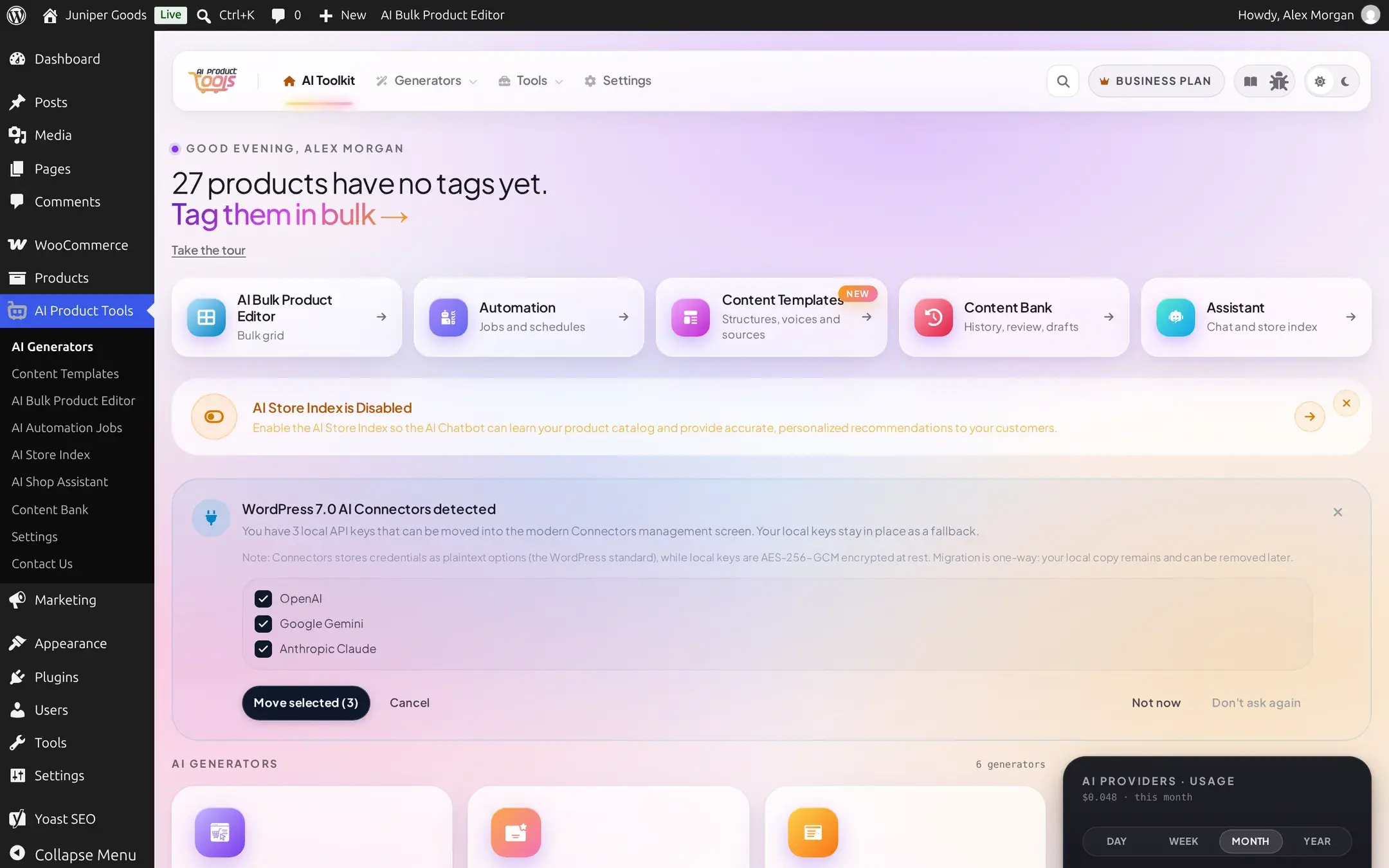
If a provider's key currently lives only in the plugin's local storage, the Toolkit dashboard (AI Product Tools, the main page, not Settings) shows a one-time banner offering to copy it into WordPress Connectors:
Choose what to move
Click Move all to migrate every eligible provider at once, or Move per-provider to pick specific ones:
Review the result
Each provider reports its own outcome: migrated, or skipped with a reason (an environment variable or PHP constant already supplies that provider, or a Connectors key is already set for it).
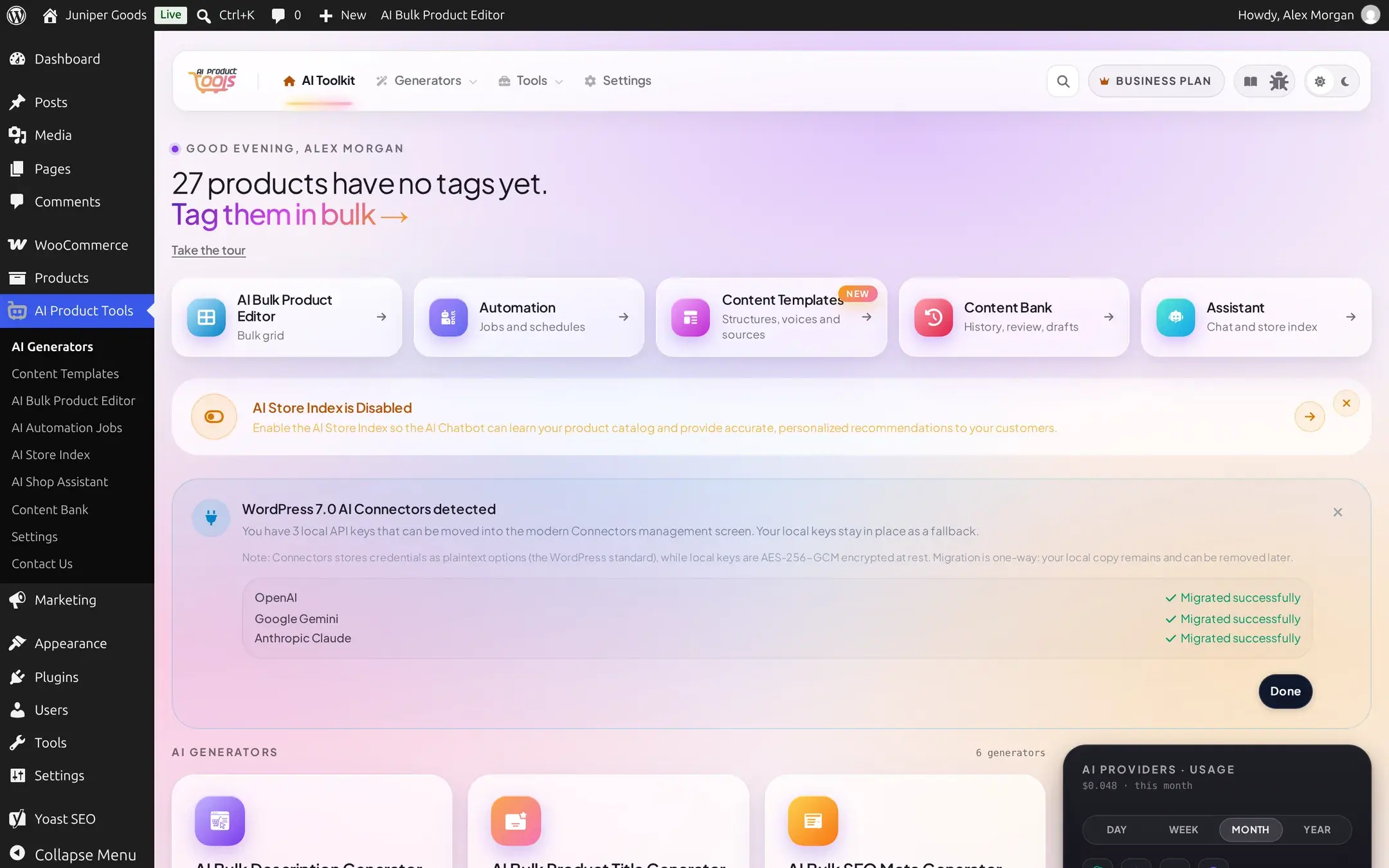
Two things worth knowing before you migrate:
- Migration is one-way and non-destructive. Your local, encrypted copy of the key stays in place as a fallback; nothing deletes it. You can keep using the plugin exactly as before, or clear the local copy yourself later if you want WordPress Connectors to be the only source.
- Connectors stores keys as plaintext options, the WordPress standard for this feature, while the plugin's own local storage is AES-256-GCM encrypted. If that distinction matters for your host's compliance posture, keep the key local instead of migrating it.
If you are not ready to decide, Not now snoozes the banner for a week; Don't ask again dismisses it permanently for your WordPress user account (not for every admin on the site).
What's different on WordPress 6.8/6.9
Everything on this page needs WordPress 7.0's Connectors API. On WordPress 6.8 or 6.9:
- Settings > Connectors does not exist in wp-admin at all.
- Every provider card on AI Product Tools > Settings > Connection behaves exactly like OpenRouter does everywhere: the key you enter lives only in the plugin's own encrypted local storage, with no "Configure in Connectors" link and no read-only "Managed by WordPress Connectors" state.
- The Toolkit dashboard never shows the migration banner, since there is nowhere to migrate a key to.
- Generation itself is unaffected either way. WordPress Connectors only changes where a key is stored and whether other plugins can share it, never whether AI Product Tools can use it.
If you are planning a host migration or an upgrade, note that connecting through WordPress Connectors has no bearing on the plugin's own minimum requirement: AI Product Tools itself needs WordPress 6.8 or later regardless of whether Connectors is available.