
Bulk Image Alt Text Generator
Write descriptive alt text for product images in bulk, compare A/B variants, and verify it in the Media Library.
The Bulk Image Alt Text Generator writes alt text for your product photos, so shoppers using a screen reader understand what each image shows and search engines can index it. It works on featured images and gallery images, and can compare two tones per image before you pick a winner.
Where to find it
Open it from the AI Generators card grid, a product's AI content panel, or
admin.php?page=aipt-image-alt-generator; there is no left-menu submenu item for it.
Before you start
- Connect an AI provider in Settings > Connection. For real image analysis, choose a model that supports vision input; the page tells you when the current model does not (see Vision: text only below).
- You need the Manage WooCommerce capability.
- Images larger than 20 MB cannot be sent to a provider and fail per image, not for the whole batch.
This generator uses the same 1 · Content structure / 2 · Generation tabs as every other generator; see How bulk generation works for that shared flow. Inside 2 · Generation, Image Alt Text runs its own 3-step wizard: Products, Images, and Preview.
Generate alt text in bulk
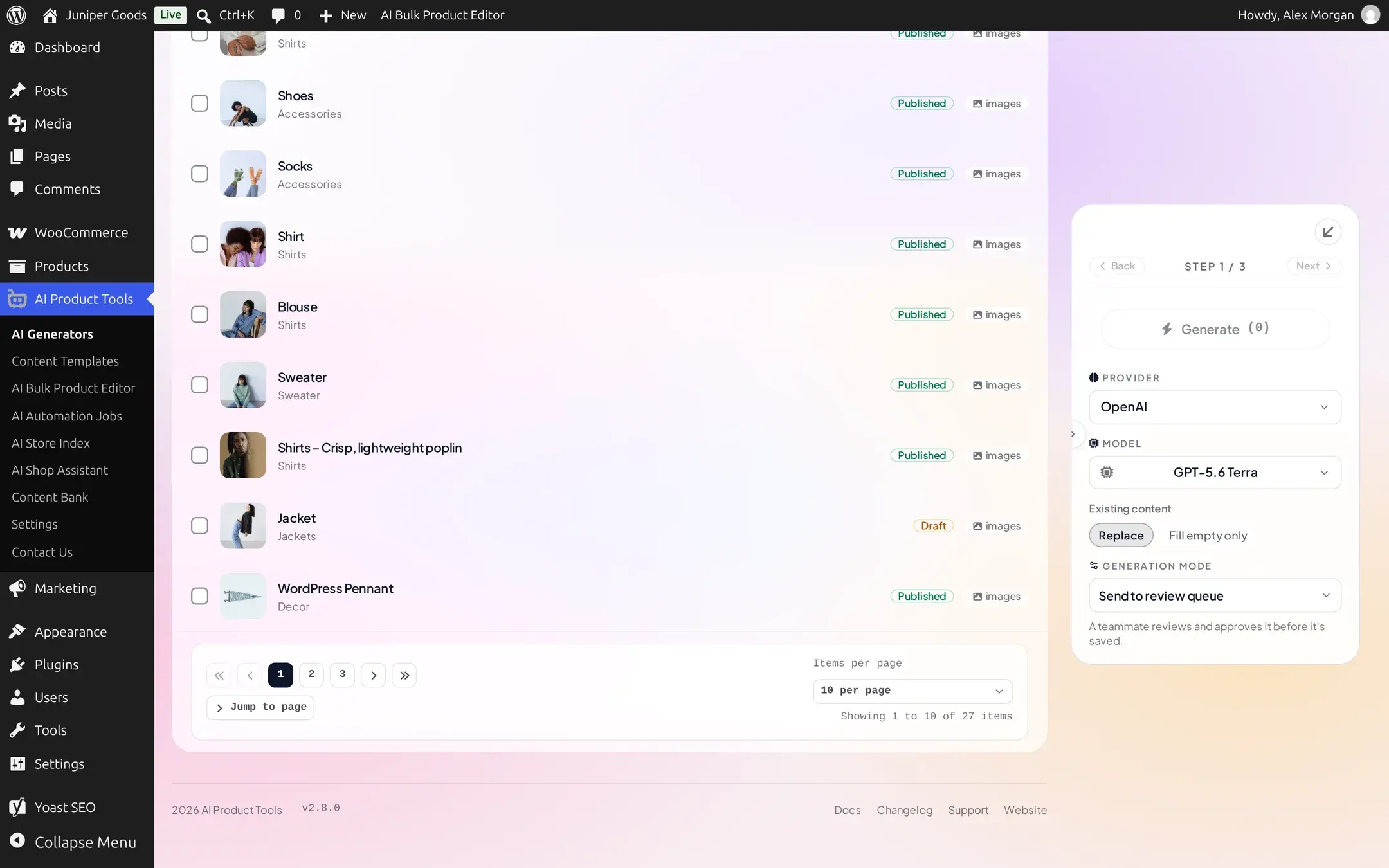
Step 1: Products
Check the products you want to write alt text for, then click Next.
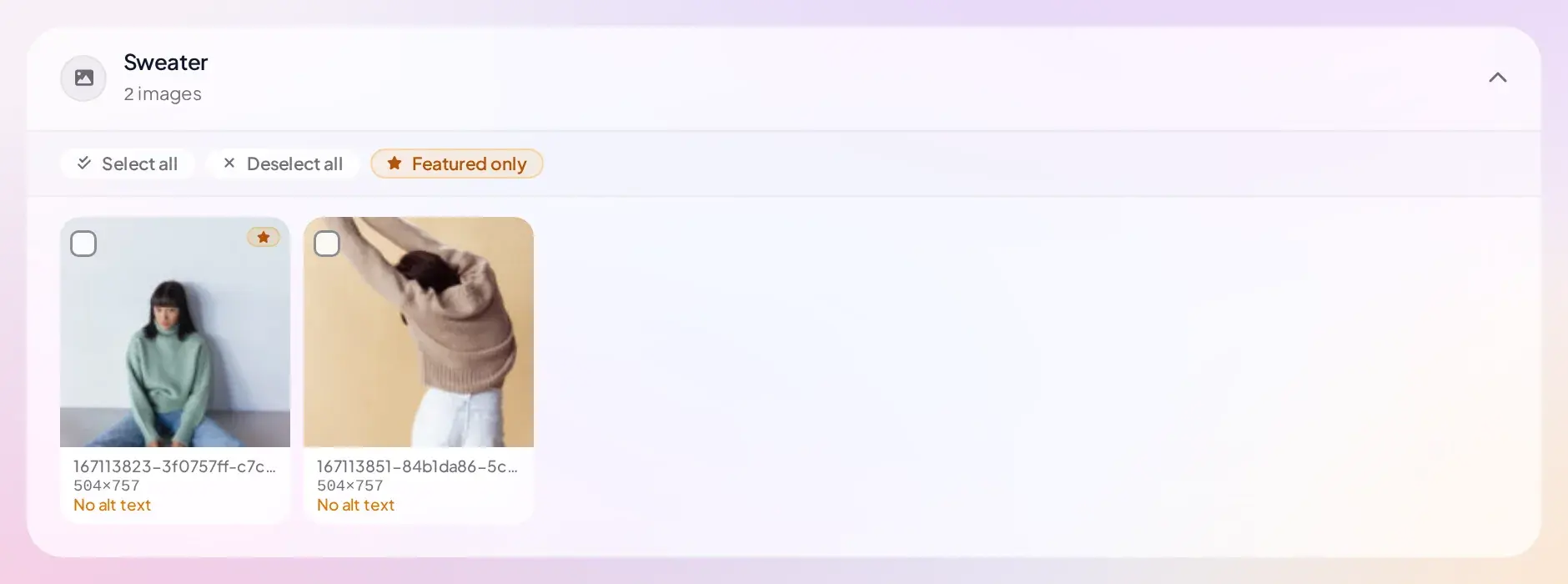
Step 2: Images
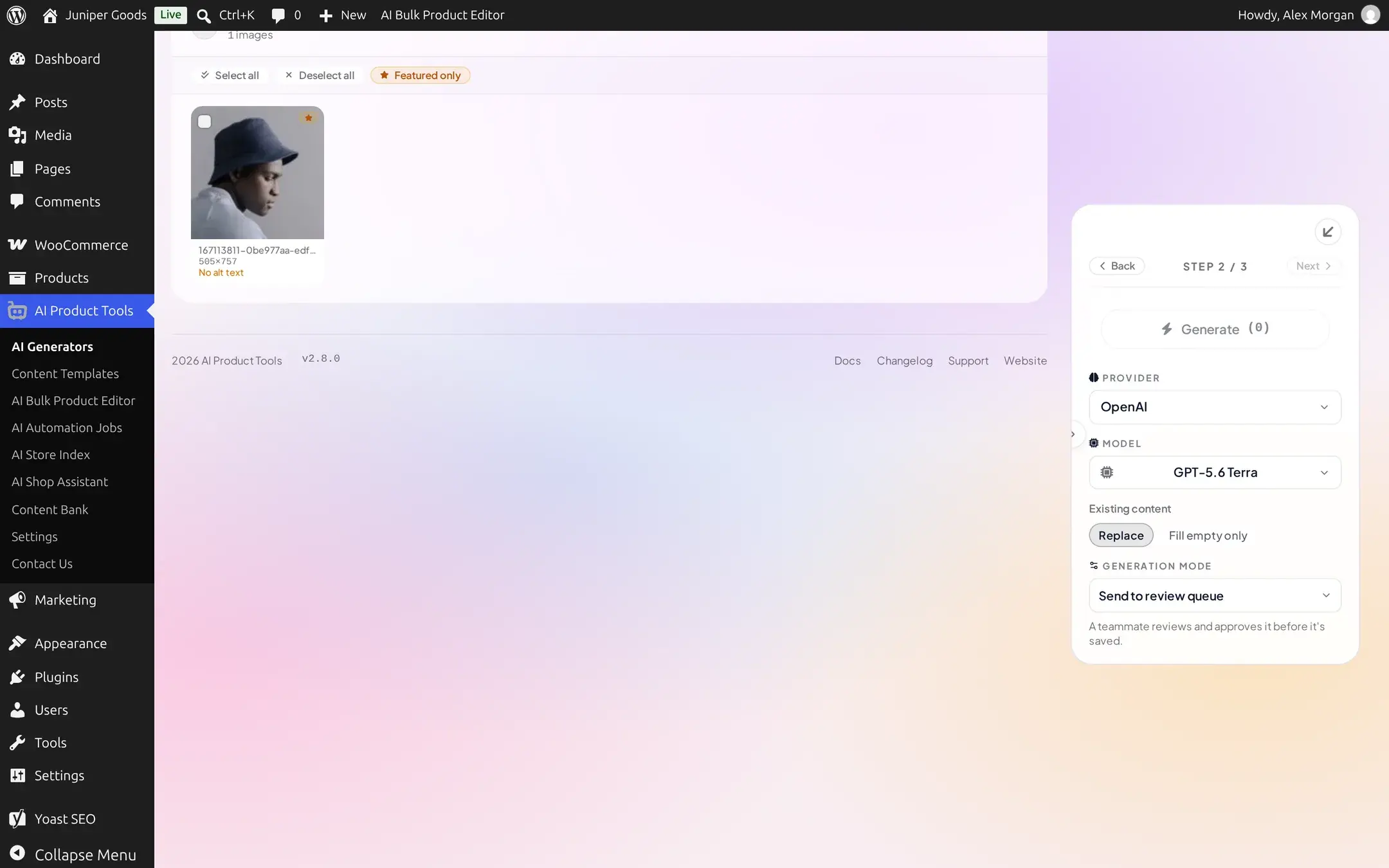
Each selected product lists its images in one group: the featured image (marked with a star) first, then its gallery images. Nothing is checked by default. Use the per-product Select all / Deselect all / Featured only buttons, the checkboxes on each thumbnail, or the group-level Select all / Clear all at the top to choose exactly which images to generate for.
Generate stays disabled, showing (0), until at least one image is checked.
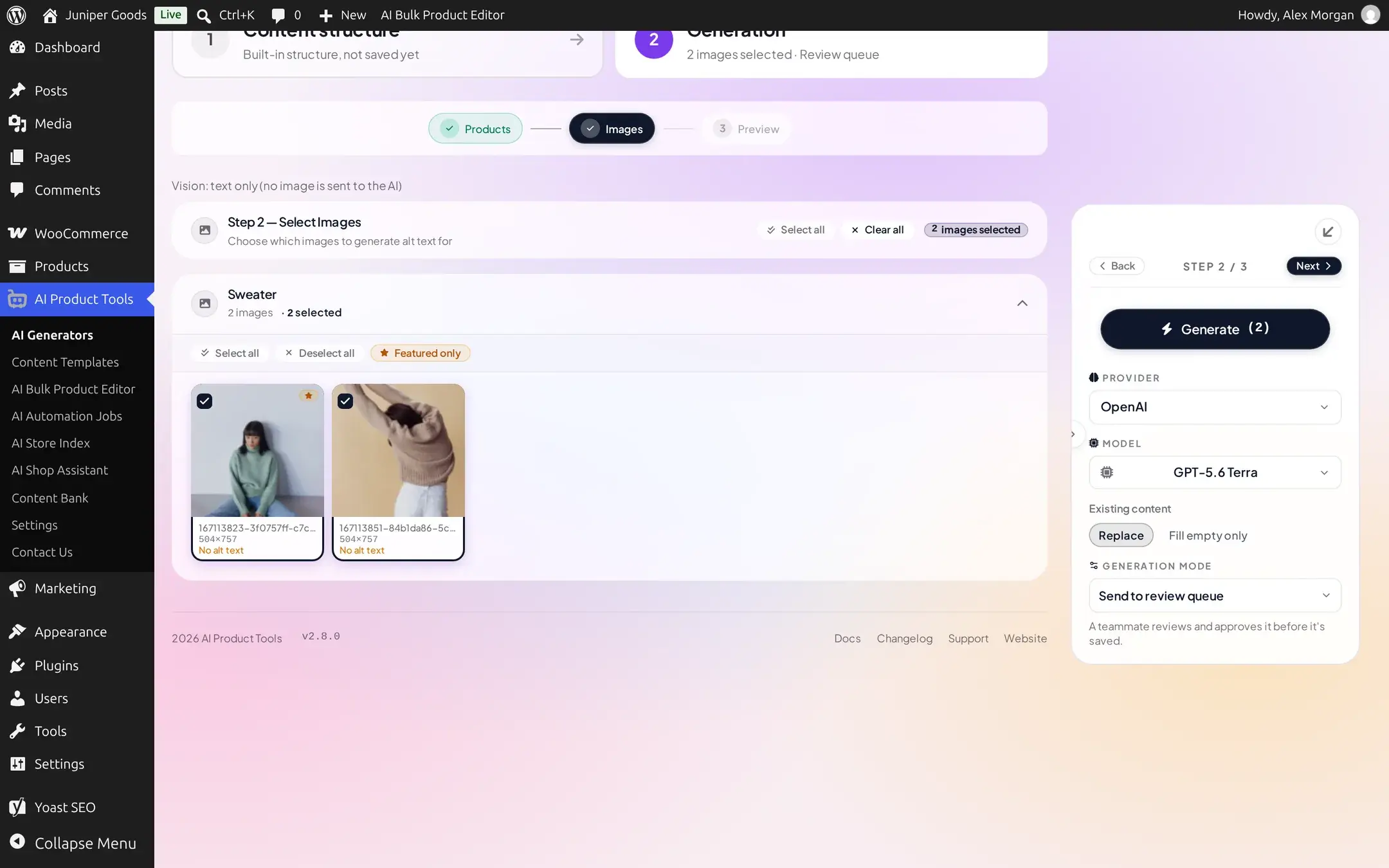
Choose a provider, model, and how results are handled
Open the toolbar panel. On the default path, every plan sees the same four controls: Provider and Model, Existing content (Replace or Fill empty only), and Generation Mode (Show me first or Send to review queue on Business); there is no separate "apply immediately" choice. A tone, a maximum length, A/B Test Mode, and (Business) attribute enrichment are not here; see Writing with your own prompts (Advanced) after these steps.
Generate and review the results
Click Generate, then Next to reach Step 3: Preview. Each image shows its generated text with a live character count, plus Apply, Regenerate, Edit, and Reject per image, or Apply All / Discard All for the whole batch.
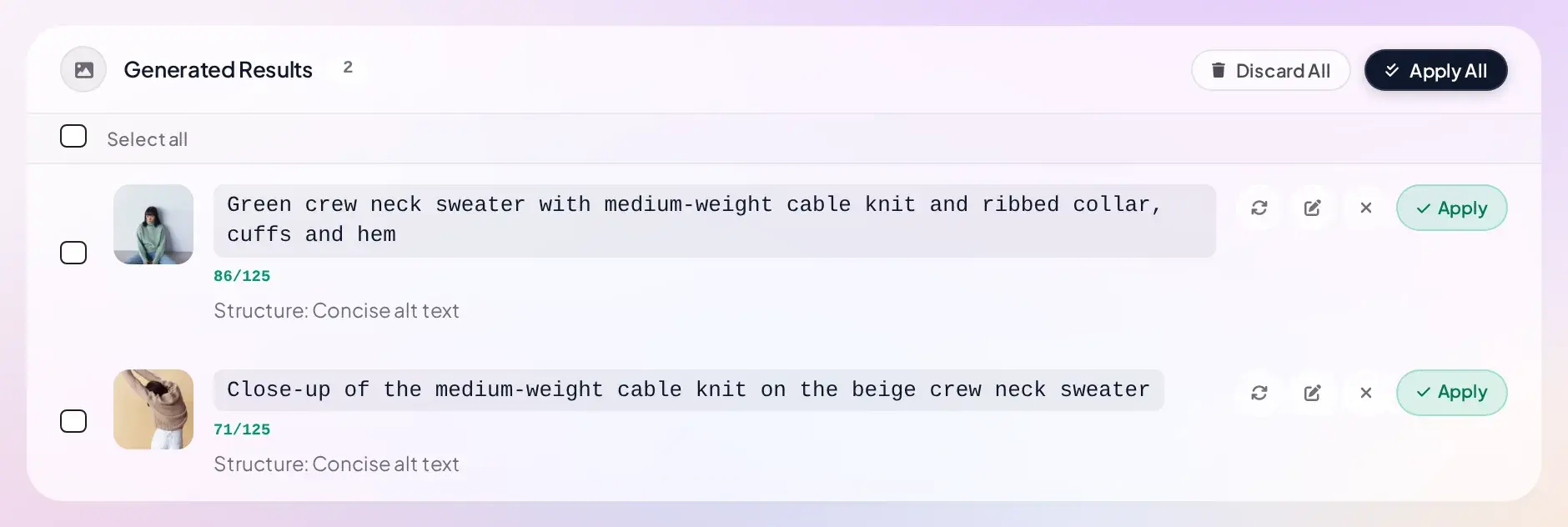
Applying more than one image at once asks you to confirm first, since it writes live and across more than one product at a time; a single image applies in one click.
Writing with your own prompts (Advanced)
By default, Image Alt Text writes with just the four controls above. To set a Tone, a Max Length, turn on A/B Test Mode, or (Business) enrich the prompt with product attributes, switch this generator to custom prompts: open AI Product Tools > Settings > Advanced prompts, choose Image Alt Text, and pick Custom prompts (Advanced).
Every plan gets Tone (six ready-made styles: Descriptive, SEO Focused, Storytelling, Technical, Luxury, and Playful), Max Length (50 to 250 characters, default 125), and A/B Test Mode (below). Attribute enrichment is replaced by a Business upsell card.
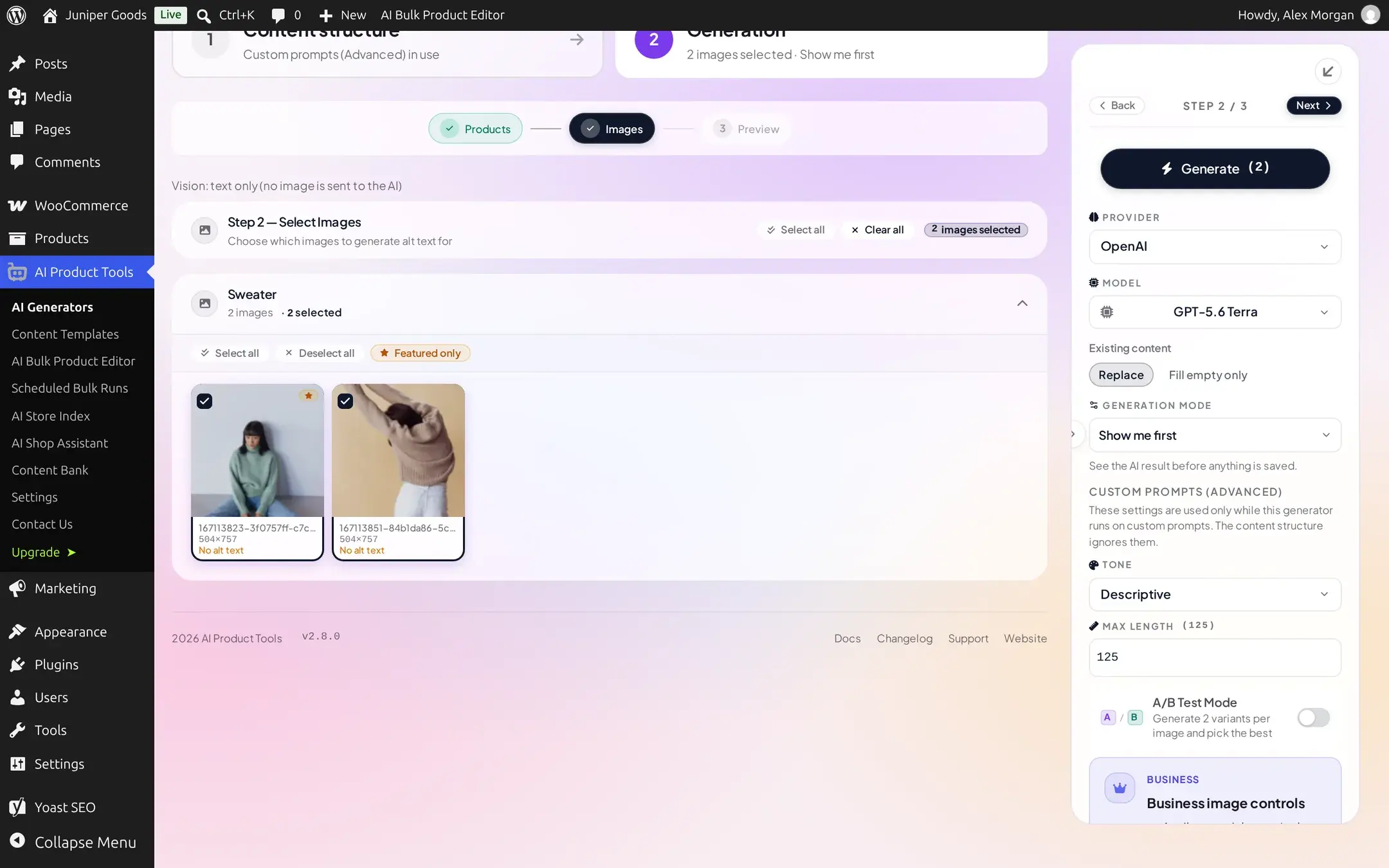
Business adds Attribute enrichment, which adds the product's color, material, and size attributes into the prompt so the AI can mention them. A site-wide additional instruction for this generator (concatenated with any you set per request) is also available on this same Settings screen.
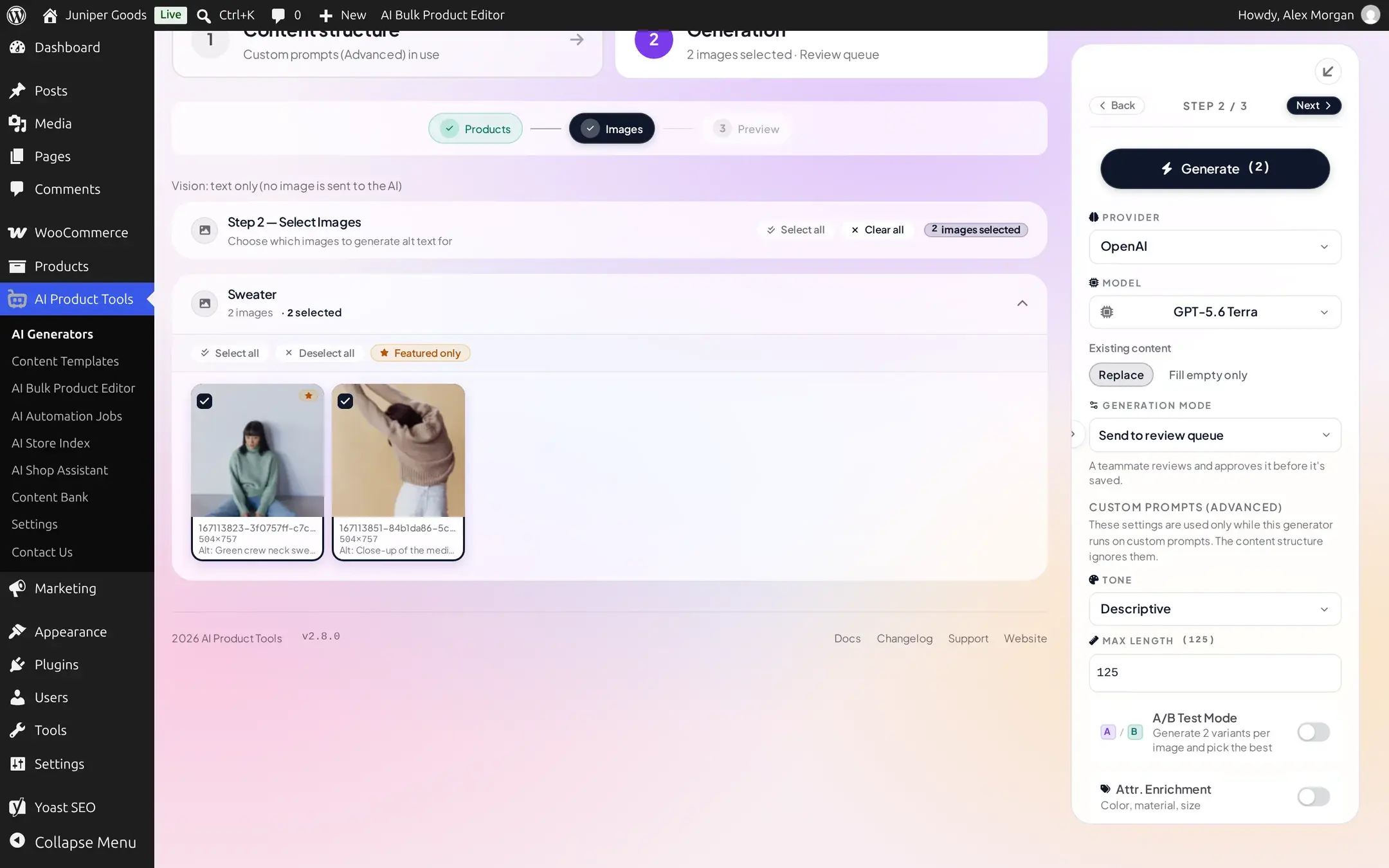
A/B Test Mode
Turn on A/B Test Mode before generating to get two variants per image, written with different tones, so you can pick whichever reads better.
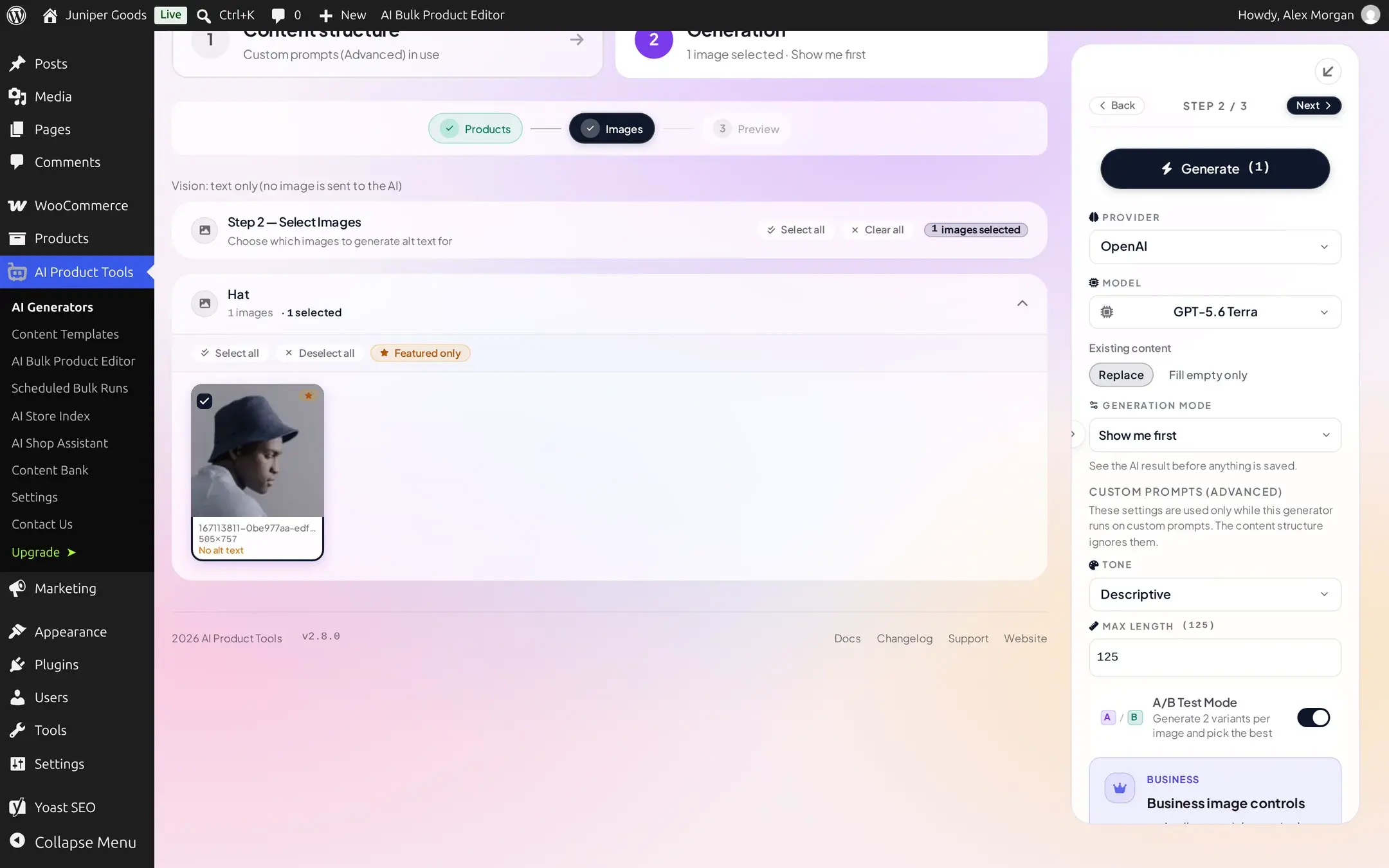
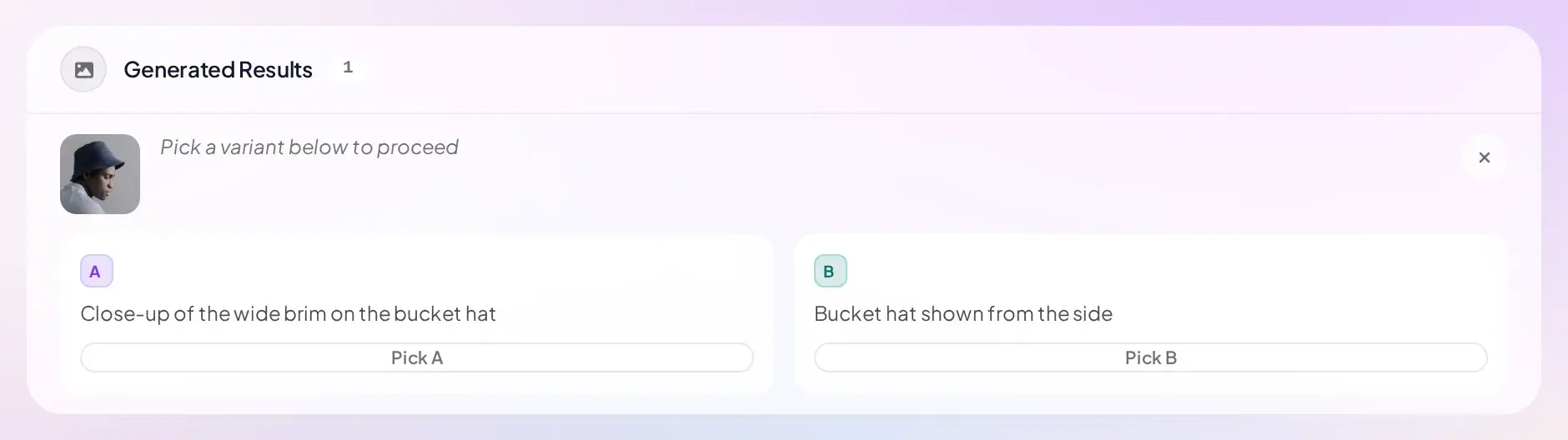
Vision: text only vs. full image analysis
A banner above Step 2 tells you whether the model you picked will actually look at the image's pixels, or only use the product's name, category, and gallery position as context:
Vision: text only (no image is sent to the AI)
Choose a model your provider documents as supporting image/vision input to get alt text based on what is actually in the photo; otherwise the result is a plausible description built from product data alone, which can miss details that are only visible in the image.
Confirm it in the Media Library
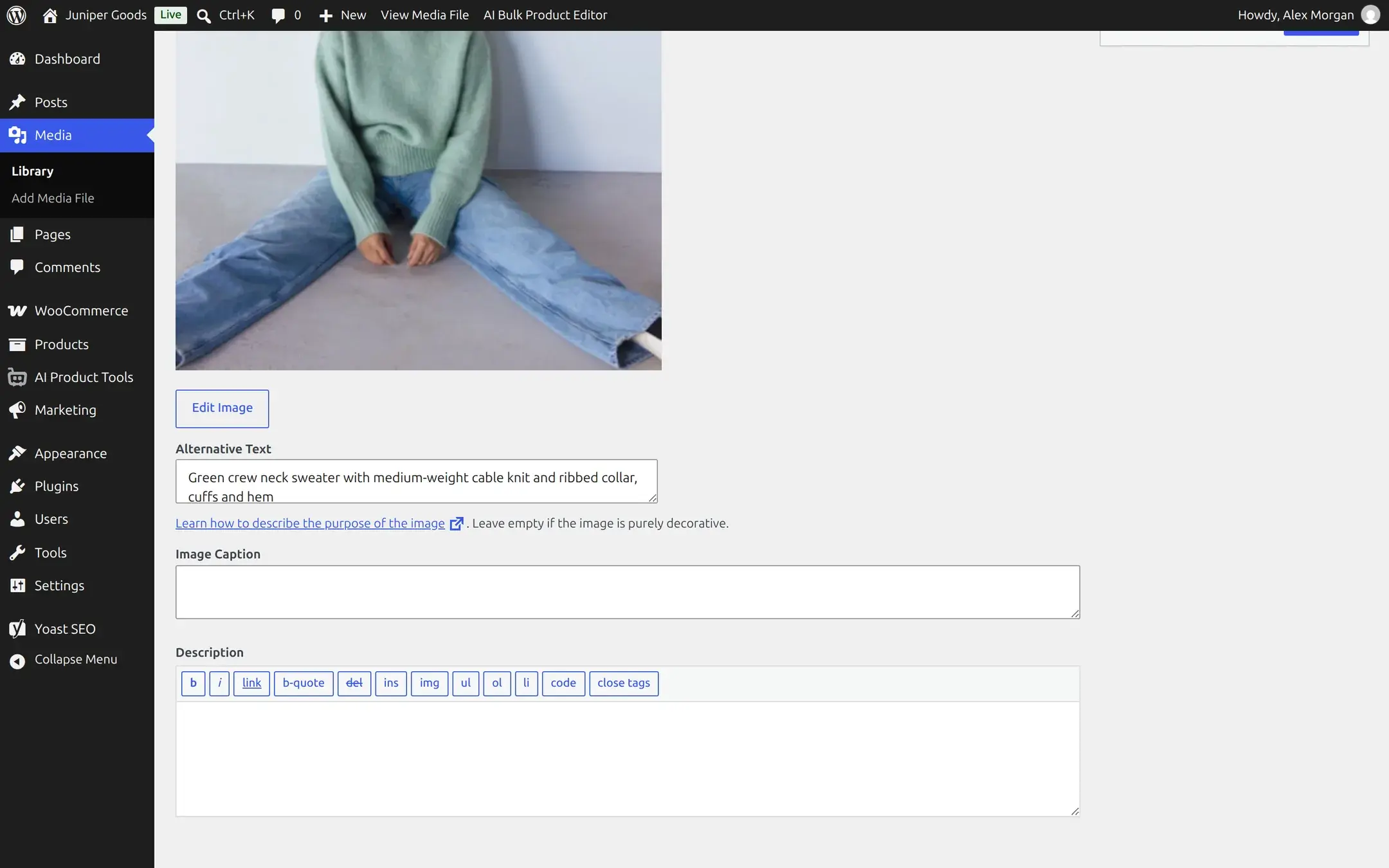
Alt text is stored on the attachment, not the product: WordPress's own Alternative Text field. To check or hand-edit it, open Media > Library, click the image, and look at Alternative Text under the full-size preview.
For developers
This generator writes the attachment's standard _wp_attachment_image_alt post meta field, the
same one WordPress's own media screens read and write.
Reference
| Setting | What it does | Default / limits | Plan |
|---|---|---|---|
| Tone (Advanced) | Writing style for the alt text | Descriptive, SEO Focused, Storytelling, Technical, Luxury, Playful | Free |
| Max Length (Advanced) | Longest alt text allowed | 50-250 characters, default 125 | Free |
| A/B Test Mode (Advanced) | Generates 2 variants per image to pick from | Off | Free |
| Attribute enrichment (Advanced) | Adds color, material, size to the prompt | Off | Business |
| Additional instruction (Advanced) | Extra guidance added to every request (site-wide, set in Settings) | Empty | Business |
| Existing content | Replace or only fill empty alt text | Replace | Free |
| Generation Mode | Show me first or Send to review queue | Show me first | Send to review queue is Business |
| Image size | Largest image this generator can send to a provider | 20 MB per image | Free |
Free vs Business
| Capability | Free | Business |
|---|---|---|
| Tone, Max Length, A/B Test Mode (Advanced path) | Yes | Yes |
| Select and generate for gallery images, not just the featured image | Yes | Yes |
| Attribute enrichment, color/material/size (Advanced path) | Locked | Business |
| Site-wide additional instruction (Advanced path) | Locked | Business |
| Send to review queue | Opens an upgrade prompt | Business |
| Restoring a previous alt text from History | View only | Business restore |
Troubleshooting
Related pages
How bulk generation works
The shared content structure tabs, selection, and review flow every generator uses.
Bulk Title Generator
Rewrite product titles and URL slugs in bulk.
Content History
See and restore every value a generator has overwritten.
Settings: Connection
Add an AI provider key and choose a default model.