
Custom Instructions
Rules, banned phrases and additional instructions for a structure, and the secondary raw-prompt path for experts.
A content structure's Rules tab holds everything that applies across the whole structure, not just one section: always-on guarantees, output language and heading level, banned phrases, and Additional instructions, plain-language notes the AI follows on every run. For the rare case where a structure still isn't enough control, a separate, secondary path lets you write the raw prompt yourself.
Before you start
- Permission to generate content (
manage_woocommerce) to edit a structure's Rules tab. - A settings manager (
manage_aipt_settings) to switch a content type to or from raw prompts.
The Rules tab
Open any structure's Rules (inline tab 1's All rules link, or the full editor's Rules step).
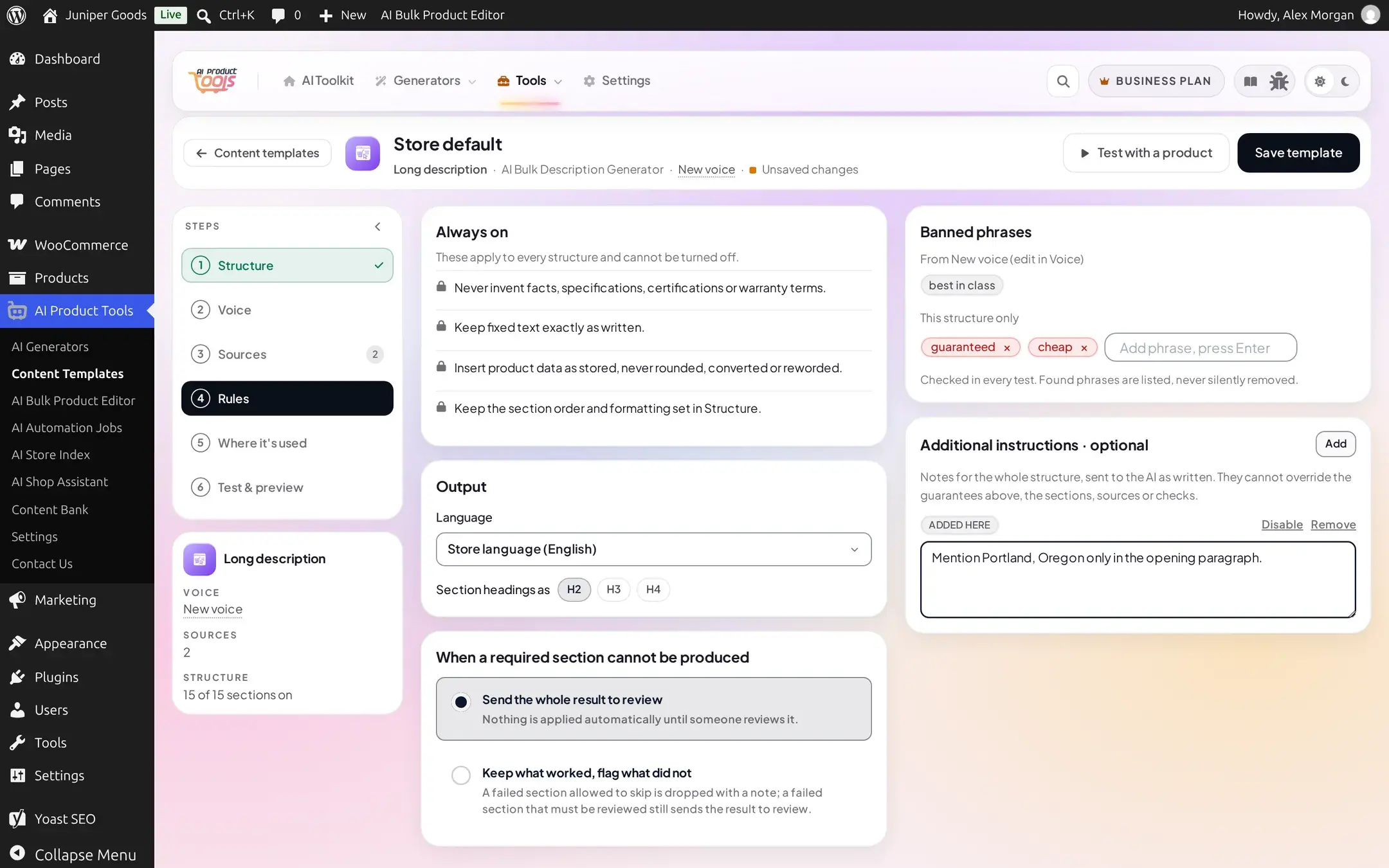
- Always on: four fixed guarantees that cannot be turned off: never invent facts, specifications, certifications or warranty terms; keep fixed text exactly as written; insert product data as stored, never rounded or reworded; keep the section order and formatting the structure sets.
- Output: a language select (plus a store-language option that always matches your site), and a heading level for sections that use one (H2, H3 or H4).
- "When a required section cannot be produced": send the whole result to review, or keep what worked and flag what did not.
- Banned phrases: the voice's own list (read-only here; edit it on the voice) plus a structure-local list, up to 50 entries, added by typing and pressing Enter. Checked in every test; a found phrase is listed, never silently removed for you.
- Additional instructions: up to 10 plain-language notes (1000 characters each), each with its own enable/disable switch. An instruction can never override the structure, sources, safety, or validation; it only steers wording within everything else that is already decided.
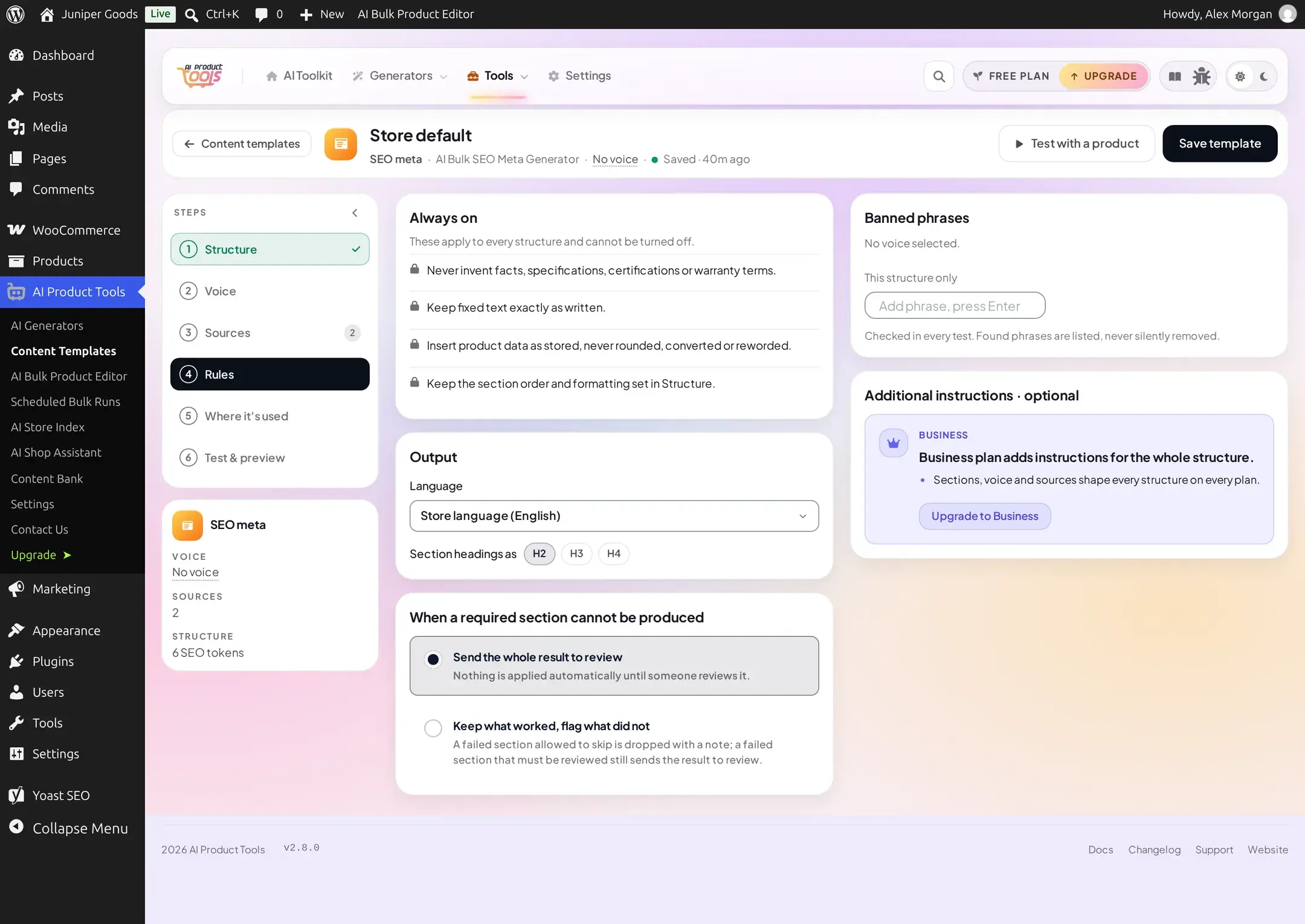
Additional instructions, per plan
Additional instructions for Long description are free on every plan. For Product title, SEO meta, FAQ and Image alt text, they are Business: Free shows a card explaining that Business adds them, in place of a text field (never a locked field with hidden text), and any instruction saved from an earlier Business period still shows as plain, removable text.
A single section can also carry its own Additional instruction, under that section's own Advanced disclosure (collapsed by default) on the Structure tab; the same per-content-type gate applies there too, except Description, which is free everywhere instructions appear.
Switching a content type to raw prompts
Content structure is the default, recommended path for every content type. Custom prompts (Advanced), under Settings > Advanced prompts, remains available as a secondary, expert path: write the literal system and user prompt yourself, with no structure involved.
Open Advanced prompts
Go to AI Product Tools > Settings > Advanced prompts, and open the panel for the content type you want to change.
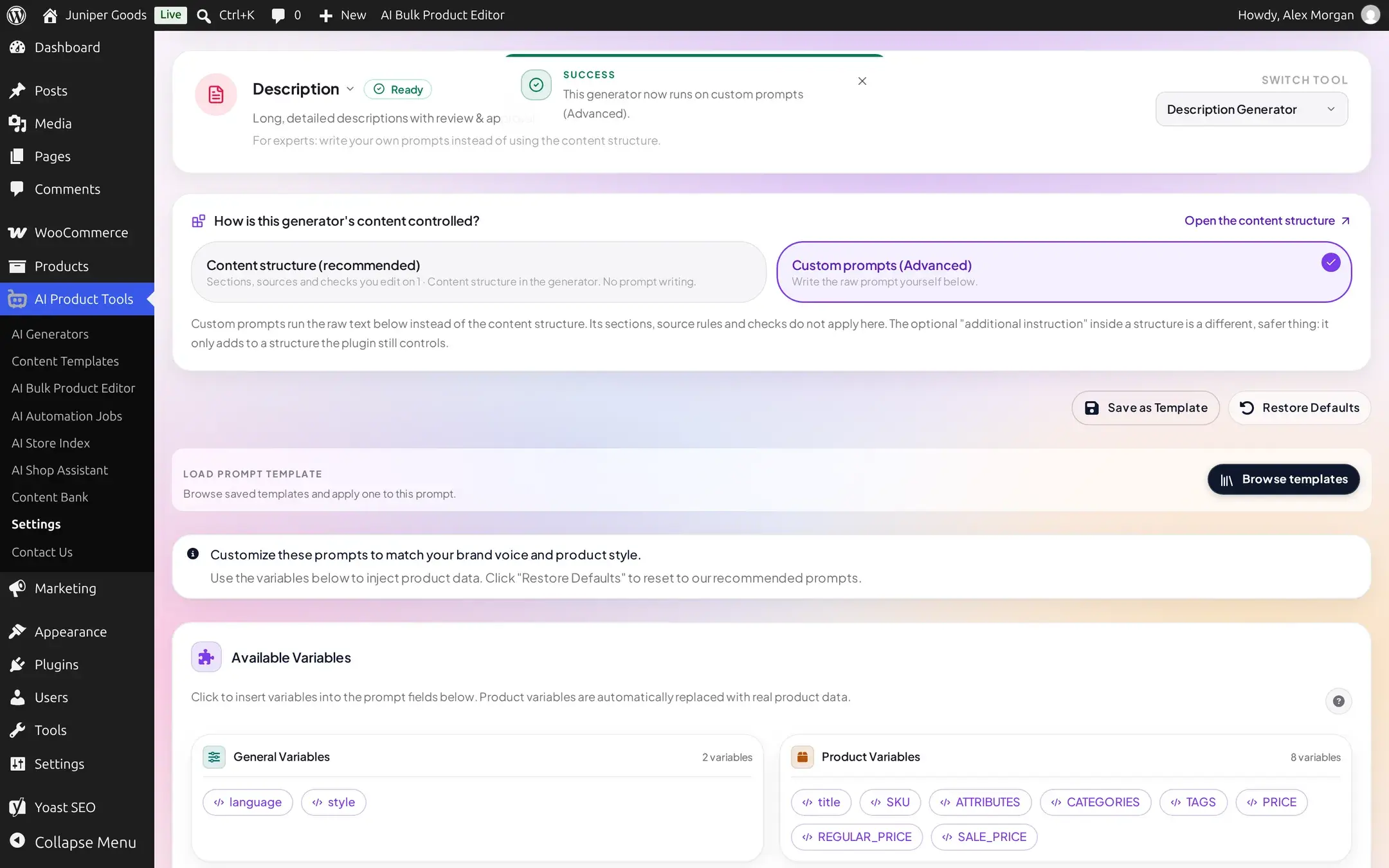
Choose how this content type is controlled
Under How is this generator's content controlled?, pick Custom prompts (Advanced) instead of Content structure (recommended). This needs a settings manager in both directions, on every plan.
See the result on the generator
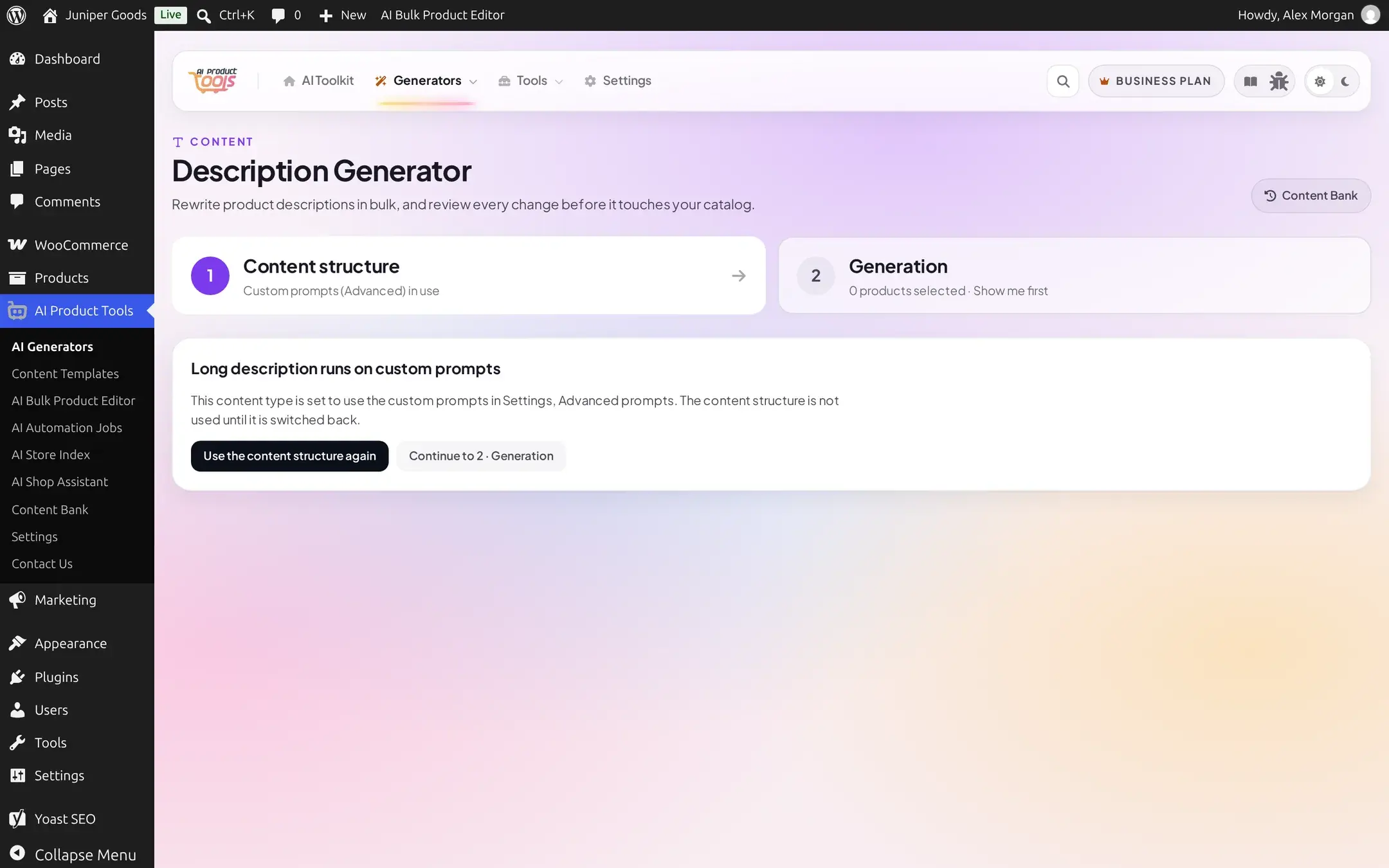
That generator's tab 1 now reads "Custom prompts (Advanced) in use", and the page shows a note instead of the structure editor: "Custom prompts from Settings, Advanced prompts write this content." A Compare with the content structure on 1 product button lets you run both side by side on a real product (2 AI requests) before you decide anything, with nothing changed until you choose.
Switch back at any time
Back in Settings > Advanced prompts, choose Content structure (recommended) again (a settings manager only) to return to the structure instantly, exactly as you left it.
Custom prompt variables and community templates
The raw-prompt path has its own, older set of expert tools, reachable from the same Advanced prompts screen: custom prompt variables you can reuse across prompts, and community prompt templates you can browse, submit, import and like. Both are Business; on Free, existing custom variables keep resolving (read-only) but cannot be created, edited or deleted, and community templates and "Improve this prompt" are unavailable. These are legacy tools for the Advanced path specifically; a content structure's own voice, sources and instructions do not need them.
Free vs Business
| Capability | Free | Business |
|---|---|---|
| Additional instructions, Description | Free | Free |
| Additional instructions, Title / SEO meta / FAQ / Image alt | Not available | Available |
| Custom prompt variables | Read-only | Create, edit, delete |
| Community prompt templates | Not available | Browse, submit, import, like |
| "Improve this prompt" AI rewrite | Not available | Available, rate-limited |
| Choosing Custom prompts (Advanced) in an Automation job | Needs a settings manager | Needs a settings manager (role gate, not a plan gate) |