
What Shoppers See
The launcher, the home screen, a real conversation with product cards, mobile view, and what errors look like to a shopper.
This page walks through the widget exactly as a shopper experiences it, with no admin account and nothing special configured on their end. Use it to sanity-check your setup, or to see what a support ticket is describing before you go looking at settings.
Before you start
The assistant needs to be enabled with a built Store Index behind it, see Setting up the assistant.
The launcher and home screen
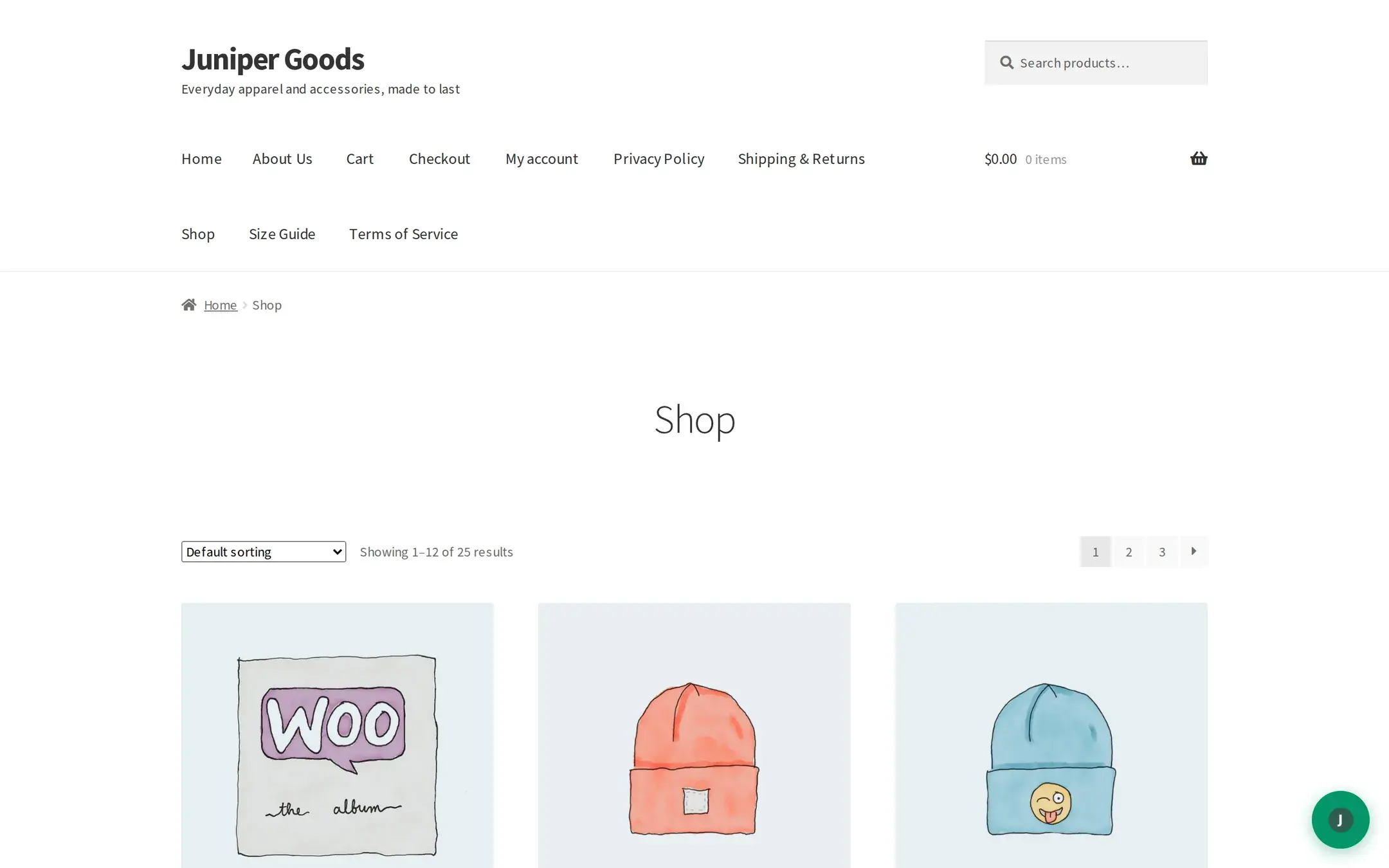
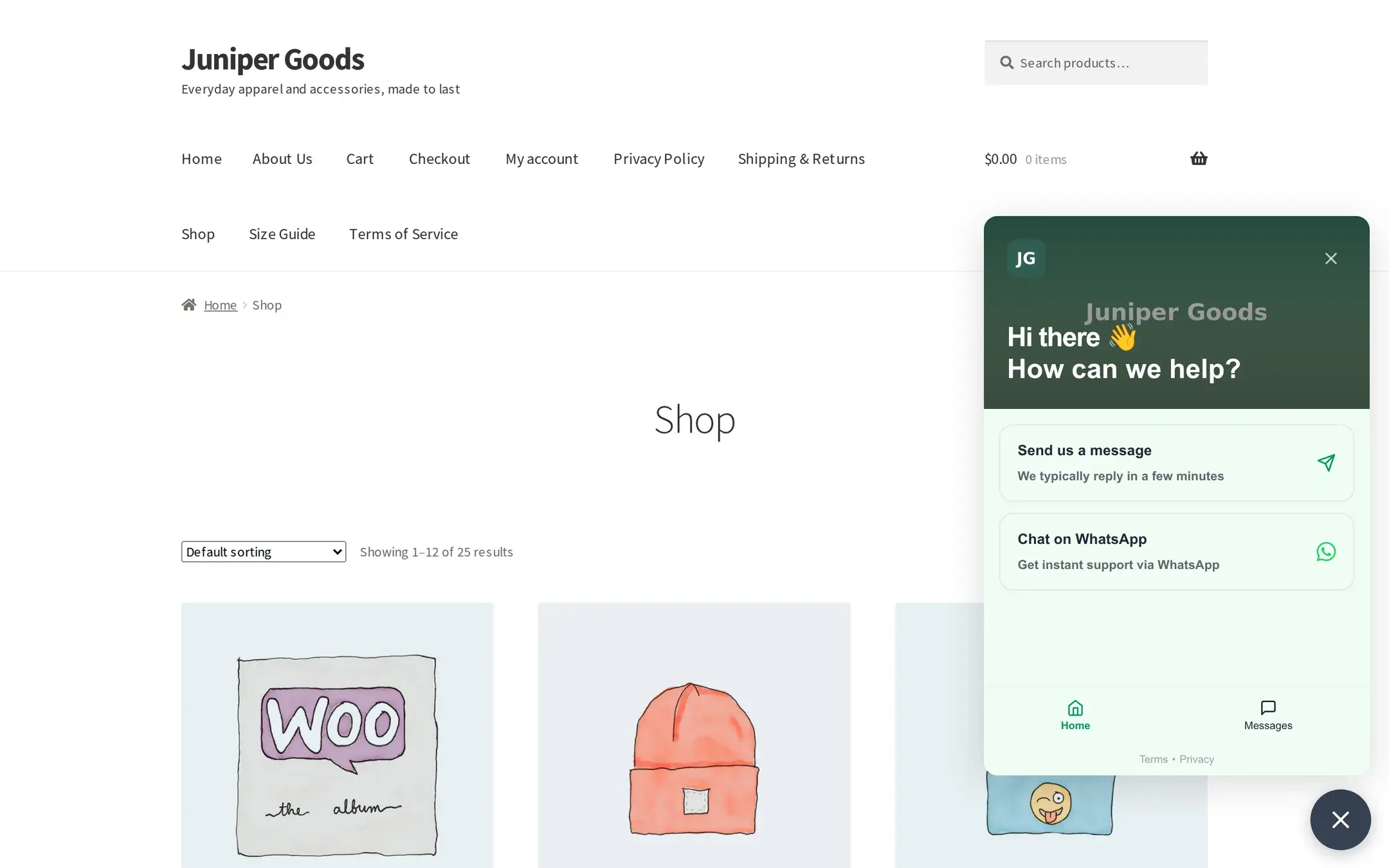
A floating launcher button sits in the configured corner of every allowed page. Clicking it opens a Home screen, a hero with your bot's avatar and greeting, a "Send us a message" card, and, if a WhatsApp number is configured, a "Chat on WhatsApp" card that opens wa.me in a new tab.
Starting a conversation
Tapping "Send us a message" moves to the Messages screen. If the pre-chat form is on, it appears first; see Knowledge and contact for exactly what it collects and why. Submitting it sends its message field as the shopper's first chat message automatically, there is no separate "now start typing" step.
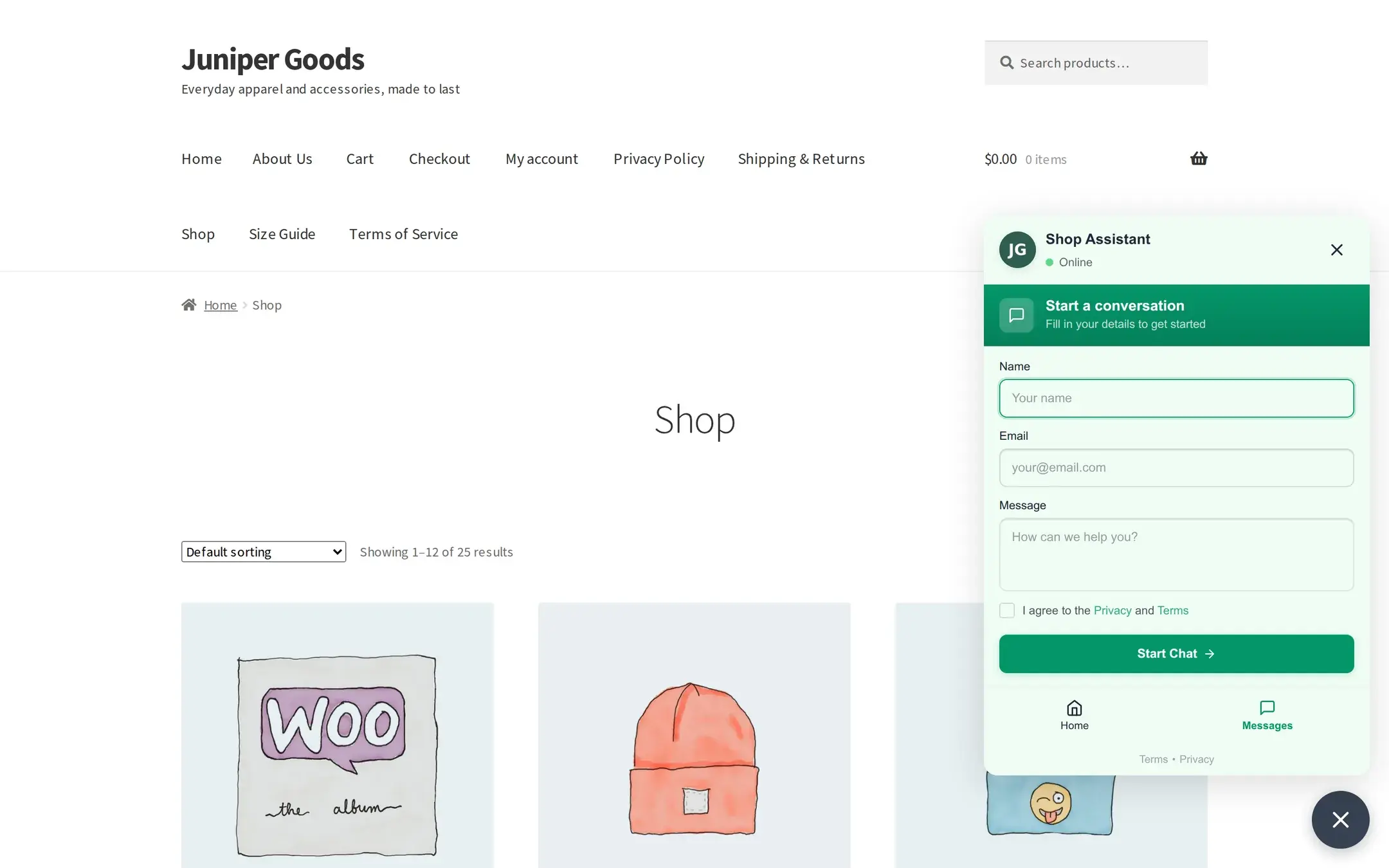
Once past the form (or immediately, if it is off), the shopper sees the bot's Greeting Message as the first bubble, plus any Starter Messages as tappable chips.
A real conversation
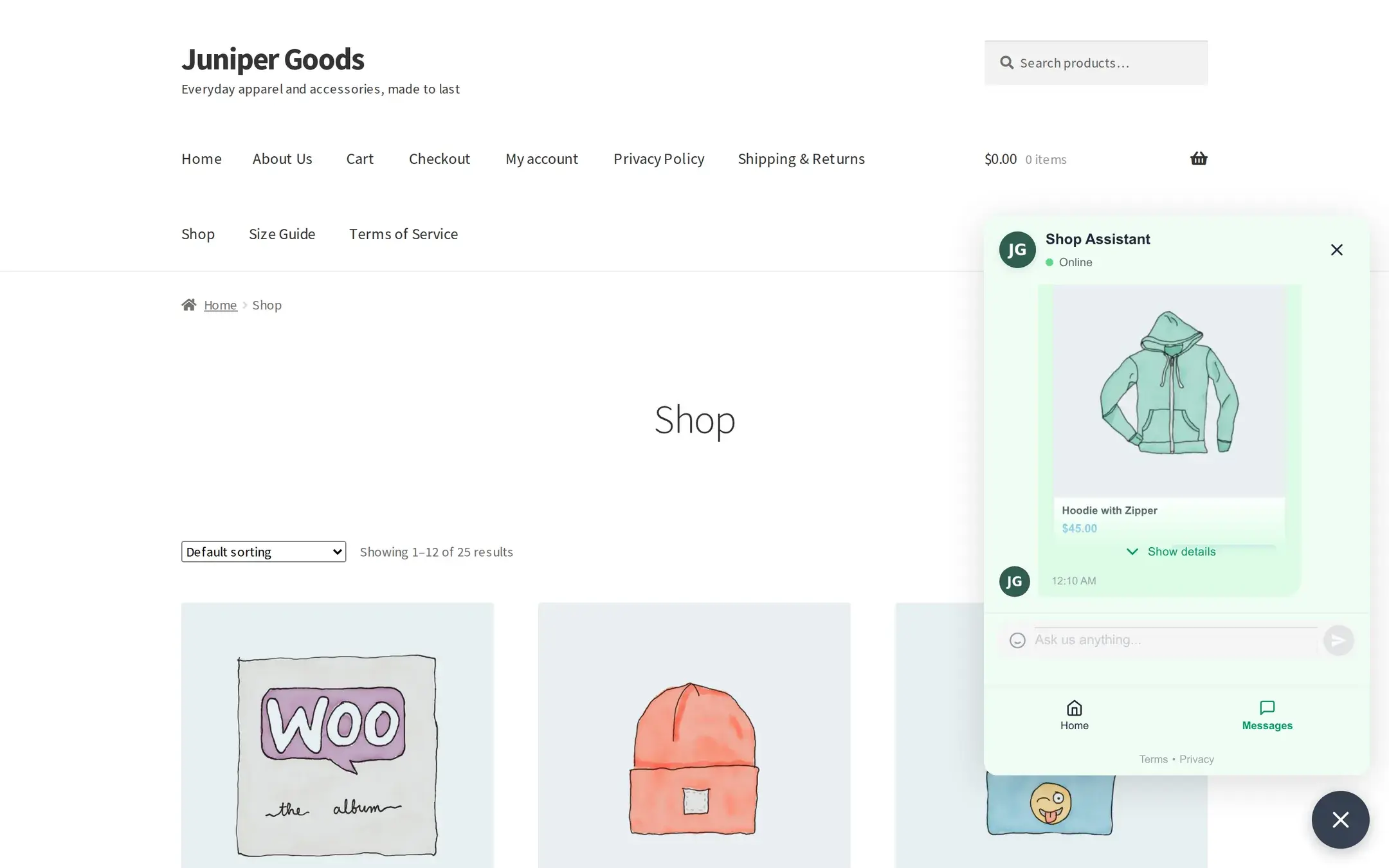
Ask about something in the catalog and the assistant answers from the Store Index, picking out matching products by name so their cards render underneath the reply. A tall set of cards collapses behind a "Show details" toggle so the reply does not take over the panel; tap it to reveal the stock badge and action buttons on every card at once.
Ask a store question instead, shipping, returns, sizing, and the reply comes from your Store Context and Knowledge Pages, with no product cards attached.
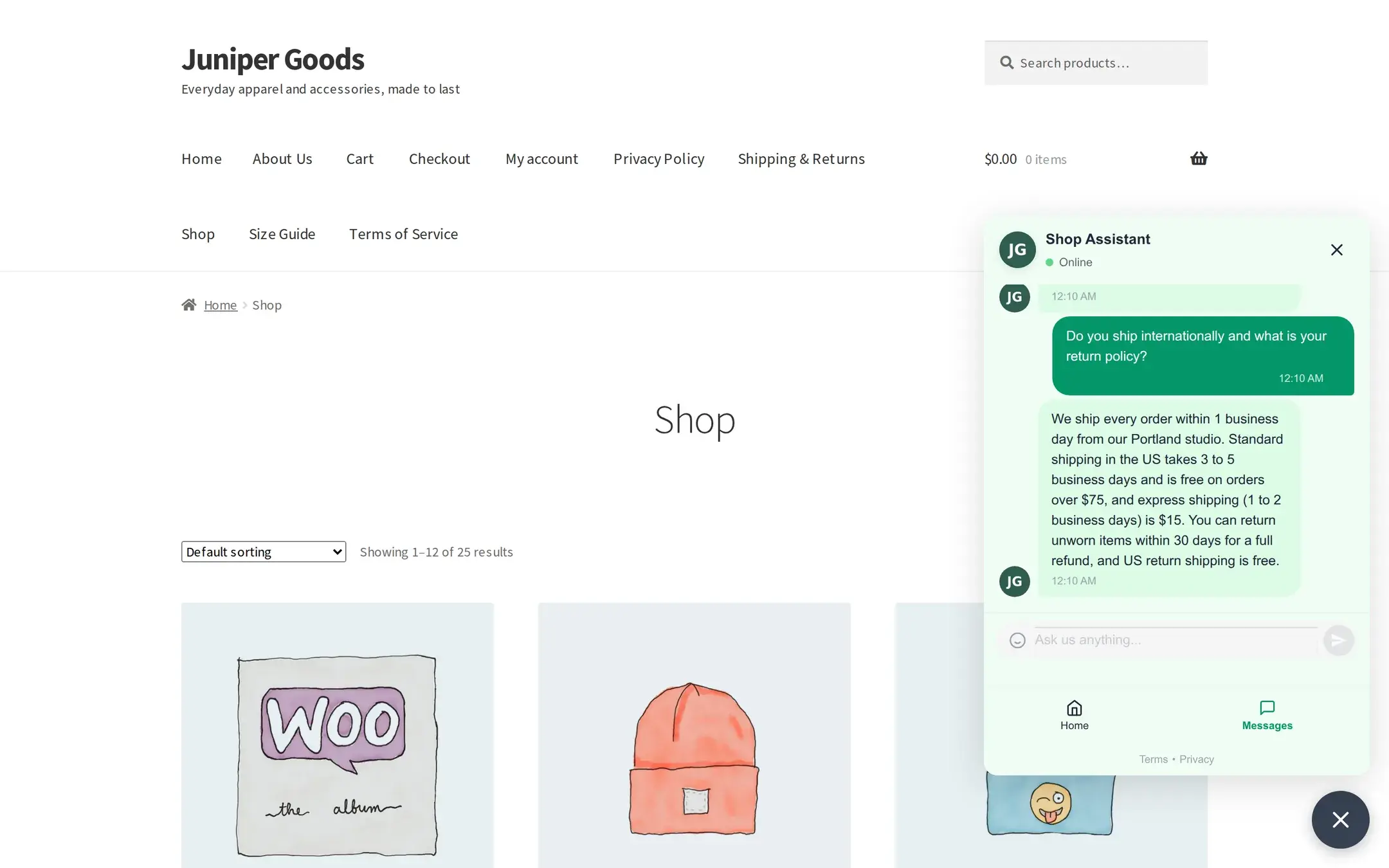
Ask about something the store clearly does not carry and the search behind the assistant still tries to be useful: it usually suggests its closest available items rather than refusing outright.
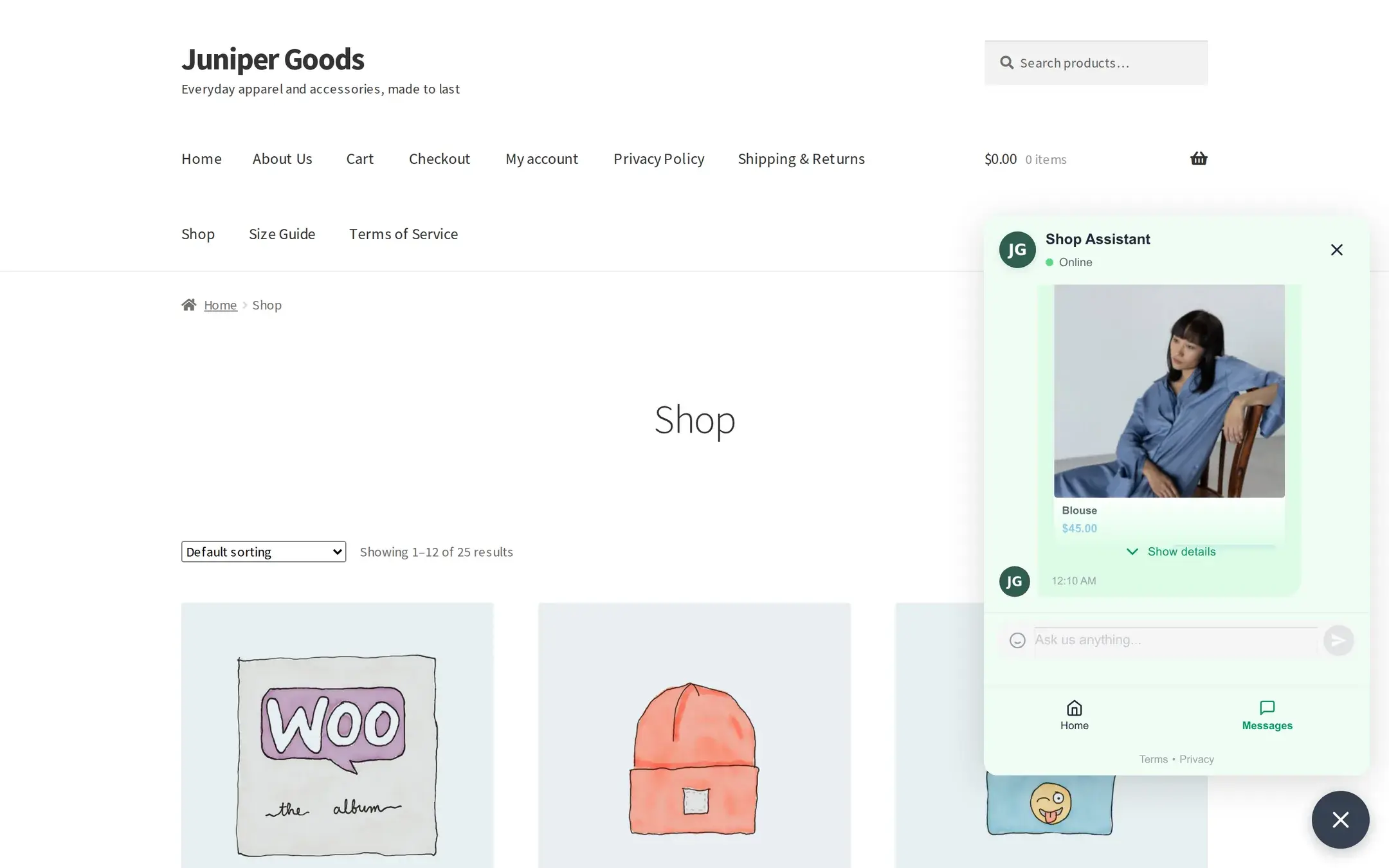
Both outcomes are still a successful exchange
Whether the assistant recommends its closest items or sends the exact no-match apology, both are treated as answered conversations, see Unanswered questions for why neither one reaches the queue.
Add to Cart (Business)
When Add to Cart is on, a simple in-stock product's card shows both buttons.
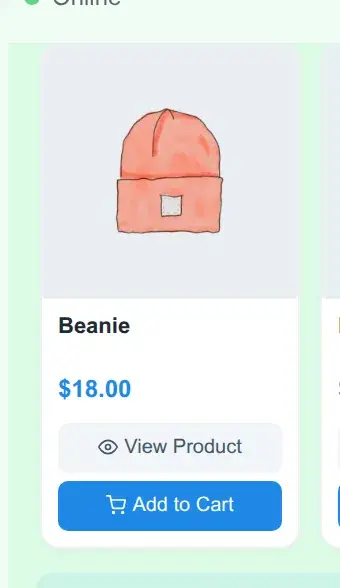
Stock and purchase-limit rules still apply: a sold-out product shows "This product is out of stock," and a limited one shows "Only n units are available" or a maximum-quantity message, the same WooCommerce messaging you would see anywhere else on the store.
On mobile
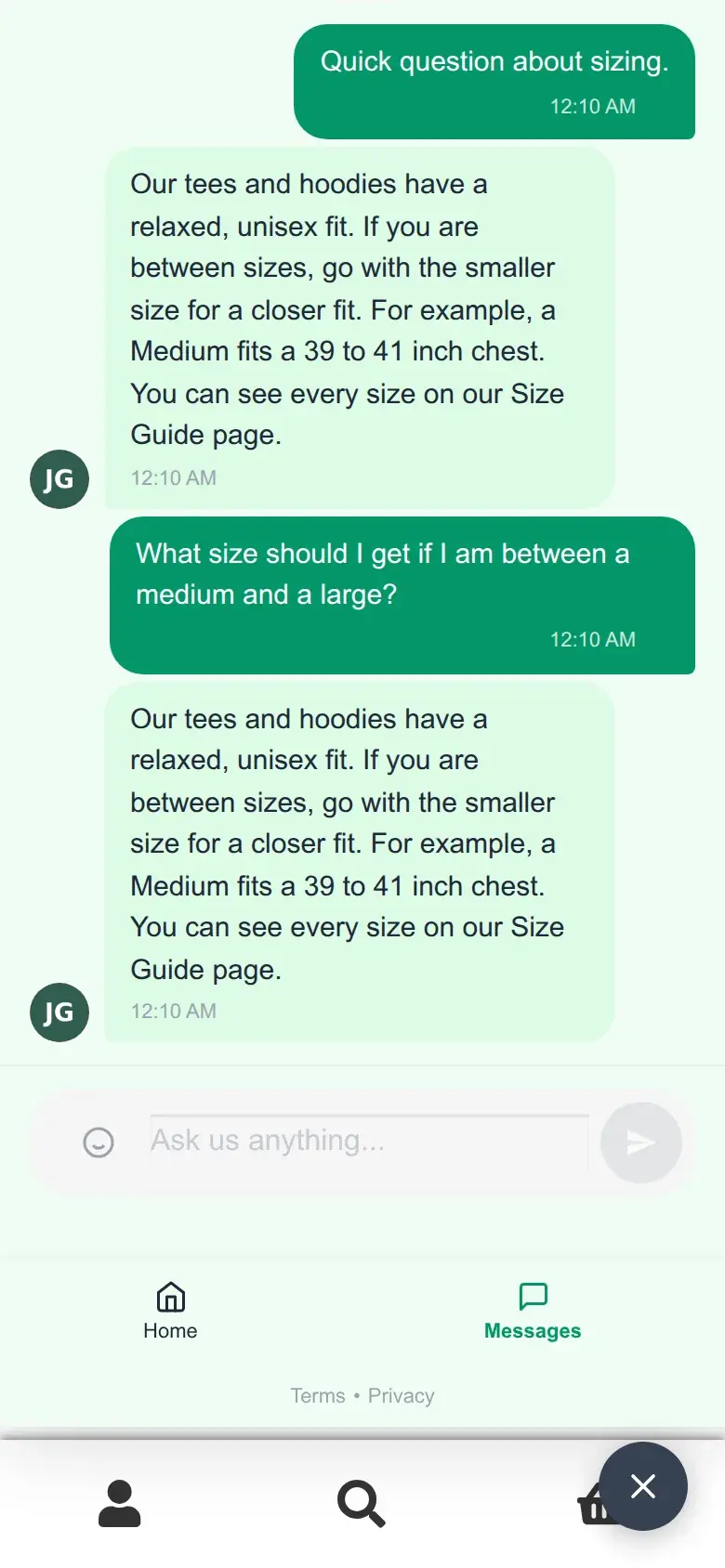
Below roughly 768px wide, the chat panel opens full screen instead of as a corner popup.
What errors look like to a shopper
Two different things can go wrong, and they look different on purpose.
A real provider failure
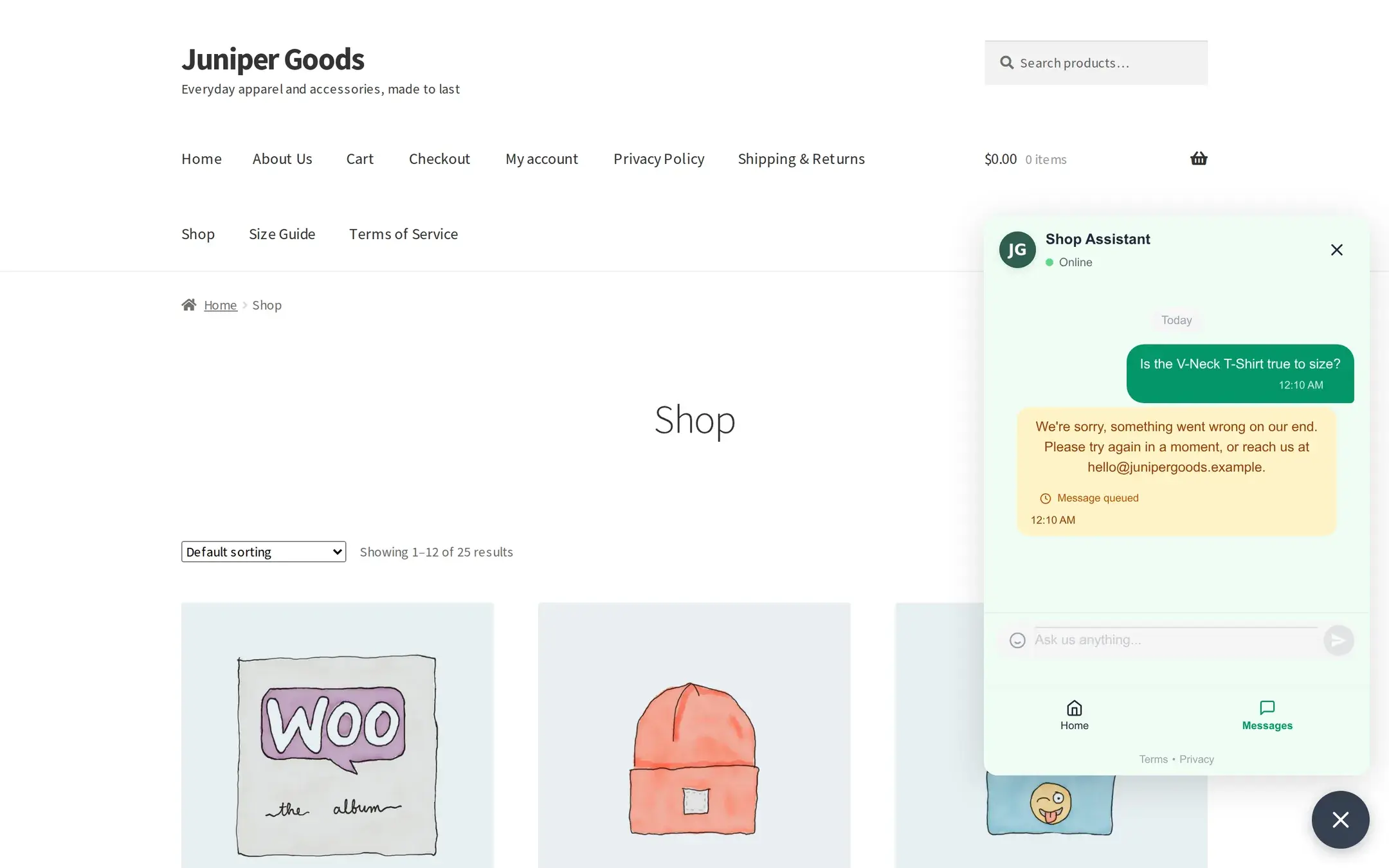
If the AI call itself fails (a rate limit, an expired key, the provider down), the shopper still gets a reply bubble, just styled amber with a small "Message queued" label instead of the normal bot color, and the question goes to your Message Queue for a human to pick up. Exactly what the bubble says depends on your Error Display settings: the actual provider detail, a message you wrote yourself, or (if you turned off "Show errors to user") a neutral acknowledgement that reveals nothing about what broke.
Sending messages too fast
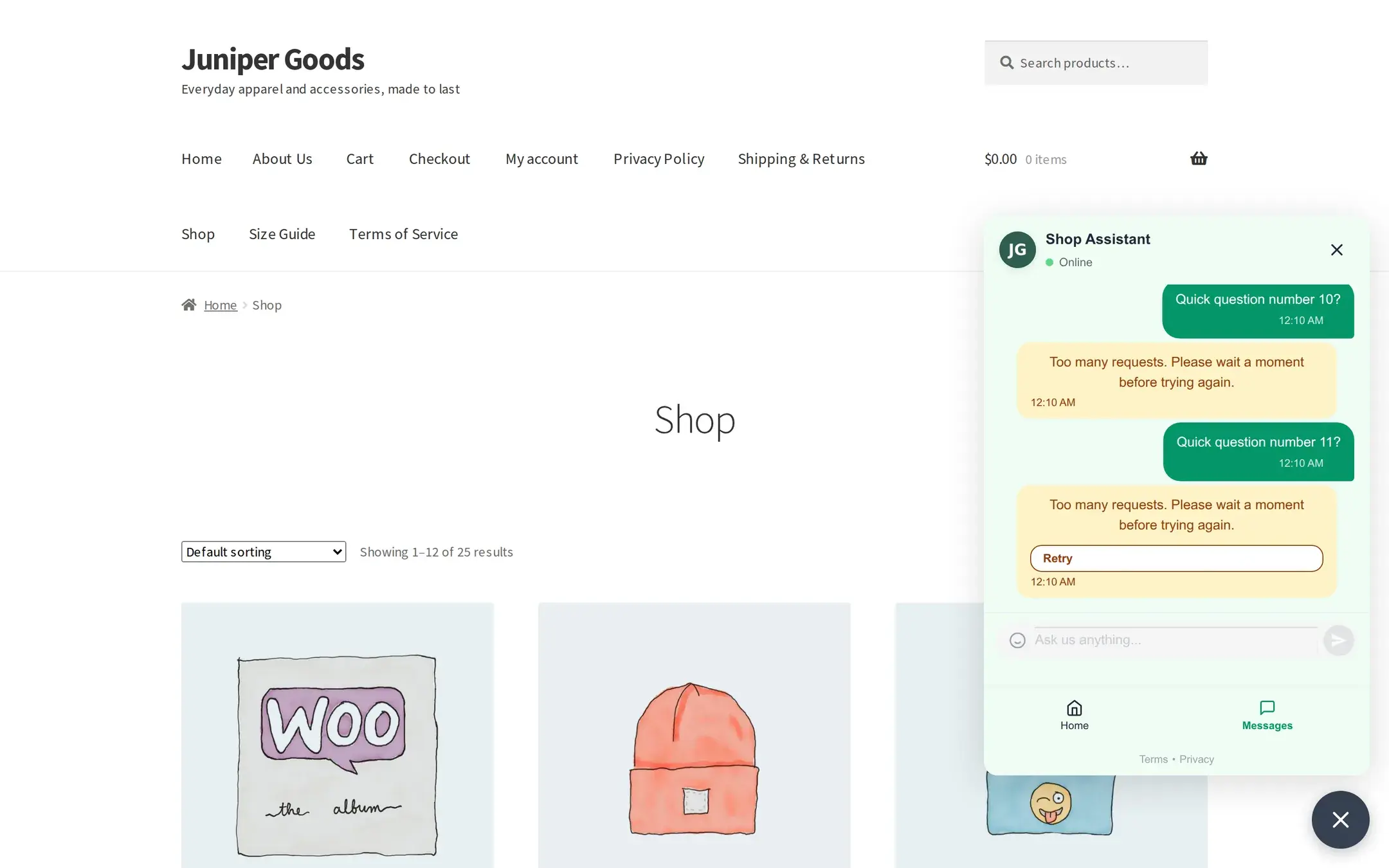
Separately, the plugin itself limits each shopper to 10 messages per 60 seconds. Going over that returns an immediate "Too many requests. Please wait a moment before trying again" message with a Retry button, and is not configurable from the UI. This is mechanical spam protection, not a failure, so it is never added to the Message Queue.
Reference
| What a shopper sees | Why |
|---|---|
| Product cards with View Product (and Add to Cart on Business) | The question matched real catalog products by name in the Store Index |
| A plain-text answer, no cards | The question matched Store Context or a Knowledge Page instead |
| An apology along the lines of "I could not find an exact match..." | No catalog product matched; the model wrote its own wording from a playbook, this still counts as answered |
| An apology plus "we'll look into it" style text | The AI call failed; the question is now in your queue |
| "Too many requests..." | The shopper's own session hit the 10-per-60-second limit |