
Settings
The Settings overview page, its six cards, who can open it, and how saving, discarding and Ctrl/Cmd+K navigation work across every cluster.
AI Product Tools > Settings is one page that holds every plugin-wide default: which AI provider and model generators use, the four provider API keys, store-wide content defaults, Content History retention, the AI Content Marking reset, interface toggles, Shop Manager access, and your license. It does not hold per-run choices; most generator screens have their own provider and model picker that overrides the Settings default for that one run (see AI providers).
Before you start
Administrators always have access. A WooCommerce Shop Manager only sees Settings in the menu if an administrator turns on Allow Shop Managers to manage settings, see Shop Manager access.
The overview grid
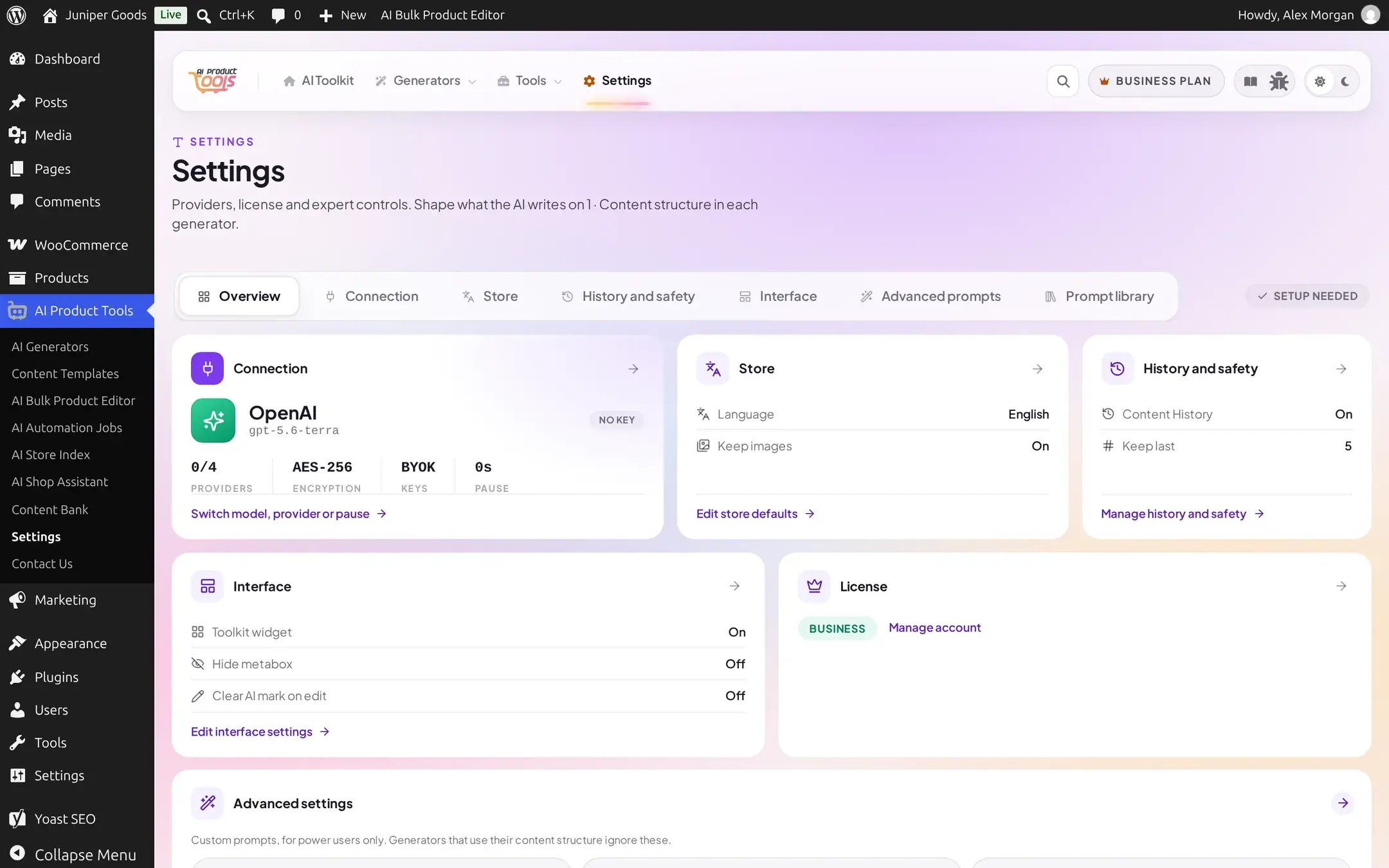
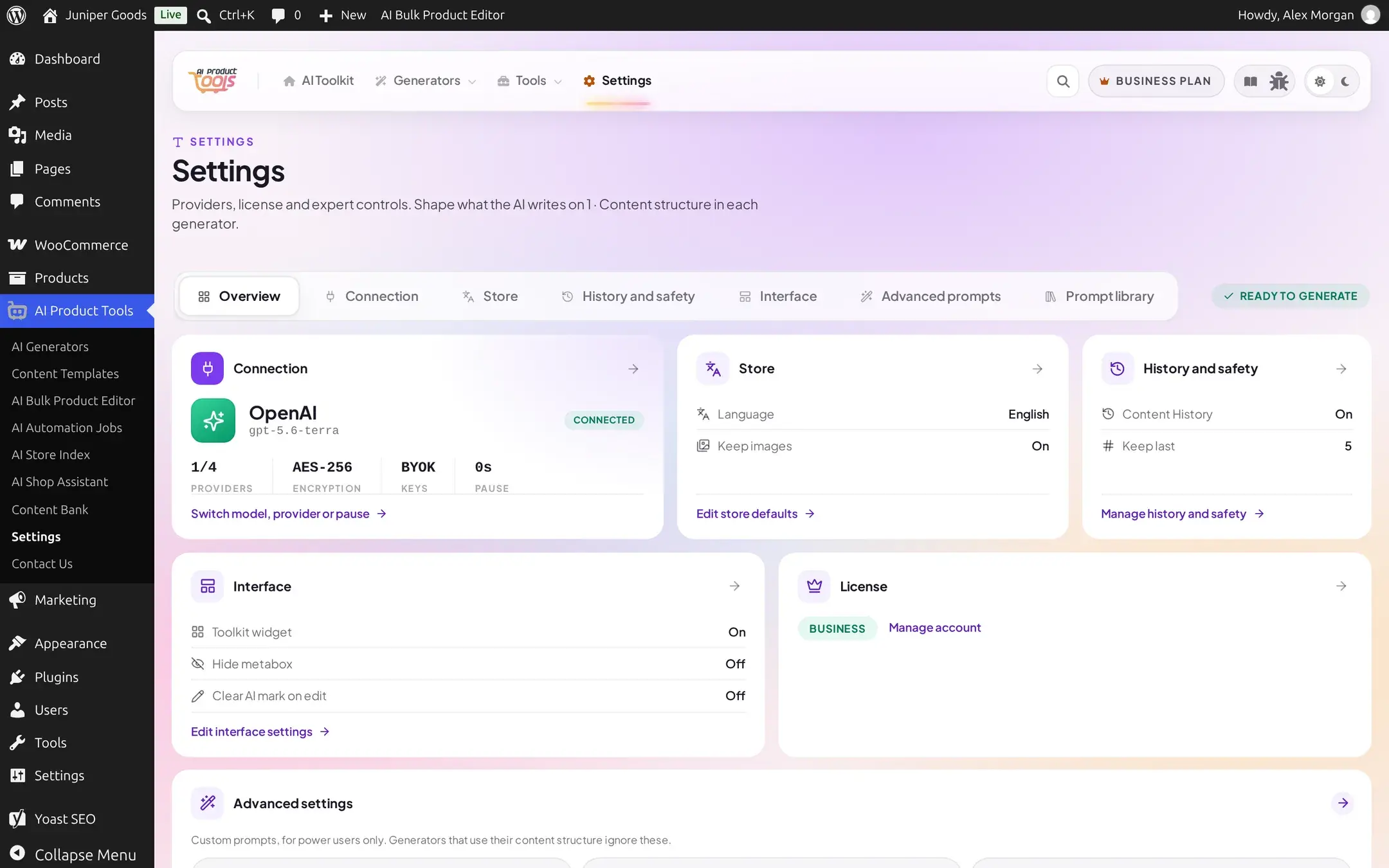
Opening Settings with no further clicks lands on the overview: six cards summarizing every cluster, plus a badge next to the section tabs reading Ready to generate (green, once at least one provider has a usable key) or Setup needed (amber, until then).
| Card | Shows | Opens |
|---|---|---|
| Connection | Active provider and model, a Connected/No key badge, and a stat strip: providers connected out of 4, encryption method, BYOK, and your Pause setting | Connection |
| Store | Output language and whether Keep images is on | Store |
| History and safety | Whether Content History is on, and how many versions it keeps | History and safety |
| Interface | Toolkit widget, Hide metabox, and Clear AI mark on edit, each On/Off | Interface |
| License | Your plan badge and a Manage account link (Free also gets a See Business link) | External links only, no drill-in cluster |
| Advanced settings | How many generators have a customized prompt, how many saved templates you have, and your Maximum tags limit | Advanced |
Finding a setting fast
Press Ctrl+K (or Cmd+K on a Mac) anywhere inside Settings to open a searchable palette that jumps straight to any cluster or individual field, grouped by cluster:
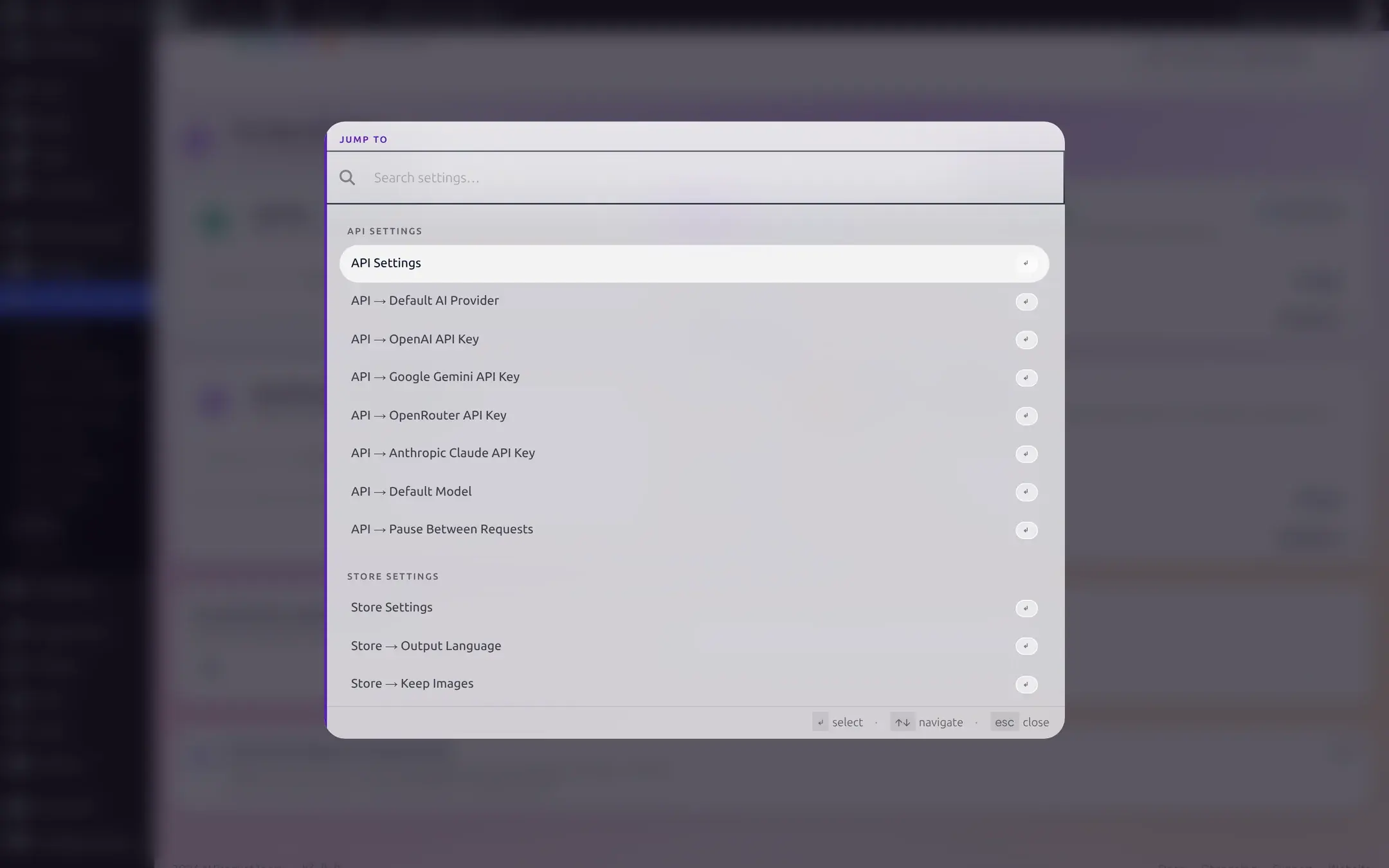
The palette still labels this group API Settings, a name carried over from before the 2.8.0 redesign; it is the same cluster this guide calls Connection everywhere else.
Deep links also work directly: ?tab=connection, ?tab=store, ?tab=history_safety, ?tab=interface, ?tab=studio (Advanced prompts) and ?tab=library (Prompt library) open straight into that cluster. Bookmarks and links from older plugin versions keep working too; a handful of legacy tab names redirect automatically to their current cluster.
Saving and discarding changes
One save bar at the bottom of the page covers every cluster; no individual card has its own Save button. It appears the moment anything changes, anywhere in Settings:
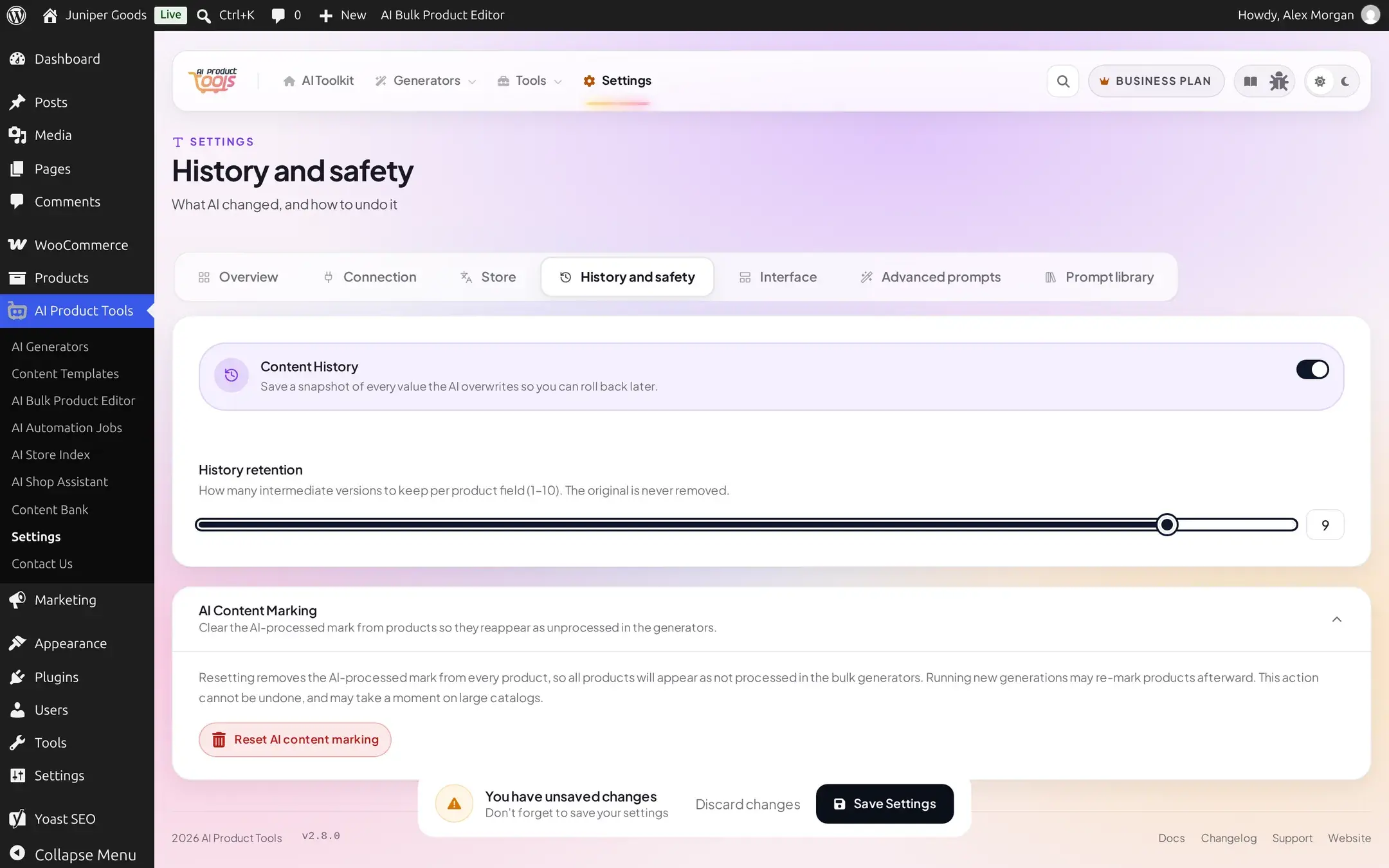
- Save Settings writes every pending change at once. A toast confirms success; if a field you touched could not be saved (for example a Business-only field on a Free plan, see Advanced settings), the toast names exactly which field was skipped instead of falsely claiming everything saved.
- Discard changes asks you to confirm first, since it cannot be undone:
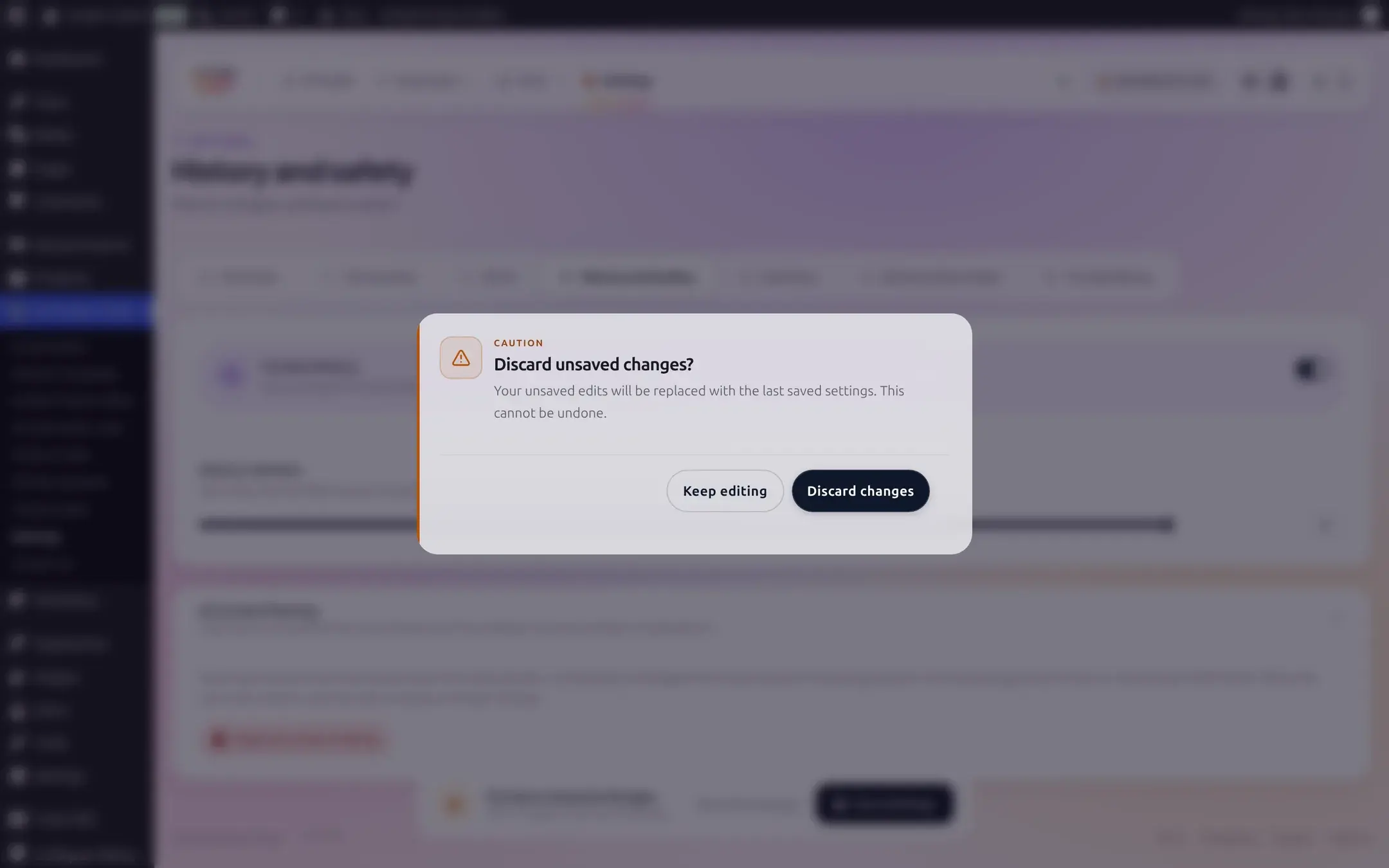
- Leaving the page with unsaved changes, including a freshly typed API key you have not saved yet, triggers your browser's own "leave site" warning so a typo in navigation cannot silently lose it.
Free vs Business
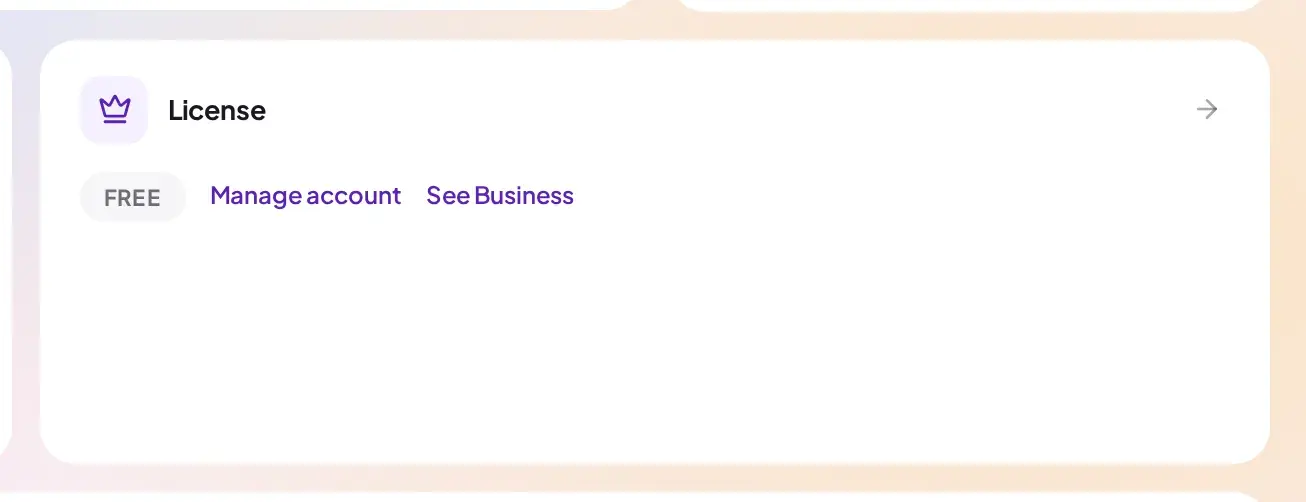
Every cluster covered on this page and its sub-pages is fully available: all four providers, Store defaults, Content History, Interface toggles, and the AI Content Marking reset. The License card shows a Free badge with a See Business link.
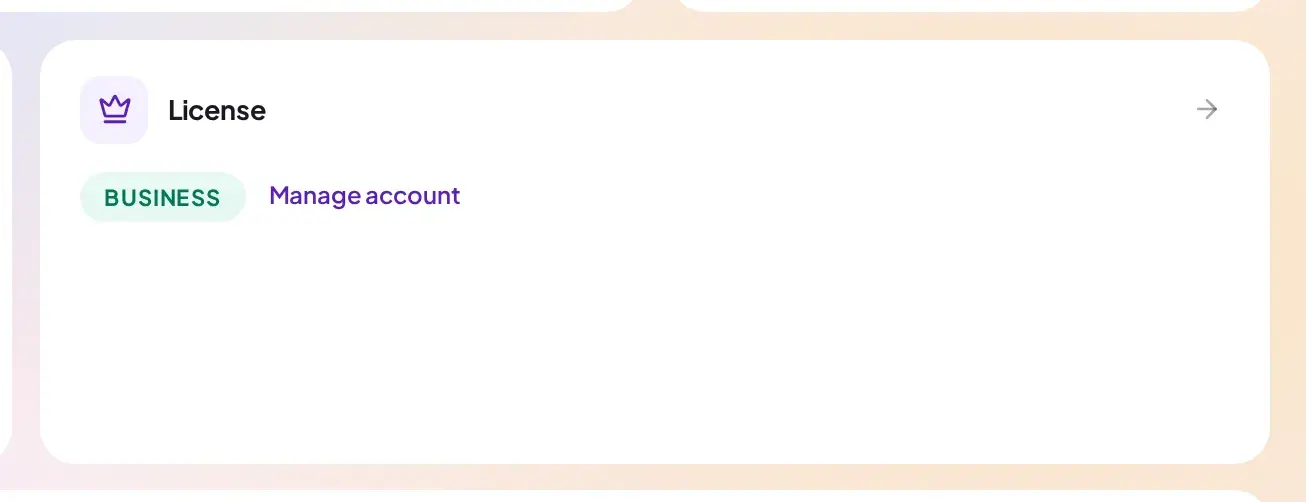
Nothing extra unlocks inside the Connection, Store, History and safety, or Interface clusters themselves; the Business difference there is a guarded confirmation before turning off Content History, since a Business account can also restore from history (see History and safety). The License card shows a Business badge with no upsell link.
A small number of per-generator additional prompt fields under Advanced settings are Business-gated; see that page for exactly which ones and what happens if you try to save one on Free.
Troubleshooting
Connection
Providers, API keys, default model, and Pause between requests.
Store
Output language and the Keep images default.
History and safety
Content History retention and the AI Content Marking reset.
Interface
Toolkit widget, metabox visibility, and AI-mark clearing.
Advanced
Custom-prompt defaults: writing style, length presets, tags, and more.
AI providers overview
Choosing a provider and model, and BYOK costs.