
The Content Templates Page
One admin page listing every content type's current structure, saved templates, voices and sources, with a guided editor for each.
AI Product Tools > Content Templates (admin.php?page=aipt-content-templates) is where you manage structures, voices and sources as store-wide libraries, separately from running a generation. A structure is still created, assigned to categories, and reordered from its generator's own tab 1 (see Editing a structure); this page is for seeing everything at a glance, managing templates you are not using yet, and the full step-by-step editor.
Before you start
- Permission to generate content (
manage_woocommerce) to view, create, edit and duplicate anything here, and to delete a template nothing uses. - A settings manager (
manage_aipt_settings) to add, refresh or delete a web page source, delete a voice, or delete a template that is already in use. - A user who can only generate (not a settings manager) still sees the page fully, with a note that creating, editing, duplicating and deleting need permission to generate content.
The library: Templates, Voices, Sources
The page opens on three tabs.
Templates
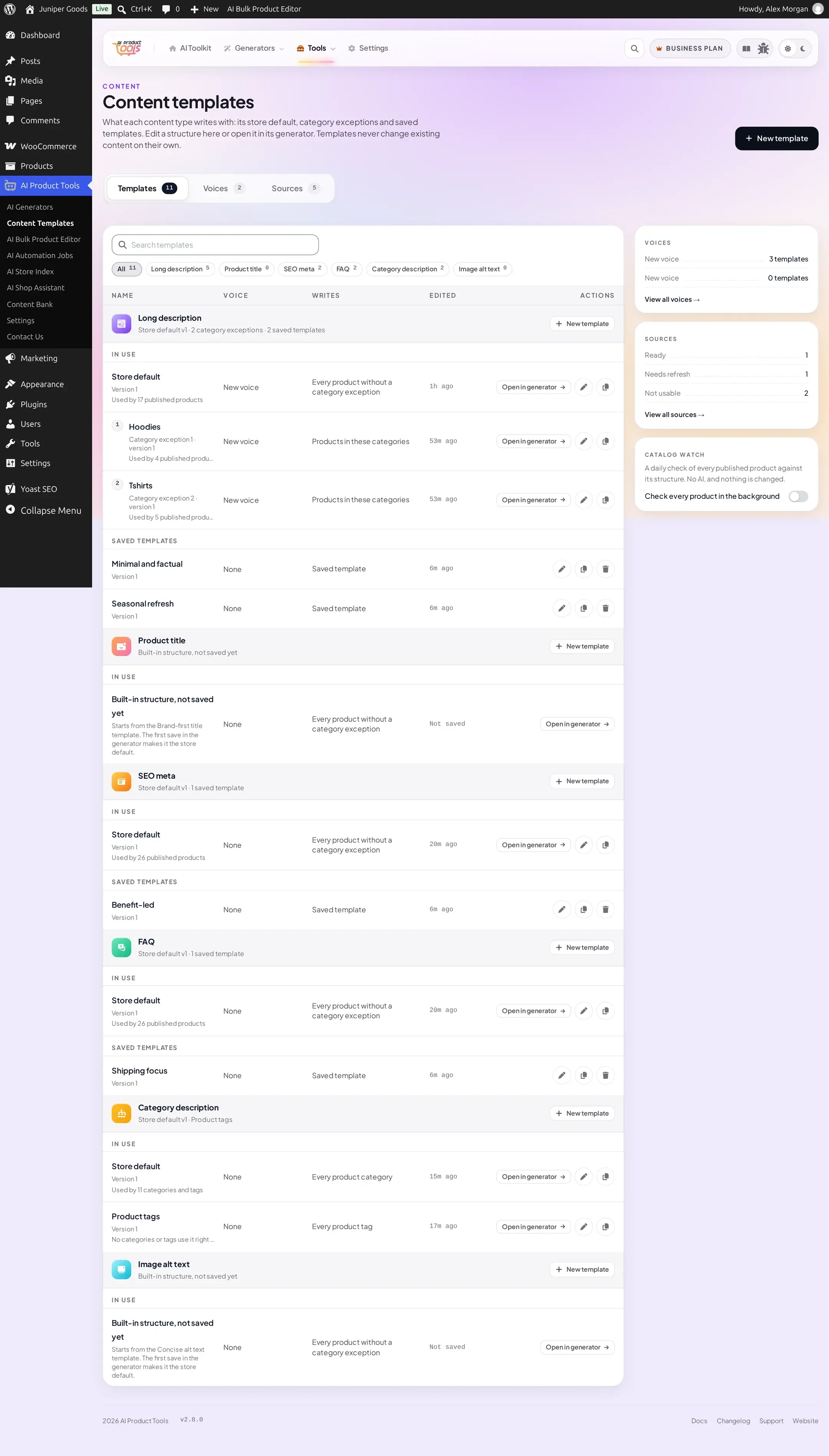
Rows are grouped by content type. Each group lists, in order: In use (the store default or built-in structure, each category exception in its priority order, then Product tags for Category descriptions), each with an Open in generator link, then that content type's saved templates. Search narrows by name; the chips above the list filter by content type.
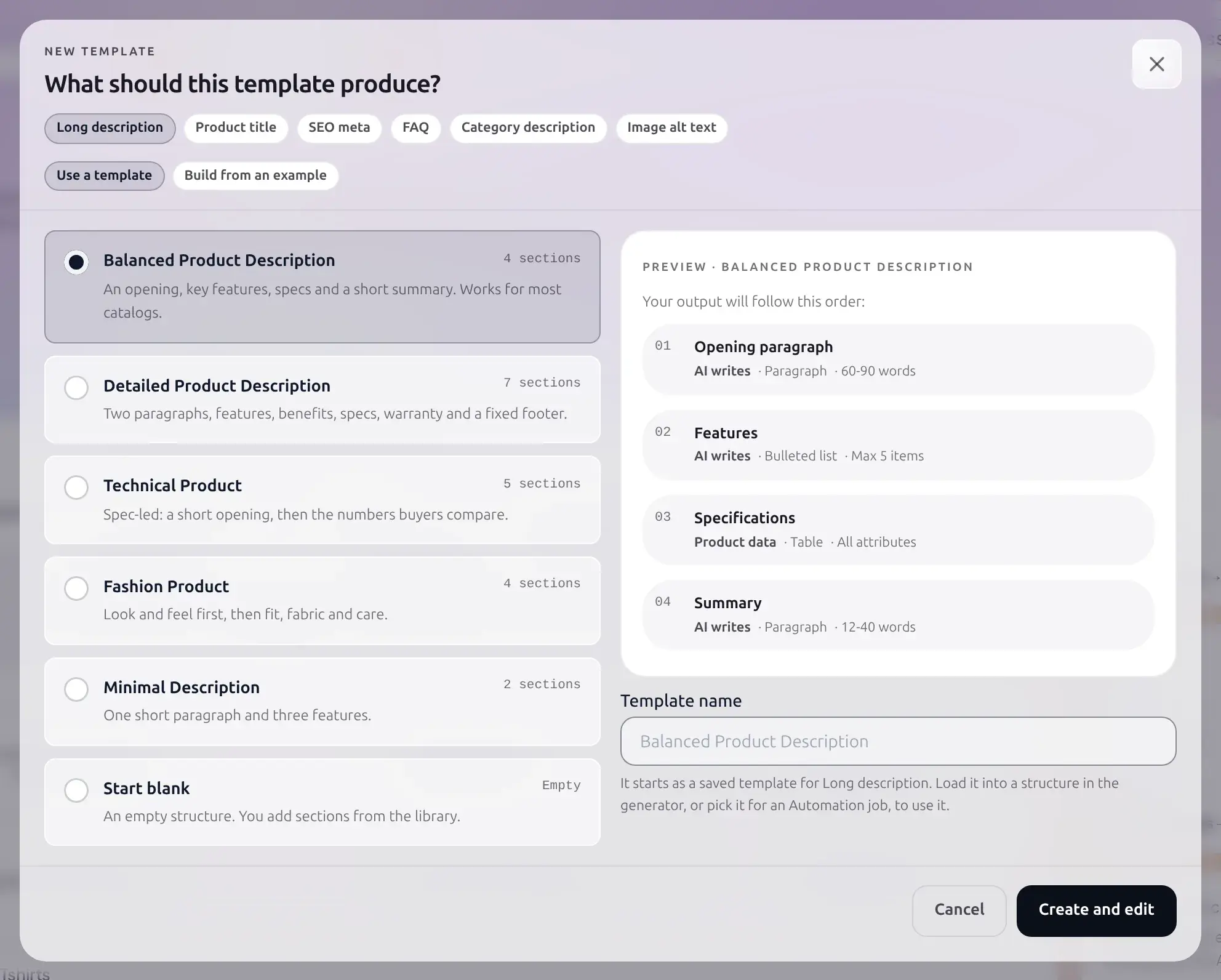
- New template: pick a content type, then either Use a template (a starter from the real template catalog, with a live section-order preview) or, for Long description only, Build from an example (parses an existing product description into a starting structure, with no AI call). Create and edit opens the full editor; nothing is saved until the editor itself saves.
- Duplicate: makes an independent copy, named
Copy of {name}, saved as an unused template. - Delete: opens an impact dialog first (see below).
Voices and Sources
Each is its own self-contained, store-wide list: search, open a record to view or edit it, and a delete-impact view before removing one. See Voices and sources for what each field means.
The right rail
Three cards stay visible while you browse: Voices (every voice and how many templates use it), Sources (Ready / Needs refresh / Not usable counts), and Catalog watch Business (see Catalog watch).
Creating a template from scratch
Start a new template
Click New template, choose a content type, then a starting point: a real starter template (with a live preview of its section order) or, for descriptions, build one from an existing product's own text.
Walk the guided steps
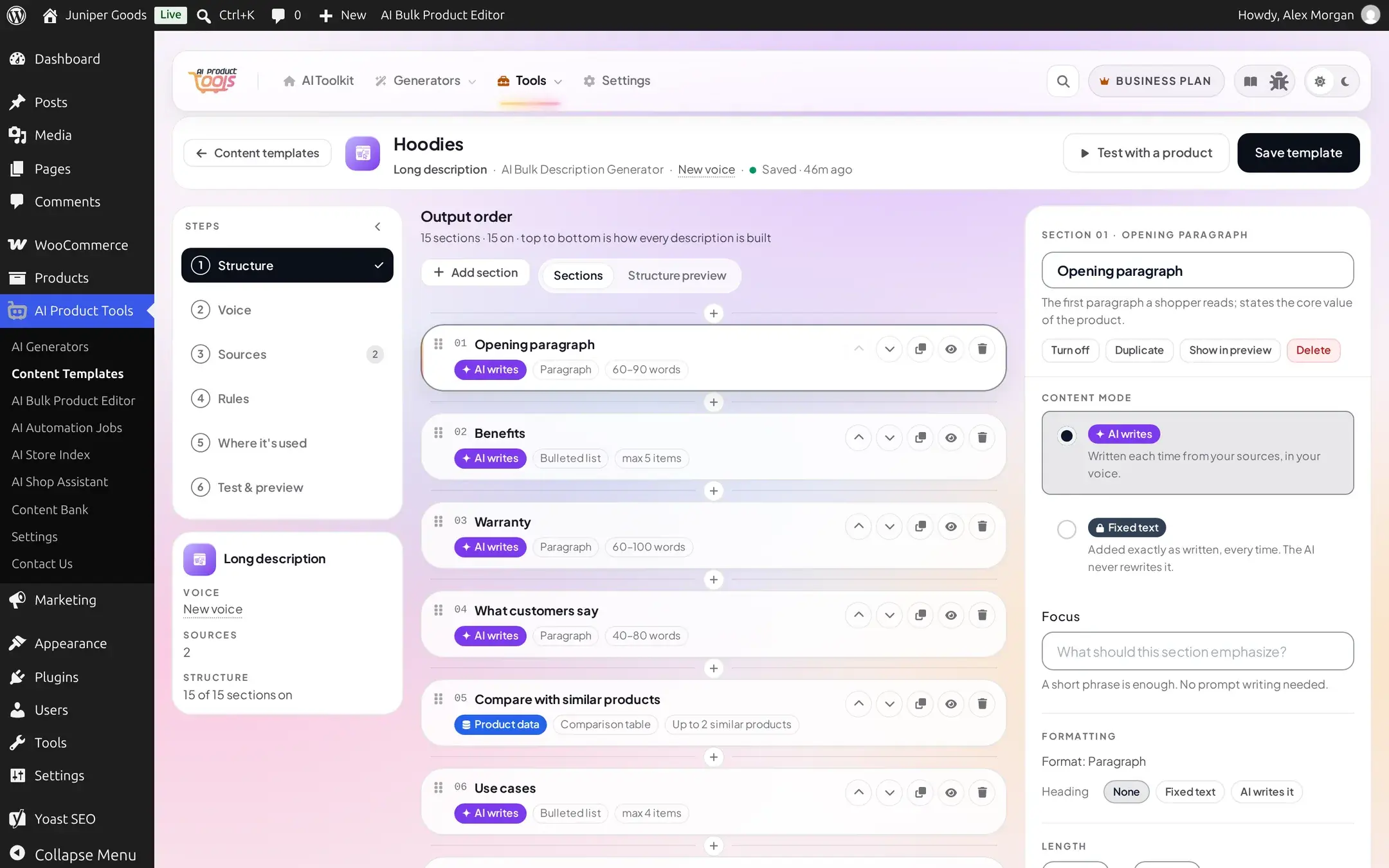
The editor is six steps in a left-hand rail, not tabs, so you always know where you are: Structure, Voice, Sources, Rules, Where it's used (read-only), Test & preview. A step turns green once it has no remaining issues, and amber when it needs attention; color is never the only signal, each status also has its own icon and screen-reader text.
Save
Saving here works exactly like saving from the inline tab 1: the structure is not assigned anywhere until you either set it as a default from a generator, or it already was one you opened from "In use."
Where it's used
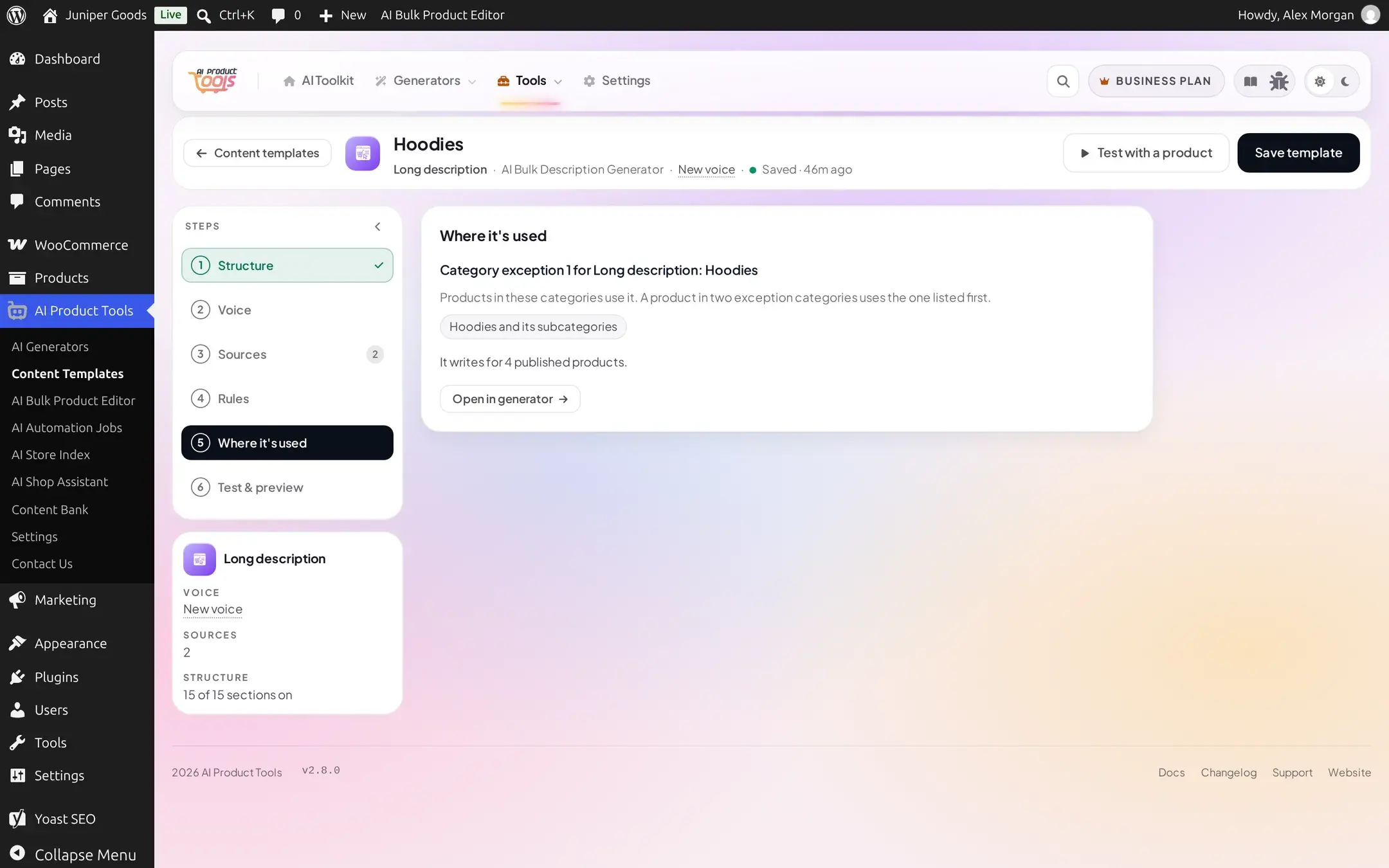
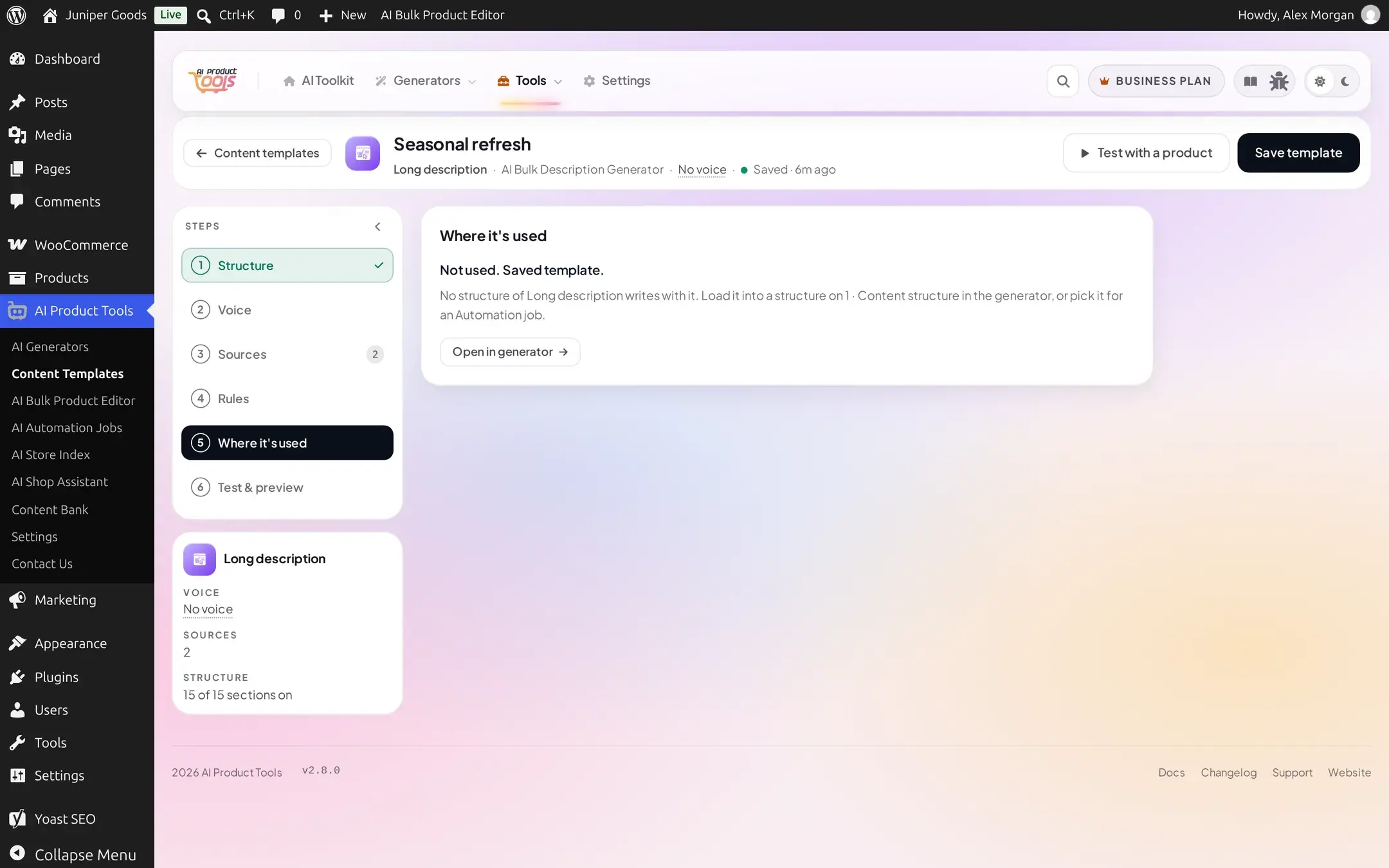
The read-only Where it's used step states plainly whether a structure is the store default, the Nth category exception (with its category list), the Product tags structure, or not used at all (a saved template nothing points to), plus how many products or terms it currently writes for and any Automation jobs that will use it on their next run.
Deleting a template
Delete always opens an impact dialog first, built from a live check of exactly what depends on this template: which products, terms or categories would fall back, and to what (another structure, the store default, or the built-in template); any sources that would be removed with it; and any running Automation job that pins its own version and keeps it regardless. If the impact changes between opening the dialog and confirming, the dialog refreshes instead of deleting blind.
A template nothing uses can be deleted by anyone who can generate; one that is in use additionally needs a settings manager.
Test & preview
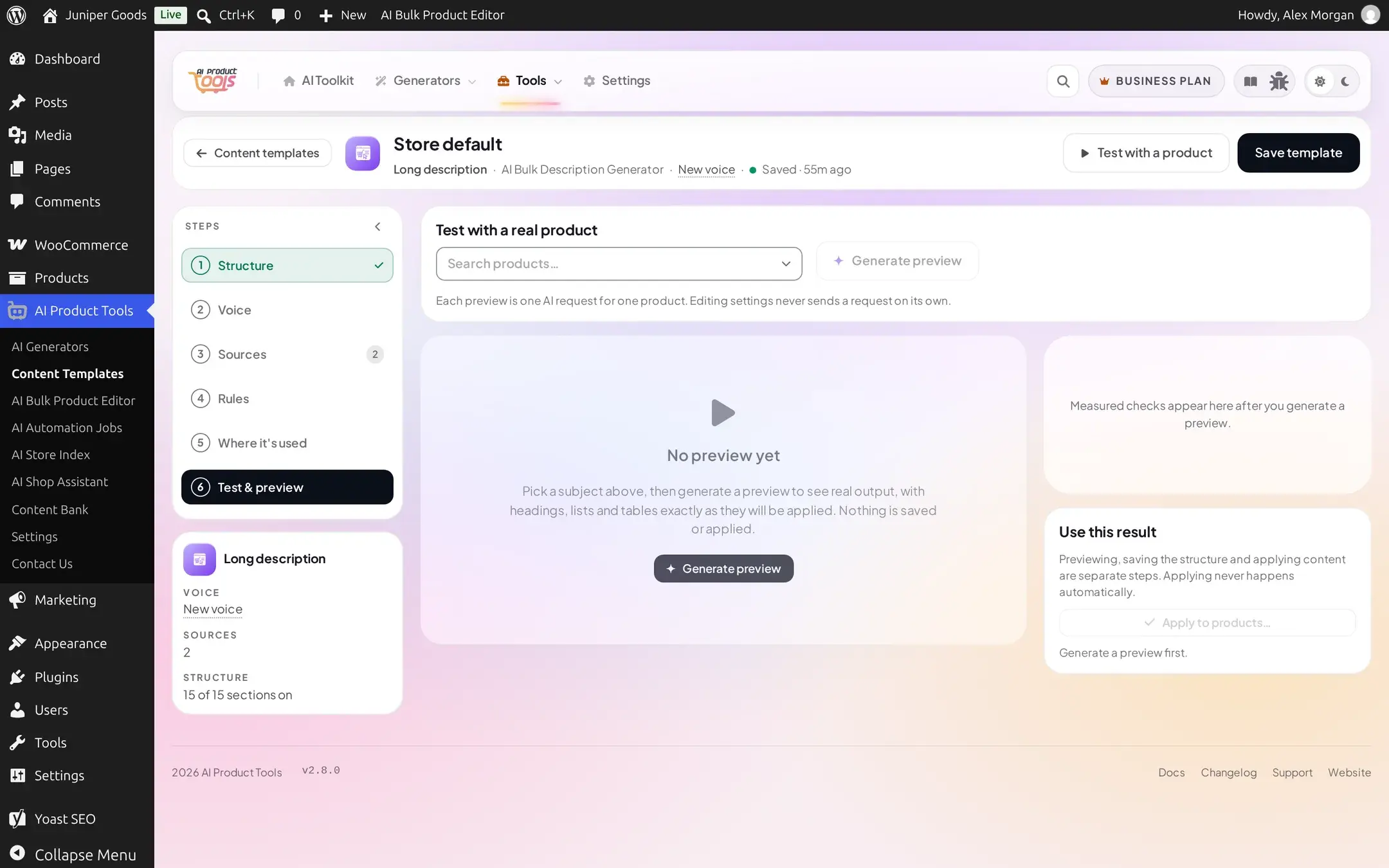
Pick a real subject (a product, or a term for Category descriptions) and Generate preview. Nothing is saved or applied by this step alone. For Long description and Category description you get a per-section breakdown, each block with its own Regenerate and a Checks panel; for the four formula generators you get a flat list of the generated units. A staleness banner appears if the shown result no longer matches the saved structure, and a provider-error banner appears if the AI call itself failed. Use this result / Apply really writes the subject, after taking a History snapshot.
Free vs Business
Everything on this page is visible on every plan. The gates are the same ones covered on Editing a structure, Voices and sources and Catalog watch: category exceptions, extra voices, web sources, and Catalog watch itself are Business; a Free site can still see and edit anything it saved earlier while on Business.
Troubleshooting
Related pages
Editing a Content Structure
Use the inline 1 Content structure / 2 Generation tabs on any generator page to change what a content type writes, then run it.
Sections and Formulas
Every description and category-description section type, and the title, SEO meta, FAQ and image alt text formulas, with what each one produces.