
Generators
The six bulk generators, what each one writes to your products, and the steps every generator shares.
AI Product Tools has six bulk generators. Each one writes one kind of content for many products (or categories) at once, and each one works the same way: you set how the content should look, pick what to write for, check the results, and apply the ones you want.
Open a generator from AI Product Tools > AI Generators. The generator pages do not have their own rows in the WordPress admin menu; the cards on the AI Generators page lead to them.
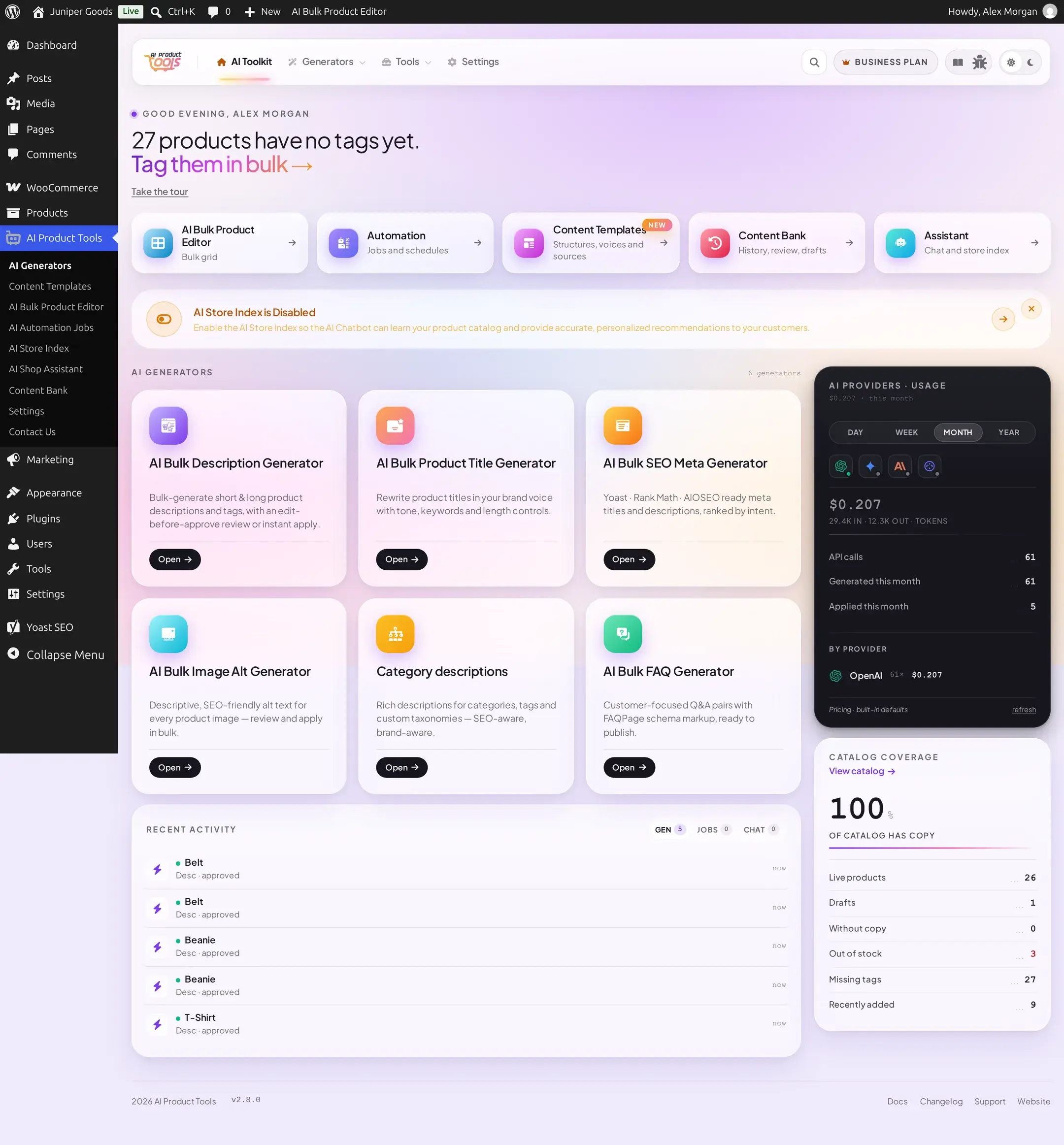
What each generator writes
| Generator | Writes | Where it lands |
|---|---|---|
| Descriptions | Long description, short description and product tags | The product's description, short description and tags |
| Titles | Product titles, with up to three alternatives each, and optionally the URL slug | The product name and slug |
| SEO meta | SEO titles, meta descriptions and focus keywords | The fields of your SEO plugin (Yoast SEO, Rank Math and others) |
| Image alt text | Alt text for featured and gallery images | Each image's alternative text in the Media Library |
| FAQs | Question and answer pairs, grouped by topic | The product's FAQ, shown on the product page (FAQ display) |
| Category descriptions | Descriptions for categories, tags and custom taxonomies | The term description shown on archive pages |
Generating is free on every plan. The Business plan adds deeper options in each generator, which the generator pages mark with Business.
The steps every generator shares
- Content structure. The first tab sets the parts, voice, sources and rules the AI follows for this kind of content. See Content structures.
- Choose products. The second tab lists your products with search and filters. Select the ones to write for.
- Generate. Pick what to write and how results are handled (for example Show me first to preview before anything is saved), then start the run.
- Review and apply. Read each result, edit it if needed, then apply or reject it. Failed products can be retried on their own.
How bulk generation works explains each of these steps in detail, including the run modes, limits and what happens to your existing content.
Every change is recorded
With Content History on (the default), the previous value is saved before a generator changes a product, so Content History always shows what the product said before.
Other ways to generate
- One product at a time: the AI content panel on the product edit screen.
- Many products in a grid: the AI Bulk Product Editor.
- In the background, once or on a schedule: Automation.
Catalog Watch
A daily, AI-free background check of every published product against its structure, so you know what needs a fresh generation.
How Bulk Generation Works
The product selection, settings, review, and apply flow shared by every AI generator page, from the Bulk Description Generator to Image Alt Text.