
Sections and Formulas
Every description and category-description section type, and the title, SEO meta, FAQ and image alt text formulas, with what each one produces.
Long description and Category description are built from an ordered list of sections. Product title, SEO meta, FAQ and Image alt text each use a formula instead: a fixed shape suited to that content type (an ordered chain of parts, two token builders, question groups, or a rule set). This page documents every section type and every formula in full. To open any of these for editing, see Editing a structure; this page does not repeat how to run a generation, see How bulk generation works for that.
Every section, in one place
A section's content mode decides where its text comes from:
- AI writes (labelled with a ✦ icon): written fresh each run, from your sources and voice.
- Fixed text (🔒): typed once, used exactly as written, every time.
- Product data (only on data-capable types): values copied straight from product fields, never reworded, rounded or converted.
Every section shares the same inspector group order: Content mode → Focus (AI) or Fixed text (Fixed) → Formatting (allowed formats, and a heading mode: None, Fixed text, or AI writes it) → Length (a word-range target plus a Concise/Balanced/Detailed dial, or an item/row count for lists and tables; an optional hard limit) → Product fields (data mode) → When information is missing (Skip this section / Use approved fallback text / Send result to review) → Show only when… (a condition) → Voice (a per-section tone override) → Advanced (use the structure's own sources, or a local list, plus a per-section Additional instruction).
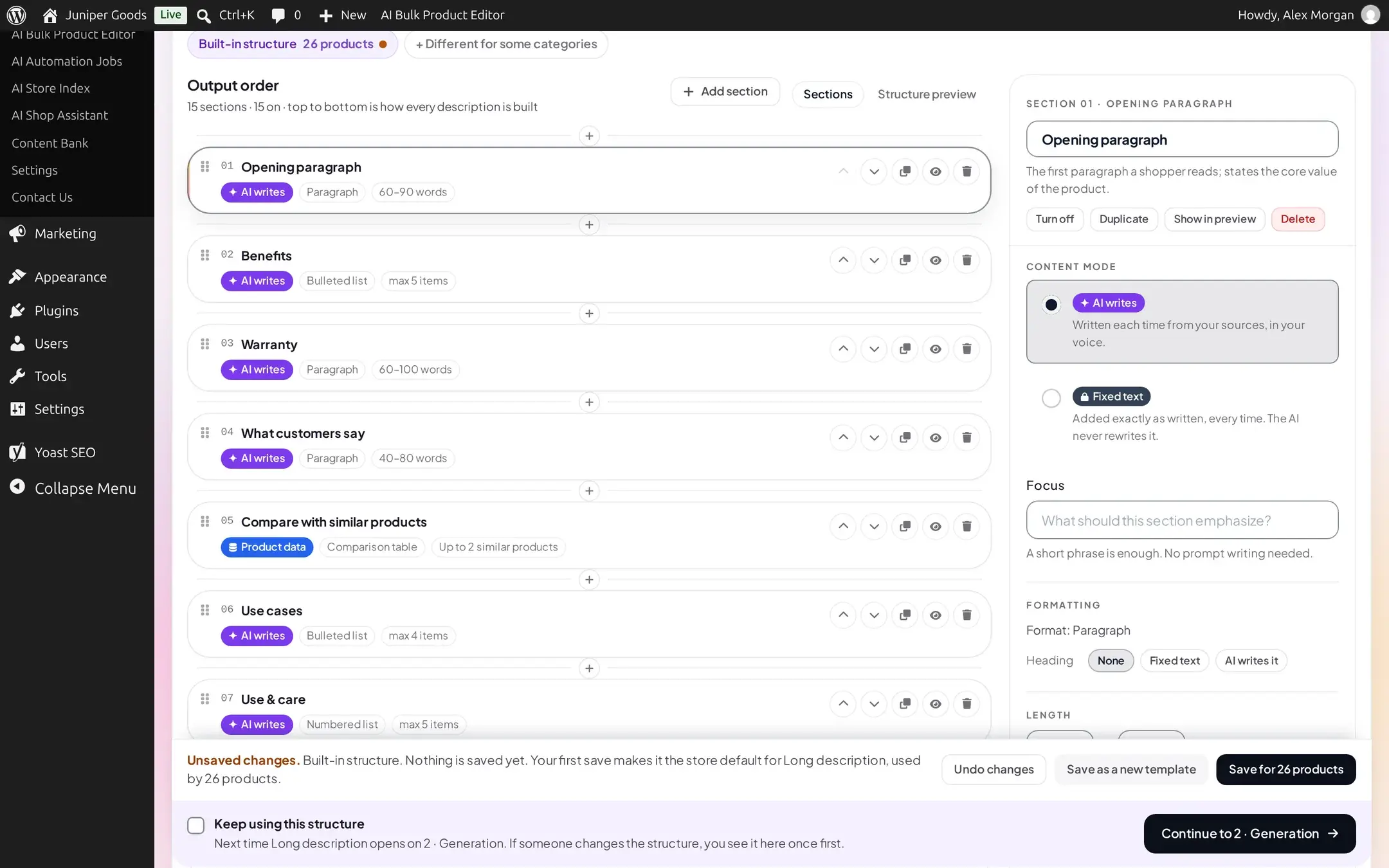
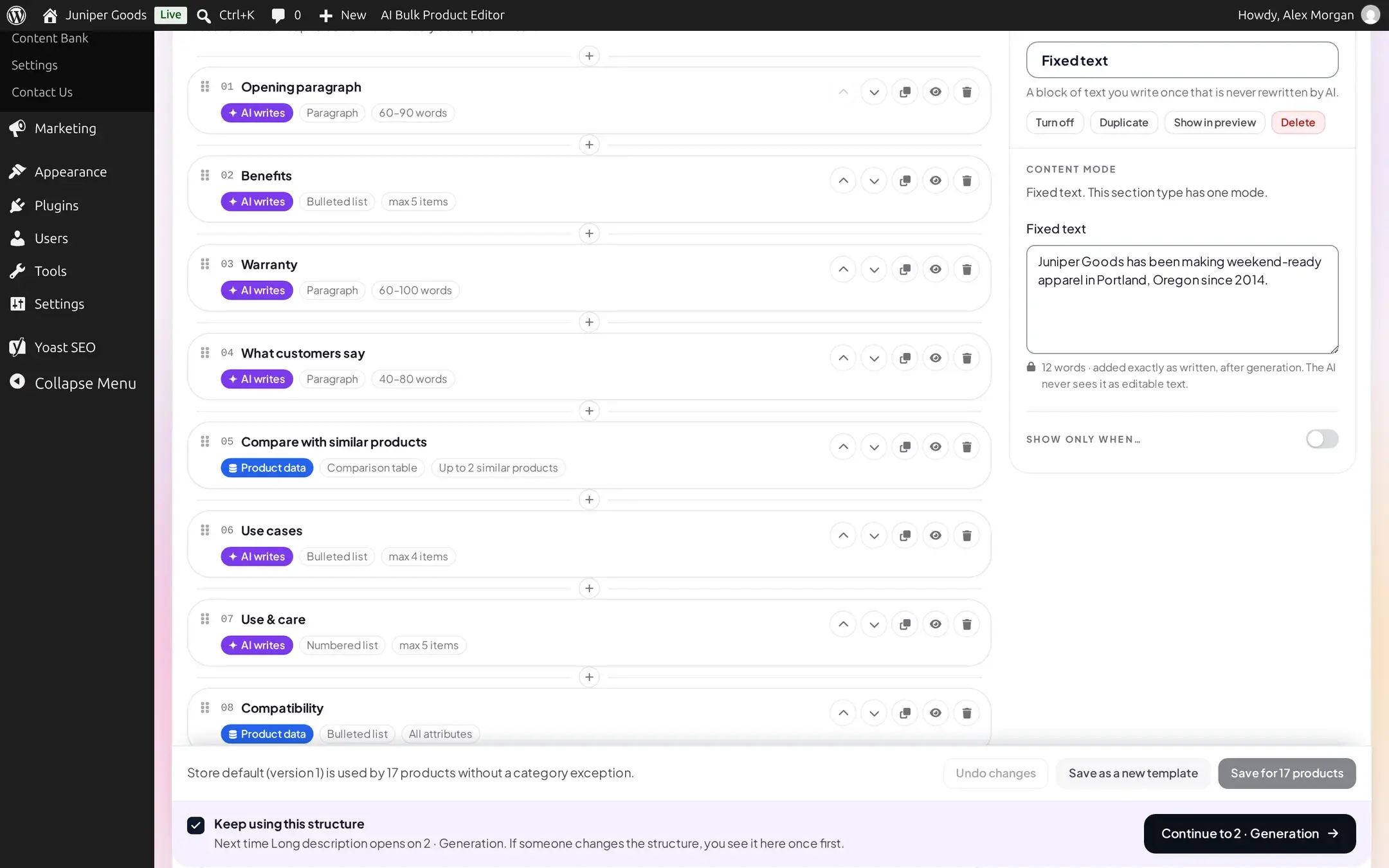
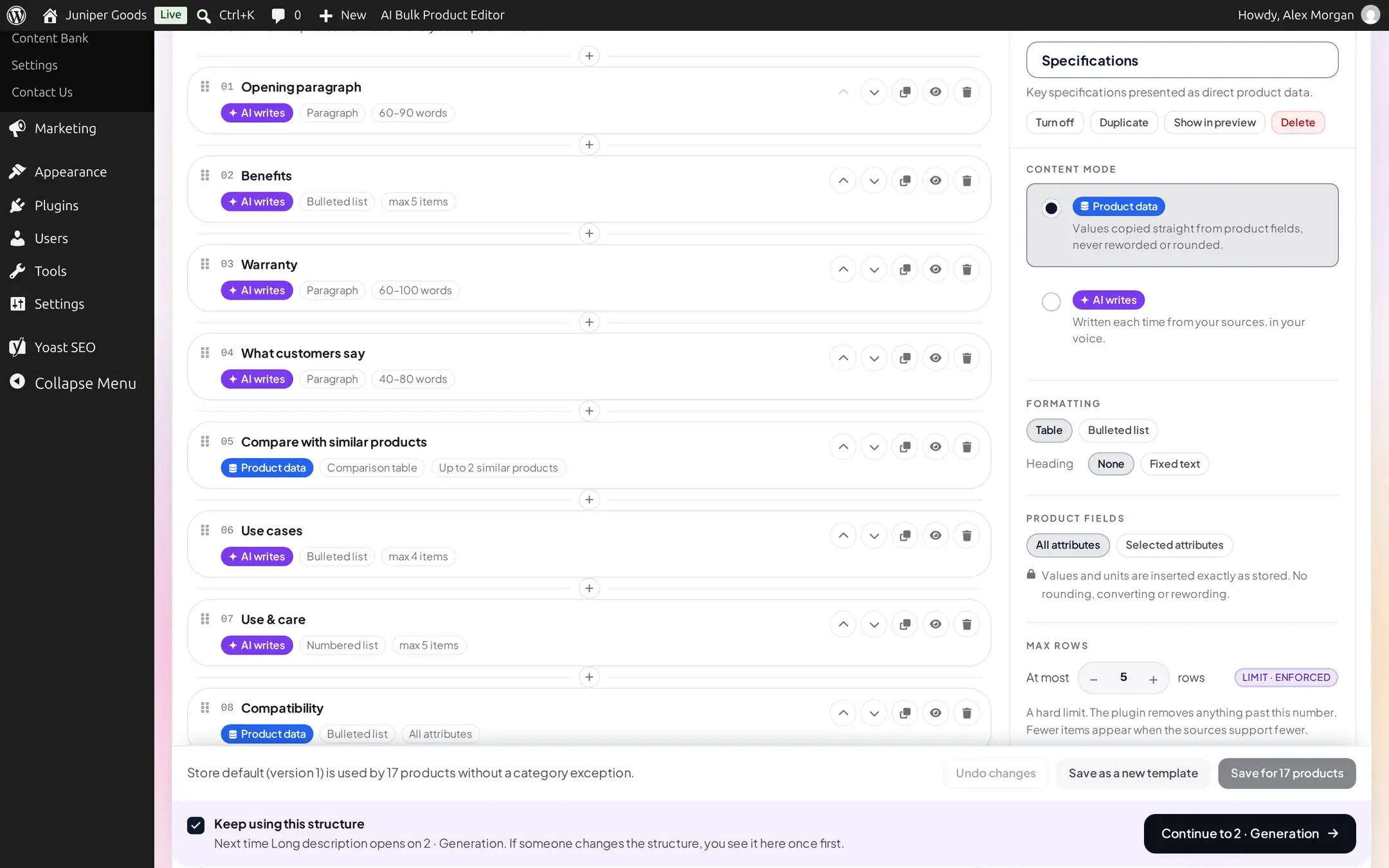
Long description sections
| Section | Default modes | What it produces |
|---|---|---|
| Opening paragraph | AI, Fixed | The first paragraph a shopper reads; states the product's core value. |
| Supporting paragraph | AI, Fixed | A second paragraph on who the product is for, or more supporting detail. |
| Features | AI, Data | A short bulleted or numbered list of standout features. |
| Benefits | AI | A short list of the practical benefits customers get. |
| Specifications | Data, AI | Key specifications as a table or bulleted list, straight from product data. |
| Warranty | AI, Data | Warranty information. Skipped unless warranty data is actually available (a _warranty-style custom field, once allowlisted, or a matching attribute). |
| Fixed text | Fixed only | A block of text you write once. |
| What customers say Business | AI only | A short, balanced AI summary of this product's own approved reviews. See Customer reviews and comparisons. |
| Compare with similar products Business | Data only | A table against up to two similar products from your store. No AI call. See Customer reviews and comparisons. |
| Use cases | AI | Typical situations or ways customers use the product. |
| Use & care | AI, Data | Guidance on using and caring for the product. |
| Compatibility | Data, AI | What the product is compatible with. |
| Summary | AI, Fixed | A short closing summary. |
| Custom section | AI, Fixed, Data | A section you define yourself, with your own focus and format (including a table). |
| Shipping & returns | Fixed, AI | Delivery time, shipping cost and how to return the product. |
| Call to action | AI, Fixed | A short closing line encouraging the shopper to buy. |
A structure holds up to 20 sections, and "What customers say" plus "Compare with similar products" only ever appear by adding them yourself; no starter template includes them.
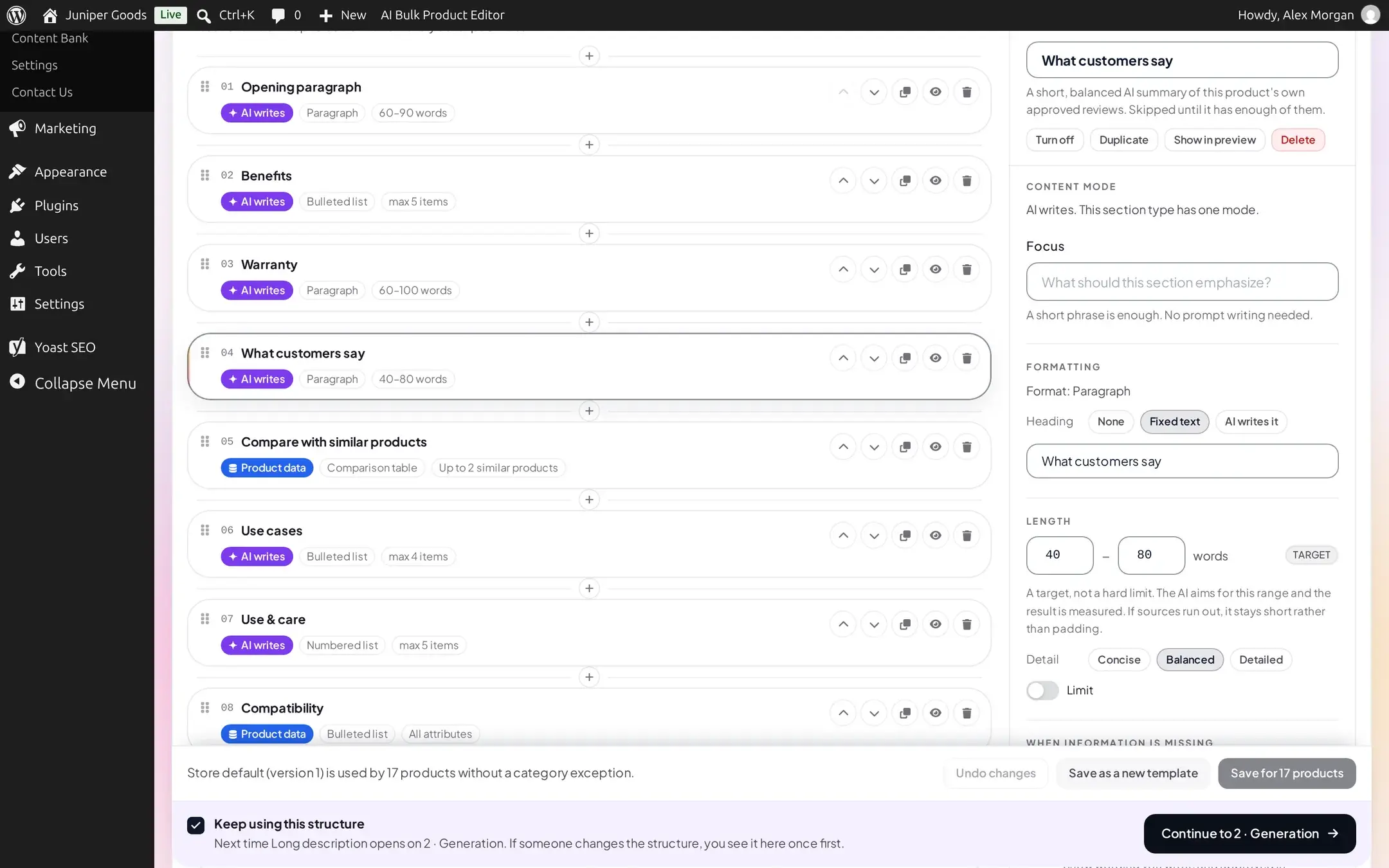
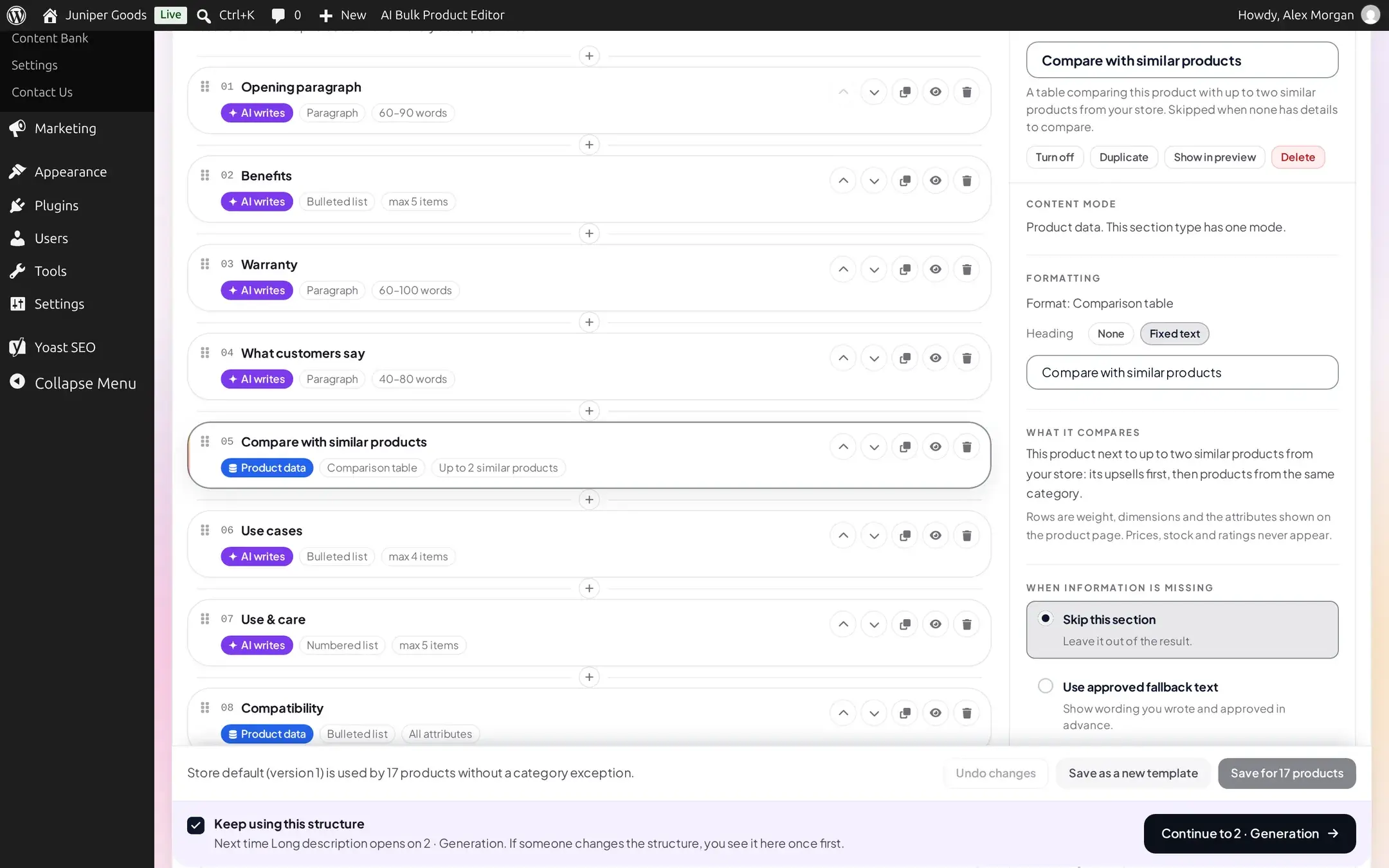
Outside the long description itself, a Companions panel sets the short description (a target word range, or a maximum number of bullets) and a Tags, up to cap (maximum 20); these are part of the Description structure but are not sections.
Category description sections
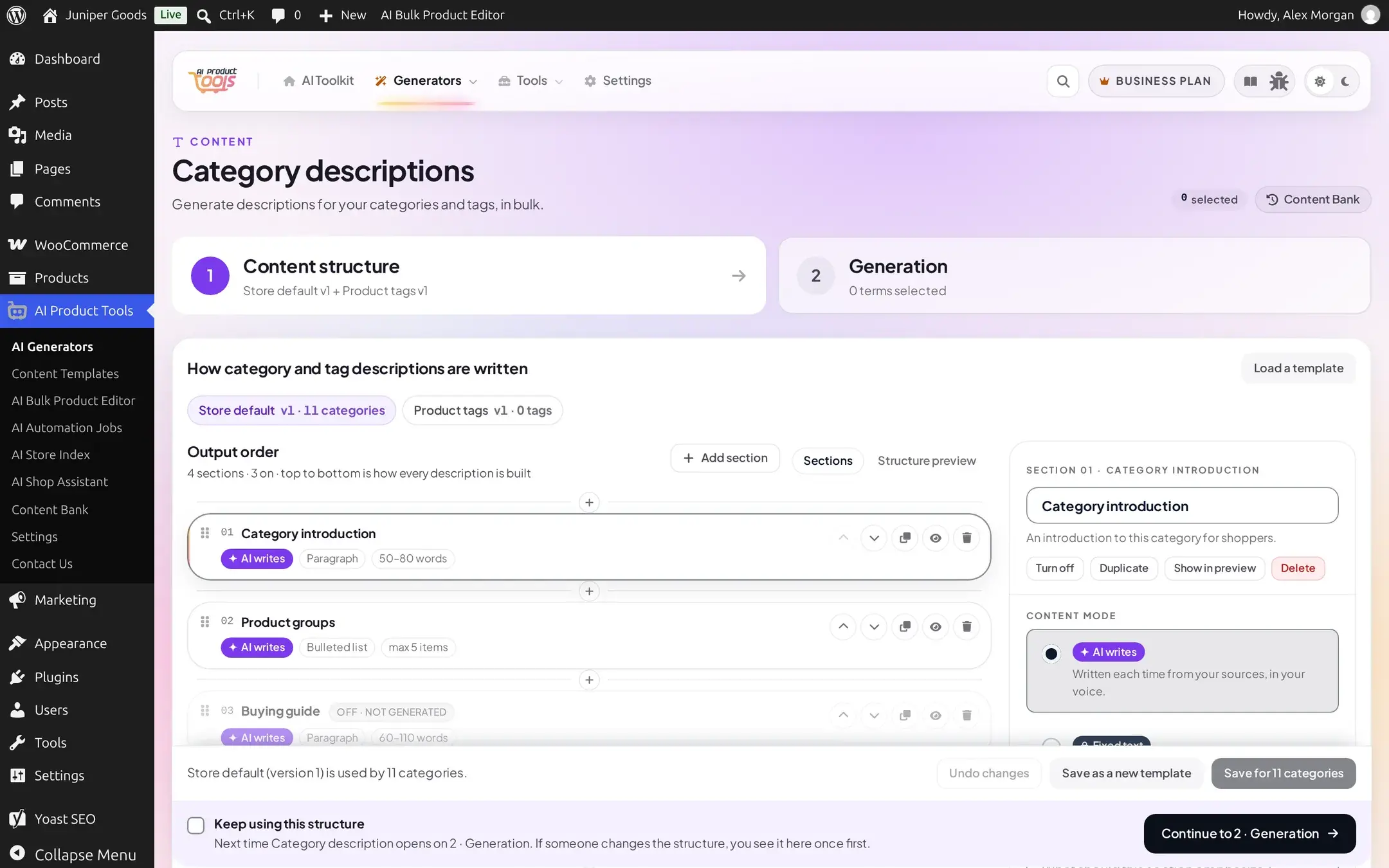
| Section | Default modes | What it produces |
|---|---|---|
| Category introduction | AI, Fixed | An introduction to the category for shoppers. |
| Product groups | AI, Data | The main ways products in this category are grouped. |
| Buying guide | AI | Guidance on how to choose within this category. |
| Closing | Fixed, AI | A closing note for the category page. |
| Fixed text | Fixed only | Shared with the description pool. |
| Custom section Business | AI, Fixed, Data | Shared with the description pool, but adding one to a category description needs Business; Free does not offer it in the section library. |
Product title: a chain of parts
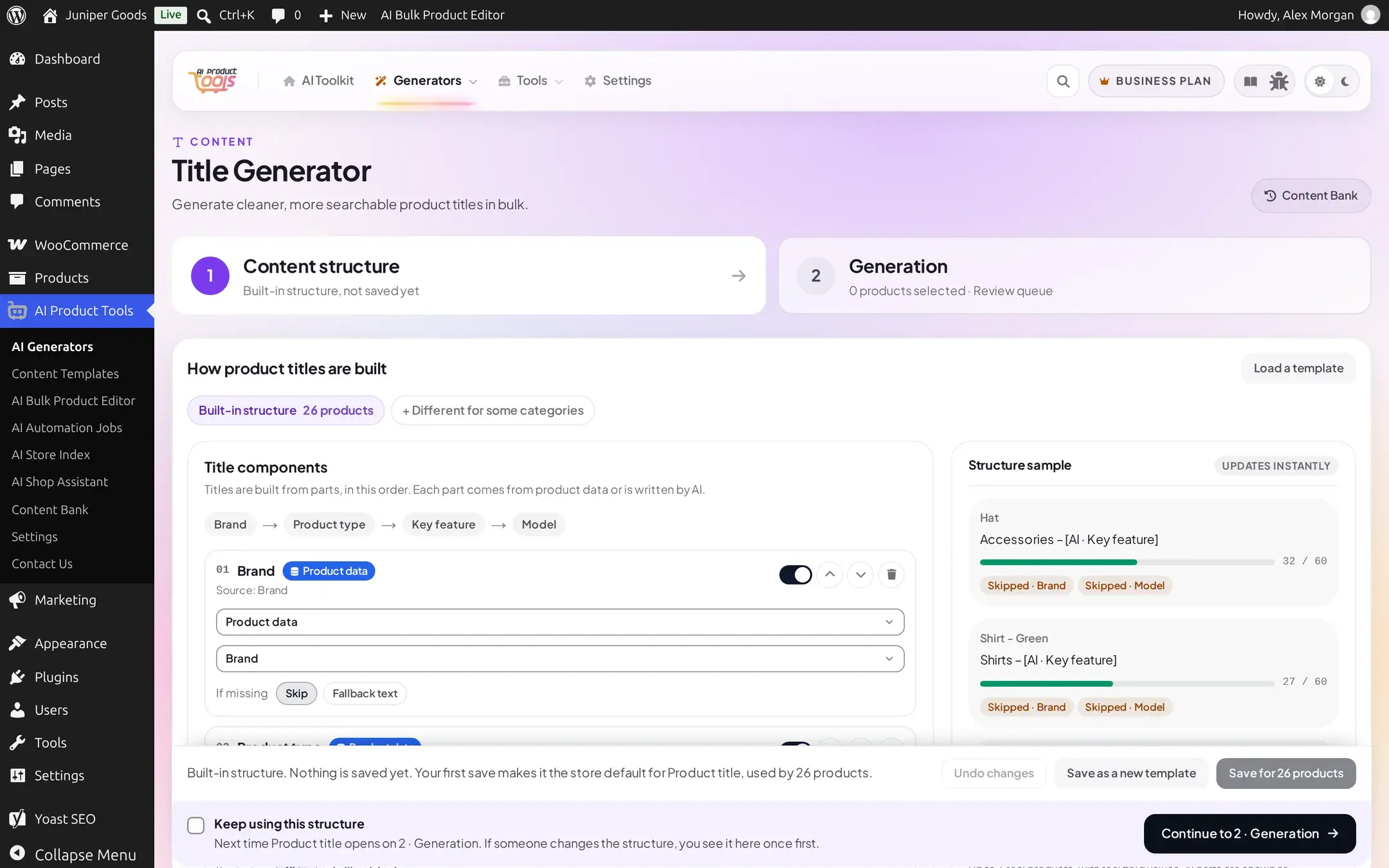
The Title formula is an ordered chain of parts (1 to 10): Brand, Product type, Key feature, Model, Color, Material, Size, Pack, and Custom. Each part is either Product data (pick a source field, with an If missing policy of Skip or Fallback text), Fixed text, or AI writes. Key feature and Custom can only be AI-written; Product type can be Product data or AI writes; every other part (Brand, Model, Color, Material, Size, Pack) is Product data or Fixed text only.
Store-wide settings alongside the chain: Separator (Dash, Pipe, Comma or Space), Character limit (30 to 200), When too long, remove first (pick a part, or None), up to 10 keywords the AI works into the parts it writes Business, Remove repeated words, Avoid ALL CAPS (brand names and short abbreviations such as USB are kept as written), and Do not show the SKU (flags the title for review if it shows the SKU).
SEO meta: two independent token builders
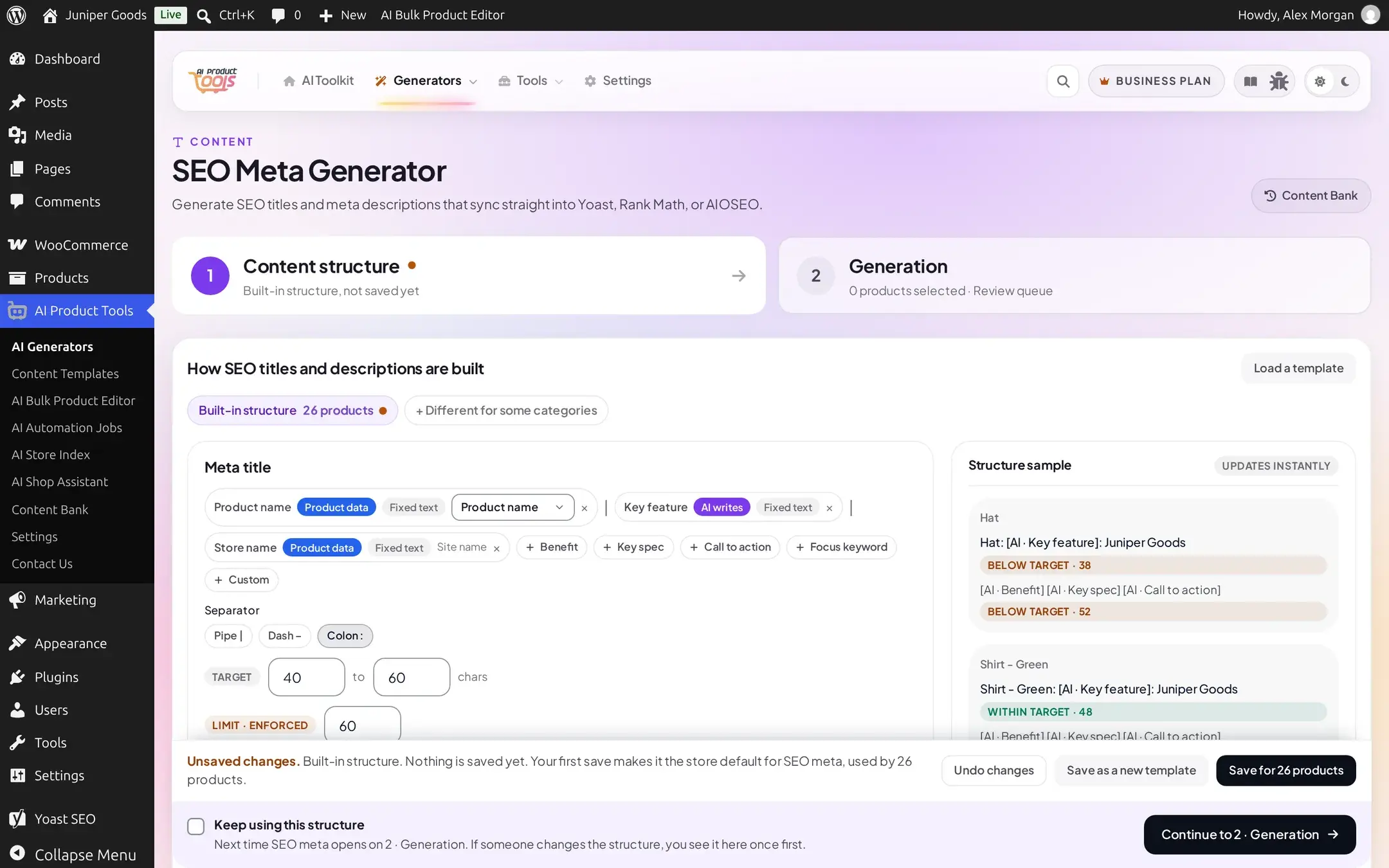
Meta title and Meta description are each built from an ordered row of tokens you add from a palette: Product name, Key feature, Store name, Benefit, Key spec, Call to action, Focus keyword, and Custom, each token either AI-written or fixed text. A Separator (Pipe, Dash or Colon) joins the title's tokens. Both rows have their own Target character range and a hard Limit · Enforced.
A Keyword selector decides the focus keyword's source: Focus keyword field, Product name, Generate with AI Business, or No keyword. The live sample badges each sample product's title and description Within target, Below target or Above target as you edit.
FAQ: question groups
An ordered list of question groups (1 to 6), each with a name and topic, a questions count (1 to 20), an answers up to word target (up to 400, hard limit 800), its own Condition, source choice, and a per-group Additional instruction. A store-wide Write mode picks Questions and answers, Questions only, or Answers only. A single At most this many questions per product cap (1 to 20) applies across every group's total, with a running total and a warning when groups ask for more than the cap allows ("Later groups are trimmed first."). A read-only line shows whether FAQPage schema markup is on, linking to Settings' FAQ display tab.
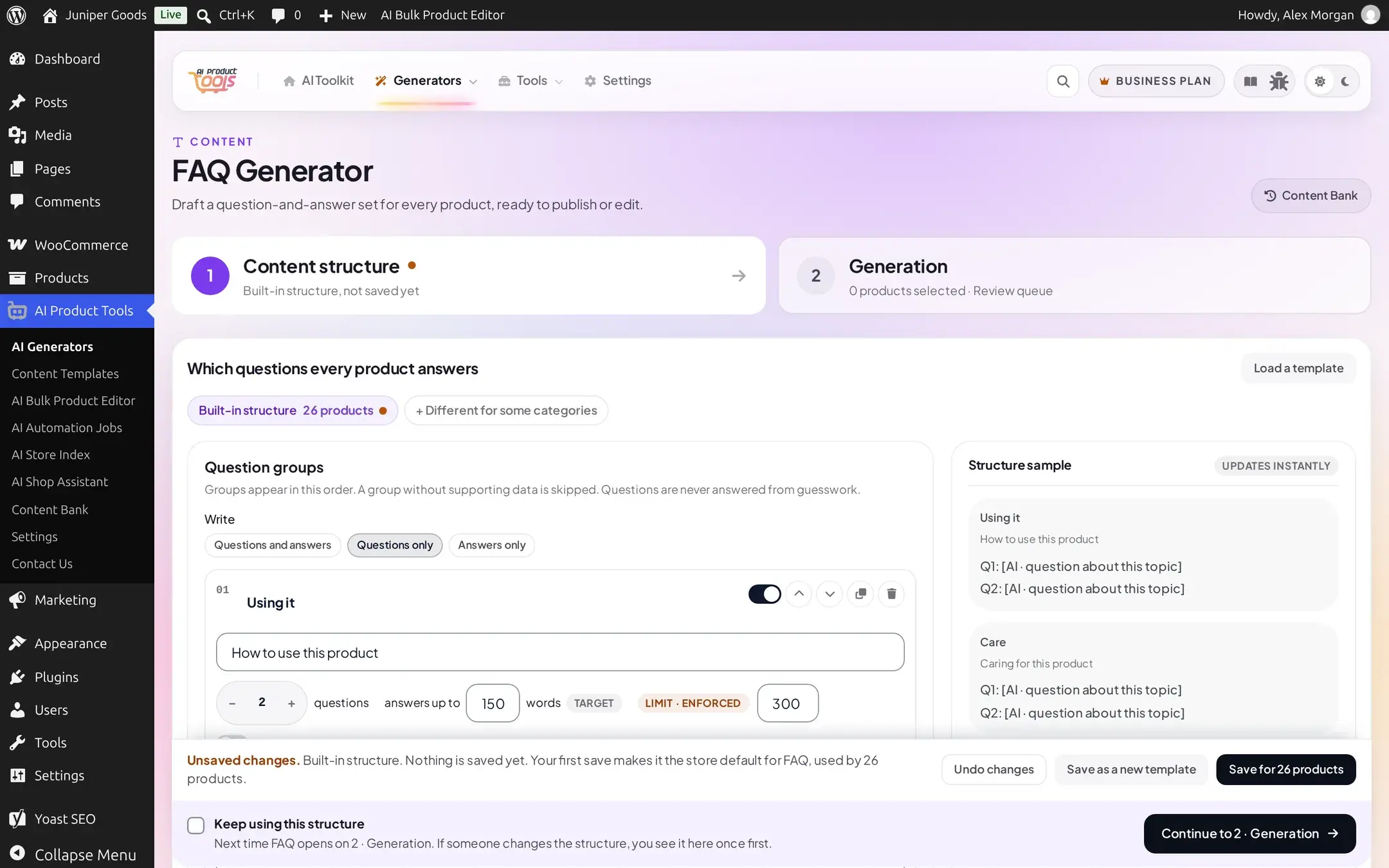
Image alt text: rules over a chain
What the AI knows about each image: either Product data only (name, attributes on Business, and the image's position in the gallery) or Analyse each image (a vision call per image; disabled when the configured AI model has no image support). A character limit (40 to 250). Five rules, each a simple switch: never start with "image of" or "picture of"; use the keyword at most once; vary wording across gallery images; include colour from attributes Business; include the product name. An Additional instruction is Business for text you write yourself, though a starter template's own built-in instruction still runs on every plan.
A note on this page's screenshots
The Bulk Image Alt Generator's own content-structure tab could not be captured cleanly in this demo environment (a rendering defect in that page, reported separately). Its fields above are documented from the plugin's source and confirmed directly in a live, unscreenshotted session; every other field on this page was verified against a working screenshot.
Seeing real output
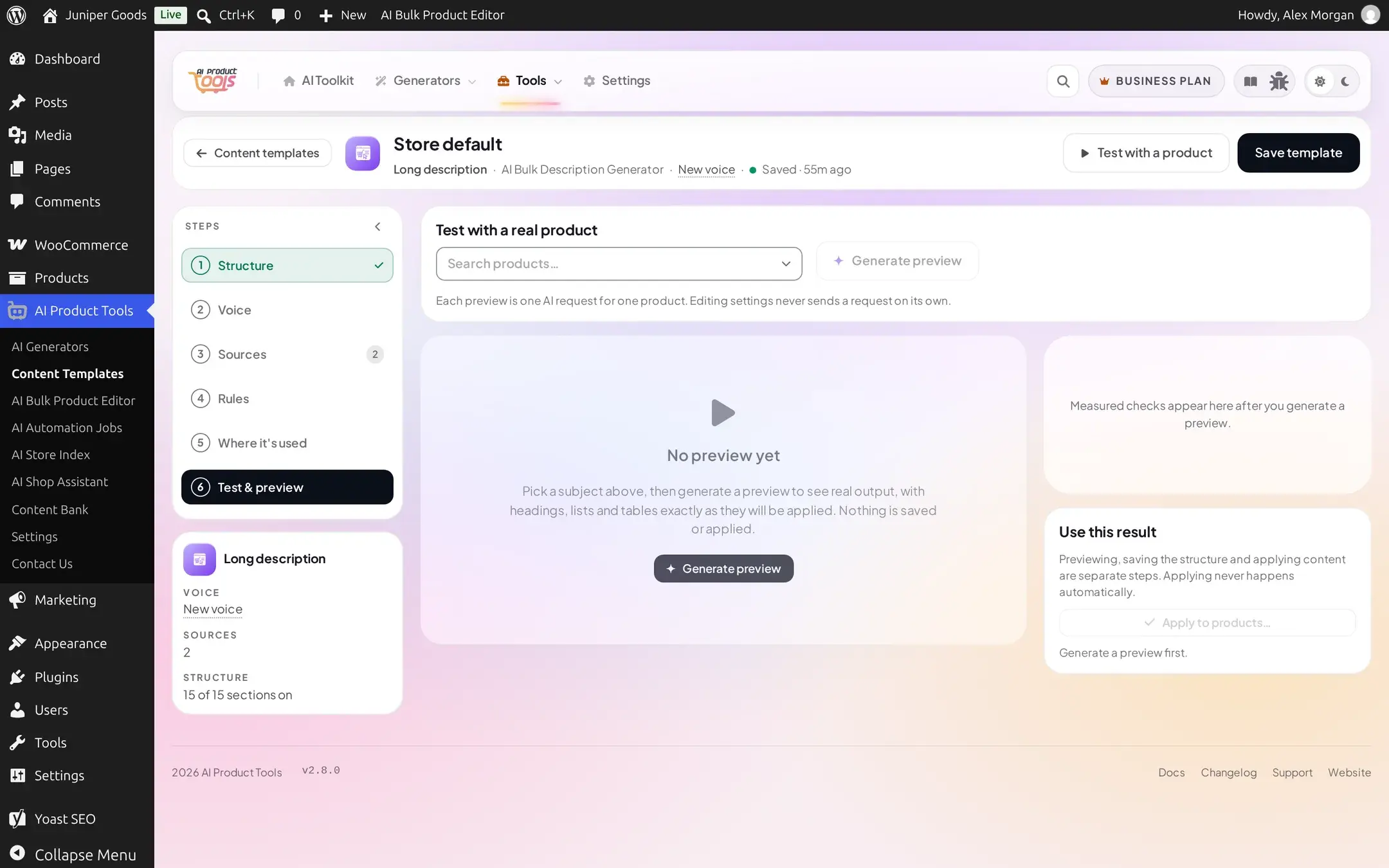
The fastest way to see what a structure actually produces is Try it on a product (inline, tab 1) or the full Test & preview step in Content Templates: pick a real product, generate once, and read the result section by section before anything is saved to the product.
Free vs Business
| Capability | Free | Business |
|---|---|---|
| "What customers say" / "Compare with similar products" sections | Not offered | Available |
| Category description: Custom section | Not offered in the section library | Available |
| Title: up to 10 AI keywords | Not available | Available |
| SEO meta: hard length ceiling | 60 / 160 characters | Up to the schema maximum, 300 / 500 characters |
| SEO meta: "Generate with AI" keyword, variant count | Keyword forced to the focus keyword field; capped at 2 variants | AI-generated keyword; more variants |
| FAQ: advanced Write modes and extra sources (tags, categories, attributes) | Default mode and core sources only | Full |
| Image alt: "Include colour from attributes" | Off | On |
A structure saved while on Business keeps every one of these settings if you later move to Free; the clamped behavior only applies at run time, and the editor shows a plan badge instead of hiding your own choice. The SEO meta clamp is silent unless it actually changes something on a run, in which case it adds the note: "This structure asked for a longer SEO title/description, or an AI-generated focus keyword, which requires an upgraded plan. The free limits were used instead."