
Monitoring Jobs
Reading job statuses, progress, logs, and per-product results, and the actions that control a running or stuck job.
Everything about a job after you create it lives on the same AI Product Tools > AI Automation Jobs page, including the one you just saved. This page covers the list, a job's own detail, its logs, and the actions that pause, resume, retry, or remove it.
The job list
Every job you have, across every status, appears in one table: name, tool, status, progress, created date, and next run.
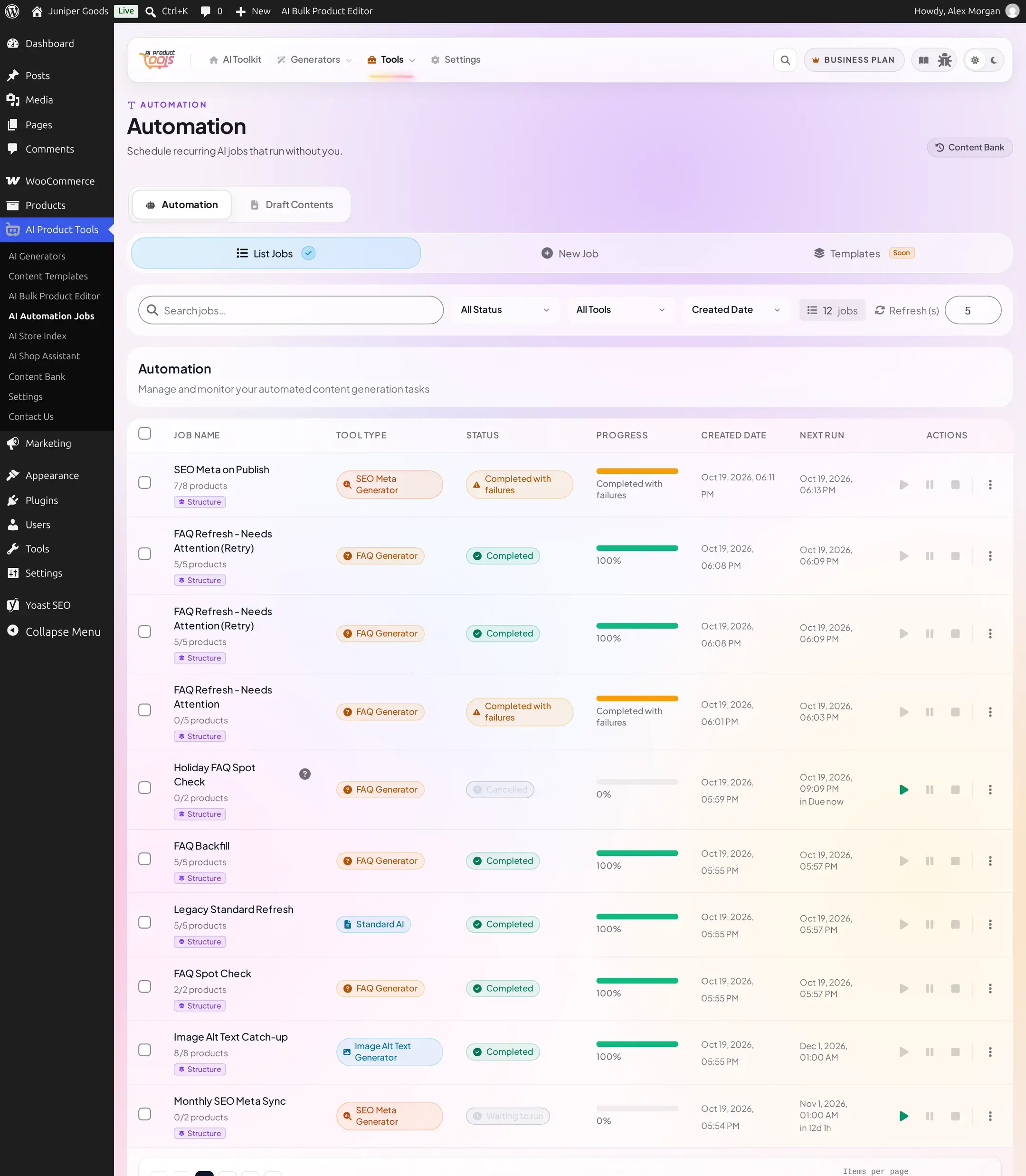
Statuses
| Status | Meaning |
|---|---|
| Preparing | Just created or triggered; the plugin is still building its product pool. Normally takes well under a minute. |
| Waiting to run | Pool built, waiting for its scheduled or triggered start. |
| Scheduled | A recurring or future one-time job that has not reached its next run yet. |
| Running | Actively processing products right now. |
| Paused | Stopped by you, or automatically after a provider problem (see Reviewing output and staying safe). Resume to continue from where it left off. |
| Completed | Every product reached a final result and none failed. |
| Completed with failures | Finished, but one or more products failed; the row's progress bar turns amber and names the failure count. |
| Cancelled | Stopped mid-run with Stop and never resumed. |
| Failed | The job itself could not continue (for example, it went 30 minutes with no progress). |

WP-Cron health banners
Automation runs entirely on WP-Cron, so the list page watches for two different signs of trouble:

- Confirmed: shown only when
DISABLE_WP_CRONis set totrueinwp-config.php. The banner names the fix directly: set it back tofalse, or configure a real server cron hittingwp-cron.php. - Heuristic: shown instead, only when the confirmed case does not apply, if a job that should already be running shows no sign of having started more than 2 minutes past its due time. This is not proof of a server problem, since WP-Cron only fires on incoming site traffic and a quiet site can delay it on its own; the banner offers "Run jobs in this browser now", which polls from your open tab as a stopgap while you leave it open.
Neither banner changing color or disappearing is itself proof a job is now running; check the job's own row. See Background jobs for the full WP-Cron diagnosis, including your host's cron setup.
A third, separate surface can also appear on this page: if WP-Cron is confirmed disabled (the same condition as the banner above) while any job is still active, pending, scheduled, preparing, or running, a "Background Processing Required" dialog pops up on its own, without you clicking anything.
A job's own detail
Click anywhere on a job's row (its name, status, or dates, just not the checkbox or the actions on the right) to expand its detail inline, right below the row.
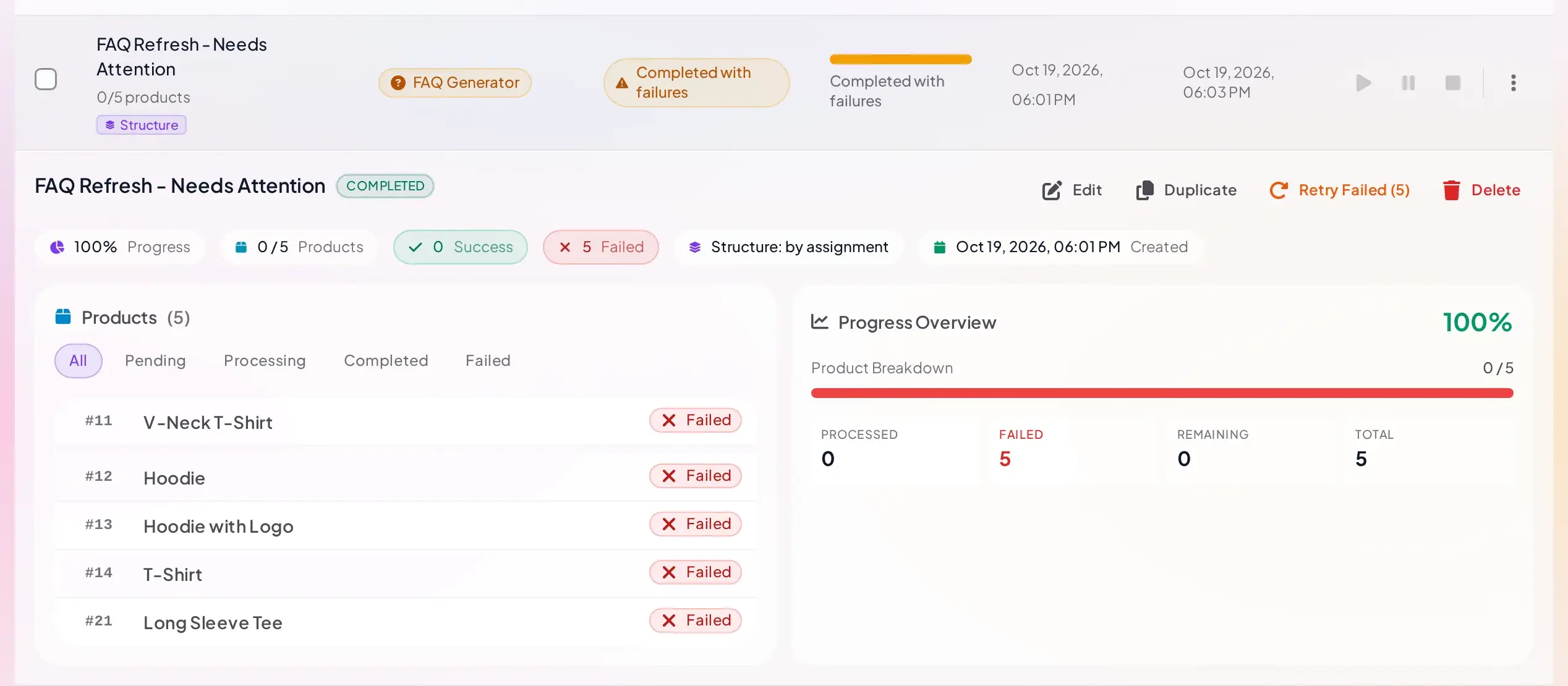
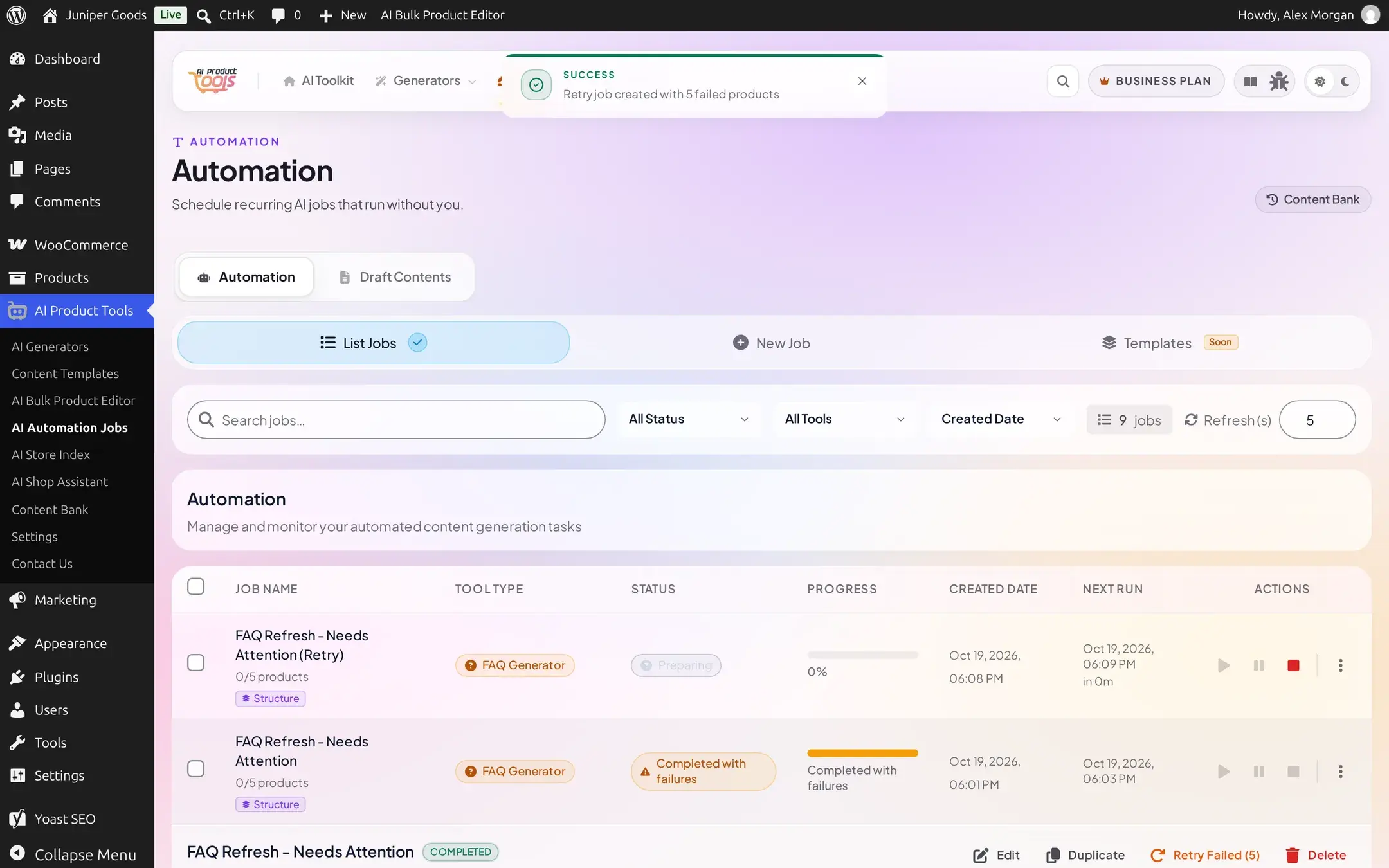
The stat row repeats progress, product count, success, and failure counts; Edit, Duplicate (creates a copy named after the original with " (Copy)" added), and Delete sit to the right. A Retry Failed (n) button, where n is the failed count, appears once the job has at least one failed product; it creates a brand new job targeting only the products that failed, rather than re-running the original.
Per-product results
The Products panel lists every product the job touched or will touch, with filter chips for All, Pending, Processing, Completed, and Failed.
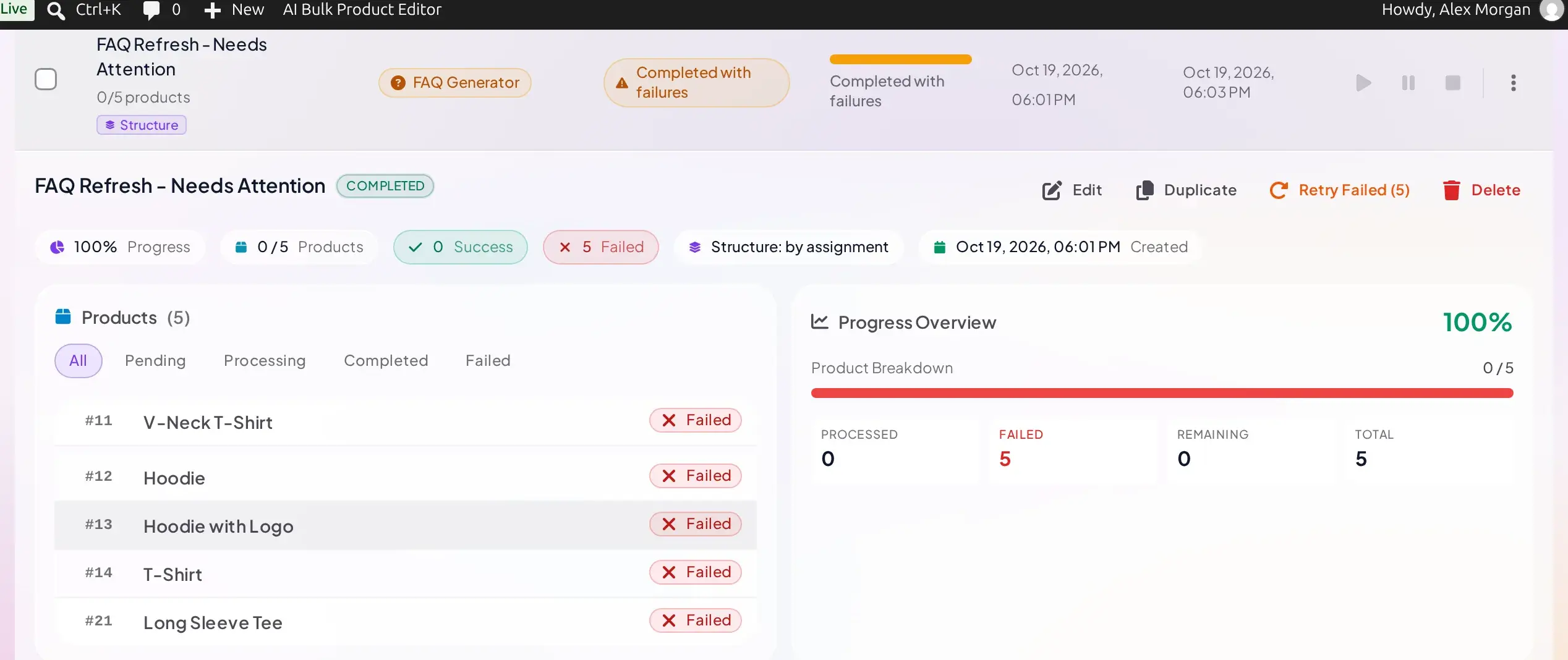
A product that keeps failing with the identical message across every attempt points to a real, ongoing provider problem (a bad key, no quota, a retired model), not a fluke; see Provider errors for what each exact message means.
Logs
Open View Logs (from the row's More actions menu, shown below) for a complete, timestamped run log.
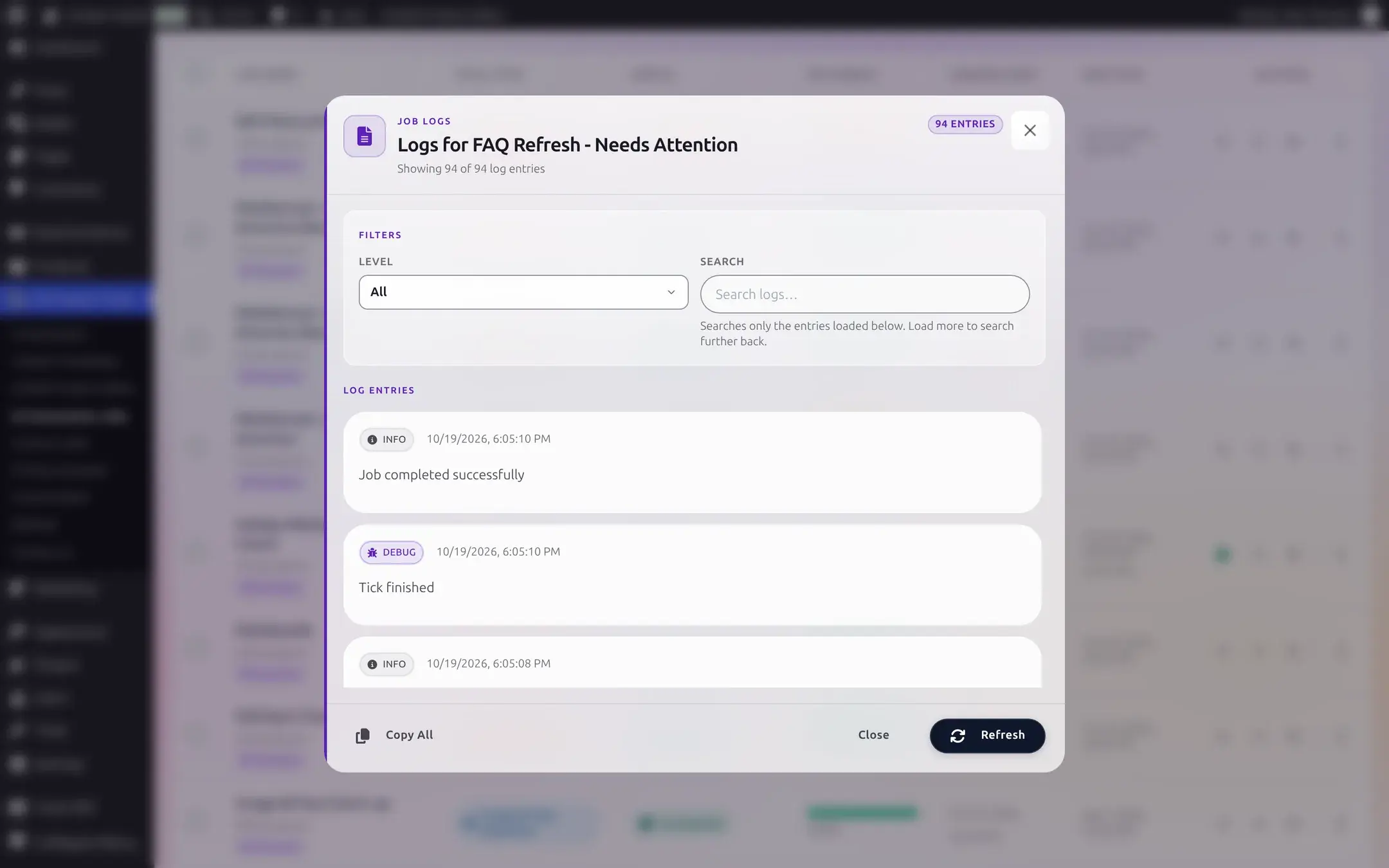
Logs are kept for 30 days by default and then pruned automatically; each entry is capped at 4 KB of message text, so copy anything you need before it ages out.
Controlling a job
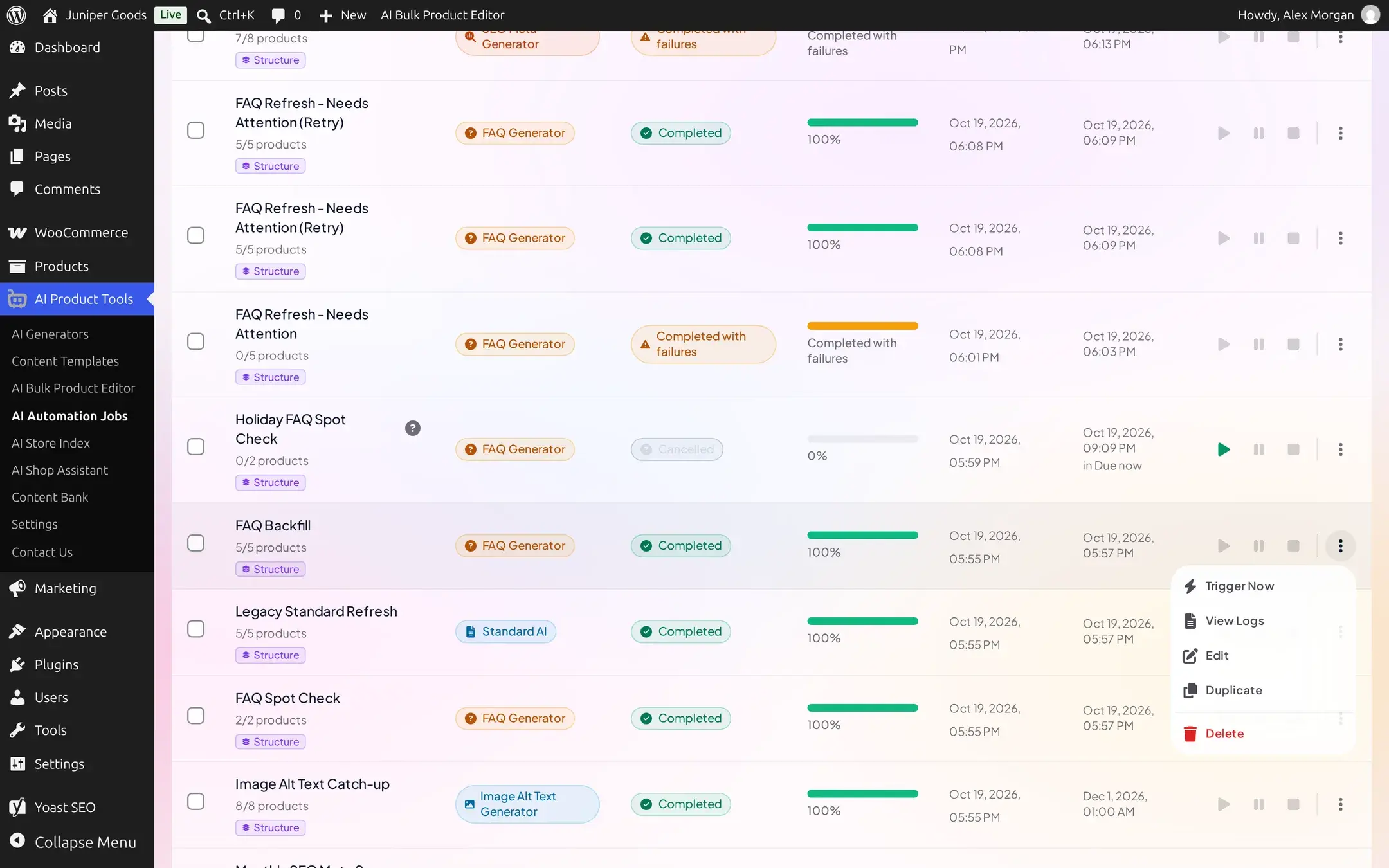
| Action | What it does |
|---|---|
| Start / Resume | Starts a scheduled job immediately, or continues a paused one from where it stopped. |
| Pause | Stops a running job after its current item; resume it later with no data lost. |
| Stop | Ends a running or preparing job for good; it shows as Cancelled. |
| Run Now / Trigger Now | Forces an immediate run of a job that is due later, without changing its saved schedule. |
| Edit | Reopens the wizard on this job's saved settings. |
| Duplicate | Creates a copy with the same settings, named after the original with " (Copy)" added. |
| Delete | Removes the job; a bulk "Delete Jobs" option covers several at once. |
Stopping a job is immediate and does not ask you to confirm which products to keep: whatever had already been written stays written, and whatever had not started is simply never attempted.

A new job does not start the instant you create it, and neither does a manual Run Now or Trigger Now: a brand new or recurring-cycle job schedules its first tick about 10 seconds out, while a manual Run Now or Trigger Now schedules its tick about 5 seconds out. Either way, each tick processes up to 10 products in roughly 25 seconds before scheduling the next one 2 seconds later. At most 3 jobs run at the same time site-wide; any more wait their turn in Waiting to run.
Troubleshooting
Filters and Schedules
Every schedule type, automatic trigger, and product filter a job can use, with what Free and Business unlock.
Reviewing Output and Staying Safe
Stage for Review versus Replace Live Content, where staged results go, and what happens automatically when a job's AI provider keeps failing.