
OpenRouter
Connect OpenRouter for one key and dozens of models, including free models and any custom model ID.
OpenRouter proxies dozens of models from many labs behind a single API key and a single bill, and it is the only provider where you can add a model the plugin does not already list, by typing its OpenRouter model ID directly.
Before you start
You need a WordPress account that can reach AI Product Tools > Settings (an administrator, or a Shop Manager who was given access, see Connection settings) and an OpenRouter account.
Create an API key on OpenRouter
- Sign in (or sign up) at openrouter.ai.
- Open Keys (
openrouter.ai/keys). - Click Create Key, name it, and copy the value shown.
Add credit (only if you plan to use paid models)
OpenRouter's free models (see Free models below) need no credit at all. For paid models:
- Open Credits in your OpenRouter dashboard.
- Add a balance. OpenRouter bills against this balance per request rather than a monthly subscription.
- Optionally set a per-key spend limit when creating the key, as a backstop against an unexpectedly large bulk run.
Connect the key in the plugin
- Go to AI Product Tools > Settings, open the Connection card.
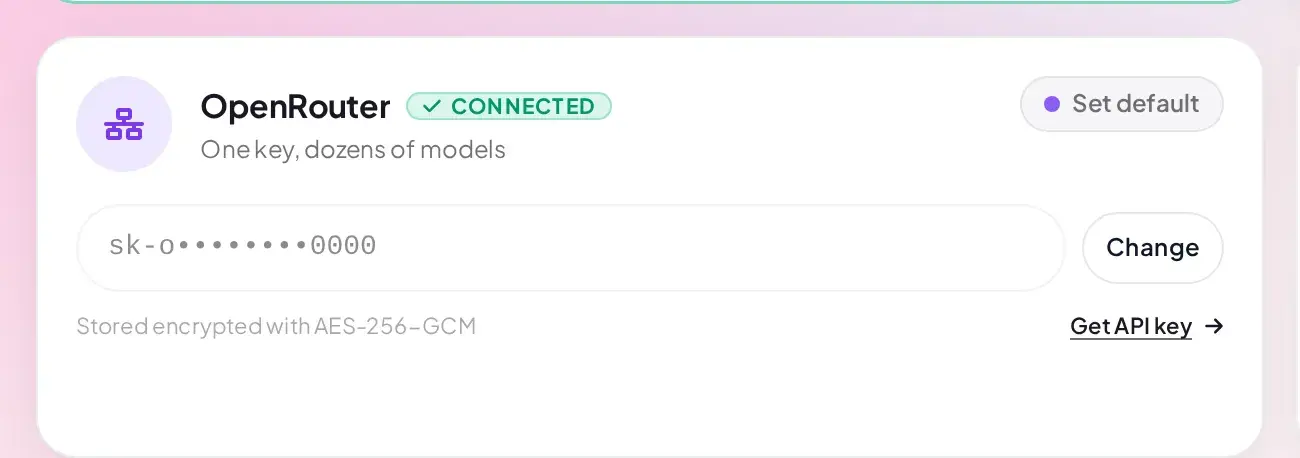
- Paste the key into the OpenRouter card's field (it expects the
sk-or-...format; a key under 20 characters is rejected immediately as too short to be real, before it is even sent to OpenRouter). - Click Save Settings.
Ignore a "Configure in Connectors" link on this card
OpenRouter has no WordPress Connector (see WordPress AI Connectors), so it never actually stores a key there. If OpenRouter's card shows a Configure in Connectors link instead of Get API key, that link opens a WordPress screen with nothing to configure for OpenRouter. Paste the key directly into this card instead; it is the only place OpenRouter's key lives.
Models
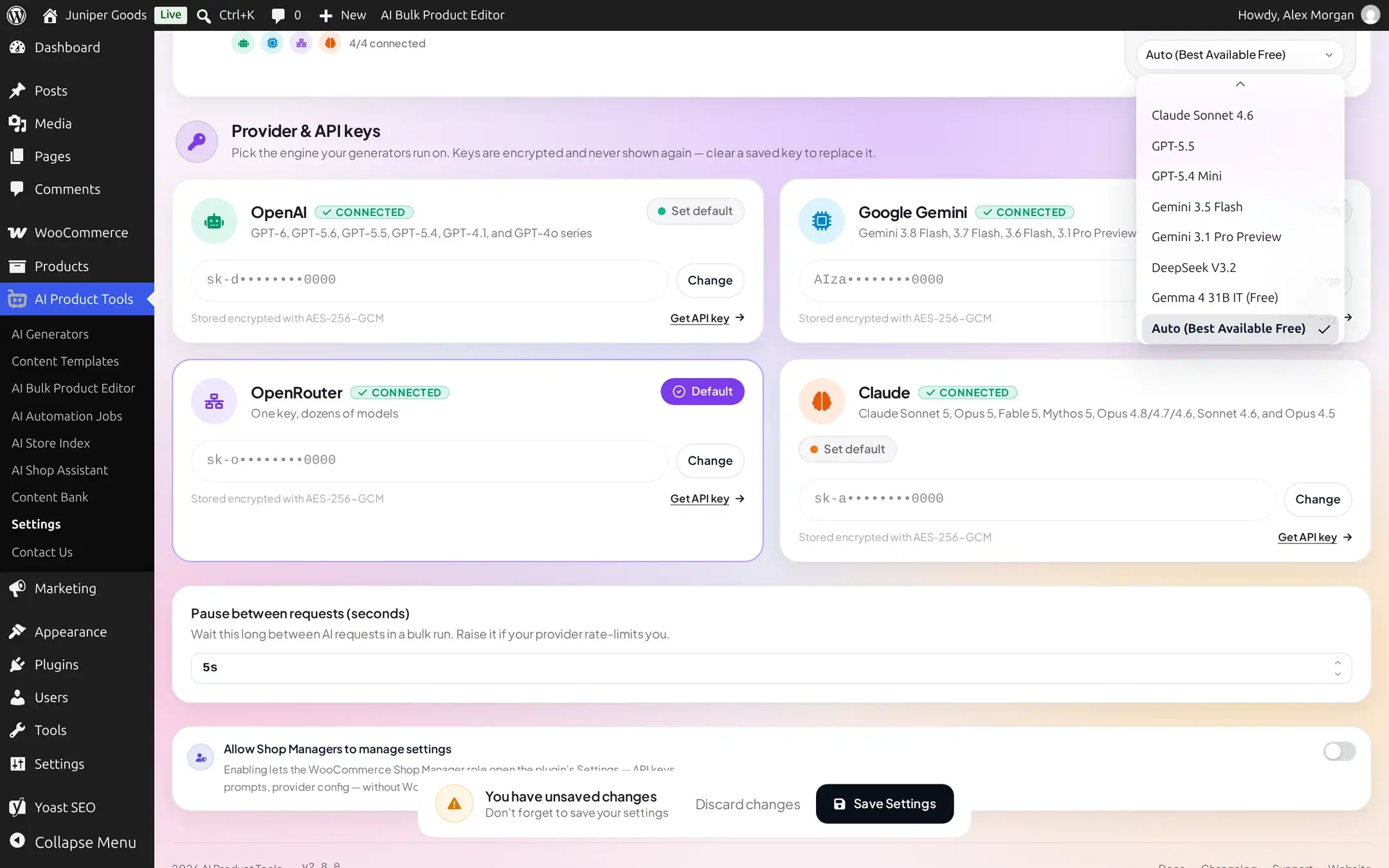
Settings lists OpenRouter's models in one group, Available models, built from a bundled list plus any custom model you have added in your browser (see below). The shipped default is Auto (Best Available Free).
Free models
Two entries in the bundled list cost nothing to run:
- Auto (Best Available Free), the default, which always routes your request to a working free-tier model without you having to track which one is currently available.
- Gemma 4 31B IT (Free), a specific no-cost model if you want a stable choice instead of Auto's routing.
Every other bundled entry (Claude, GPT, Gemini and DeepSeek models reached through OpenRouter) is billed by OpenRouter per request, at OpenRouter's published rate for that model, deducted from the credit balance on your OpenRouter account.
Adding a custom OpenRouter model
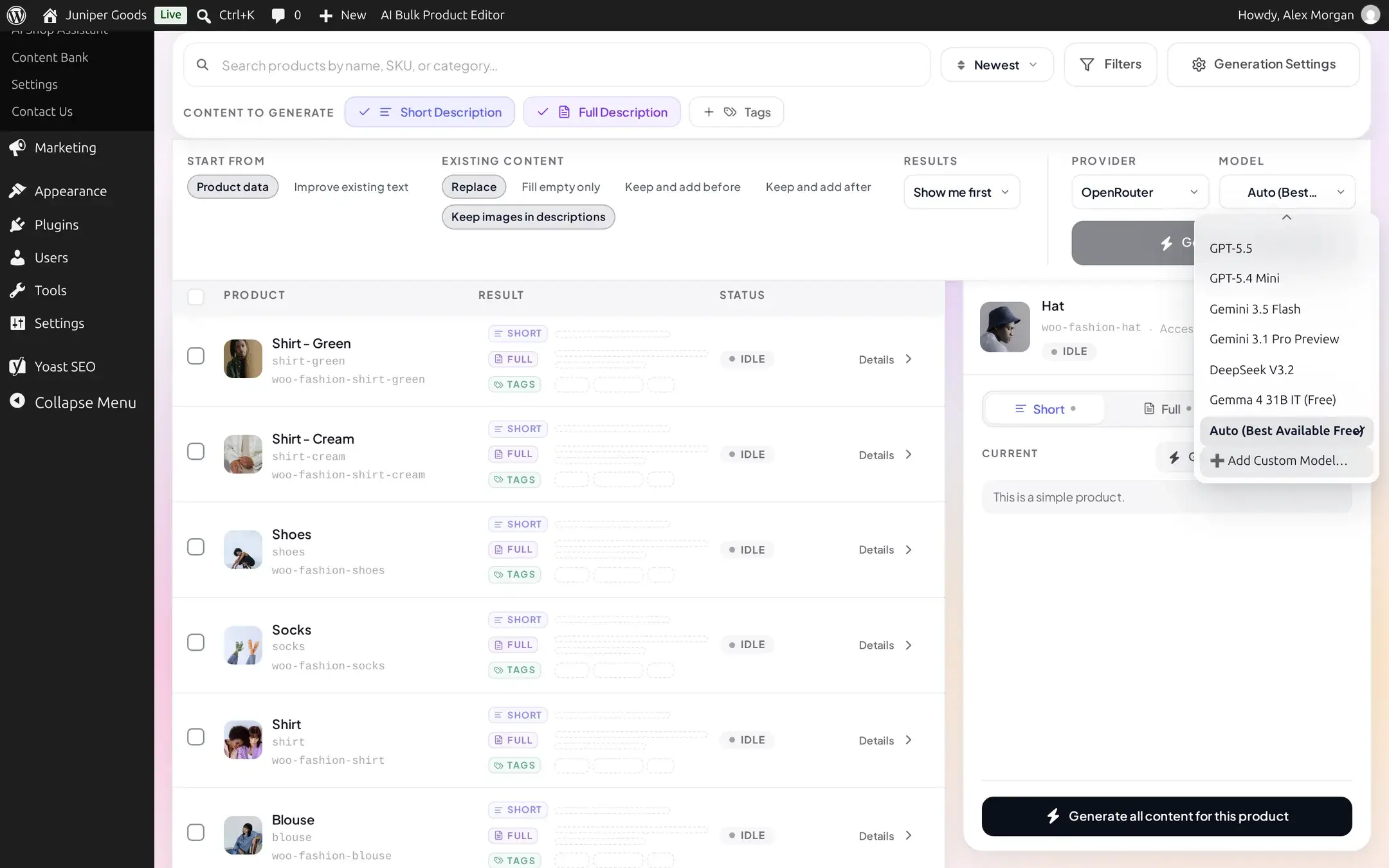
If a model you want is not in the bundled list, add it by its OpenRouter model ID directly from any generator's toolbar while OpenRouter is the active provider for that screen (the Settings page itself has no "add model" control; only a generator's own Provider/Model picker does).
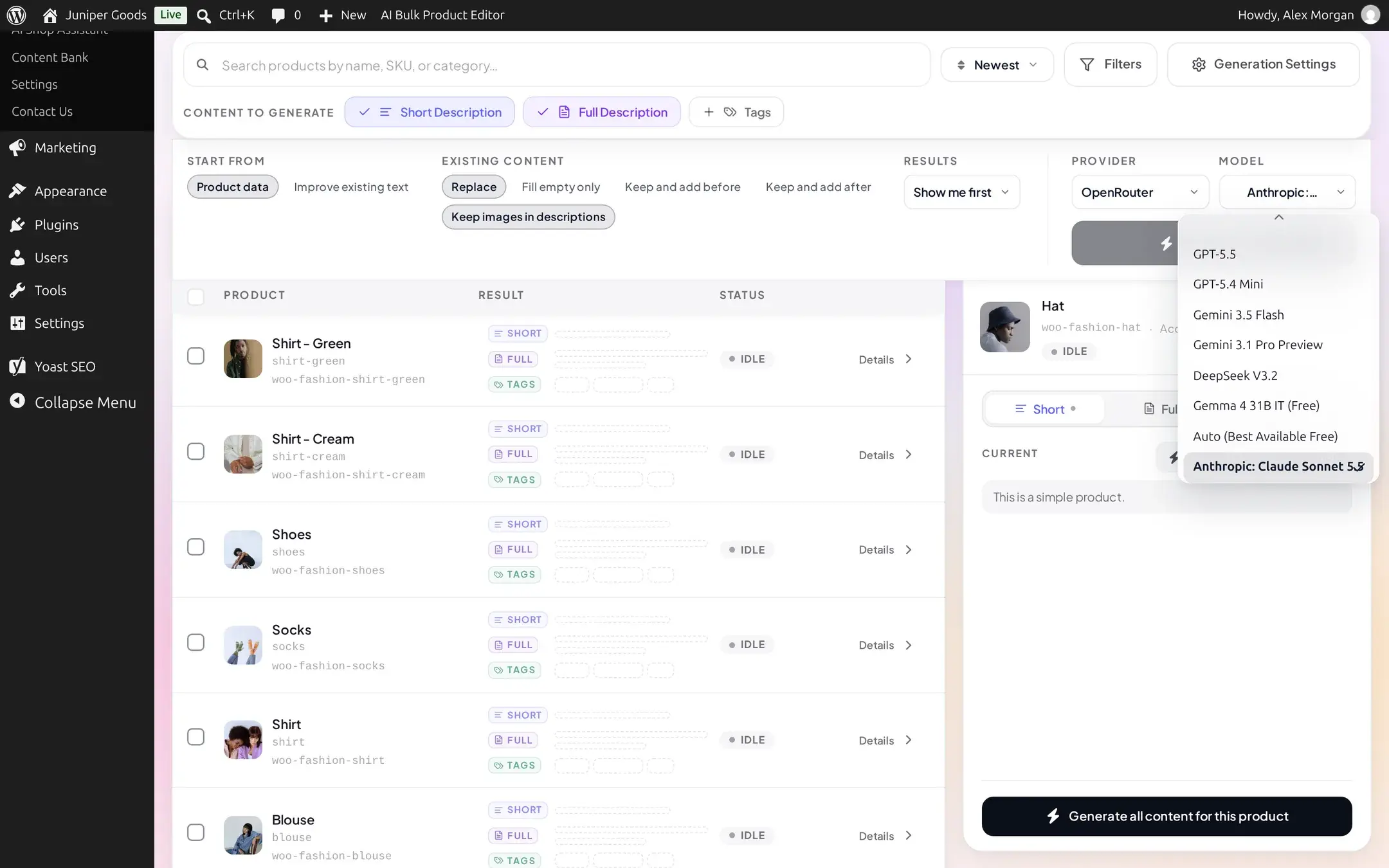
Open the model picker and choose Add Custom Model
With Provider set to OpenRouter, open the Model dropdown on a generator's own toolbar and choose Add Custom Model:
Choosing it opens a dialog for the new model's details:
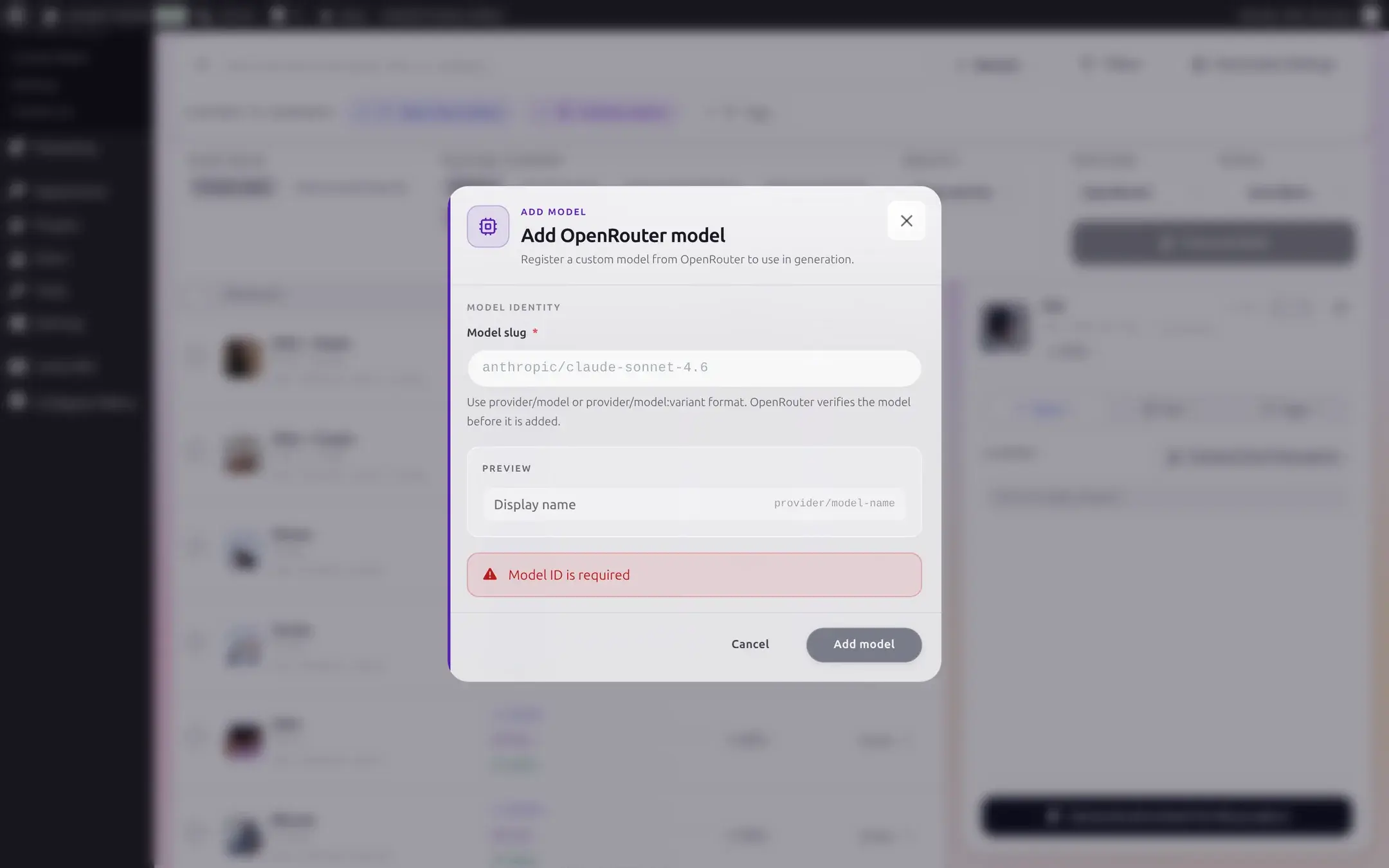
Enter the model's slug
Type the model ID in provider/model form, for example anthropic/claude-sonnet-4.6, or provider/model:variant if the model has a variant suffix. You can find a model's exact ID on OpenRouter's own model listing.
The plugin verifies the ID against OpenRouter's live catalog before adding it. A slug that does not exist on OpenRouter is rejected, not guessed at or silently accepted:
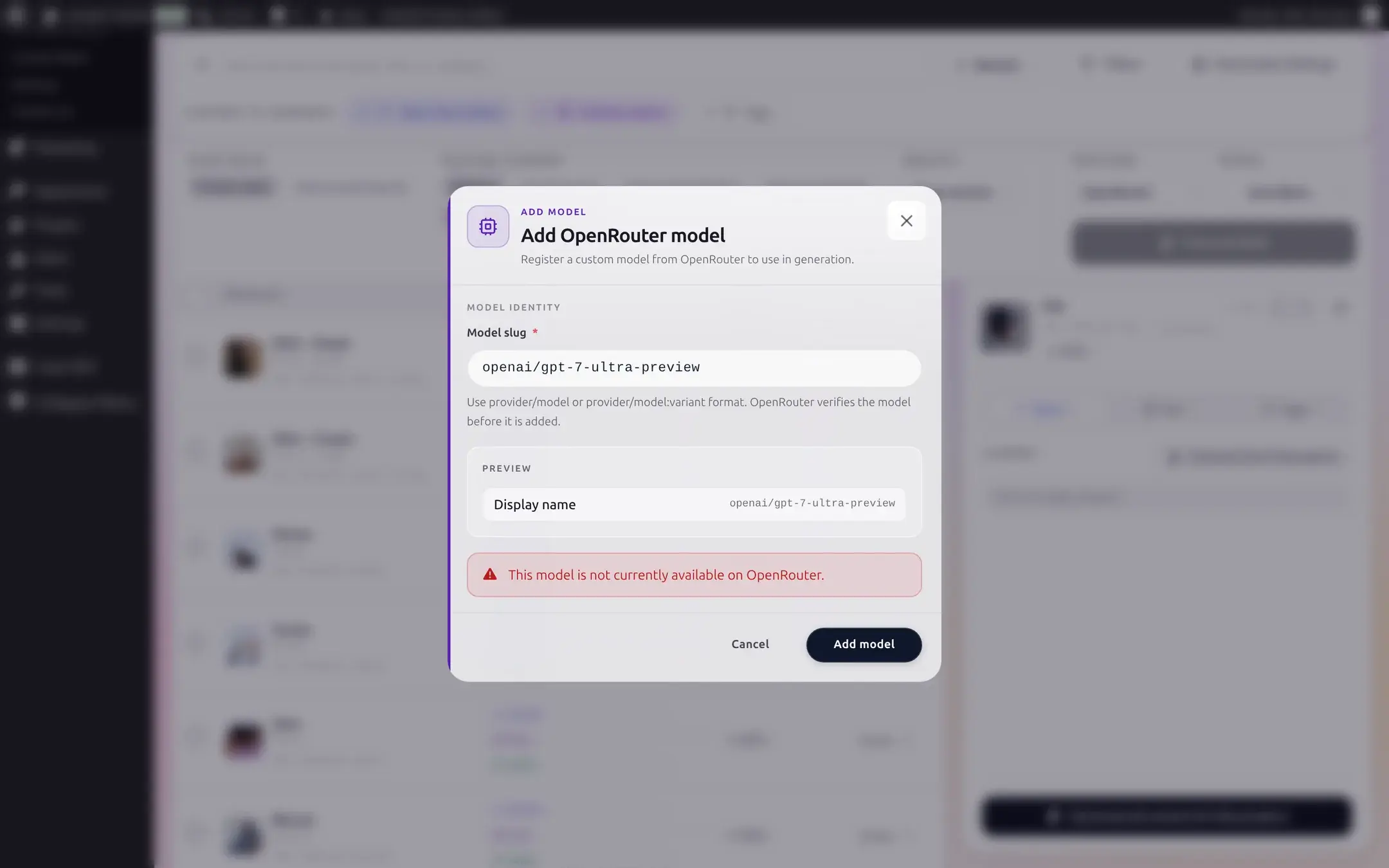
If OpenRouter's own catalog endpoint is briefly unreachable instead, you see "OpenRouter model validation is temporarily unavailable. Please try again." instead, a different message for a different problem: that one means try again shortly, this one means the ID itself is wrong.
Use it
Click Add model. On success the dialog closes and the model is selected immediately, added to that browser's model list for every generator that uses OpenRouter:
Custom models live in your browser, not in Settings
A custom OpenRouter model ID is saved to that browser's local storage, never sent to the server as a setting. It will not appear on another device or browser, and clearing your browser's site data removes it. This is expected, not a bug: re-add it the same way if it disappears.
Managing your key
- The key field is write-once: once saved, it shows a masked preview (
sk-o••••••••0000) with a Change button instead of the real value. - Click Change to replace it, then Save Settings to commit, or Cancel to restore the previous masked state.
- Leaving the field empty and saving removes the key entirely.
Free vs Business
Connecting OpenRouter, choosing any bundled model, and adding your own custom model IDs are all available on Free. Nothing about this provider is Business-gated.