
FAQ Display
Control how generated FAQs look on the product page, the [aipt_faq] shortcode, themes, style controls and structured data.
Once the FAQ Generator has written and applied a product's FAQs, this page's Display tab decides how they look on your storefront: accordion or a flat list, where they appear, and on Business, full styling and Schema.org structured data.
Before you start
Display settings are site-wide, they apply to every product's FAQs at once, not per product. You need permission to manage WooCommerce to change them. Open AI Product Tools > AI Generators, click the FAQ Generator card, then switch to the Display tab.
Display mode and location
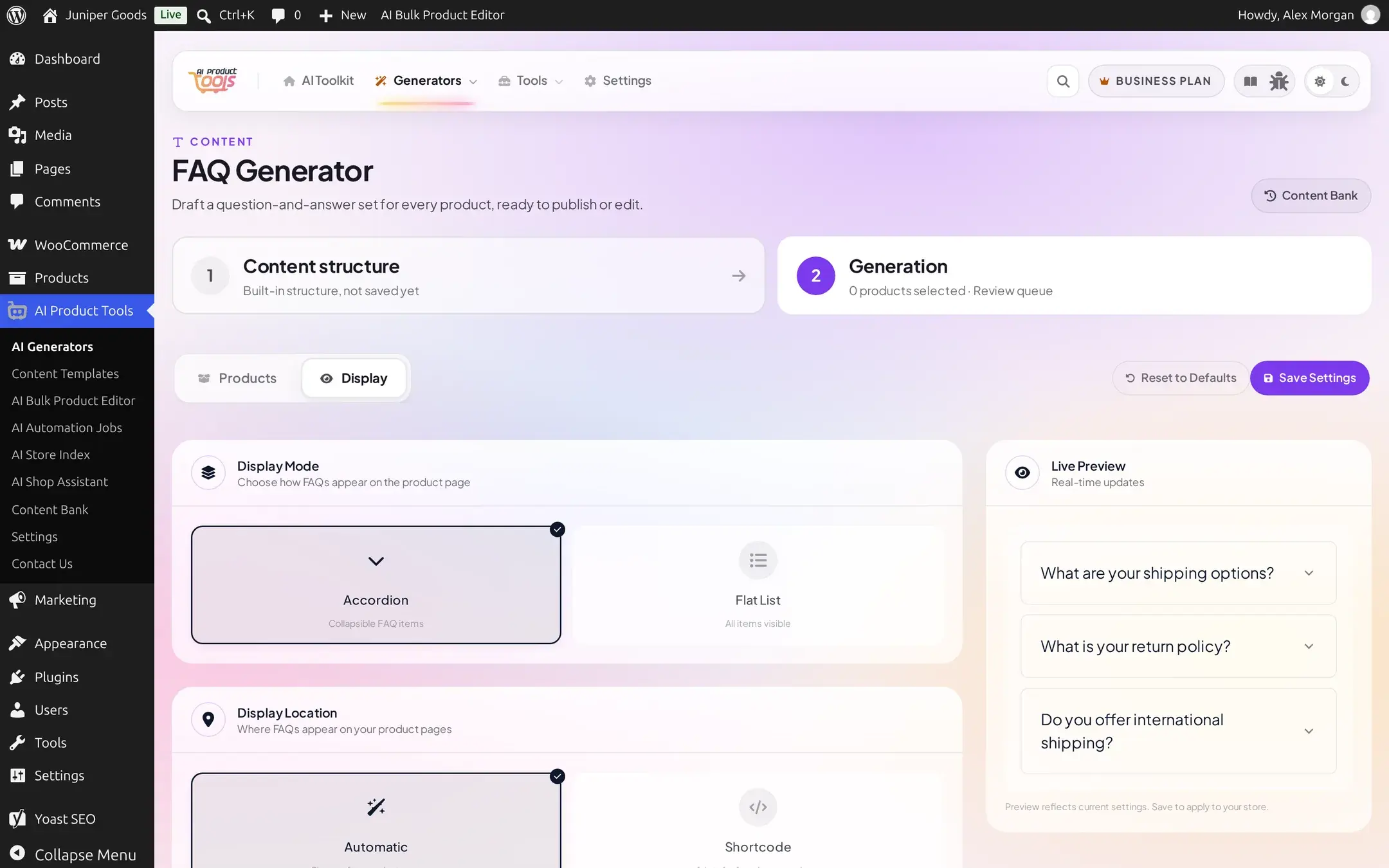
Display Mode chooses between an Accordion (collapsible, one question open at a time) and a Flat List (every question and answer always visible). Display Location chooses between Automatic, which shows the FAQs right after the product summary on every product page, and Shortcode, which shows nothing until you place [aipt_faq] yourself.
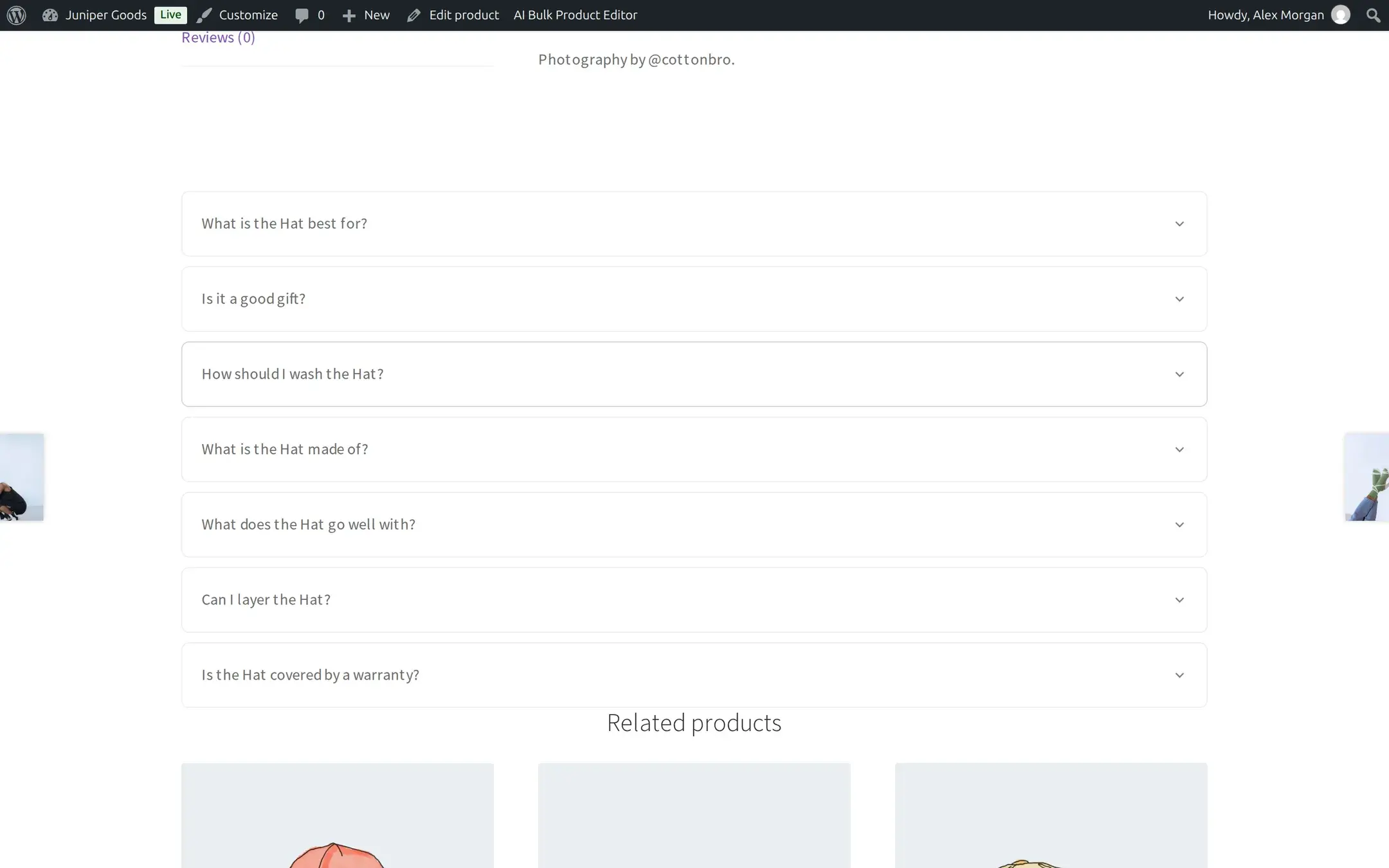
On the storefront, the default Accordion looks like this:
Q/A Labels (show or hide short "Q" and "A" prefixes, and edit their text up to 20 characters) only appears when Display Mode is Flat List; an accordion's question already reads as a question, so no prefix is shown there.
The shortcode
Use [aipt_faq] to show the current product's FAQs anywhere in a page or post, or [aipt_faq product_id="123"] to show a specific product's FAQs on a different page entirely, for example a dedicated FAQ or support page.
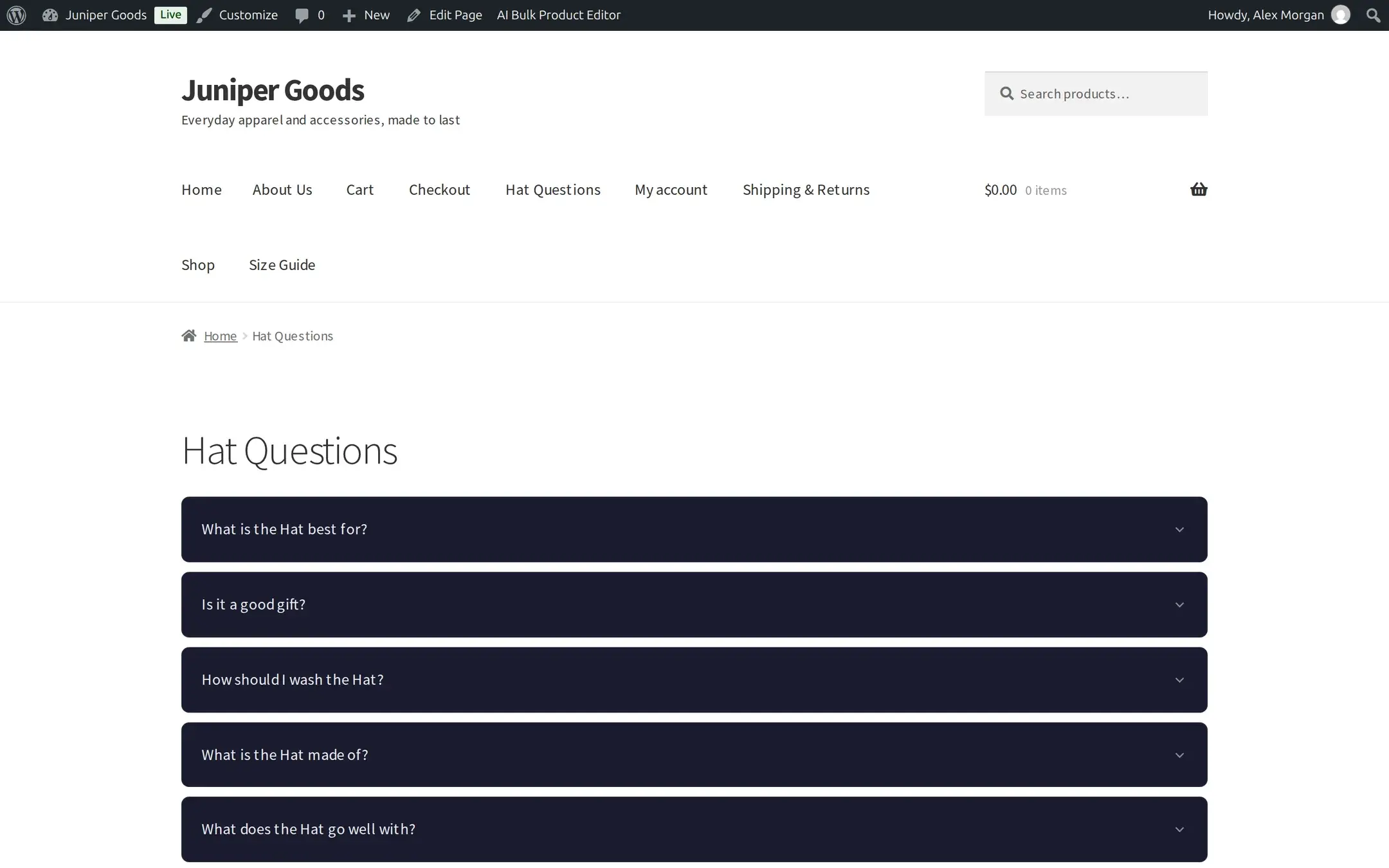
The shortcode renders the exact same accordion or flat markup the automatic placement would, and loads the FAQ stylesheet only on pages where it is actually used.
Themes and style controls
Choose a Theme Preset, then open Customization for full control: Colors (question, answer, background, border), Typography (font family, size, weight), Spacing (padding, margin, the gap between items, each side adjustable together or independently), Borders (radius per corner, width per side), an Icon Style for the accordion toggle (chevron, plus, arrow or caret), and an open and close Animation (none, fade, slide or smooth).
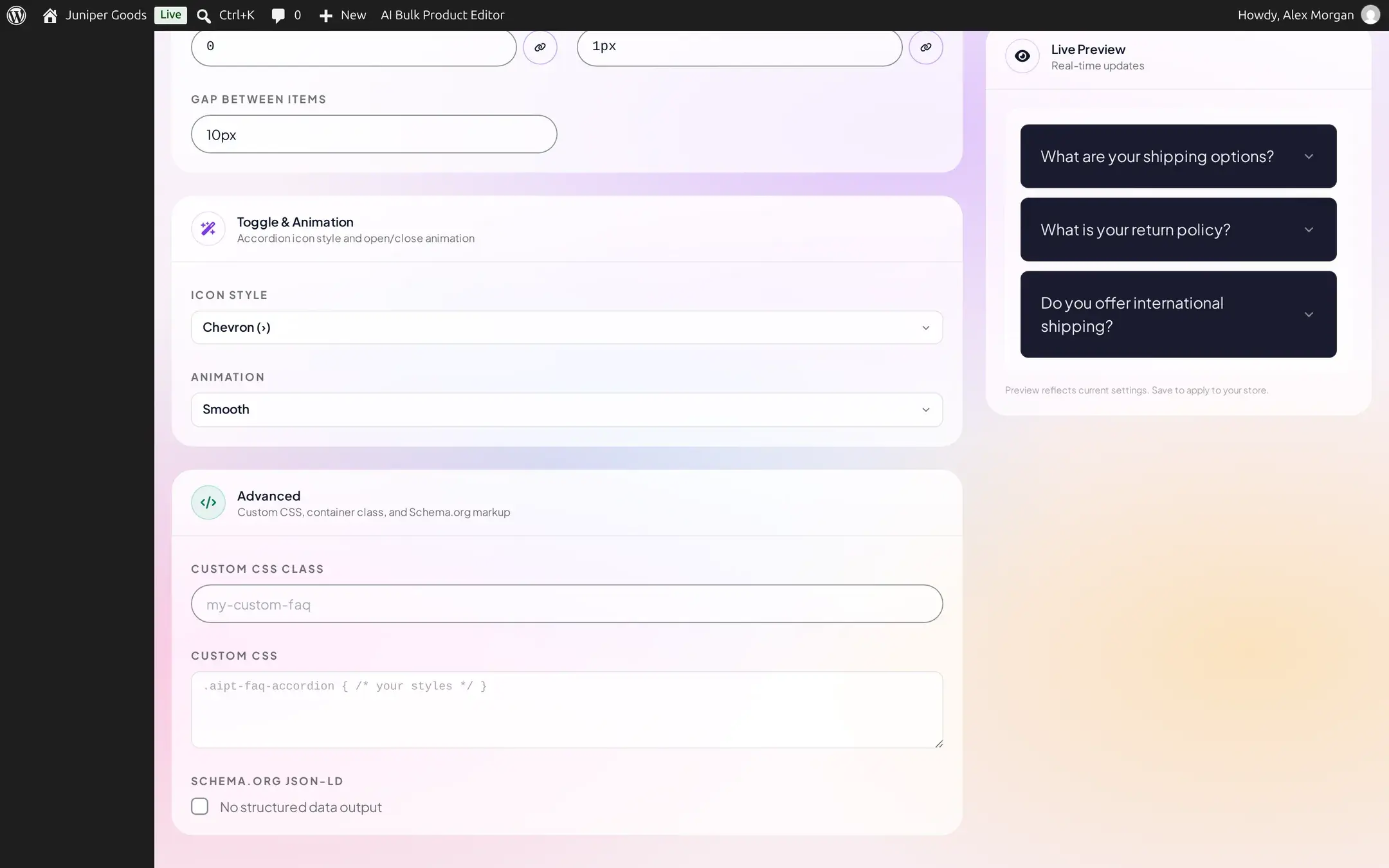
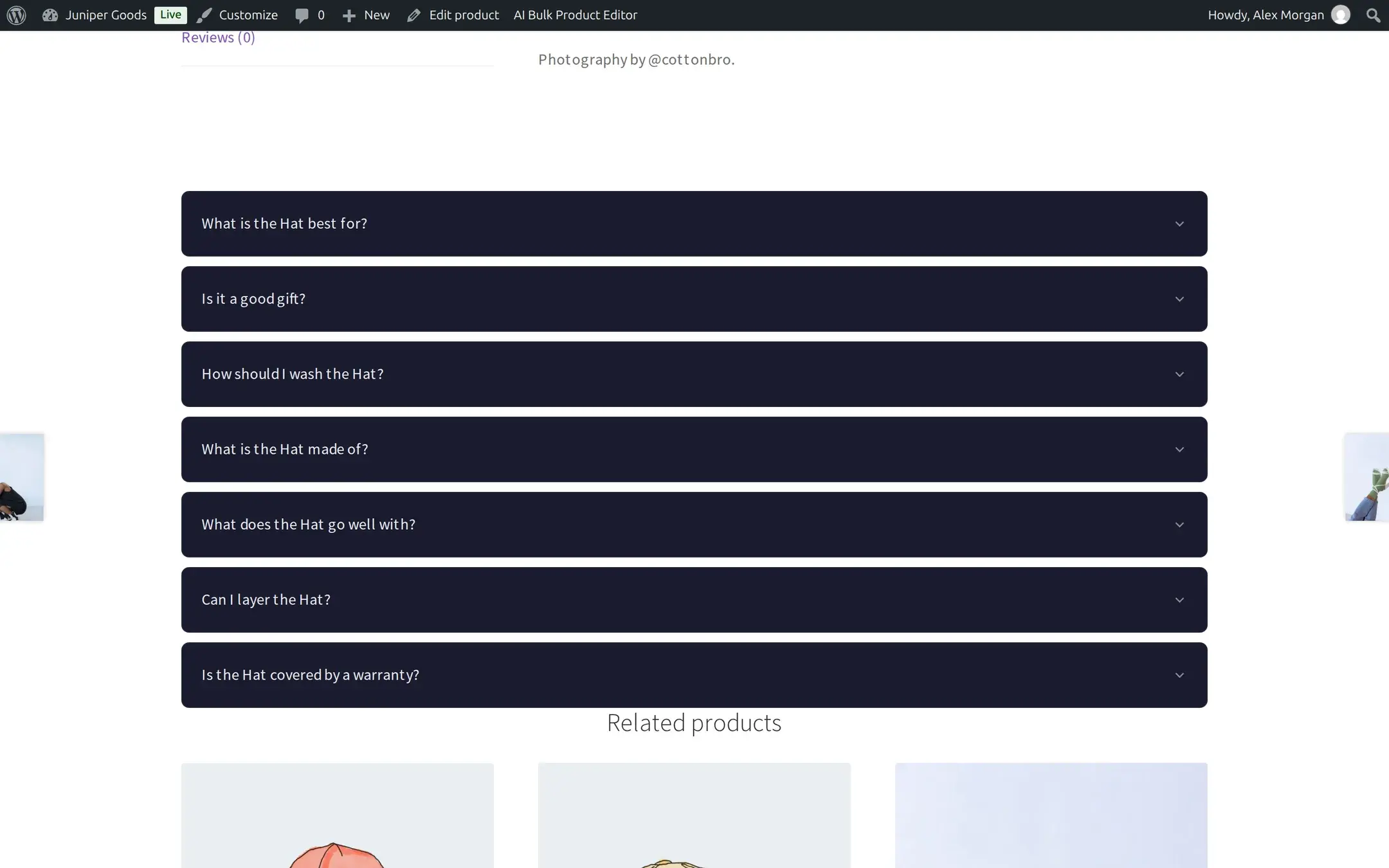
Viewed with the Dark theme on the storefront:
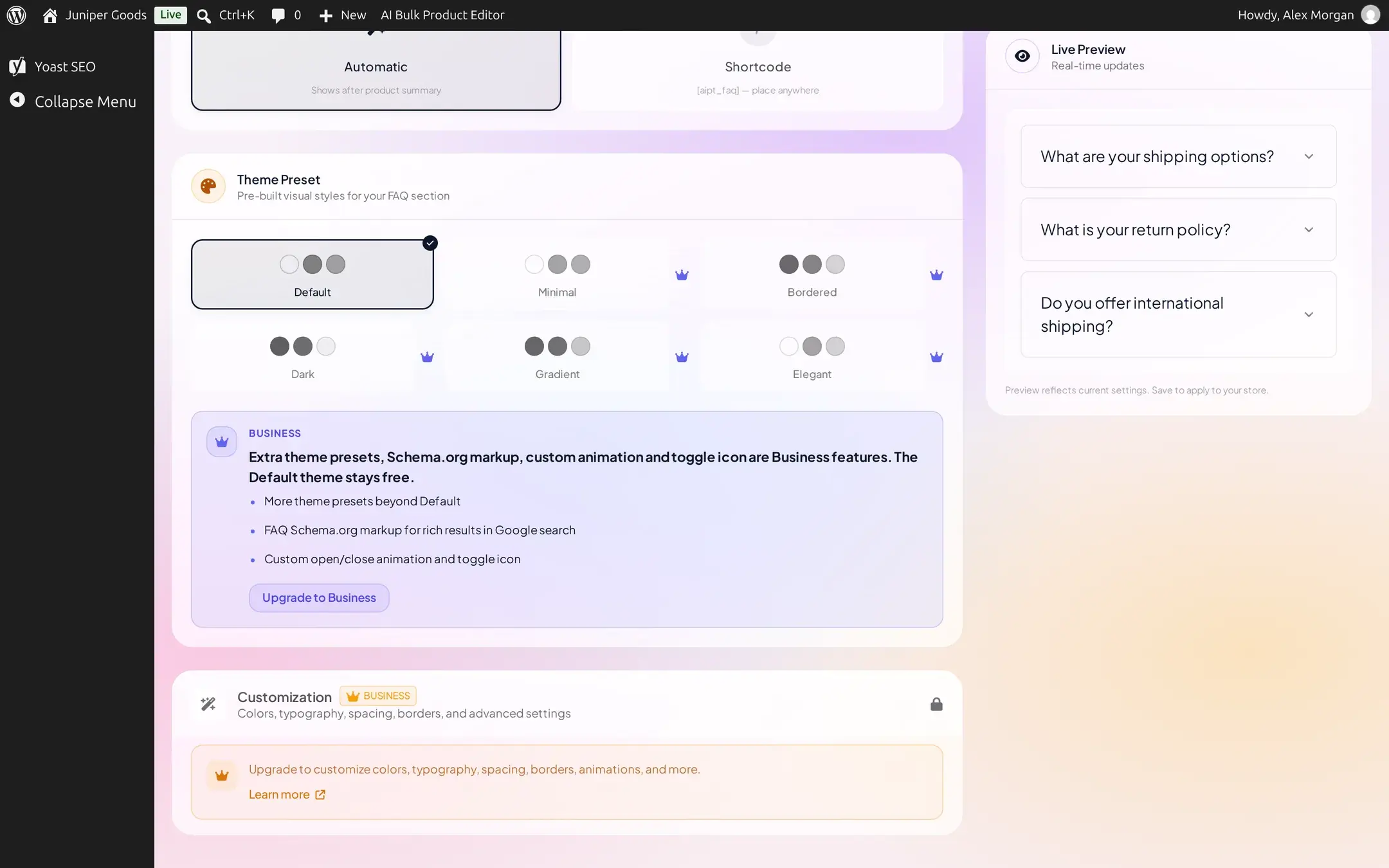
Free keeps the Default theme and the free controls above; everything else in this section is a locked preview with an upgrade prompt, never a hidden control:
Custom CSS and container class
Under Advanced, Business sites can add a Custom CSS Class to the FAQ container for targeting it from a theme or page builder, and write up to 10,240 characters of Custom CSS directly, applied only on pages that actually render the FAQs.
Schema.org structured data
The Schema.org JSON-LD checkbox (Business, under Advanced) adds a separate FAQPage block to the page, one Question entry per question with its acceptedAnswer, matching the format search engines look for when deciding whether to show an FAQ rich result in search. It has no visible effect on the page itself.
To confirm it is working, open Google's Rich Results Test in a browser, enter the product page's URL (or paste the page's HTML), and run the test. A page with the toggle on and at least one applied FAQ should show an eligible FAQPage result; if it does not, confirm the toggle is saved on and the product actually has applied FAQs, then clear any page cache before testing again.
Reset to Defaults
The Reset to Defaults button (with a confirmation) deletes all saved display settings, including any Business customization, back to Accordion, Automatic, and the Default theme. It cannot be undone from within the plugin.
Reference
| Setting | Default | Plan |
|---|---|---|
| Display Mode (Accordion / Flat List) | Accordion | Free |
| Display Location (Automatic / Shortcode) | Automatic | Free |
| Q/A Labels (Flat List only), custom text up to 20 characters each | Shown, "Q" / "A" | Free |
| Theme Preset | Default | Default: Free. Minimal, Bordered, Dark, Gradient, Elegant: Business |
| Colors, Typography, Spacing, Borders | Plugin defaults | Business |
| Icon Style (chevron, plus, arrow, caret) | Chevron | Business |
| Animation (none, fade, slide, smooth) | Smooth | Business |
| Custom CSS class | Empty | Business |
| Custom CSS | Empty, up to 10,240 characters | Business |
| Schema.org FAQPage JSON-LD | Off | Business |
Free vs Business
| Capability | Free | Business |
|---|---|---|
| Display Mode, Display Location, Q/A Labels | Yes | Yes |
Shortcode ([aipt_faq], [aipt_faq product_id]) | Yes | Yes |
| Theme presets beyond Default | Not available | 5 extra presets |
| Colors, typography, spacing, borders | Not available | Full control |
| Icon style, animation | Chevron and Smooth only | All options |
| Custom container class, Custom CSS | Not available | Available |
| Schema.org structured data | Not available | Available |
If a site's plan changes and a saved setting is no longer included, the next save keeps that one field within the Free range instead of rejecting the whole save, and the page explains which field it was and why.