
AI Content Panel
Write and insert AI content for one product at a time, right on the WooCommerce product edit screen.
The AI Product Tools panel sits in the sidebar of every product's edit screen. It writes one content type at a time for that single product: the long description, the title, SEO meta, FAQ, or image alt text, and lets you review each result before it touches the product.
Works on every plan
This panel has no plan gate. Free, Business, and legacy Pro all get the same five content types, the same review drawers, and the same AI note field.
Before you start
- Connect an AI provider in Settings. Without a usable key, every row shows a Connect an AI provider link instead of a Write button.
- Editing a product requires WordPress's own Edit products permission. The full panel additionally requires the
use_aipt_toolscapability; a user who can edit the product but lacks that capability sees only the AI note field, nothing else. - An administrator can hide the panel entirely from AI Product Tools > Settings. If you don't see it at all, check there first.
Open the panel
Open the product
Go to Products > All Products and click Edit on any product. The AI Product Tools box is in the right-hand sidebar (the Classic Editor shows it in the metabox column). It works the same for every product type, including variable and grouped products.
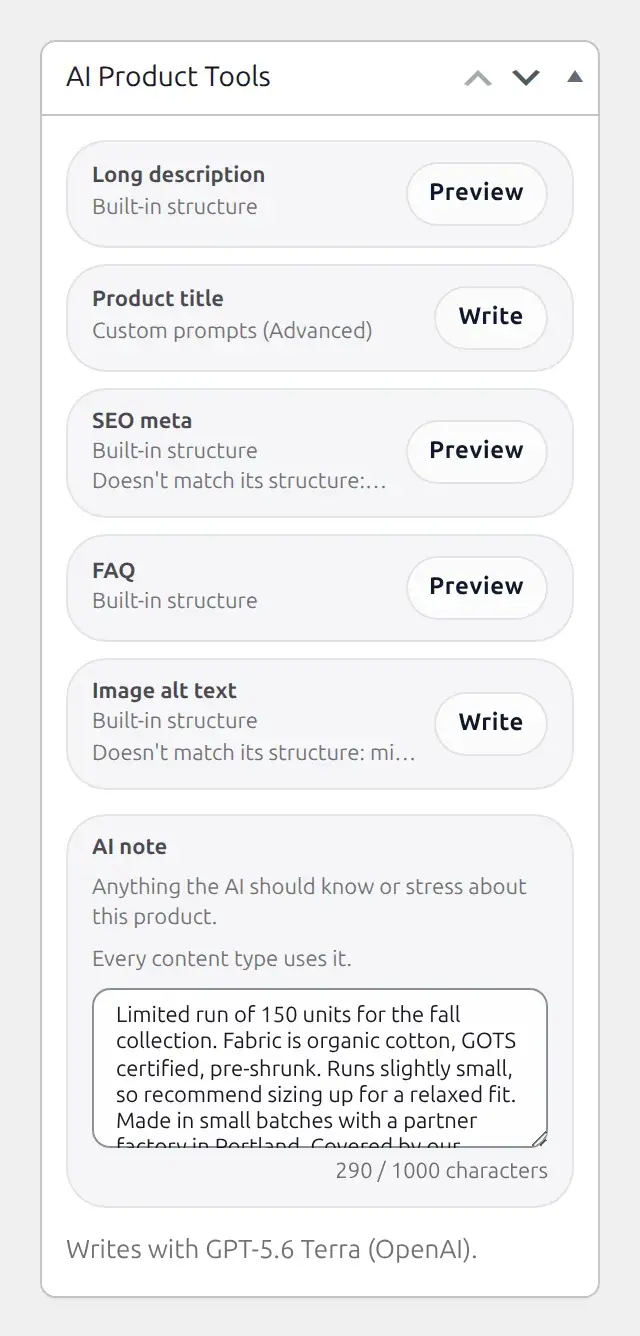
Read a row
Each row has:
- The content type's name in bold: Long description, Product title, SEO meta, FAQ, or Image alt text.
- A line naming why it will be written the way it is: Built-in structure,
Structure: {name}for a named content structure, or Custom prompts (Advanced) for a generator still left on the legacy prompt editor. - Sometimes a second line flagging a mismatch, for example "Doesn't match its structure: no meta title and 2 more."
- A button labeled Write or Preview. It reads Preview once that field already holds any content (including plain WooCommerce sample text), and Write while it is empty. Either label opens the same drawer.
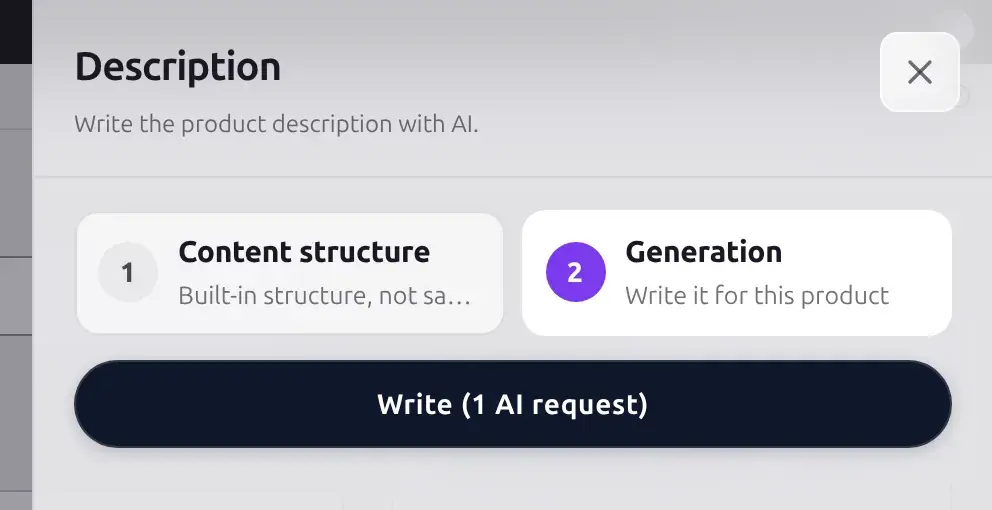
Pick a content type and open its drawer
Click Write or Preview on any row, or jump straight to one with a URL like post.php?post={id}&action=edit&aipt_open=description (also accepts title, seo_meta, faq, image_alt). The deep link opens that row's drawer automatically once the page loads, then removes the parameter from the address bar.
For a content type governed by a content structure, the drawer opens with two tabs: 1 Content structure, which shows (and, with the Settings capability, lets you edit) the structure this product currently uses, and 2 Generation, the write-and-review flow this page covers. The first time you open a row it lands on 1 Content structure; tick Keep using this structure there to make the row jump straight to 2 Generation next time. See Editing a content structure for what Step 1 itself can do.
Write, review, and insert
On 2 Generation, click Write (1 AI request). Review the result (each content type's own layout is below), edit anything directly, then click the drawer's insert button: Insert into product for the Long description, FAQ, and Image alt text drawers, Use this title for Title, or Write to {your SEO plugin} fields for SEO meta. The drawer then shows "Inserted. The previous version is saved in History." and collapses to a single Close button.
If the product or its structure changed since this result was written, the drawer shows a warning instead: "This product or its structure changed. Write it again", or, after a failed write, "The write did not complete, so nothing was changed. Write it again." Click Write again either way.
Save the product
Closing the drawer only updates the classic WooCommerce fields in the background; it does not save the product. Click the product's own Update (or Publish) button to persist everything, including any text you typed into the AI note field below the five rows.
What each content type shows
Long description
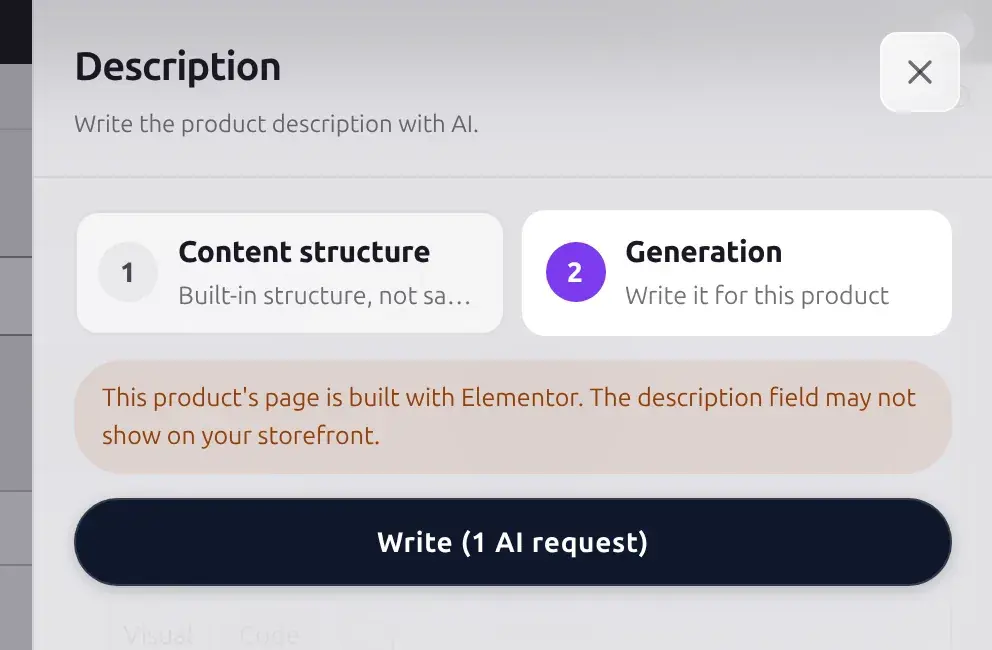
The Description drawer has three tabs: Sections, Preview, and HTML. On Sections, every section of the structure (opening paragraph, features, specifications, and so on) gets its own card with an INCLUDED badge, a badge showing whether the AI wrote it or it came from product data, and its own Rewrite this section button so you can regenerate just that one part. An Outputs checklist at the bottom lets you choose which of Description, Short description, and Tags to actually insert, since the description generator writes all three together; the short description and tags fields are directly editable right there.
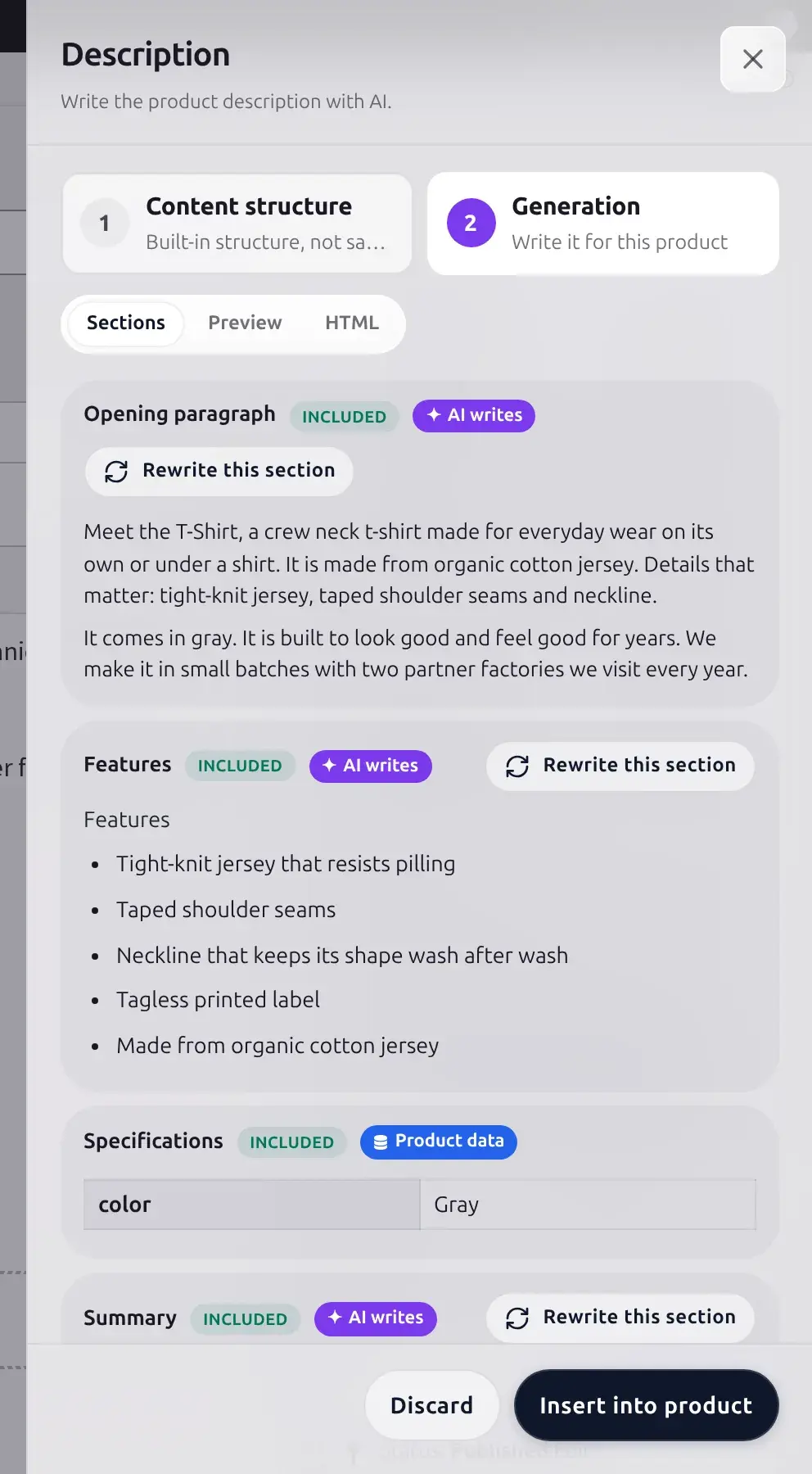
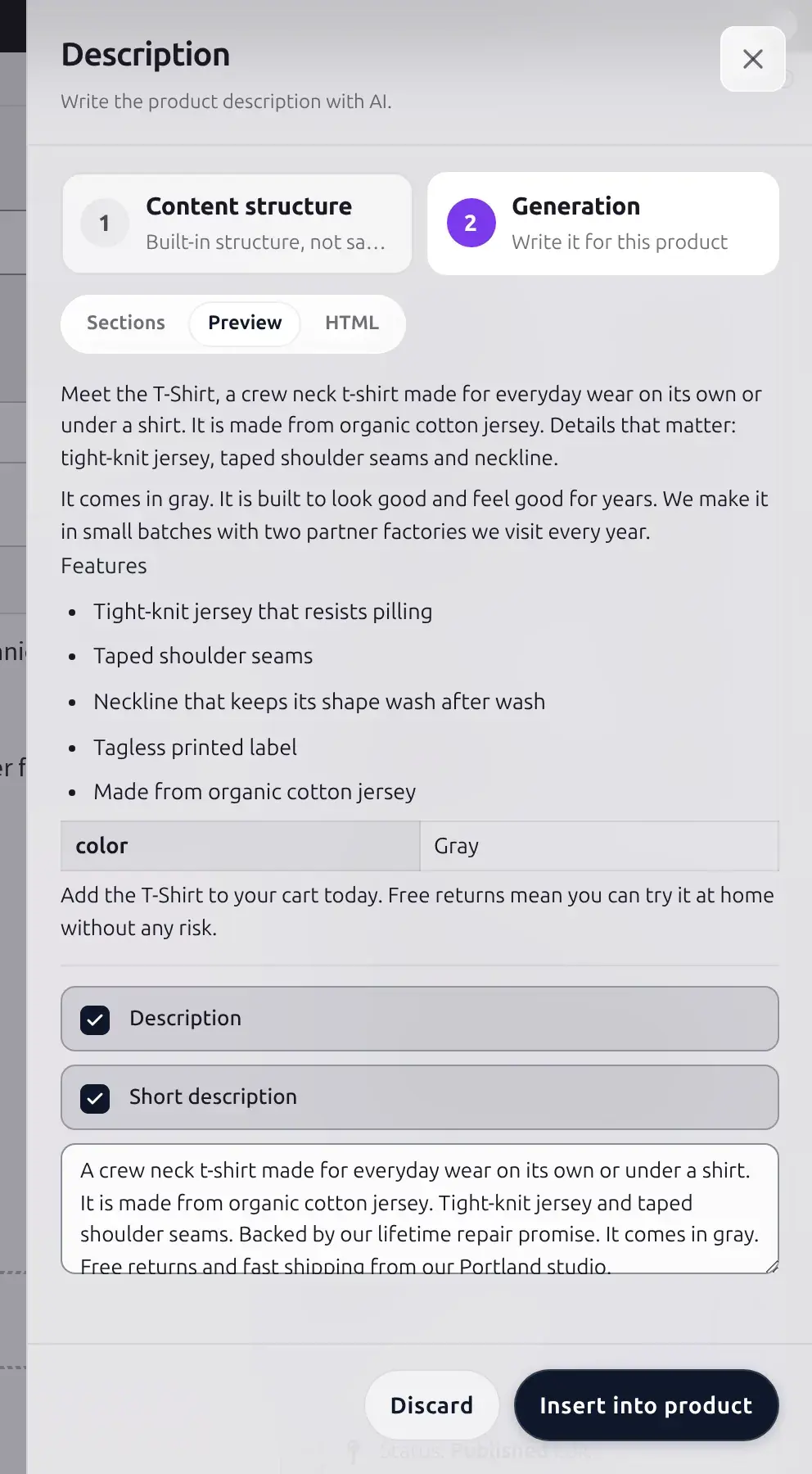
If the product's page is built with Elementor or Divi, the drawer adds a warning before you even write: the long description field may not be what your storefront actually renders.
Product title
The Title drawer has no section breakdown since it's a single field. Writing it produces up to 3 alternatives shown as a radio list; pick one, edit the text directly if you like (there's a live character meter), then Use this title.
SEO meta
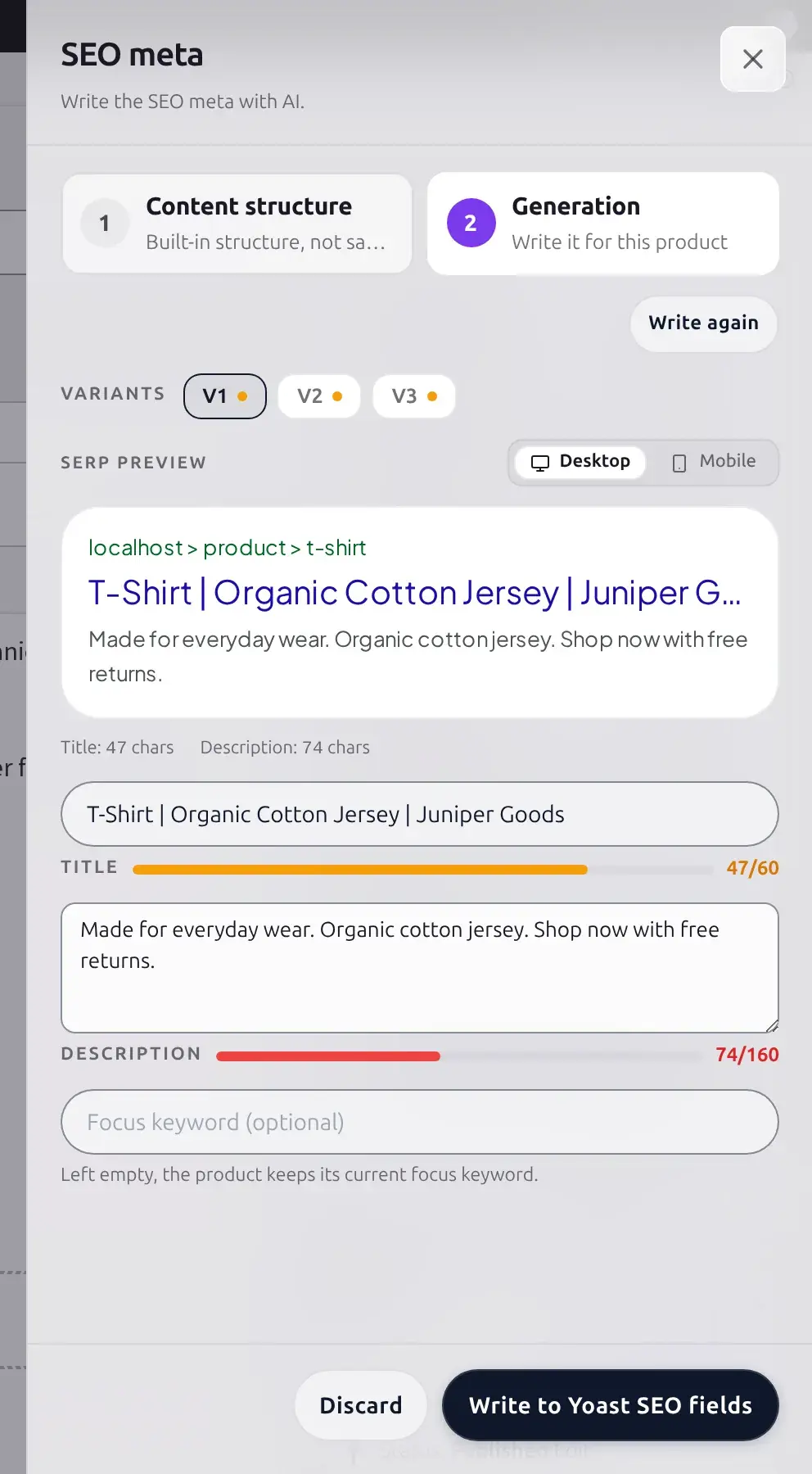
Writing SEO meta produces up to 3 alternatives (Free is clamped to 2; see Free vs Business below), shown as V1, V2, V3 toggle buttons above a live desktop/mobile SERP preview. Below it sit the editable Meta title and Meta description fields with character-limit bars, and an optional Focus keyword field ("Left empty, the product keeps its current focus keyword."). The insert button reads Write to {your SEO plugin} fields, for example Write to Yoast SEO fields, or Save SEO meta when no supported SEO plugin is active. There is no per-field Rewrite; SEO tokens are too small to regenerate individually, so use Write again for a fresh batch.
FAQ
The FAQ drawer groups generated questions into named cards (for example Using it, Care), each with an INCLUDED badge and its own Rewrite this group button. Every question and answer is a plain text field you can edit directly before inserting.
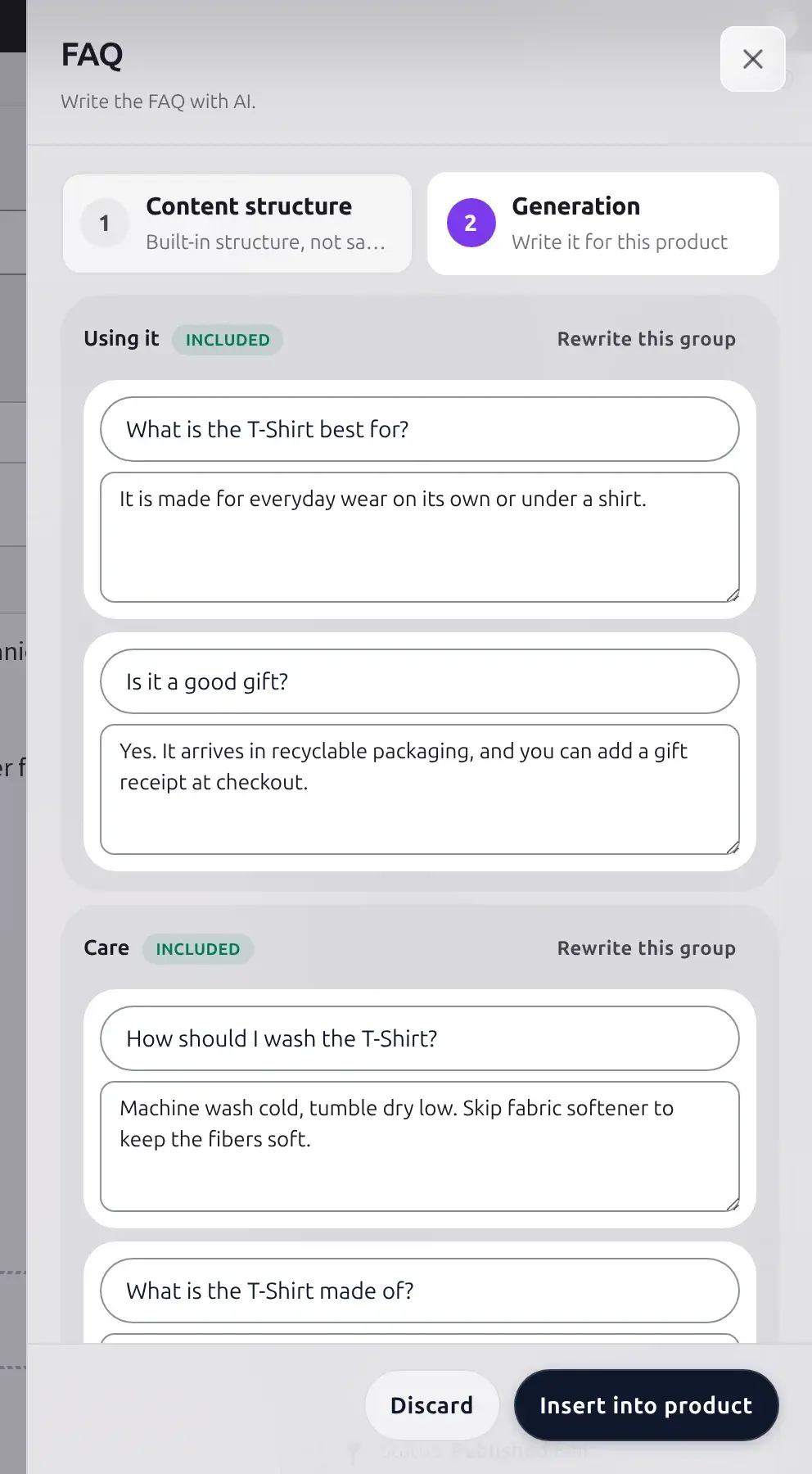
Image alt text
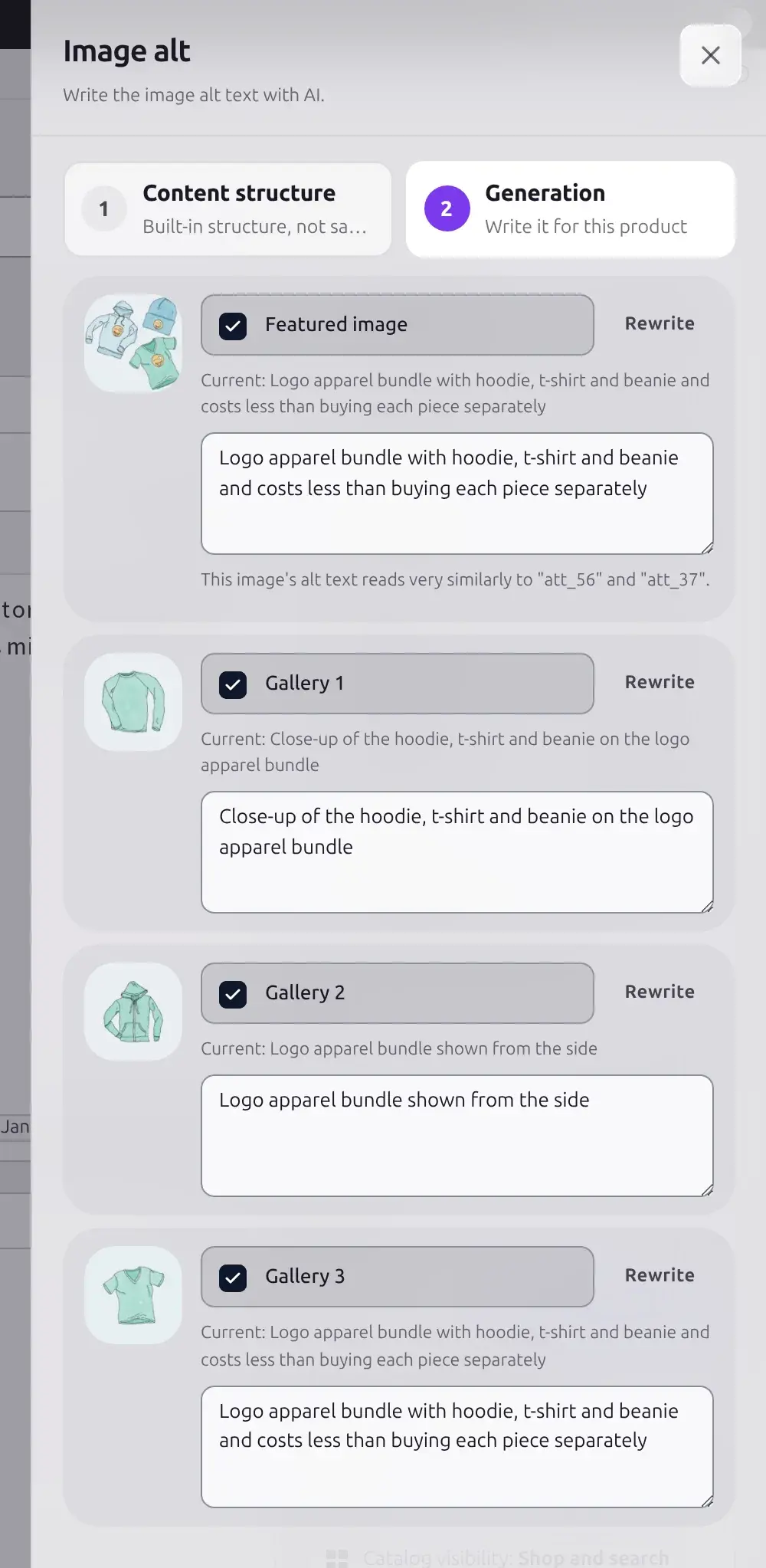
One row per product image, featured image first, then the gallery. Each row has its own thumbnail, a checkbox to include that image in the insert, its own Rewrite button, and the proposed alt text in an editable field. A checkbox can only be ticked once the server has actually produced text for that image. When several images read too similarly, each affected row shows a plain-language note naming the others it resembles, so you know which ones to rewrite.
Custom prompts (Advanced) mode
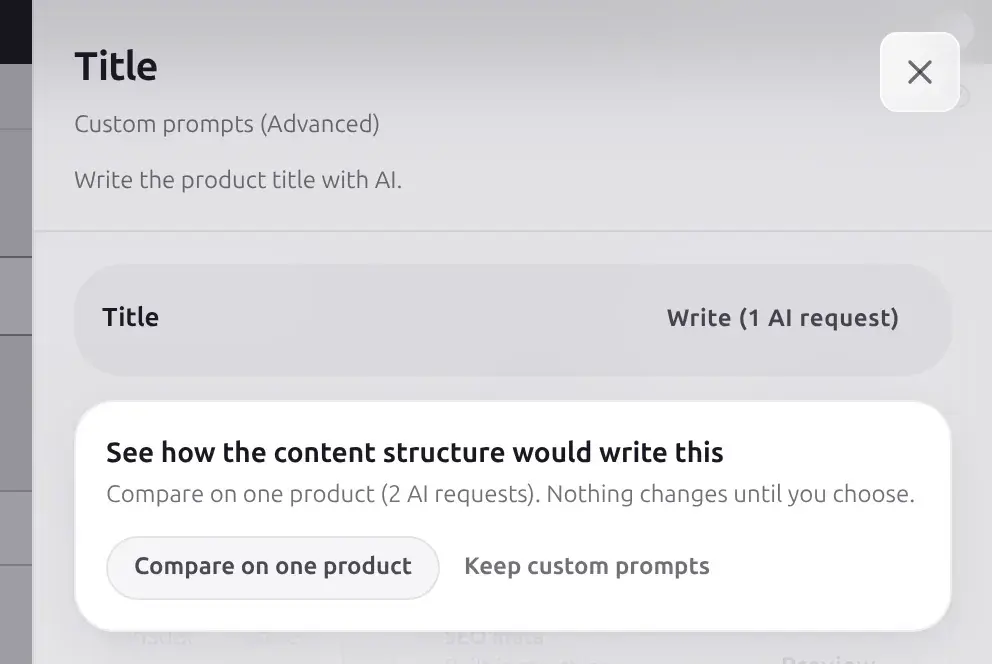
When a generator is still left on the legacy prompt editor instead of a content structure, its row reads Custom prompts (Advanced) and its drawer skips the Content structure/Generation tabs entirely. Instead you get the field itself (or, for Long description, one panel per sub-field: description, short description, and tags) with its own Write (1 AI request) button, an editable result, and an insert button named for that field (for example Insert description, Insert tags). A user who can manage Settings also sees an offer to compare the two approaches on this one product before switching: "See how the content structure would write this. Compare on one product (2 AI requests). Nothing changes until you choose." with Compare on one product and Keep custom prompts.
The AI note field
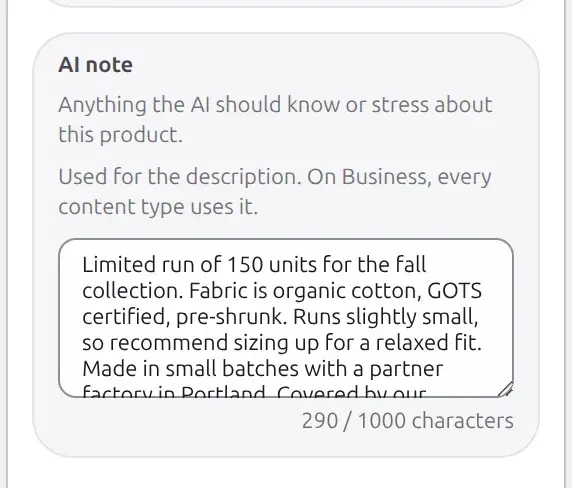
Below the five rows, every product has an AI note textarea: "Anything the AI should know or stress about this product." It is a plain field saved with the product's own Update button, not a separate REST action, capped at 1000 characters with a live counter.
The caption below the field reads "Used for the description. On Business, every content type uses it." The field itself is identical, never locked or hidden; only the caption and what reads it differ.
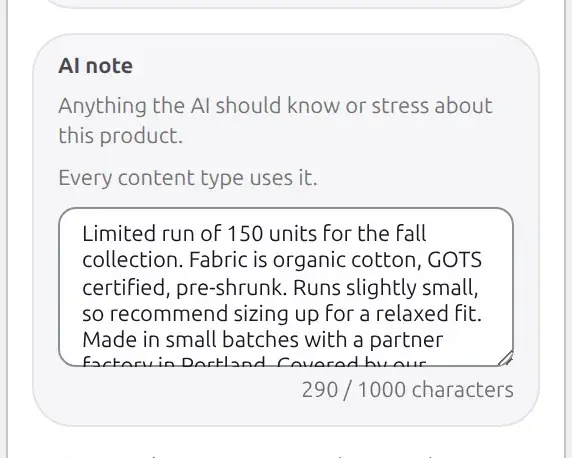
The caption reads "Every content type uses it." Legacy Pro gets the same behavior as Business here.
Clearing the field entirely removes the saved note rather than storing an empty value.
Reference
| Content type | Row label | Drawer title | Writes to | Alternatives shown |
|---|---|---|---|---|
| Long description | Long description | Description | Post content, short description, and tags together (choose which via Outputs) | 1 (with per-section Rewrite) |
| Title | Product title | Title | Post title | Up to 3 |
| SEO meta | SEO meta | SEO meta | Your SEO plugin's meta title, description, and focus keyword, or AI Product Tools' own SEO fields with no SEO plugin active | Up to 3 (Free: up to 2) |
| FAQ | FAQ | FAQ | The product's FAQ data, grouped by topic | 1 (with per-group Rewrite) |
| Image alt text | Image alt text | Image alt | Each image's alt text field | 1 (with per-image Rewrite) |
| Setting | What it does | Limit |
|---|---|---|
| AI note | Extra context the AI reads before writing | 1000 characters |
?aipt_open= URL parameter | Auto-opens one row's drawer on page load | One of description, title, seo_meta, faq, image_alt |
Free vs Business
| Capability | Free | Business |
|---|---|---|
| Write and insert all five content types | Full access | Full access |
| AI note field, 1000-character cap | Full access | Full access |
| AI note read by every content type (not just Description) | Business Pro or Business only | Included |
| SEO meta alternatives per write | Clamped to 2, with a "Your plan limited this preview" notice | Up to 3 |
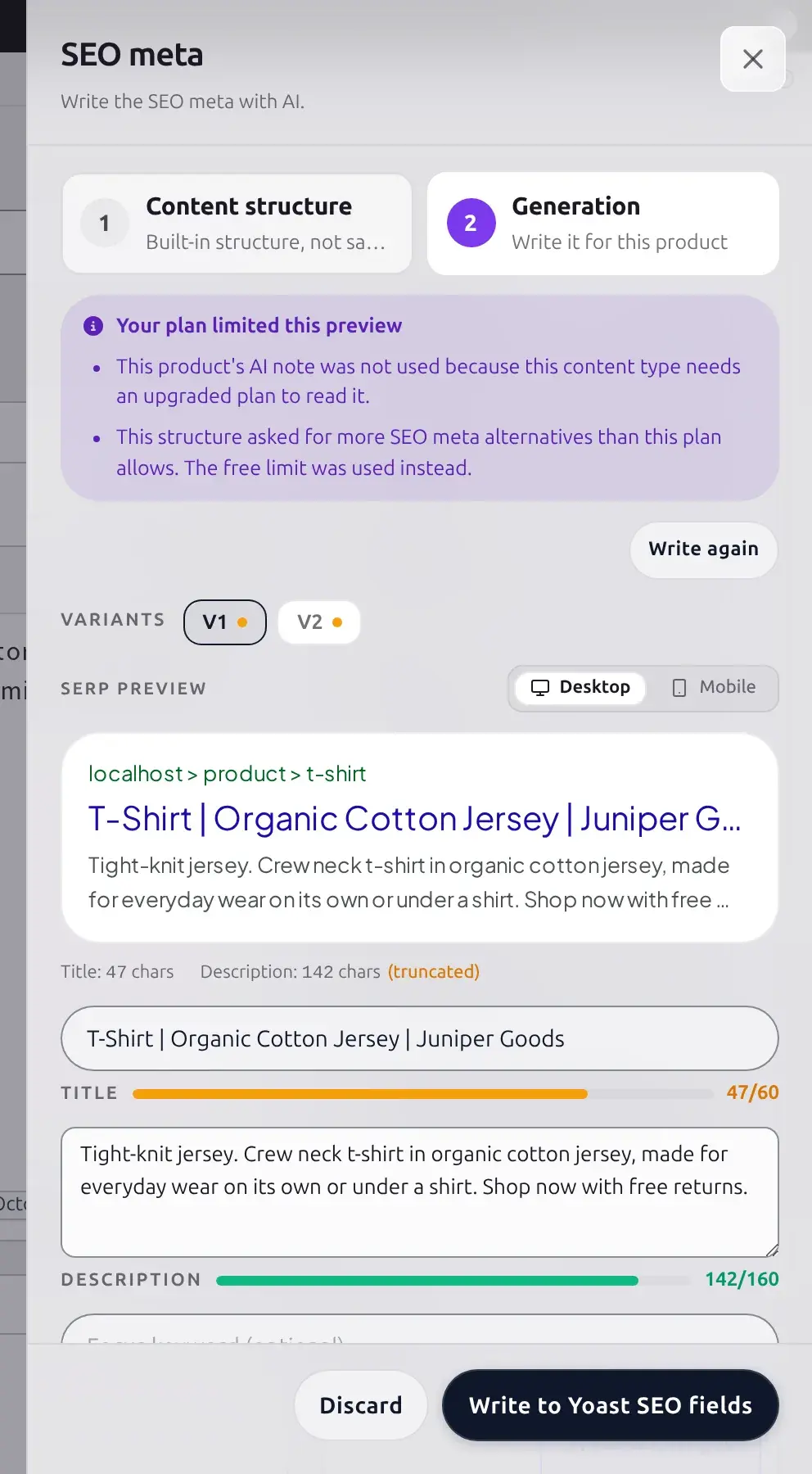
This notice isn't only for SEO meta
Any of the five drawers can show the same "Your plan limited this preview" notice, not only SEO meta, whenever the product's assigned content structure uses a Business-only option: Title's keyword bias or extra sources, FAQ's premium data sources, or Image alt's attribute enrichment, for example. See Content structures for which options are Business-gated.
A product's own plan never changes; the whole site is on one plan at a time. What you see above is the same panel on a Free-plan site versus a Business-plan site.
Troubleshooting
Related pages
Editing a content structure
What the Content structure tab inside each drawer can do.
How bulk generation works
The same write-review-apply pattern, for many products at once.
AI Bulk Product Editor
Edit this product alongside every other one in a spreadsheet-style grid.
Content History
Where the previous version goes every time you insert a result.
Product Screen and Bulk Editing
Every way to write AI content onto your actual products, from one product at a time to your whole catalog at once.
AI Bulk Product Editor
A spreadsheet-style grid for viewing and editing every AI-capable and core WooCommerce field across many products at once, with inline AI generation.