
Setup wizard
Walk through the first-run setup wizard step by step, fix a rejected API key, and take the guided tour afterward.
The setup wizard opens automatically the first time an account that can manage settings visits AI Product Tools > AI Generators, as long as setup is not finished yet. It connects one AI provider and picks a starting style for your product descriptions. Nothing you generate later is locked to this choice; you can change the provider, model, or style at any time afterward.
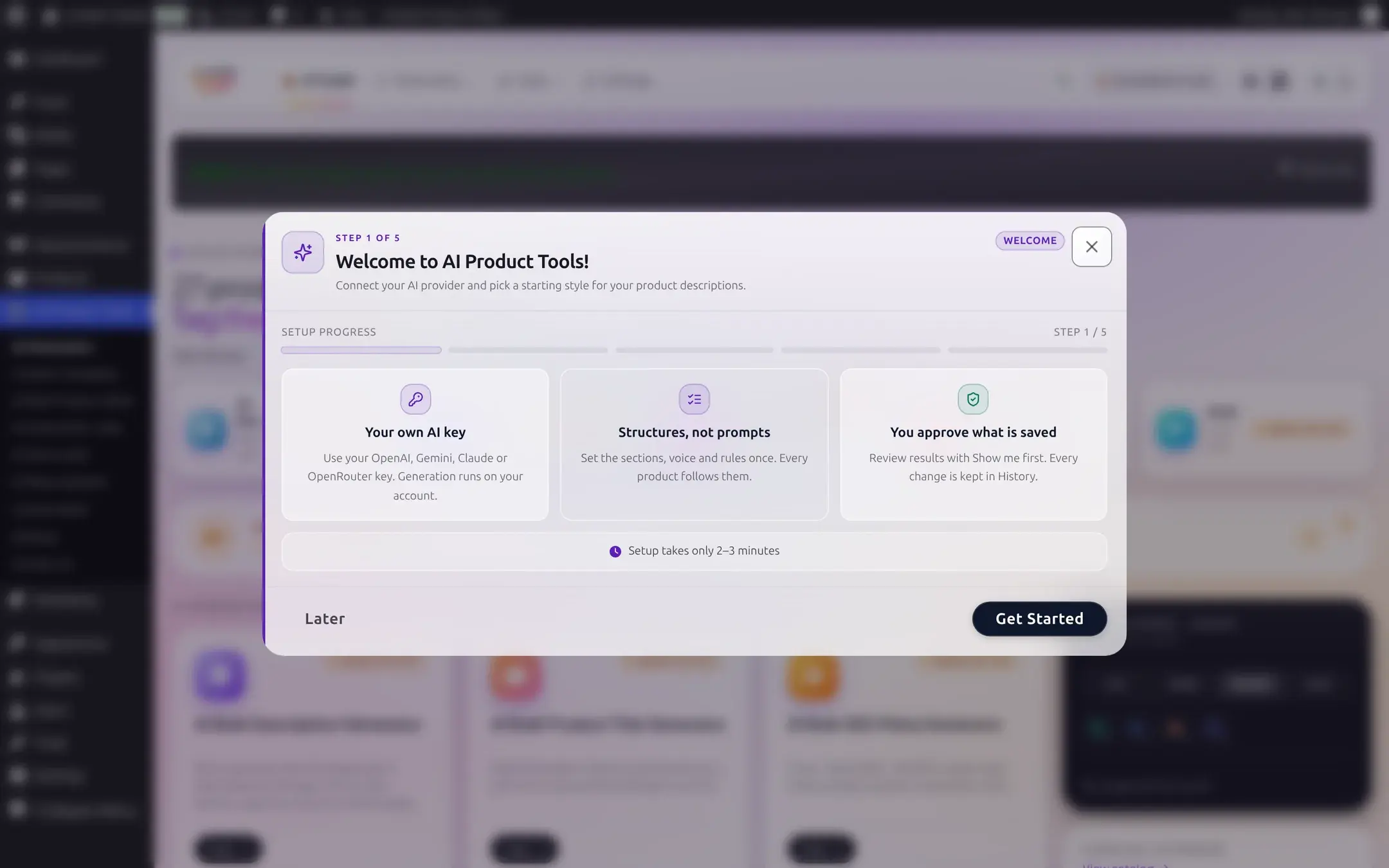
Setup takes only 2 to 3 minutes
You only need one provider key to finish. If you are not sure which provider to pick, see Choosing a provider first.
Before you start
- An Administrator account, or a Shop Manager who was given access on Settings > Connection.
- An API key from at least one provider: OpenAI, Google Gemini, Anthropic Claude, or OpenRouter.
- The plugin active with no provider key configured yet (see Installation).
A shorter path on WordPress 7.0+
If your WordPress core's built-in AI Connectors already manage a provider key, the wizard shows a "WordPress AI is configured" step instead of the Provider and API Key steps below:
- One provider managed by Connectors: pre-selected, with a button named after it (for example Use OpenAI).
- More than one managed: pick one, then click Use selected key.
- A Manage in Settings → Connectors link lets you change what is connected there.
- OpenRouter never appears here: Connectors cannot manage it, so the wizard always asks for an OpenRouter key by hand.
- Picking a Connectors-managed provider skips straight to Style, since there is no key left to paste.
The steps below are the common path: no Connectors key yet, so you enter one by hand.
Walk through the wizard
Welcome
The first screen explains the three ideas behind the plugin: your own AI key, content structures instead of raw prompts, and reviewing results before anything saves. Click Get Started to continue, or Later to snooze the wizard for an hour and come back to it from the AI Generators page.
Choose your AI provider
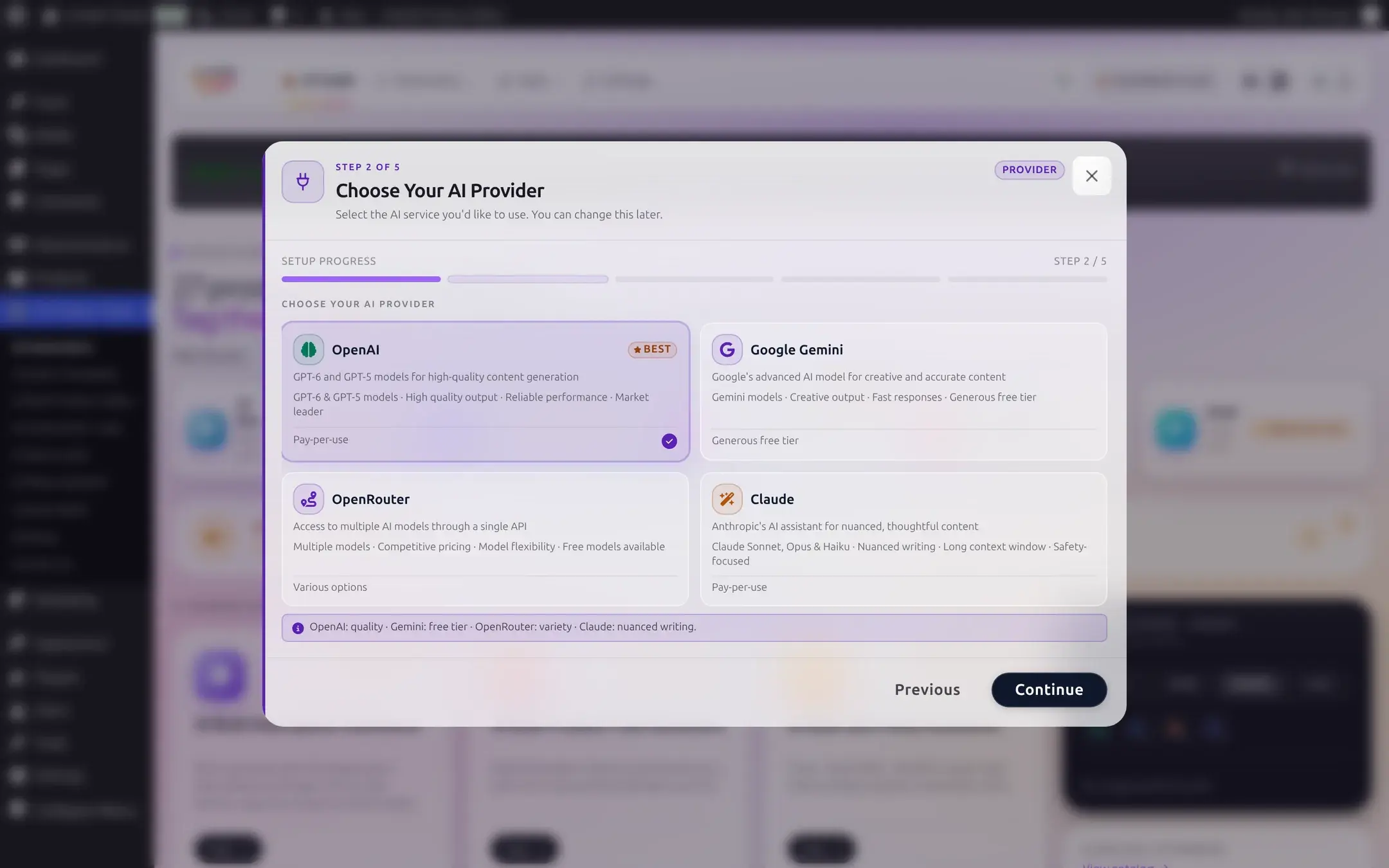
Pick OpenAI, Google Gemini, OpenRouter, or Claude. OpenAI is marked "Best" as the default recommendation, but any of the four works the same way once connected. Click Continue.
Enter your API key
Paste the key from your provider's dashboard and click Validate & Continue. The plugin calls the provider right away to confirm the key works before moving on. A link to the provider's own key page is included if you have not created a key yet.
If the key is rejected, the step stays open and explains why, with numbered steps to fix it:
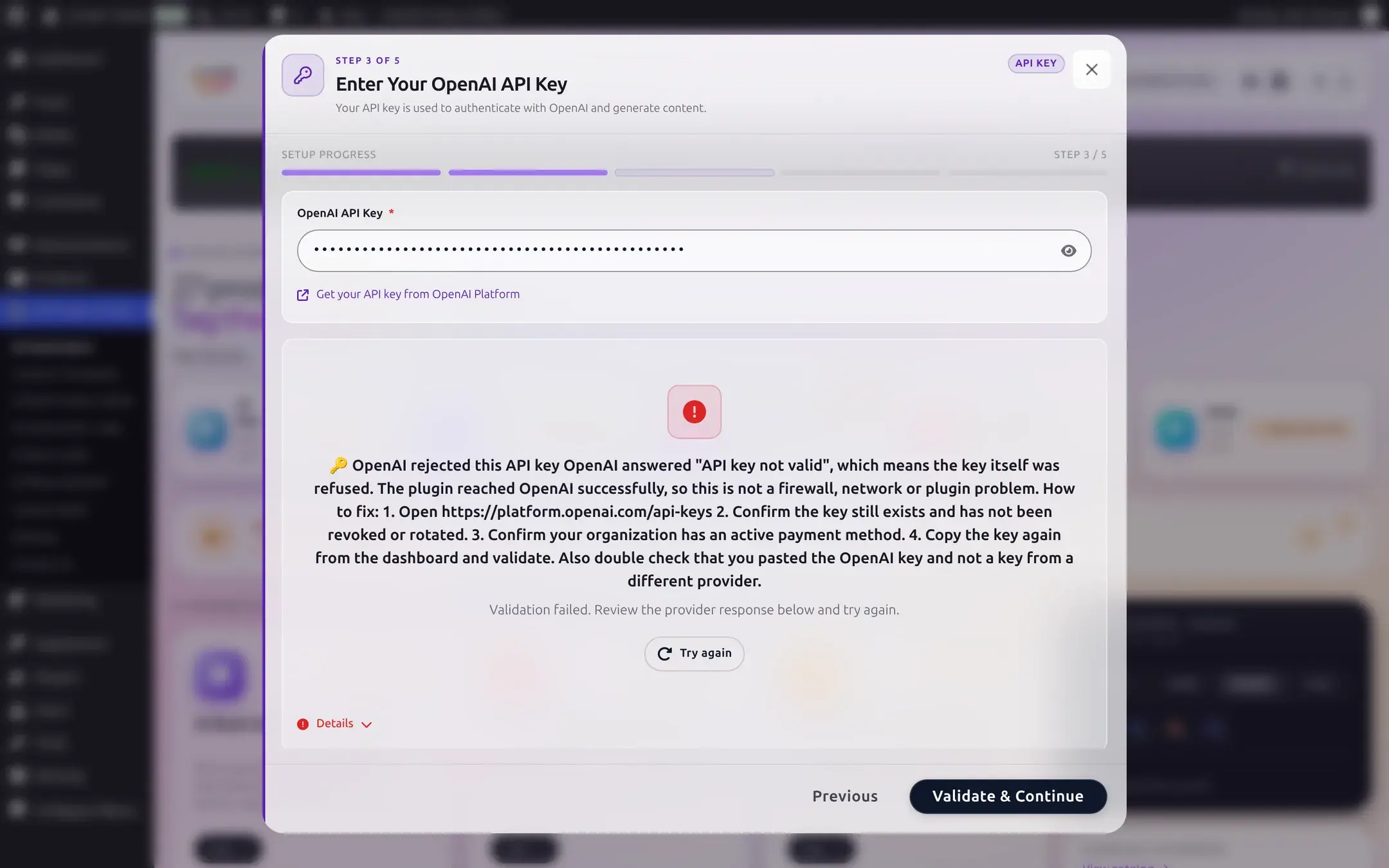
Fix the key and click Validate & Continue again (or Try again if the error panel is already open). On success the button briefly reads "Validated! Continuing..." and the wizard advances on its own about a second and a half later.
Pick a starting style
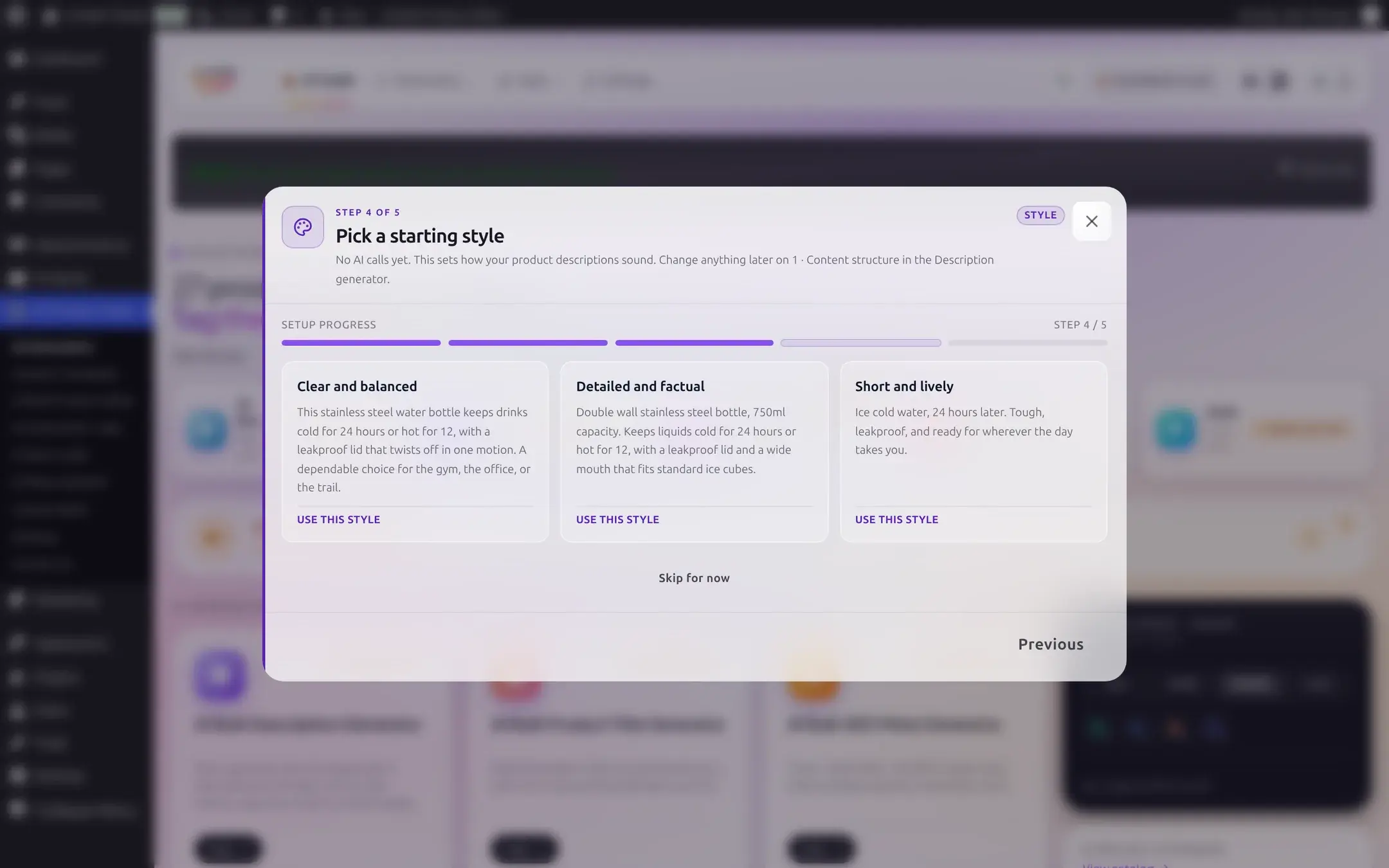
No AI call happens on this step. Pick Clear and balanced, Detailed and factual, or Short and lively by reading the one-sentence sample under each card, then click Use this style. You can also click Skip for now and set a style later from the Description generator's 1 · Content structure tab.
Finish setup
The completion screen confirms your provider is connected and offers two next moves: Preview on your first product (opens an existing product with the description panel ready) or Add your first product if your catalog is empty, plus Take the guided tour.
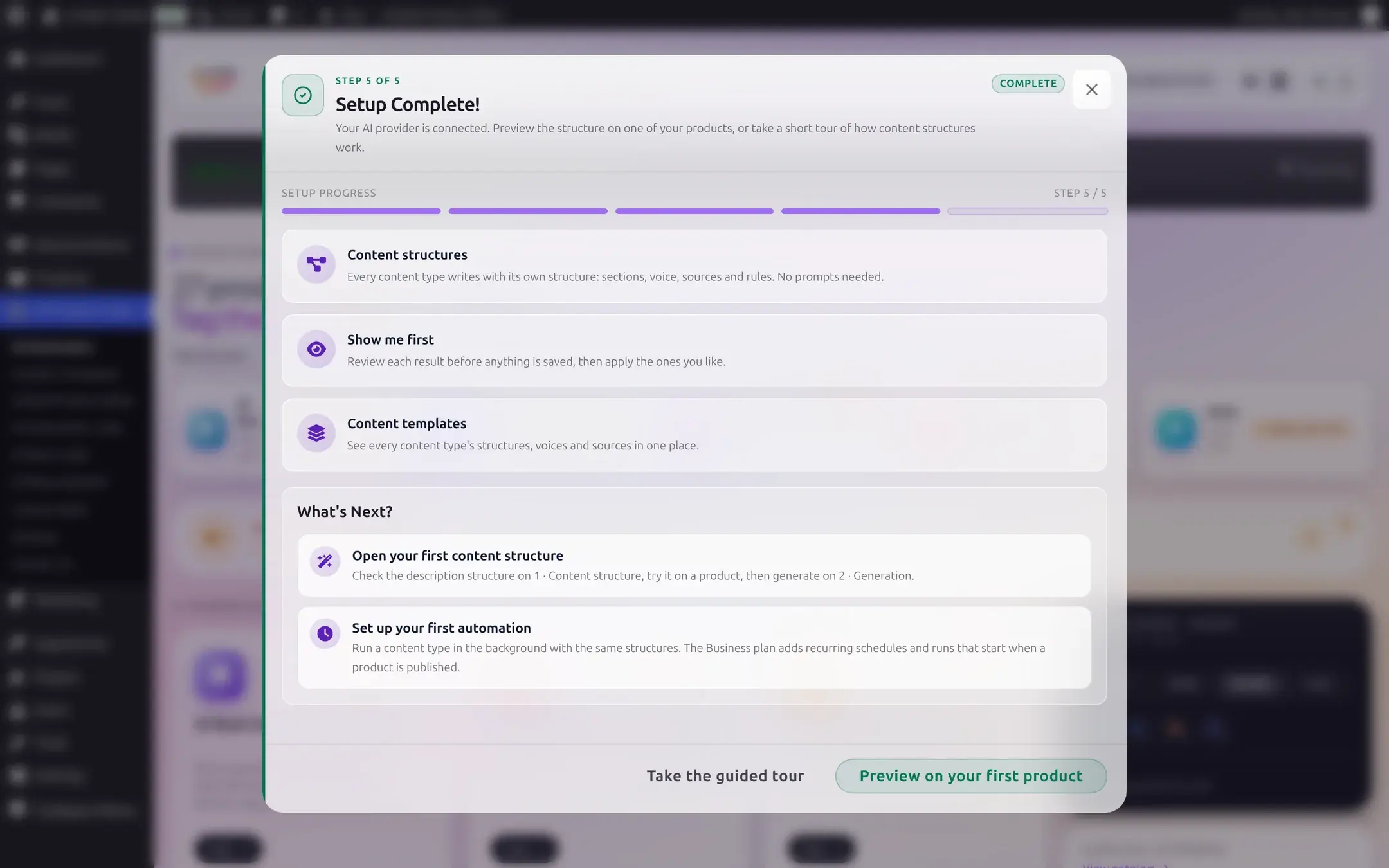
A What's Next? section links to two places worth bookmarking even if you do not click them now: Open your first content structure (the Description generator's 1 · Content structure tab, to check or change what you just set up) and Set up your first automation (running a generator in the background; Business adds recurring schedules and auto-run on publish).
The guided tour
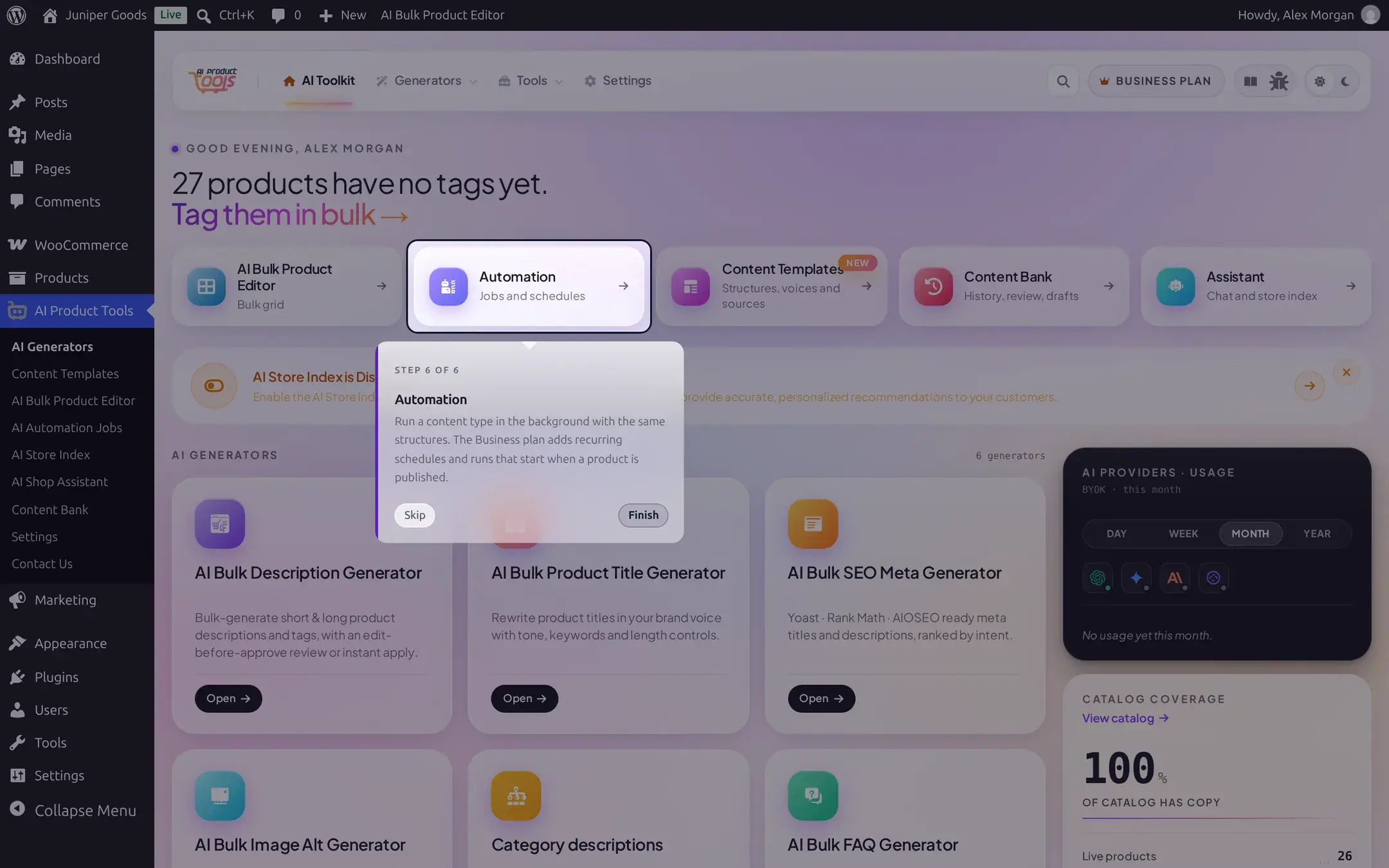
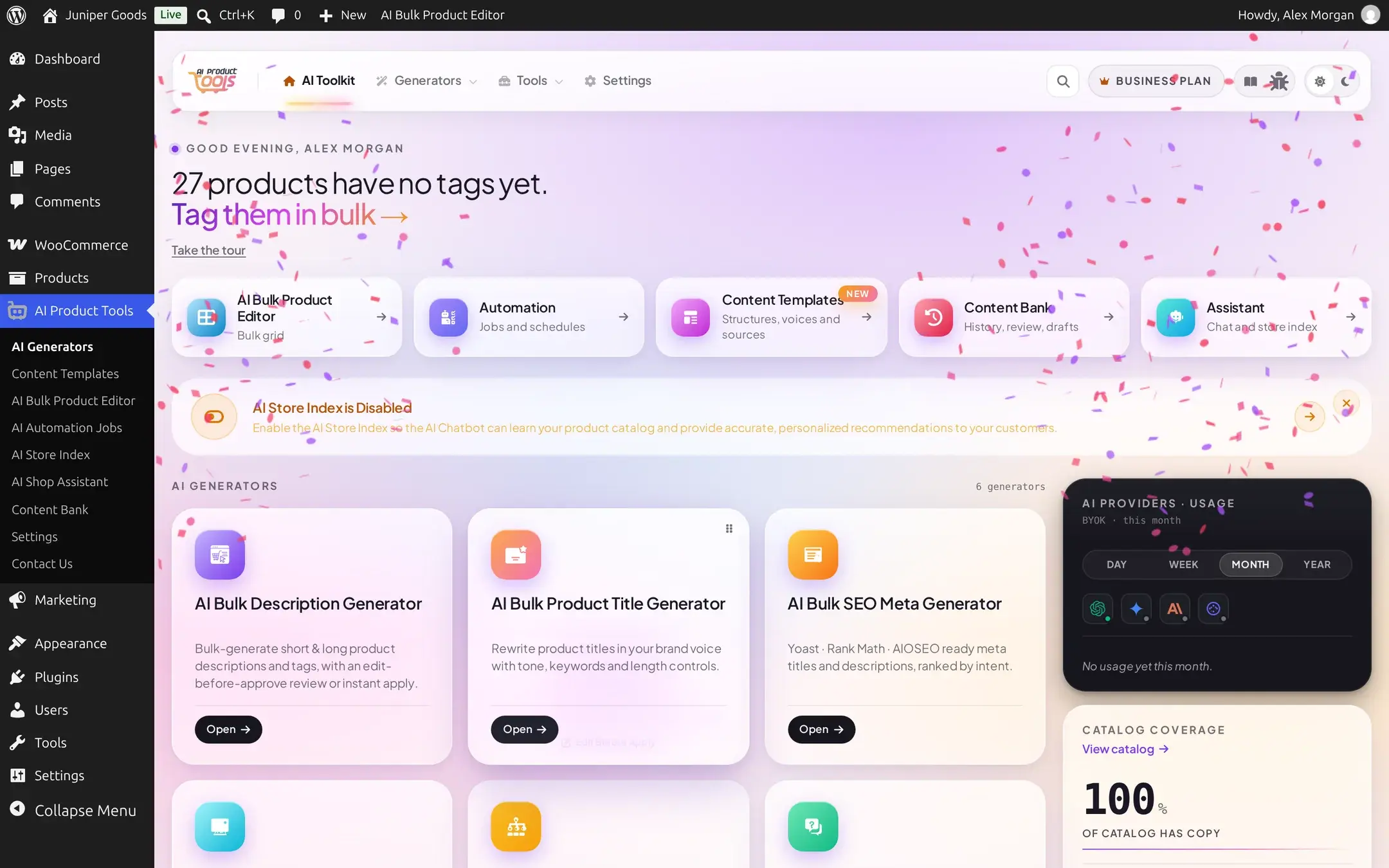
Click Take the guided tour from Completion, or start it later (see below), to walk through six fixed stops across the plugin. Each stop spotlights one control with a short explanation and Skip or Next; the last stop reads Finish and ends with a short confetti animation.
| Step | Where it points | What it explains |
|---|---|---|
| 1 | Content Templates card | What the AI writes: every content type follows a structure, not a raw prompt. |
| 2 | 1 · Content structure tab, Description generator | How a structure's sections, voice, and rules work. |
| 3 | "Try it on a product" | Preview a structure on one real product without saving anything. |
| 4 | 2 · Generation tab | Where you pick products and generate once the structure looks right. |
| 5 | Content Bank card | Every AI change is kept in History; Business adds a review queue and restore. |
| 6 | Automation card | Running a content type in the background; Business adds schedules and auto-run on publish. |
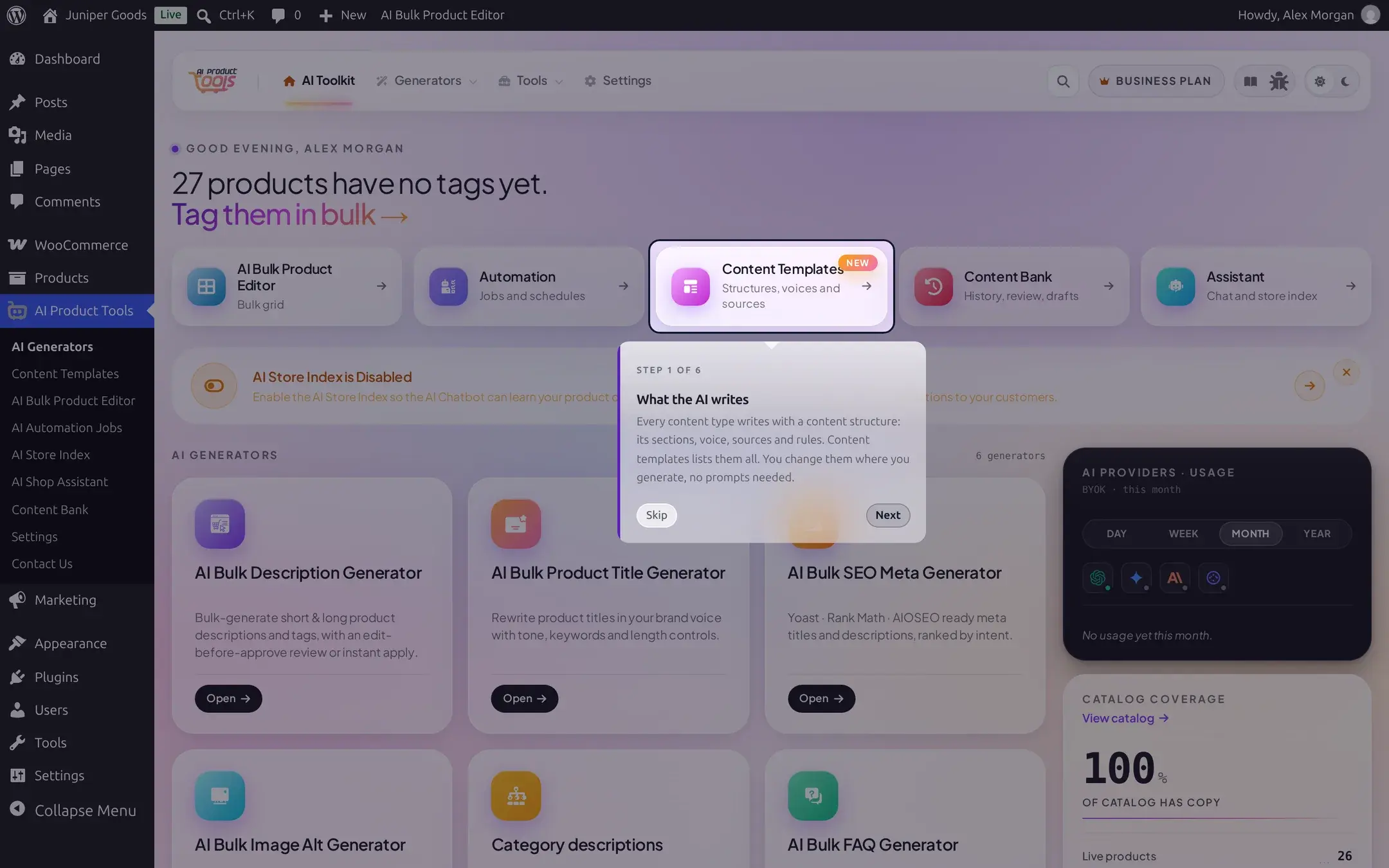

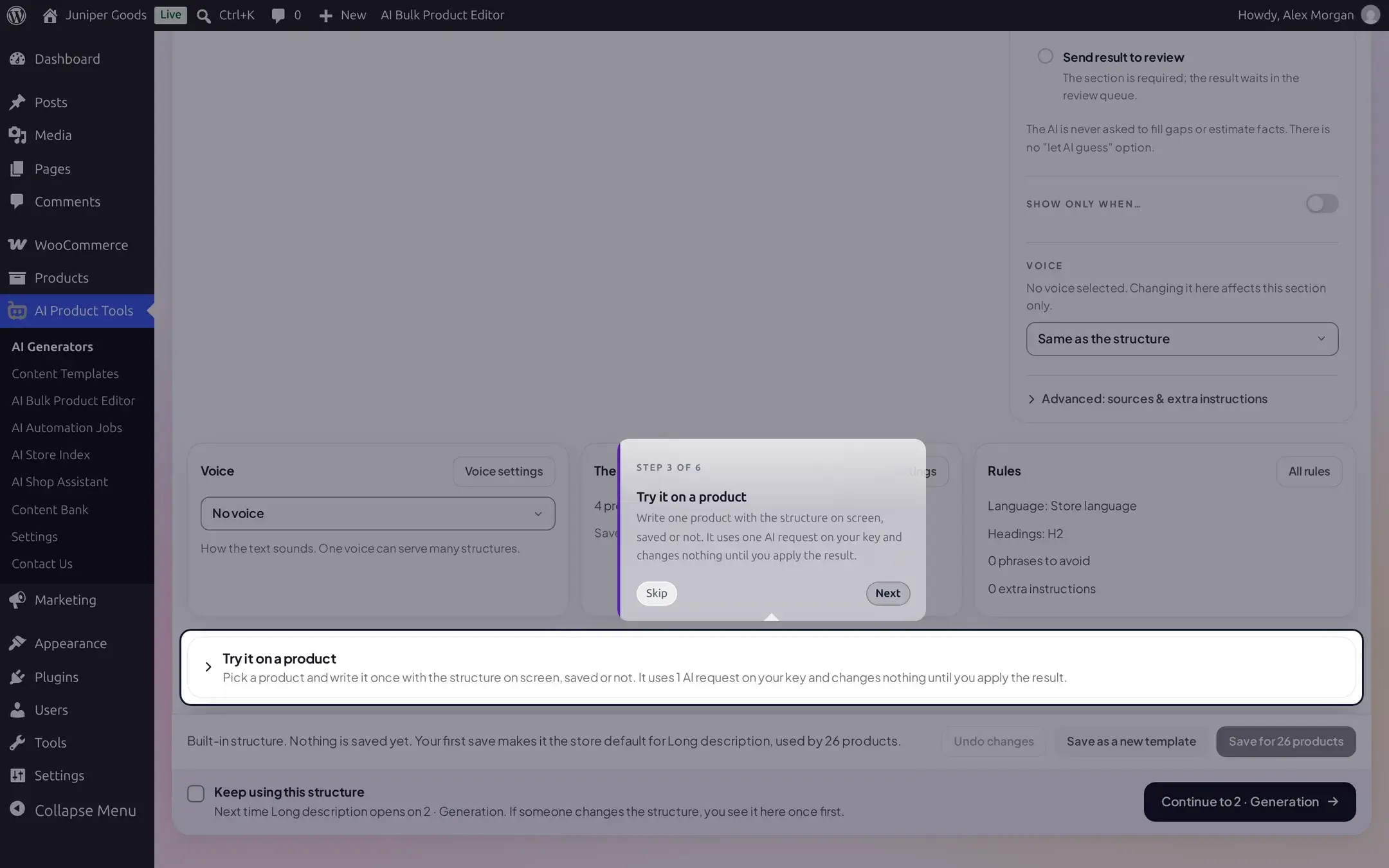

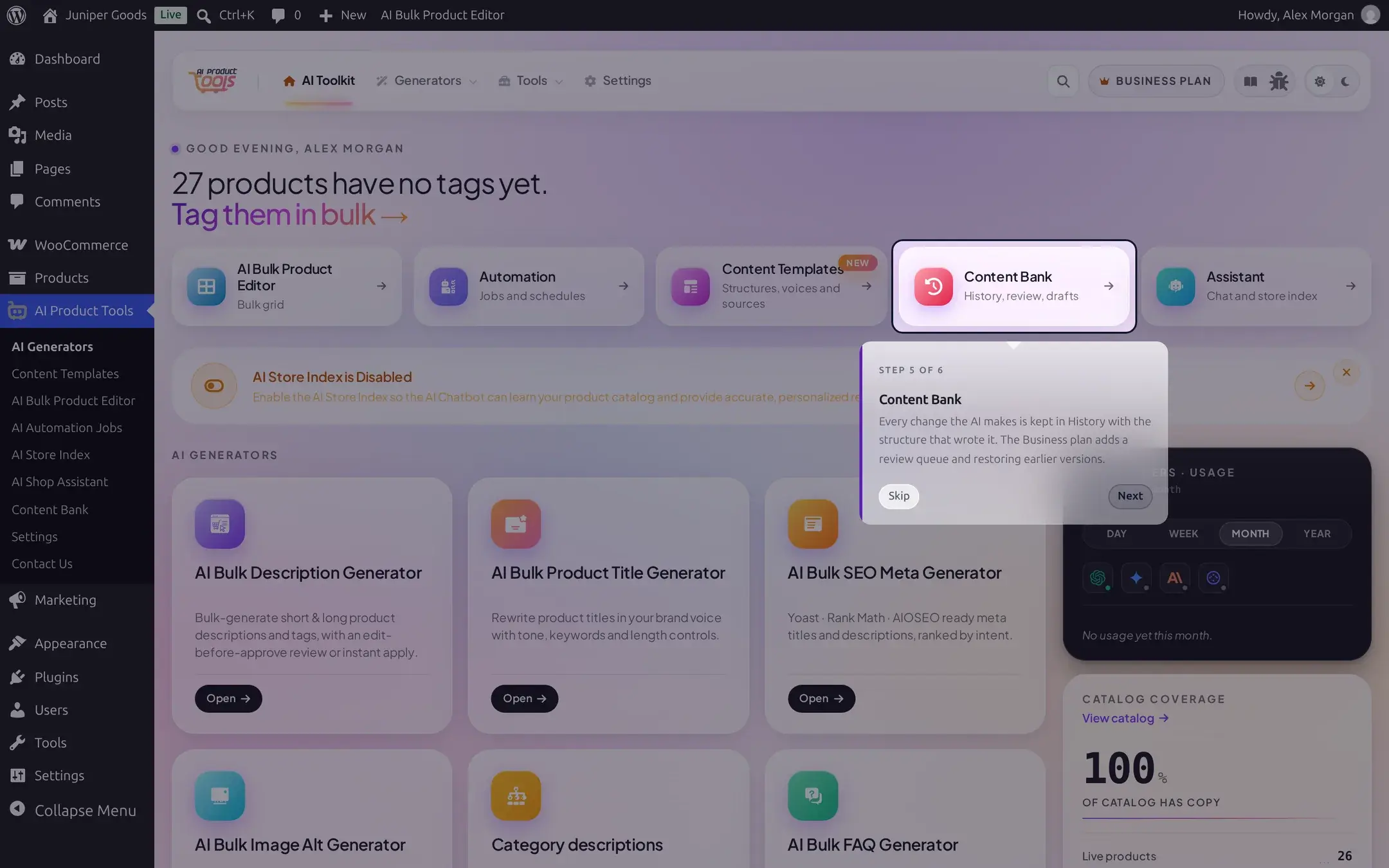
If a spotlighted control does not appear within a few seconds (for example a slow page load), the tour falls back to a plain centered dialog with the same text rather than getting stuck.
Reopening the wizard or the tour
- Wizard: there is no "skip forever" button or a URL trick to force it back open in this version. Clicking Later snoozes it for an hour; after that hour passes, it reopens on its own the next time you load AI Generators with no saved API key yet.
- Tour: click Take the tour in the AI Generators greeting (or Continue the tour if one is already running on another page), or open Ctrl+K/Cmd+K and choose Take the tour under Help. The same
?quickstart=1URL parameter also restarts it. Restarting always resets the tour back to step 1.
Reference
| Field | Detail |
|---|---|
| API key input | Masked by default with an eye icon to reveal it. Pasting strips anything outside letters, numbers, and -_./+=, and caps length at 300 characters. |
| Key validation timeout | 30 seconds client-side; a slow or unreachable provider shows a timeout message rather than hanging. |
| Style choice | Not saved until Completion. It becomes your store's default Description structure if you do not already have one, or a named template otherwise. |
| Snooze | Later on Welcome sets a 1-hour snooze. It does not touch any saved content. |
| Tour progress | Stored site-wide, not per-user, so finishing or skipping the tour as one admin affects what other admins see too. |
Free vs Business
The wizard and the guided tour are identical on Free and Business, including every provider and the style step. The only plan-aware text is in the tour's last two stops, which mention that Business adds a saved review queue, restore, and scheduled automation; see Free vs Business for the full comparison.