
How Bulk Generation Works
The product selection, settings, review, and apply flow shared by every AI generator page, from the Bulk Description Generator to Image Alt Text.
AI Product Tools ships six bulk generators: Bulk Description Generator, Bulk Title Generator, Bulk SEO Meta Generator, Bulk FAQ Generator, Category descriptions, and Bulk Image Alt Generator. They write different fields, but every one of them is built from the same screen, the same run options, and the same review-and-apply mechanics described on this page. Each generator's own page covers only what makes it different; come back here for anything about selecting products, running a batch, reviewing a result, or fixing a failure.
This page is the shared reference
Screenshots on this page come from the Bulk Description Generator, but every label, button, and behavior described here is identical across all six generator pages.
Before you start
- A BYOK AI provider connected under AI Product Tools > Settings > Connection (OpenAI, Google Gemini, Claude, or OpenRouter). Without one, the page still opens, but generating shows "Configure API Key in Settings" instead of a model picker.
- The
manage_woocommercecapability (a Shop Manager or Administrator account) to open any generator page and to generate content. - A valid WordPress session. Generating is a logged-in action; a stale tab can fail with a cookie/nonce error (see Troubleshooting).
Open a generator
The six generator pages are hidden from the raw wp-admin left-hand menu to keep it short. Reach them from the AI Generators card grid (AI Product Tools > AI Generators), from a deep link elsewhere in the plugin (Content Bank, the product edit screen, Automation job setup, Content Templates' "Open in generator"), or by bookmarking the admin URL directly.
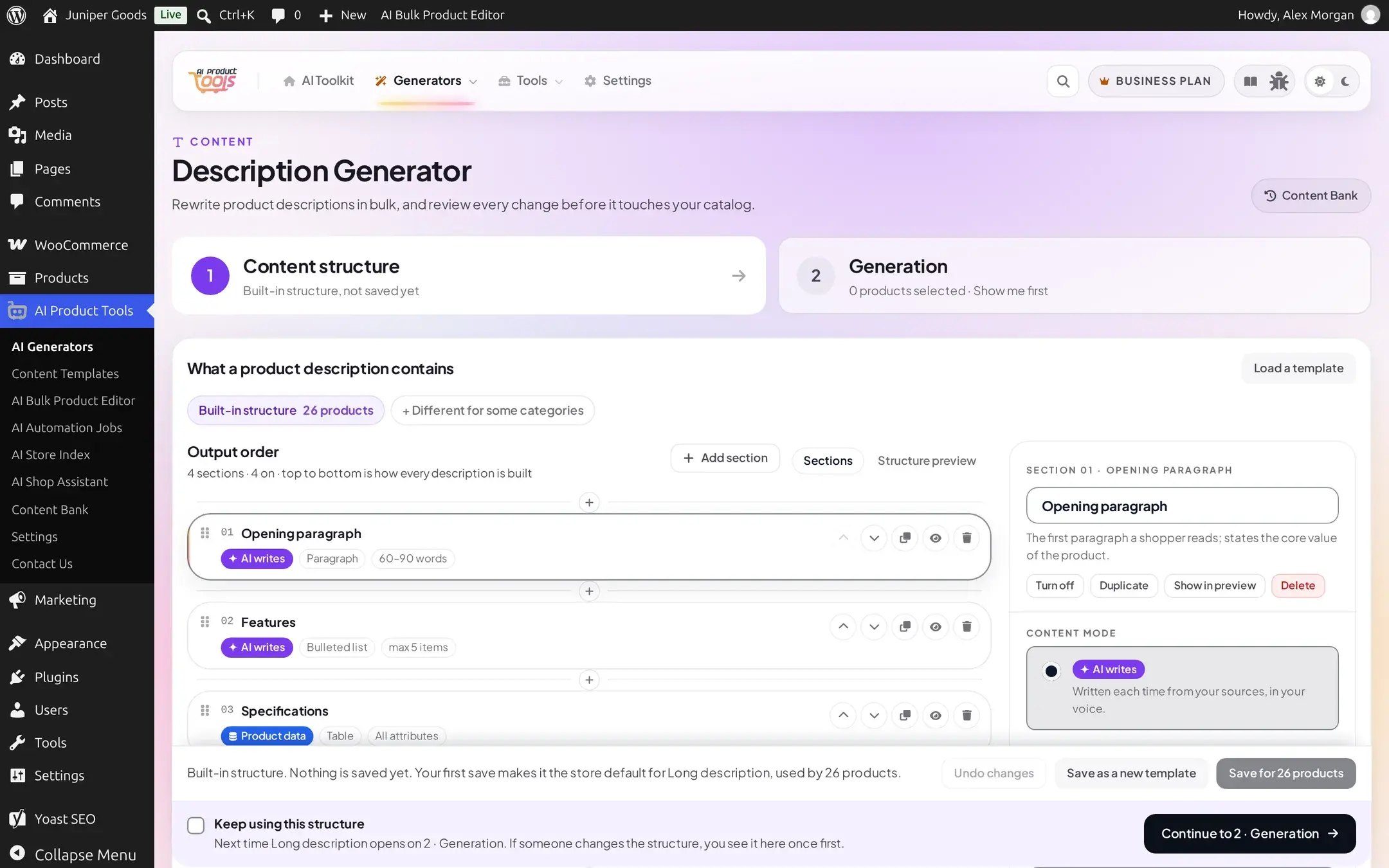
Confirm the content structure (tab 1)
The first tab, 1 · Content structure, decides what the generator actually writes: which sections it includes, in what order, with what length and tone. The first time you open a generator this tab opens automatically; tick Keep using this structure to skip straight to 2 · Generation on later visits. If a teammate changes the structure after you last continued, tab 1 reopens once with a short "what changed" note.
This tab, its editor, voices, sources, and category exceptions are its own topic: see How content structures work and Editing a structure. Everything below this step happens on 2 · Generation, which every generator shares.
Choose products
2 · Generation opens on a product list with a search box ("Search products by name, SKU, or category…"), a sort order, and a Filters button.
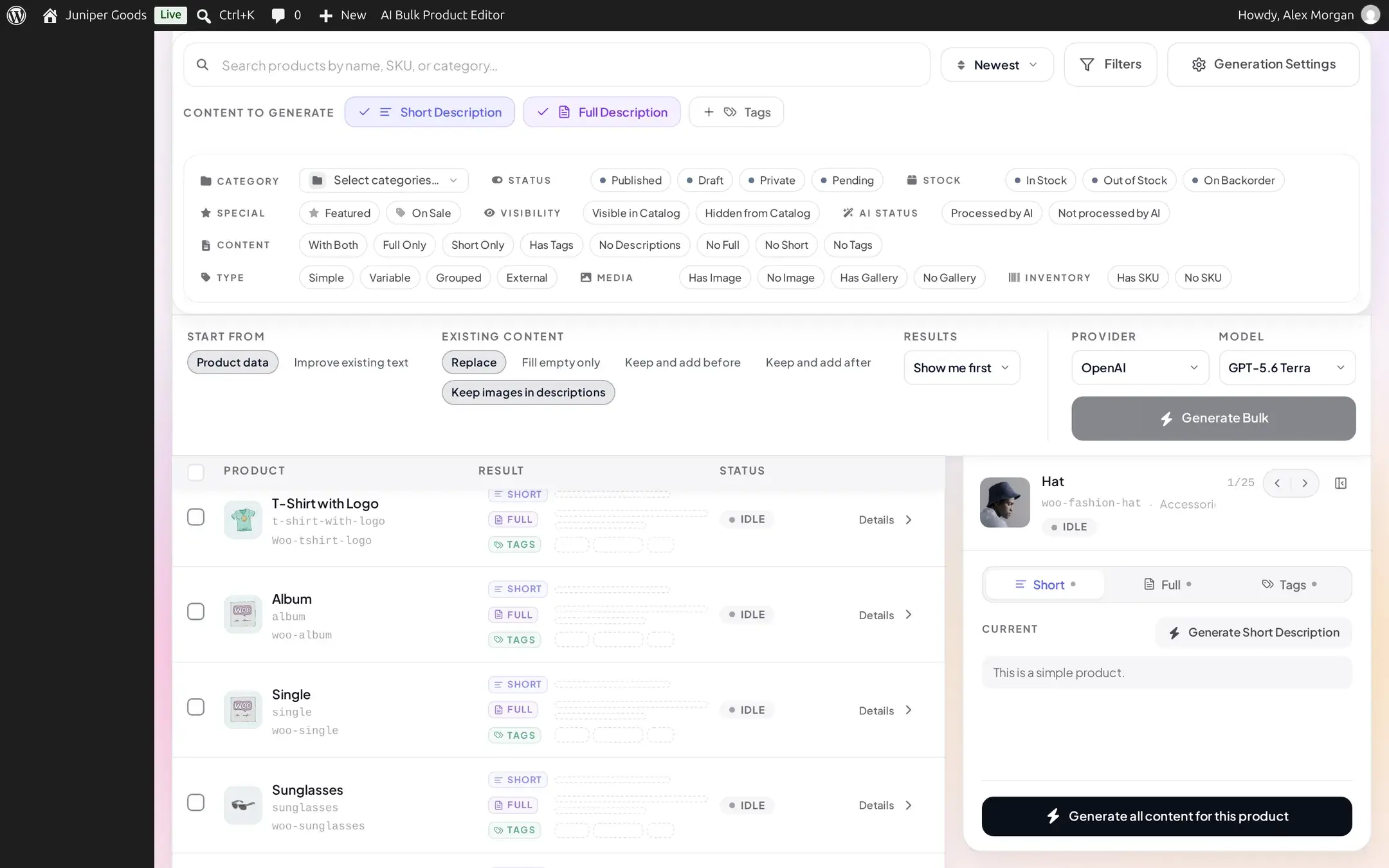
One filter is worth calling out: AI status, which separates products a generator has already marked Processed by AI from ones that are still Not processed by AI. Combine it with the per-generator "Content" filters (With Both, No Full, No Tags, and so on) to find exactly what still needs attention.

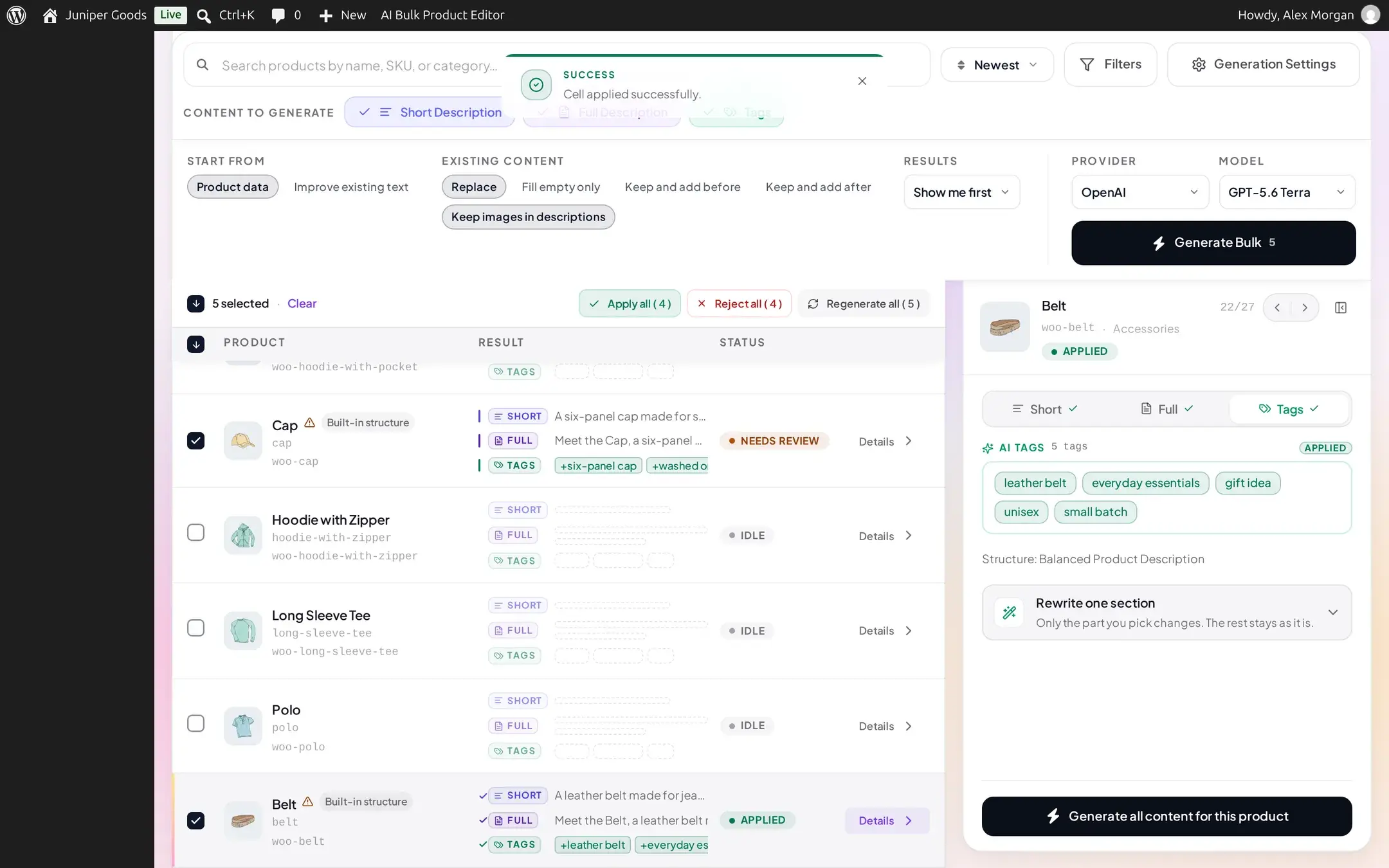
Check the products you want with their row checkboxes, or use the header checkbox to select everything on the current page (25 per page by default; change it near the pagination controls). Once you select fewer than everything the filter matches, a selection strip appears above the list:
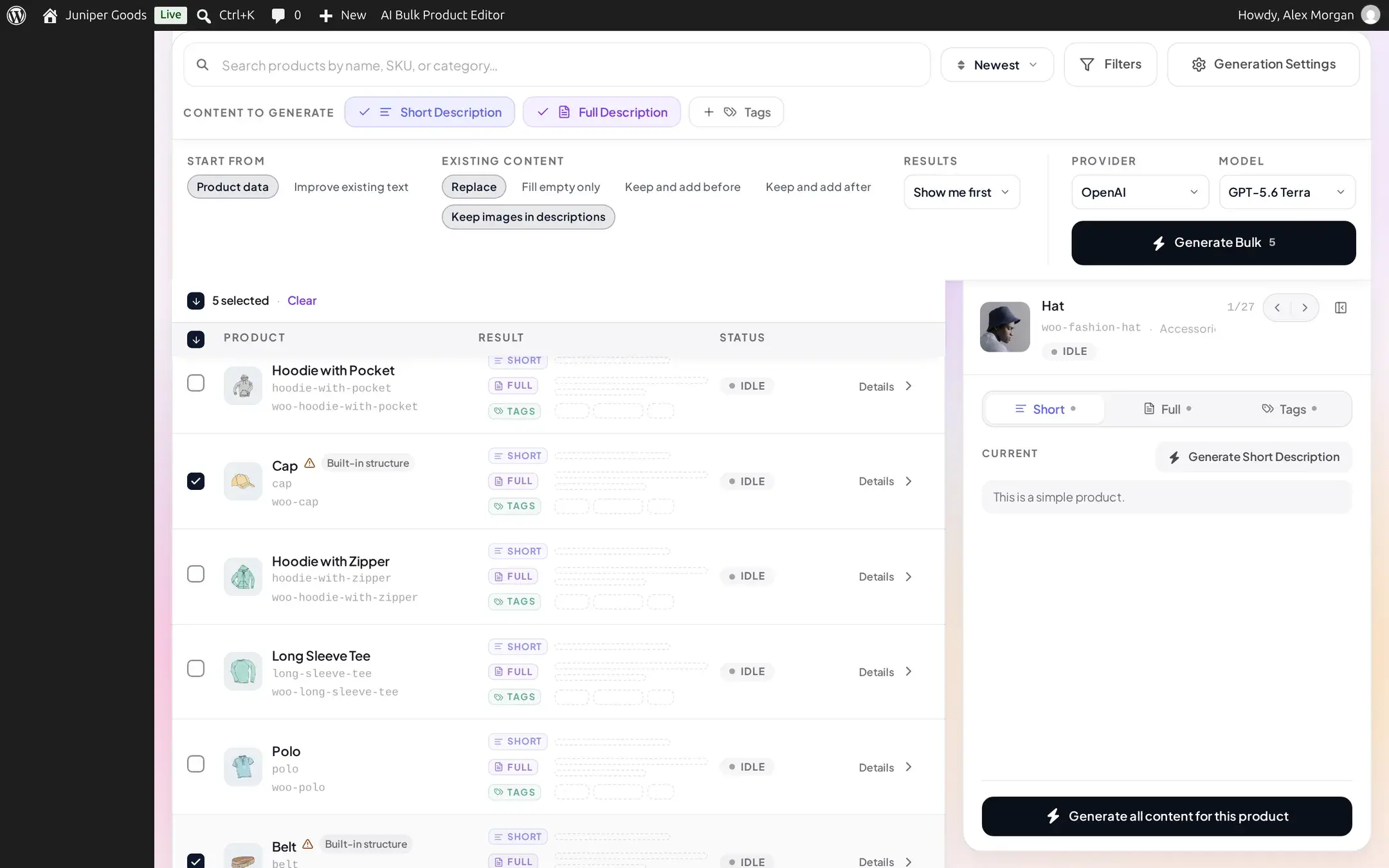
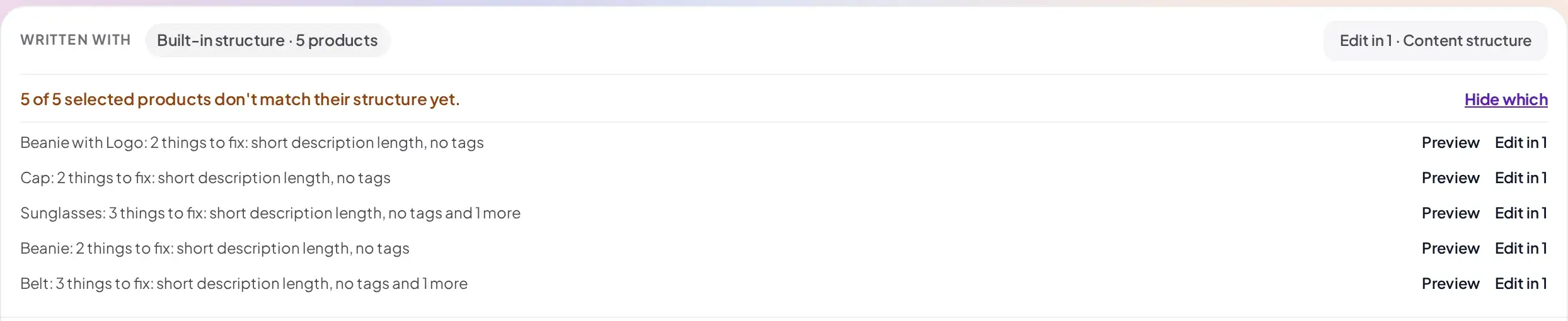
Right above the run bar, a Written with line names the structure (or structures, for a selection that spans a category exception) that will write this batch, and, at zero AI cost, flags anything already out of date: "N of M selected products don't match their structure yet." Click Show which for a line per affected product (for example "2 things to fix: short description length, no tags"), each with its own Preview and Edit in 1 links straight back to the structure. This check never blocks or changes a generation, it only tells you who is affected before you spend a single AI request.
A single run tops out at 1,000 products. Selecting more than that through "select all matching this filter" only queues the first 1,000.
Set the generation options every generator shares
Four controls sit in the run bar under the product list, the same on every generator page:
- Start from: Product data (write from scratch using the product's own fields) or Improve existing text (rewrite what is already there).
- Existing content: Replace, Fill empty only, Keep and add before, or Keep and add after. "Fill empty only" is re-checked against the live value right before each write, not just when you clicked Generate.
- Results: this is the execution mode. See the next step.
- AI Provider and Model: the four BYOK providers, filtered to whichever ones have a usable key; the model list updates to match. If the saved provider or model stops being usable, this silently falls back to the first working option.
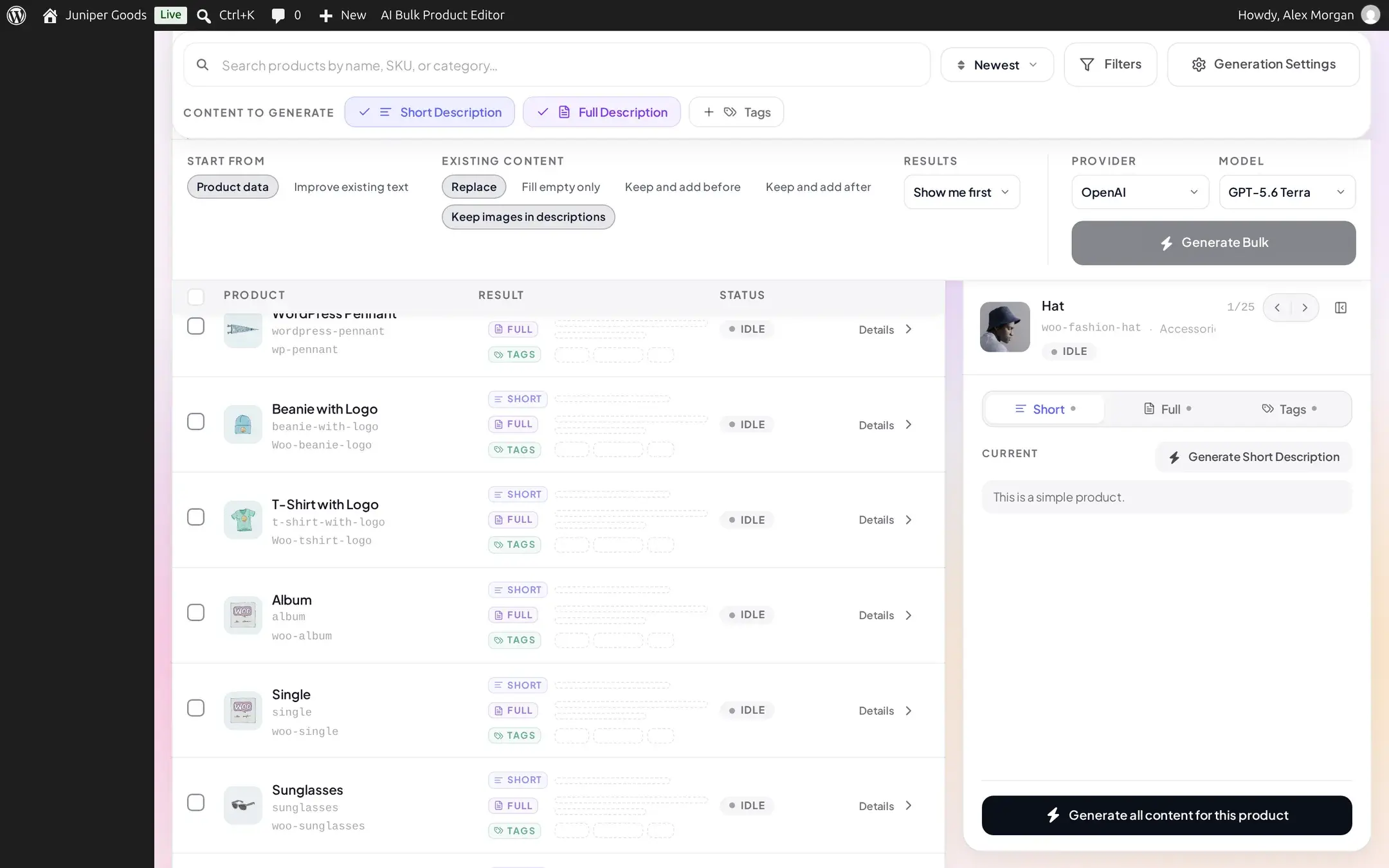
Every content type this generator can write (for example Short Description, Full Description, and Tags) appears as its own toggle chip next to Generation Settings; at least one must stay on. The Generation Settings button opens a popover for anything beyond that: an Auto-approve on success switch, and, only while this content type still runs on raw Custom prompts (Advanced) instead of a content structure, extra fields such as length, writing style, and output format. See each generator's own page for exactly which Generation Settings fields it has.
A token and cost estimate, where it appears
The Bulk Title Generator shows an estimated input/output token count (and, if you opt in under its model picker, an approximate USD cost) next to its Provider/Model controls before you generate. It is an estimate from the provider's own published pricing, never a balance the plugin tracks: AI Product Tools is BYOK and never meters your usage. Not every generator shows this chip yet.
Pick an execution mode (Results)
The Results control is a three-way switch that decides what happens to a successful result:
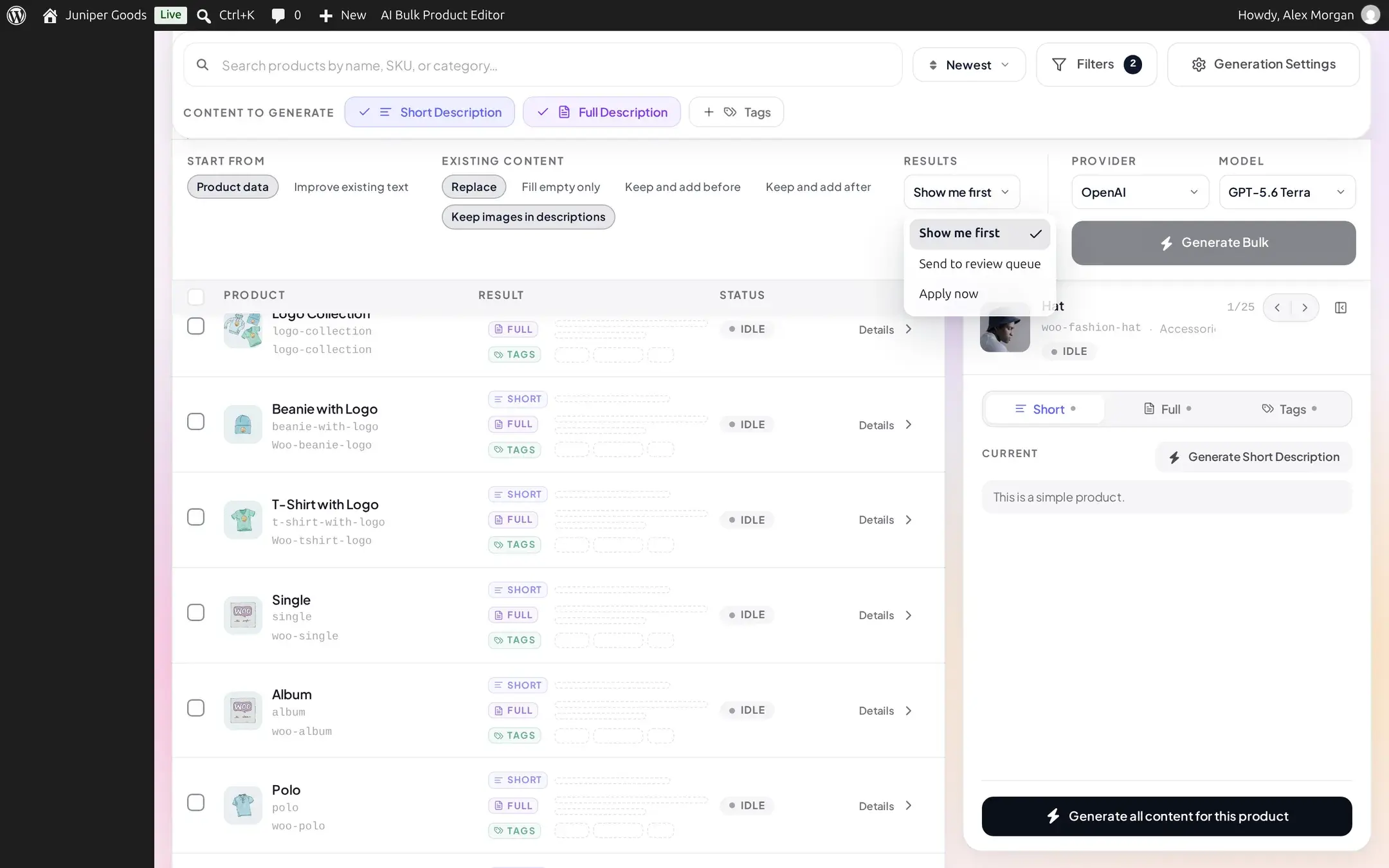
| Mode | What it does | Plan |
|---|---|---|
| Show me first | Writes nothing. The browser holds the generated content until you apply or reject each one yourself. The default on every plan. | Free, Business |
| Send to review queue | Stages the result in the shared Content Bank review queue, where a teammate with review rights approves or rejects it before anything is saved. | Business |
| Apply now | Saves to the product immediately, in the same request. The previous value is still captured in Content History first. | Free, Business |
Picking Send to review queue without Business entitlement opens an upgrade prompt instead of switching; see Free vs Business below.
Generate, and watch progress
Click Generate Bulk; once products are selected, the button shows the count (for example "Generate Bulk 5"). The button becomes Cancel while the batch runs.
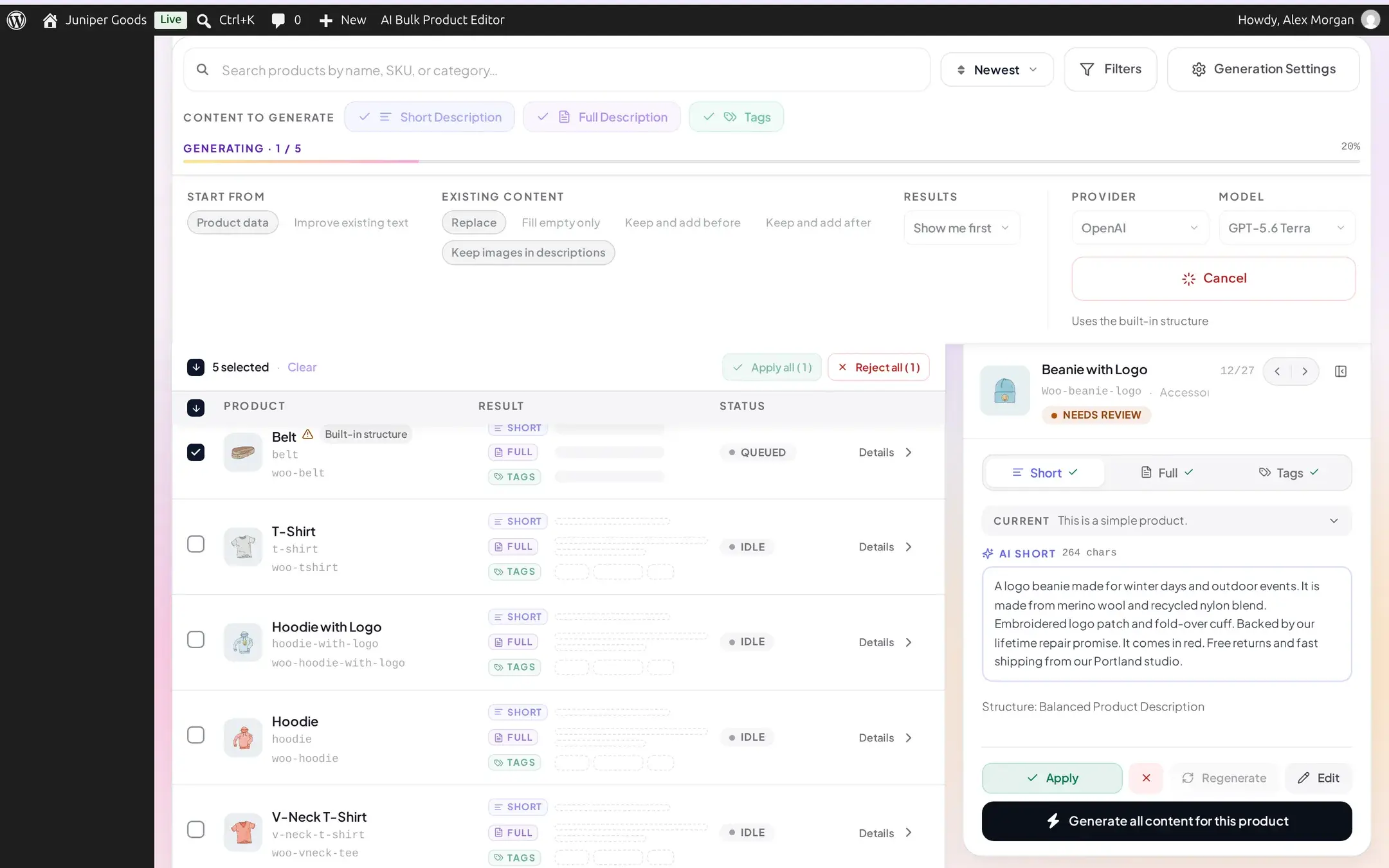
Each product is a separate, sequential request, not a background job: closing the browser tab stops the batch where it is (anything already applied stays applied). If your provider has a configured request interval (Settings > Connection), a short countdown shows between products; the default is no delay.
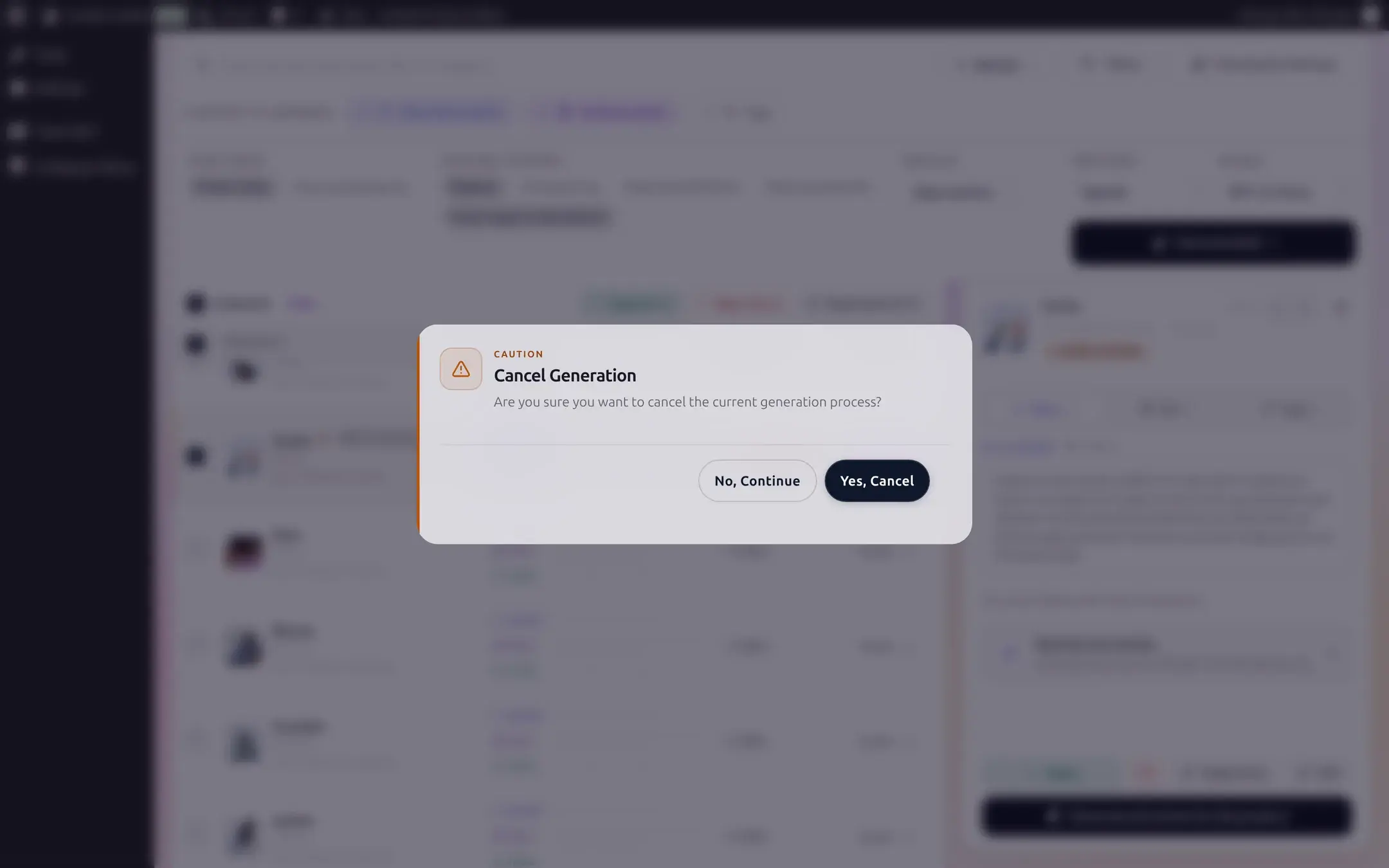
Click Cancel to stop a batch in progress. A confirmation dialog asks you to confirm, and every product that had not been sent yet reverts to exactly the state it was in before you clicked Generate, as if it were never queued.
Handle a per-product failure
A single product's content type can fail without stopping the rest of the batch: a bad AI response, a validation problem, or a transient provider hiccup marks only that row failed and the batch continues.
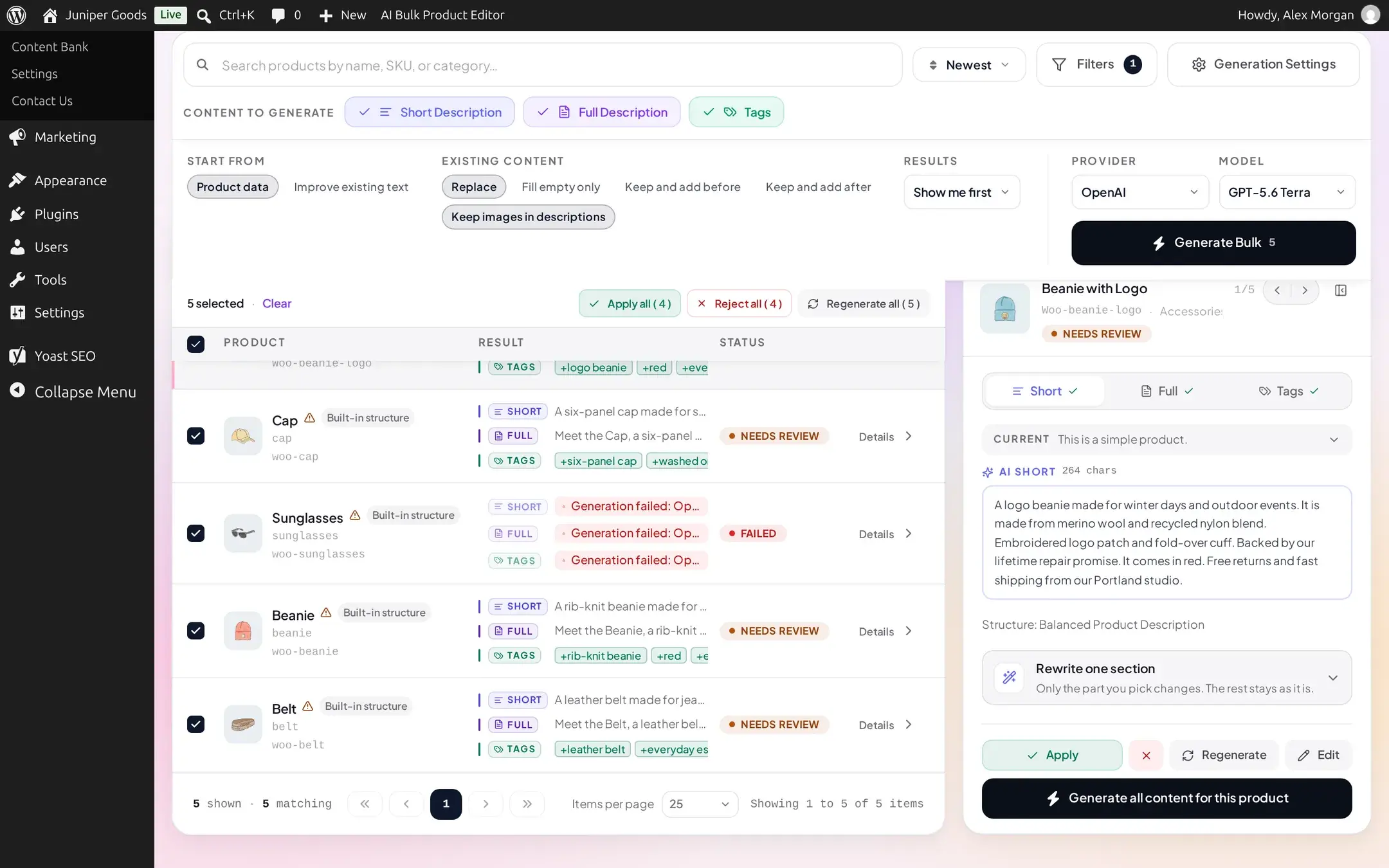
Open the failed row to see the reason and click Retry: only that product's failed content types are re-sent, with its retry count incremented.
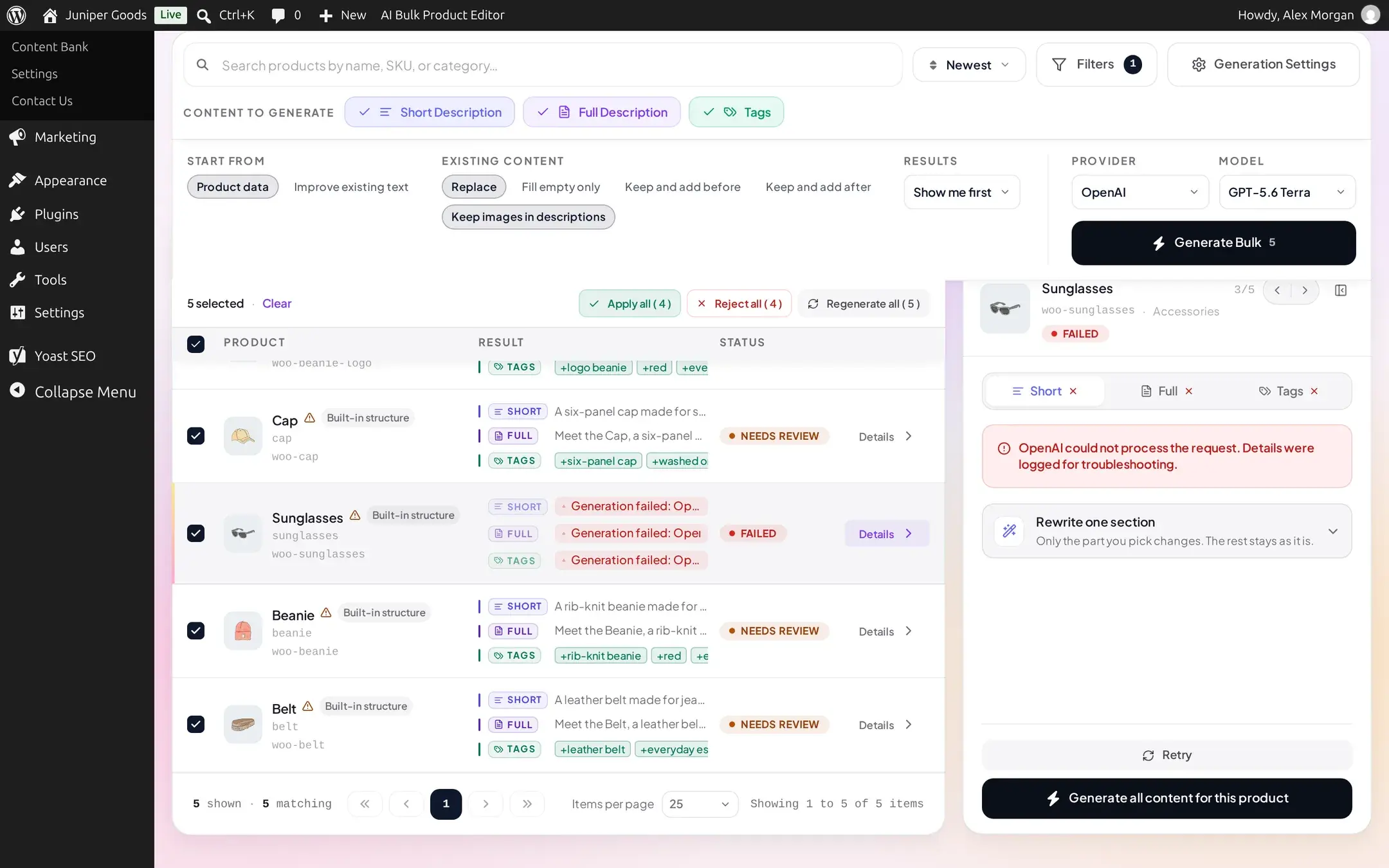
If instead a whole run stops with a red "Generation stopped: ..." banner, the cause is different: see the next step.
Know the difference: one failure vs. a stopped run
Two failure shapes look different on purpose:
- A normal per-product failure (shown above) only marks that one row. It does not mean anything about the rest of the batch, which keeps going.
- A run-wide provider failure, the kind that will clearly keep failing every later call too (an invalid or revoked API key, a provider with no quota left), stops the batch immediately with a red banner. Every product that had not been sent yet is restored to its pre-batch state, not marked failed, since it was never attempted.
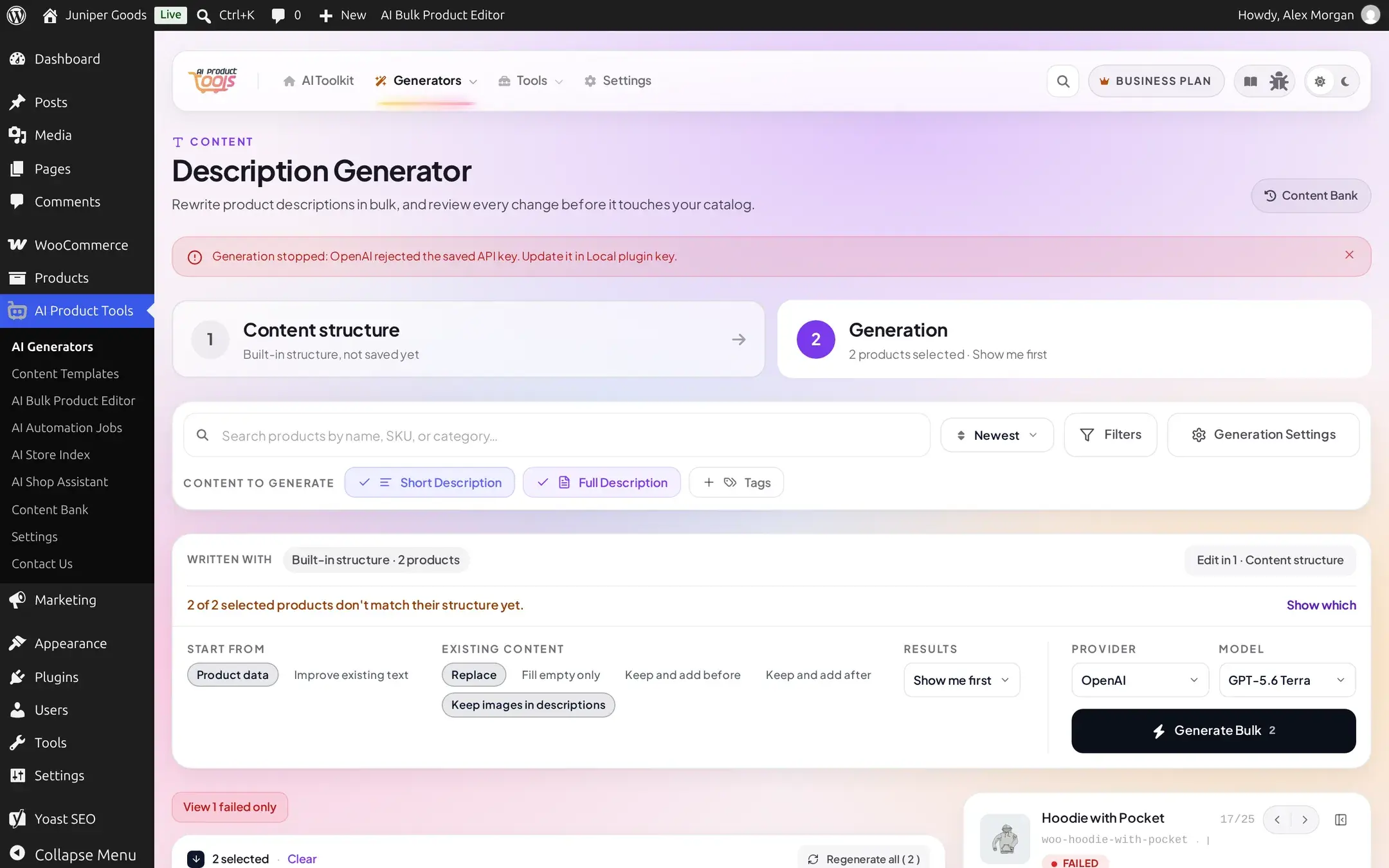
Fix the underlying provider problem (see Provider errors), then reselect the untouched products and generate again.
Review a result
With Show me first (the default) or a Send to review queue item once it reaches you, click a row to open its side panel, or the row's own preview, to compare the generated content against what the product has now. From there:
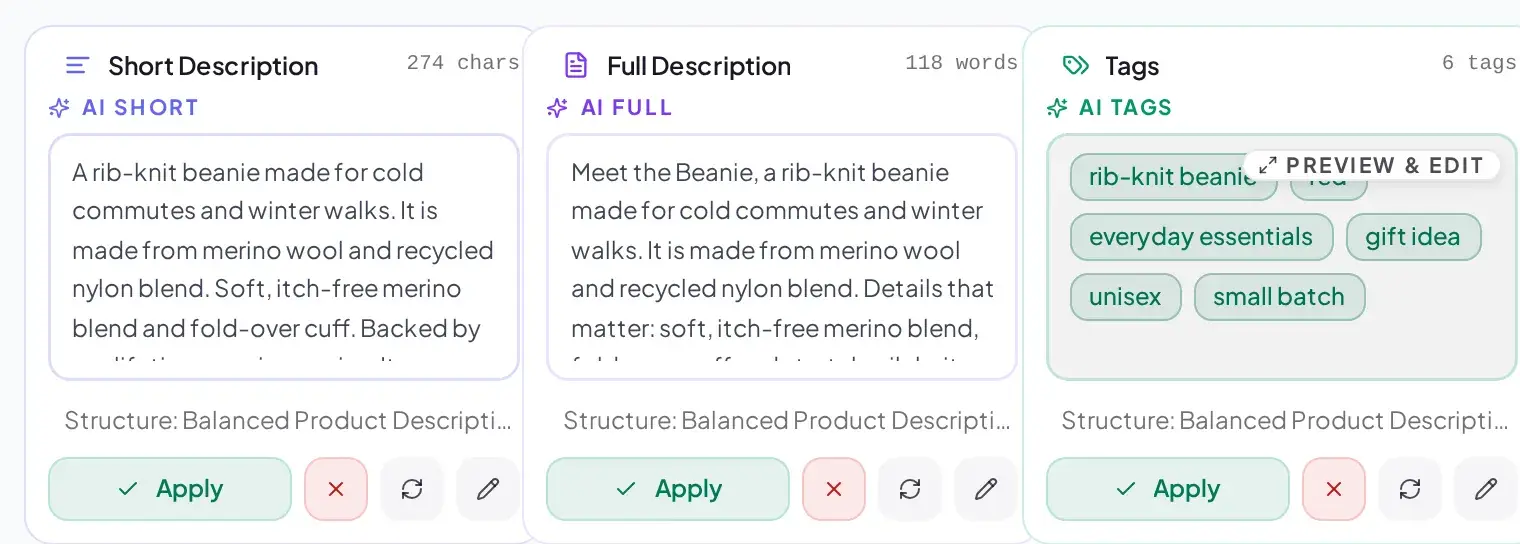
- Apply writes this one content type to the product and marks it AI-generated.
- Reject discards it. For a Show me first result nothing was ever staged server-side, so this is just local bookkeeping; for a staged review item it is a real rejection other reviewers will also see.
- Regenerate re-runs just that cell with the same settings.
- Edit opens the content in a modal first, so you can adjust it before applying.
Once more than one product has a result waiting, the selection strip's Apply all (N) and Reject all (N) buttons act on every selected product that has succeeded; a Regenerate all (N) button re-runs the last batch even after you clear the selection.
Every row also has its own expand chevron, on the right, as an alternative to the side panel: it opens every content type together right inside the list, each with its own word, tag, or character count, a Preview & Edit flag, and the same Apply, Reject, Regenerate, and Edit actions per cell, plus its own Apply all pending / Reject all footer for everything in that one row at once.
Apply, and see what it changes
Applying writes the content to the product (or, for FAQs and category descriptions, to the relevant table or term) and marks that field AI-generated, which is what lights up the small AI badge next to that product in the list and what the AI status filter matches on.
Before the very first write, AI Product Tools captures the product's current value in Content History, automatically, on every plan, with no setup. If an apply fails partway, the captured snapshot is rolled back too, so you never end up with a misleading history entry for a value that was never actually changed.
Reference
Execution modes (Results)
| Setting | What it does | Default | Plan |
|---|---|---|---|
| Show me first | Generates into the browser only; nothing is saved until you apply it | Yes | Free, Business |
| Send to review queue | Stages the result in the shared Content Bank review queue for a reviewer | No | Business |
| Apply now | Saves immediately, same request | No | Free, Business |
Start from / Existing content
| Setting | What it does |
|---|---|
| Product data | Writes fresh content from the product's own fields (title, attributes, price, and so on). |
| Improve existing text | Rewrites what the product already has instead of starting over. |
| Replace | Overwrites the current value. |
| Fill empty only | Only writes where the field is currently empty; a product that already has content is skipped (shown as "kept the existing text", not a failure). |
| Keep and add before / after | Keeps the current value and places the new content immediately before or after it. |
Row status badges
| Badge | Meaning |
|---|---|
| Idle | Not yet generated in this session. |
| Queued | Selected and waiting its turn earlier in the same batch. |
| Generating | A request for this row is in flight right now. |
| Needs review | Generated and waiting for Apply or Reject (Show me first or review queue). |
| Failed | This row's generation failed; open it to see why and to Retry. |
| Applied | Every requested content type on this row has been applied. |
| Rejected | Content on this row was rejected, and nothing on it is left waiting for a decision. |
A small AI badge next to a row means at least one of its fields already carries an AI-generated mark from a previous run, independent of this session's status badge.
Free vs Business
| Capability | Free | Business |
|---|---|---|
| Show me first, Apply now, every Start from / Existing content option, any connected provider and model | Yes | Yes |
| Send to review queue (staged review, approve/reject by a teammate) | No, shown locked with an upgrade prompt | Business |
| Content History capture before every apply | Yes | Yes |
| Restoring a past value from History | No | Business, see Restore a past value |
| Selecting and generating up to 1,000 products per run, per-product retry, cancel | Yes | Yes |
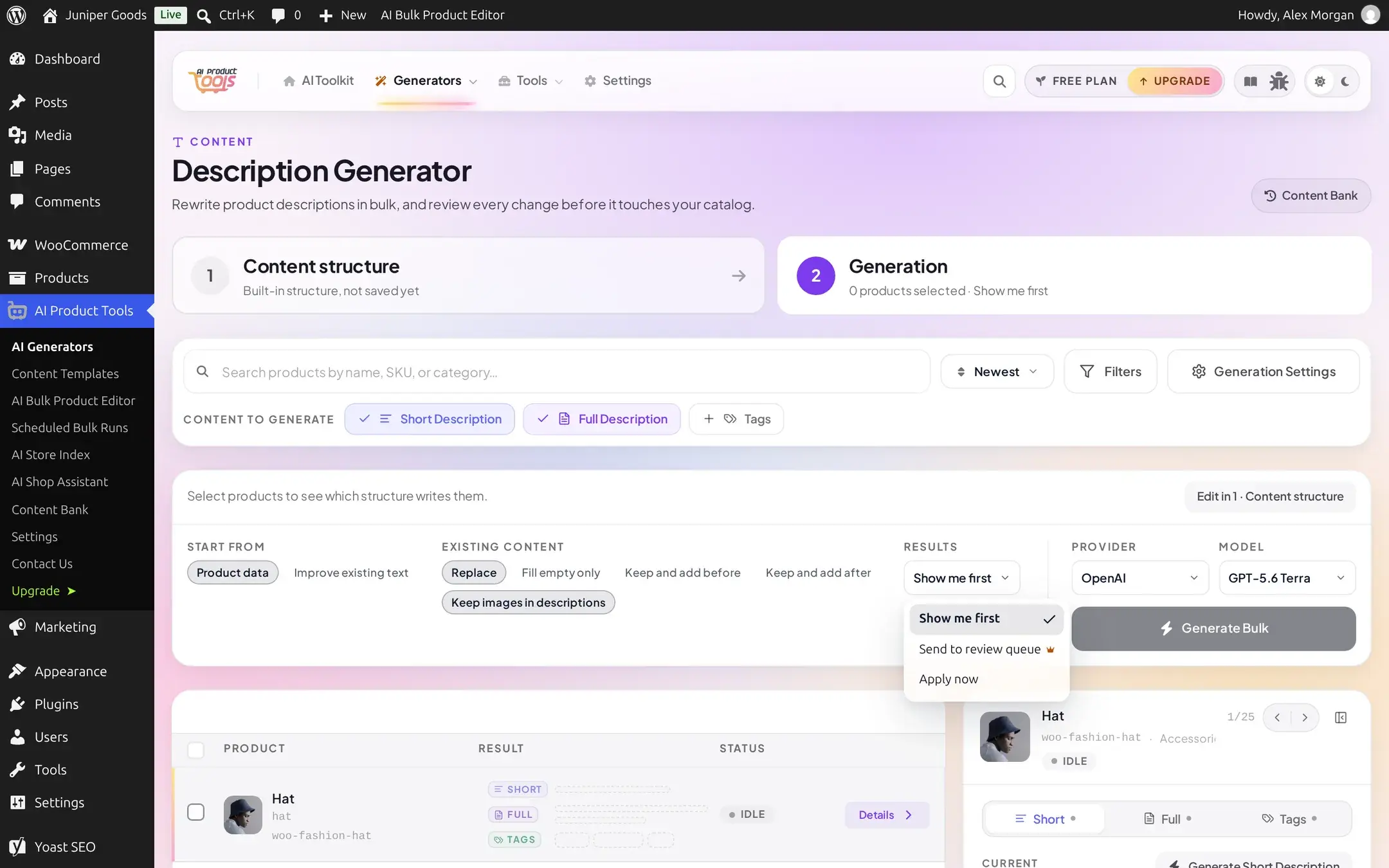
Clicking the locked option opens an upgrade prompt rather than switching:
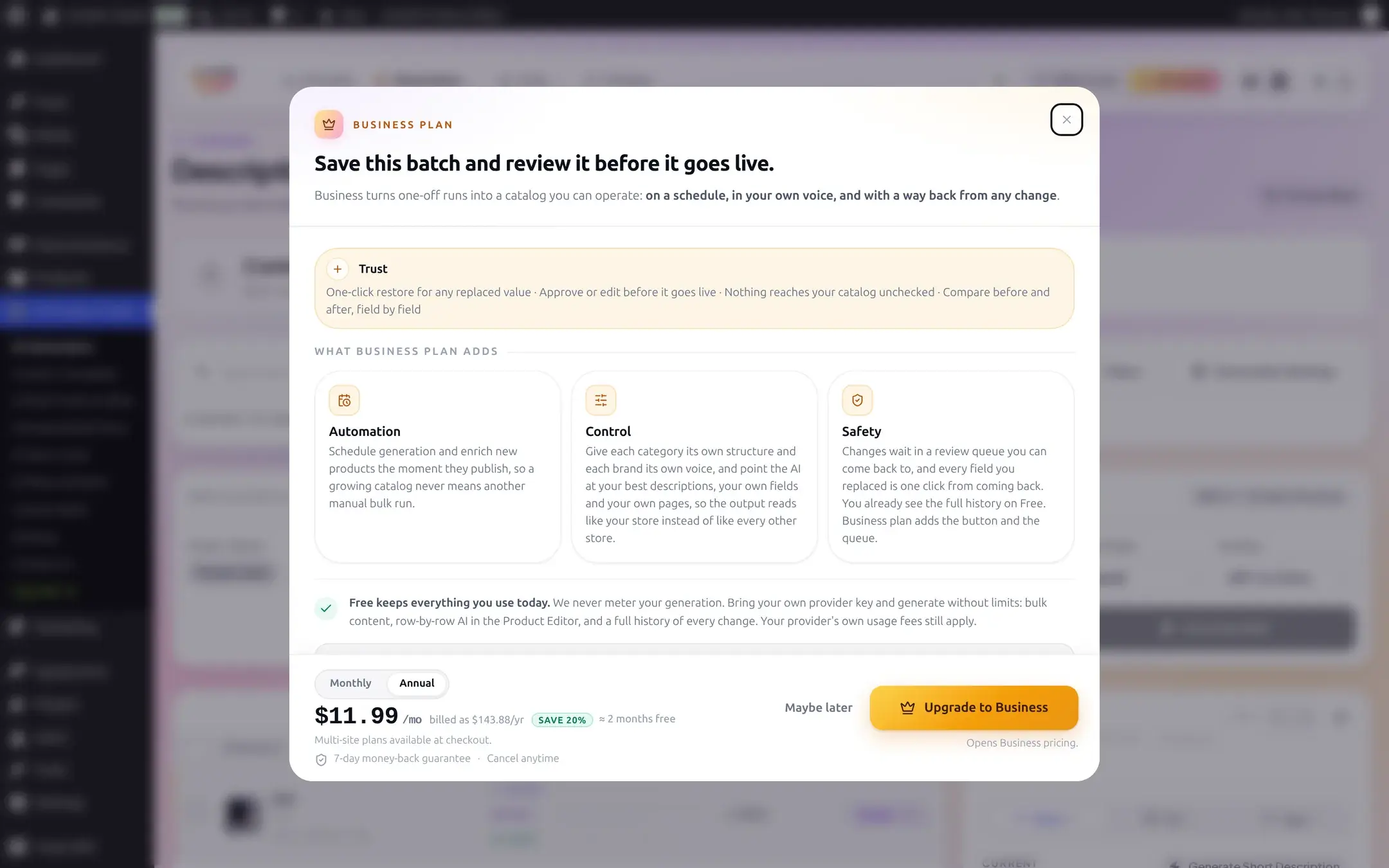
A request for Send to review queue that somehow reaches the server without Business entitlement is not silently honored: it is downgraded to Show me first and the page shows an amber notice saying so. In the normal UI you cannot reach this state, because the Results control already blocks the choice before any request is sent.
Troubleshooting
Bulk Description Generator
Short and long descriptions, tags, languages, and the storefront result.
How content structures work
What a content structure is, and why tab 1 looks the way it does.
Content History
Every value a generator has overwritten, with before/after comparison.
Review Content
The Business-only staging queue behind Send to review queue.
Provider errors
Exact messages for every per-product AI provider failure.