
Content Structures
The shared recipe that decides what every AI generator writes: sections, voice, sources and rules, in one place.
A content structure is the recipe for one content type: which parts it contains, how long each part is, what tone it uses, what facts it can draw on, and what it must never do. There is one structure per content type for your whole store (a store default), plus, on Business, extra versions for specific categories or tags. Nothing is hidden behind separate prompt files or settings tabs: you edit the exact same structure everywhere that content type is generated.
Every store starts with a ready-made, built-in structure for each content type, so you can generate immediately. Editing it, and saving once, makes it your store's own default: nothing changes on your products until you do that first save, and even then only Generate or Apply ever touches real content.
Before you start
- A connected AI provider (OpenAI, Google Gemini, Anthropic Claude, or OpenRouter). See Choosing a provider.
- Permission to generate content (
manage_woocommerce, the same role used by the rest of the plugin) to view, edit, create and duplicate structures and voices. Settings managers (manage_aipt_settings) are additionally needed to add or remove a web page source, delete a voice, delete a structure that is already in use, or switch a content type back from raw prompts to its structure.
The three things a structure holds
Structure: what the output contains
For Long description and Category description, this is an ordered list of sections (Opening paragraph, Features, Specifications, and so on), each with its own content mode, length and rules. See Sections for the full catalog.
For Product title, SEO meta, FAQ and Image alt text, the equivalent is a formula: an ordered chain of title parts, two independent token builders for the meta title and description, a set of question groups, or a set of alt-text rules. These are covered on their own generator pages, linked from Sections.
Voice: how it sounds
A voice is a shared description of your brand's tone, audience, writing rules, preferred terms, words to avoid, and (on Business) approved writing samples. One voice can serve every structure and content type; a structure can also override a few of these settings for itself. See Voices and sources.
Sources: what facts it can use
Sources are the reference material a structure is allowed to read: your product's own data and custom fields always, plus, on Business, web pages and per-product URL fields you add. A structure never invents a specification, certification or warranty term that is not in one of its sources. See Voices and sources.
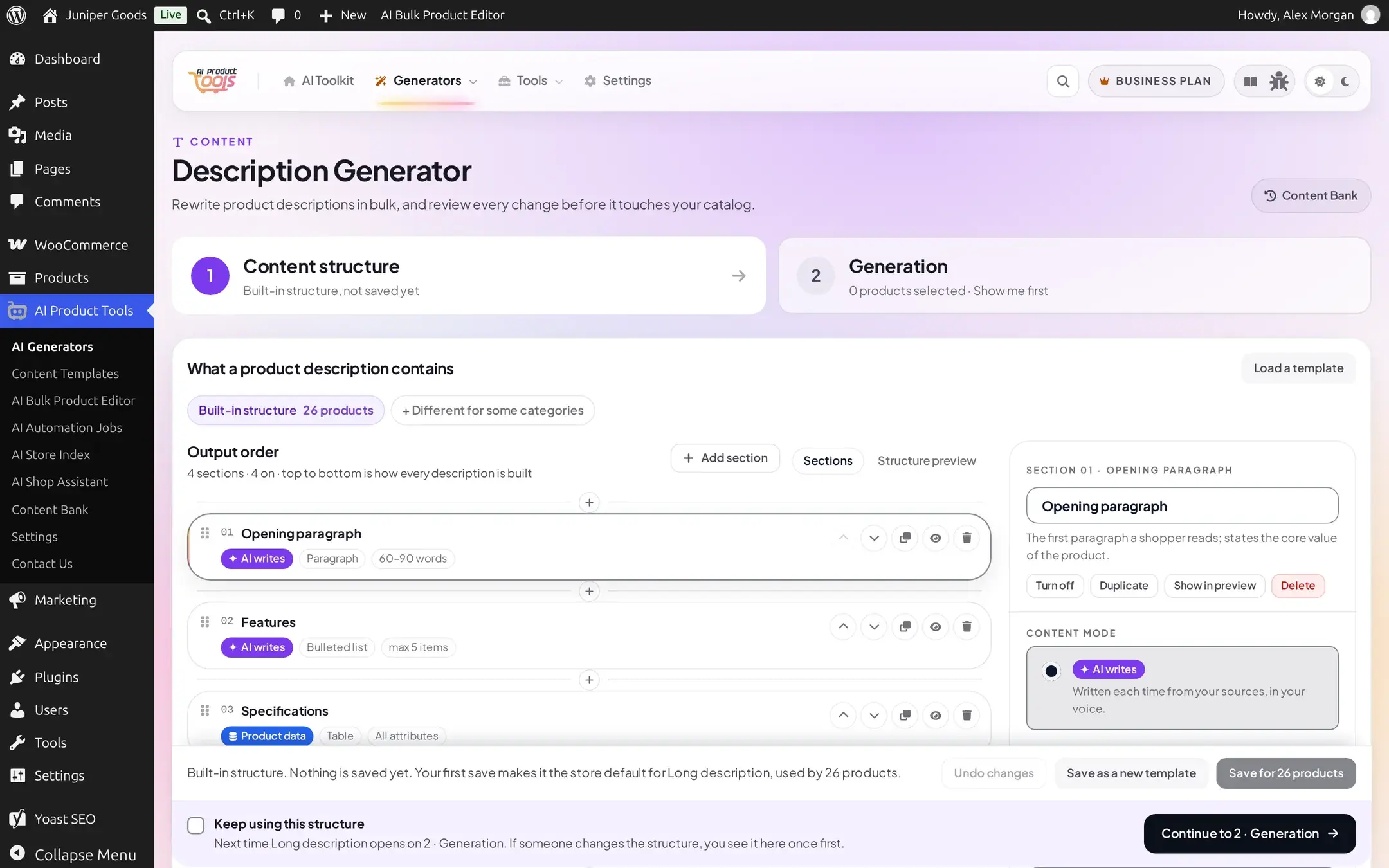
Where you edit a structure
You never have to leave the generator to change what it writes. Every generation surface shows the same editor inline, behind two numbered steps:
- 1 Content structure: the editor itself (open by default the first time, and again whenever someone else changed it since you last continued past it).
- 2 Generation: pick products or terms, a run mode, and an AI model, then Generate.
This inline editor appears identically on all six generator pages, inside the product screen's AI content panel, inside the Product Editor's generation drawer, and inside an Automation job's own "Content structure" step. Wherever you save a change, it applies everywhere that content type is written, including scheduled Automation runs. See Editing a structure for the full inline editor, and How bulk generation works for running a generation itself.
The same structures, and their saved templates, voices and sources, are also collected on one admin page: AI Product Tools > Content Templates. Use it to see every content type's current structure and category exceptions at a glance, manage saved templates you are not using yet, and manage voices and sources as store-wide libraries. See The Content Templates page.
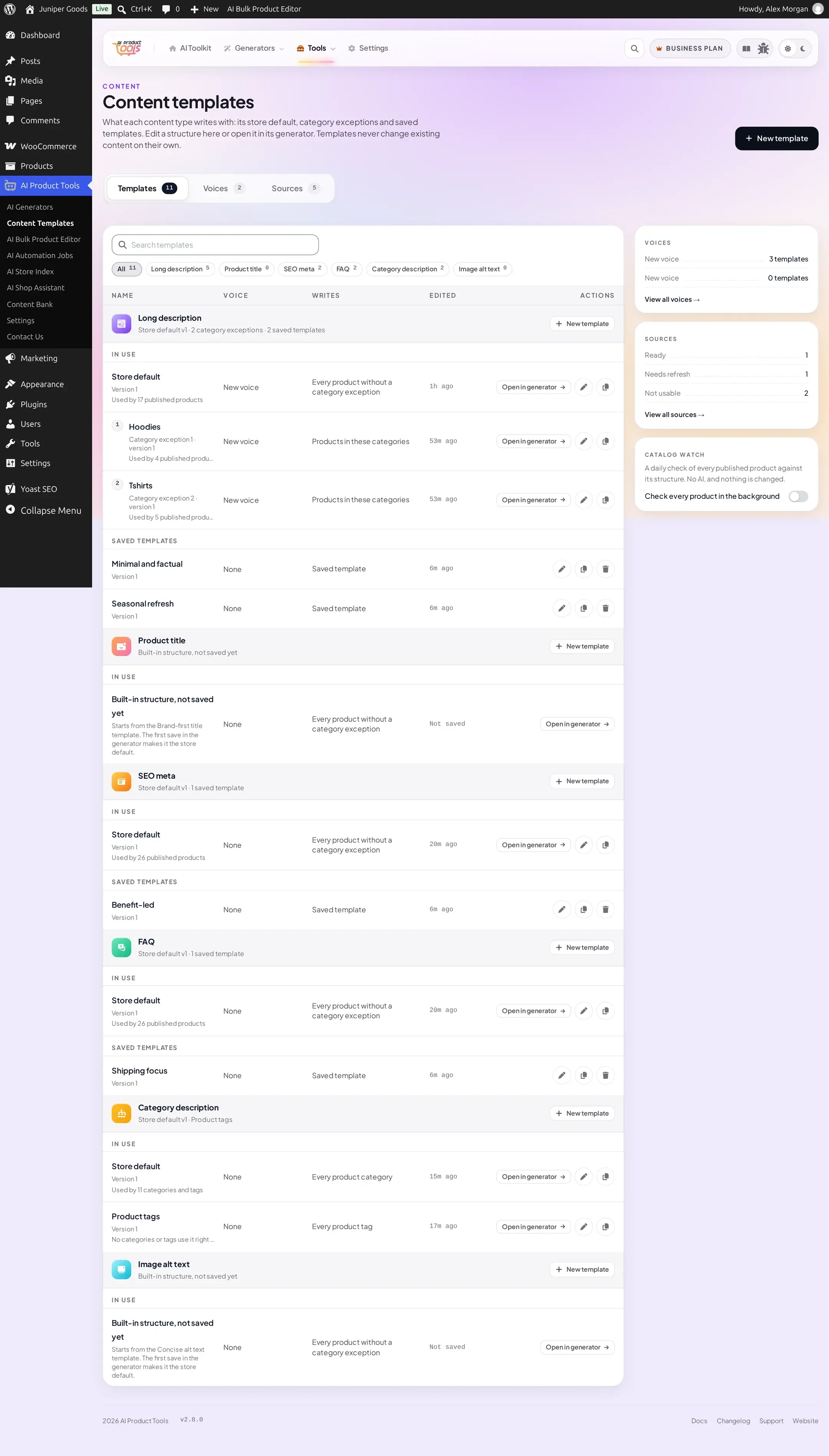
One structure, used everywhere
Because a content type has exactly one governing structure (plus, on Business, exceptions), the following all read it:
- The six generator pages, for a bulk run.
- The product screen's AI content panel, for a single product.
- The Product Editor's generation drawer, for in-grid generation.
- A scheduled Automation job's own "Content structure" step.
- Content Bank (History, Review and Drafts), which records which structure, and which version of it, wrote each field, so you can always tell why a piece of content reads the way it does. See Content History.
Free vs Business
| Capability | Free | Business |
|---|---|---|
| Structure per content type | One store default | Store default plus ordered category exceptions (and, for Category descriptions, a separate Product tags structure) |
| Voices | One | Unlimited |
| Sources | Product data and core custom fields | Also web pages and per-product URL fields |
| "What customers say" and "Compare with similar products" sections | Not offered | Available |
| Category description: Custom section | Not offered | Available |
| Catalog watch (daily structure-match check) | Not available | Available |
A downgrade never deletes or locks your own saved data. A category exception, an extra voice, or a web source you saved while on Business stays exactly as it was, badged Business, and simply stops being applied until you upgrade again. See the Free vs Business sections on each page in this area for the exact gates.
Not a prompt editor
Content structures replace writing raw prompts for almost everyone. If you still need full control over the literal text sent to the AI, that remains available as a secondary, expert path: Settings > Advanced prompts. See Custom instructions.
Related pages
Editing a structure
The inline 1 Content structure / 2 Generation tabs, step by step.
The Content Templates page
Manage every structure, template, voice and source from one admin page.
Sections
Every description and category-description section type, and the title, SEO, FAQ and image alt formulas.
Voices and sources
Shared tone and reference facts any structure can reuse.
How bulk generation works
Selecting products, run modes, review and apply.
WordPress AI Connectors
Share an OpenAI, Gemini or Claude key with every AI-aware plugin through WordPress's own Connectors screen, on WordPress 7.0 and later.
Editing a Content Structure
Use the inline 1 Content structure / 2 Generation tabs on any generator page to change what a content type writes, then run it.