
Create a Job
Walk through the New Job wizard, from picking a tool to confirming a live write, for any of the five automatable tools.
A job is built in one wizard with seven numbered steps (an eighth, Custom Prompts, appears only in one specific case covered below). Every step's choice is saved as you go, so Previous never loses work, and the last step recaps everything before you create the job.
Before you start
- A connected AI provider and the
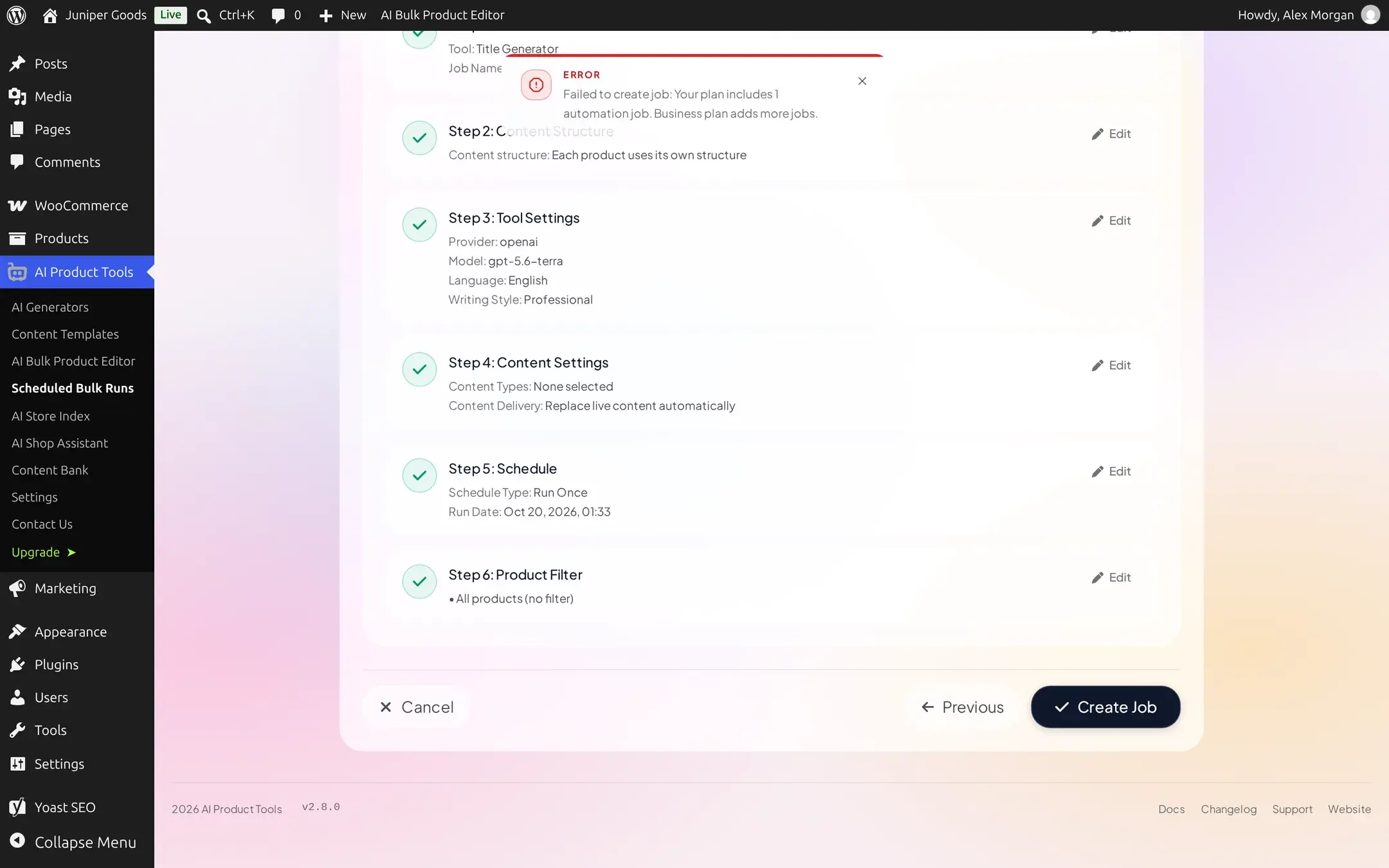
manage_woocommercecapability; see Before you start on the Automation overview. - On Free, you can have only one non-terminal job at a time. Finish, stop, or delete an existing job first, or the wizard's last step rejects the create with "Your plan includes 1 automation job. Business plan adds more jobs."
- Know roughly which products you want this job to touch; the last wizard step lets you filter by category, tag, status, stock, price, or an explicit product ID list, but you do not have to decide until then.
Open the wizard
Go to AI Product Tools > AI Automation Jobs (labeled Scheduled Bulk Runs on Free). The page itself is a persistent List Jobs / New Job / Templates tab switcher, not a button you click once: click New Job to open this wizard, or List Jobs to return to your job list at any time. Each tab updates the page's URL, so a bookmarked or shared link opens straight to that tab. Templates only carries a "Soon" badge today and does nothing yet.
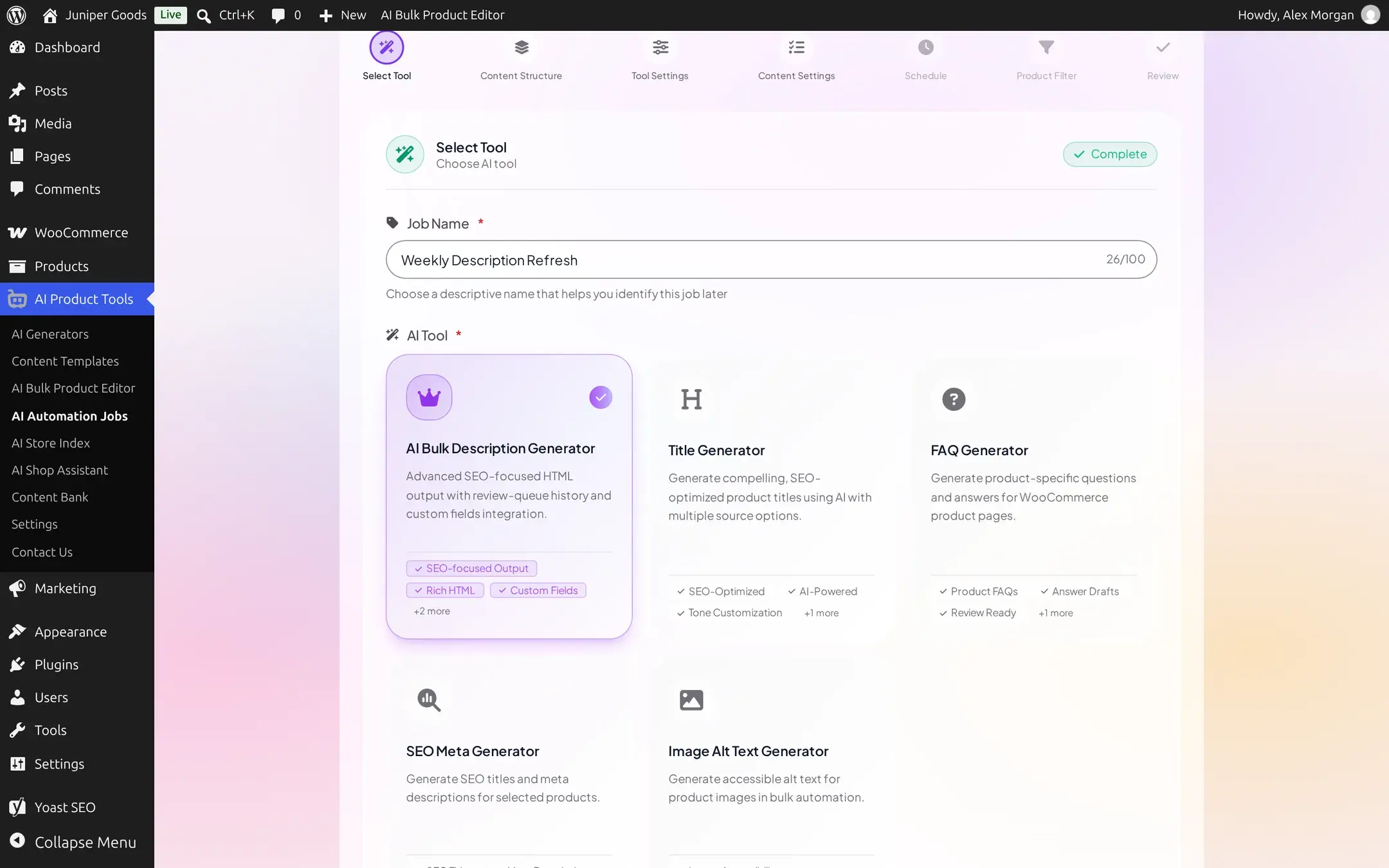
Type a Job Name (up to 100 characters; this is only a label for your own list, it never affects what gets generated) and pick one AI Tool card. A job runs exactly one tool: to automate two different content types, create two jobs.
Choose a content structure
Step 2 decides what the content actually looks like. For a new job on a site already using content structures everywhere (the normal case today), you get two choices:
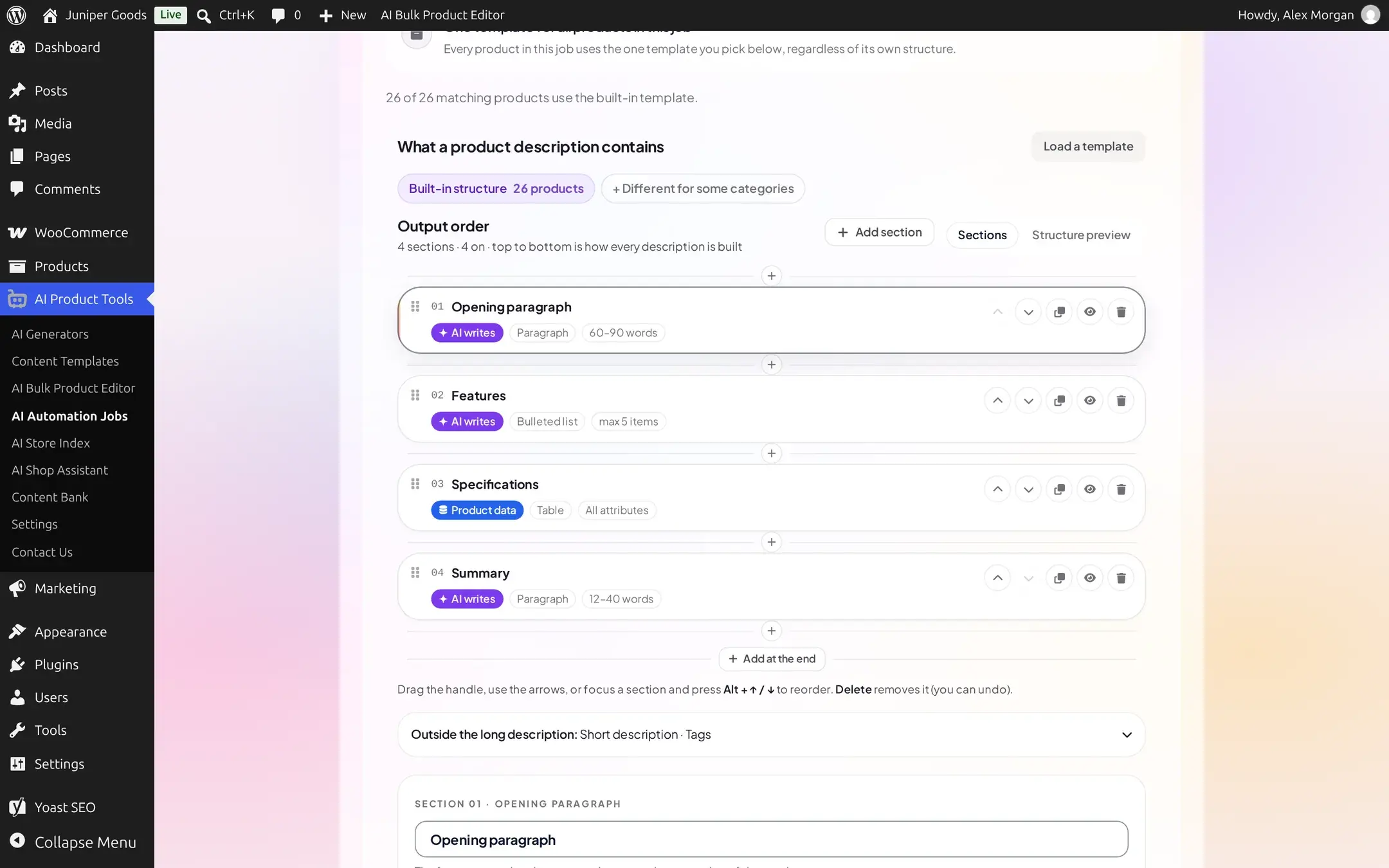
- Each product uses its own structure (recommended, selected by default): every product follows whatever structure already applies to it, a category exception or the store default.
- One template for all products in this job: every product in this job uses the one template you pick, regardless of its own assignment.
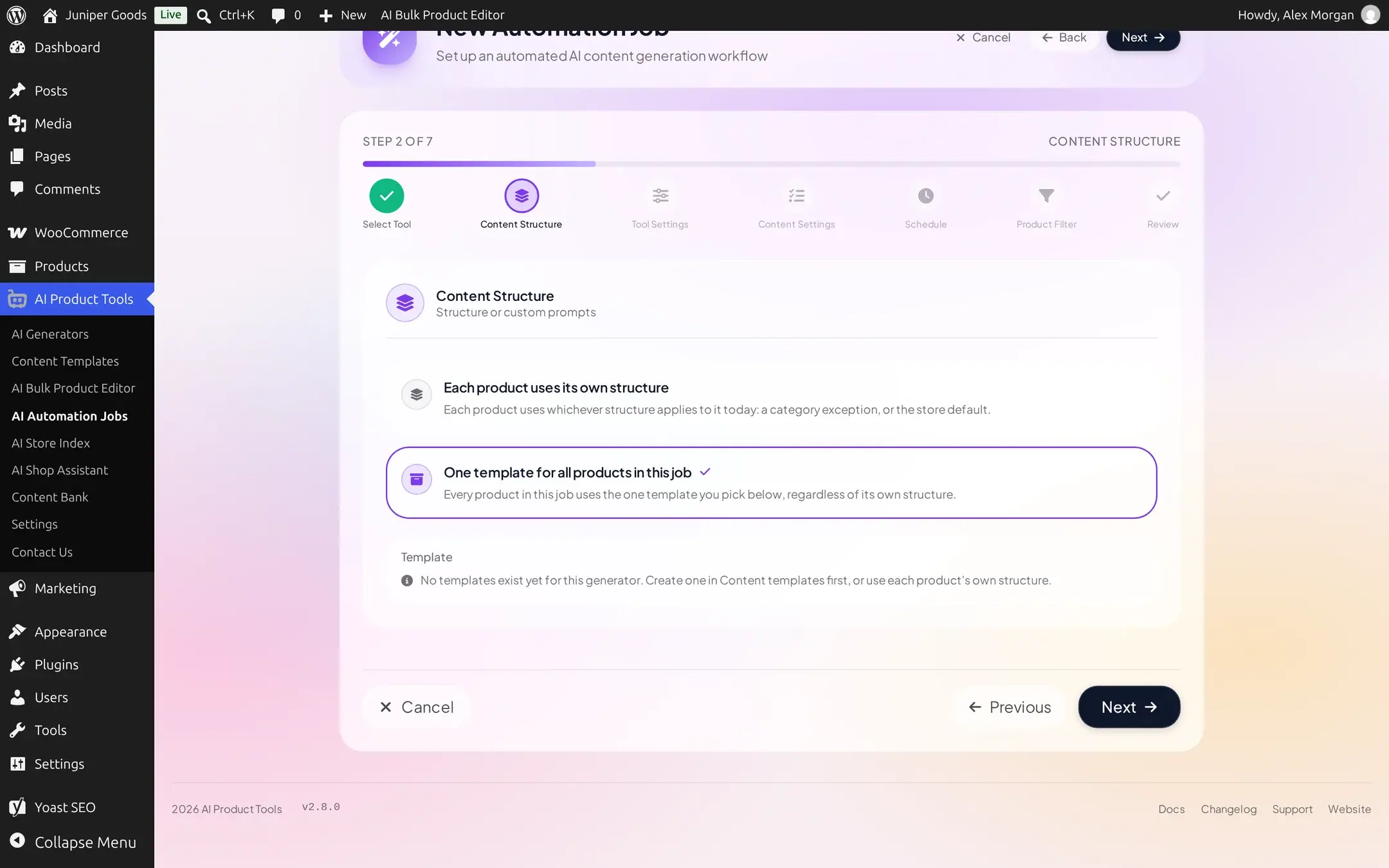
Either choice opens the same editor used in Editing a structure; this page does not repeat that editor's own controls.
Custom prompts (Advanced), when it appears
A third choice, Custom prompts (Advanced), is hidden from a brand new job once a tool runs on content structures everywhere on your site, so a new job is not nudged back toward old-style prompts. It reappears automatically if that tool still has non-empty legacy prompt text saved from before you adopted content structures, or when you edit an existing job that was already set to Advanced. Choosing it needs the manage_aipt_settings capability; without it, the card shows disabled with an explanation instead of an error. For the Description tool only, Advanced adds its own Custom Prompts step (full system and user prompt text) right after Tool Settings; every other tool applies its saved Advanced instructions without a dedicated step.
Set the AI provider and model
Step 3, Tool Settings, is short by design: once a content structure governs the content, there is nothing left to set here beyond who generates it.
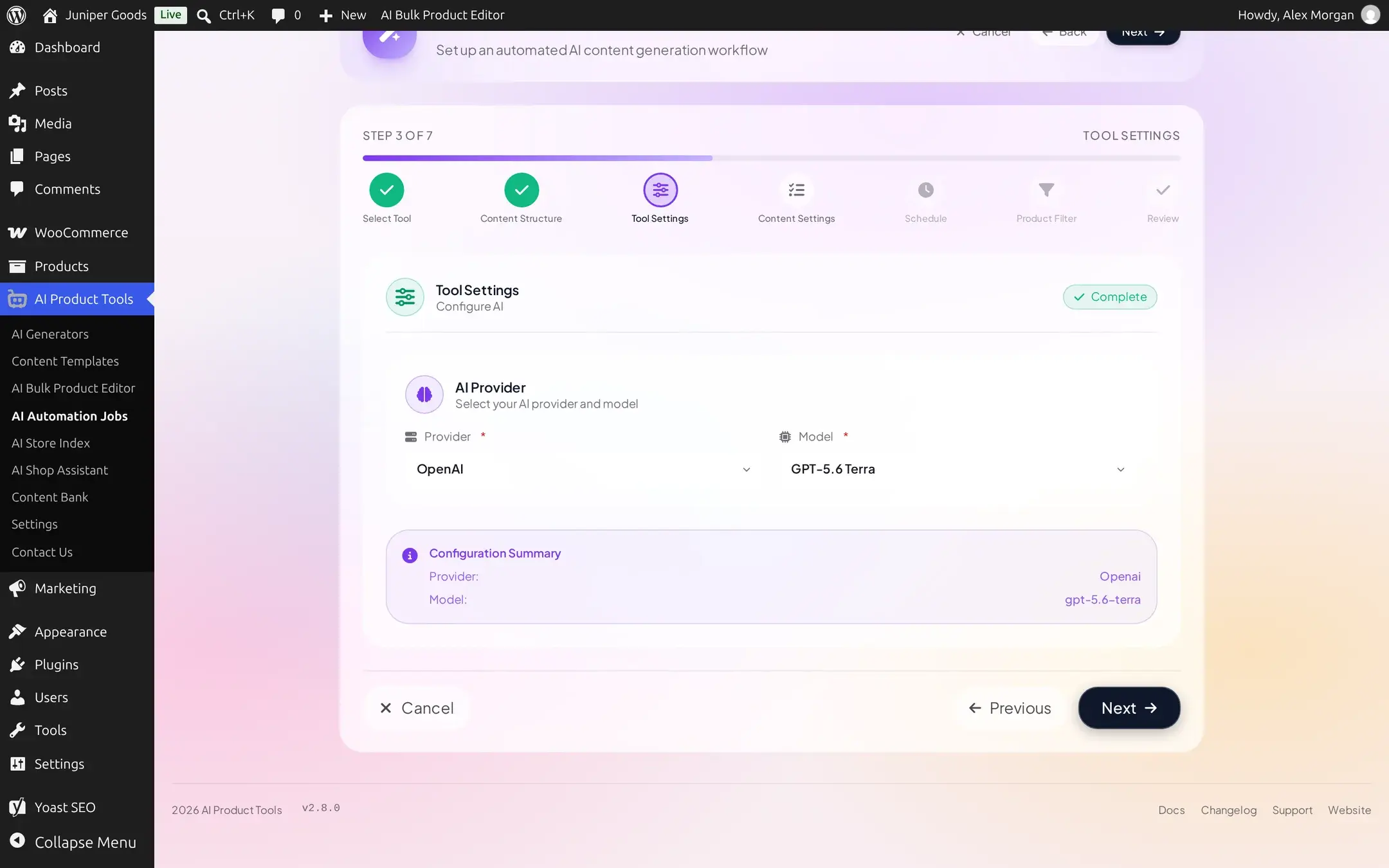
Language, Writing Style, Content Length, Max Tags, and Title Tone only appear here when this job uses Custom prompts (Advanced) instead, since a structure's own Voice already carries language and tone, and (for Description) its Tags section already governs tag count.
Pick content types and Content Delivery
Step 4 varies a little by tool: Title and SEO Meta add their own options (alternatives, title sources) in place of content-type checkboxes, but every tool shares Content Delivery.
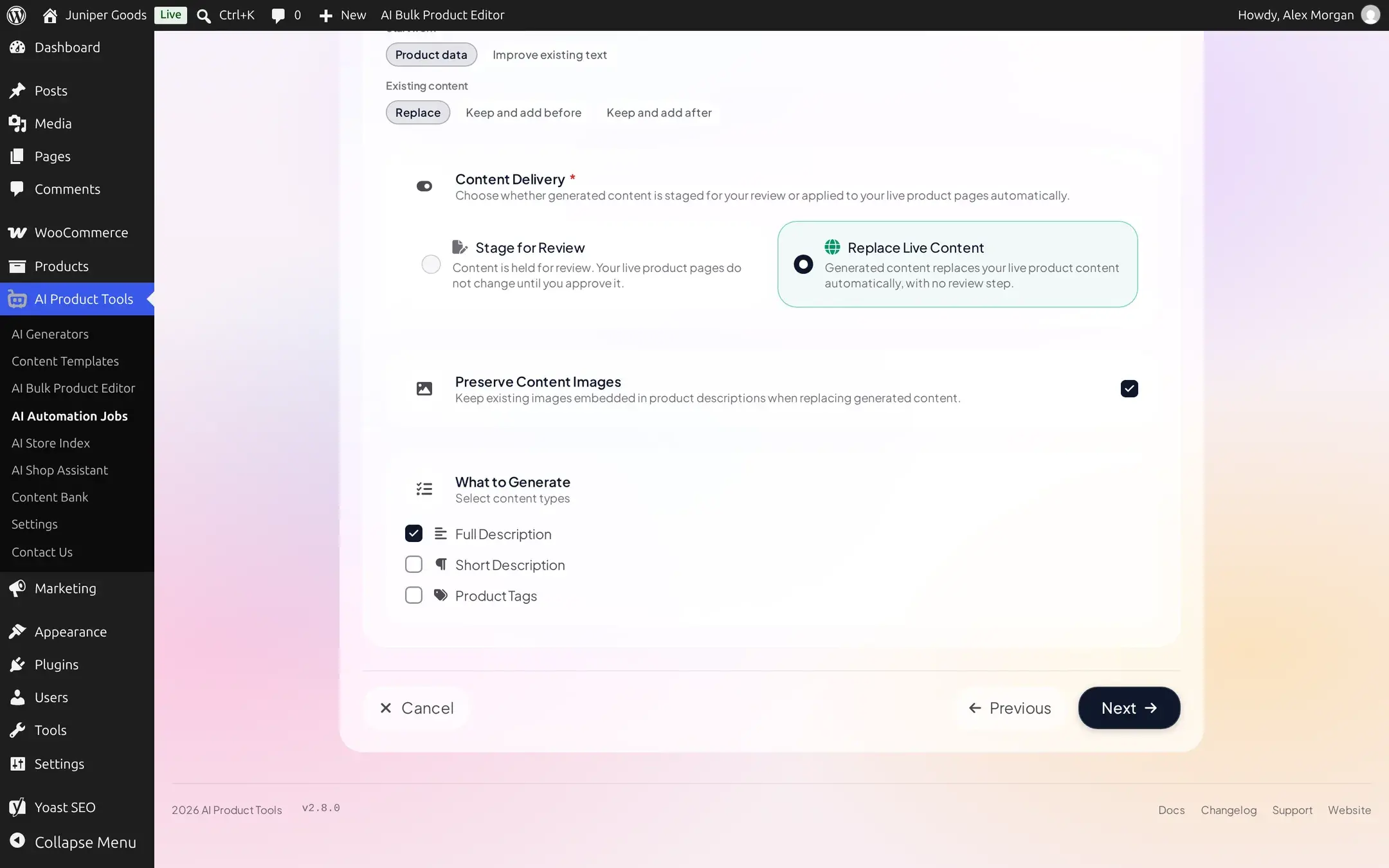
- Start from: Product data (write fresh) or Improve existing text, with Existing content set to Replace, Keep and add before, or Keep and add after (Description only).
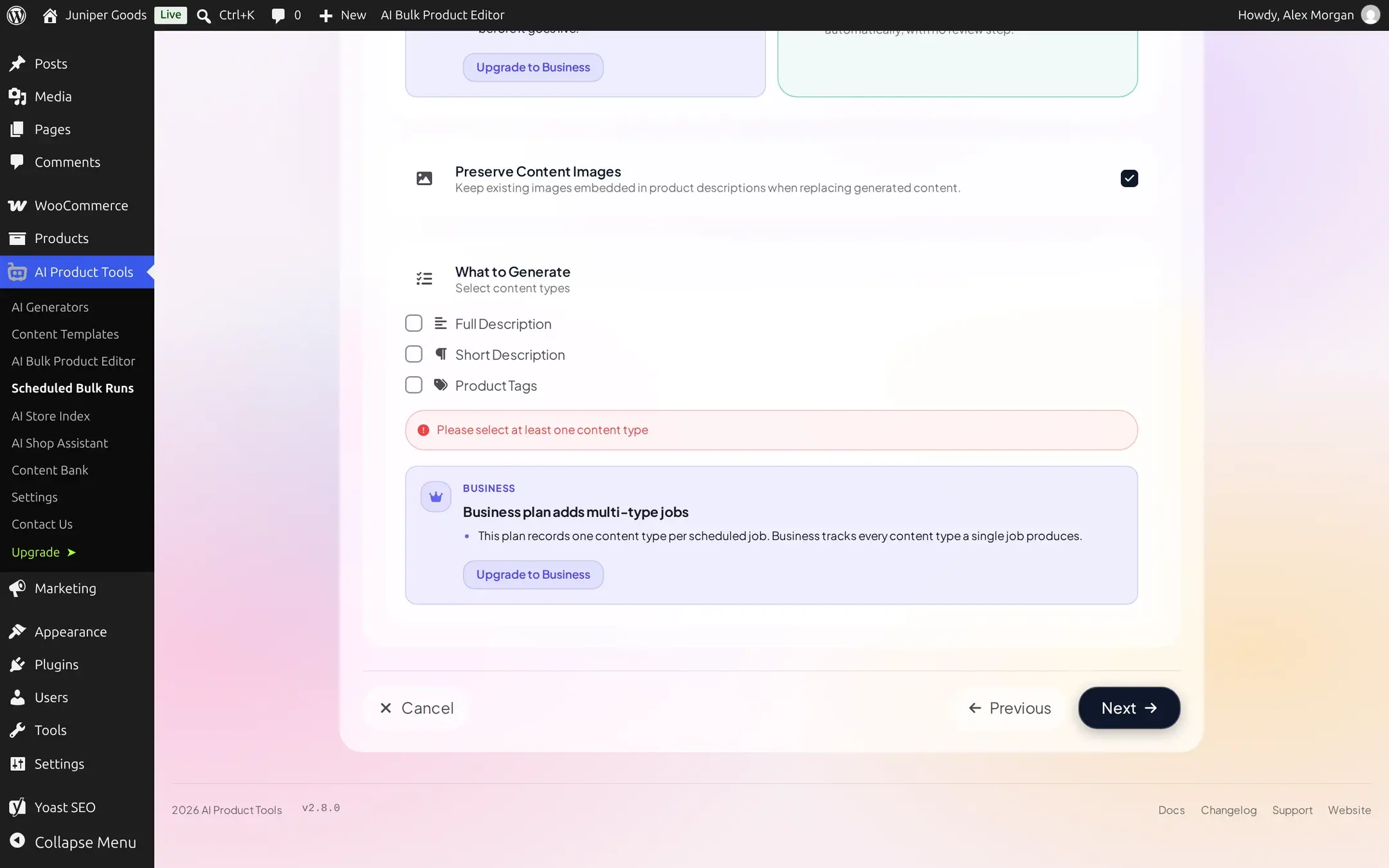
- What to Generate: Full Description, Short Description, and/or Product Tags for the Description tool; on Free, checking a second type automatically unchecks the first, since a job there produces exactly one content type.
- Content Delivery (required): Stage for Review or Replace Live Content. This choice matters enough to have its own page: see Reviewing output and staying safe.
- Preserve Content Images (Description only): keeps images already embedded in the description when replacing it.
Set the schedule and filter the products
Steps 5 and 6, Schedule and Product Filter, are reference-heavy enough for their own page: see Filters and schedules for every cadence, trigger, and filter field with its plan gating.
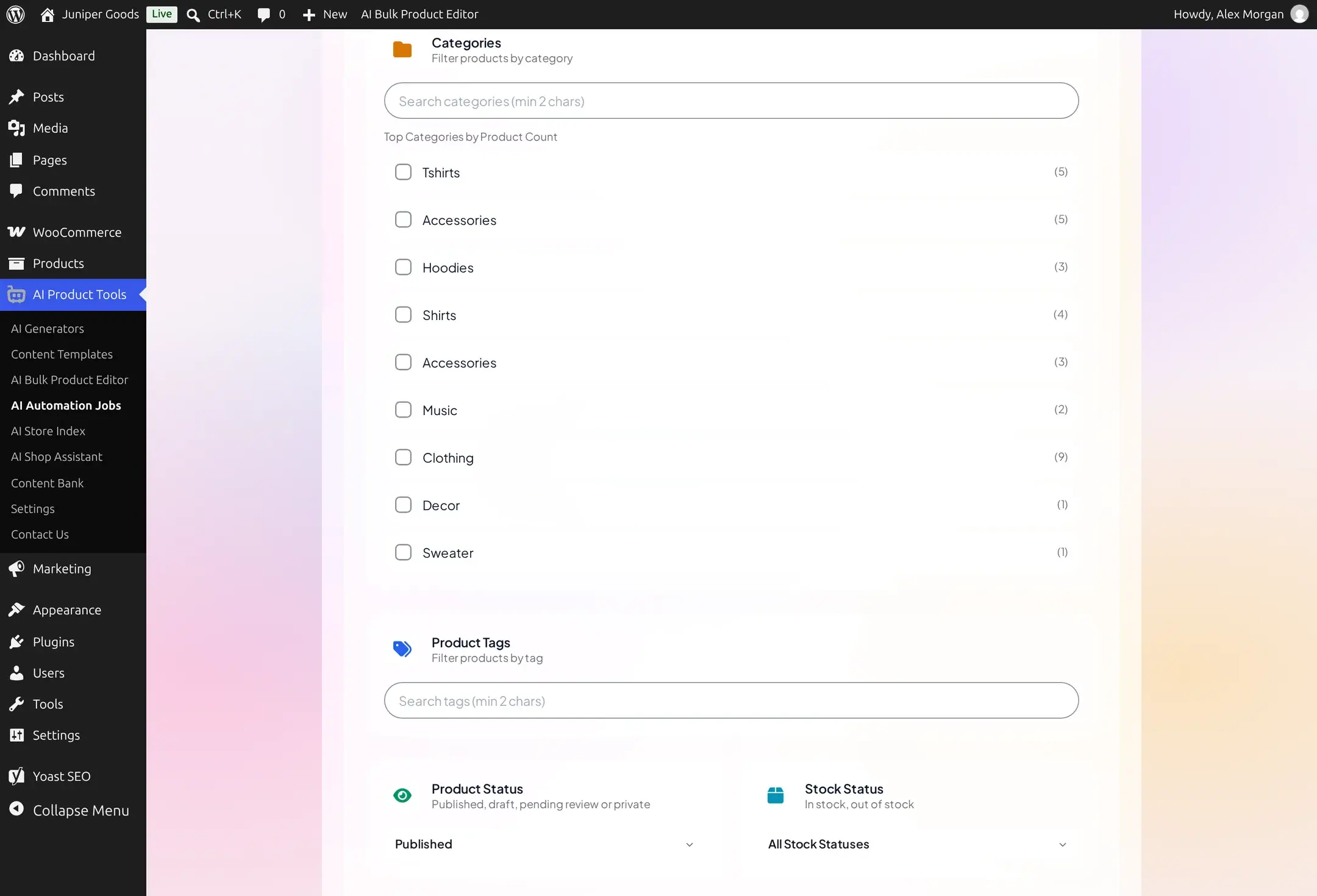
For now: pick One Time to run the job once at a specific date and time, or a recurring cadence Business, then narrow Product Filter as little or as much as you like. A Filter Summary at the bottom always shows an estimated product count before you move on.
Review and create
Step 7 recaps every earlier step with an Edit shortcut back to any of them.
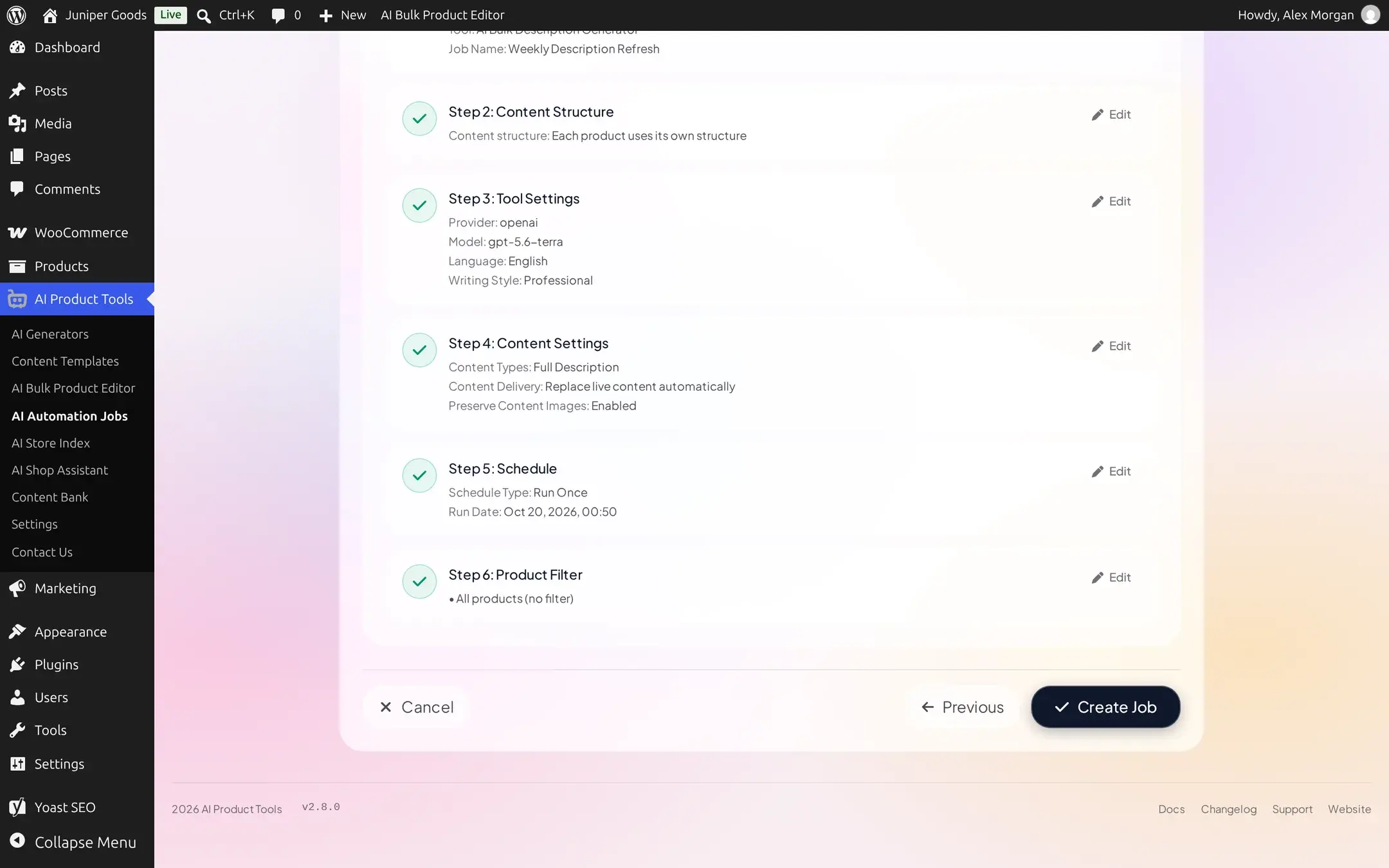
Click Create Job. If Content Delivery is Replace Live Content, a confirmation names the estimated product count and the first run time before anything is created:
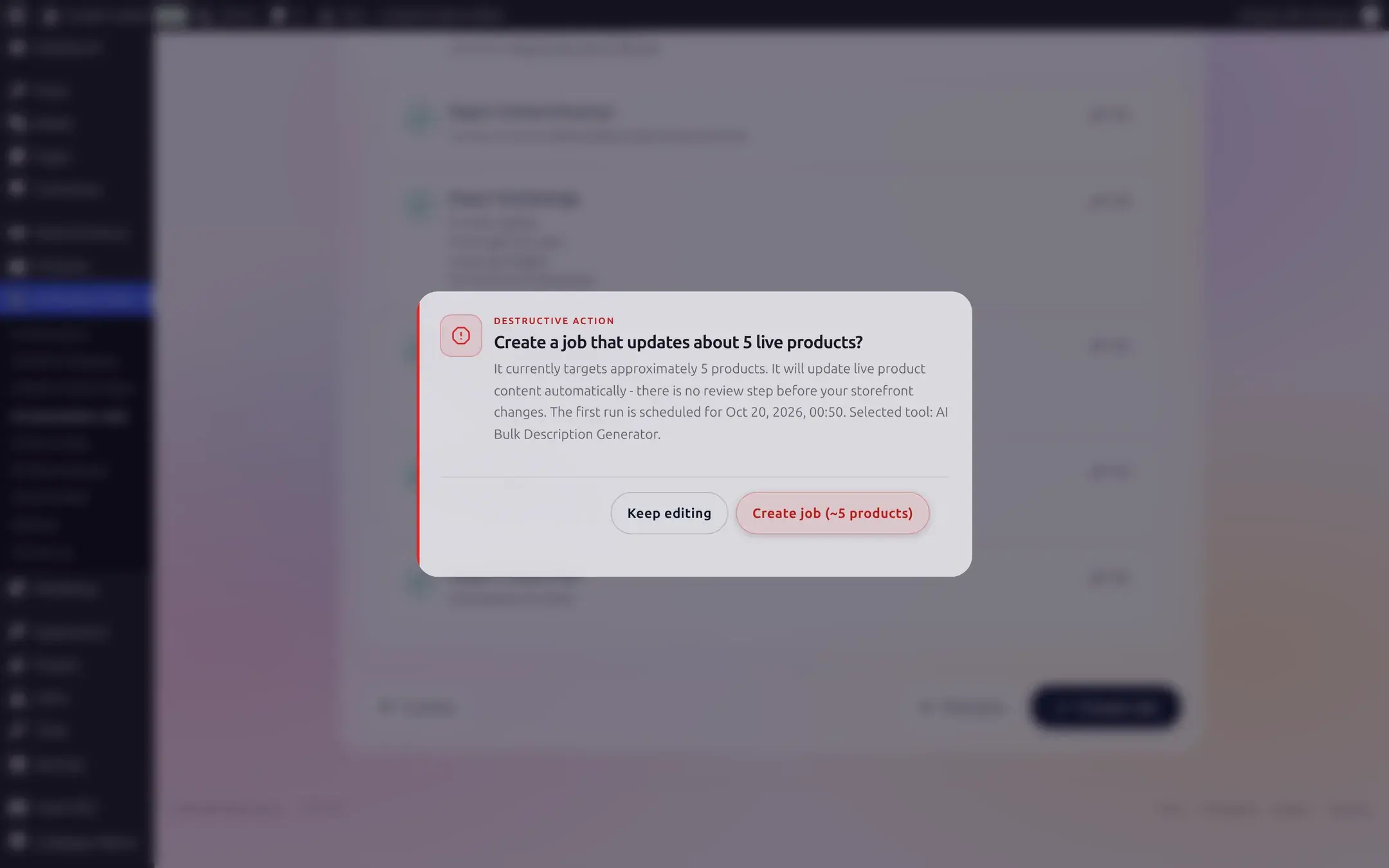
Stage for Review skips this confirmation, since nothing reaches a product without your separate approval later. Either way, confirming shows a success toast and returns you to the job list:
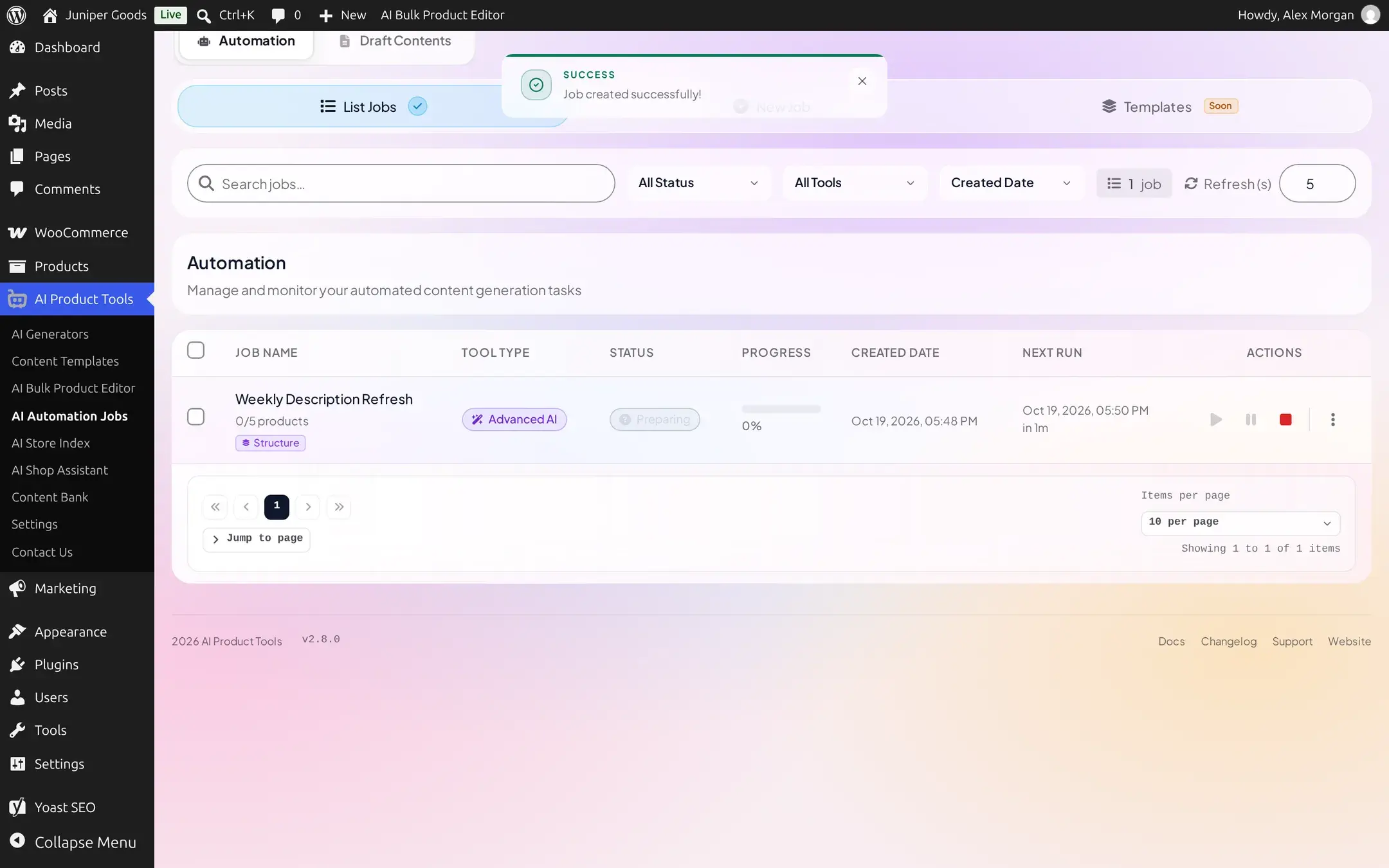
From here, see Monitoring jobs for what each status means and how to watch, pause, or fix the job.
Free vs Business at creation time
| At creation | Free | Business |
|---|---|---|
| A second non-terminal job | Rejected: "Your plan includes 1 automation job. Business plan adds more jobs." | Allowed |
| A second content type in one job | The checkbox auto-unchecks the first | Allowed |
| Stage for Review | Shown as a locked teaser; only Replace Live Content is selectable | Allowed |
| Daily, weekly, monthly schedule | Locked, shows "Business plan adds recurring runs" | Allowed |
| Automatic triggers | Locked | Allowed, with a required cost acknowledgement |
| Categories, tags, stock status, or draft/pending/private status filters | Locked | Allowed |
A recurring job created while you held Business keeps its cadence if the site later drops to Free; only a brand new job is limited to one time.
Troubleshooting
Filters and schedules
Every cadence, automatic trigger, and product filter field in depth.
Reviewing output and staying safe
What Stage for Review actually does, and the live-write confirmation explained.
How content structures work
What a content structure is, and how Voices and sections work.
Monitoring jobs
What a job looks like once it starts running.