
Connection
Connect OpenAI, Google Gemini, Anthropic Claude and OpenRouter, pick your default provider and model, and control how fast bulk runs send requests.
The Connection cluster (AI Product Tools > Settings > Connection) is where every API key lives, where you choose the provider and model generators use by default, and where you can let a Shop Manager configure the plugin. Everything on this page is available on Free.
Status and active engine
A banner across the top shows whether any provider is usable, alongside a 4-dot strip (one dot per provider) and a connected count:
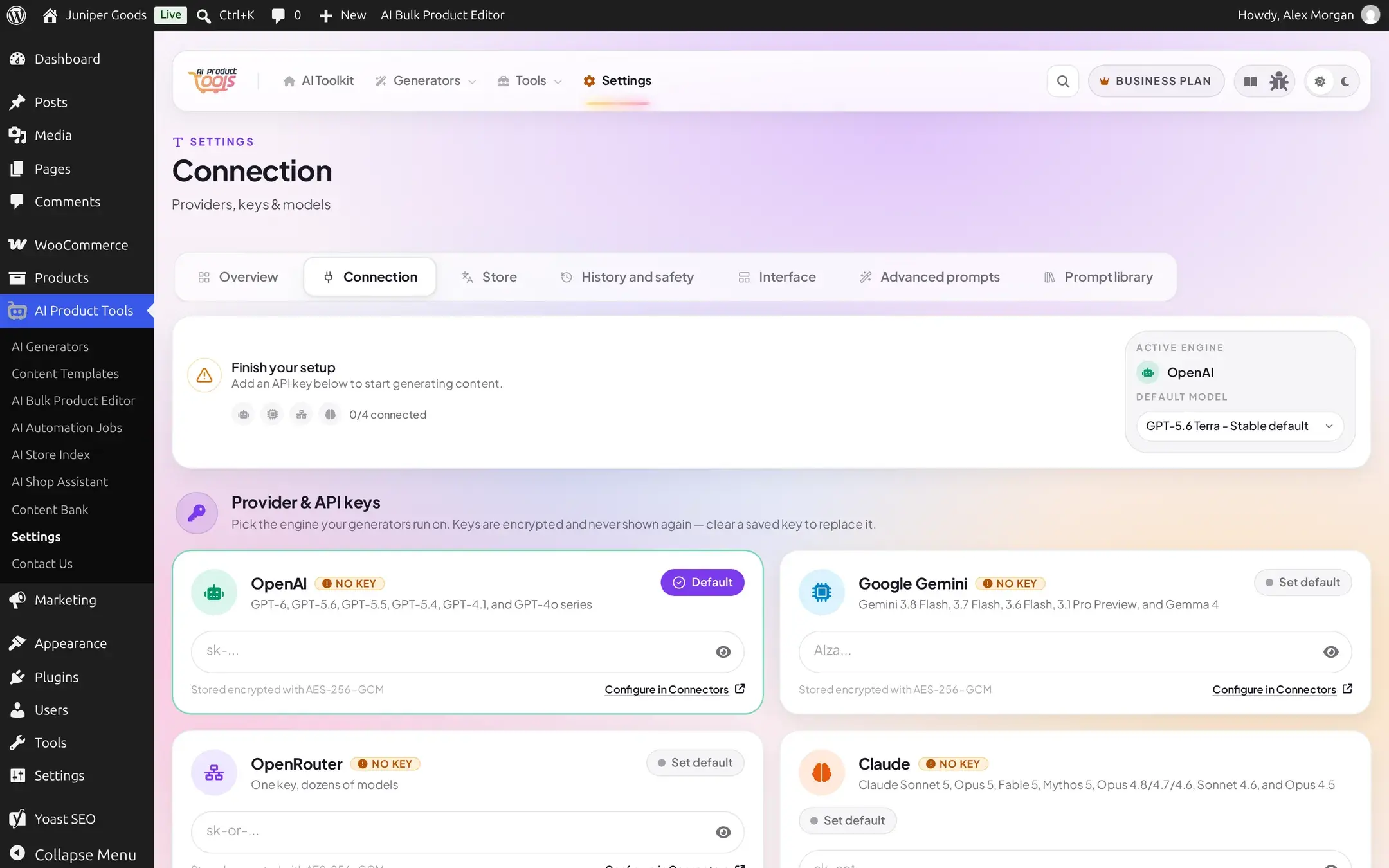
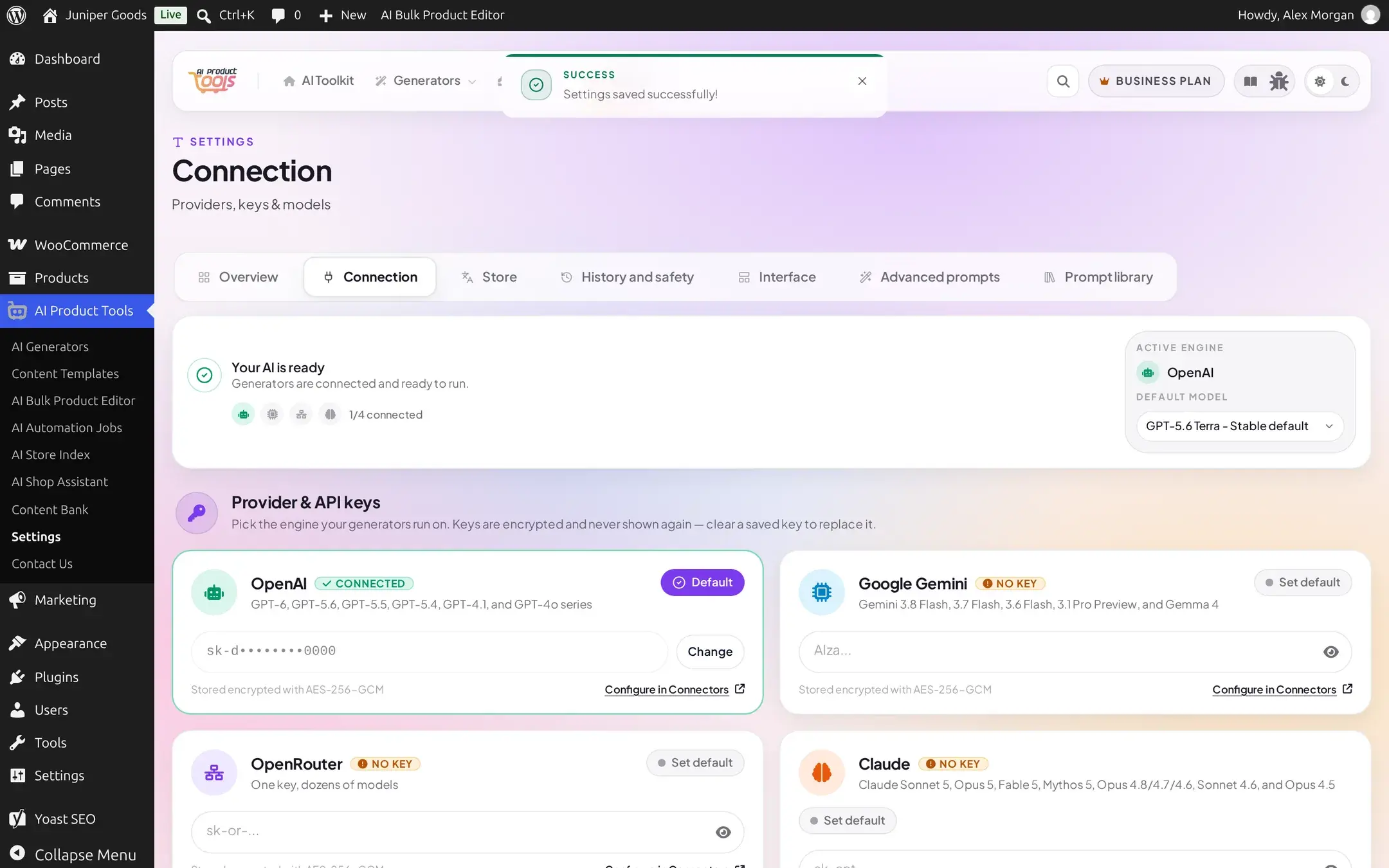
Next to the banner, the Active engine panel names your current default provider and holds the Default model dropdown. Its options are grouped by provider: OpenAI shows four series groups, Gemini shows three, and Claude and OpenRouter each show one group, Available models. Opening it for OpenAI looks like this:
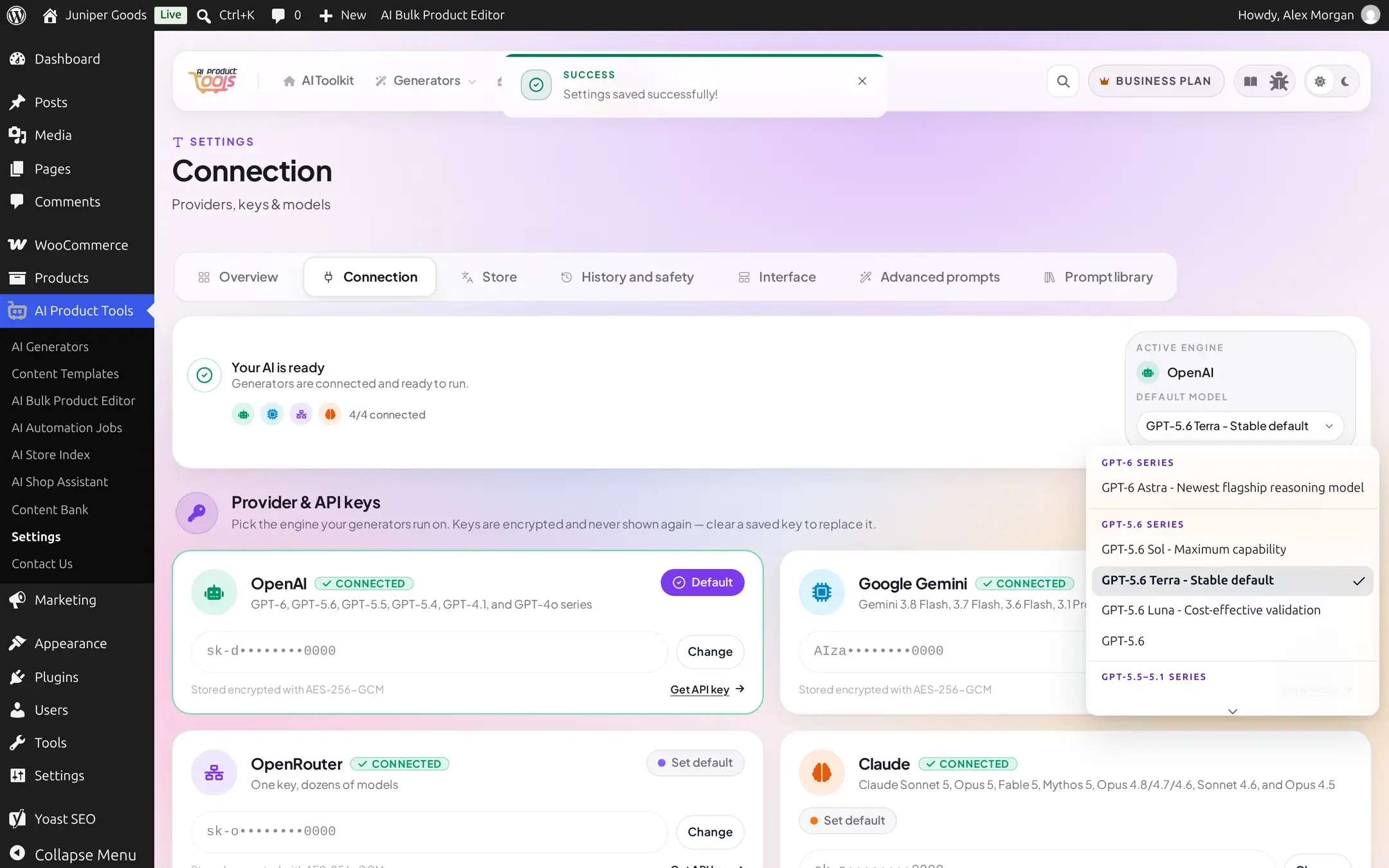
See each provider's own page for its exact model list: OpenAI, Google Gemini, Anthropic Claude, OpenRouter.
Provider & API keys
Four cards, one per provider, always shown in this order: OpenAI, Google Gemini, OpenRouter, Claude. Each has a status pill (Connected or No key, or a WordPress Connectors badge when that provider's key is sourced from WordPress 7.0+ instead, see WordPress AI Connectors), a key field with a provider-specific placeholder (sk-..., AIza..., sk-or-..., sk-ant-...), and an eye icon to reveal what you just typed.
The link under the key field is not always the same: it reads Get API key (to that provider's own key page) by default, or Configure in Connectors when WordPress Connectors is available and could manage that provider's key instead. A provider whose key is already sourced from Connectors shows neither link, just a Managed by WordPress Connectors caption and a locked field (see WordPress AI Connectors). OpenRouter has no WordPress Connector at all, so if its card ever shows Configure in Connectors, that link has nothing to open; paste the key directly into the card regardless.
Adding a key
Paste the key
Click into the provider's field and paste the key. The field strips whitespace and any character outside letters, numbers, and -_./+= automatically, and caps length at 300 characters. Click the eye icon to double-check what you pasted before saving:
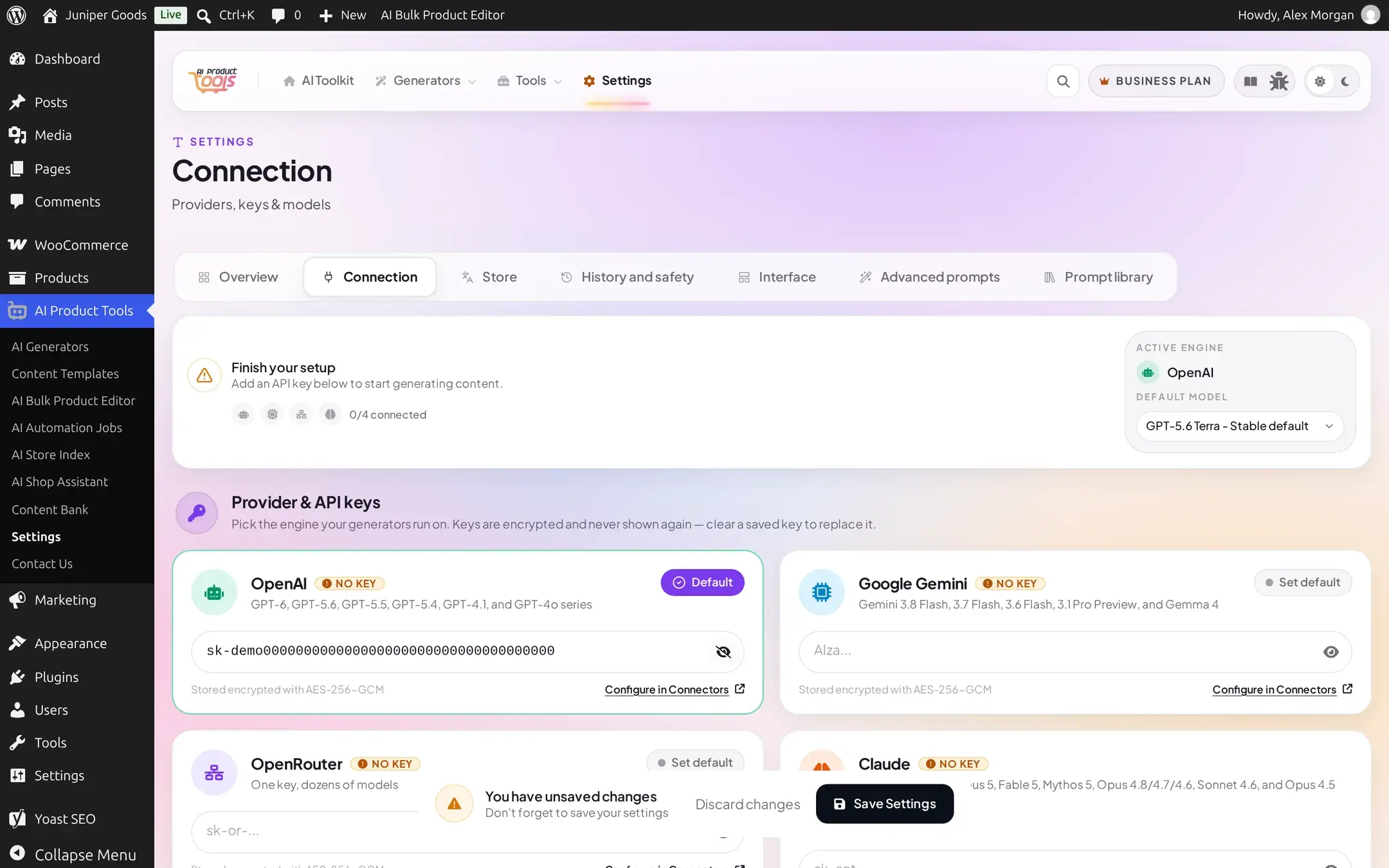
Save
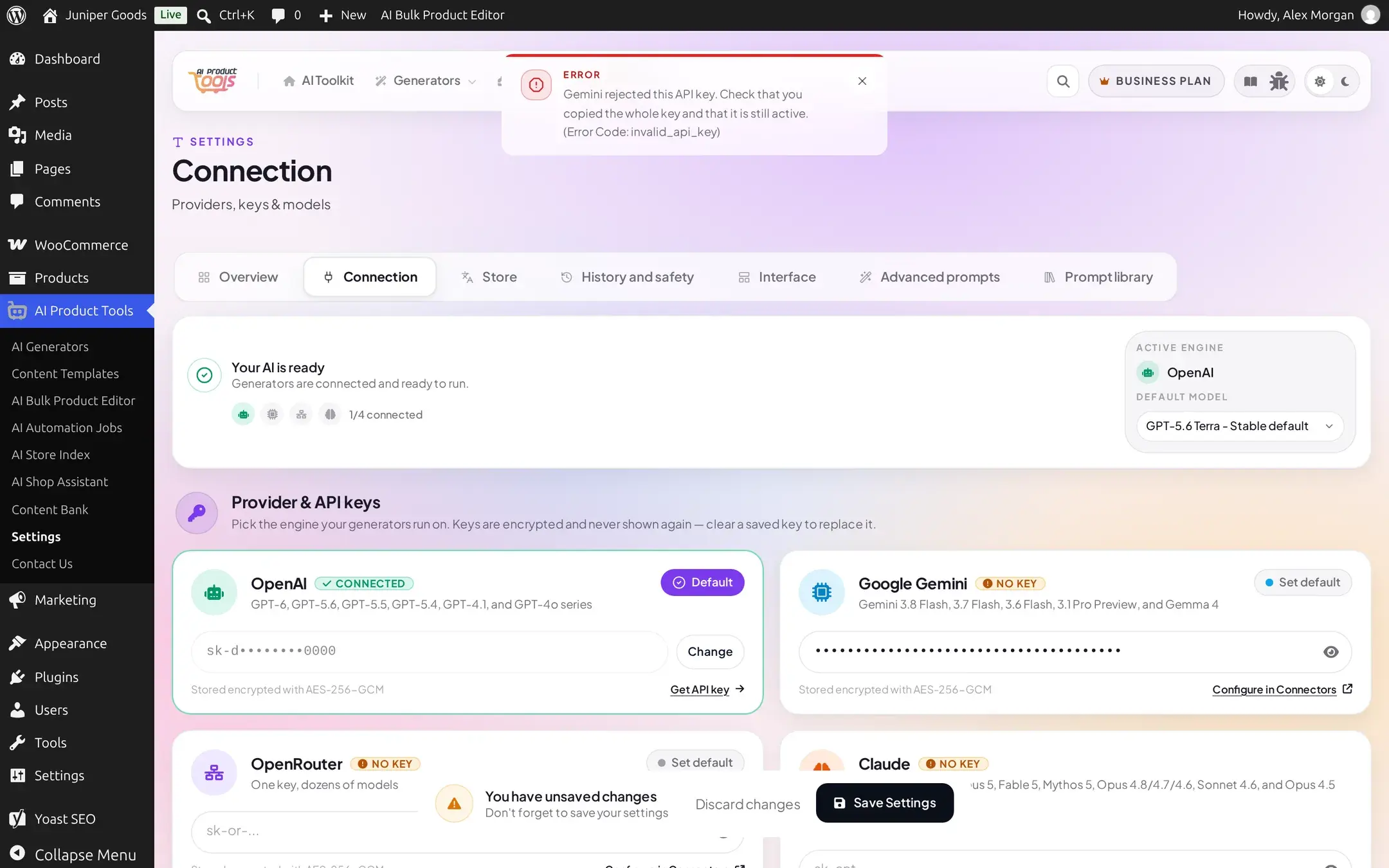
Click Save Settings. The plugin validates every changed key against its real provider before saving anything; an unchanged key (matched by exact string, including the masked placeholder) is never re-sent. If a key fails validation, the whole save stops, including any other field you changed in the same pass, and only that key's error is shown:
Set it as default (optional)
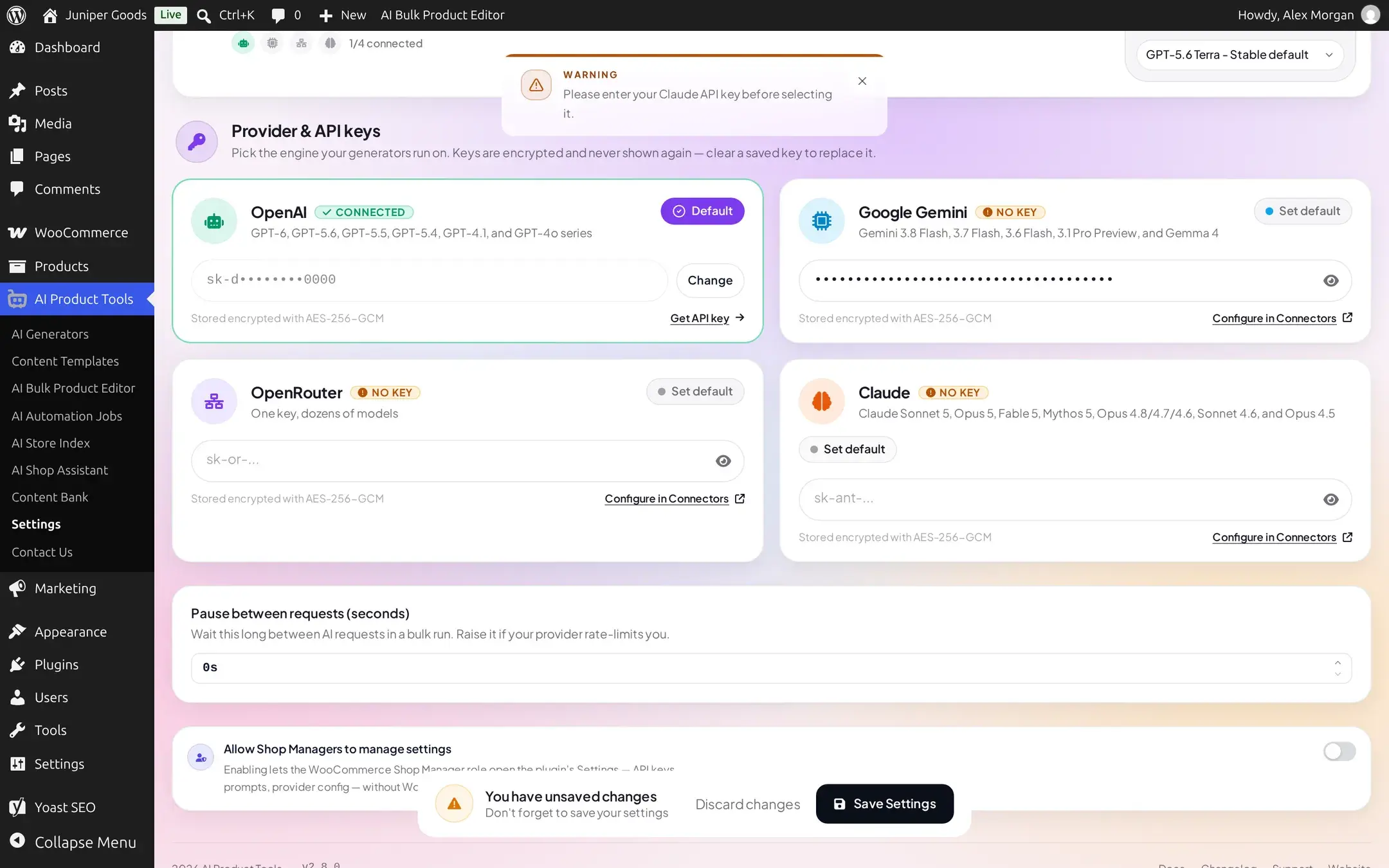
If this is your first configured provider, it becomes the default automatically. To make a different configured provider the default, click Default on its card. Clicking an unconfigured provider's pill instead warns you rather than switching:
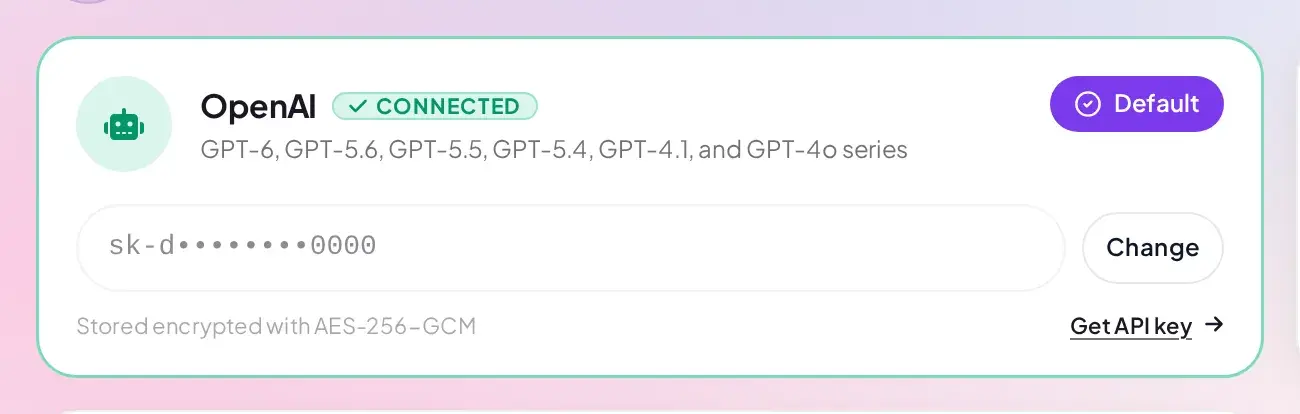
Once connected, a provider's card looks like this (OpenAI shown; every provider follows the same pattern):
Clearing a key
The key field is write-once: once saved, it shows a masked preview with a Change button in place of the input.
Click Change
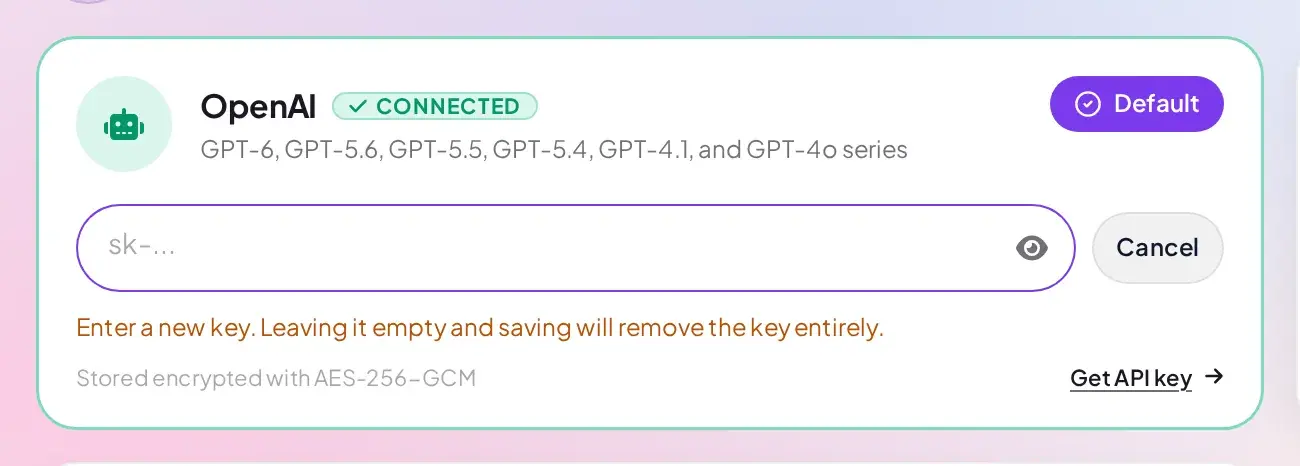
The field clears to accept a new value, and a Cancel button and a helper note appear:
Type a new key, or leave it empty
Type a replacement and Save Settings to swap it, or leave the field empty and save to remove the key entirely. Removing the key of the currently active provider automatically switches the default to the next configured provider, with a toast naming the new default, or warns you to configure at least one key if none remain:
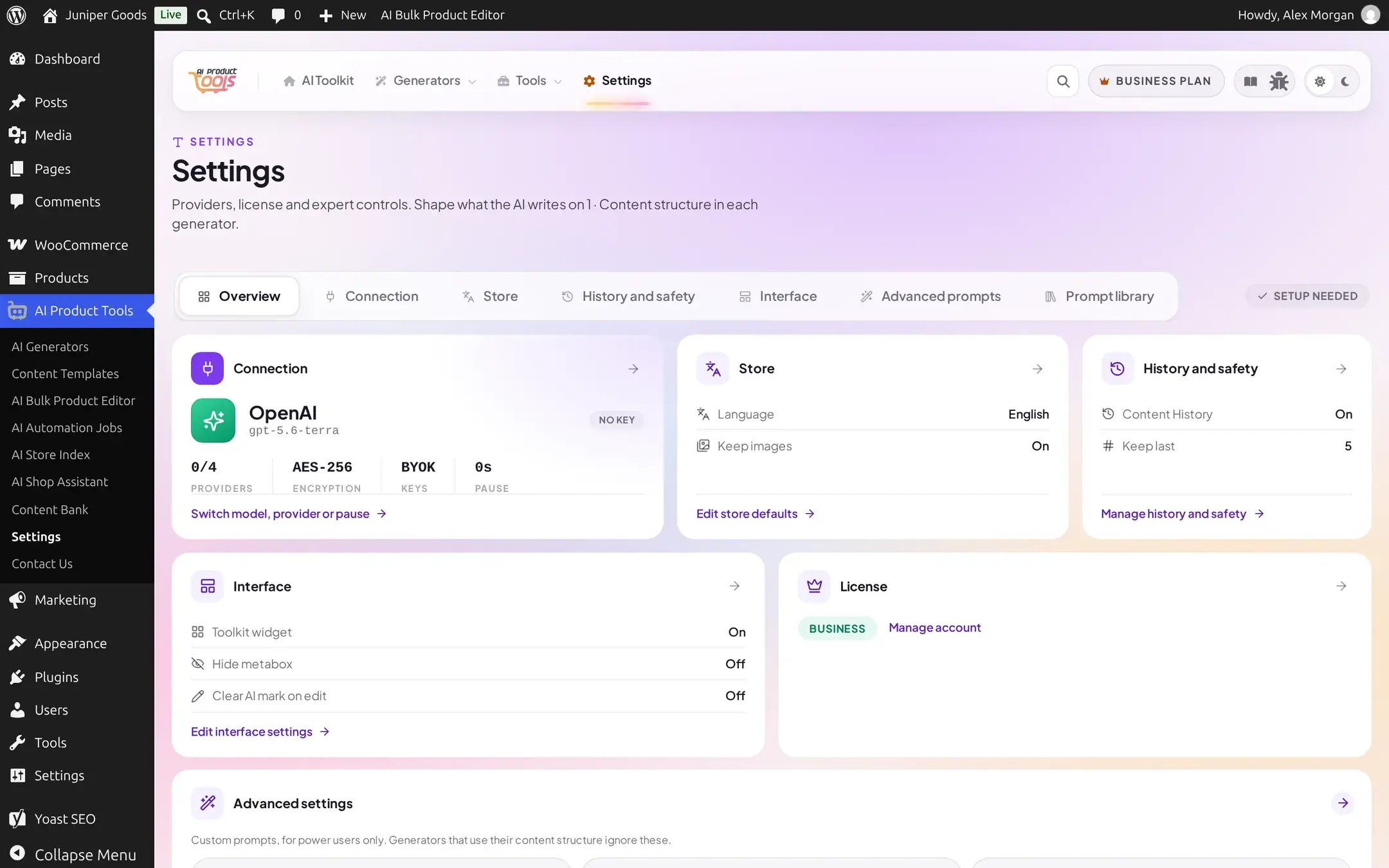
Pause between requests
A single stepper, range 0 to 60 seconds, default 0, controls how long a bulk run waits between AI requests:

This replaced two separate per-screen interval fields that Description and Title generators used to have; one setting now covers every bulk run and every automation job.
Shop Manager access
Administrators only see one more control: a switch that lets the WooCommerce Shop Manager role open Settings itself, including API keys and provider configuration, without granting WordPress's own manage_options capability. It is off by default.
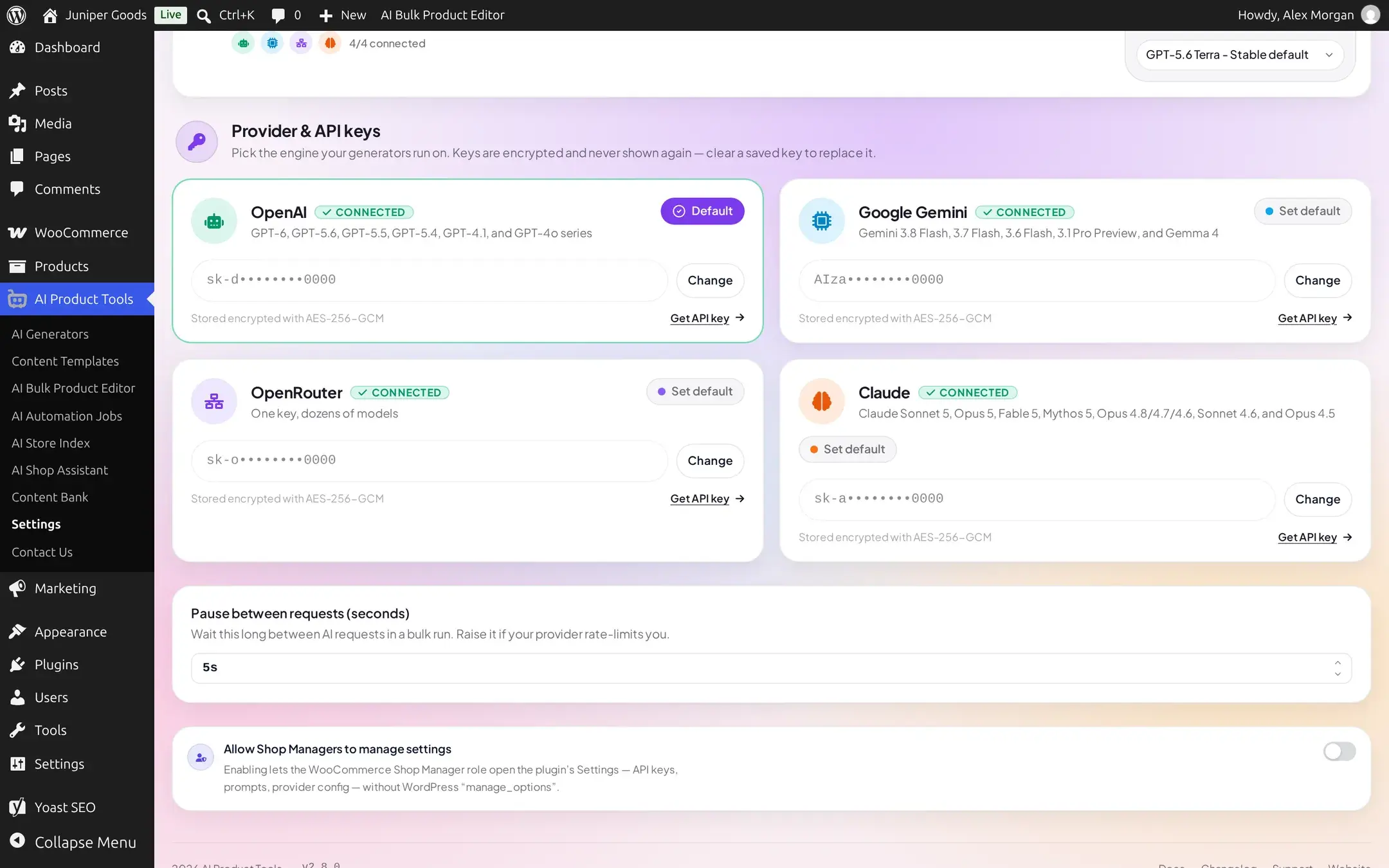
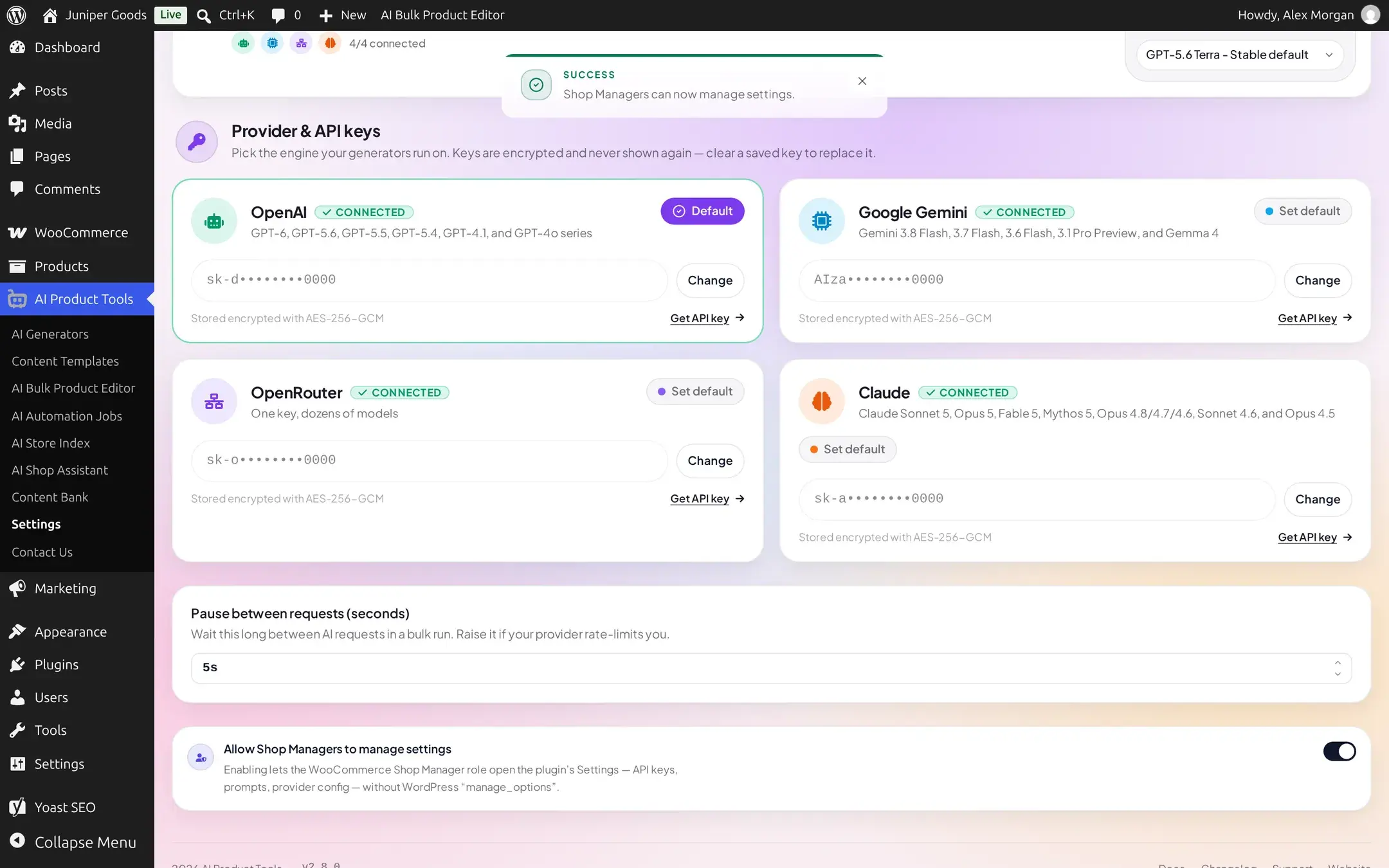
This toggle saves itself immediately on click; it is not part of the main Save bar. Without it, a Shop Manager can still use every generator (that only needs use_aipt_tools), just not open Settings at all. A Shop Manager who is opted in never sees this toggle themselves, only a real administrator does, since granting the permission is itself an administrator-only decision.
Encryption, explained
Every key stored locally by the plugin (that is, not sourced from WordPress Connectors, an environment variable, or a PHP constant) is encrypted at rest with AES-256-GCM. The encryption key itself is derived from your own site's WordPress secret constants (AUTH_KEY, SECURE_AUTH_KEY, LOGGED_IN_KEY, NONCE_KEY, and their _SALT counterparts in wp-config.php), not stored anywhere separately.
Two practical consequences follow from that:
If your site's secret keys or salts ever change
A fresh wp-config.php after a host migration, a "regenerate salts" action, or copying your database to a new site without copying the same wp-config.php, means the plugin can no longer decrypt keys it saved before the change. It does not crash or show garbage: the affected provider simply reports No key again, as if it had never been configured. The fix is always the same: open that provider's card and re-enter the key. Nothing else about your settings or your catalog is affected.
- This does not touch Connectors-managed keys at all; those are never run through this cipher.
- If your host's PHP build is missing the
opensslextension, the plugin logs a warning and falls back to storing the key in plain text rather than failing outright. If that matters for a security-conscious host, confirmopensslis enabled.
Reference
| Setting | What it does | Default / limits | Plan |
|---|---|---|---|
| Provider key (one per provider) | The API key that provider's calls authenticate with | Empty; sk-..., AIza..., sk-or-..., sk-ant-... formats; OpenRouter rejects under 20 characters, Claude rejects anything not starting with sk-ant-, both before contacting the provider | Free |
| Default provider (radiogroup) | Which provider generators use when a screen has no provider choice of its own | First configured provider | Free |
| Default model | Which model that provider uses by default | gpt-5.6-terra (OpenAI), gemini-3.6-flash (Gemini), claude-sonnet-5 (Claude), openrouter/free (OpenRouter) | Free |
| Pause between requests | Seconds to wait between AI calls in a bulk run or automation job | 0 to 60, default 0 | Free |
| Allow Shop Managers to manage settings | Grants the Shop Manager role access to Settings | Off | Free, admin-only toggle |
Free vs Business
Every field on this page, every provider, every model, and custom OpenRouter model IDs are all available on Free. There is no plan check anywhere in the key, provider, or model code paths.