
AI Bulk Product Editor
A spreadsheet-style grid for viewing and editing every AI-capable and core WooCommerce field across many products at once, with inline AI generation.
The AI Bulk Product Editor is a full-catalog grid: every row is a product, every column is a field, and cells you edit are kept as local drafts until you explicitly save. It is also where AI generation happens per cell or, on Business, for a whole selection in one run.
Plan note
The grid itself, inline editing, undo/redo, saved views, CSV export, filters, and generating AI content one cell or one row at a time are all available on Free. Generating AI content for many selected products in one run needs Business.
Before you start
- Reaching this page needs WordPress's
manage_woocommercecapability, which is stricter than the AI Product Tools menu's own capability. A user who can open the Toolkit but lacks this capability will not see this page in the menu at all. - Reach it from AI Product Tools > AI Bulk Product Editor, from Products > AI Bulk Product Editor, or from the AI Bulk Product Editor item in the top admin bar.
- An AI provider must be connected in Settings before any Write or Generate Bulk action will do anything.
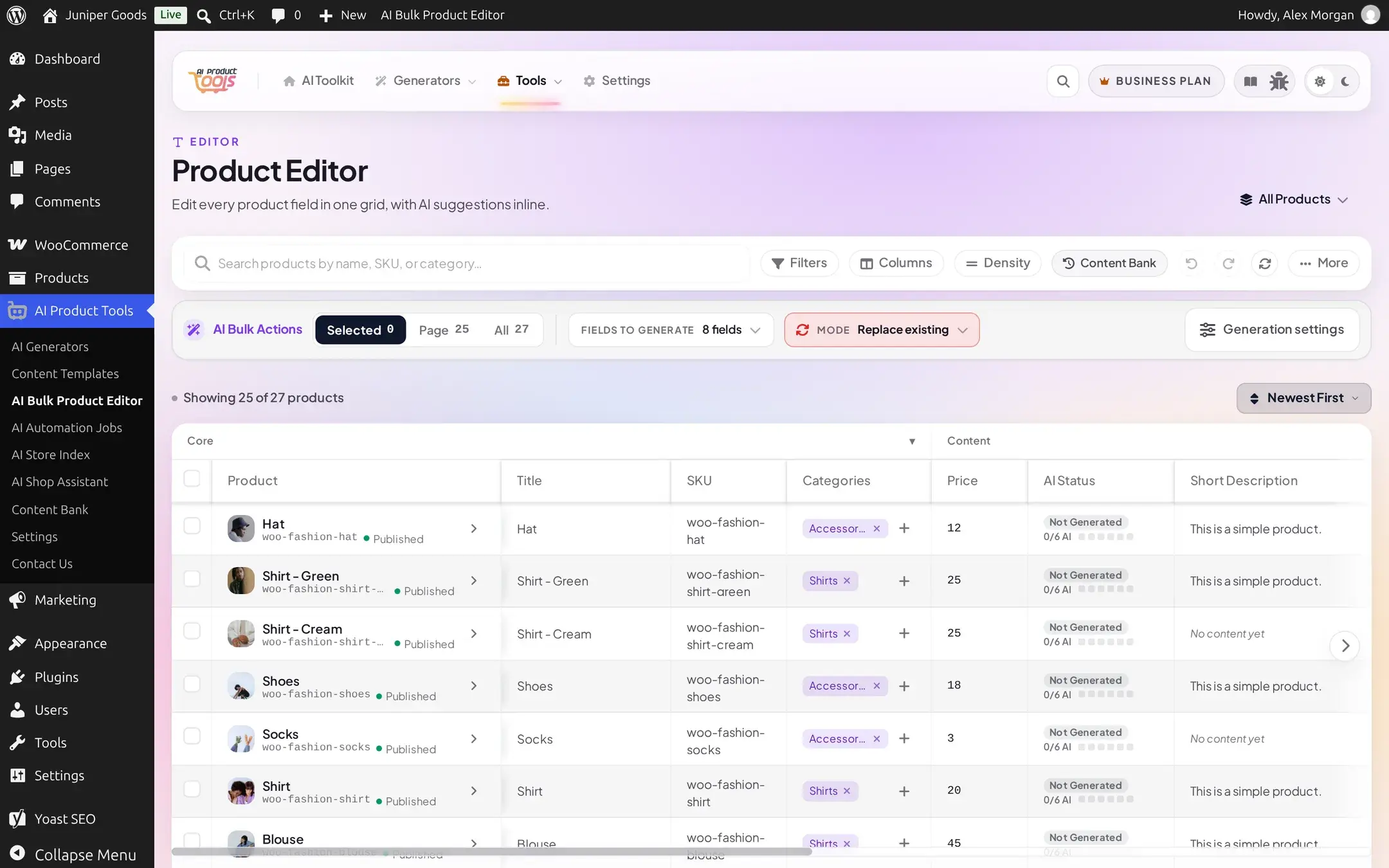
The grid
The utility toolbar above the grid (visible in the screenshot above, between Columns and the density/undo-redo controls) also carries a Content Bank link. It opens the full write history for this tool, filtered to the Product Editor; once at least one result is waiting in review, the same link switches to the Review tab instead and shows a count badge.
Columns
Every column is one of: Core (Product, Title, SKU, Status, Product Type, Categories, Price, AI Status), Content (Short Description, Full Description, Tags, FAQ), SEO (SEO Title, Meta Description, Focus Keyword, Slug), Media (Featured Image, Gallery, Alt Text, Missing Alt), or AI (Last Generated, Review Status, Issues). Only Title and Price columns sort by clicking their header; every other header click does nothing.
Click Columns to open the column manager: drag the handle to reorder, tick a column to show it, use the pin icons to pin a column left or right, and each column's width shows in pixels. A group's own toggle shows or hides every column in that group at once. Reset to default restores the original set; Save as view carries your column choices into a saved view.
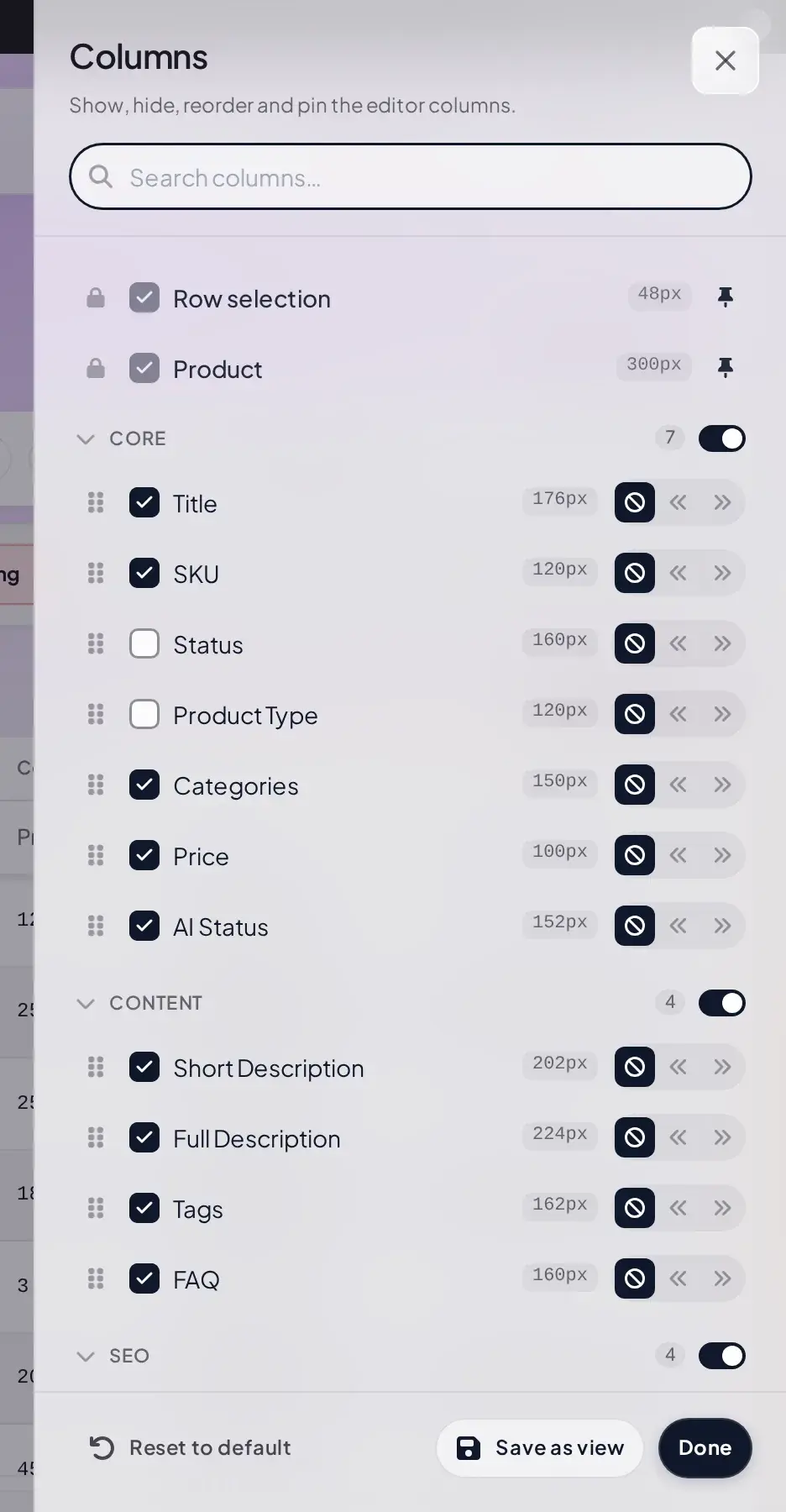
Full column reference:
| Column | Group | Default visible | Editable | AI-capable | Notes |
|---|---|---|---|---|---|
| Product | Core | Yes | No | Fixed width, pinned | |
| Title | Core | Yes | Yes | Yes | Required; the only other server-sortable column besides Price |
| SKU | Core | Yes | Yes | ||
| Status | Core | No | Yes | Publish/Draft/Pending/Private | |
| Product Type | Core | No | No | Flags a type outside simple/variable/grouped/external | |
| Categories | Core | Yes | Yes | Chips from existing categories only; never creates a new term | |
| Price | Core | Yes | Yes | Regular price only; not editable for variable or grouped products | |
| AI Status | Core | Yes | No | Generated/Not Generated plus a per-type breakdown | |
| Short Description | Content | Yes | Yes | Yes | |
| Full Description | Content | Yes | Yes | Yes | |
| Tags | Content | Yes | Yes | Yes | |
| FAQ | Content | Yes | Yes | Yes | Errors on an empty question or answer; warns on duplicate questions |
| SEO Title | SEO | Yes | Yes | Yes | Warns past 50 characters, errors past 60 |
| Meta Description | SEO | Yes | Yes | Yes | Warns past 150 characters, errors past 160 |
| Focus Keyword | SEO | No | Yes | Yes | Warns if SEO content exists with no keyword |
| Slug | SEO | No | Yes | ||
| Featured Image | Media | No | No | Display only | |
| Gallery | Media | No | No | Display only | |
| Alt Text | Media | Yes | Yes | Yes | Per attachment; warns on any missing alt text |
| Missing Alt | Media | No | No | ||
| Last Generated | AI | No | No | ||
| Review Status | AI | No | No | ||
| Issues | AI | No | No | Client-computed, always present |
Filters
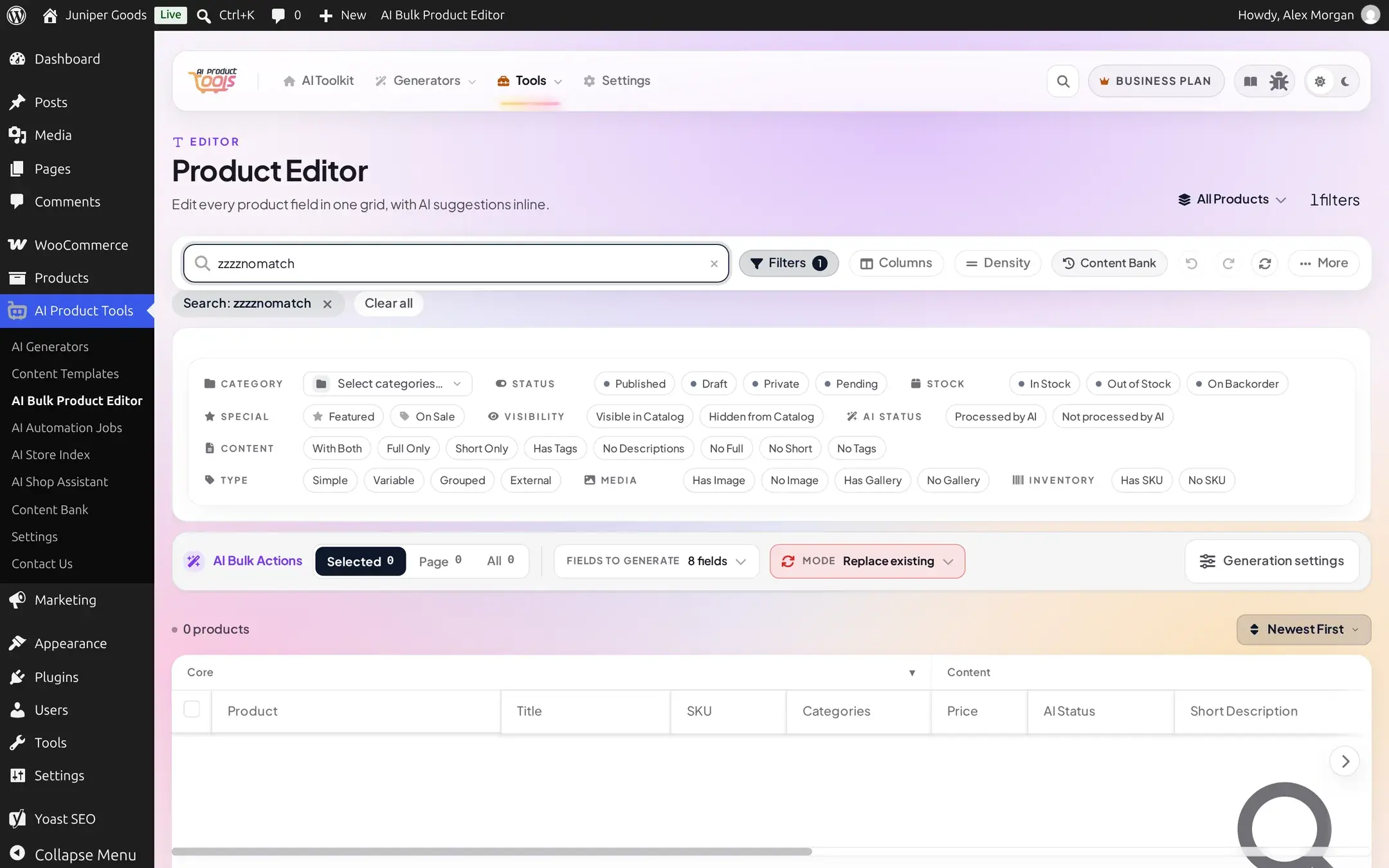
Click Filters to open a panel of chip groups mirroring every filter the grid supports: free-text Search, Category, Status, Stock, Special (Featured, On Sale), Visibility, AI Status (Processed/Not processed by AI, with a content-type sub-filter), Content (With Both, Full Only, Short Only, Has Tags, No Descriptions, No Full, No Short, No Tags), Type (Simple, Variable, Grouped, External), Media (Has/No Image, Has/No Gallery), and Inventory (Has/No SKU). Active filters also show as removable chips with a Clear all link, and the header shows a live {n} filters count.

A filter combination that matches nothing shows a plain empty grid rather than an error.
Inline editing
Click into any cell to start typing, or press Enter or F2 to open its full editor. Open a product's row drawer (the chevron at the end of its row) to edit several of its fields at once across Content, SEO, Media, and FAQ tabs; only tabs with content show. Every edit is kept as a local draft, shown in the sticky pending changes bar at the bottom, until you click Save changes.
Per-row AI generation (every plan)
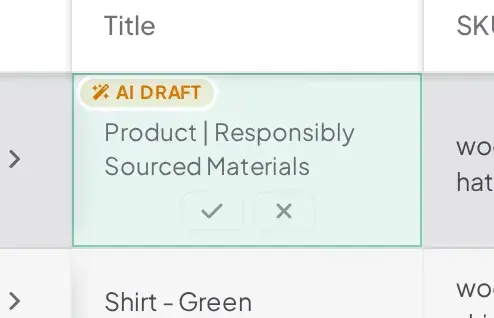
Click a cell's AI generate affordance (or use the row drawer) to write that one field for that one product. The result lands in the cell as an AI DRAFT badge over the proposed new value, with small accept and reject icons right there.
Open the row drawer for the fuller picture: each suggested field shows as an AI SUGGESTION card with the old text struck through in red above the new text in green, and Accept, Reject, Edit, and Regenerate buttons.

Once you accept a suggestion, that field shows a MODIFIED chip and a Revert link next to it, the same as any other manual edit.

Bulk AI generation (Business)
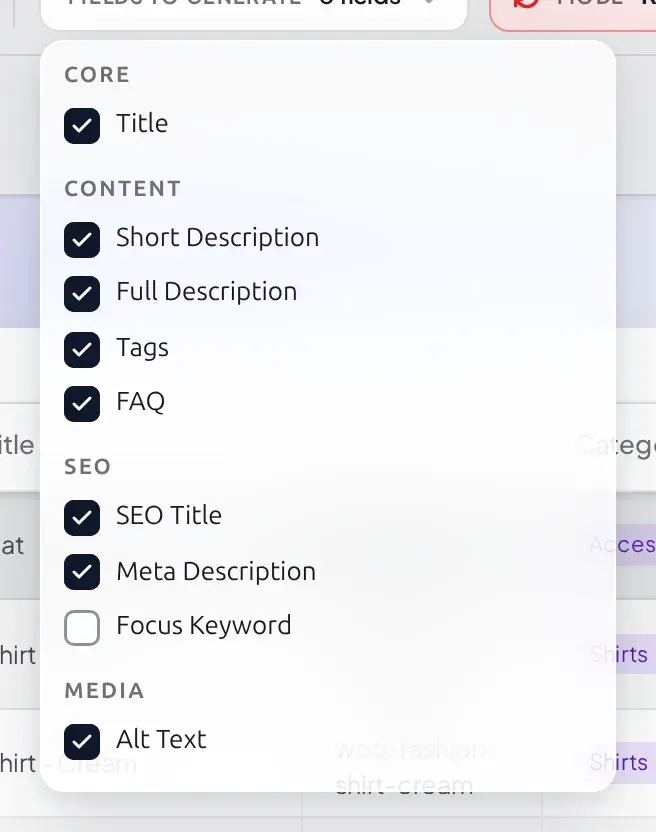
The AI bulk actions band above the grid shows a scope control (Selected, Page, All, each with a live count), a Fields to Generate popover, a Mode pill, and, once at least one product is selected, a Generate Bulk button.

Fields to Generate lists every AI-capable column grouped the same way as the Columns panel, defaulting to whichever ones are currently visible.
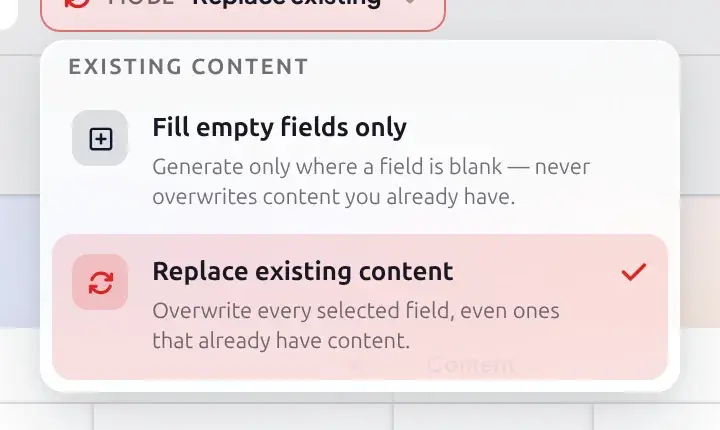
Mode chooses between filling only blank fields or replacing everything selected.
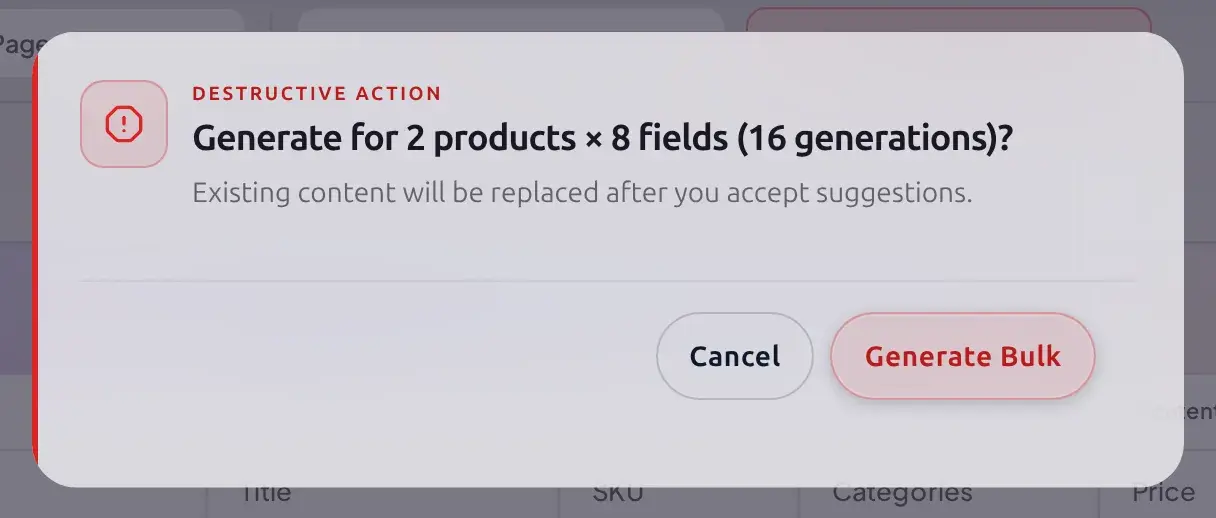
Generate Bulk confirms with the exact scope before running:
While it runs, the same band shows a live progress bar and a Cancel button.

When it finishes, review the results from the pending changes bar below, the same as any per-row suggestion.
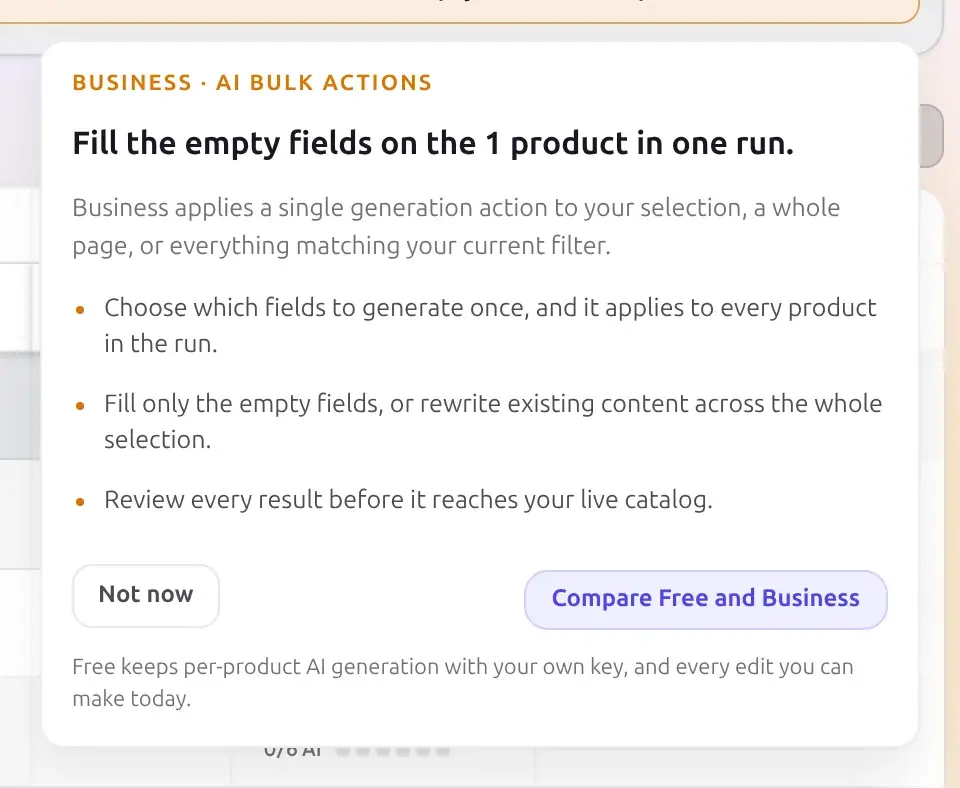
Selecting products still shows the scope control, Fields to Generate, Mode, and Generation settings; only the Generate Bulk button itself is replaced by an amber "Business plan adds..." strip naming your current scope.

Clicking the strip opens 3 benefit bullets and a Compare Free and Business button.
The full run control is available: pick a scope, fields, and mode, then Generate Bulk.
Generation settings
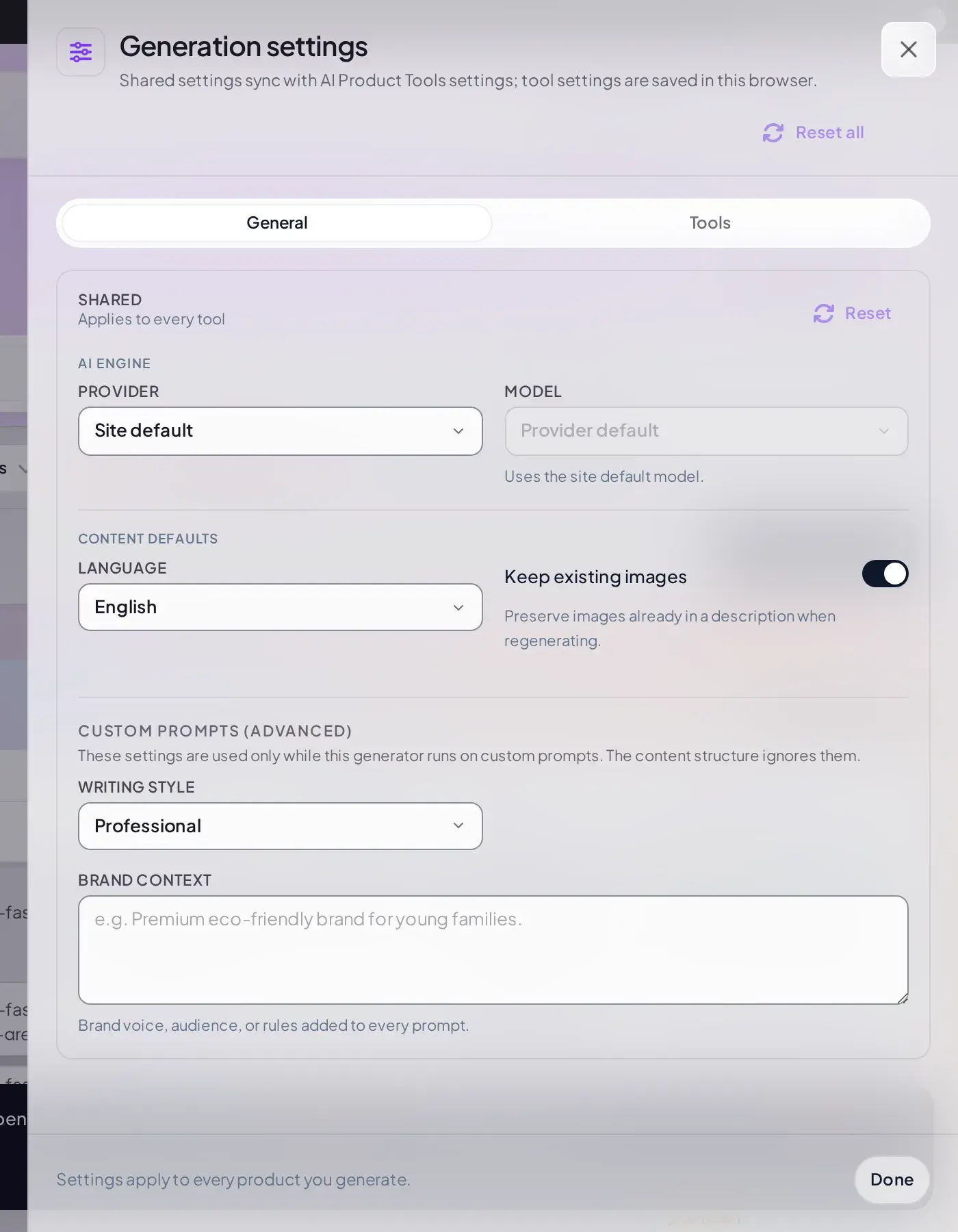
The Generation settings button opens a drawer with two tabs. General holds the site-wide content defaults (AI provider, model, language, writing style, brand context, keep existing images); without the Settings capability these show disabled with a hint to ask for access, regardless of plan.
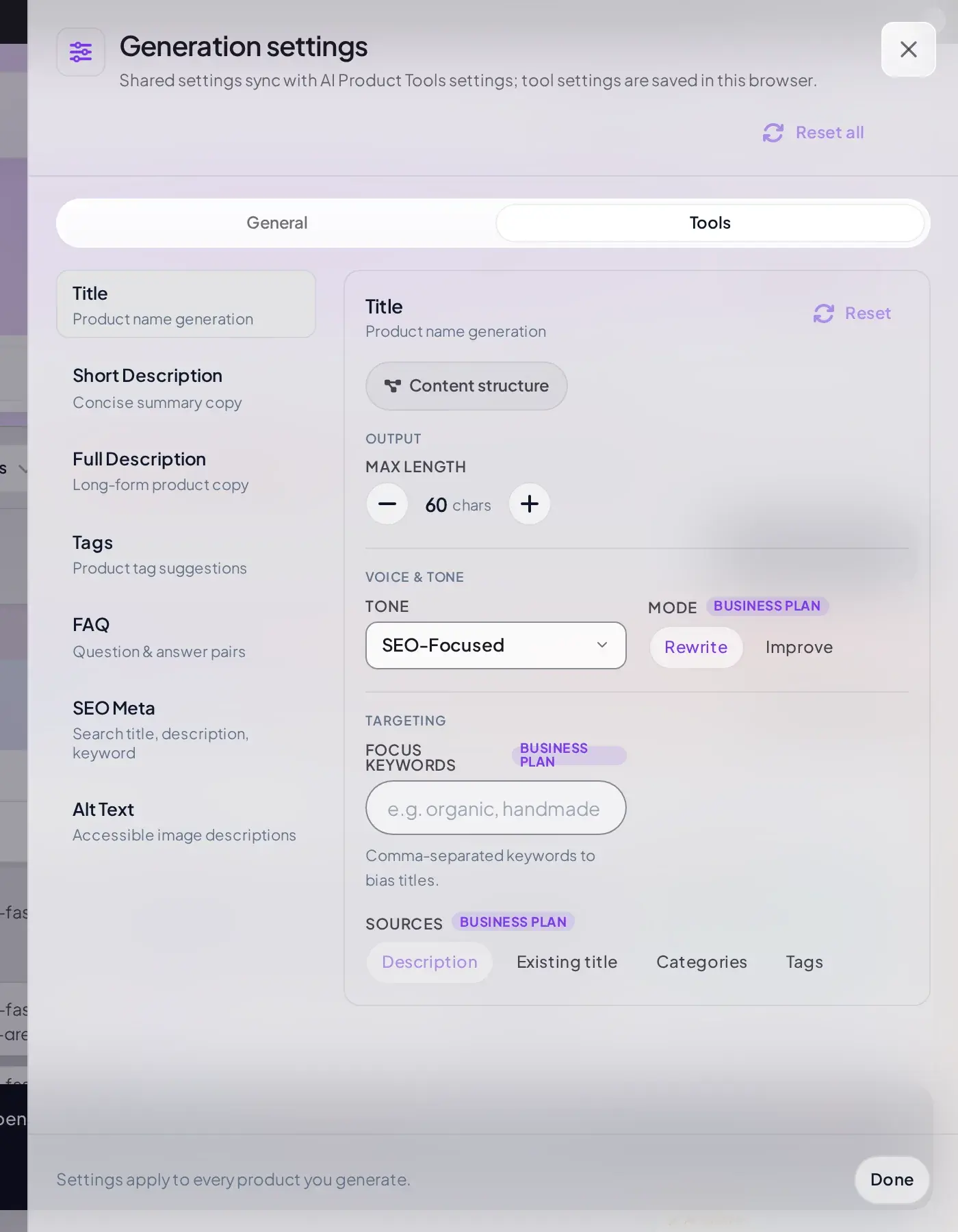
Tools gives each of the 7 generatable tools its own panel on the right, chosen from a rail on the left. Plan-gated fields inside a tool's panel show a small purple Business badge when you have access,
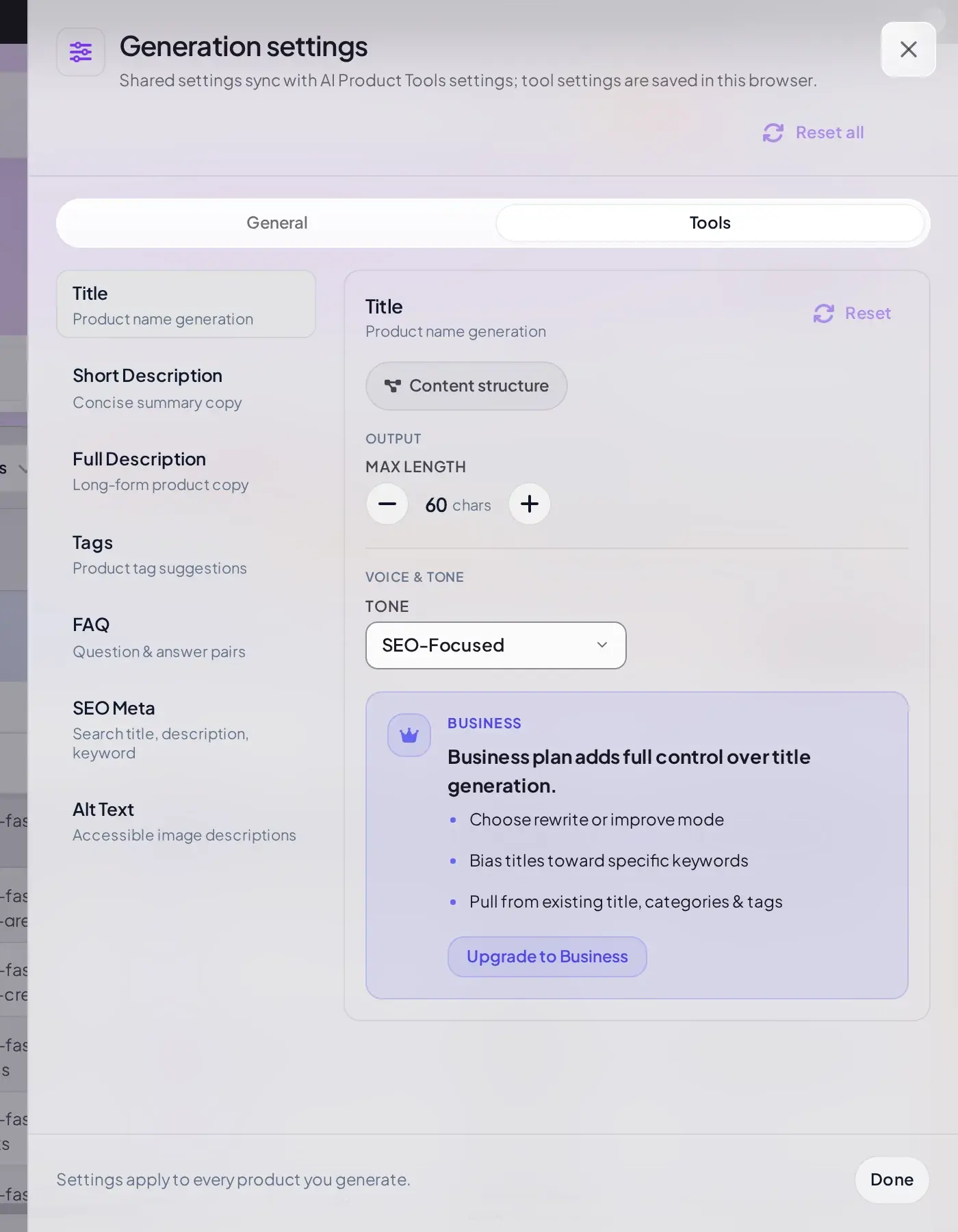
or collapse into a small upgrade card on Free:
This panel's shape also depends on execution mode
Title, FAQ, SEO Meta, and Alt Text are also shaped by whether that tool currently runs on a content structure or on legacy custom prompts (set per generator, site-wide, in Content Templates; see Custom prompts (Advanced) mode). On a content structure, this tab shows that structure's own embedded editor instead of the generic fields pictured above, since the structure already decides them. Either way, Free and Business always show the identical fields for whichever mode is active, differing only in which ones are locked.
Undo, redo, and the pending changes bar
Undo (⌘Z) and Redo (⇧⌘Z) step through a client-side history of up to 100 batches; they reverse local drafts, not anything already saved. The sticky bar at the bottom of the grid appears whenever there is something to act on: a dirty-cell count, warning and error counts, a generated/failed/pending summary after a run, Accept all/Reject all for pending suggestions, Review changes, Discard (with a confirm step, since Undo can bring it back), and Save changes.

Protection against overwriting a colleague's change
Every save carries a token tied to the product's own last-modified state. If someone else changes a product directly (in the product editor, through another browser, or via any other tool) while you still have unsaved edits open for it here, clicking Save changes shows a conflict strip above the pending bar instead of silently overwriting their change:

Saved views
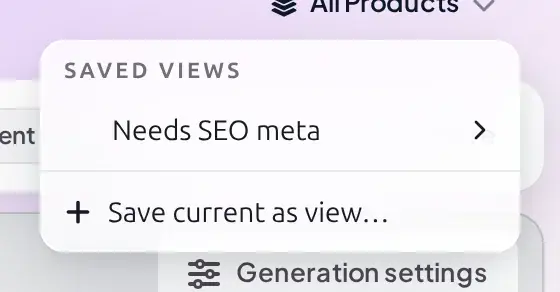
Arrange your columns, filters, and sort the way you want, open the Saved views dropdown (next to the page title; it reads All Products with nothing active), and choose Save current as view....
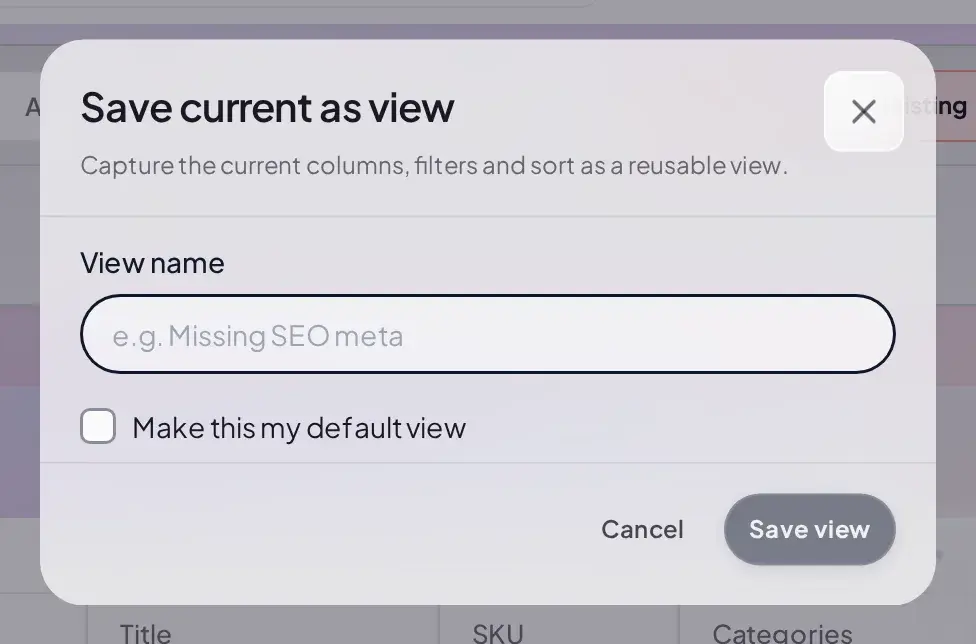
Reopen the dropdown and hover or click a saved view to open its own submenu: Apply this view, Set as default (greyed out once it already is), and Delete view.
AI-touched content marking
Once a field has been written by AI anywhere (this panel, the per-product panel, a CSV import, or Automation), the product carries a small AI badge. It shows in the AI Status column here, with a per-type breakdown in its tooltip, and as a narrow AI column on WooCommerce's own Products list.

A manual edit does not clear this mark by itself; an administrator can reset it in bulk from Settings, covered in History and safety.
Keyboard shortcuts
| Key | Action |
|---|---|
Enter or F2 | Open the focused cell's editor |
A | Accept the focused cell's pending AI suggestion |
R | Reject the focused cell's pending AI suggestion |
G | Regenerate the focused cell's suggestion |
Escape | No effect once a cell editor is open (does not close it) |
⌘Z / Ctrl+Z | Undo |
⇧⌘Z / Ctrl+Y | Redo |
⌘S / Ctrl+S | Save, inside the single-field cell editor modal |
A, R, and G are ignored if held with any modifier key, or on key repeat, so they never collide with Select all or Reload.
Limits
| Limit | Value |
|---|---|
| Batch save | 30 requests per 60 seconds per user; 50 patches per request |
| Hydrate (loading row data) | 100 product ids per request |
| "All" scope (select all filtered) | Resolves in pages of up to 200 ids; unavailable while a content filter like No Descriptions or Has Tags is active |
| Grid page size | Up to 1000 rows (not virtualized, so a very large page size is also your real memory cost) |
| Saved views | 25 per user, name up to 80 characters |
| Undo/redo history | 100 batches |
Free vs Business
| Capability | Free | Business |
|---|---|---|
| The grid itself: all columns, inline editing, filters, column manager, row drawer | Full access | Full access |
| Per-row and per-cell AI generation | Full access | Full access |
| Undo/redo, saved views, CSV export | Full access | Full access |
| Multi-row Generate Bulk run | Business Replaced by an upgrade strip | Included |
| Generation Settings > Tools, per-tool advanced fields (Title, FAQ, SEO Meta, Alt Text) | Business Pro or Business; collapses to a small upgrade card per locked field | Included |
| Generation Settings > General (shared content defaults) | Full access (needs the Settings capability, any plan) | Full access |
| Overwrite a save conflict ("Overwrite anyway") | Full access | Full access |
Troubleshooting
Related pages
AI Content Panel
The same write-review-insert pattern for a single product's own edit screen.
CSV import and export
Export the grid's own selection to a spreadsheet, edit it, and reimport.
Content History
Every AI write here is also recorded there, with a one-click restore.
How bulk generation works
The dedicated generator pages' own selection, review, and apply pattern.